¶ How To Verify Your Domain With Facebook
If you need to verify your domain on Facebook, you can use the ‘Meta Tag’ verification method to do so. Follow these steps to learn how:
¶ Step 1: Copy the Meta Tag
- Copy the Meta Tag provided by Facebook. It should look something like this, for example: < meta name=“facebook-domain-verification” content=“abcxyz123” />
¶ Step 2: Find the Default Page
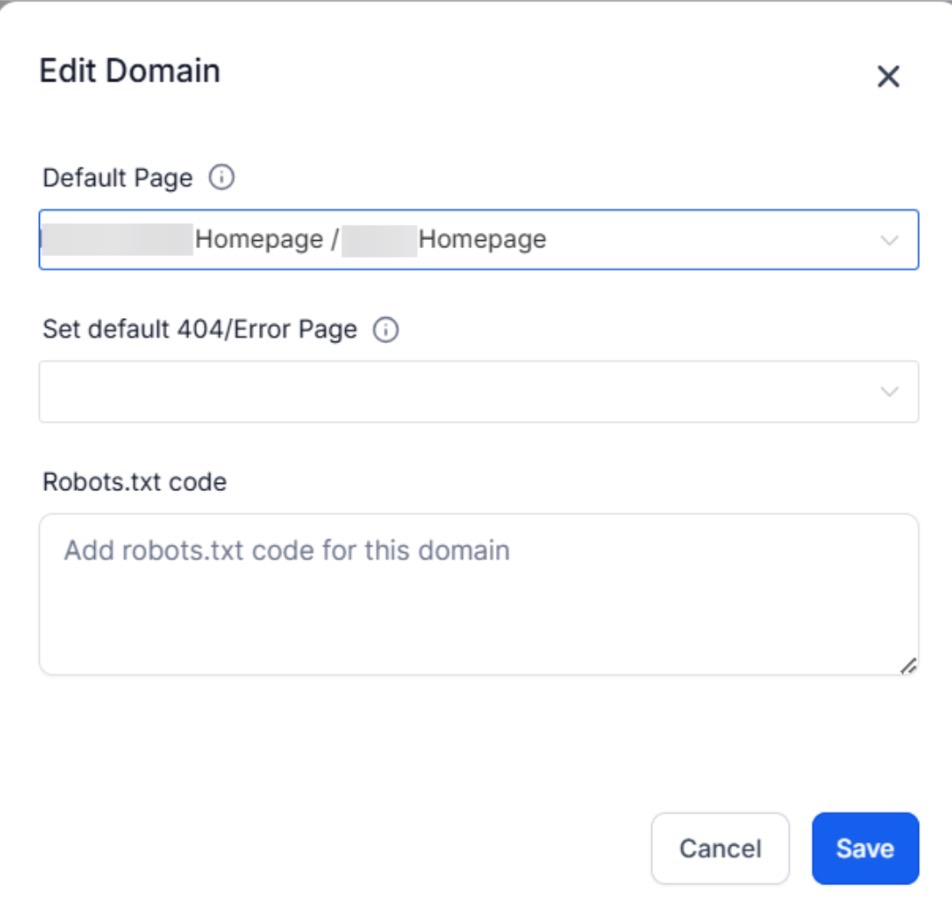
- Navigate to your Settings > Domains & URL Redirects > Domains
- Manage the domain you want to verify
- Edit that domain
- Note the Default Page, which is connected to this domain (if there isn’t, please be sure to connect one)
¶ Step 3: Edit the Default Page Builder
- Go to the funnel/website that has the default page that you selected in the previous step.
- Open the page builder/editor for the default page
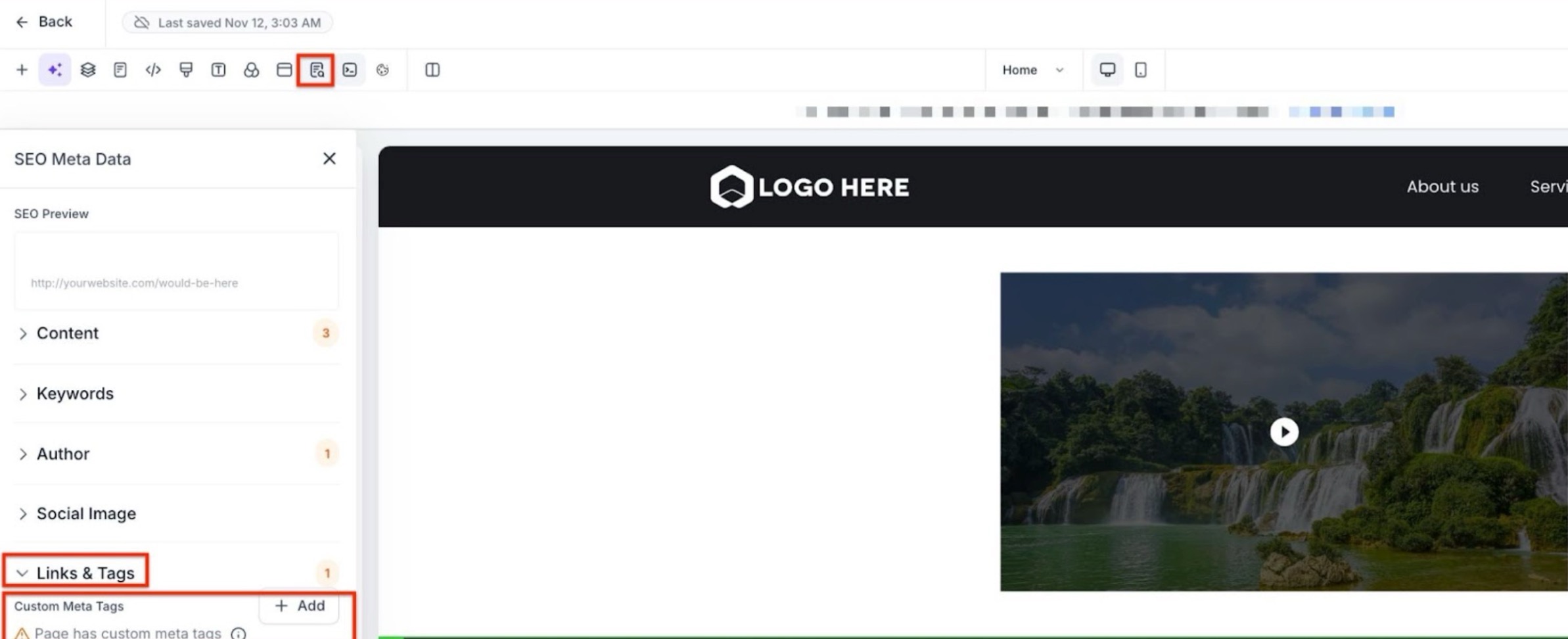
- Click on Settings > SEO Metadata
- In the menu that appears on the right, scroll down to the “Custom Meta Tag”’ option and click on the “+ Add” button
¶ Step 4: Add the Meta Tag
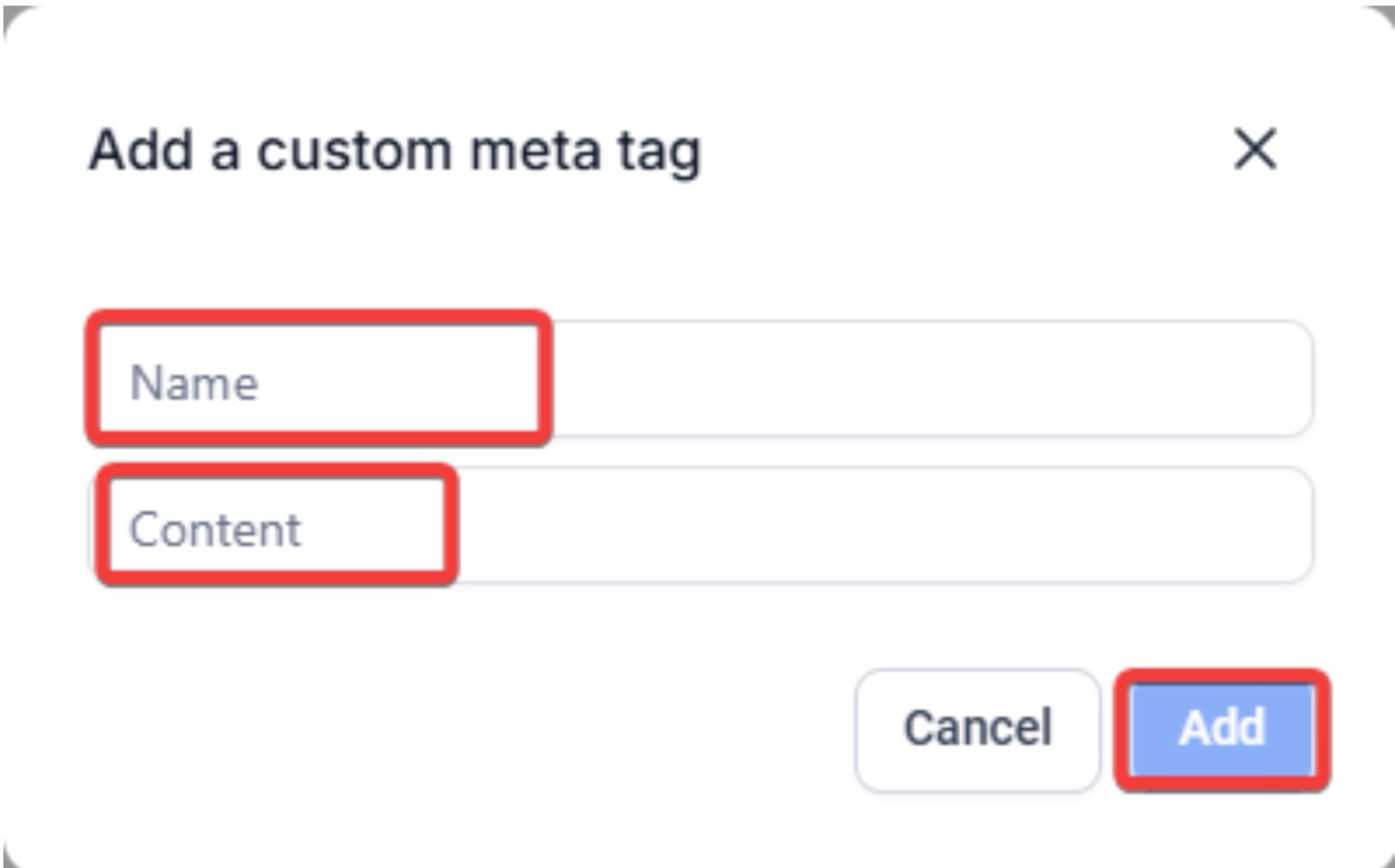
- Copy the name from the meta tag provided by Facebook, and paste it in the “Name” field for the tag. In this example, the name in the tag is: facebook-domain-verification
Copy the content from the meta tag and paste it in the ‘Content’ field for the tag. In this example, the content in the tag is: abcxyz123
¶ Step 5: Save the SEO Metadata settings
-
Save the meta tag
-
Save the SEO Metadata settings by clicking on the “Yes, Save” button
-
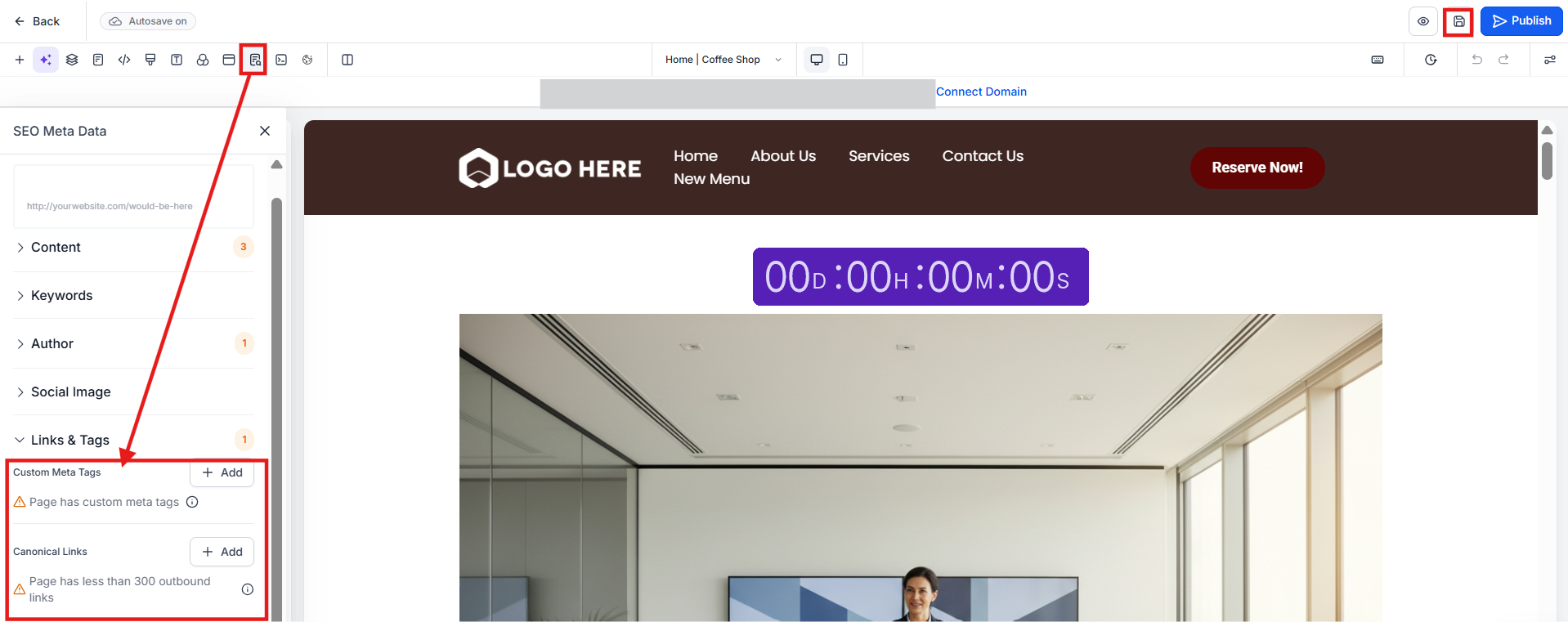
Save the page from the top navigation menu.
¶ Step 6: Verify the Domain in your Facebook Account
-
Log in to your Facebook Business Manager.
- NOTE: You must have admin or developer access to your domain within your Facebook Business Manager to complete the verification.
-
Click “Add” to add a new domain.
-
Enter the root domain without any prefixes. For example, enterwebsite.com , not www.website.com
-
Click “Add”.
-
Choose one of these 3 options to verify your domain:
- Add a meta-tag to the HTML source code
- Update the DNS TXT record with your domain registrar
- Upload the HTML file to your root directory
-
Click Verify Domain on your Business Manager to screen.
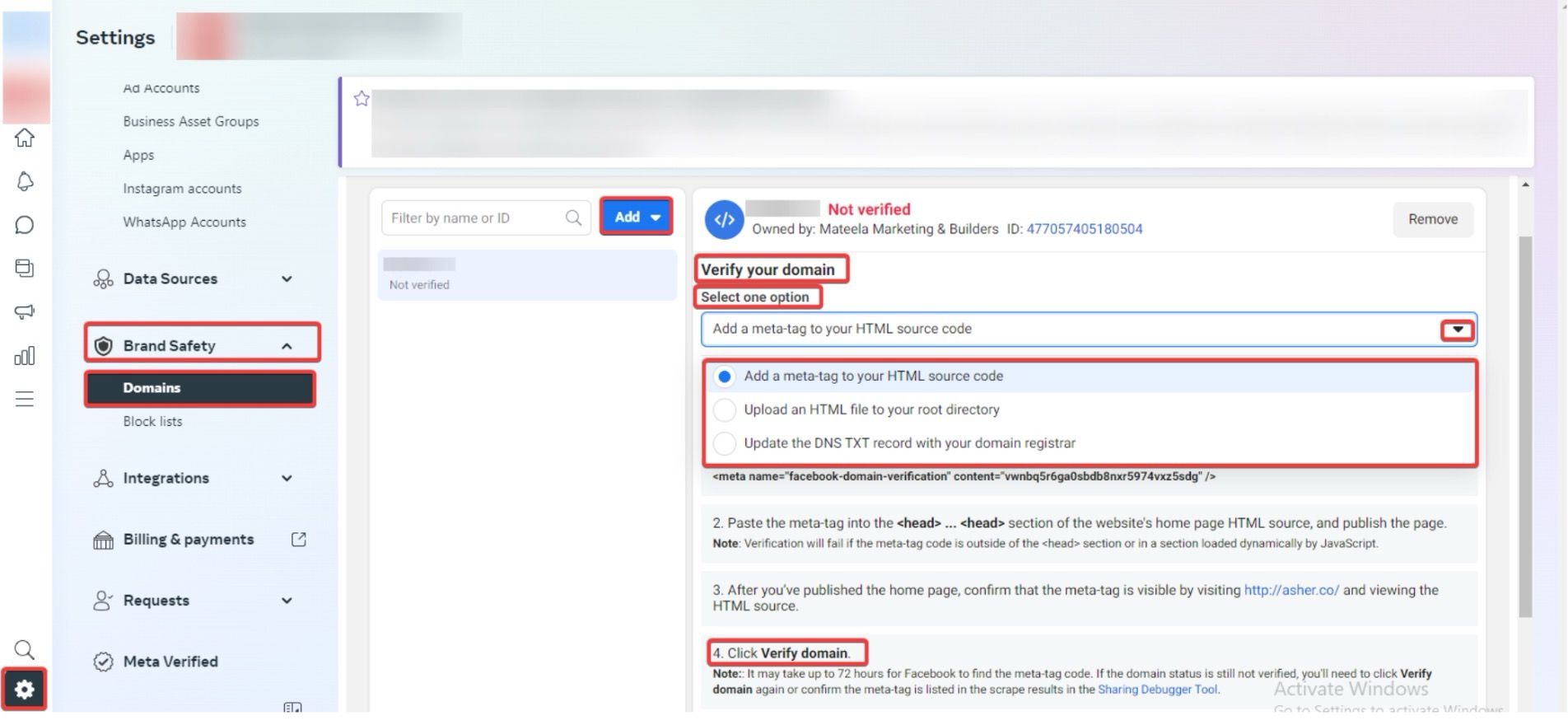
NOTE: Only a root domain can be used to verify domains. If you have only added a subdomain to LeadMagicX, these steps will not work. If you have the root domain pointed to another service, you can verify the domain by adding a TXT record in your DNS manager. To change your method of verification, click the dropdown box at the top of the page and select the option titled “Update the DNS TXT record with your domain registrar”. After you select that option, follow the steps to add the TXT record to your DNS manager:
Click here to learn more from Facebook about how to Verify Your Domains in Business Manager** .**
¶ FAQ’s
Question:What is the purpose of verifying my domain on Facebook?
Answer: Verifying your domain on Facebook allows you to claim ownership of your domain, which is necessary for managing link previews, controlling access to your content, and ensuring the security of your domain on Facebook.
Question:How do I obtain the Meta Tag needed for verification?
Answer: Facebook provides a Meta Tag specifically for domain verification. It looks like this: . You can find this tag in your Facebook Business Manager under domain verification settings.
Question:What if I only have a subdomain, not a root domain?
Answer: Facebook requires verification of the root domain. If you’ve only added a subdomain, these steps will not work. If your root domain is pointed to another service, you can verify it by adding a DNS TXT record with your domain registrar.
Question:How do I change the verification method if needed?
Answer: To change your verification method, go to the domain verification section in Facebook Business Manager, click the dropdown box at the top of the page, and select “Update the DNS TXT record with your domain registrar”. Follow the instructions to add the TXT record to your DNS manager.
**Question: What if my verification fails?
Answer: **If verification fails, double-check that you have correctly added the Meta Tag to the correct page and that the page is published. Also, ensure that you have entered the correct root domain in Facebook Business Manager. You can try verifying through another method, like updating the DNS TXT record, if issues persist.
Question:Will domain verification affect my live website or visitors?
Answer: No. Adding the Meta Tag does not impact site functionality, appearance, or user experience.
Question: I have multiple Facebook Business Managers; can I verify the domain in all of them?****
Answer: A domain can only be “owned” by one Facebook Business Manager. However, once verified, the primary Business Manager can “Share” the domain as an asset with other Business Managers or Ad Accounts as needed.