¶ Social Planner Notifications
Social Planner Notifications
Experience enhanced control and efficiency with notifications for various account activities within Social Planner. From post approvals to account expirations, stay informed and empowered to manage your social media presence effectively. Explore customizable templates and streamlined settings, designed to elevate your social planning experience.
Follow these simple steps to proceed to social planner notifications
How to Access Notifications for Social Planner:
1. Navigate to Marketing
- Open the Marketing tab in LeadMagicX platform.
2. Go to Social Planner
- Select Social Planner from the options.
3. Open Social Planner Settings
-
In the Social Planner, find the gear icon (social planner settings) located beside the New Post button. -
Click on the gear icon to access the settings and manage notifications.

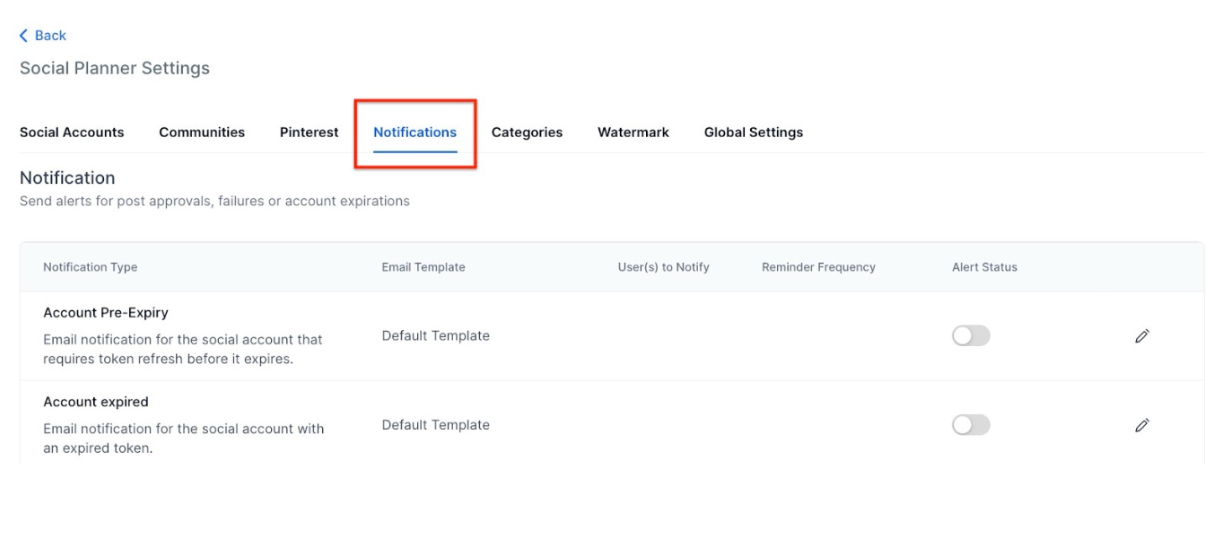
4. Access the Notification Tab
- In the Social Planner settings, click on the Notification tab to manage your notifications.
Steps to Edit Notification Settings for Account Pre-Expiry
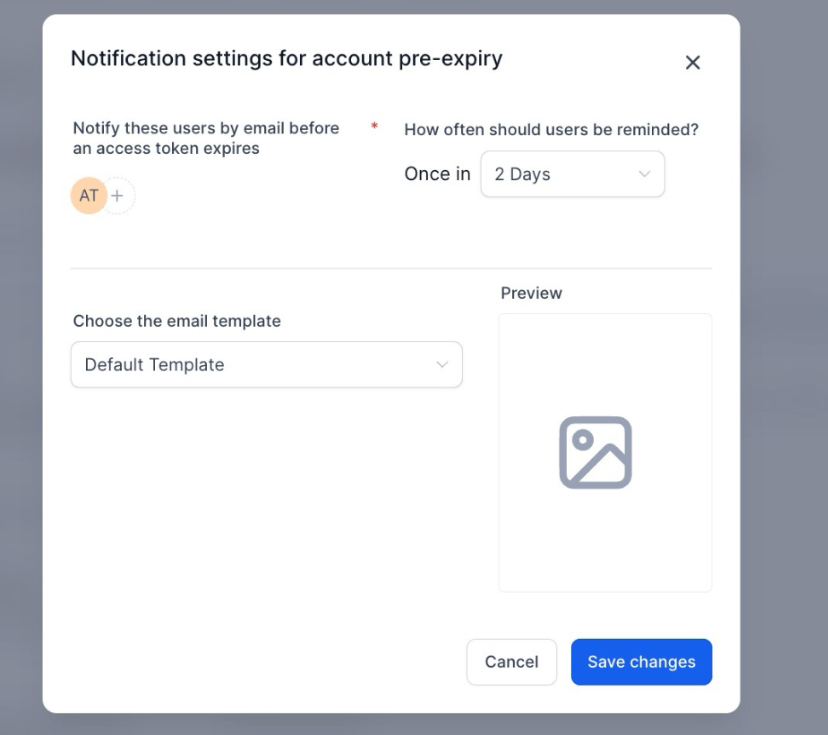
1. Navigate to Notification Settings
- Go to the settings where you manage notifications.
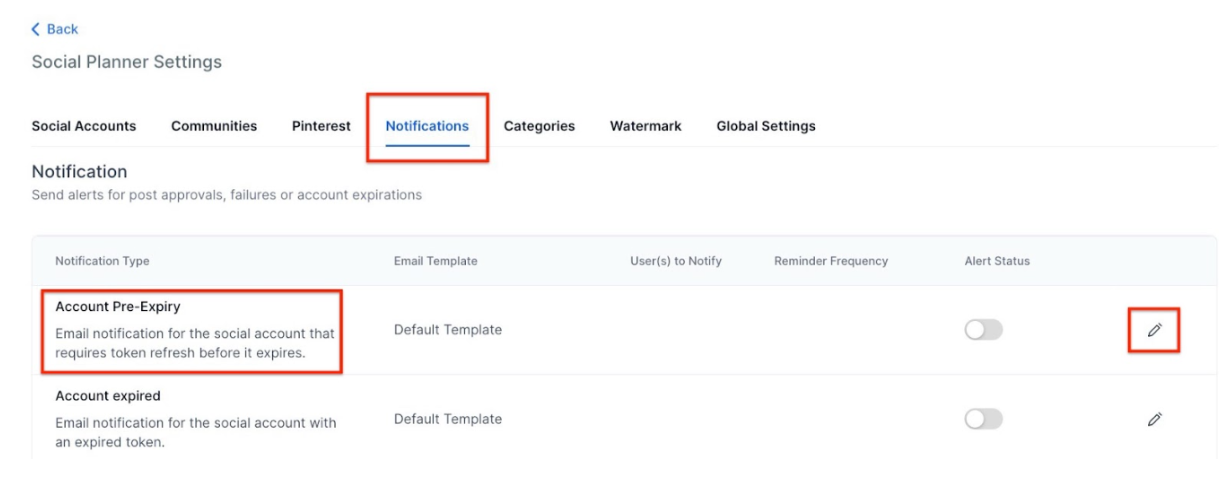
2. Edit Pre-Expiry Notification
- Find the account pre-expiry notification setting.
- Click on the pencil icon to edit this notification.
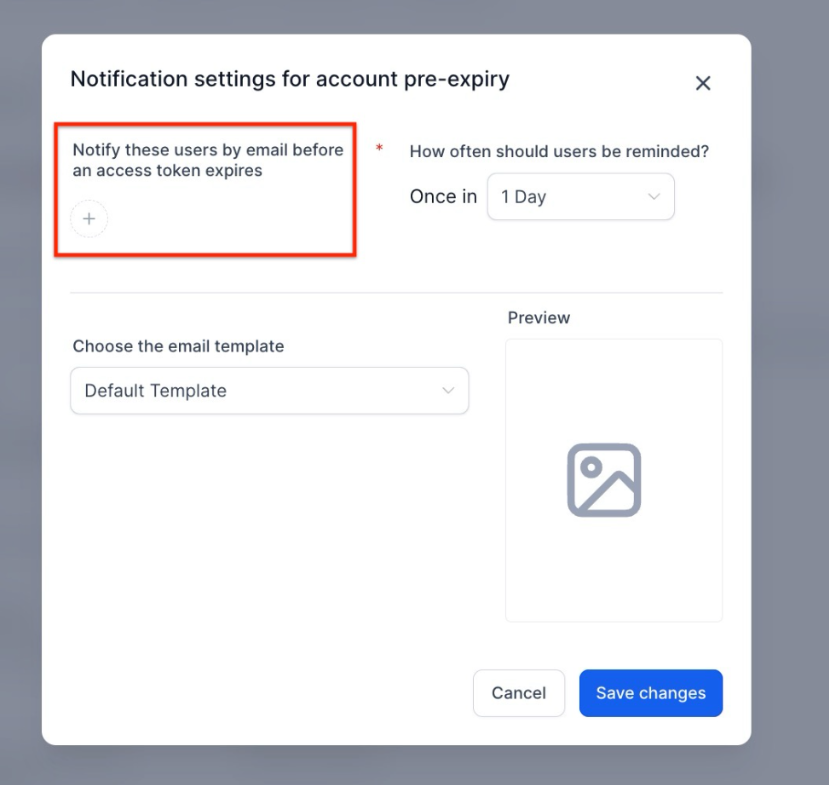
3. Select Sub-account Users
- Choose the account users who should receive the notification.
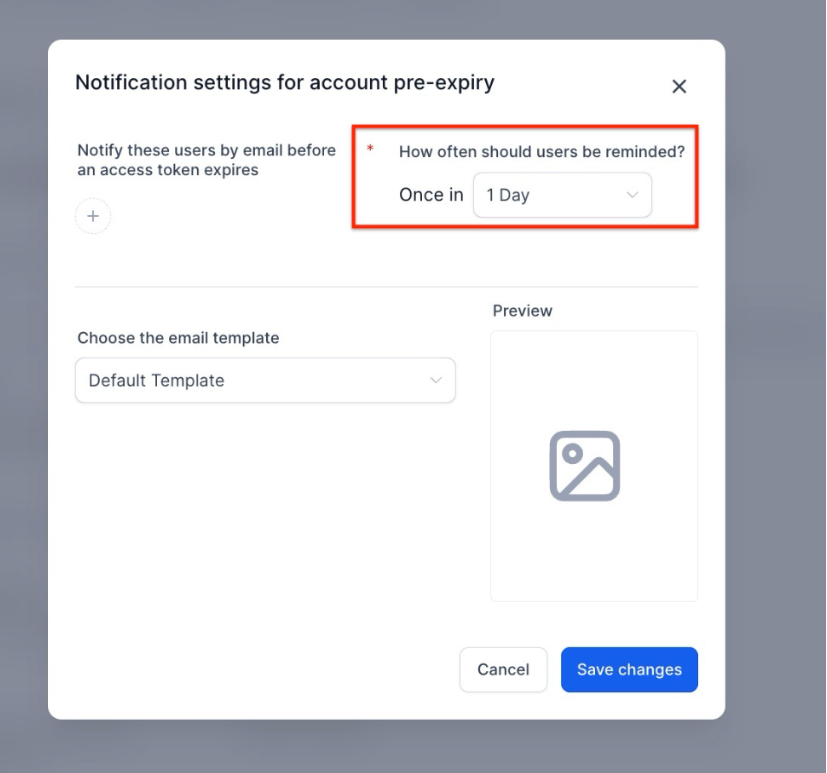
4. Set Reminder Frequency
- Specify how often the user should be reminded to refresh the account. Note that users can refresh the token by visiting the integration page.
5. Choose Notification Template
- Select a notification template. You can choose a different template other than the default one.
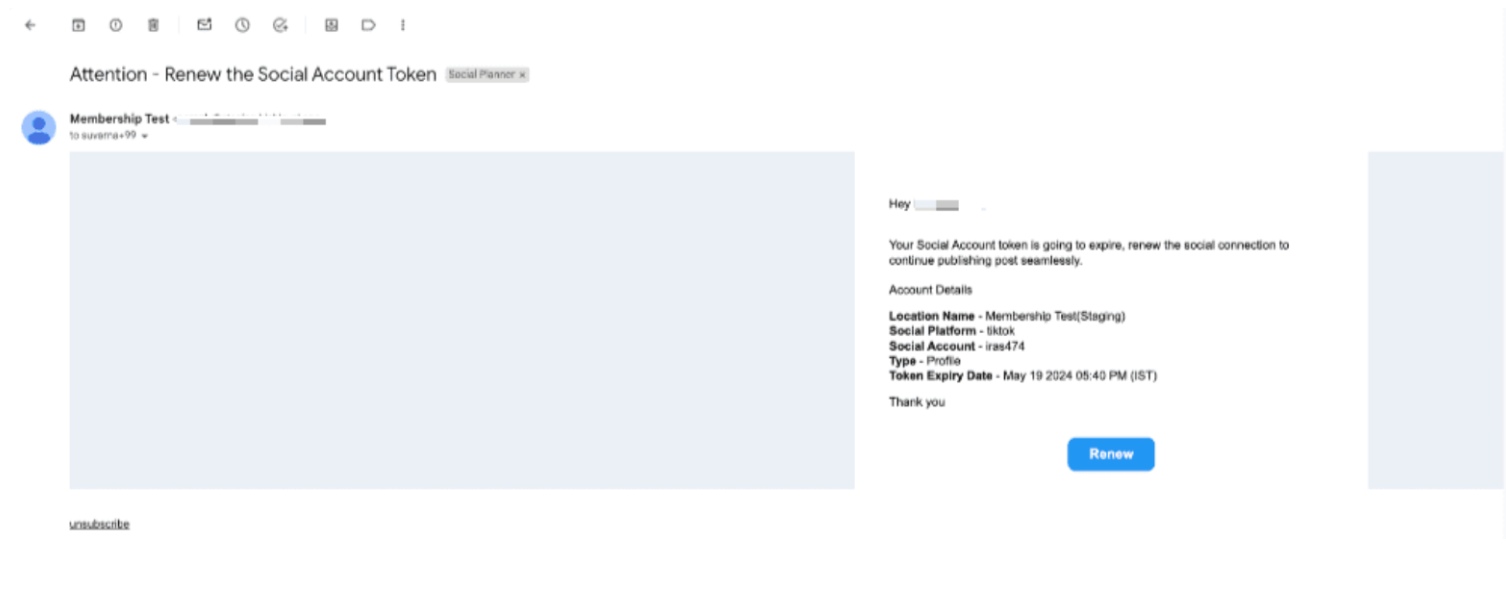
Notification preview via email:
¶ Steps to Edit Notification Settings for Account Expired
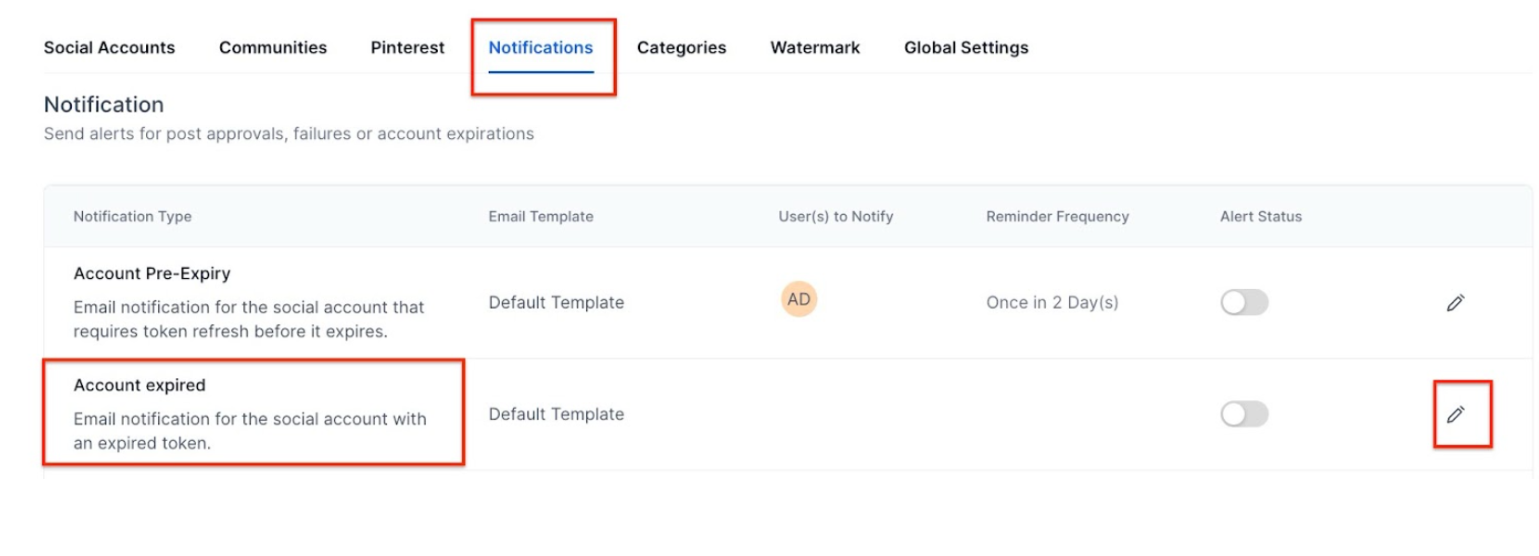
1. Navigate to Notification Settings
- Go to the settings where you manage notifications.
2. Edit Account Expired Notification
- Locate the account’s expired notification setting.
- Click on the pencil icon to edit this notification.
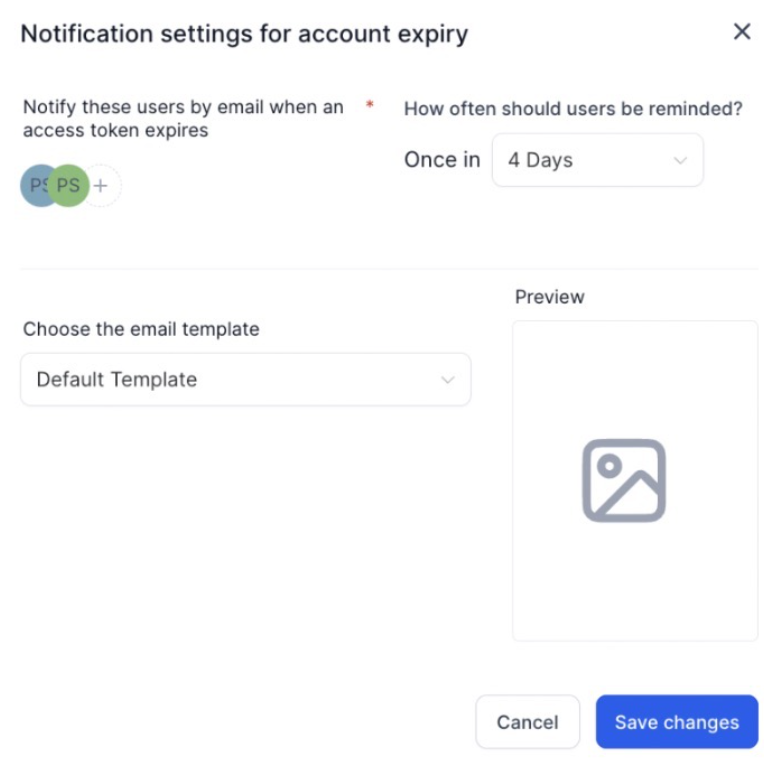
3. Select Account Users
-
Choose the account users who should receive the notification.
4. Set Reminder Frequency
- Specify how often the user should be reminded to reconnect the token.
5. Choose Notification Template
- Select a notification template. You can choose a different template other than the default templates.
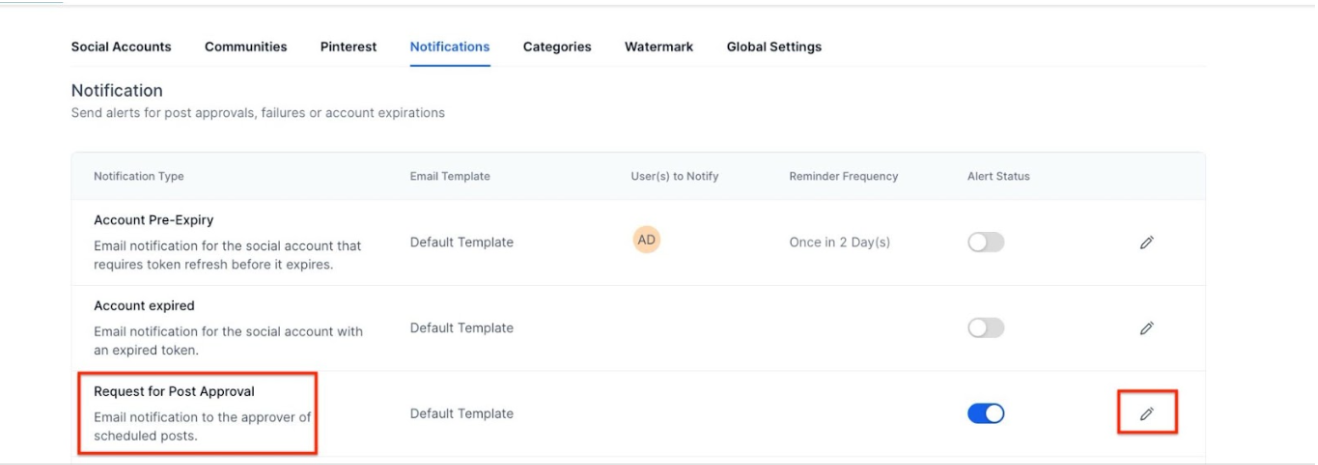
¶ Steps to Edit Notification for Request for Approval
¶ 1. Navigate to Notification Settings
- Go to the settings where you manage notifications.
¶ 2. Edit Request for Approval Notification
-
Locate the email notification for a request for approval of a scheduled post. -
Click on the pencil icon to edit this notification.
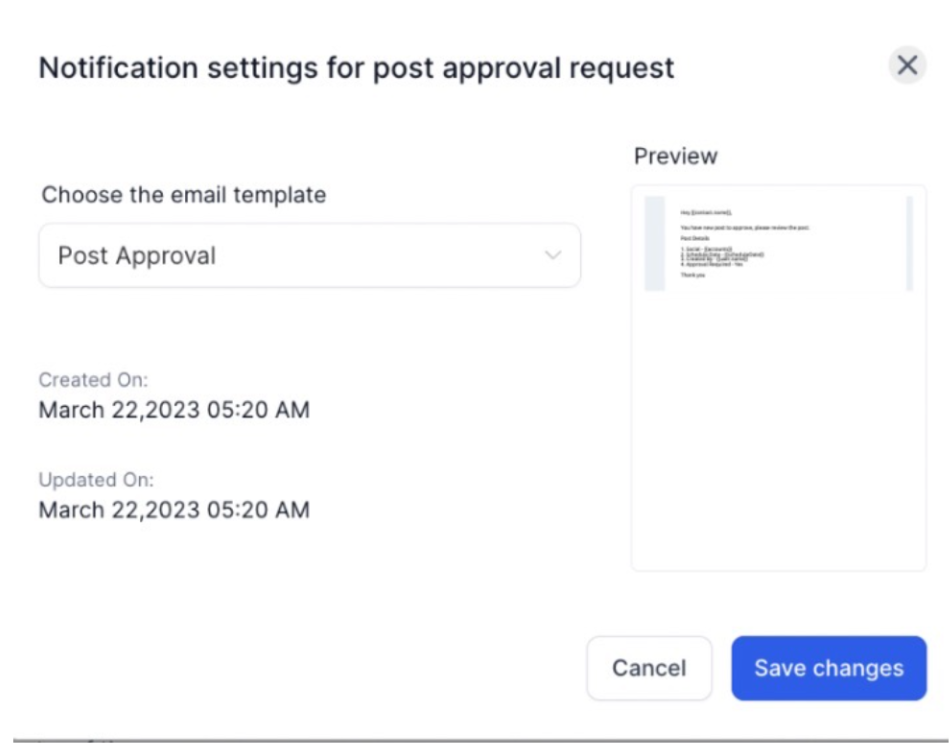
¶ 3. Choose a Notification Template
- Select a notification template. You can choose a different template other than the default templates.
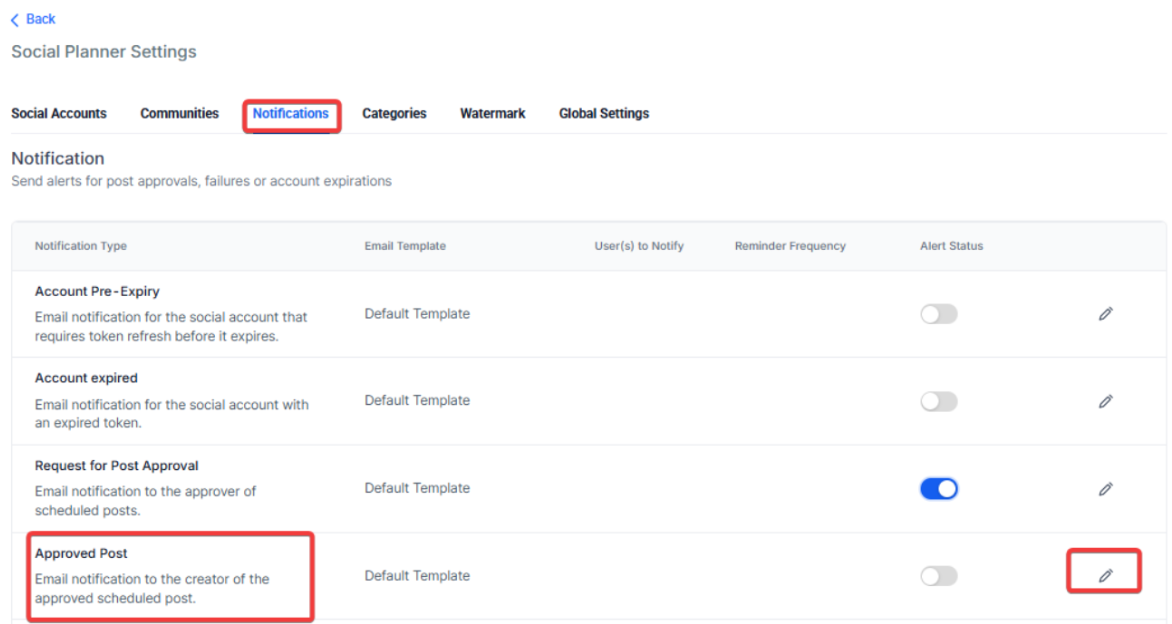
¶ Steps to Edit Notification for Approved Post
1. Navigate to Notification Settings
- Go to the settings where you manage notifications.
2. Edit Approved Post Notification
- Locate the email notification for a scheduled post that has been approved.
- Click on the pencil icon to edit this notification.
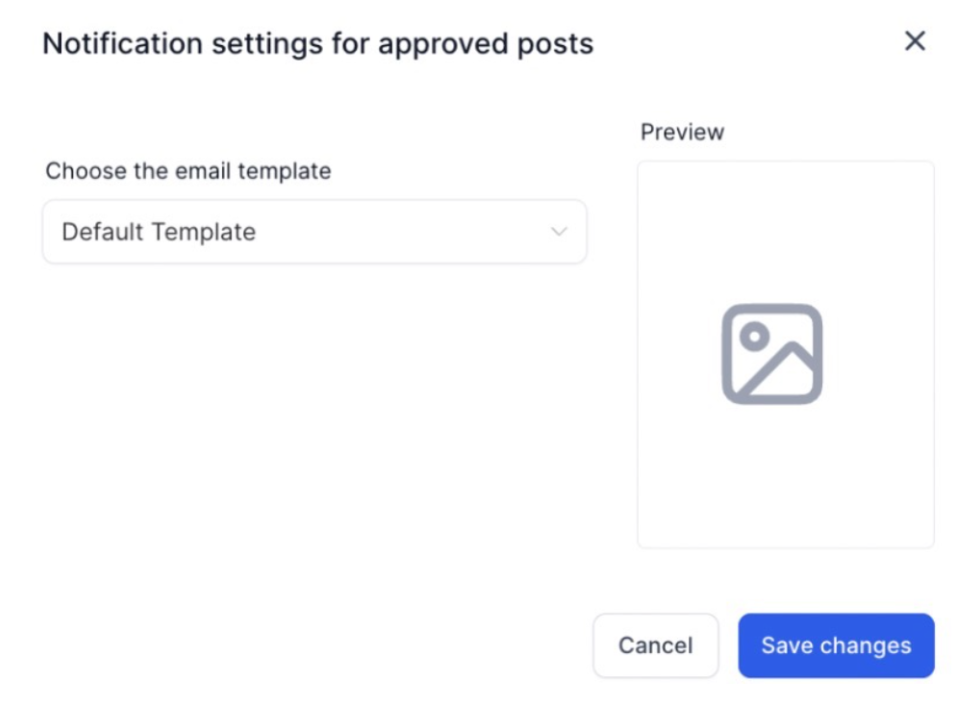
3. Choose a Notification Template
- Select a notification template. You can choose a different template other than the default templates.
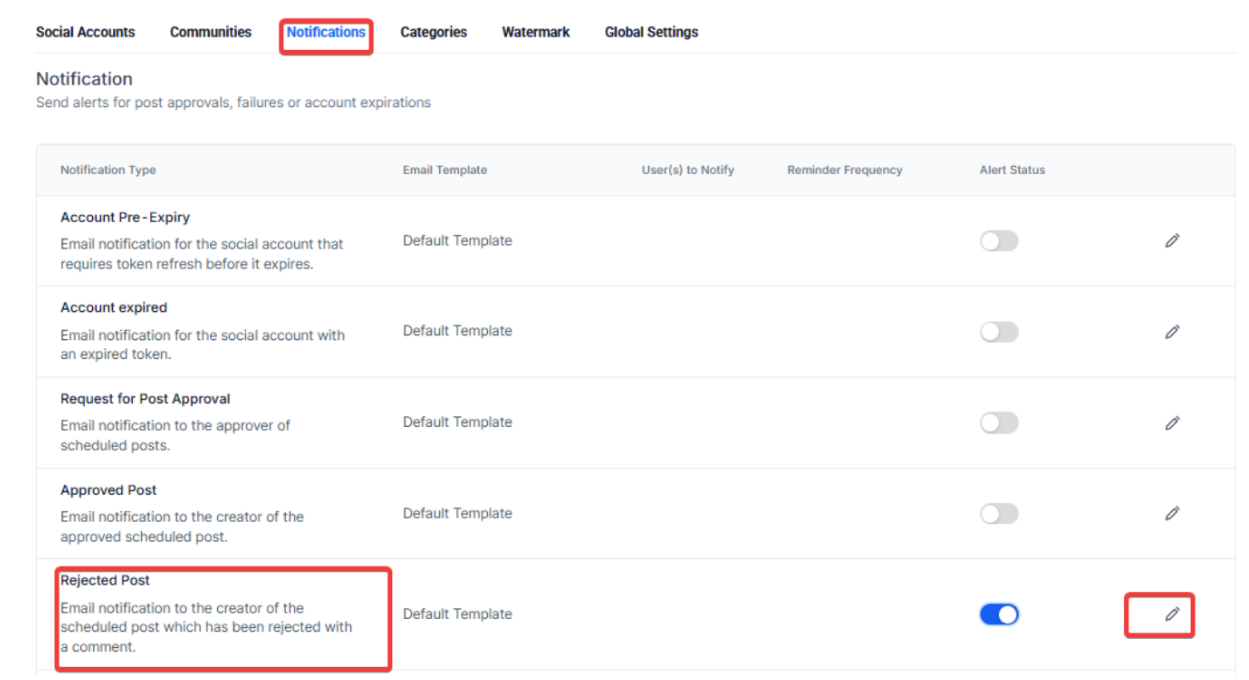
¶ Steps to Edit Notification for Rejected Post
¶ 1. Navigate to Notification Settings
- Go to the settings where you manage notifications.
¶ 2. Edit Rejected Post Notification
- Locate the email notification for a scheduled post that has been rejected.
-
Click on the pencil icon to edit this notification.
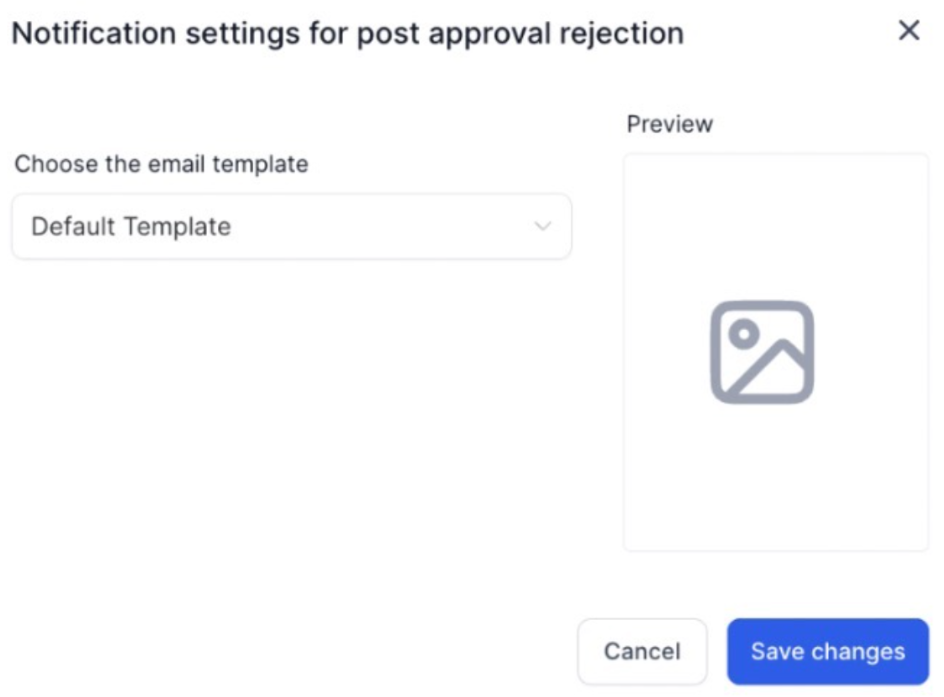
¶ 3. Choose Notification Template
- Select a notification template. You can choose a different template other than the default templates.
¶ Steps to Edit Notification for Failed Post
1. Navigate to Notification Settings
- Go to the settings where you manage notifications.
2. Edit Failed Post Notification
-
Locate the email notification for a scheduled post that has failed. -
Click on the pencil icon to edit this notification.

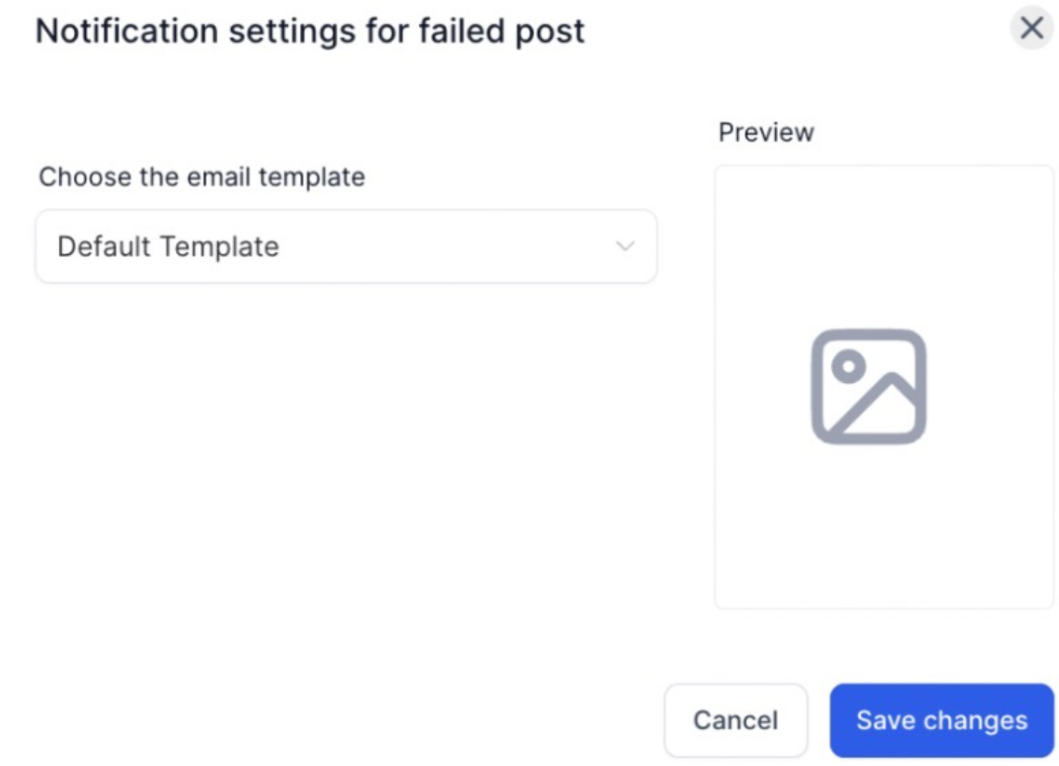
3. Choose Notification Template
- Select a notification template. You can choose a different template other than the default templates.
¶ How to Change the Default Email Template for Notifications
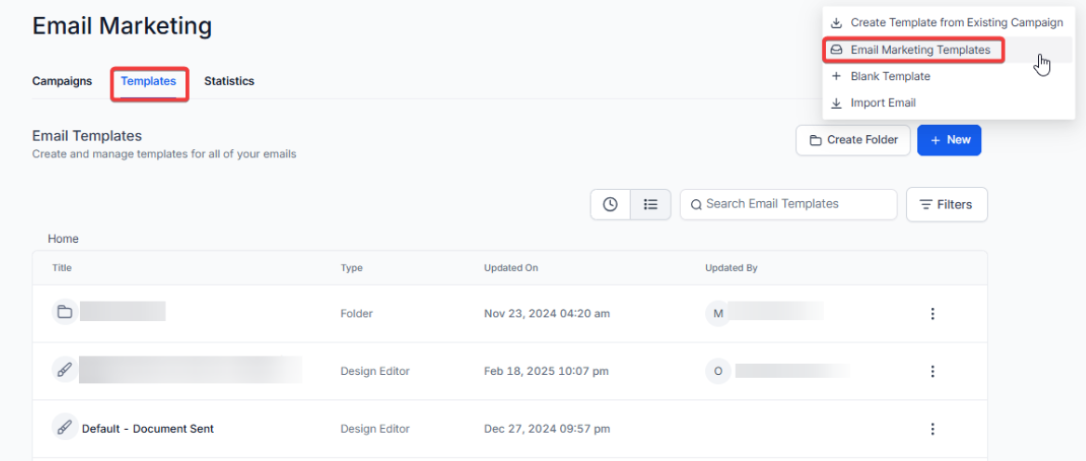
1. Navigate to Email Templates
- Go to the Emails section in your application.
- Select the Template option.
2. Create a New Template
-
Click on the New button. -
Choose Email Marketing Template from the options.
3. Load a System Template
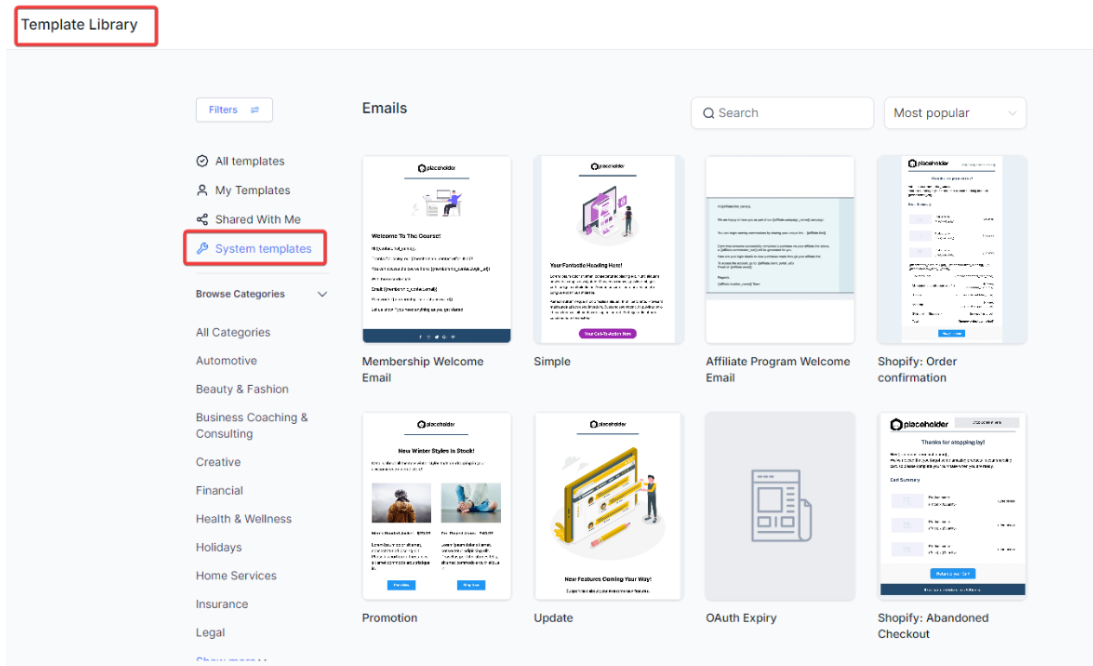
- When the template library opens, look for the System Template option on the left side.
- Select a system template and load it for editing.
4. Edit the Template Content
-
Customize the content of the template to suit your needs.
5. Apply the New Template to Notifications
- Go to the Social Planner notification settings.
- Change the default template to the newly edited one.

FAQ’s
Question: How do I access the notification settings in Social Planner?**
**Answer: To access the notification settings, go to Marketing > Social Planner, then click on the gear icon (Social Planner Settings) beside the New Post button. From there, select the Notification tab to manage your settings.
Question: Can I customize the email templates for Social Planner notifications?**
**Answer: Yes, you can customize the default email templates by navigating to the Emails section, creating or editing a template, and then applying it to your notifications through the Social Planner settings.
Question: How do I set up reminders for account pre-expiry or account expiration notifications?**
**Answer: In the Notification Settings, locate the pre-expiry or account expiration notifications and click the pencil icon to edit. You can choose the sub-account users who should receive the notifications, set the reminder frequency, and select a notification template.
Question: How do I manage notifications for post approvals or rejections?**
**Answer: You can manage these by editing the relevant notification settings under the Notifications tab. Choose the appropriate template and select the users who should be notified when a post is approved, rejected, or fails.
Question: What should I do if I want to change the default notification template?**
**Answer: To change the default template, first create or edit a new email template under the Emails section, then apply this template by selecting it in the notification settings under Social Planner.
Question: Why should I customize my notification templates?**
**Answer: Custom templates allow you to provide clear, branded messages, ensure consistent communication, and tailor notifications to the needs of your team or clients.
Question: Will notification changes apply immediately?**
**Answer: Yes. Once saved, updated notification settings and templates apply immediately to all future notifications.
Question: If a post fails, will the notification tell me** why**it failed?
Answer: The notification will alert you of the failure. To see the specific reason (e.g., image size too large, API error, or account disconnected), you should click the link in the email to go directly to the Social Planner “Failed” tab for a detailed error log.