¶ Social Planner: Connect Multiple Pinterest Accounts
Social Planner: Connect Multiple Pinterest accounts
This article explains how to use the new feature in the Social Planner that allows you to connect multiple Pinterest accounts and create pins effortlessly. By following these steps, you can enhance your social media strategy with seamless integration and management of your Pinterest accounts.
¶ How to Use:
1. Navigate to Social Planner:
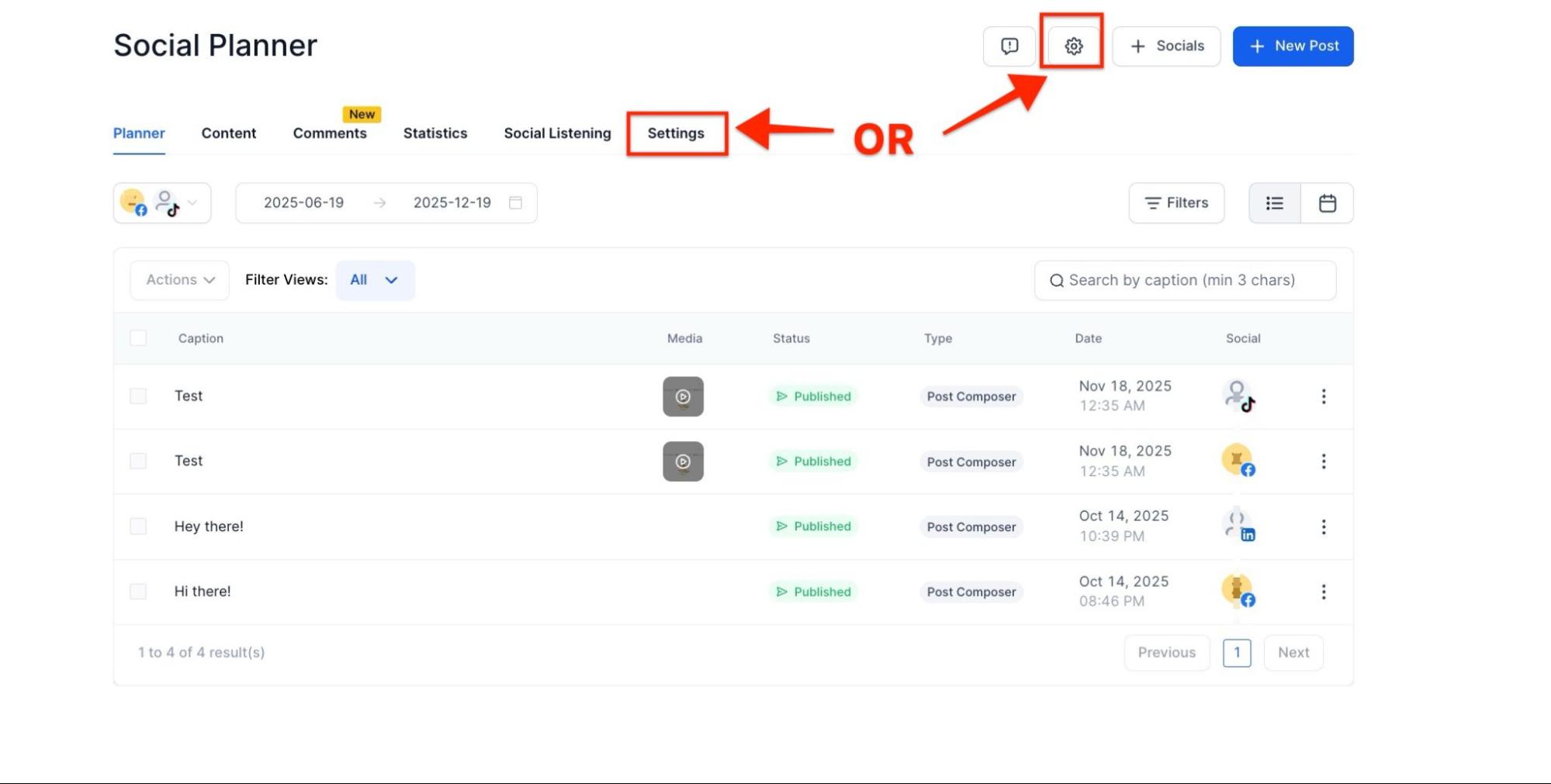
- Go to Marketing > Social Planner > settings icon you can also navigate to settings by clicking the gear icon on the top right)
2. Connect Your Pinterest Account:
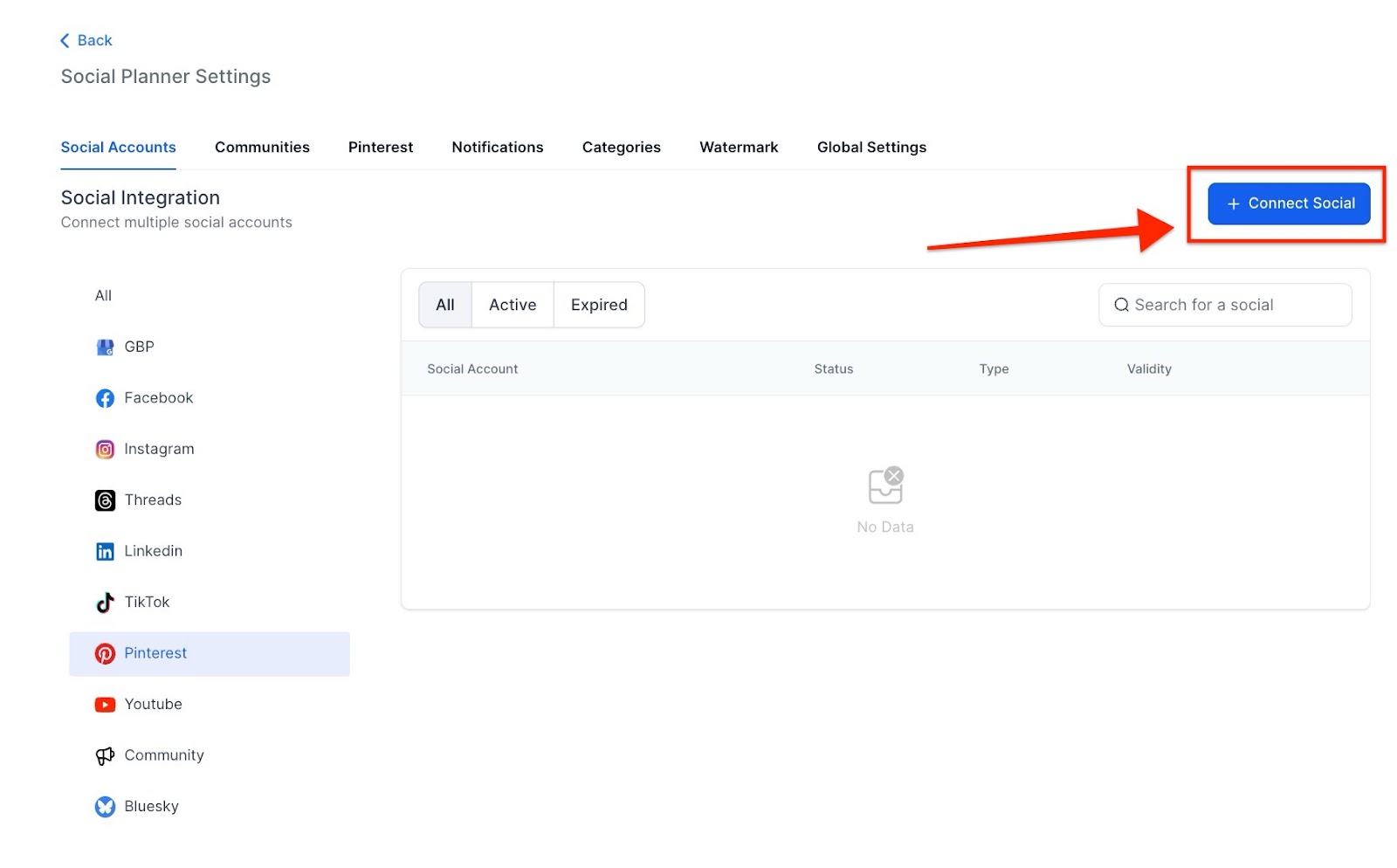
- Ensure you are an admin of the Pinterest account.
- It is recommended to connect an account with at least 100 followers.
- You can connect multiple Pinterest accounts just like other social accounts.
3. Create a New Post:
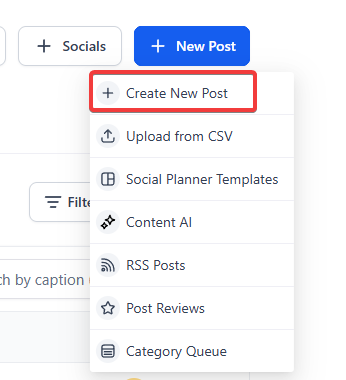
- Use the social planner post composer to create a new post.
4. Select Social Accounts:
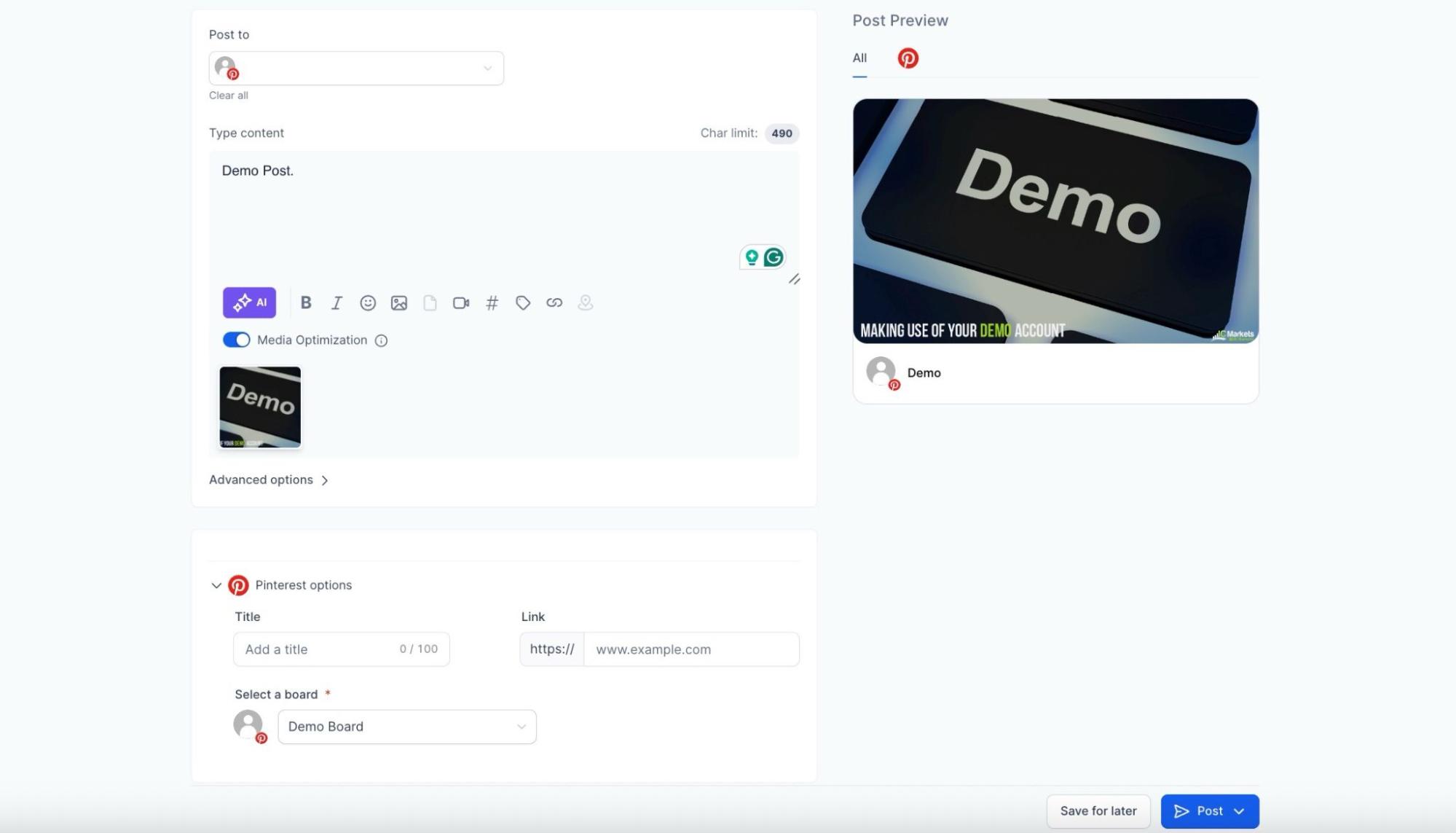
- Choose the Pinterest account along with any other social accounts.
5. Select a Pinterest Board:
- You will be prompted to select a Pinterest board.
- If no boards are available, create one using the “Add board” option.
- The locked icon indicates a private board.
- Public boards will not have a locked icon.
- Users can create a new board

¶ Pinterest Requirements:
- Image Requirements:
- File size: 10MB or less
- Formats: PNG, JPG
- Video Requirements:
- File size: 1GB or less
- Formats: MOV, MP4, WEBP
- Duration: 4 seconds to 5 minutes
- Recommended aspect ratios: 9:16, 1:2, 2:3, 3:4, 4:5, or 1:1
- Video Encoding: H.264 or H.265
¶ Use Cases:
- Marketing Campaigns:
Utilize Pinterest pins to promote new products or services, driving traffic and engagement. - Content Sharing:
Share blog posts, infographics, and other valuable content to reach a broader audience. - Event Promotion:
Create pins for upcoming events, webinars, or workshops to increase attendance and awareness.
¶ FAQs
Question: How do I connect my Pinterest account to the Social Planner?**
**Answer: To connect your Pinterest account, navigate to Marketing > Social Planner > Settings icon. Ensure that you are an admin of the Pinterest account, and it’s recommended to connect an account with at least 100 followers. You can connect multiple Pinterest accounts similar to other social media platforms.
Question: Can I connect multiple Pinterest accounts?**
**Answer: Yes, you can connect and manage multiple Pinterest accounts in the Social Planner, just like other social accounts.
Question: What are the image and video requirements for Pinterest posts?**
**Answer: For images, the file size should be 10MB or less in PNG or JPG format. For videos, the file size can be up to 1GB in MOV, MP4, or WEBP format, with a duration of 4 seconds to 5 minutes. Recommended aspect ratios include 9:16, 1:2, 2:3, 3:4, 4:5, or 1:1.
Question: How do I select a Pinterest board when creating a post?**
**Answer: When creating a post, you’ll be prompted to select a Pinterest board. If you don’t have any boards, you can create one using the “Add board” option. Private boards will have a locked icon, while public boards won’t.
Question: What are some use cases for using Pinterest in the Social Planner?**
**Answer: You can leverage Pinterest for marketing campaigns, content sharing (like blog posts and infographics), and event promotion to drive traffic, engagement, and awareness for your brand.
Question: Are there any tips for optimizing posts for Pinterest?**
**Answer: Use high-quality images or videos, ensure proper aspect ratios, select relevant boards, and schedule posts for peak engagement times to maximize reach and engagement.
Question: What happens if I select a private board for posting?
Answer: Pins posted to a private board will only be visible to you and invited collaborators, not the public.
Question: Can I create a new Pinterest board directly from the Social Planner?
Answer: Absolutely. If you don’t see a suitable board for your post, you can use the “Add board” option within the post composer to create a new one without leaving the dashboard.