¶ Social Planner: Category Queues
Consistency and efficiency are the cornerstones of a successful content strategy. Enter Category Queues , an innovative feature that allows you to organize, schedule, and repurpose your content seamlessly. With Category Queues, you can maximize the reach of your evergreen posts, maintain a consistent online presence, and save time by automating the management of your content.
¶ Key Features and Benefits
¶ 1. Streamlined Content Organization
- Categorized Management : Group your posts into specific categories, such as Blog Posts, Tips, Promotions, or Announcements, for tailored scheduling and easy management.
- Simplified Workflows : Access and manage your evergreen content with intuitive tagging and categorization.
¶ 2. Optimized Scheduling
- Targeted Timing : Assign specific posting days and times to each category, ensuring your audience sees the right content at the right moment.
- Automated Consistency : Let Category Queues handle your posting schedule, keeping your content pipeline active without constant manual effort.
¶ 3. Content Repurposing Made Easy
- Revive Valuable Posts : Republish high-performing evergreen content to extend its lifecycle and reach.
- Focus on Innovation : Free up your time for new content creation while your existing posts continue working for you.
¶ 4. Flexibility and Control
- Pause and Resume : Manage your queues on your terms, pausing or resuming categories as needed.
- Editable Content : Update and refine previously published posts before re-queuing them for maximum impact.
¶ How to Use Category Queues
Follow these steps to get started with Category Queues:
¶ Step 1: Prepare Your Content (Pre-requisite)
Navigate to the Marketing tab on the left> Social planner on the top right>Create a new post or edit an existing post:
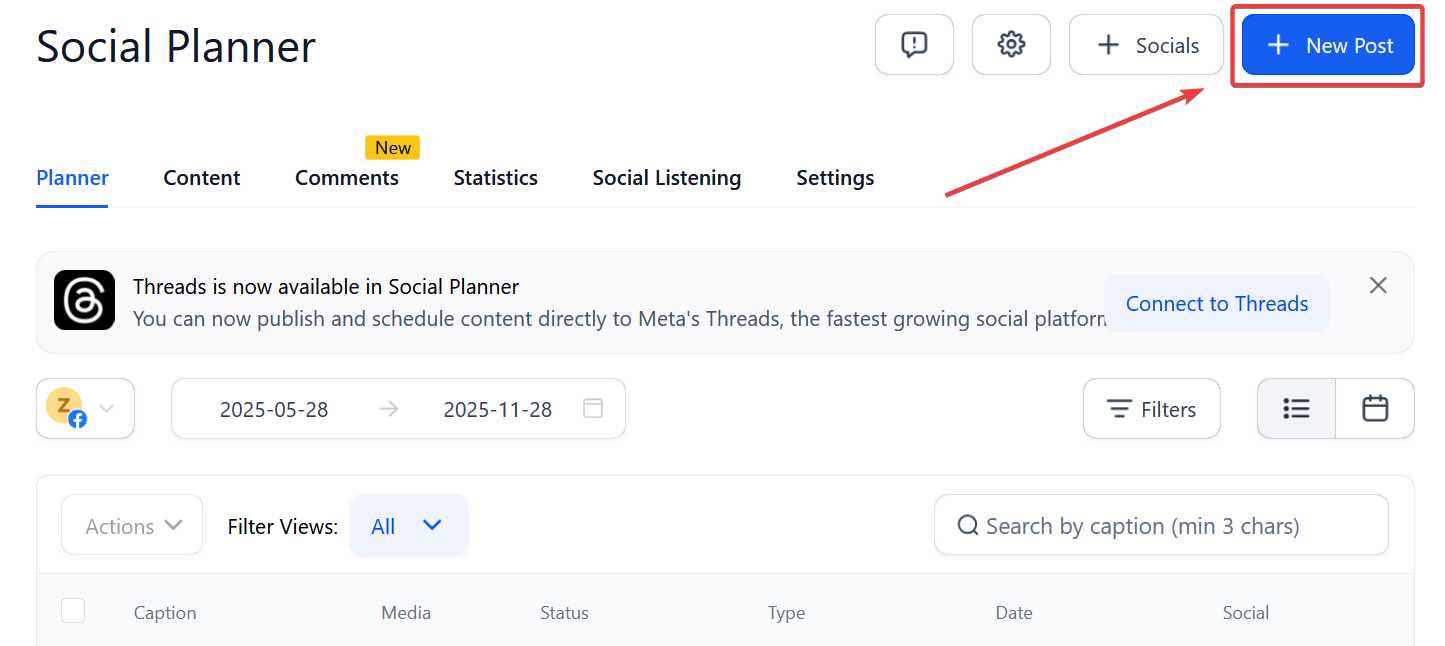
Ensure your existing posts are tagged with appropriate categories. Categories act as the foundation for organizing and scheduling your posts.
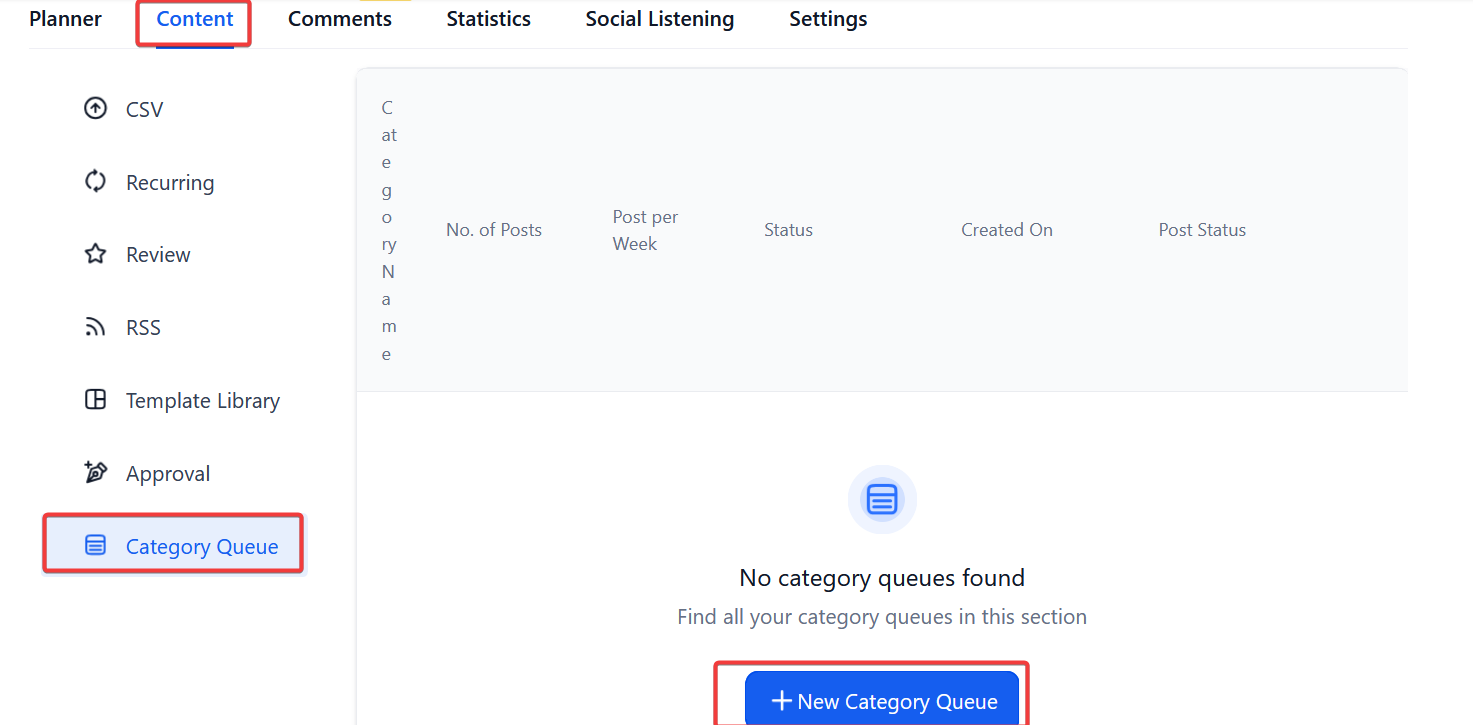
¶ Step 2: Navigate to the Category Queue Option
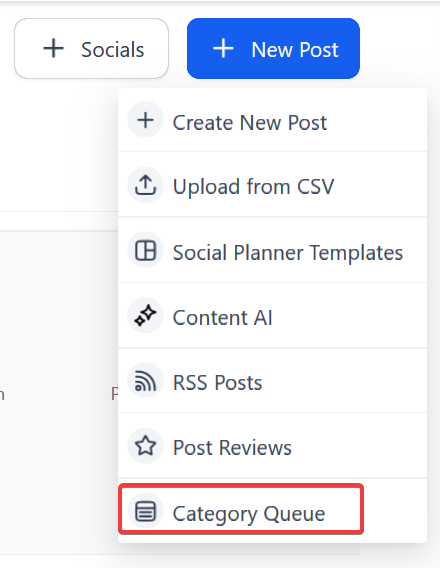
- Access the New Post section.
- Choose the Category Queue option to begin setup.
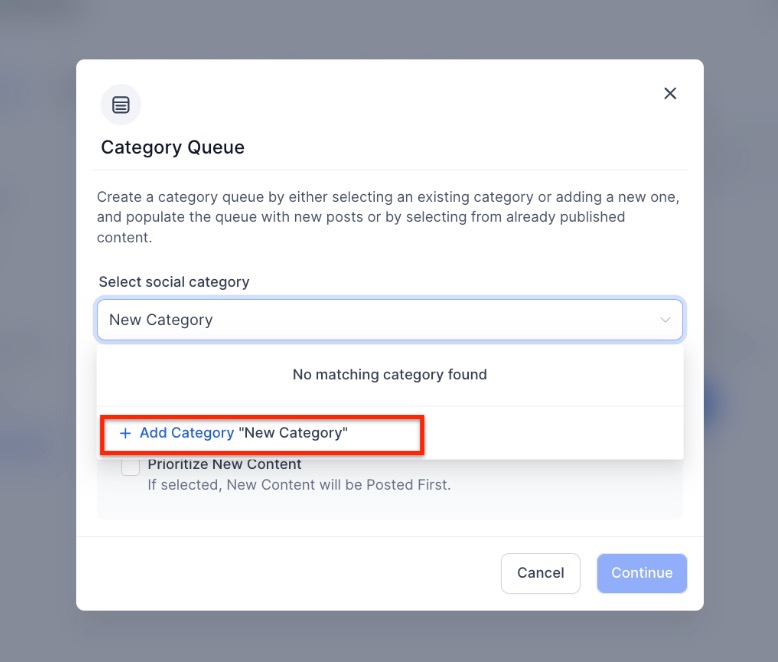
¶ Step 3: Select a Category
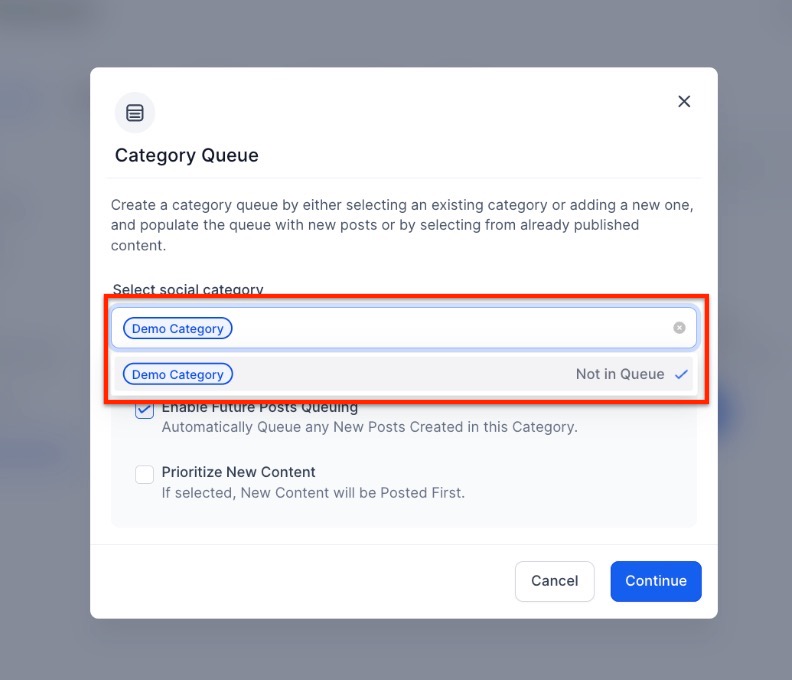
Select or create a new category on the first screen via the dropdown. Choose the relevant category for which you want to create a queue. For example, you can have categories like “Promotions” or “Tips.”

¶ Step 4: Enable Preferences
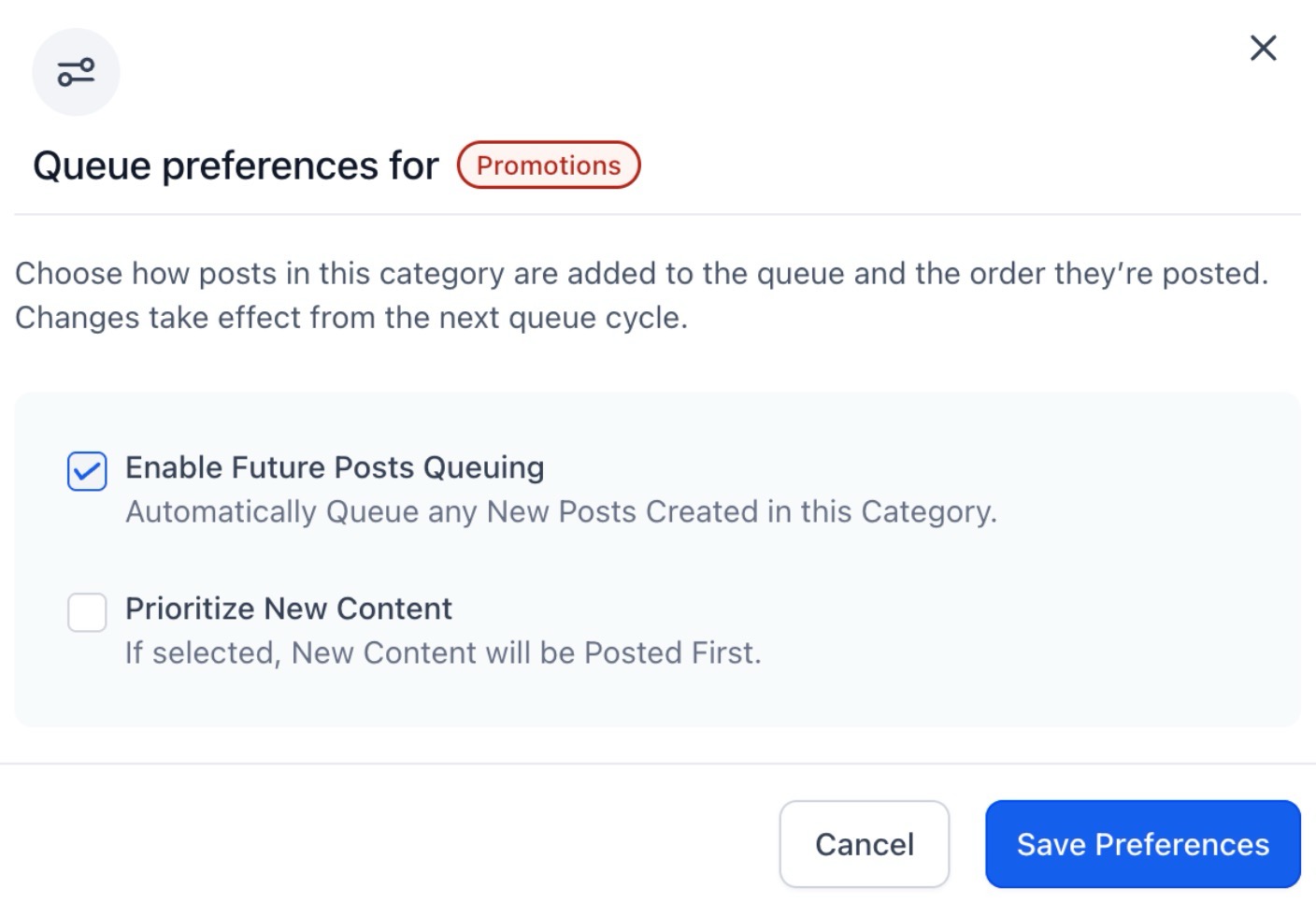
Customize your queue with the following options:
- Future Posting : Automatically includes new posts tagged to the category in the queue.
- Prioritize Content : When checked, new content is added to the top of the queue; when unchecked, it is appended to the end.
¶ Step 5: Set a Posting Schedule
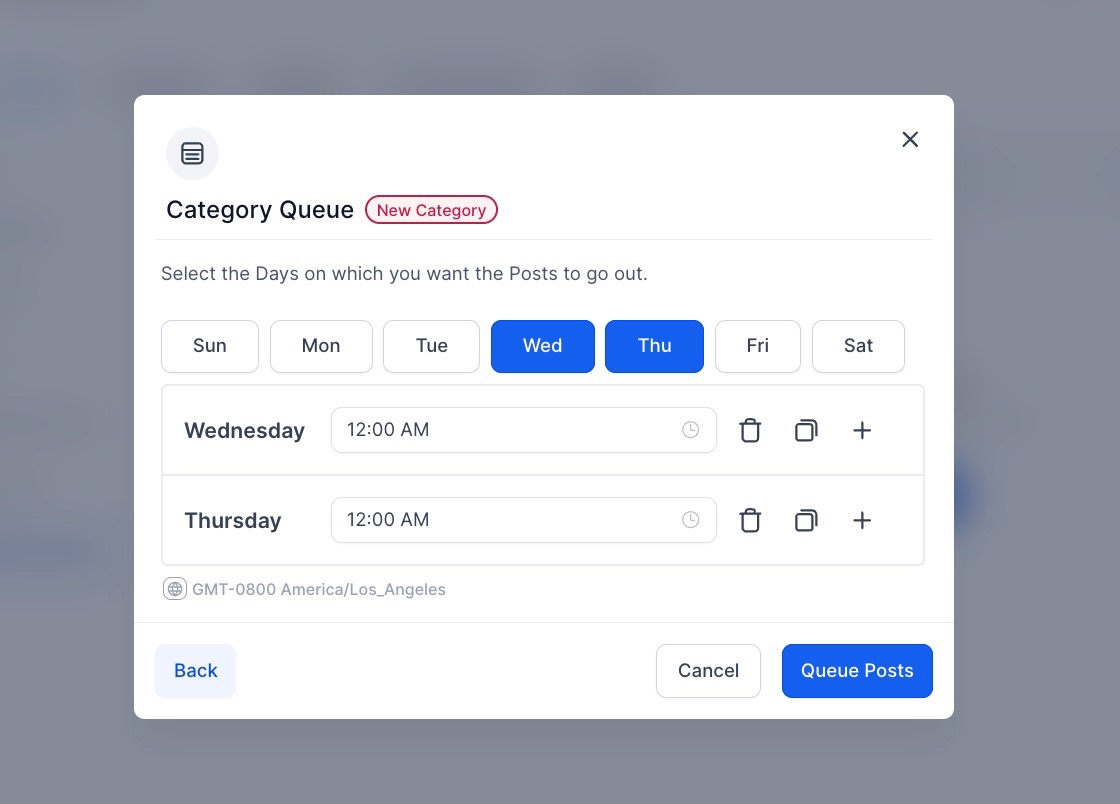
- Select specific days and times for your posts to go live.
- Ensure your schedule aligns with audience engagement patterns for optimal visibility.
¶ ****
¶ Step 6: Review and Edit
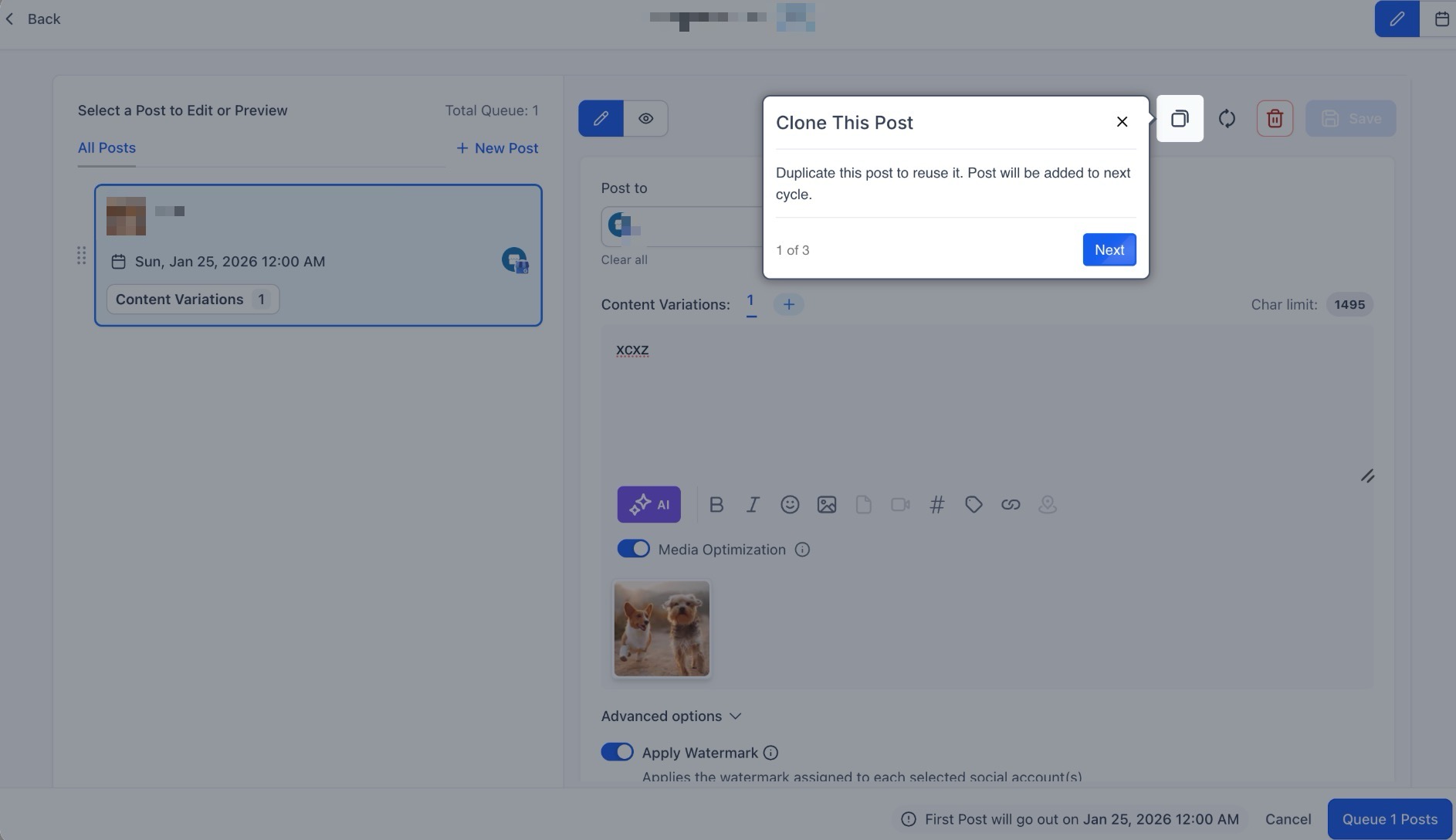
* You can visualize your queue in a **Weekly or Monthly Calendar View**.
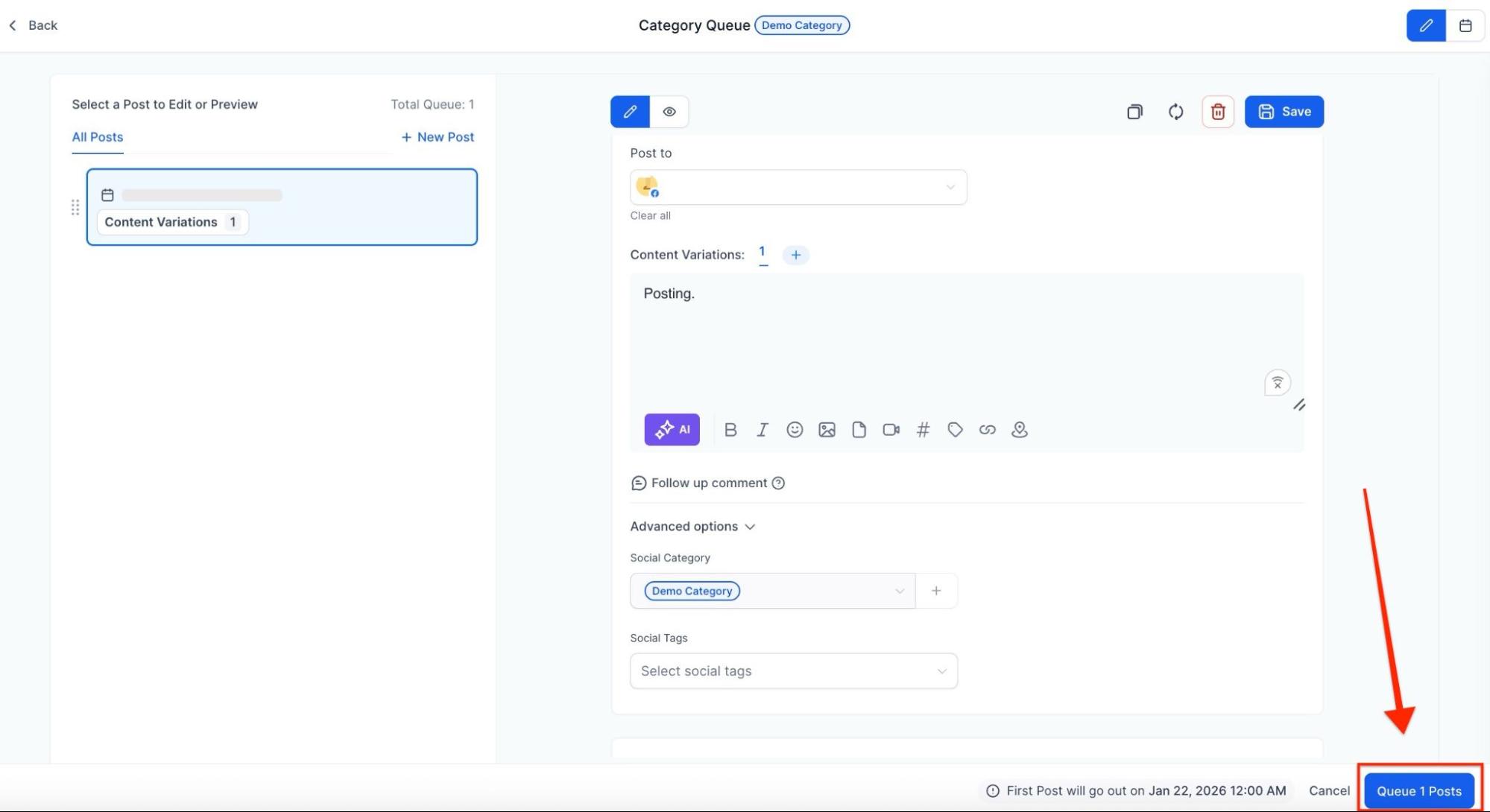
- Use the drag-and-drop feature to change the post order or use the Reschedule Queue tool to shift the entire timeline to a new start date.
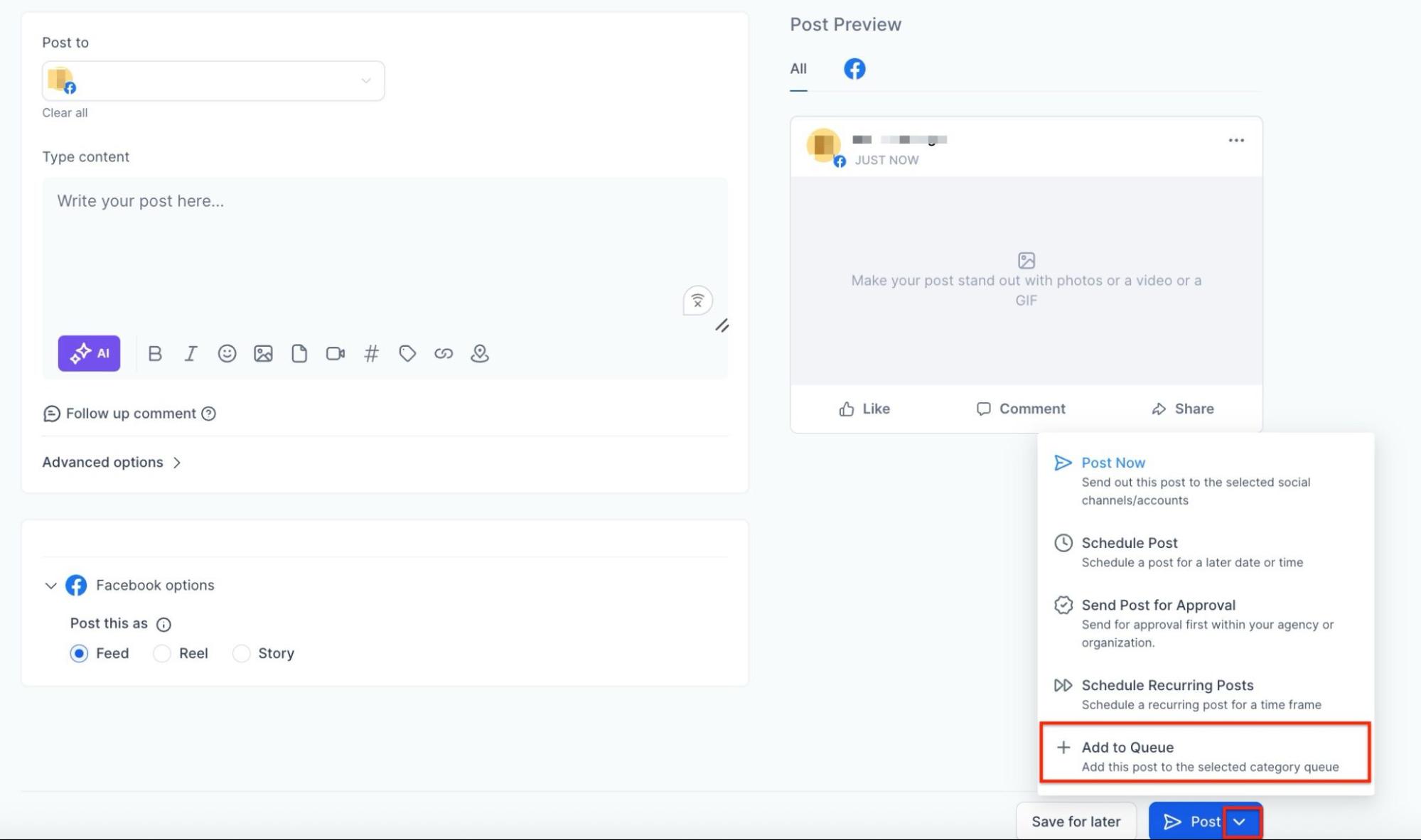
- While creating a new post you can also add it to the existing queue
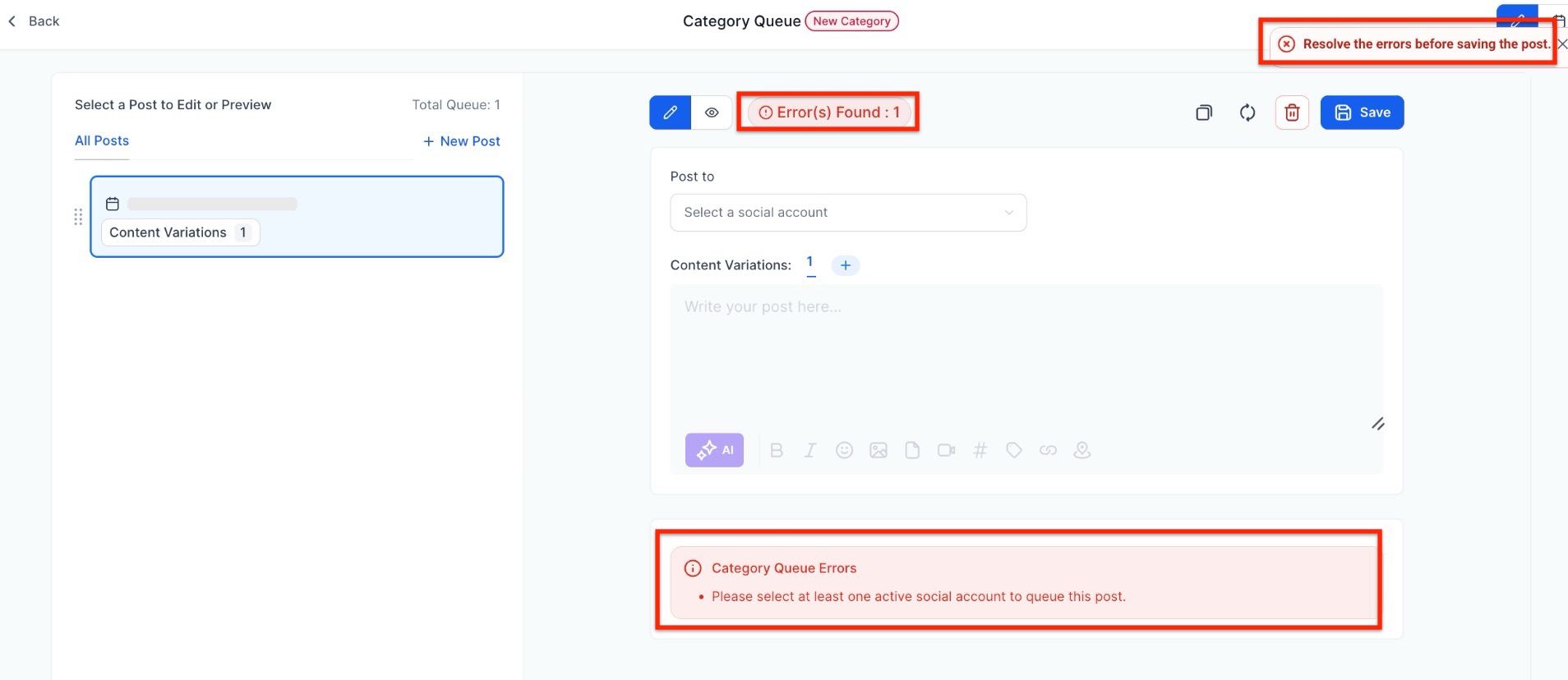
- Address any flagged errors before finalizing the queue.
¶ Step 7: Finalize the Queue
- Click Queue Post to schedule posts or save them as drafts for future editing.
- Confirm your queue to activate consistent posting.
¶ Step 8: Manage Your Queue
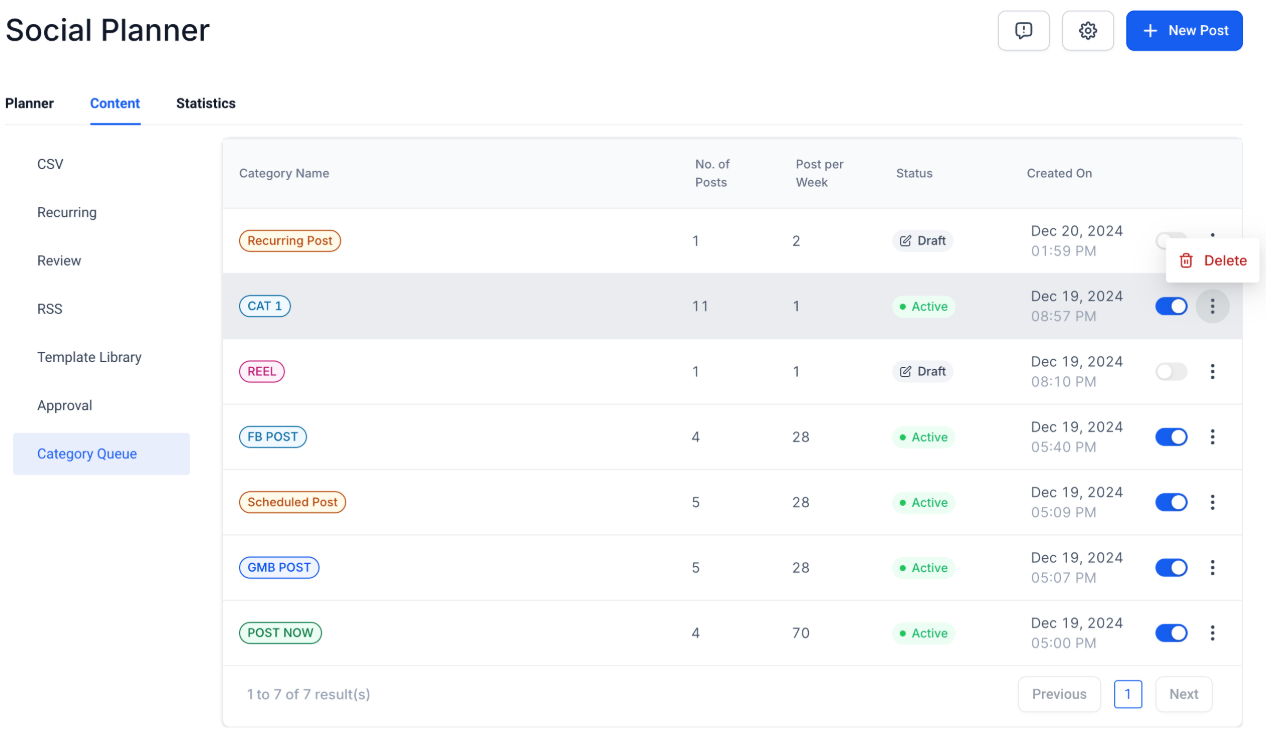
Pause or resume the queue anytime using the toggle in the content management tab.
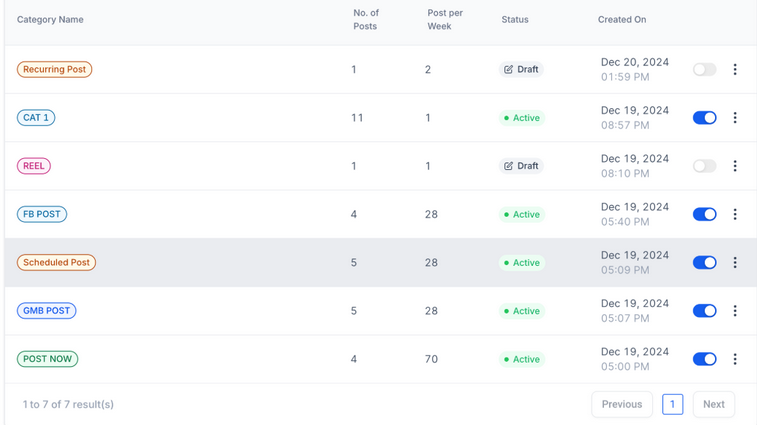
- Delete queues when no longer needed, or adjust your strategy by creating new ones.
Important Notes:
- The created category queue cannot currently be edited or rescheduled for a different timeframe.
- Category queues can be created for previously published content that is assigned to a specific category.
- The content of previously published posts can be edited or updated during the creation of a category queue.
¶ Pro Tips
- Diversify Content : Create multiple categories to cover a range of topics and ensure a balanced posting schedule.
- Leverage Analytics : Use performance insights to refine your categories and posting times.
- Regular Updates : Periodically refresh the content in your queues to keep your posts relevant and engaging.
- Engage Your Audience : Tailor categories based on audience preferences, ensuring your content resonates with their interests.
- Prioritize Seasonal Content : Use queues to schedule timely posts, such as holiday promotions or special events.
¶ FAQs
Question: Can I edit posts in a Category Queue?
Answer: Yes, you can update the content or media of posts before finalizing the queue.
Question: What happens to new posts tagged to a category?
Answer: New posts automatically get added to the queue, in case the new posts need to be added to the front of the queue, please select the option 'Enable Future Posting ’ and 'Prioritise Content '.
Question: Can I change the schedule for an existing queue?
Answer: Currently, the schedule for a queue cannot be edited once created. If adjustments are needed, you’ll need to create a new queue.
Question: Can I pause or delete a queue?**
Answer:** Yes, you can pause or resume a queue at any time. If a queue is no longer needed, it can also be deleted.
Question: What if there’s an error in my queue?**
Answer:** Errors will be flagged during setup, allowing you to address them before confirming the queue.
Question: Do Category Queues work with all social media platforms?
Answer: Yes, any platform supported by the Social Planner will follow the queue’s schedule, as long as the post meets platform-specific requirements.
Question: If I pause a queue, does it lose its place?****
Answer: No. When you toggle a queue to Pause , it simply “freezes” exactly where it is. When you click Resume , it picks up with the very next post in line according to your schedule.
Question: Can I change the date of just one single post within my queue?**
**Answer: No, while you can reorder posts or reschedule the entire queue’s timeline, single-post rescheduling within a queue is not currently supported.