¶ Share your Review Post on social media using Social Planner
Share your Review Post on social media using Social Planner
Leveraging reviews is a powerful strategy to build trust, increase visibility, and foster connections with your audience. By showcasing positive feedback, you can enhance credibility, expand your reach through word-of-mouth, and benefit from boosted social media engagement. This guide will walk you through using reviews to their fullest potential, including addressing negative feedback constructively and creating a vibrant community. Additionally, we’ll cover how to upload custom backgrounds for review posts in Social Planner, ensuring your content stands out and resonates with your audience.
¶ How to Upload Your Background for Publishing Reviews in Social Planner
1- Access Social Planner:
-
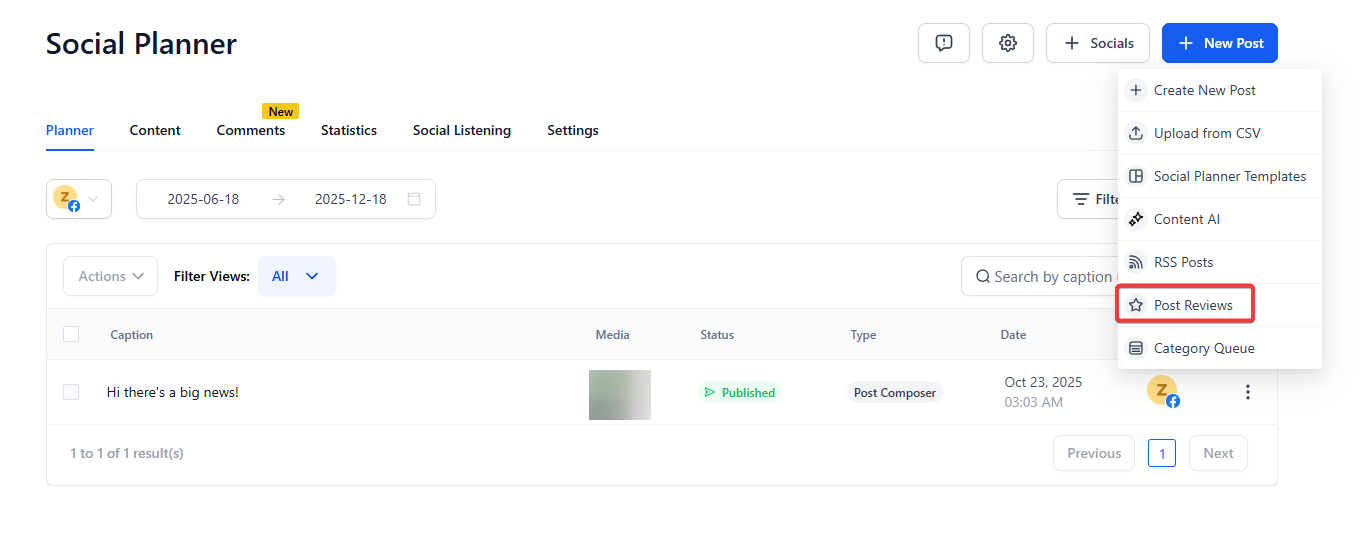
Go to Marketing > Social Planner. Click on the new post icon
-
Choose the Post Review option from the dropdown menu.
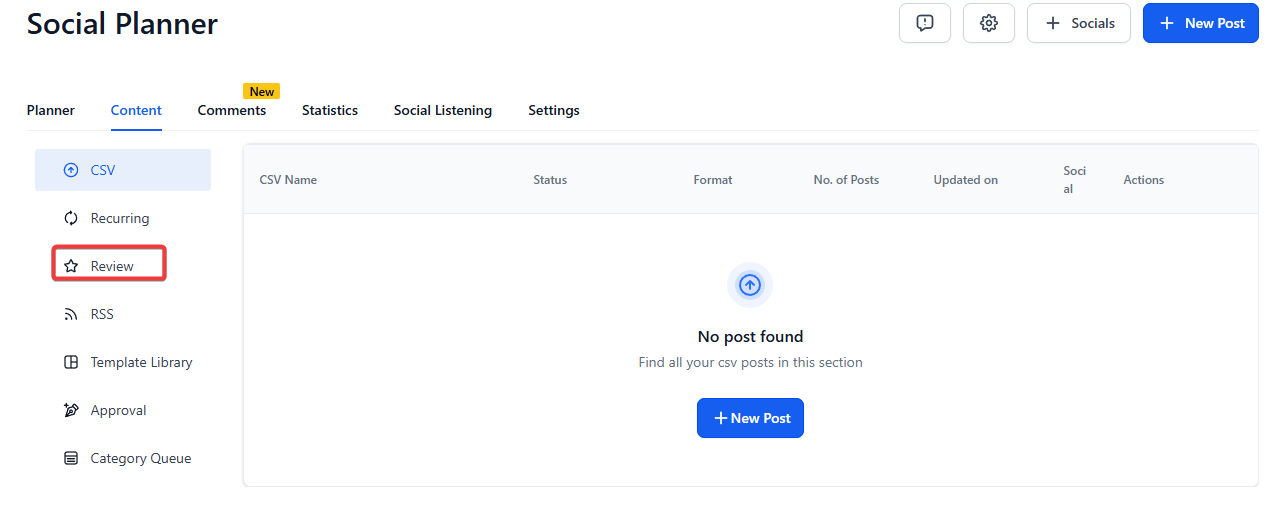
- You will be directed to a pop-up for selecting your socials, and your background, and for reviewing your content. You can also schedule the frequency (daily, weekly, or monthly).

You can manage the scheduling under the ‘Content’ tab, where you can pause, edit, or delete schedules as needed.
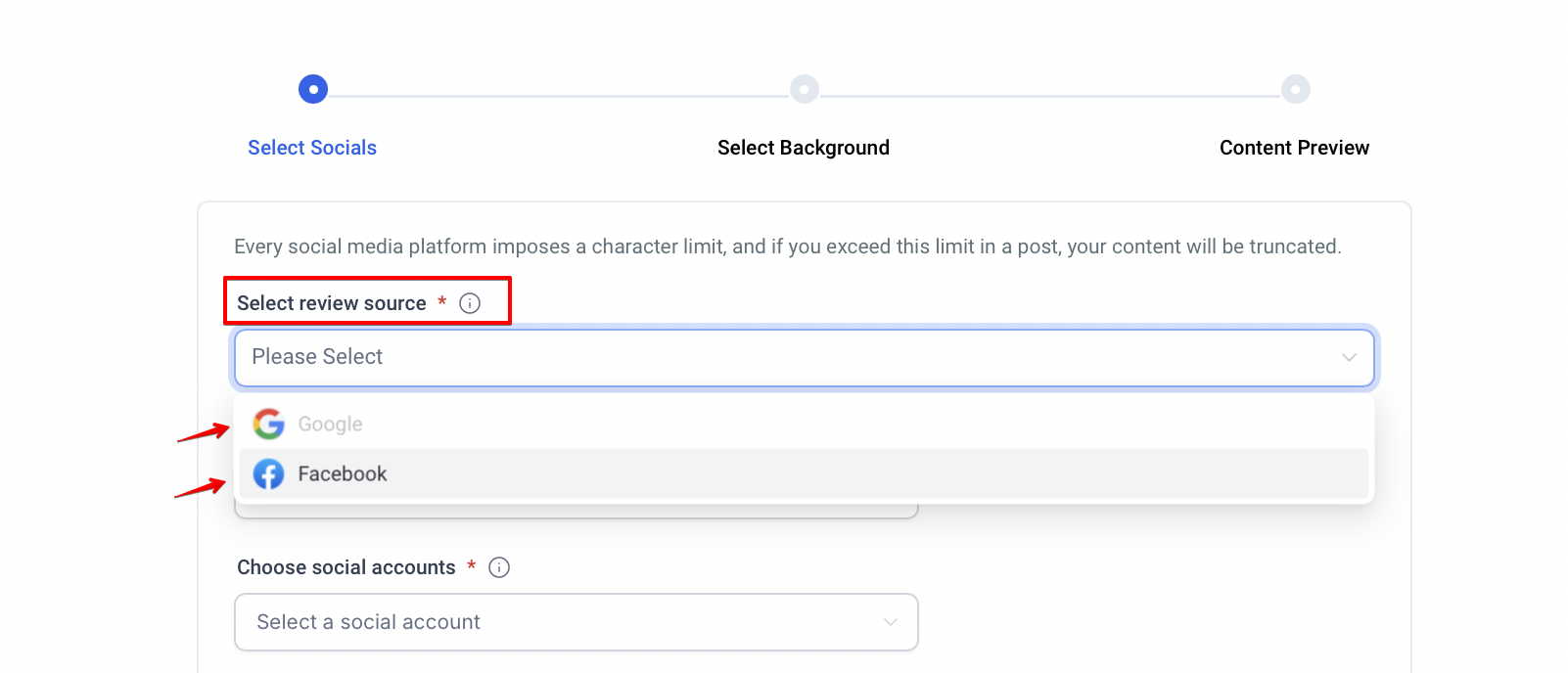
2- Select Integration:
- From the dropdown menu, select GMB or Facebook. This will use the GMB or Facebook page linked in your Reputation Management (Yext) integrations.
3- Choose Your Background:
- Upload your background image or select one from the provided list. The background will rotate with each review post.

4- Background Image Specifications:
- Image size: Up to 5MB.
- Format: JPEG or PNG.
- Dimensions: 1024 x 1024 pixels.
5- Set Posting Preferences:
- Select the star rating for which you want to publish reviews.
- Define how many posts you want per day, week, or month, and set specific posting times.

6- Examples
If you connect your GMB Page and receive a new review on January 1st at 6 PM, and you’ve set Social Planner to post 5 times per day at 8:37 AM, the new review will be published the next day, January 2nd, at 8:37 AM. If there are more than 5 reviews, only 5 will be posted based on the star rating.
Monitor and Edit Posts:
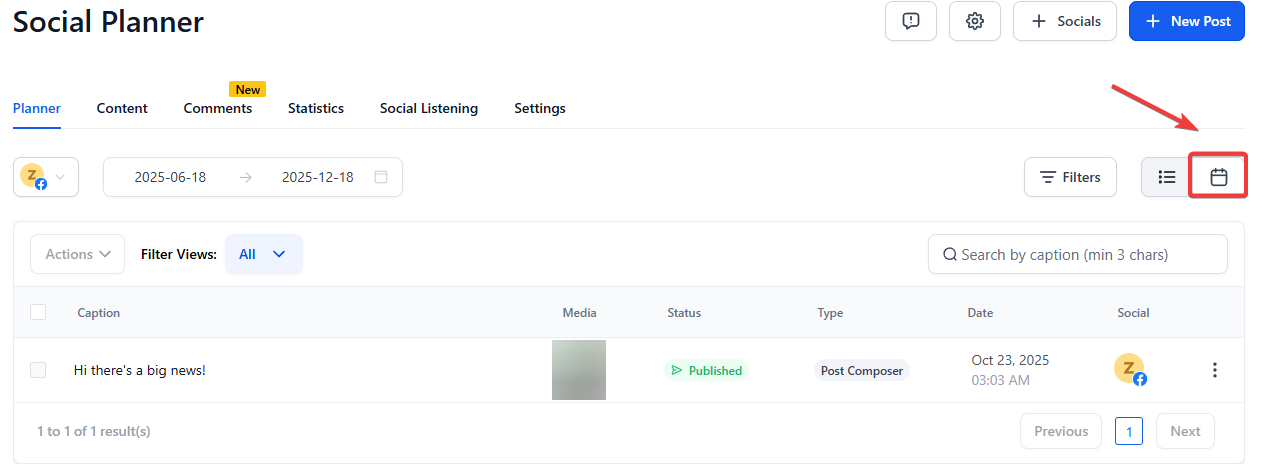
- After creating a post, it will appear in the Social Planner > Calendar View.
Calendar View: Review and manage scheduled posts easily.
¶ **
**Leveraging Reviews for Trust, Visibility, and Connection
- Build Trust and Credibility:
- Leverage positive reviews to enhance credibility and establish trust with your audience.
- Word-of-Mouth Magic:
- Encourage customers to share their experiences on social media, expanding your reach through their networks.
- Boosted Visibility, Maximum Impact:
- Use positive reviews to increase engagement and visibility on social media, benefiting from algorithmic promotion.
- Social Proof Spectacle:
- Highlight positive reviews to showcase the exceptional quality of your products or services and attract new customers.
- Engage, Connect, Belong:
- Share reviews to foster a vibrant community, sparking conversations and building stronger connections with your brand.
- Turn Challenges into Triumphs:
1.Address negative reviews constructively, demonstrating a commitment to customer satisfaction and turning feedback into growth opportunities.
¶ FAQs
Question: How do I upload my background for review posts in Social Planner?**
**Answer: Go to Marketing > Social Planner, create a new post, select the “Post Review” option, and then choose the integration (e.g., GBP or Facebook). You can upload your background image or select from the provided options.
Question: What are the specifications for the background image?**
**Answer: The image should be in JPEG or PNG format, up to 5MB in size, and have dimensions of 1024 x 1024 pixels.
Question: How do I set posting preferences for reviews in Social Planner?**
**Answer: You can choose the star rating for which you want to publish reviews, set how many posts you want per day, week, or month, and select specific posting times.
Question: Can I monitor and edit scheduled review posts?**
**Answer: Yes, you can view and manage your scheduled posts in the Calendar View under Social Planner.
Question: What happens if I receive more reviews than my posting limit?**
**Answer: If you have more reviews than your set daily limit, only the specified number (e.g., 5) will be posted based on the selected star rating. The remaining reviews will not be posted automatically.
Question: Can I choose which reviews to post?**
**Answer: Yes, you can filter reviews based on star ratings and choose specific social accounts for publishing.
Question: What are the requirements for background images?**
**Answer: Background images should be JPEG/PNG, have a 1:1 ratio, and be under 5MB in size.
Question: Can I control when reviews are posted?**
**Answer: Yes, you can set the frequency to post daily, weekly, or yearly and specify a time.
Question: Can I upload multiple background images to rotate for my review posts?**
**Answer: Yes, you can upload multiple backgrounds, and the system will rotate them with each review post to keep your content visually engaging.
Question: How do I manage or stop my review posting schedule once it has been created?
Answer: You can manage your scheduling under the ‘Content’ tab in Social Planner. From there, you have the options to pause, edit, or delete your schedules as needed.
Question: How does leveraging reviews benefit my brand?**
Answer: Posting reviews buildstrust and credibility** , expands visibility through word-of-mouth, encourages social engagement , and allows you to address negative feedback constructively , fostering a vibrant community.
Question: What happens if a review is received after my scheduled posting time?**
**Answer: If a review is received after the scheduled posting time, it will be queued and published at the next available scheduled time based on your posting limits.
Question: If I receive 10 five-star reviews in one day but my limit is set to 5, what happens to the others?
Answer: The system will only post the first 5 reviews that meet your star-rating criteria for that day. Any reviews beyond your daily limit will not be posted automatically.