¶ Publish Instagram Stories in the Social Planner
Harness the power of the Instagram Story Post Composer in Social Planner. This integrated tool allows you to design and schedule your Instagram stories expertly. Use it to manage your digital marketing, drive engagement, and promote your brand seamlessly and efficiently.
¶ What is the Instagram Story Post Composer?
- Integrated Story Management: The Instagram Story Post Composer in Social Planner helps users create, schedule, and preview Instagram stories efficiently.
- Supports Instagram Professional Accounts: Allows seamless scheduling and management of story content.
- Image & Video Uploads: Supports up to 10 images or videos per story , with a 8 MB limit for images and 60-second limit for videos.
- High-Resolution Preview: Users can view and adjust stories before publishing for better accuracy.
- Draft & Scheduling Options: Save stories as drafts for later editing, ensuring a consistent posting schedule.
- Error Management Alerts: Color-coded warnings help streamline the post-creation process.
¶ What are some practical usage cases for this feature?
- Product Launch: Suppose you’re a clothing brand releasing a new line. You can create a series of Instagram stories unveiling the designs, schedule them in the Post Composer, and ensure they are published in sync with your launch date.
- Event Promotion: If you’re hosting an event, you can design and schedule a series of stories counting down to the event, providing information about it, and creating excitement among your followers. This keeps your audience engaged and informed leading up to the event.
- Content Consistency: Regular posting is key to audience engagement. If you have a busy week coming up and won’t have time to create content daily, you can use the Post Composer to plan and schedule your stories in advance, maintaining your usual posting frequency.
- Time Zone Management: If your audience is spread across different time zones, you can schedule your stories to be posted when your followers are most likely to be active, even in the middle of your night.
- Flash Sales: If you’re running a time-sensitive promotion or flash sale, you can schedule stories announcing the start and end of the sale, ensuring your followers are aware of the limited time frame.
- Saving Drafts: If you have an idea for a story but it’s not fully formed, or it’s not the right time to post it, you can save it as a draft in the Post Composer. This way, you won’t forget your idea and can return to finish it when ready.
¶ How to use this feature?
¶ Before you begin:
Make sure you’ve already done the following:
- Added an Instagram Professional account [Publishing story to personal and creator account is not supported]
- Uploading the images and videos to the Media Library.
¶ Create your Instagram Story
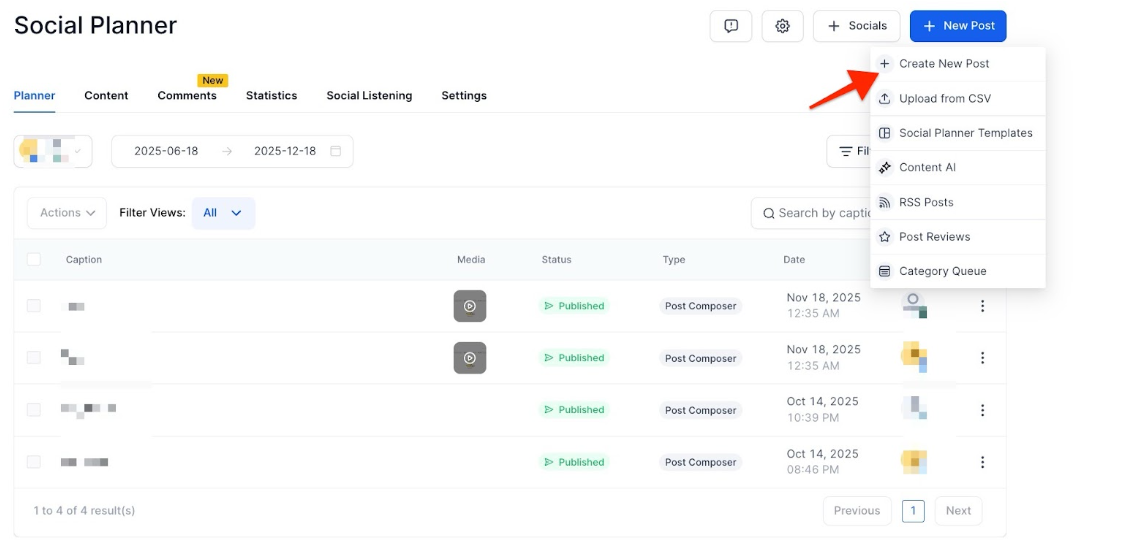
- Navigate to the Marketing tab > go to the Social Planner and select + New Post to choose + Create New Post
- Under Post to, click Select a social account and choose a social account
Note : You can select multiple Instagram professional accounts.
Note : You can’t select other social media platforms, if you select other social accounts the story option will not be visible.

- Choose the content type story

- Click on the Upload Image or Upload Video icon to add your media
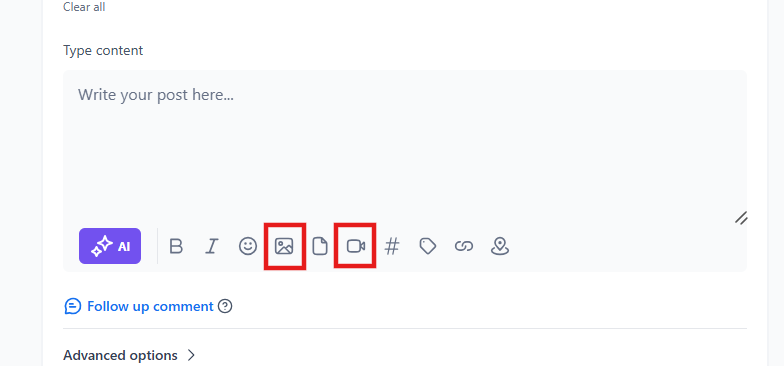
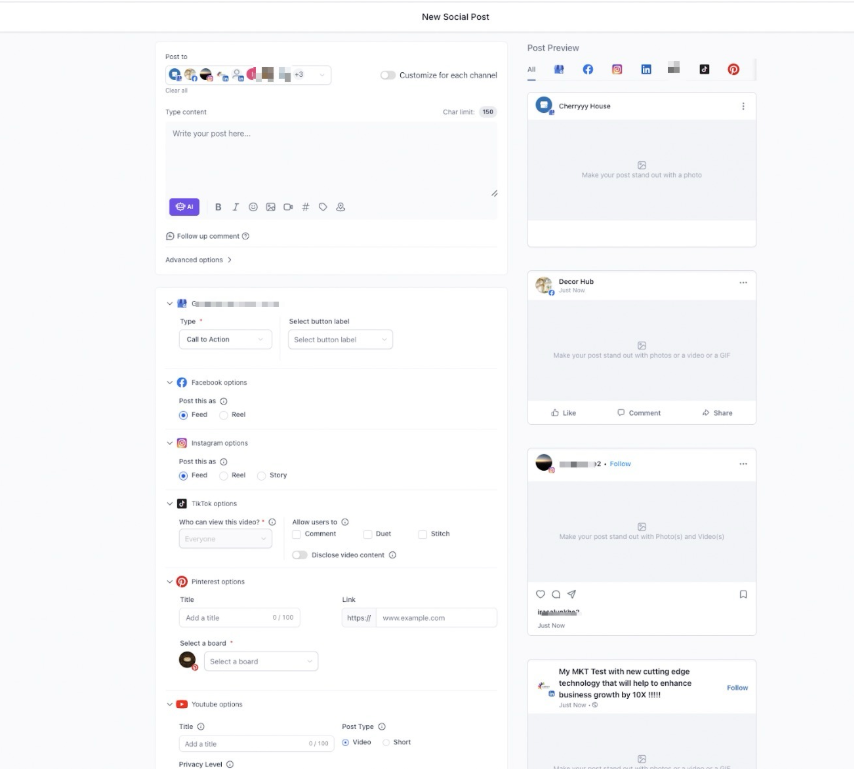
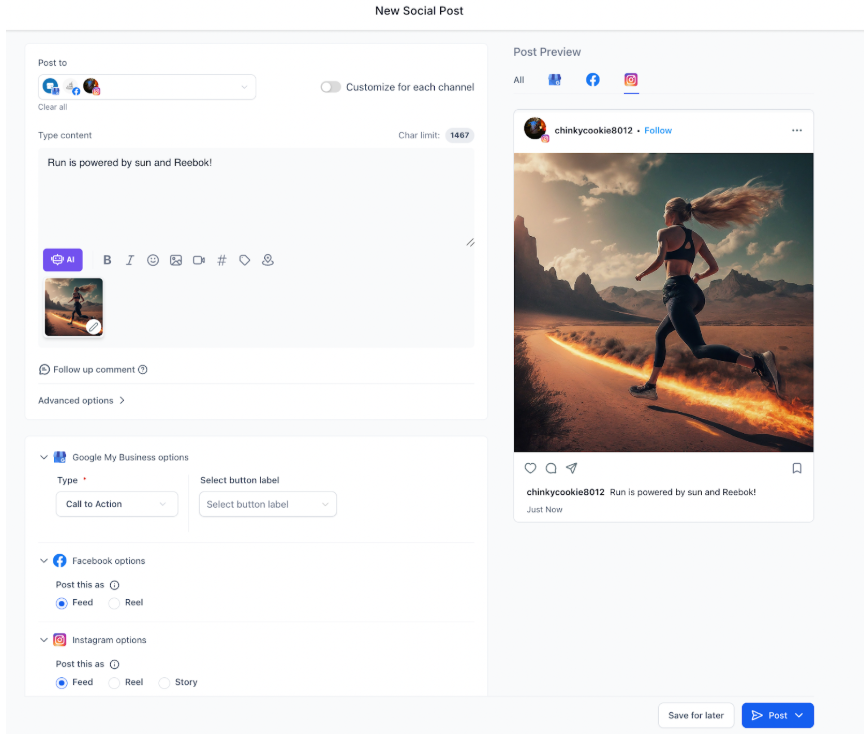
- Alternatively, Users can use the post composer to add both images and videos in a single post, allowing them to schedule posts across platforms simultaneously, including YouTube, Instagram, and TikTok.

Here is what that would look like
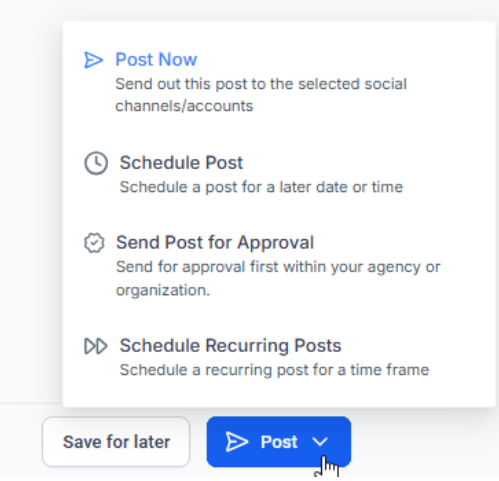
- Click on the arrow next to Post to choose when you want to post or send the post for approval. This will schedule the post if selected.
- Within The Composer, you can view posts in high resolution and make edits.
- You can click on Save for later to save your post as a draft for later
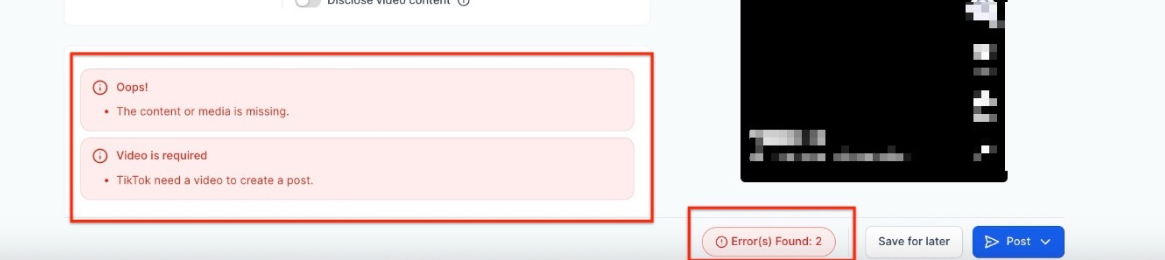
Please Note: Error and warning management has been enhanced, with color-coded alerts for easy identification. Clicking on an error will direct you to the issue for quick correction.
¶ FAQs
Question: What should I do before creating a story in the Post Composer?
Answer: Before creating a story, ensure that you have added your Instagram Professional account to the Social Planner and uploaded your images or videos to the Media Library.
Question: Can I manage multiple Instagram accounts using the Story Post Composer?
Answer: Yes, you can select multiple Instagram Professional accounts when setting up your story post in the Social Planner, allowing you to manage content across different profiles from a single platform.
Question: What is the maximum number of media items I can add to a single story?
Answer: You can add up to 10 images or videos per story using the Instagram Story Post Composer. This helps create rich and engaging content sequences for your audience.
Question: Why can’t I select other social media accounts when using the story feature?
Answer: The Instagram Story Post Composer is designed specifically for Instagram stories and does not support other social media platforms. Therefore, selecting other social accounts will disable the story option.
Question: What are the benefits of scheduling Instagram stories in advance?
Answer: Scheduling Instagram stories in advance helps ensure consistent posting, maximizes engagement by targeting optimal times for your audience, and allows you to manage content efficiently, especially during busy periods.
Question: How do I choose when to post or send my story for approval in the Post Composer?
Answer: After uploading your media, click on the arrow next to “Post” in the Post Composer. You can select the option to schedule the post for a specific time or send it for approval if required.
Question: What happens if my media file sizes exceed the limits in the Post Composer?
Answer: If your media file sizes exceed the limits (8 MB for images and 60 seconds for videos), the files will not be accepted by the Post Composer. You’ll need to resize or edit your media to meet these specifications before uploading.
Question: Can I edit a scheduled story before it goes live?
Answer: While specific steps for editing may vary, typically, you can return to the scheduled post within the Social Planner to make adjustments before it goes live. Use the draft or edit options provided to refine your content as needed.
Question: Can I compose a post with both images and videos?
Answer: Yes, the upgraded post composer allows users to create posts that include both images and videos, enabling simultaneous scheduling across platforms like YouTube, Instagram, and TikTok.
Question: How does the enhanced post preview help me?
Answer: The preview feature offers a high-resolution slider to view your posts before publishing. This allows you to make edits directly within the composer for a more streamlined process.
Question: What happens if my video is longer than 60 seconds?**
**Answer: The Social Planner has a strict 60-second limit for story videos. If your video is longer, it will trigger an error alert. We recommend trimming your video in the Media Library or using a video editor before uploading to ensure it fits the Story format.
Question: What happens if my Instagram password changes after I’ve scheduled posts?
Answer: If your password changes, the “connection” between the Social Planner and Instagram will break (this is an industry-standard security measure). Your scheduled posts will fail until you navigate to Settings > Social Planner and “Re-authorize” your Instagram account.