Post Approval in the Social Planner
This article will show the process for a post-approval and its built-in feature that allows you to customize the text accompanying your reviews when they are posted on your social channels, enhancing engagement and providing context to your audience.
1. Navigate to Social Planner:
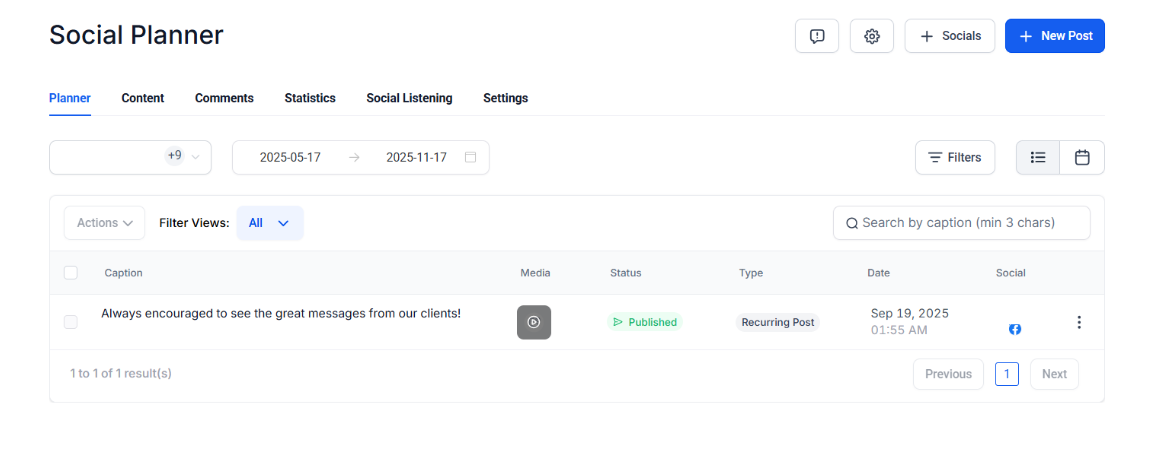
2. Create a New Post:
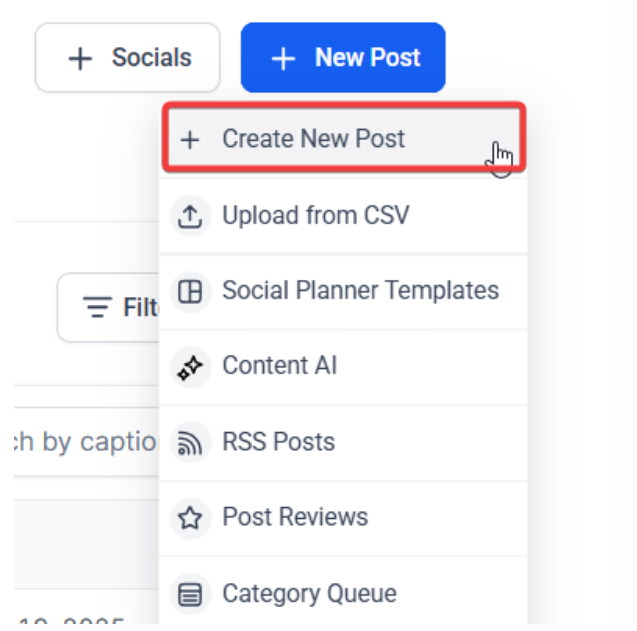
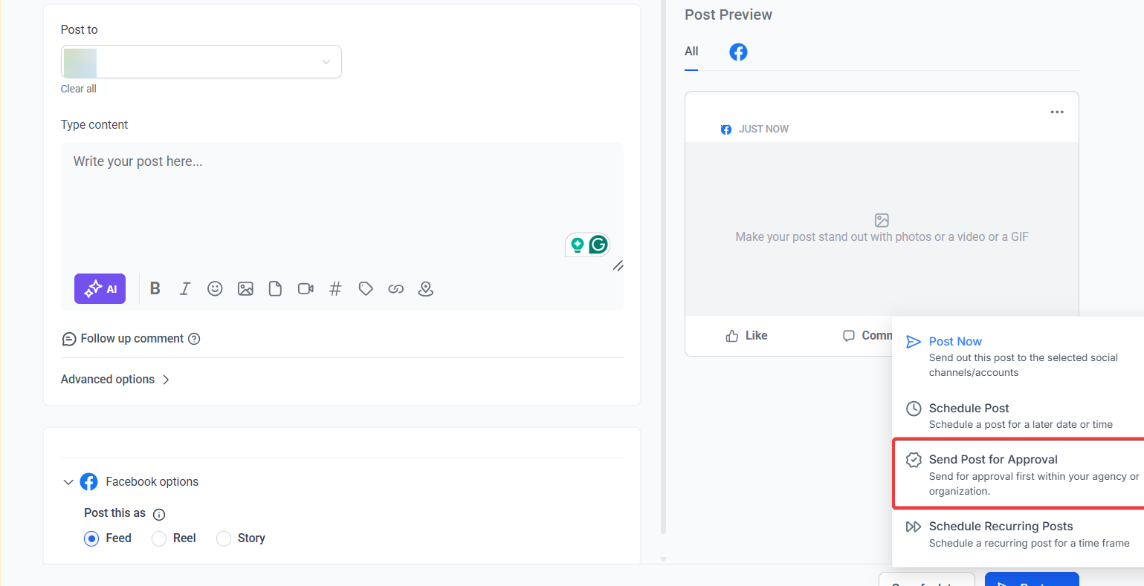
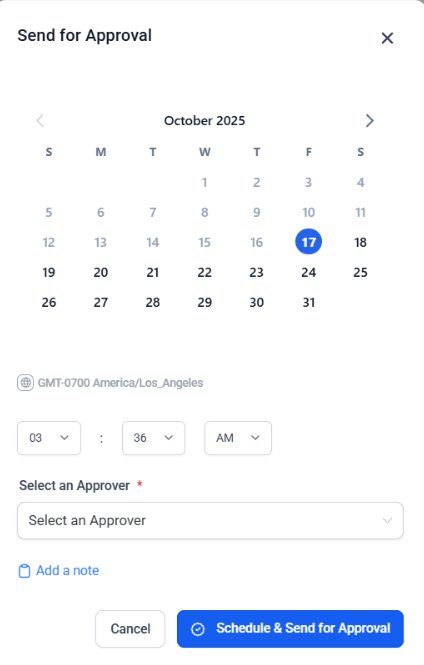
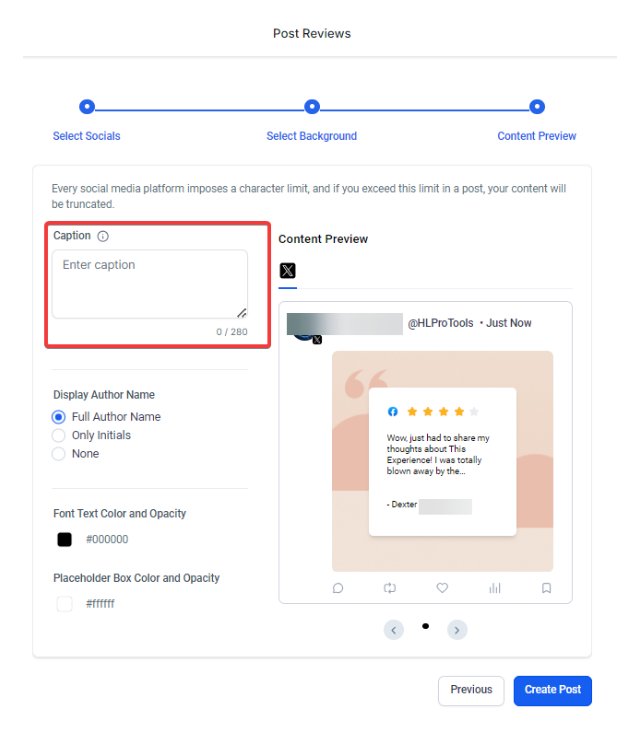
3. Select Review Post:
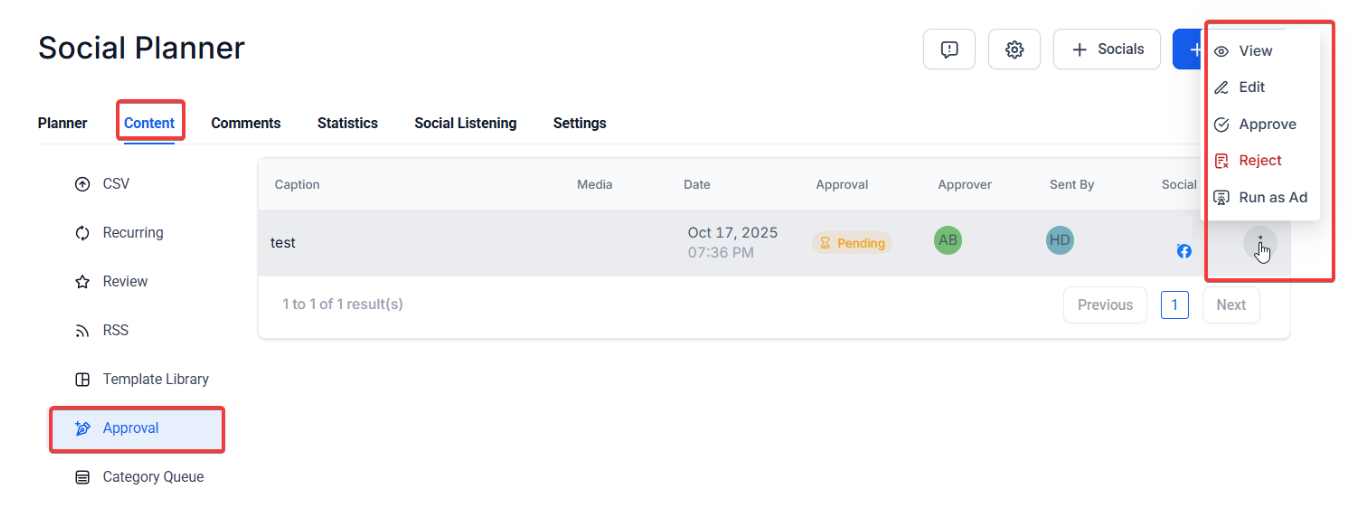
4. Add a Caption:
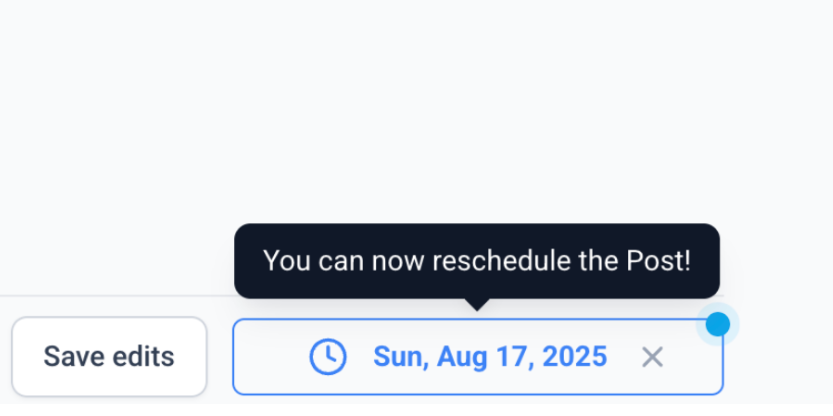
Reschedule Posts in Approval Flow
Approvers can change the scheduled date and time of posts directly within the approval flow. There is no need to send posts back to the creator. This improves team efficiency by reducing delays and streamlining content timing. To use, open a post awaiting approval, adjust the date/time if needed, and approve.
Adding captions to your review posts allows you to provide context, highlight key points, and engage your audience more effectively. Captions can make your posts more relatable and appealing, encouraging interaction and shares.
This feature provides the flexibility to tailor your review posts to fit your brand voice and messaging. You can customize the captions to emphasize specific aspects of the reviews that align with your marketing goals.
While the review posts can be automated, the ability to add captions ensures that each post can still have a personal touch. This balance between automation and personalization can save time while maintaining authenticity.
Question: What happens if I don’t add a caption?
Answer: If no caption is added, the system will automatically use the review content as the caption.
Question: Can I edit the caption after the post is published?
Answer: Yes, you can edit the caption by navigating to the post in your social planner and updating the text.
Question: How can I ensure my captions are effective?
Answer: Use clear and concise language, include relevant hashtags, and provide a call-to-action to engage your audience.
Question: Can I use emojis in my captions?
Answer: Yes, adding emojis can make your captions more visually appealing and engaging.
Question: Can all users reschedule posts in the approval flow?
Answer: No, only users with approval permissions can reschedule posts during the approval process.
Question: Are captions compatible with automated review posts?
Answer: Yes. Even for automated review posts, you can add personalized captions to maintain authenticity and a personal touch while saving time.
Question: Does adding captions affect automated scheduling?
Answer: No. Adding captions does not interfere with scheduling or automation; posts still publish according to the set date and time.
Question: What are some best practices for captions?
Answer: Keep captions relevant, use hashtags wisely, include calls-to-action, and ensure they align with your brand voice and messaging.
Question: What happens if an approver rejects a post?**
**Answer: If a post is rejected, it moves to the “Rejected” status within the Social Planner. The original creator can then see any internal notes left by the reviewer, make the necessary edits, and resend it for approval.