¶ Facebook Publishing Troubleshooting Guide
This guide is designed to help you resolve common issues with your Facebook page. If you’re experiencing problems, follow the steps outlined below to identify and fix the issue. If the problem persists, please contact support for further assistance.
¶ Covered in this Article:
- Facebook Pages Not Showing in the List
- Facebook Post Failed to Publish
¶ Facebook Pages Not Showing in the List
It is crucial to connect your Facebook account with all necessary permissions. Below are the main reasons why some pages may not appear when you try to connect them:
¶ 1. Missing Content Permissions
If you have administrative rights through a business manager but the pages aren’t showing, it’s likely because content and insight permissions were not granted during the initial connection. The system requires these permissions to function correctly.
¶ 2. Page Missing Despite Admin Access
If you are an admin and some pages are still missing, it could be because the initial integration didn’t grant permission to all Facebook pages. When you attempt to add another page later, it might not appear in the list.
¶ Steps to Resolve:
¶ 1. Check Facebook Page Access
- Step 1 : Log in to your Facebook account.

- Step 2 : Go to your profile icon and click on the Facebook Page you want to manage.

- Step 3 : Click on “Manage” from the Facebook page.

- Step 4 : In the left panel, look for “Page Access.”

- Step 5 : Ensure you are listed as an admin with full access. If not, ask the owner/admin to add the necessary person with full permissions.

Note : If the page does not list the required person with Facebook access, they should send a friend request to the owner/admin to facilitate this process. Once granted full access, the initial person can be removed if necessary.
¶ 2. If Your Page Is Missing Despite Admin Access
- Step 1 : Log in to your Facebook account as an admin of the page.
- Step 2 : Click on your profile picture icon, then select Settings and Privacy.

- Step 3 : Go to Settings > Business Integration > Find the relevant application.

- Step 4 : In Settings, go to Business Integration > LeadConnector.
Click “View and Edit” and ensure all permissions and pages are selected.

- Step 5 : Save your changes and reconnect your Facebook pages in the Social Planner, make sure you have given all the permissions and selected all of your social channels. If some of the channels are unchecked, you can check them from there. The previously missing pages should now appear.

¶ Facebook Post Failed to Publish
Here are common reasons for publishing errors and how to fix them:
¶ 1. Abusive or Reported Content
If your message contains content flagged as abusive or inappropriate, Facebook may block it from being shared. Ensure your content complies with Facebook’s Community Standards.
¶ 2. Expired Access Token
If your session has been invalidated, it might be due to a password change or security update from Facebook. This can occur if:
- You have changed your account password.
- You haven’t posted to Facebook via the Social Planner in the last 90 days.
To resolve this, reconnect your account to refresh the access token.
¶ 3. Two-Factor Authentication
If two-factor authentication is enabled on the business page, you must also enable it on your account. Reconnect your account after enabling two-factor authentication to avoid further errors. Ensure you have administrative, editor, or moderator access to the page.
¶ 4. ‘manage_permissions’ Must Be Granted
If you’re posting on behalf of a client and have been added as an administrator, ensure you have full administrative access. While connecting the account, grant the necessary permissions in the Pages section to avoid publishing issues.
¶ 5. Missing or Invalid Image
If the image linked in your scheduled post is no longer accessible, you will receive an error. Make sure that all linked images are active before posting.
¶ 6. Insufficient Permissions
If you encounter an unknown error, it may be due to insufficient permissions. Sometimes posts will publish, but occasionally they may fail. Reconnect your pages and ensure all permissions are granted.
¶ 7. Invalid URL or Link Issues
If Facebook is unable to index a link in your post due to server overload, you may receive an error. Usually, trying to post the link again a few minutes later will resolve the issue.
¶ 8. Unable to Reconnect a Page/Group in the Social Planner
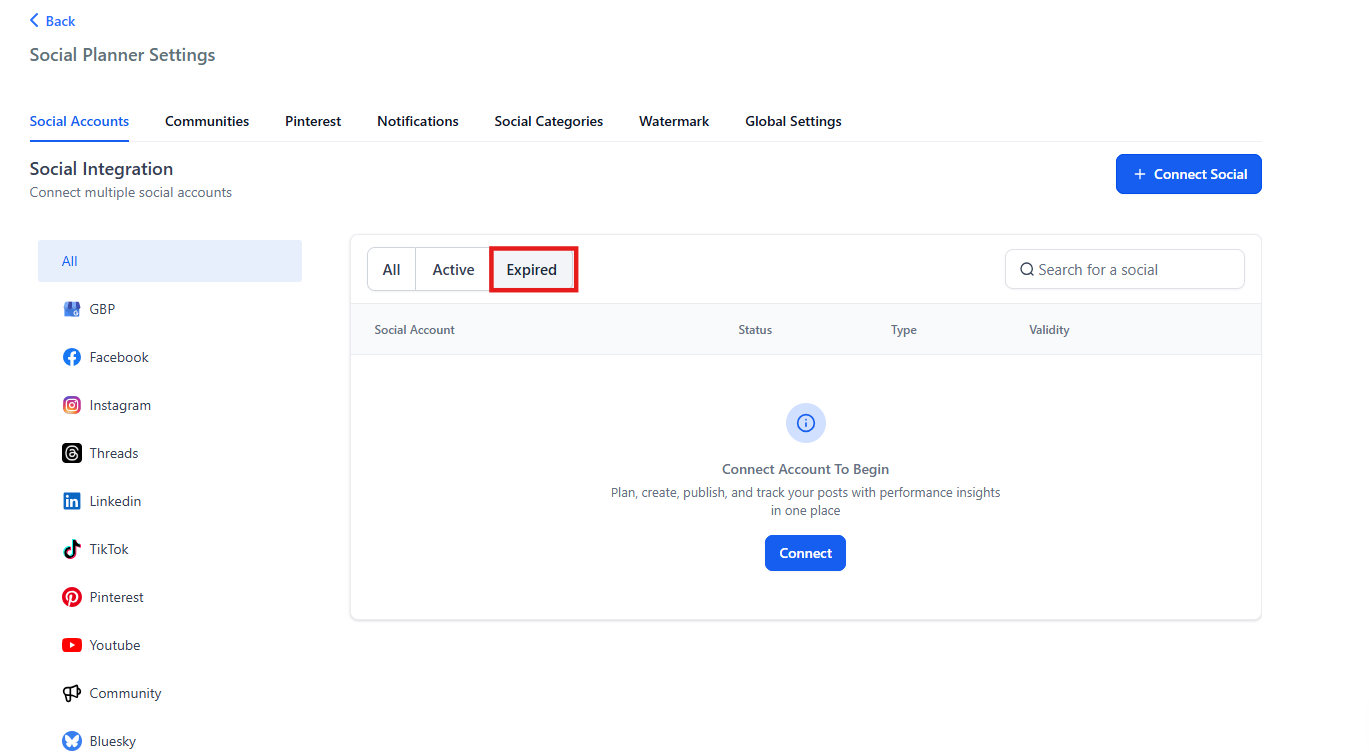
To reconnect a page or group within the Social Planner, use the same user account that originally connected it. If the account has expired tokens, follow these steps:
- Step 1 : Go to Settings > Integrations > Disconnect the account.
- Step 2 : Reconnect the account using the same user who initially connected the page/group or ask that user to do it.
Example : If Emily originally connected the Facebook page and Alex (Account Admin) wants to reconnect it, Alex will need to use Emily’s account or have Emily reconnect it herself.
Note : Developers are aware of this issue and are working on a solution to display which user originally connected the page/group.
¶ FAQs
Question: Why can’t I see all my Facebook pages when trying to connect them?****
Answer: This usually happens if the necessary content and insight permissions were not granted during the initial connection. Ensure all permissions are selected in your Facebook Business Integrations settings.
Question: How do I fix an expired access token?****
Answer: Reconnect your Facebook account through the Social Planner to refresh your access token. This should resolve the issue.
Question: What should I do if my post fails due to an invalid link?****
Answer: Check that the link is active and accessible. If the issue persists, try posting the link again after a few minutes.
Question: What does the ‘manage_permissions’ error mean?****
Answer: This error indicates that you do not have full administrative permissions for the page. Ensure that you have granted all necessary permissions in the Pages section during the connection process.
Question: How can I reconnect a page if someone else originally connected it?****
Answer: Use the same user account that originally connected the page to reconnect it, or ask that user to do it themselves. Only the original connector can successfully reconnect the page.
Question:I’m an admin, but my Facebook Page is still missing. Why?
Answer: If the person who originally connected the Facebook integration did not select or grant access to all pages, newly added pages may not appear later, even if you’re an admin.
Question: What should I do if my Facebook page or group has an “Expired Token” and needs to be reconnected?**
**Answer: To fix an expired token, the specific user who originally connected the page or group must be the one to reconnect it. You should navigate to Settings > Integrations, disconnect the account, and then have that original user perform the reconnection to refresh the session.