¶ How to Send Review Requests
How to Send Review Requests
In today’s digital age, customer reviews play a crucial role in building your business reputation. Positive reviews not only improve your online visibility but also drive conversions and help you establish trust with potential customers. This article will guide you through different methods of sending review requests to clients, both manually and automatically, within LeadMagicX.
Pre-Requisites Before Getting Started with Review Requests**
**Before sending review requests, ensure the following are in place:
- GMB Integration : If you wish to send review requests for your Google My Business (GMB) page, make sure your GMB account is integrated with LeadMagicX.
- Enable Review Requests : Ensure that the option to send review requests is toggled on in the account settings.
Ways to Send Review Requests**
**There are three primary methods for sending review requests: manually through Quick Actions or Reputation Tab, and automatically via Workflow Actions.
1. Quick Actions (Manual)**
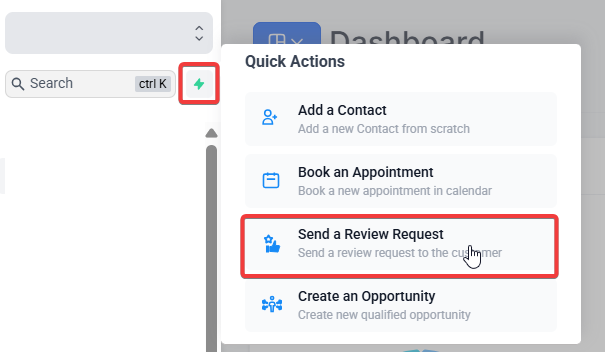
**Quick Actions are shortcuts that allow you to perform tasks like sending a review request with a few clicks. To send a review request manually:
- Navigate to the Quick Actions section in your LeadMagicX account.
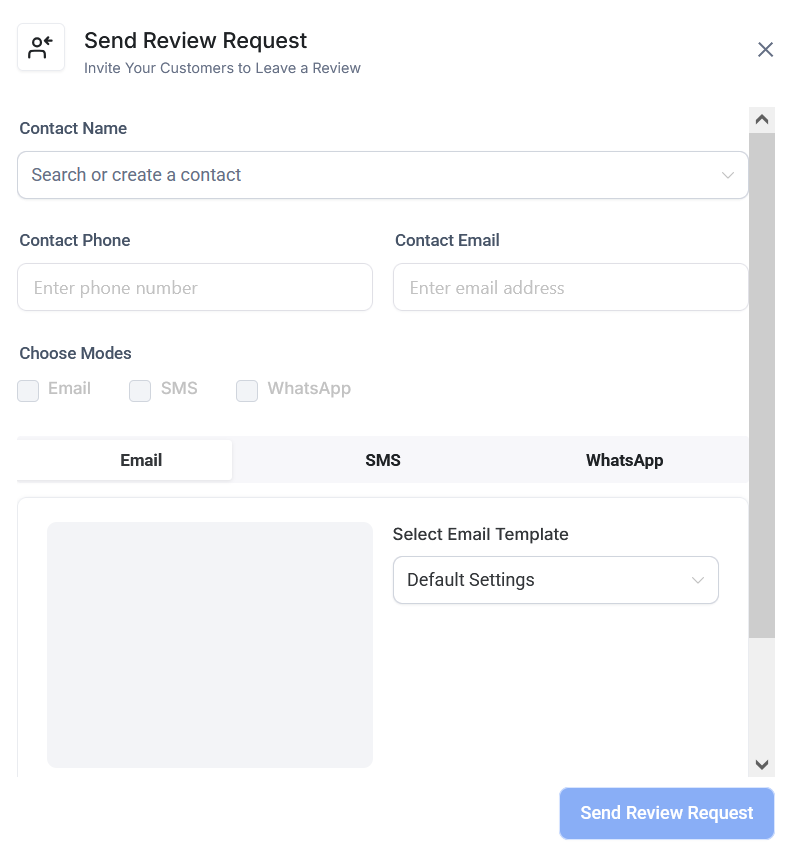
- Select the option to send a review request.
- The person signed into LeadMagicX will be listed as the sender of the message. If you want the review request to come from the assigned user, use the Workflow Action instead.
2. Workflow Action (Automated)**
**To automate the review request process:
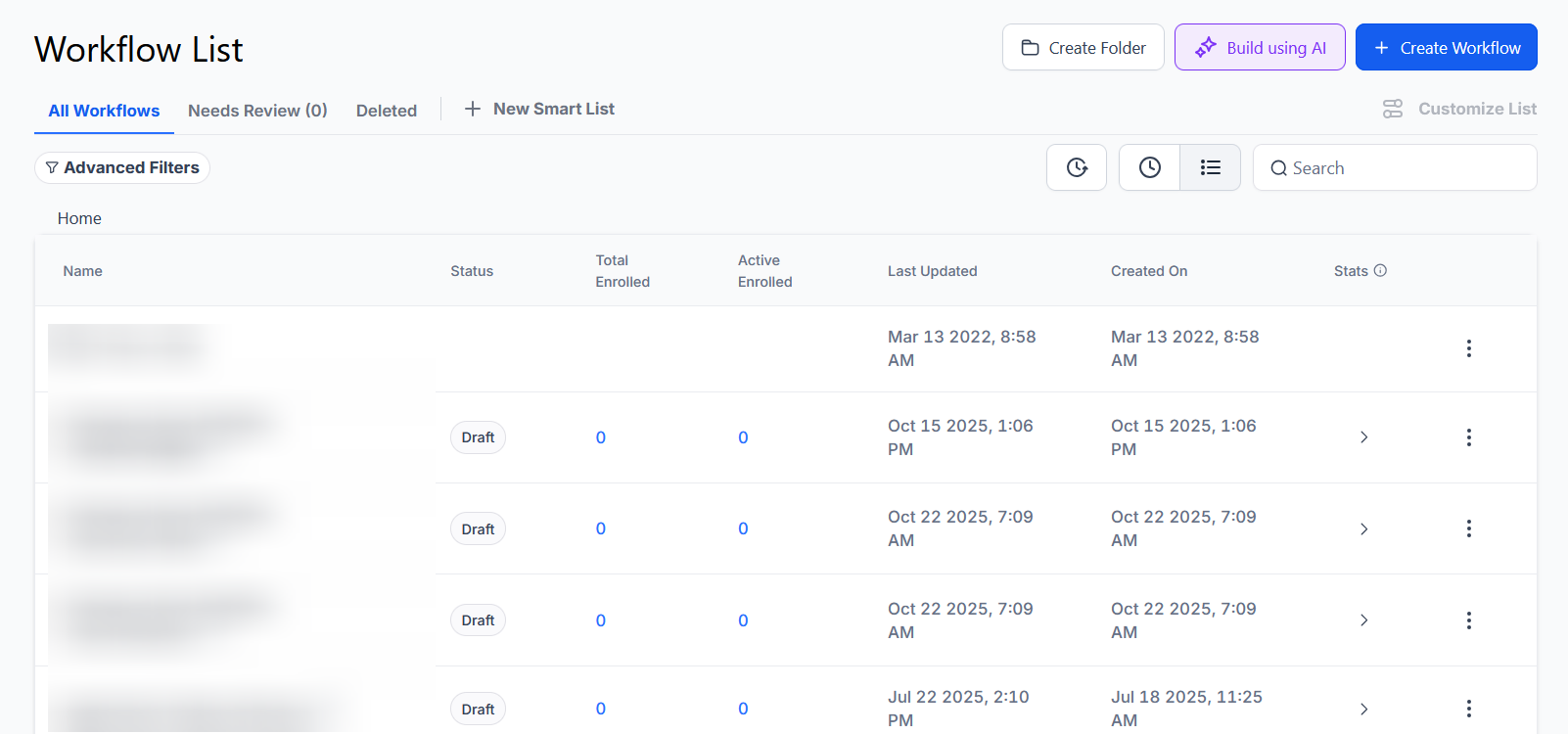
- Navigate to Automation on the left > Workflows at the top and create a new workflow.
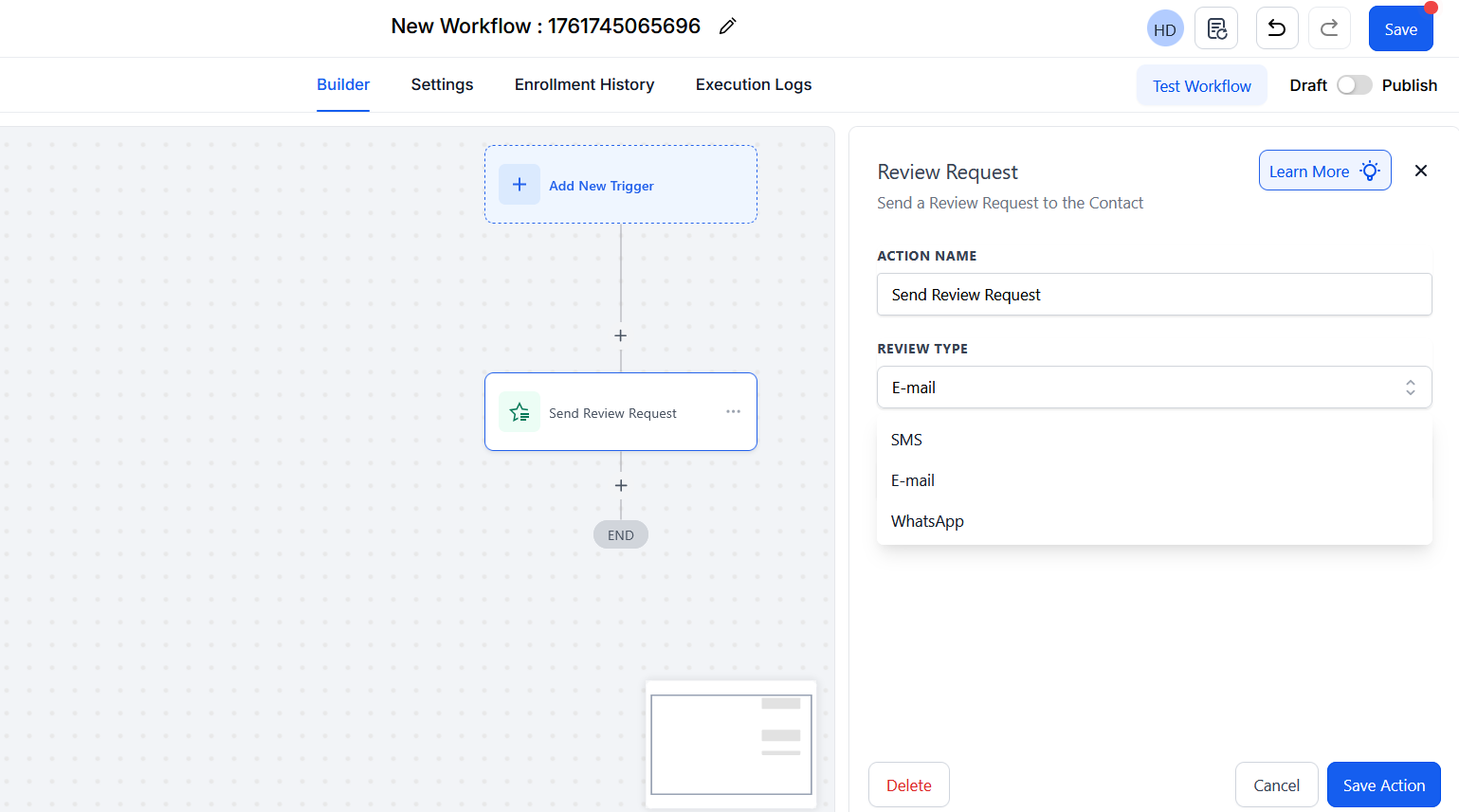
- Add the “Send Review Request” action within the workflow.
- Select the preferred channel, WhatsApp, Email, or SMS, to send the request.
This method allows for seamless automation, sending review requests on behalf of the assigned user when configured correctly.
3. Reputation Tab (Manual)**
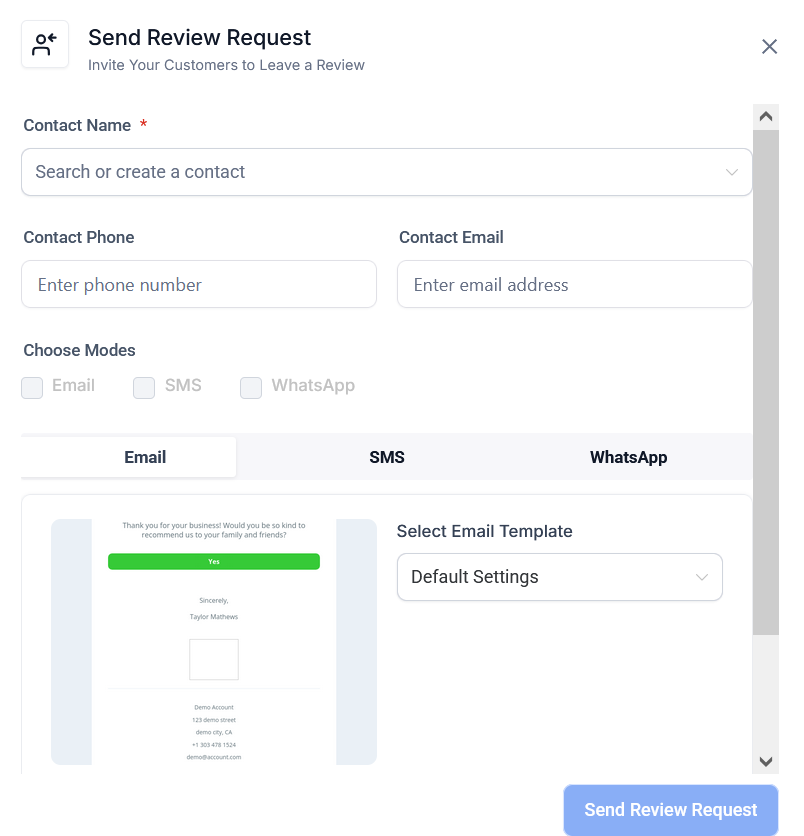
**The Reputation Tab provides an easy way to manually send a review request and track progress. To do so:
- Go to the Reputation Tab in the LeadMagicX sidebar.
- Under the “Requests” section, select the option to send a review request to an individual client.
- You can also monitor the status of all your sent review requests in this section.
- The Image Attachment in Review Requests allows LeadMagicX users to include personalized visuals, such as before-and-after photos or real service images, when requesting reviews. This adds authenticity and helps customers better connect with the experience being shared.
What Do the Different Review Request Statuses Mean?**
**Understanding the different review request statuses is crucial for troubleshooting and ensuring successful delivery. Here are the most common statuses:
- Queued : The system has received the review request but will send it once the earlier requests in the queue have been processed. A slight delay may occur in sending.
- Sent : The review request has been successfully sent out.
- Delivered : The request has been delivered, confirmed by the SMS provider.
- Failed : The request failed to deliver, possibly due to an invalid contact number or email.
If you are using a third-party SMTP service, ensure you are logged in with the user email that matches the integrated SMTP email to avoid any issues.
¶ Multi-Channel Review Requests
This feature allows you to request reviews via SMS, Email, or WhatsApp, ensuring you connect with customers through their preferred communication channels.
Benefits:
- Increased Review Collection : Reach more customers by engaging them through multiple communication channels.
- Personalized Messages : Tailor your review requests to fit each platform’s style for better customer engagement.
- Real-Time Tracking : Track delivery, open rates, and clicks for each request channel.
Start collecting reviews effortlessly and optimize your strategy with detailed performance insights.
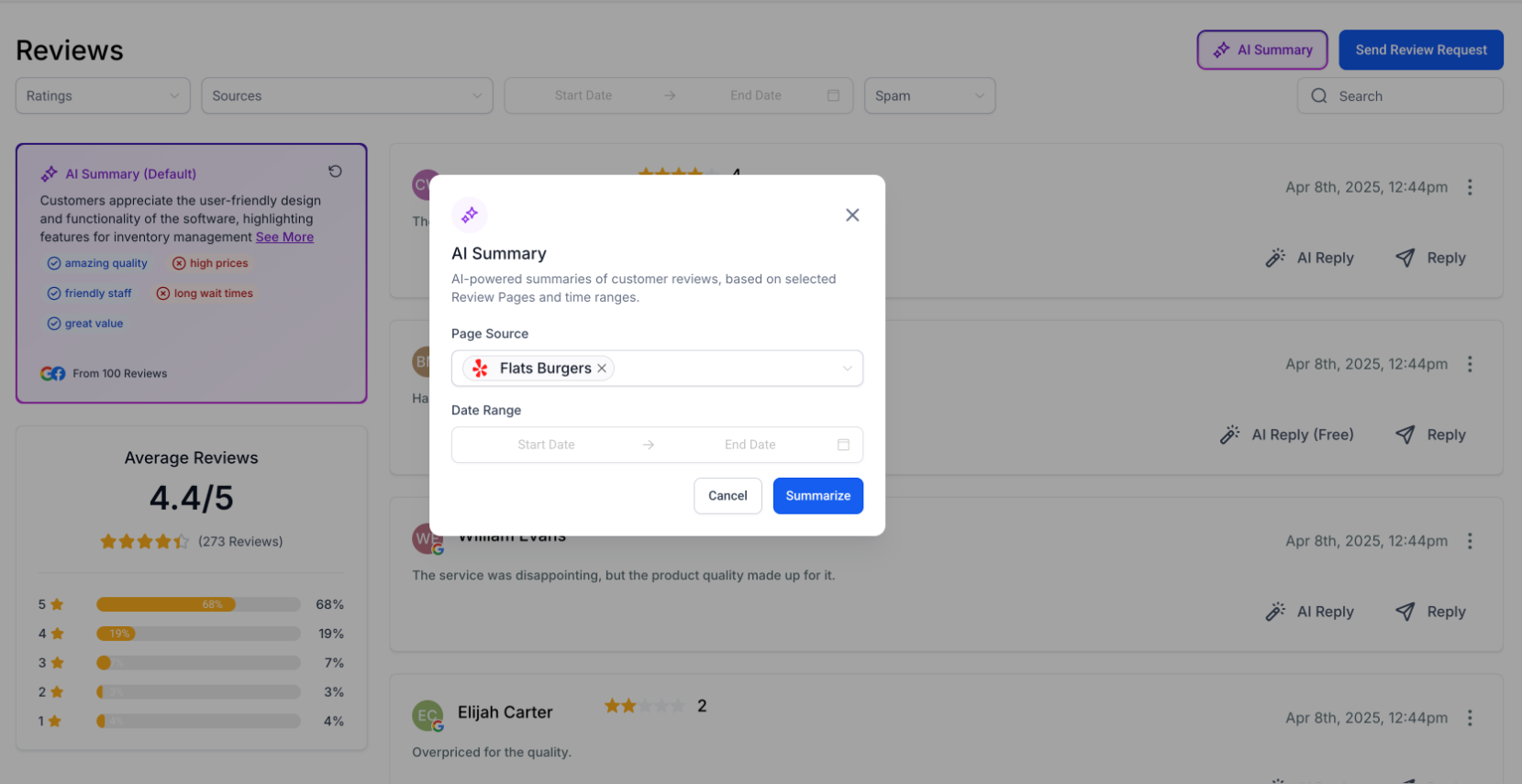
You can useAI-Powered Review Summaries to receive intelligent, quick summaries of customer reviews across all connected location pages. Select the “Reviews” tab and customize the timeframe and review pages to view instant summaries of customer sentiment.
FAQs
Question: How often should I send review requests to clients?**
**Answer: It’s ideal to request reviews shortly after a service is completed or a product is delivered, while the experience is still fresh in your client’s mind.
Question: Can I send review requests via both email and SMS?**
**Answer: Yes, you can choose to send review requests via email or SMS. If you’re automating this, you can set up different channels within workflows.
Question: What if a review request fails to deliver?**
**Answer: If a review request fails to deliver, check the contact details for accuracy, and ensure the communication method (email/SMS) is functional.
Question: How do I know if a review request was successful?**
**Answer: You can check the status of your review requests in the Reputation Tab. The status will show if the request was sent, delivered, or failed.
Question: Can I customize the message sent with a review request?**
**Answer: Yes, you can customize the messaging for both SMS and email review requests, ensuring it matches your brand tone and voice.
Question: Can I send review requests through multiple channels at once?**
**Answer: Yes, you can select SMS, Email, and WhatsApp together or individually based on your preference.
Question: How can I view summaries of customer reviews?**
**Answer: Use the AI-Powered Review Summaries in the Reviews tab, selecting the timeframe and location pages for instant insights on customer sentiment.
Question: Can I disable review requests at any time?**
**Answer: Yes, you can turn off review requests in your account settings if you no longer want to send them manually or automatically.
Question: Can I stop the system from sending a review request if a customer had a bad experience?
Answer: Yes. If you use a Workflow , you can add an “Internal Notification” or a “Wait” step. This gives you time to manually remove a contact from the workflow if you know they aren’t happy, ensuring you only ask for reviews from satisfied clients.
Question: Can I send a review request to a client who doesn’t have a Gmail account?
Answer: Yes. While a Google account is required to leave a review on a GMB page, you can include links to other platforms (like Facebook or a custom survey) in your review request message to ensure every client has an option that works for them.
Question: Can I send review requests to my Facebook page instead of Google?**
**Answer: Yes. While Google is the default, you can customize your review link in the Reputation > Settings tab to point toward Facebook or any other third-party review site.