¶ Reputation Management: Settings
Reputation Management: Settings
The review widget is a powerful tool for collecting and showcasing customer feedback, helping businesses improve their online reputation. With an intuitive interface in the Reputation Management section, users can easily manage review settings, requests, and QR codes. The addition of Smart Spam Detection further enhances control by automatically identifying and filtering spam reviews, ensuring only genuine feedback is highlighted.
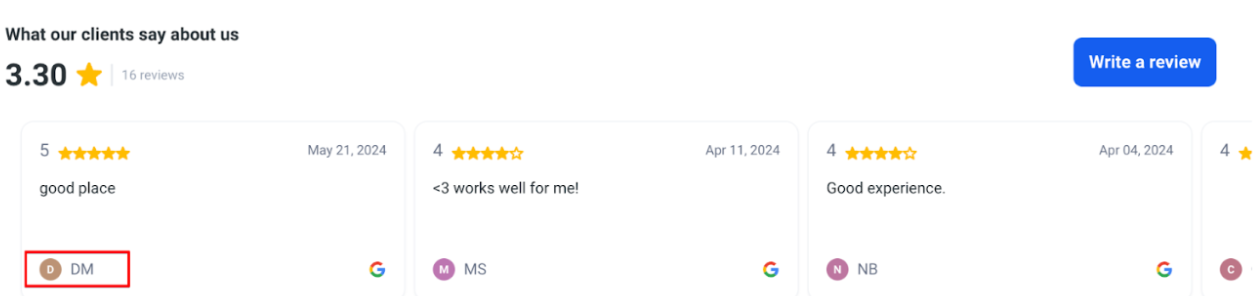
Important note: We have enhanced the privacy of review widgets for HIPAA-compliant locations by displaying reviewer initials instead of full names , ensuring sensitive information remains confidential. Please ensure your location is HIPAA-compliant.
¶ Accessing the Reputation Management Section
1. Navigate to the Reputation tab:
- Go to the Settings menu within this tab, located at the top.
¶ Reviews AI
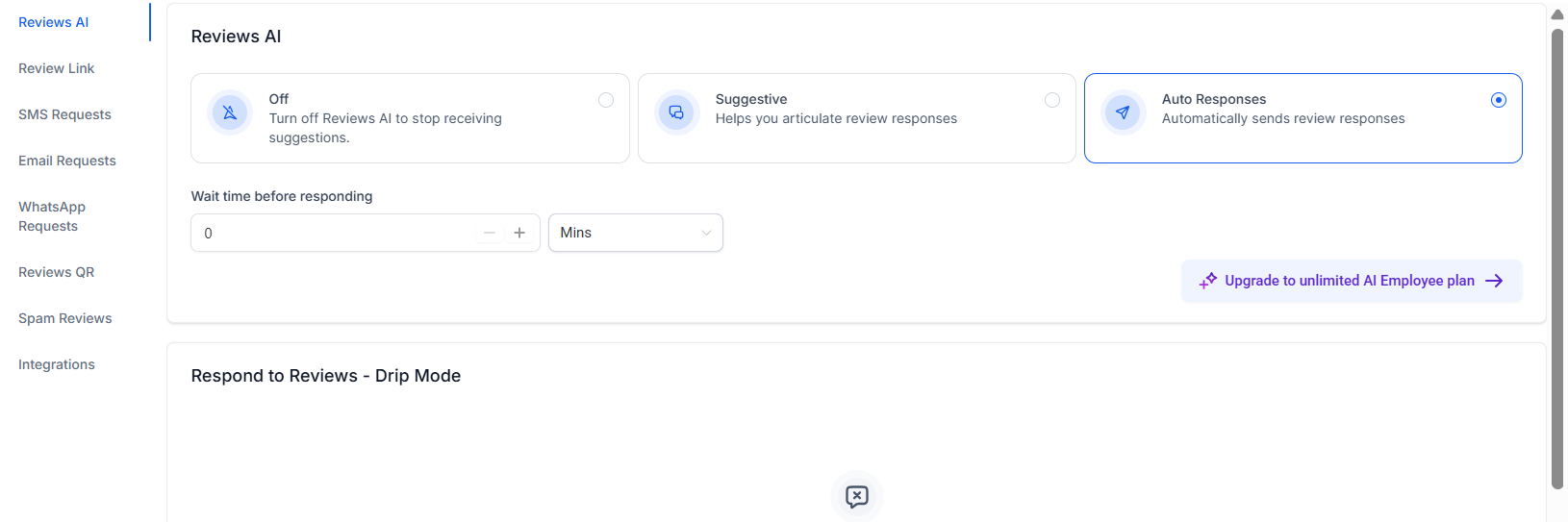
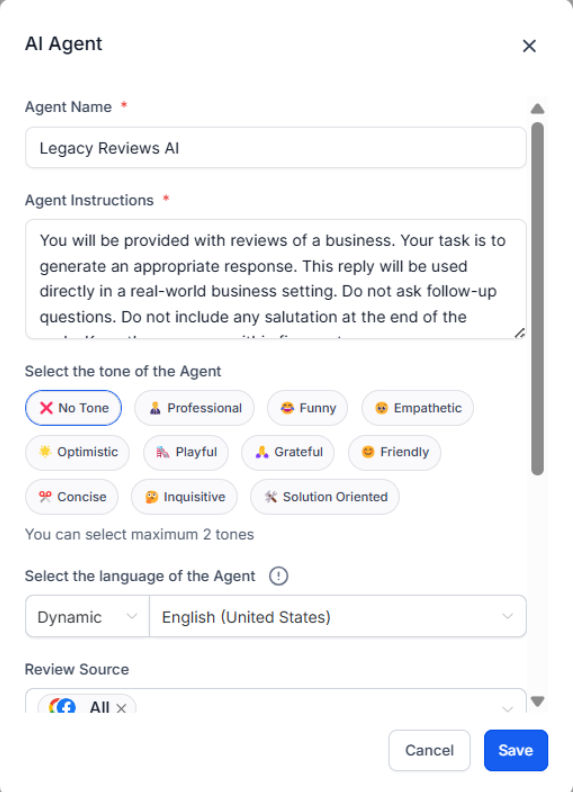
Get suggestions on review responses through AI. Create multiple AI personalities, each with customizable traits, tones, and response styles, ensuring dynamic and engaging interactions.
¶ Setting Up Your Review Link
1. Review Balancing
- Enable to distribute your review requests across multiple platforms, helping you build a well-rounded online reputation.
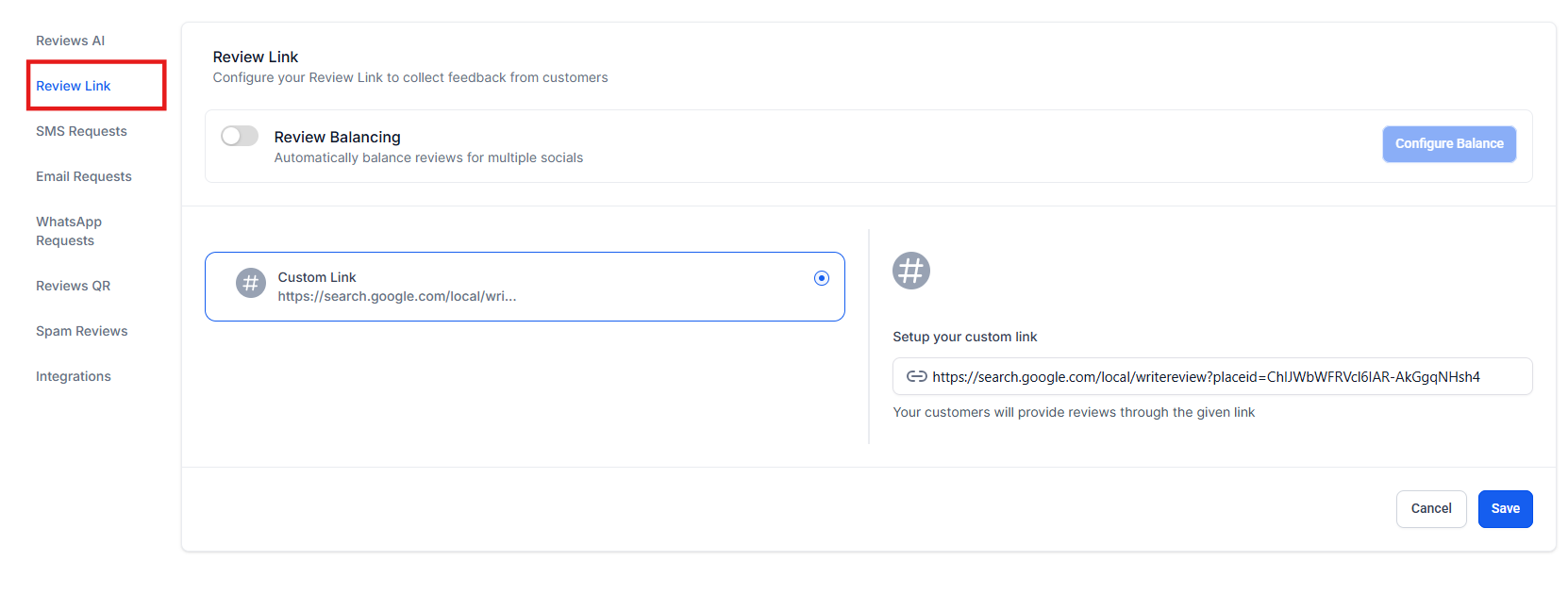
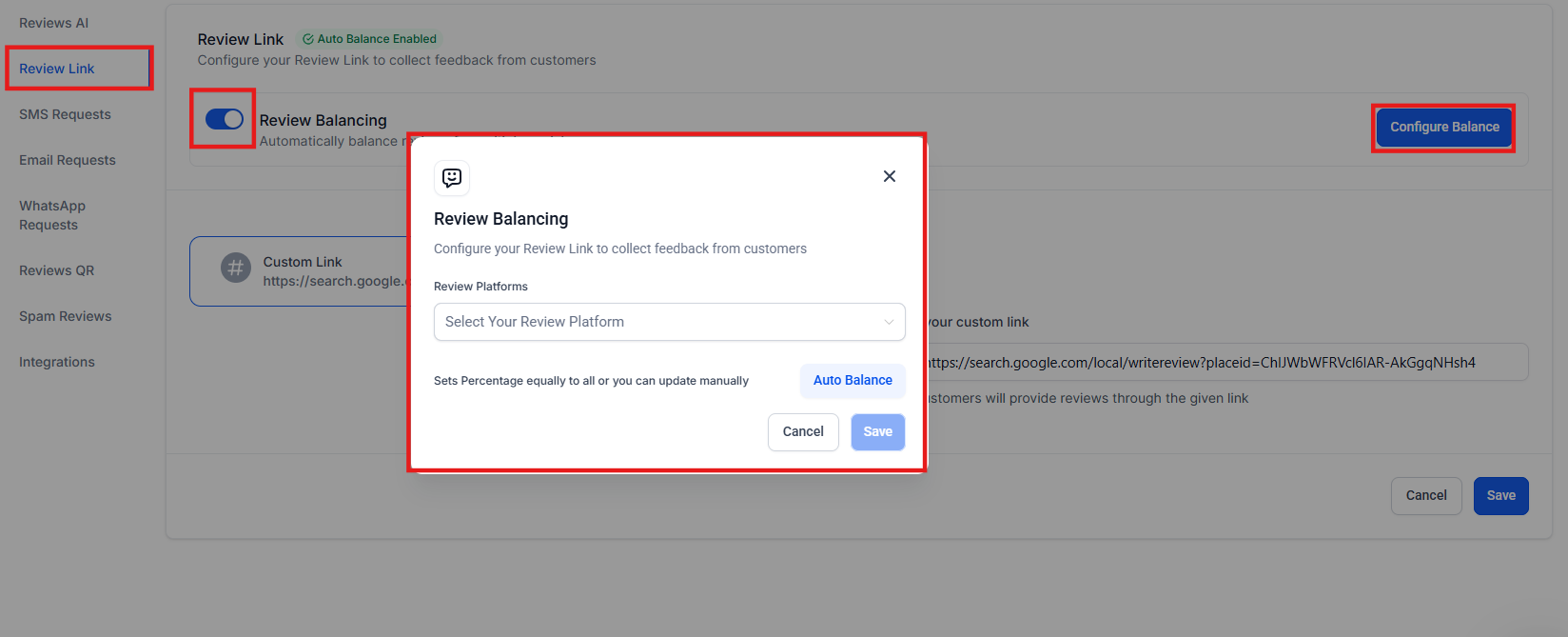
2. Go to the Review Link Section
- If you have Google My Business (GMB) or Facebook integrated, you will see the review link added automatically.
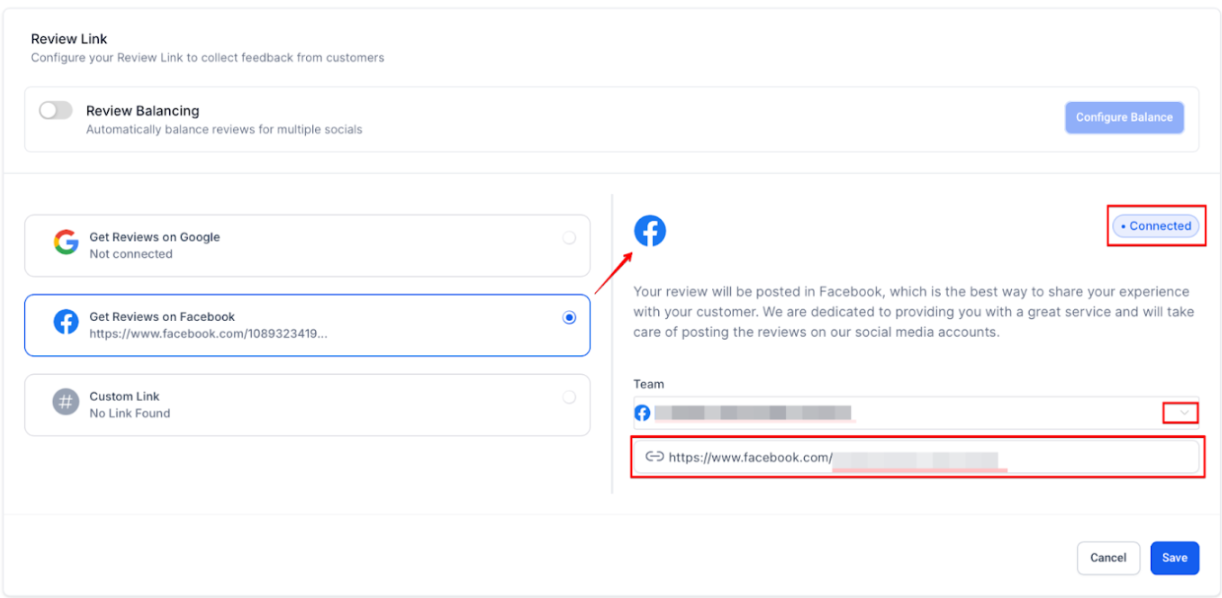
- If these options are not integrated, you will need to set them up first.
- You can also create a custom link where your customers can provide reviews.
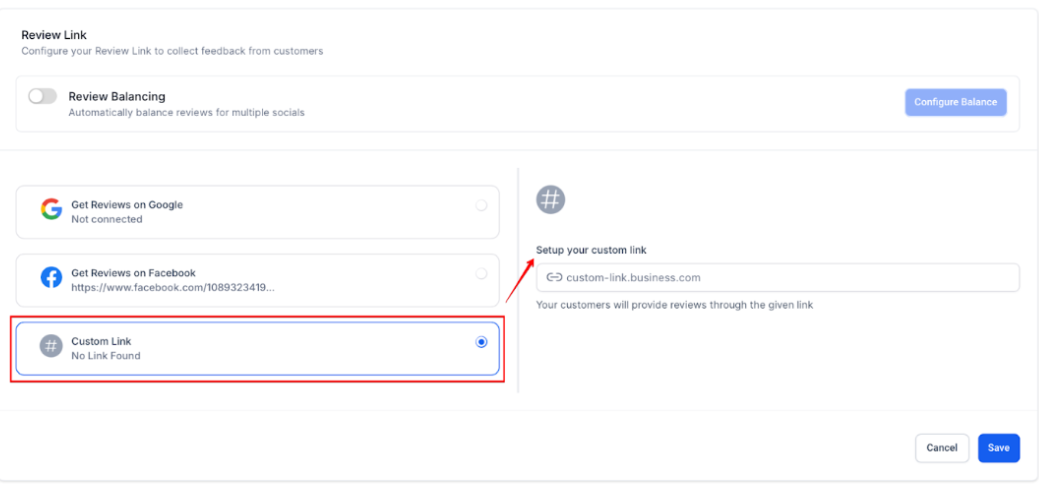
3. Selection of Review Request Link Generation
- This feature allows you to select the page and platform for generating review request links, simplifying the process of directing customers to your preferred review sites.
¶ Email and SMS Review Request
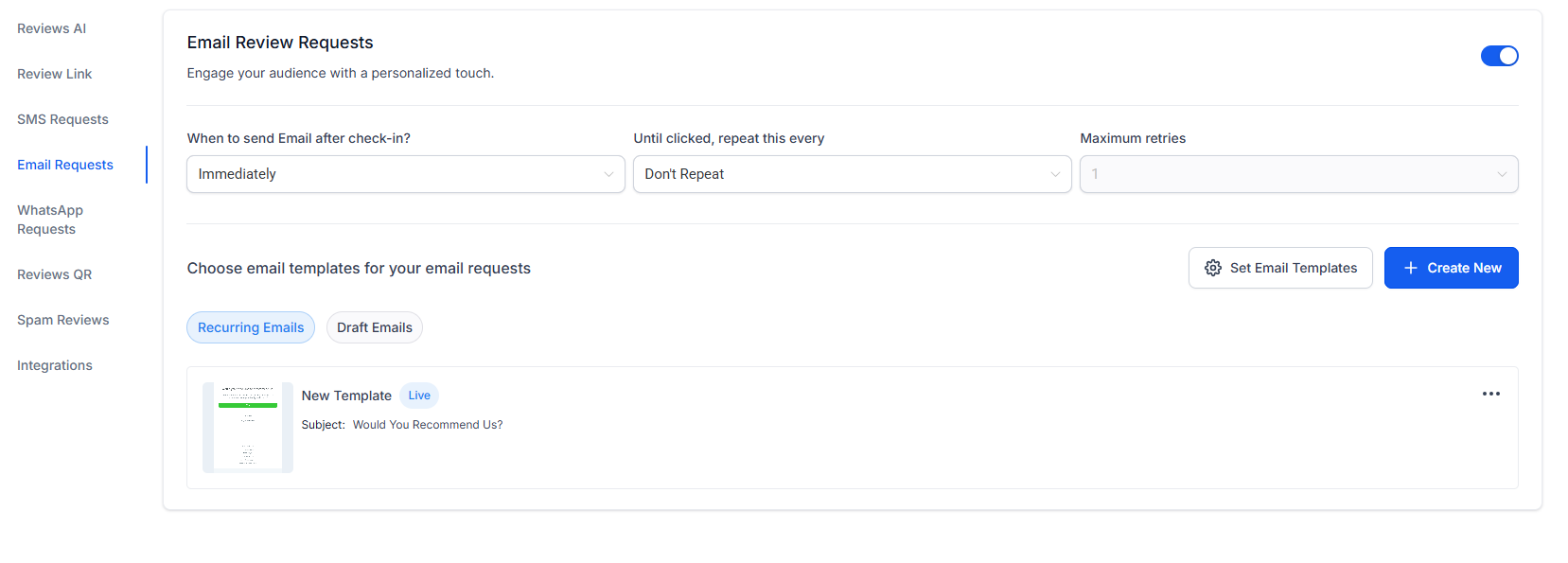
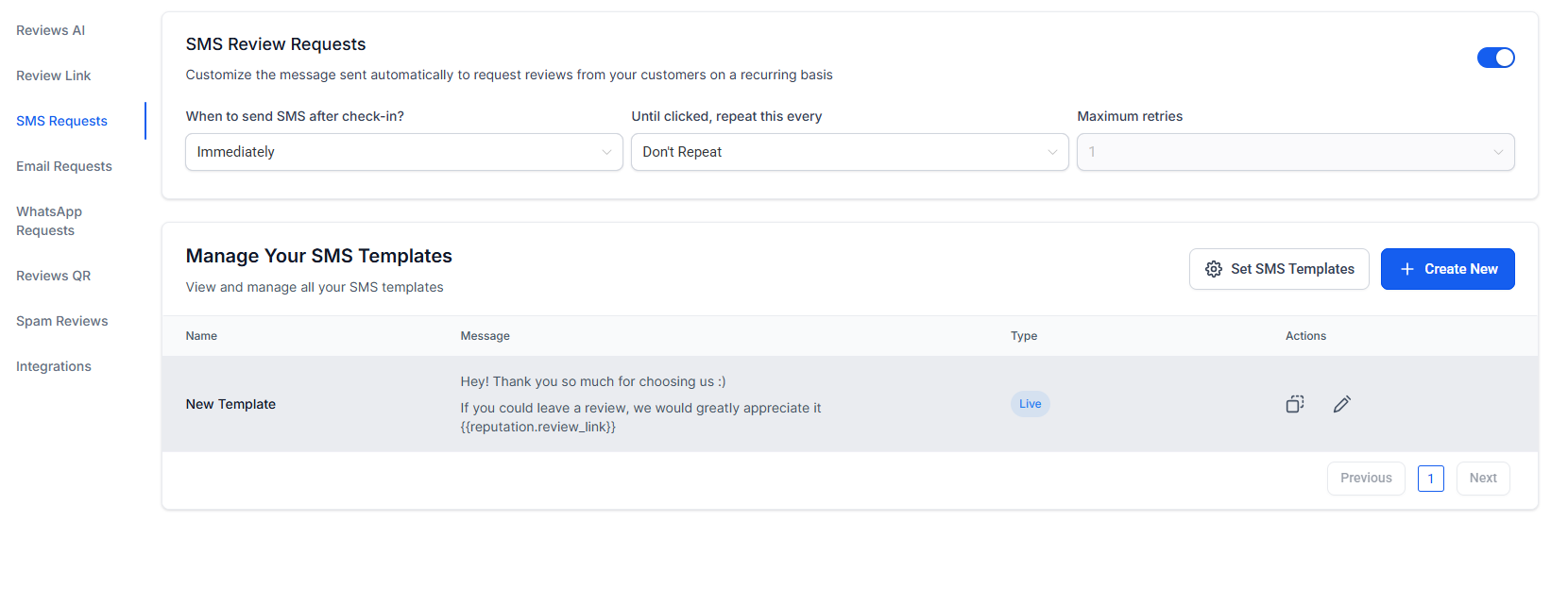
The Email and SMS review requests tab allows you to preview and edit email/sms templates directly within the review request section, streamlining the process and saving you time.
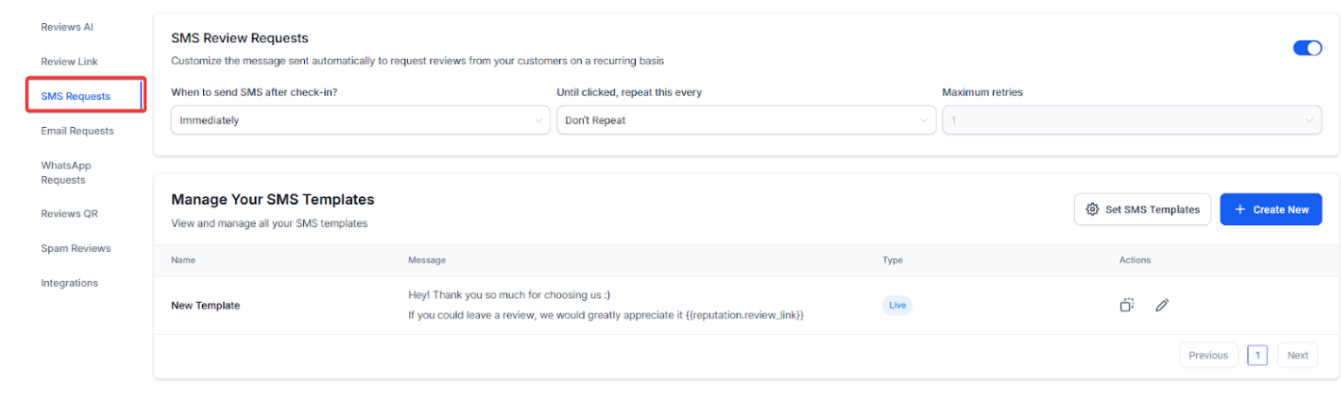
- Contact Search for Review Requests : Search for contacts by email or phone number when sending review requests, making the process faster and more accurate
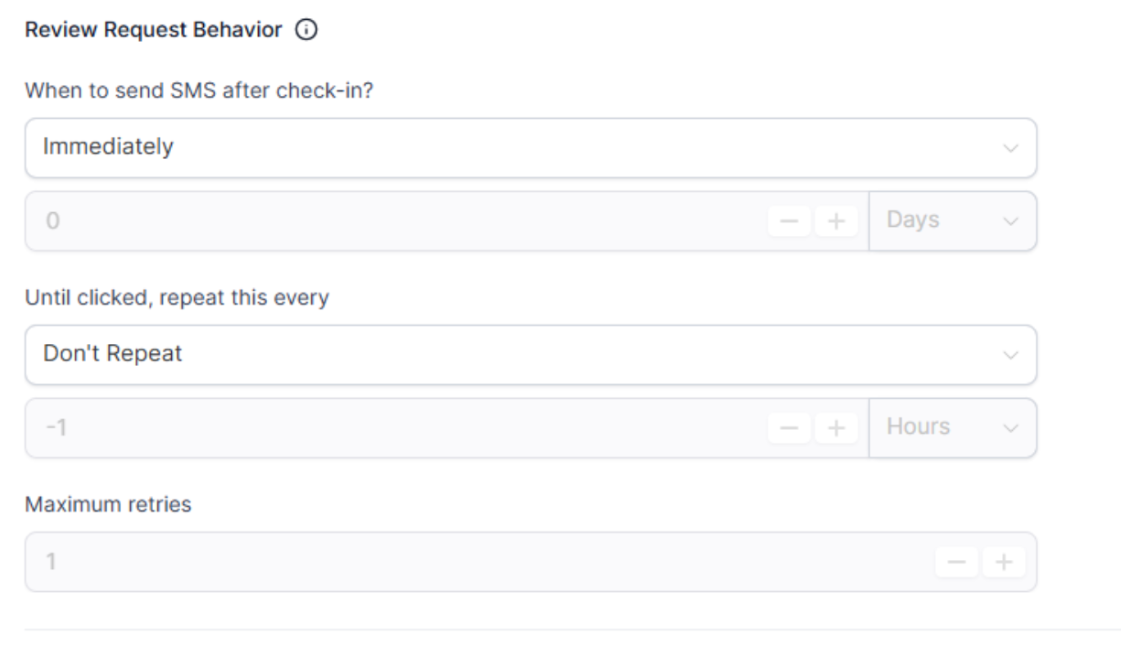
- In the Review Request Behavior section, you can choose what happens when you click the review request button:
- Send a review request immediately once.
- Follow a custom schedule for review requests.
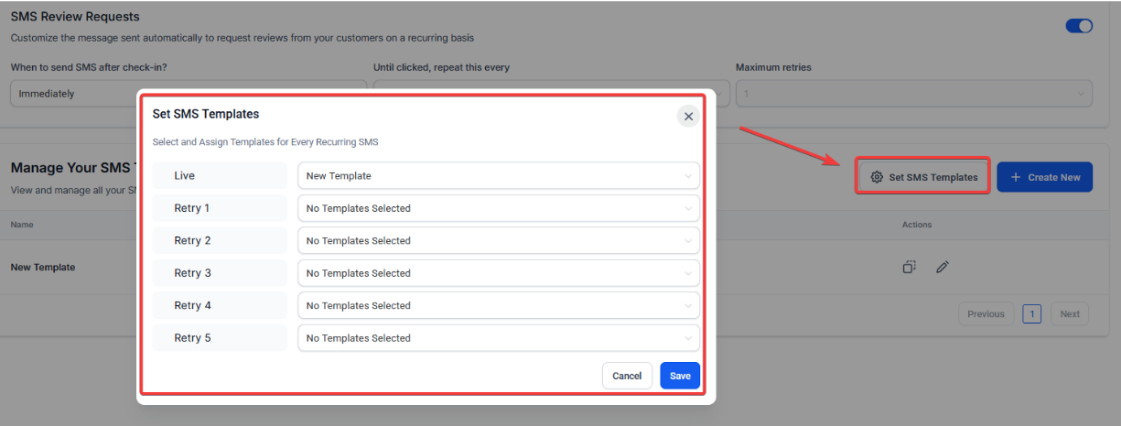
- You can create and personalize SMS templates for recurring review requests. You can use custom templates or pre-built options, and incorporate smart fields like {{contact.first_name}} to personalize your messages.
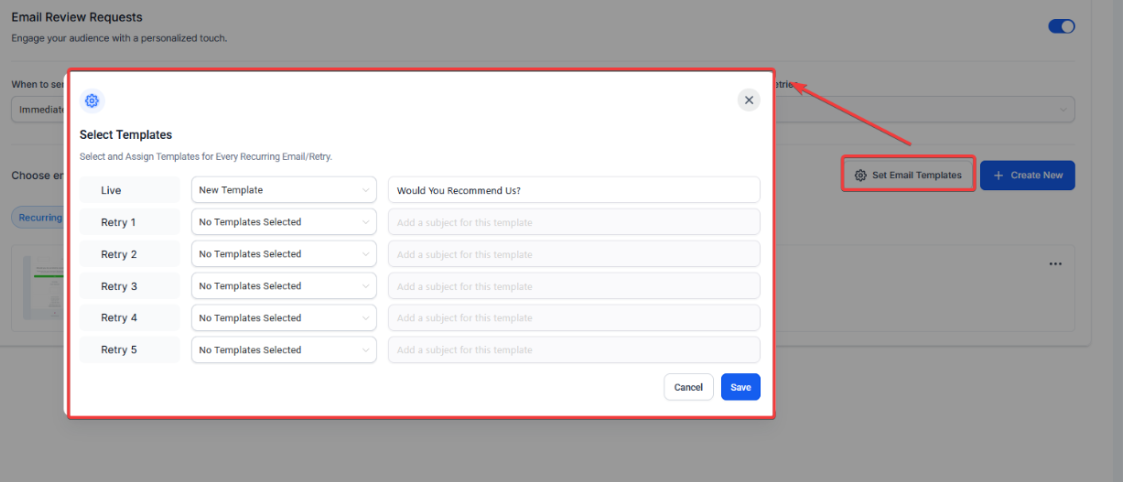
Additionally, you can also personalize yourrecurring emails in Reputation Management by selecting custom templates for review request emails. You can choose from a library of professionally designed templates, which can be customized to match your brand’s voice.
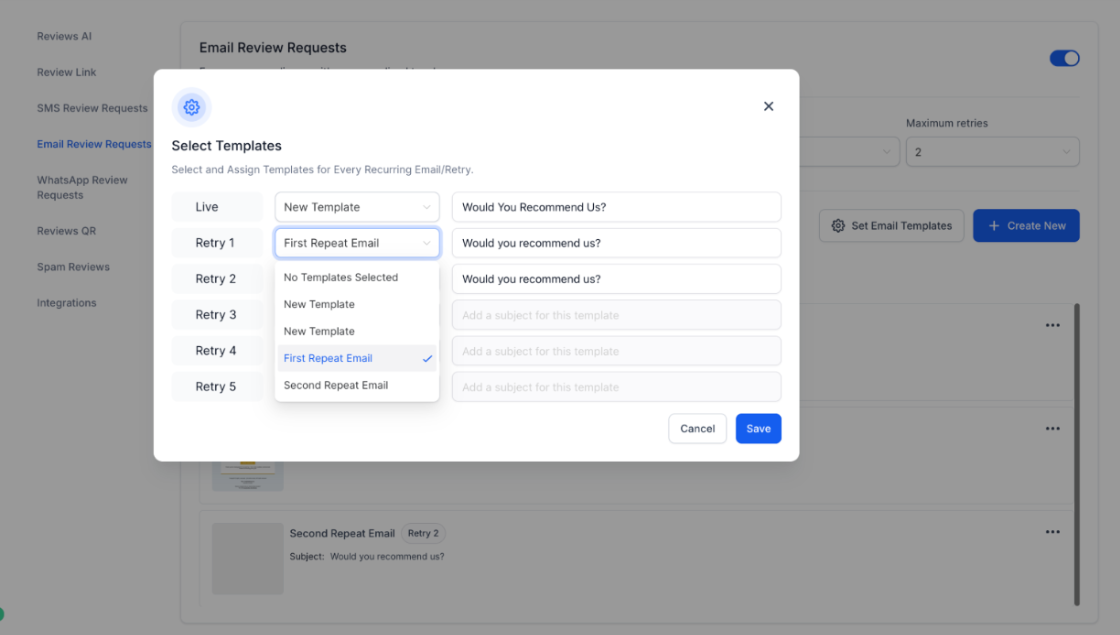
- Select “Maximum retries” and enable recurring review requests.
- Select different email templates for each follow-up message. Customize the content to align with your brand. Save and activate
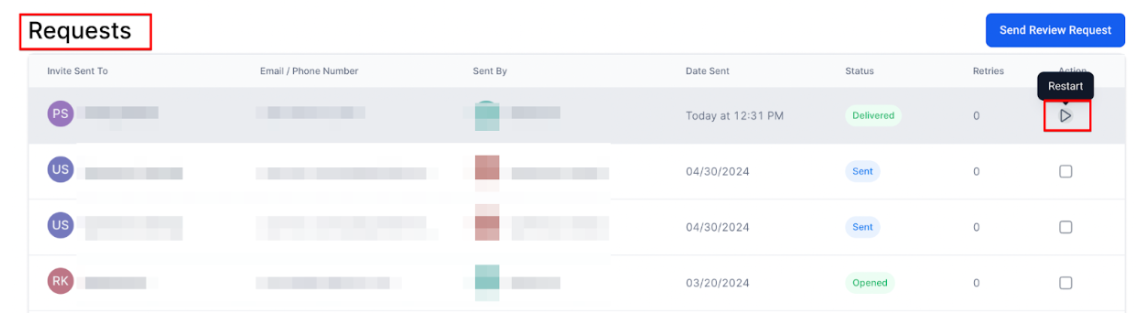
The Pause or stop recurring emails and SMS for individual contacts feature allows you to pause and resume SMS and email review requests for individual contacts within recurring email and SMS campaigns.
¶ WhatsApp Review Requests
You can send review requests directly via WhatsApp. This feature supports custom templates, manual and bulk sending, and automation through workflows
1. Set Up Integration
- Authenticate your WhatsApp Business number under Settings → WhatsApp.
2. Create a Template
- Go to Reputation → Settings → Review Request WhatsApp , customize your message template, and submit it to Meta for approval (Takes 1-2 minutes).
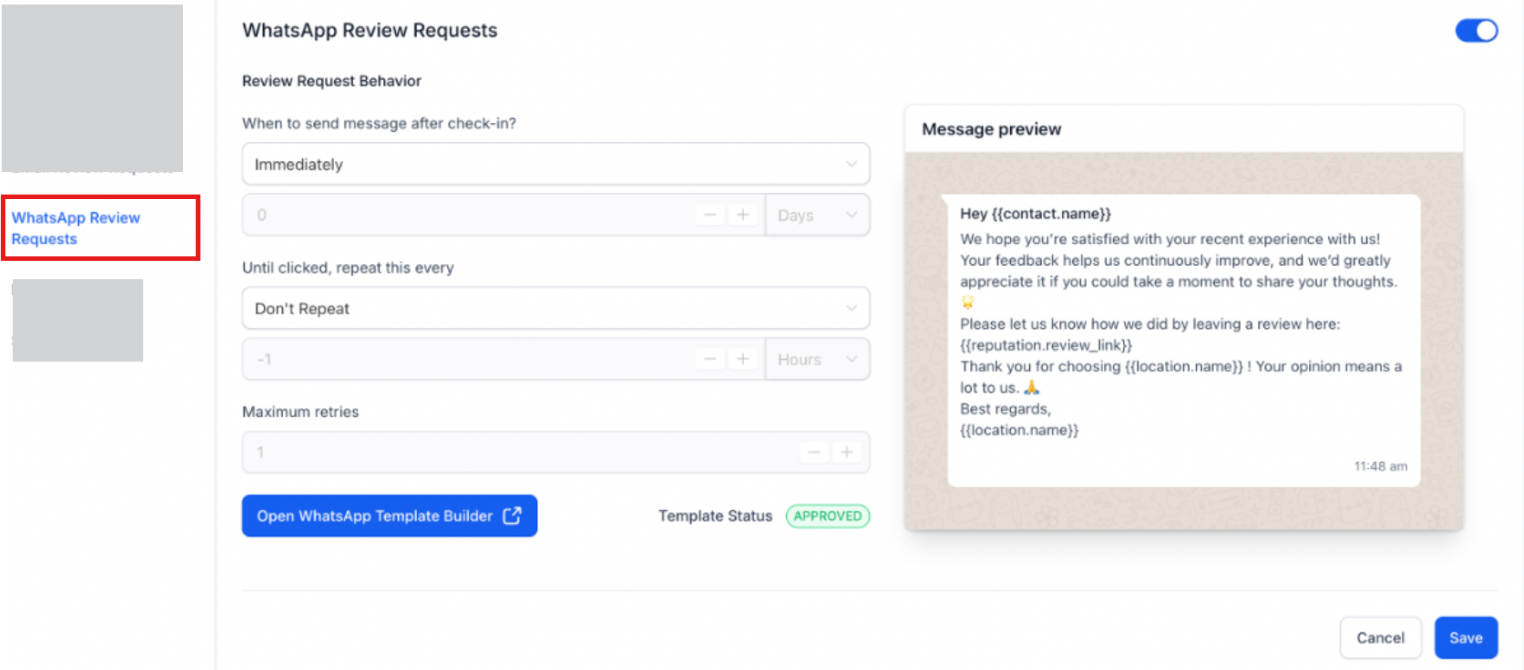
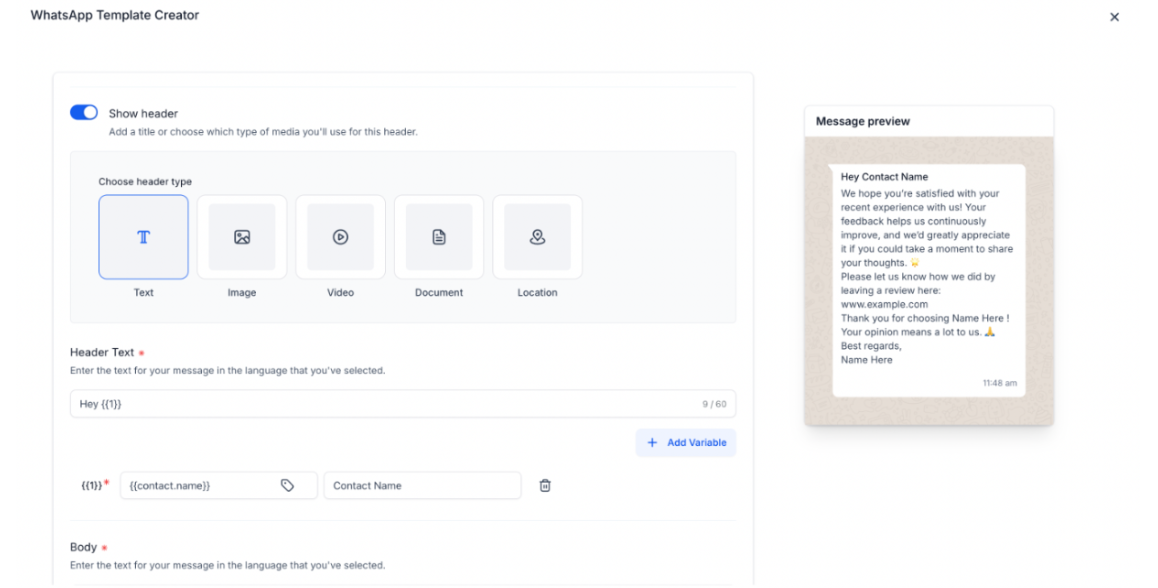
3. Send Requests
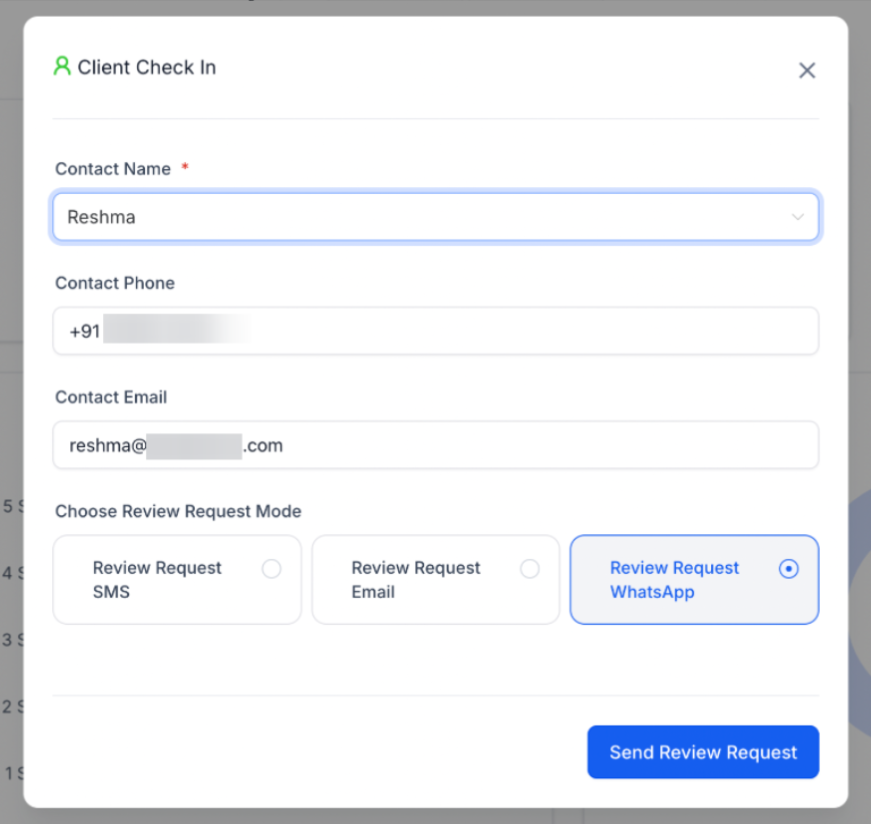
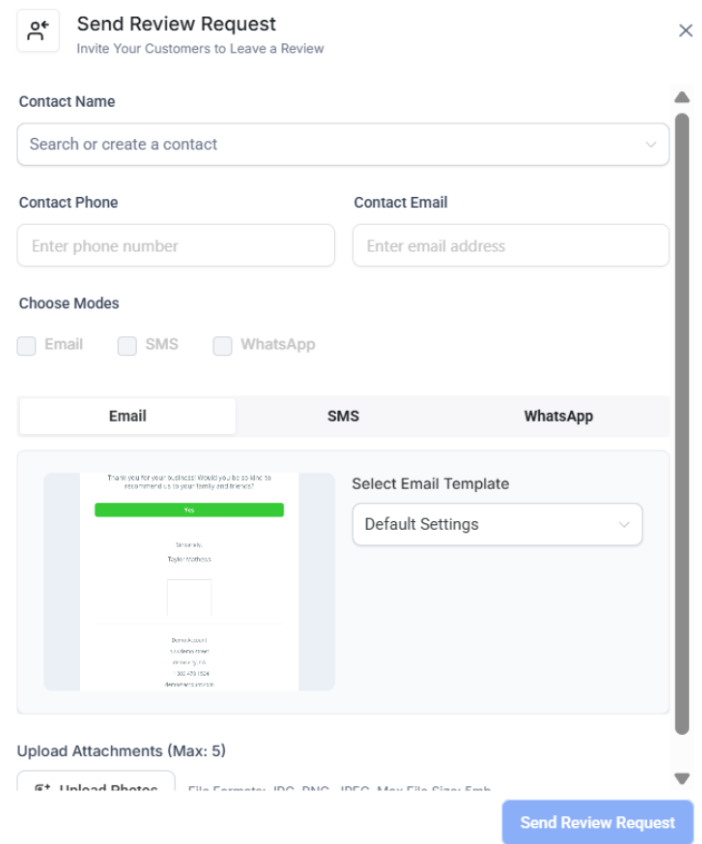
- Send individually, in bulk (via CSV upload), or automate via workflows for timely and consistent feedback requests.
Individually:
In Bulk:
¶ Reviews QR:
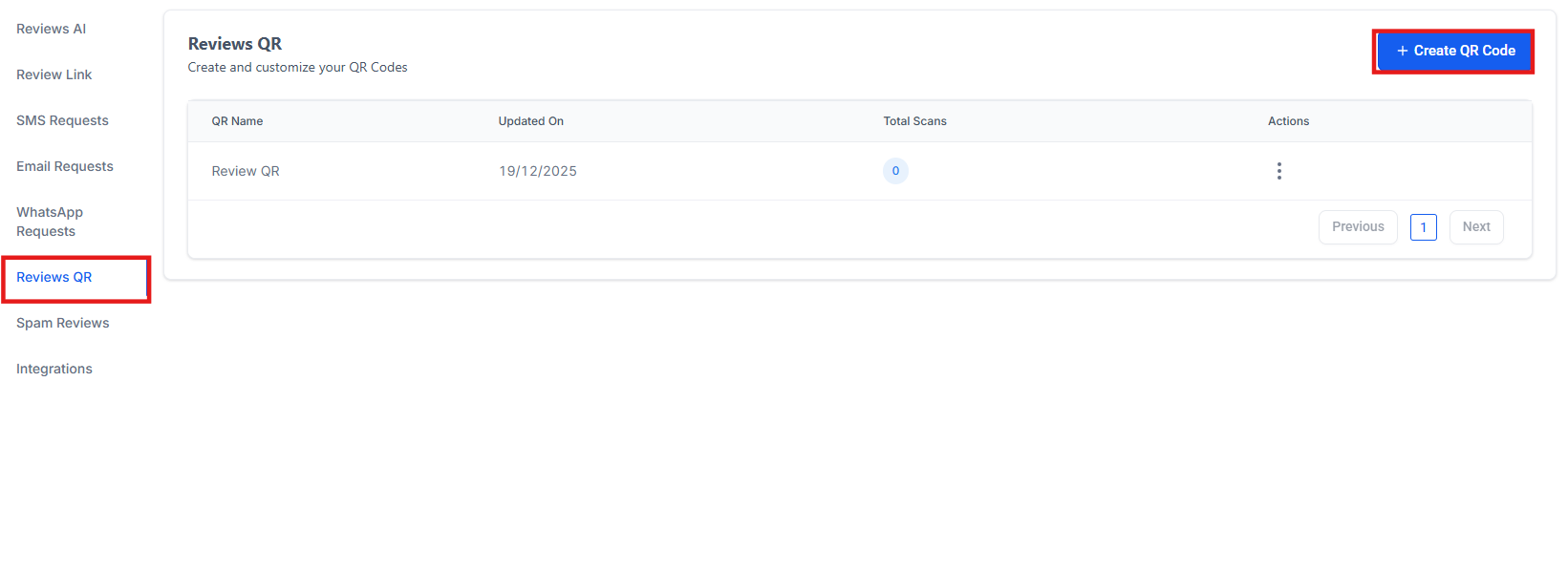
Reviews QR is designed to streamline the review collection process through customizable QR codes.
1. Create QR Codes
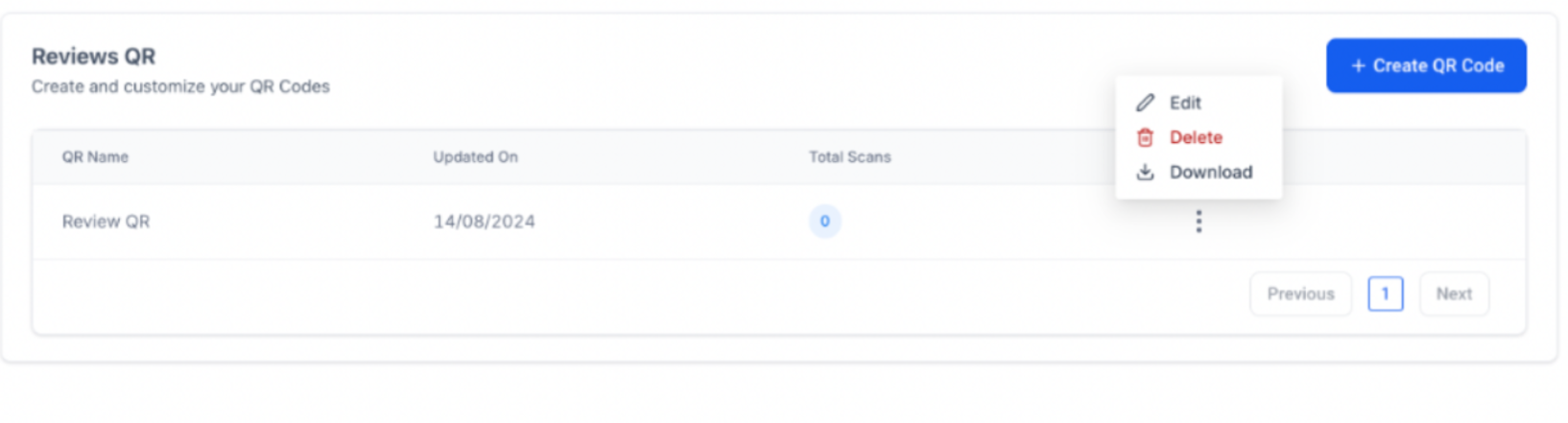
- Click “Create QR Code,” customize it to fit your brand, and download it.
2. Implement and Track
- Place the QR codes where customers can easily scan them, like on business cards or posters. Track scan metrics to optimize your strategy.
¶ Smart Spam Detection
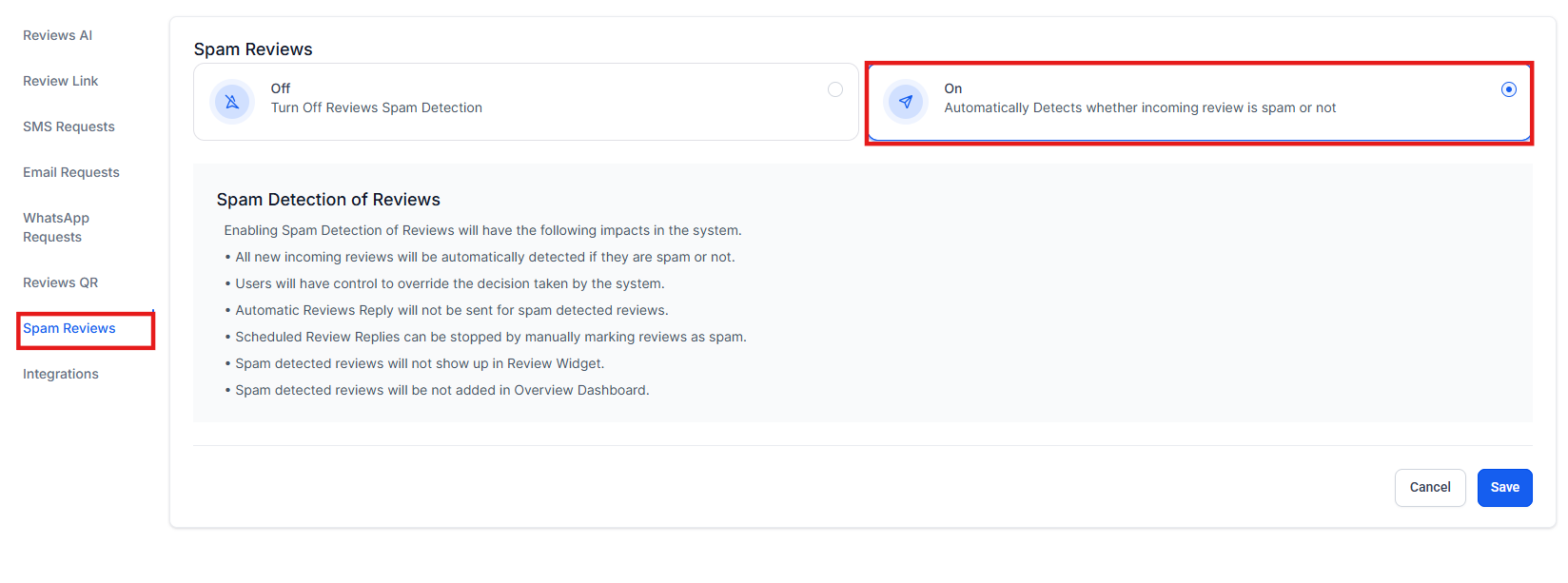
Smart Spam Detection automatically flags potential spam reviews, helping businesses maintain a clean and authentic online presence.
1. Enable Spam Detection
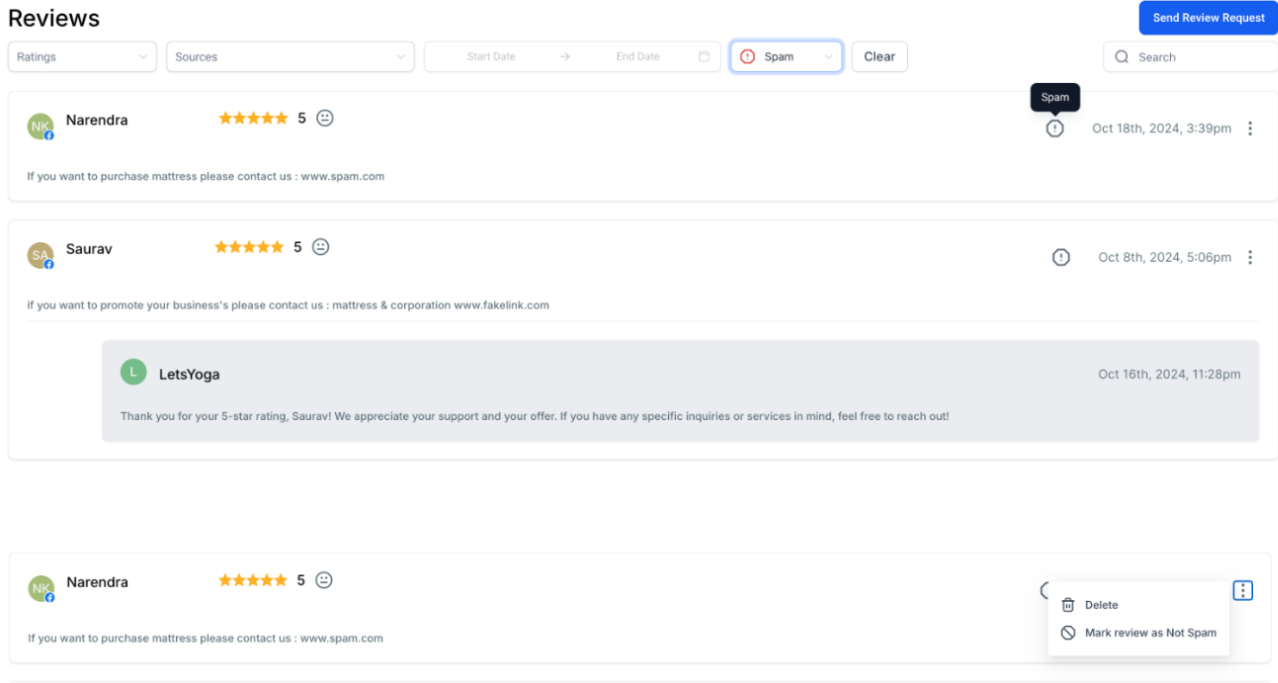
2. Manage Flagged Content
- Review flagged content and mark it as “Not Spam” if necessary, giving full control over published reviews.
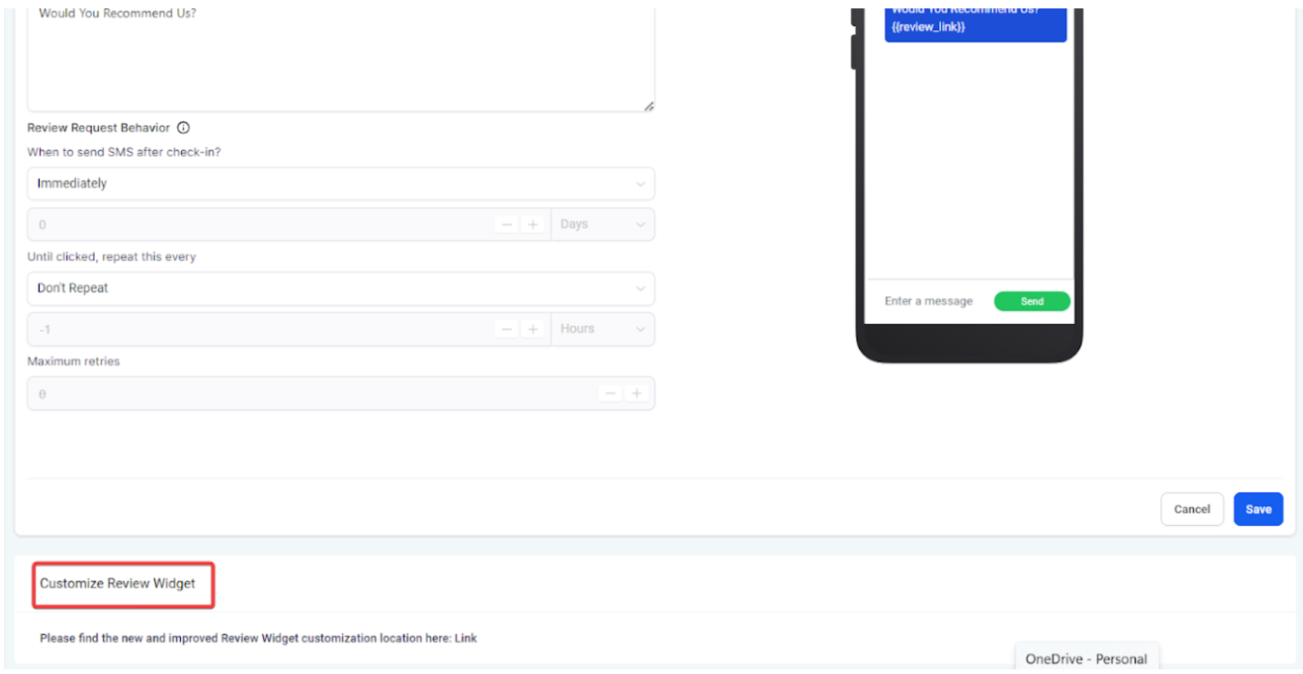
¶ Customizing Review Request Widget
1. Edit Your Review Requests Widget
- Go to the Reputation tab and then to Widgets.
- For detailed instructions, refer to our article "How to Create and Customize Your Review Widget. "
¶ Review Filtering and Display Options
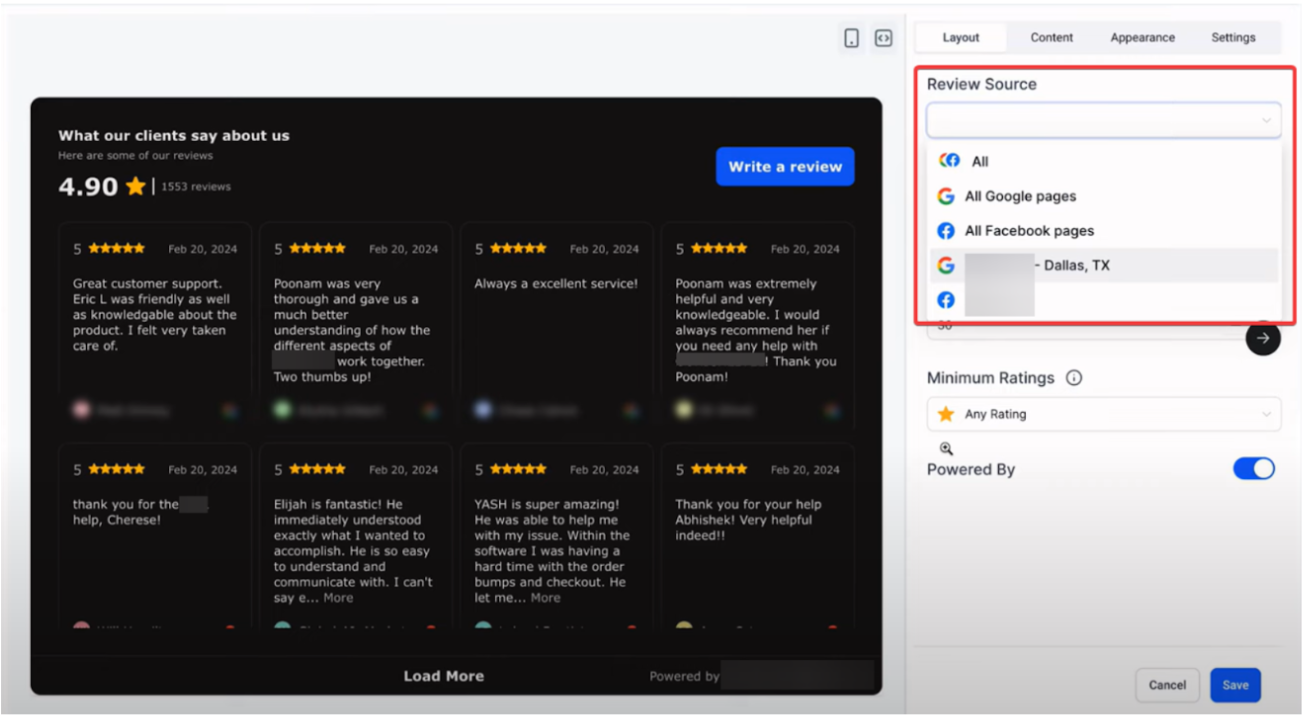
1. Filtering Reviews by Pages
- You can filter out reviews based on specific pages.
- This allows for more granular control over which reviews are displayed, helping you focus on the most relevant feedback for each page.
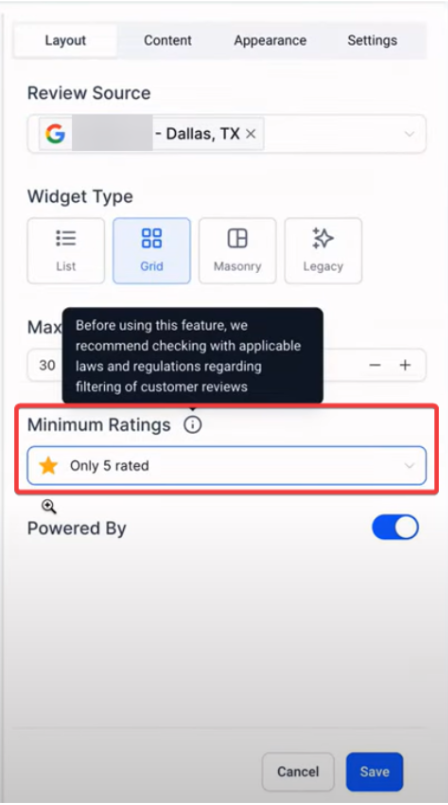
2. Setting Minimum Rating for Reviews
- You can select the option to set a minimum rating for reviews that appear in the review widget.
- This feature helps maintain a positive image by highlighting higher-rated reviews, while also giving you control over the displayed content.
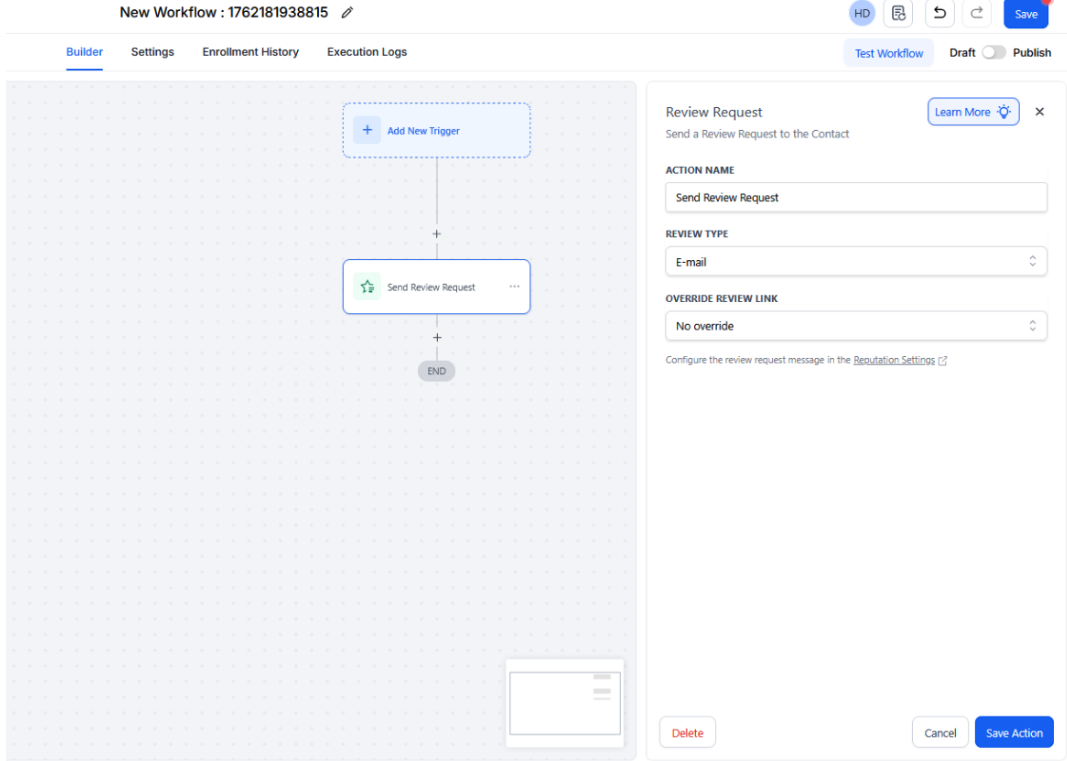
Note: You can customize review request journeys by overriding default review links in SMS, Email, or other channels, with the ability to create platform-specific variations (e.g., for Google or Facebook).
¶ IMPORTANT NOTE:
¶ Legal Considerations
Be mindful of local regulations and guidelines regarding the display of reviews, as some regions have specific rules about this practice. It is recommended to consult with a legal expert to ensure compliance with local laws and regulations.
¶ FAQs
Question: How does the Smart Spam Detection feature work?****
Answer: Smart Spam Detection automatically flags potential spam reviews to maintain a clean and authentic online presence. You can review flagged content and mark it as “Not Spam” if necessary.
Question: Can I customize the review widget for my business?****
Answer: Yes, you can customize your review widget by navigating to the Reputation tab under Widgets. You can adjust its appearance and functionality to fit your brand.
Question: How can I use QR codes to collect reviews?****
Answer: You can create customizable QR codes under the Reviews QR section, place them on business cards or posters, and track scan metrics to optimize your strategy.
Question: What is review balancing, and how do I enable it?****
Answer: Review balancing distributes your review requests across multiple platforms to build a well-rounded online reputation. Enable this feature in the Review Link section.
Question: How can I send review requests through WhatsApp?****
Answer: First, authenticate your WhatsApp Business number under Settings → WhatsApp. Then, create a custom template, submit it for Meta approval, and send review requests individually, in bulk, or through workflows.
Question: Can I filter which reviews are displayed in the widget?****
Answer: Yes, you can filter reviews by specific pages and set a minimum rating for displayed reviews to highlight higher-rated feedback and control the content shown.
Question: What privacy features are available for HIPAA-compliant locations?****
Answer: For HIPAA-compliant locations, reviewer initials are displayed instead of full names in the review widget to protect sensitive information. Ensure your location meets HIPAA compliance requirements.
Question: How do I select the action for review requests?****
Answer: In the Review Request section, you can choose to send review requests immediately or follow a custom schedule for sending requests.
Question: What is “Reviews AI” and how does it help me?**
Answer:** Responding to reviews is critical for SEO and customer loyalty, but it’s time-consuming. Reviews AI generates response suggestions based on the specific “personality” and “tone” you define. You can review, edit, and post these AI-generated replies with a single click.