¶ How to Report a Google Review and Check the Progress of Your Dispute
How to Report a Google Review and Check the Progress of Your Dispute
Online reviews are essential for your business’s reputation, but sometimes, a review may not be genuine, fair, or may violate Google’s guidelines. In such cases, it’s important to know how to dispute a Google review to ensure your business profile remains accurate and trustworthy. This article will guide you on how to report a Google review, track the progress of your dispute, and understand the process better.
¶ When to Report a Google Review
Before diving into the steps, it’s important to understand when you should report a review. You can dispute a review if:
- It violates Google’s guidelines , such as posting spam, offensive language, or irrelevant content.
- It is fake or biased , and does not reflect a genuine customer experience.
- It contains misleading or inappropriate content.
When flagged as inappropriate, Google may take action against the reviewer, which could include removing the review or even banning them from posting future reviews. However, this is usually only done if the review clearly violates Google’s policies.
¶ Reporting a Google Review from within the Conversations Tab
To report a Google review directly from the Conversations tab in your LeadMagicX , follow these steps:
¶ Step 1: Access the Conversations Tab
- Log into your LeadMagicX and go to the Conversations tab.
- Search for the contact associated with the review you wish to dispute.

¶ Step 2: Dispute the Review
- Once you’ve located the contact, click on Dispute this review.
- You will then be prompted to confirm the Google email and the business account linked to the review in question.


¶ Step 3: Report or Check Status
- After confirming the details, you’ll have two options:
- Report a new review : If you’re reporting a review for the first time, you’ll be given a list of your recent reviews. You can click on any review to view it on Google Maps or submit a takedown request.
- Check the status of an existing report : If you’ve already reported a review, you can track its status here.

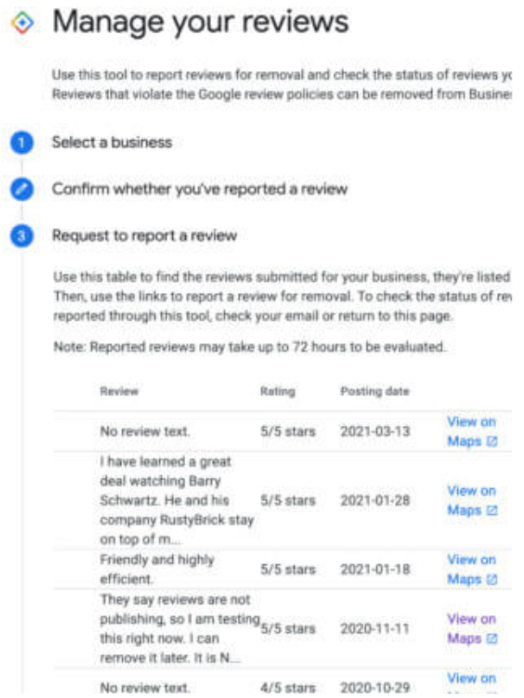
¶ Checking the Status of Reviews You Have Reported
If you’ve already reported a review and want to see its current status, follow these steps:
¶ Step 1: Check Status
- Go to the Reviews section and click on Check the status of a reported review. You will be shown a list of reviews that you’ve reported, including their current status.

¶ Step 2: Review Status Details
- Click on any reported review to see more details. This will provide you with a summary of the review’s status.
- If your takedown request was rejected, you can submit an appeal to contest the decision.

¶ Important Notes to Keep in Mind
- Limitations on Listings : There is a limit to the number of reviews that Google will show for review disputes. For Google My Business accounts that manage a large number of listings, this feature may not be available.
- Account Limitations: According to Joy Hawkins, the feature may not be accessible for accounts with numerous business listings. In cases where an account manages a large number of profiles, such as over 30 listings, Google may prevent access to the dispute process.
¶ FAQs
Question: How do I report a Google review?
Answer: To report a Google review, go to the Conversations tab in your LeadMagicX. Search for the contact associated with the review you want to dispute, then click Dispute this review. You will be prompted to confirm your Google email and the business account linked to the review in question. From there, you can either report a new review or check the status of a previously reported review.
Question: What types of reviews can I report?
Answer: You can report reviews that violate Google’s guidelines, such as:
Spam or promotional content
Offensive or inappropriate language
Fake reviews or biased content that doesn’t reflect an actual customer experience
Reviews that are irrelevant to your business
Question: Can I report a review that was not generated by the system?
Answer: If the review was not generated by the system, you will need to start the reporting process separately. Please follow the instructions provided on the platform to dispute a non-system-generated review.
Question: How do I check the status of a review I’ve already reported?
Answer: To check the status of a previously reported review, go to the Reviews section in your dashboard and select Check the status of a reported review. You’ll see a list of reviews you’ve flagged and their current status. If the takedown request was not accepted, you can submit an appeal.
Question: Can I appeal if my takedown request was denied?
Answer: Yes, if your takedown request was rejected, you can appeal the decision by clicking the “Submit Appeal” option. This allows you to provide additional information or clarification to Google for further review.
Question: What happens after I report a review as inappropriate?
Answer: Once you report a review, Google may investigate the review and take action. If the review violates Google’s policies, it could be removed or the reviewer could be banned from posting future reviews. Google does not guarantee immediate removal, but they will evaluate whether the review violates their guidelines.
Question: How long does it take for Google to take action?**
**Answer: The time varies. Google reviews each case according to their guidelines, so resolution may take several days.
Question: What should I do if a review contains misleading or inappropriate content?**
**Answer: If a review contains misleading or inappropriate content, you can report it through the Conversations tab in your LeadMagicX. Follow the steps outlined to dispute the review. If the review violates Google’s guidelines, such as posting misleading information or inappropriate language, Google may take action, including removal or banning the reviewer from posting future reviews.
Question: Can I dispute multiple reviews at once?
Answer: While you can report reviews one by one from the Conversations tab, Google’s official Review Management Tool allows you to select up to 10 reviews for a bulk appeal if they were all previously rejected.