Facebook Ads Reporting
The Reporting Tab includes a specific report on Facebook Ads. You can view your ad data here if you’ve integrated your Facebook account and are using Facebook for ads. Facebook Ads are a great way to promote your business, but you must ensure they’re set up correctly. If you don’t have the correct settings in place, it could cost you money and waste time. We’ll show you how to check your Facebook ad setup so you can get the most out of them and how to view reporting within LeadMagicX.
The Integration of the Facebook Ad Account needs to be active.
It is necessary to check that the Facebook Ad Account connected in Settings > integrations has admin permissions.
Please Note: You need to be a page admin or ask a page admin to assign you to that role.
Before we get started, please review the notes below:
**Entry Points: **
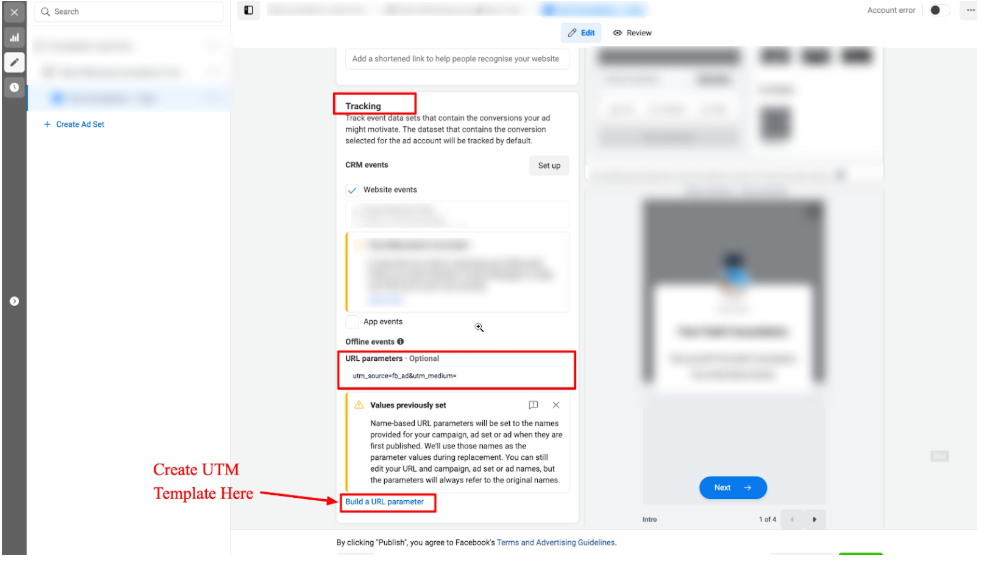
Once you are in your ads manager, select the campaign you wish to add UTM parameters to, then head over to Manage ads -> Ads -> Edit.
.png)
Note:The following UTM tracking parameters are available on the contact level within the system:
Make sure that the correct Facebook page is selected in LeadMagicX from Settings > Integrations.
Please Note:Ensure you have mapped the Facebook form fields in LeadMagicX from Settings> Integrations> Facebook Form Fields
Check out these articles for more information:
1. Mapping Facebook Form Fields**
**2. Lead Ad Debugging for Facebook
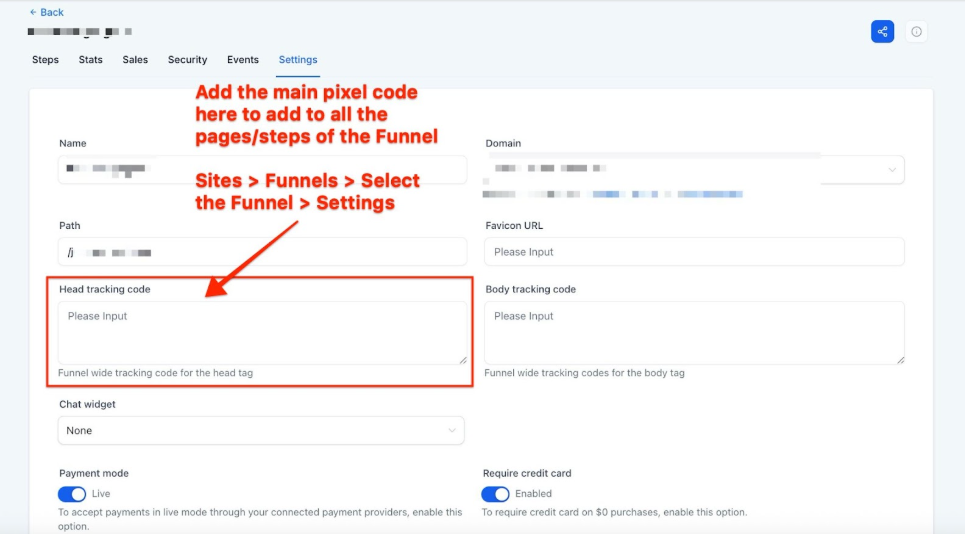
Add the main tracking code to all pages from Sites > Funnels/Websites > Selected Site > Settings tab.
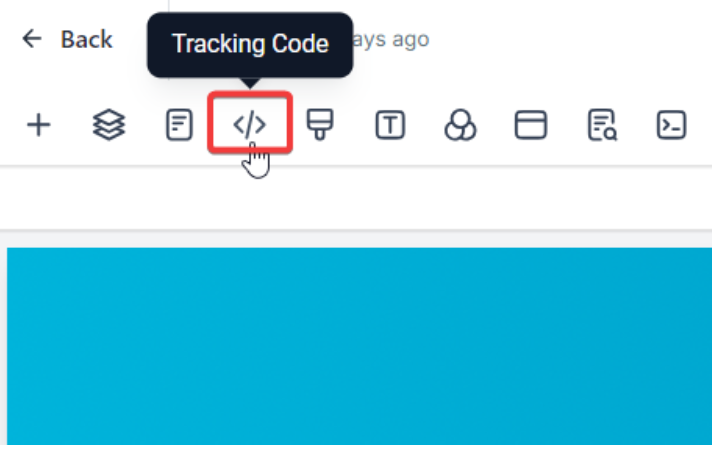
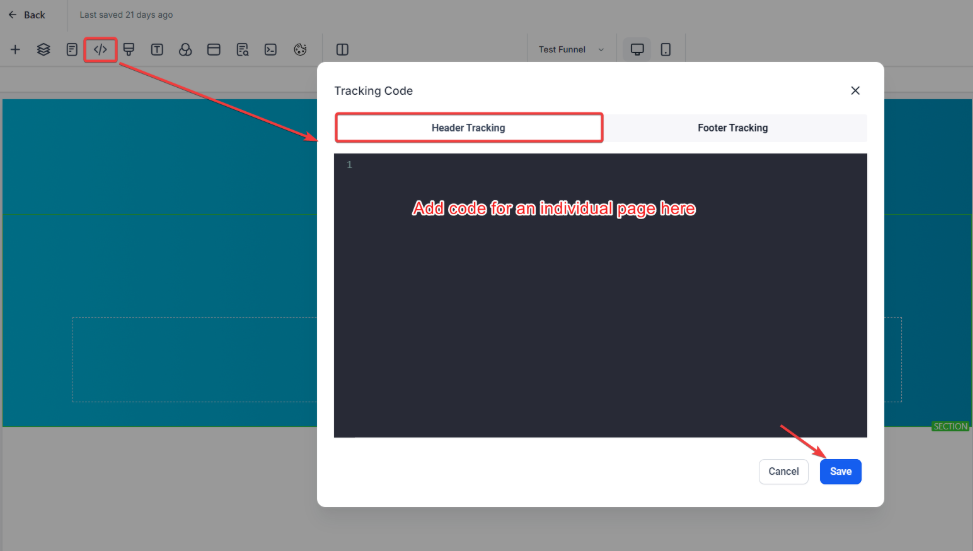
Add the Event tracking codes to the individual associated pages by selecting the page and editing the page. This will take you to the Site Builder add the code to head tracking space.
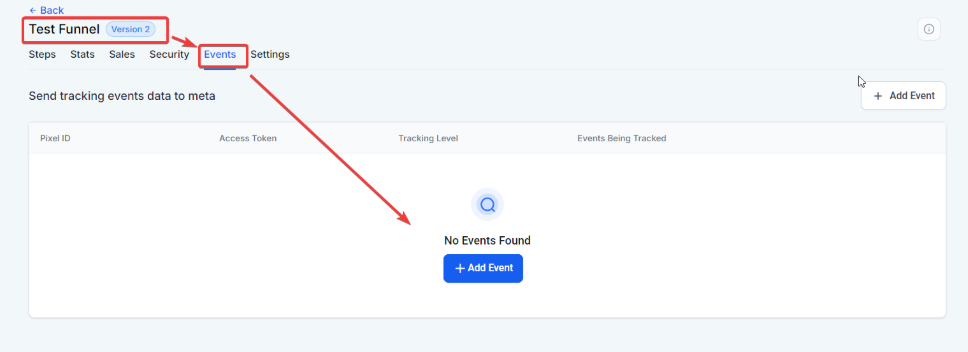
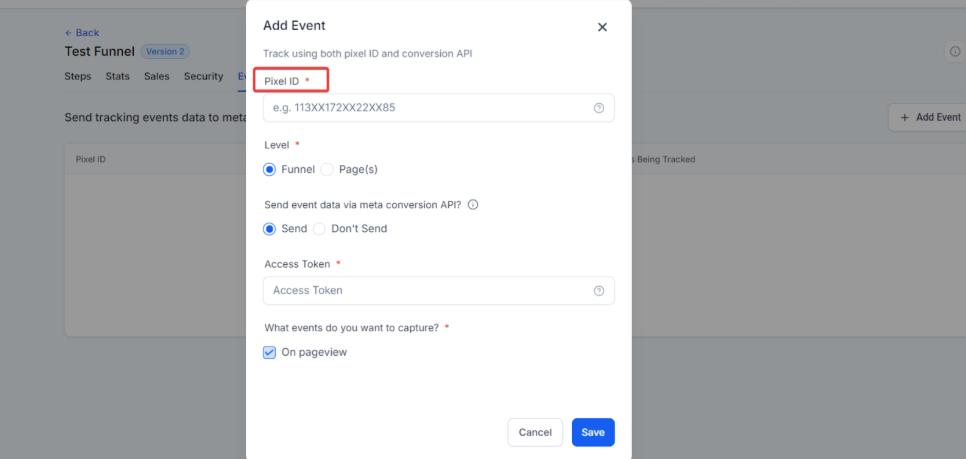
To track with the help of Meta Pixel , you’ll need to add the pixel ID. Navigate to Sites > Funnels/Websites > Events:
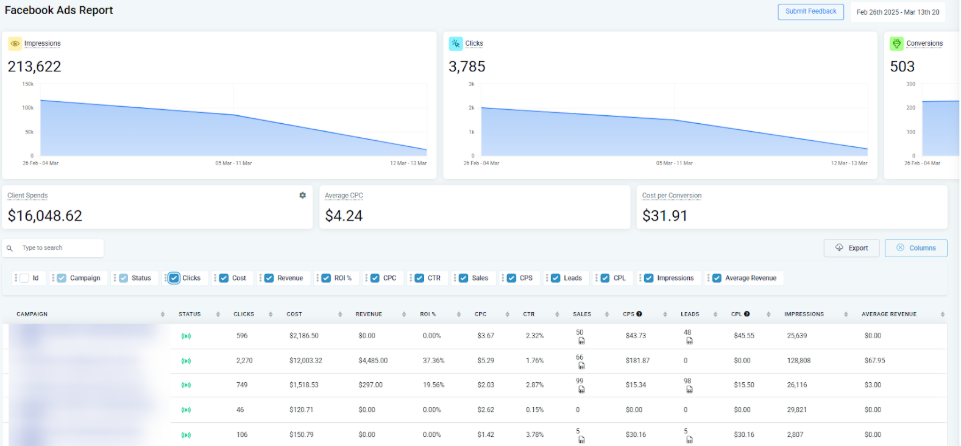
Navigate to the Reporting section of LeadMagicX on the left.
Click on Facebook Ads Report at the top.
Choose your desired date period in the top right corner of the screen.
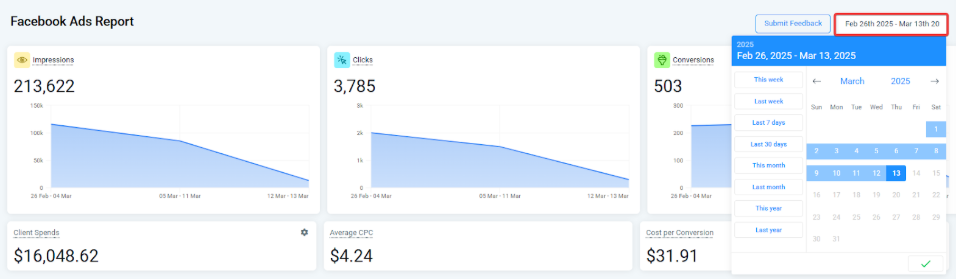
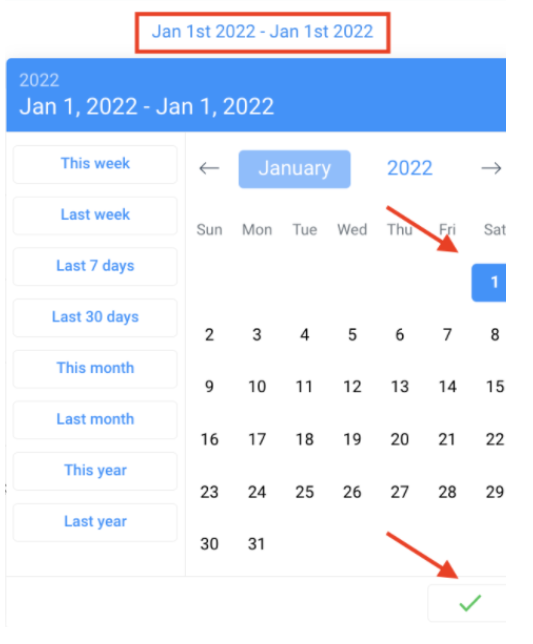
NOTE:If you wish to view reporting metrics for one day, check that date as the start and end date. You must have both selected for the stats to appear. The example below shows how you can run reports for January 1, 2022, by choosing January 1st as the start and end date:
Question: What permissions do I need for Facebook Ad integration?**
**Answer: You need admin permissions for the Facebook Ad Account to ensure proper integration and data access. Verify this in Settings > Integrations.
Question: How do I set up UTM parameters for Facebook ads?**
**Answer: In Ads Manager, go to Manage Ads -> Ads -> Edit, then add UTM parameters under URL parameters by filling in the fields for Campaign Source, Medium, Name, Content, and Parameter name.
Question: Why might my Facebook ad reporting data be missing?**
**Answer: Data might be missing if UTM parameters are not set up correctly, if there are issues with Facebook form field mapping, or if the entry points for attribution are not configured properly.
Question: Can I run a report for just one day?**
**Answer: Yes, to view metrics for a single day, set both the start and end dates to that specific day. For example, to view January 1, 2022, set both dates to January 1, 2022.
Question: Where should I add UTM parameters Tracking or Destination?
Answer: Always add UTM parameters in the Tracking section of your ad settings, not the Destination section. This ensures accurate reporting and attribution.
Question: Will I see attribution data in the report if I view my ad using the “Preview” mode on Facebook?**
**Answer: No. Facebook will not add the UTM parameters to your links when you are viewing your ad as a preview. Attribution data is primarily recorded for live interactions through specific entry points like form submissions, surveys, or direct Facebook Lead Forms.
Question: How do I track conversions specifically on my funnels or websites using a Pixel ID?
Answer: To track using a Meta Pixel, navigate to Sites > Funnels/Websites and select your specific site. Go to the Events tab to add your Pixel ID, and ensure the main tracking code is pasted into the Settings tab of the site.
Question: Are there any characters I should avoid using when setting up my UTM tracking parameters?**
**Answer: Yes. You should not use any special characters or emojis in your UTM parameters or any other parameter that needs to be tracked. Using these can disrupt the system’s ability to record attribution data correctly.