¶ Call Reporting
Call Reporting
Call reporting provides valuable insights into all interactions between your customers and team members. This tool helps you analyze both incoming and outgoing calls, making it easier to track performance and improve customer service.
¶ Overview of Call Reporting
Call reporting includes essential details about customer interactions through calls, encompassing both incoming and outgoing communication.
¶ How to Use Call Reporting
Step 1: Navigate to Call Reporting
- Select the “Reporting” section from the left-hand menu.
- Click on “Call Reporting” from the top menu.
Step 2: Understanding the Tabs and Filters
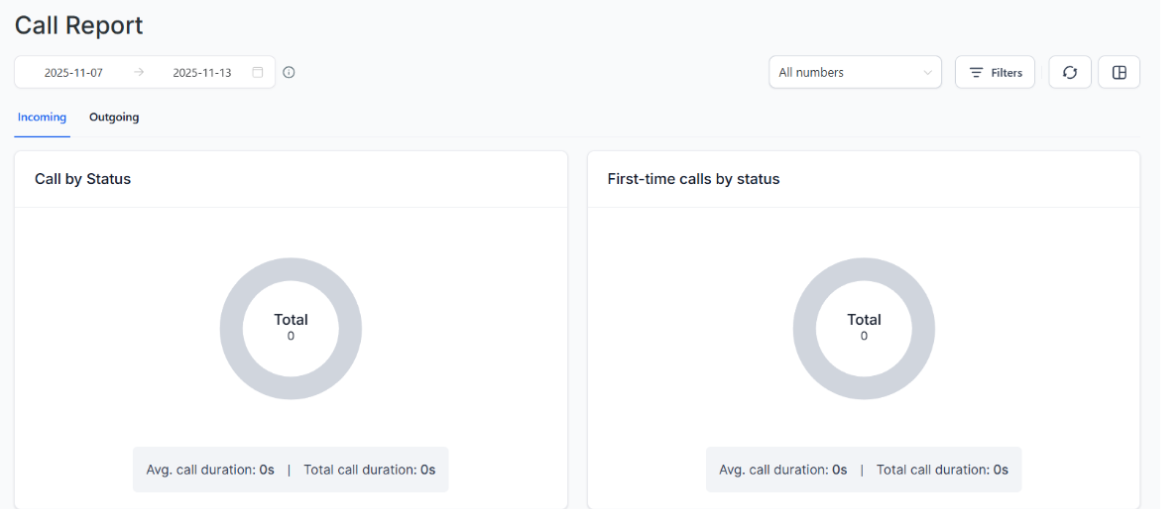
- The call reporting page has two main sections: Incoming Calls and Outgoing Calls.
- Use the dropdown menu to filter data by all numbers in your profile or specific individual numbers.
¶ Widgets and Data Visualization
Incoming Calls Section:
- Donut Chart:
- Displays the split of call statuses for incoming calls (missed, busy, answered).
- First-Time Calls Widget:
- Shows the statuses of first-time incoming calls and their average and total durations.
- Top Call Sources:
- Identifies where the calls are coming from (e.g., Google organic search, paid search).
- Provides details on total calls, deals won, and call duration.
- Historical Data Table:
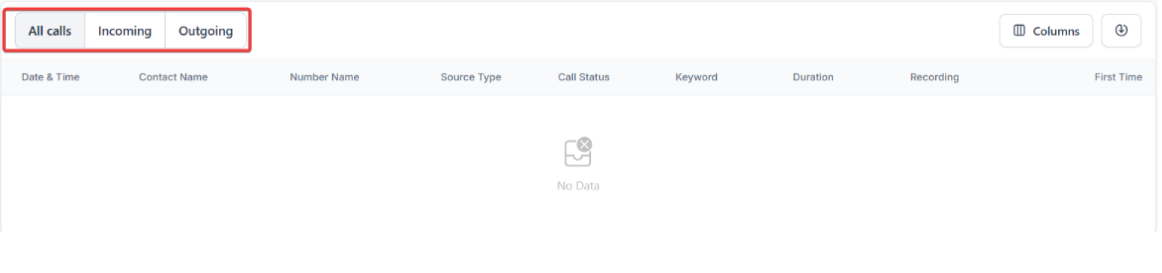
- Shows historical data of all calls.
- Categorize and filter data by incoming and outgoing calls.
- View multiple call recordings for IVR calls using a dropdown menu.
Outgoing Calls Section:
- Call Status Split:
- Displays the status distribution of outgoing calls.
- Top Agents:
- Highlights agents who made the most calls.
- Includes a unique count of leads contacted.
- Customization and Export Options:
- Customize the columns you want to include in the CSV export to analyze the data in more detail.
¶ Multi Call Recording for IVR
- Access multiple call recordings for IVR calls.
- Switch between different recordings using a dropdown menu.
How It Works:
- Open the Reporting tab.
- Go to Call Reporting.
- Scroll to the call table.
- Use the dropdown next to the recording name for IVR calls to switch recordings.
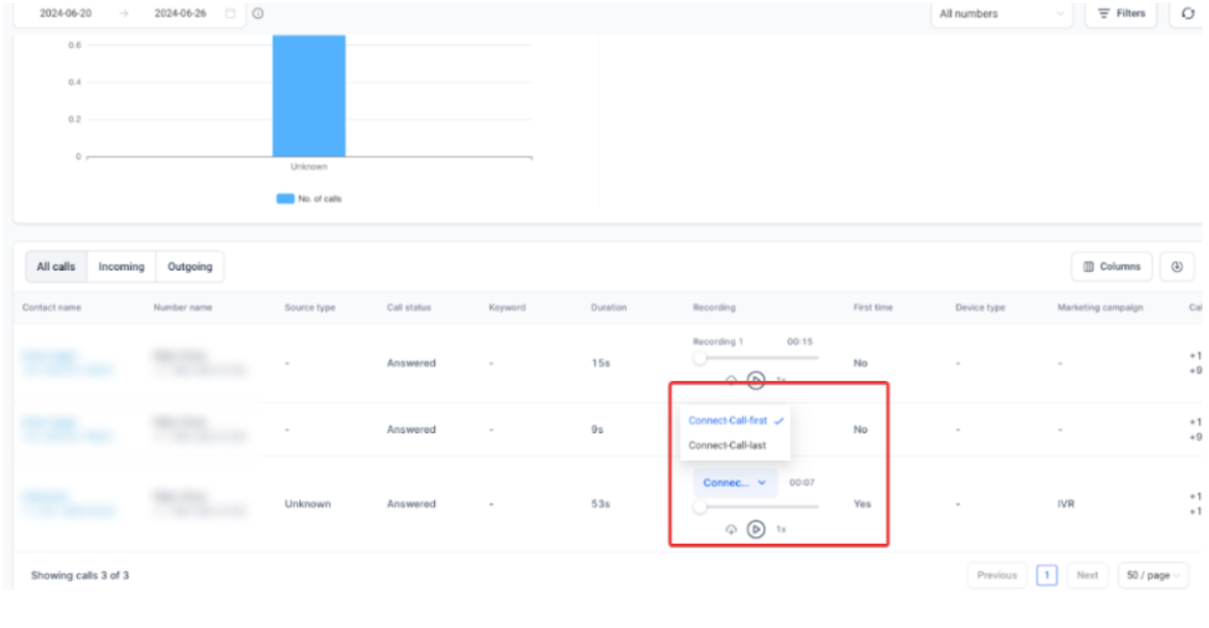
This Enhances transparency and allows detailed analysis of customer interactions. This feature is useful for quality assurance, training, and dispute resolution.
Important Notes:
- Recording names match the action names in workflows for the “Connect Call Action.”
- Previous IVR call recordings are not available; only new ones will be accessible going forward.
You can come back to this reporting screen anytime, update the filters or the time period, and review the data as often as you want.
NOTE: If you wish to view reporting metrics for one single day, be sure to check that date as the start and and end date. You must have both selected in order for the stats to appear.
¶ FAQs for Call Reporting
Question: What is Call Reporting?**
**Answer: Call Reporting provides detailed insights into all interactions between your customers and team members, covering both incoming and outgoing calls. It helps track performance, monitor call outcomes, and improve customer service.
Question: How do I access Call Reporting?**
**Answer: Navigate to the main dashboard, select Reporting from the left-hand menu, and then click on Call Reporting from the top menu.
Question: What sections are available on the Call Reporting page?
Answer: The Call Reporting page includes two main sections: Incoming Calls , which shows call statuses, first-time call metrics, sources, and historical data; and Outgoing Calls , which displays call status distribution, top agents, and unique leads contacted.
Question: What data can I view in the Incoming Calls section?**
**Answer: You can view a donut chart showing call status distribution (missed, busy, answered), first-time call statistics with average and total durations, top call sources, and a historical data table with filtering options.
Question: What information is available in the Outgoing Calls section?**
**Answer: The Outgoing Calls section displays call status splits, top-performing agents, and a unique count of leads contacted by each agent.
Question: Can I filter call reporting data by phone number?**
**Answer: Yes. You can use the dropdown filter to view data for all numbers in your account or narrow it down to specific individual numbers.
Question: How do I access multiple call recordings for IVR calls?**
**Answer: Open the Reporting tab, go to Call Reporting , scroll to the call table, and use the dropdown menu next to the recording name to switch between available IVR recordings.
Question: Are previous IVR call recordings available?**
**Answer: No. Only new IVR call recordings created after this feature is enabled will be accessible. Previous recordings are not available.
Question: Can I export call reporting data?**
**Answer: Yes. You can export call reporting data as a CSV file and customize which columns are included for more detailed analysis.
Question: How do I view reporting metrics for a single day?**
**Answer: To view metrics for a specific day, set the same date as both the start and end date in the date filter. Both dates must be selected for the data to appear.
Question: Can I revisit and update call reporting filters later?**
**Answer: Yes. You can return to the Call Reporting screen at any time, adjust filters or date ranges, and review updated data as often as needed.
Question: Can Call Reporting be used for training and quality assurance?
Answer: Yes. Call recordings and detailed metrics make Call Reporting a valuable tool for agent training, quality assurance reviews, and dispute resolution.
Question: Why do some IVR calls have multiple recordings?
Answer: In complex IVR setups (e.g., “Press 1 for Sales, 2 for Support”), a lead might interact with multiple “Connect Call” actions. The system now captures recordings for each segment of the journey. This allows you to hear the initial interaction and the final conversation with the agent separately for better quality control.
Question: When I export a CSV, are the call recording links included?
Answer: Yes. When you export your call data, the CSV file includes a column with the direct URL to the call recording, allowing you to review specific interactions inside your preferred spreadsheet software.