¶ Point-of-Sale Checkout
¶ Managing Taxes and Discounts on Point of Sale Transactions
We introduce the Point-of-Sale (POS) module in our mobile app: the ability to add taxes and discounts to transactions. This enhancement allows accounts to streamline their sales process by automatically applying taxes and offering discounts during checkout.
- Open the Mobile App :
- Select your preferred account.
- Navigate to Products :
- Use the hamburger menu on the top left of the screen to access the “Products” section.
- Create or Edit a Product :
- Ensure you have already created taxes in the web app.
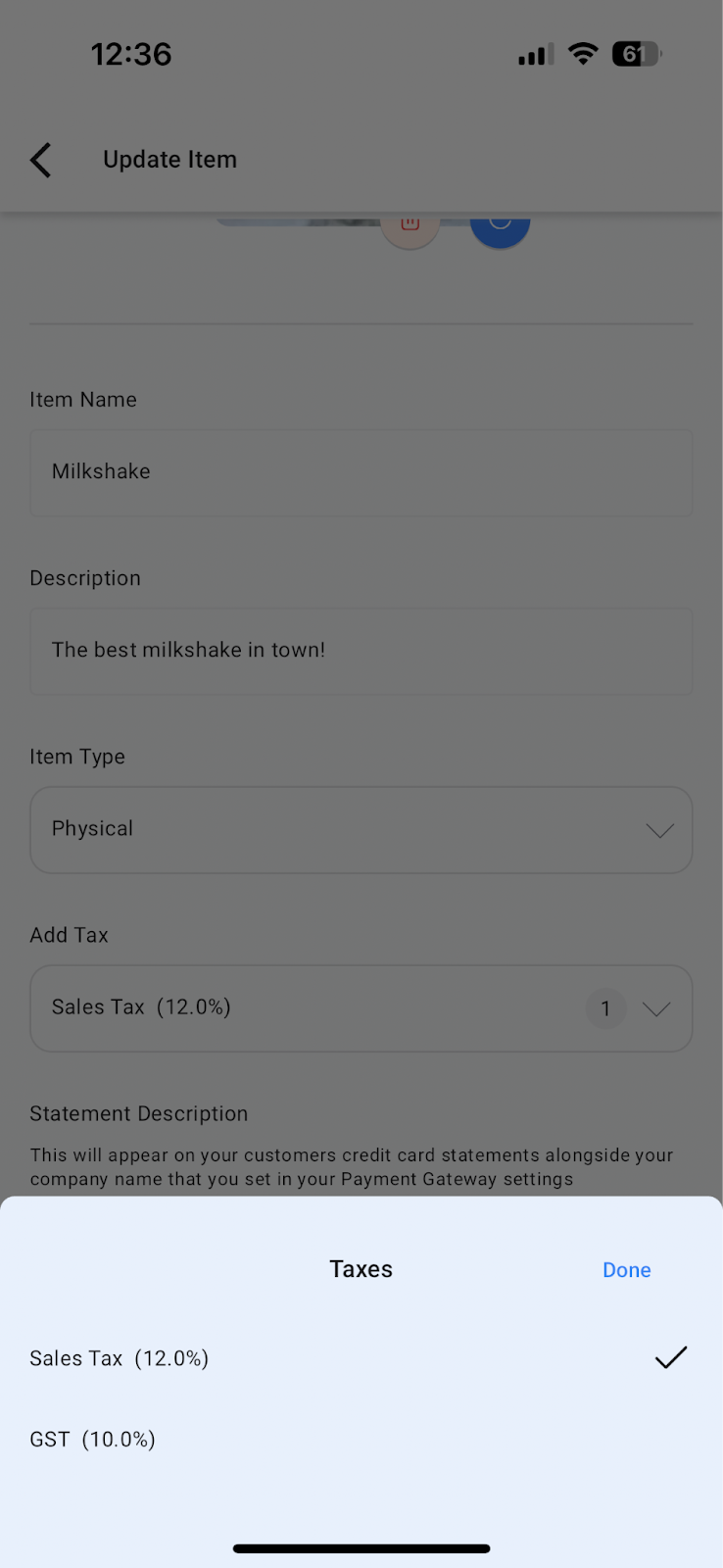
- In the product creation or editing screen, you will see a dropdown to link taxes. Click on it to reveal and select the taxes you want to apply to that product.
- Save Changes :
- Save the changes made to the product. Any time this product is added to the cart, the associated taxes will be automatically applied.
- Add Products to Cart :
- Add products to the cart using the Product Catalog.
- Apply Discount :
- At the bottom of the checkout page, click on the discount button to open the discount slider.
- Adjust the slider to apply the desired percentage discount to the final transaction amount.
7.Complete the Sale :
1. Review all details, including taxes and discounts, before completing the sale.

¶ Benefits
- Automated Tax Application : Linking taxes to products ensures they are automatically applied at checkout, reducing manual effort.
- Flexible Discounts : Easily offer percentage-based discounts to customers, enhancing the shopping experience.
- Improved Efficiency : Streamlining the checkout process saves time and minimizes errors in transaction management.
¶ Pro Tips
- Pre-create Taxes : Make sure to create all necessary taxes in the web app before linking them to products.
- Use the Discount Slider : The discount slider allows for quick adjustments, making it easy to apply precise discounts during checkout.
- Review Transactions : Always review the final transaction details to ensure accuracy before completing the sale.
¶ FAQ/Use Cases
- How do I create taxes in the web app?
- Navigate to the payments section and click on settings. Here, you can create and manage taxes which will be available in the mobile app’s Product builder feature.
- Can I apply multiple taxes to a single product?
- Yes, you can link multiple taxes to a product, and they will all be applied at checkout.
- What if I need to apply location-based taxes?
- Future updates will include the ability to choose from a list of taxes based on your location, eliminating the need to create them manually.