Overview of Documents and Contracts
In this article, you will learn how the Documents and Contracts feature works.
Step 1: Create your Documents or Contracts
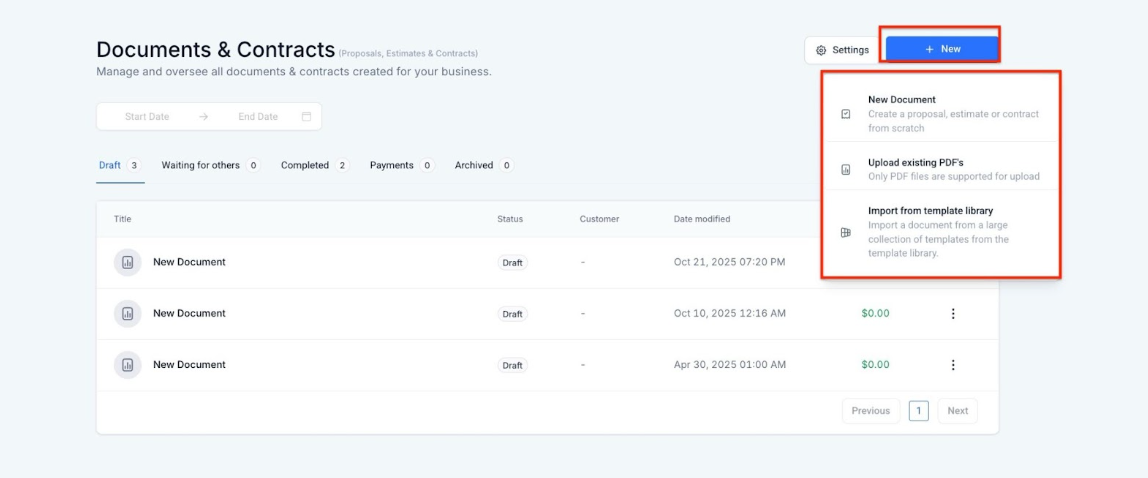
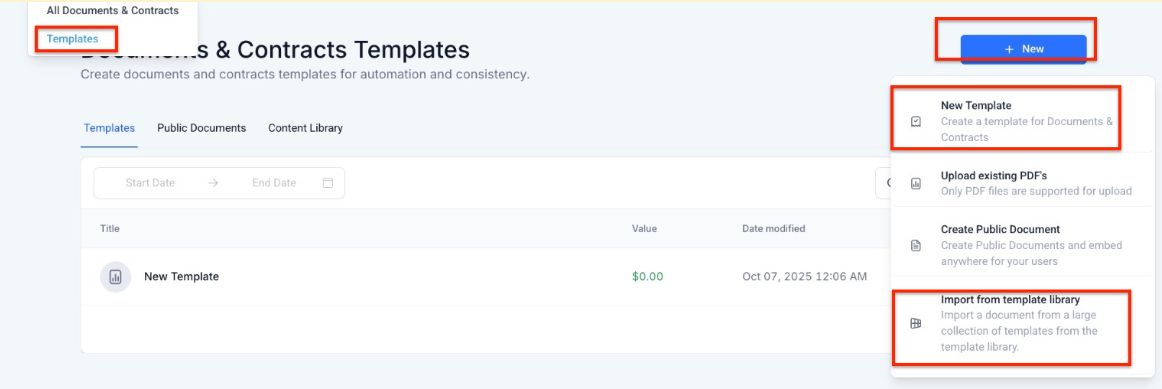
Note: You can create custom templates or import from the template library.
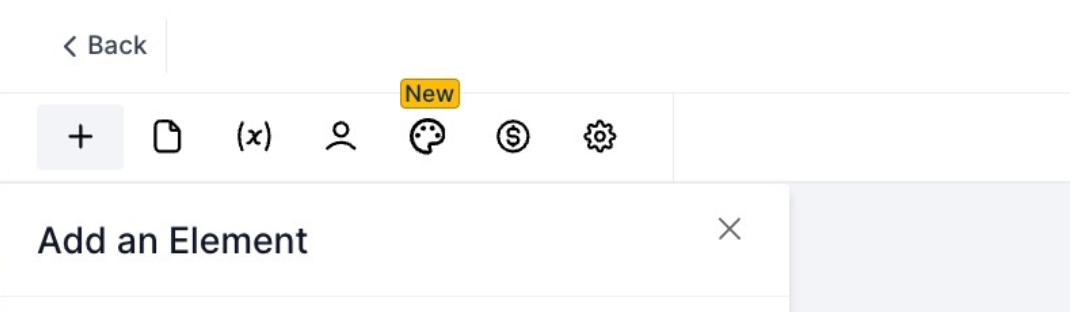
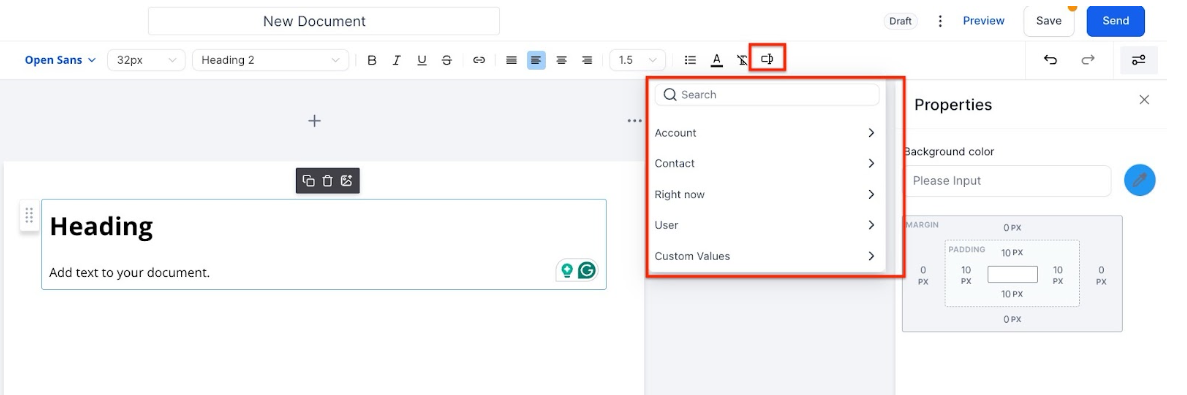
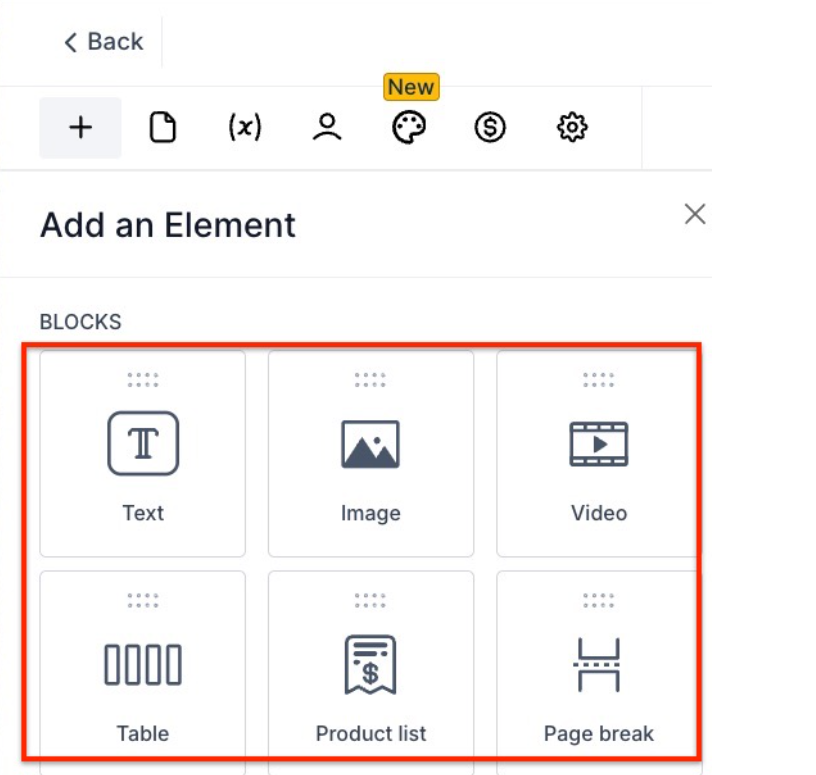
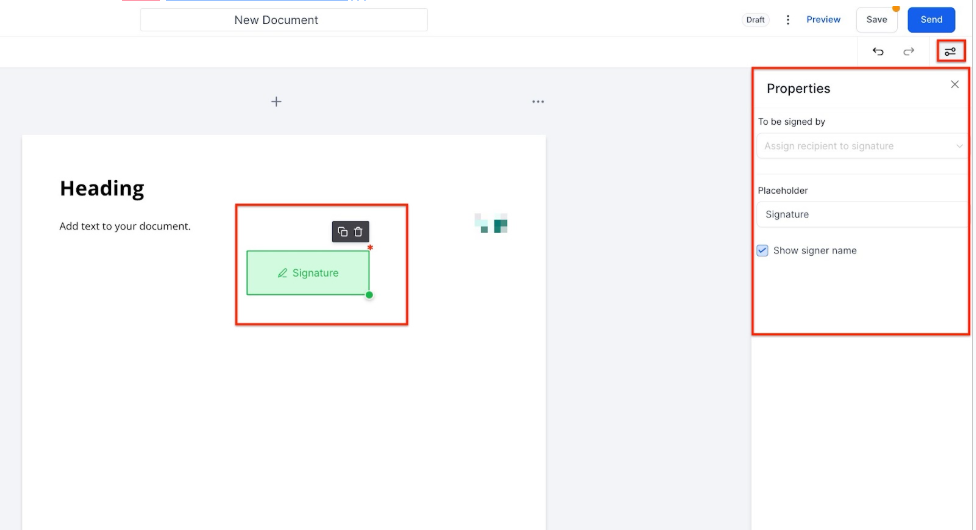
Step 2: Editing your Document/Contract
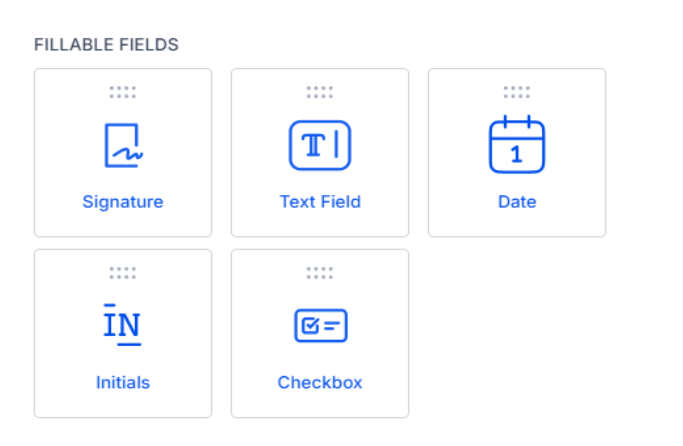
Note: Customers can accept and sign contracts on mobile browsers. This includes the support for signing documents on mobile, marking them as finished, and being able to download a PDF of the signed document.
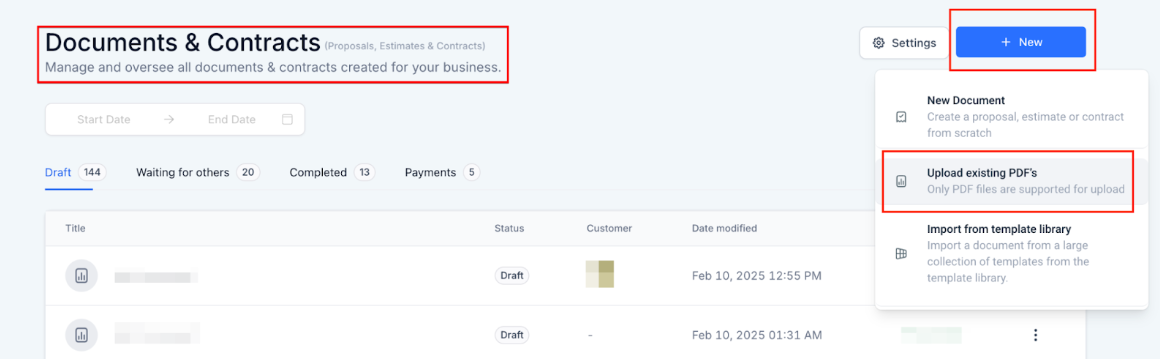
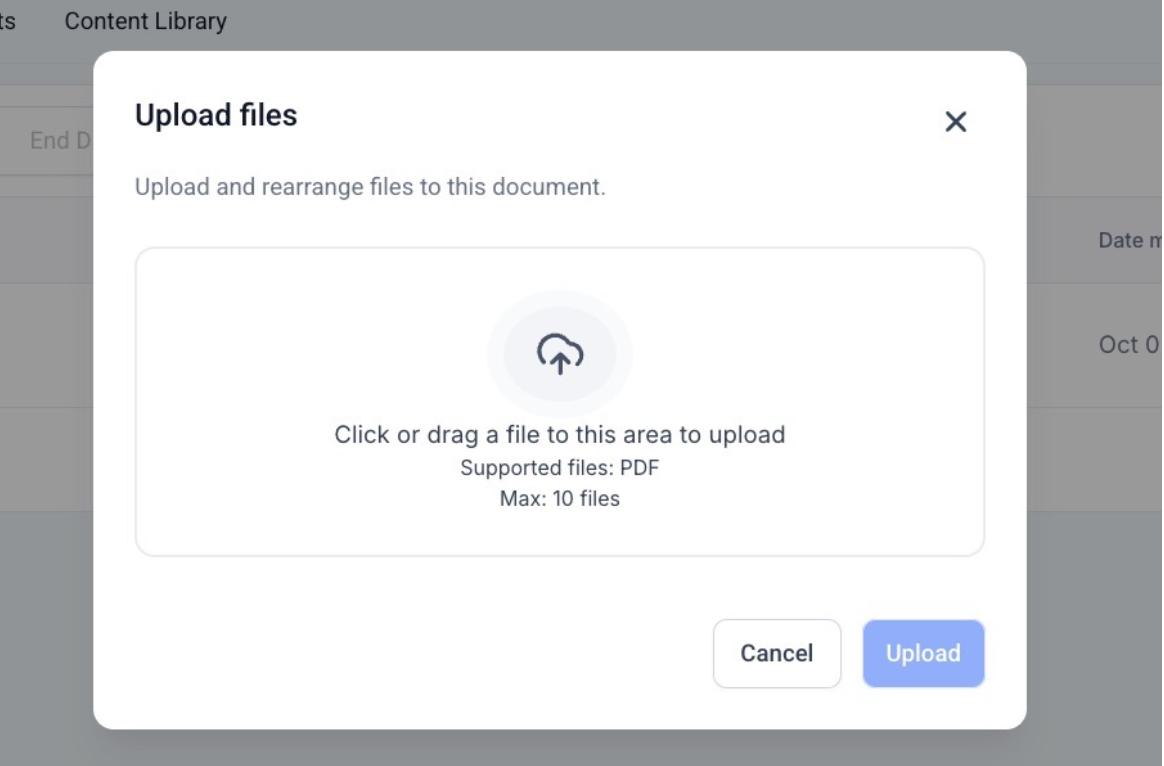
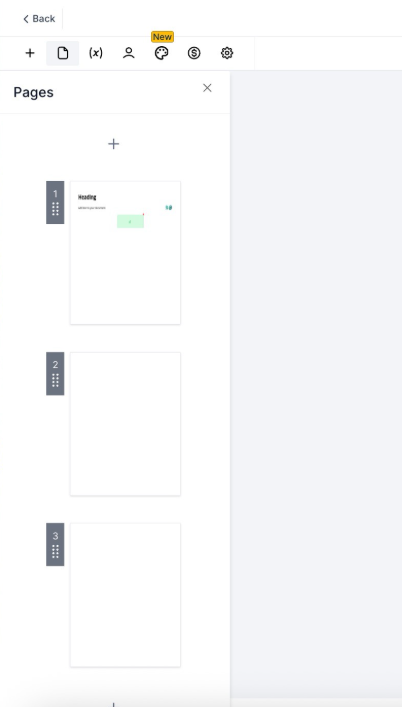
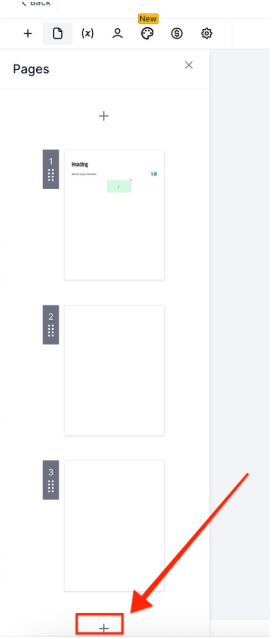
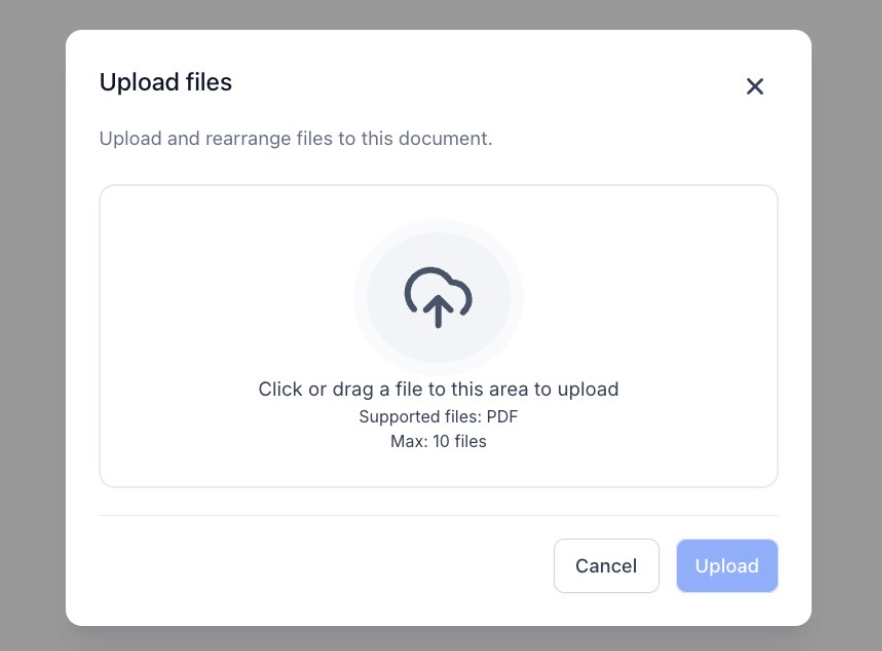
Step 3: Reorganize Document Pages & upload PDFs
The mini page view in the left panel provides a quick preview of each page for better navigation and layout adjustments.
Step 4: Add your Document Variables.
These placeholders can be placed within a document and replaced with actual values when the document is executed. They offer dynamic content control and are crucial for templating and automation. It’s used to standardize information across multiple documents or instances.
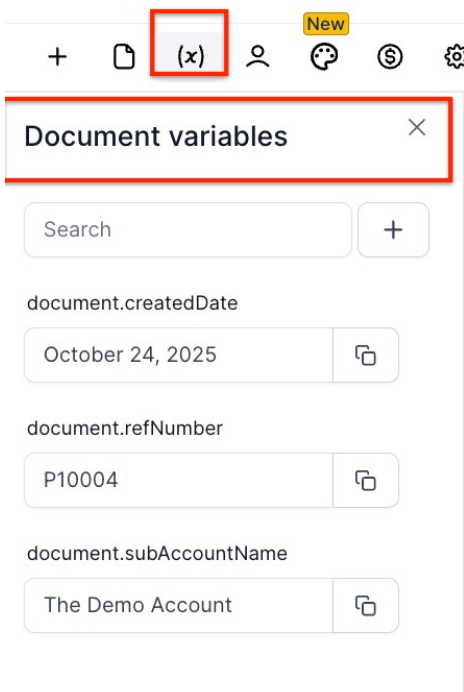
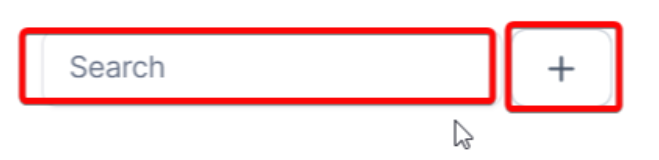
Note: To learn more about the Document Variables, please check the article called, “Utilizing Document Variables in the Document Builder”.
**Step 5: Add your recipients to your Documents/Contracts. **
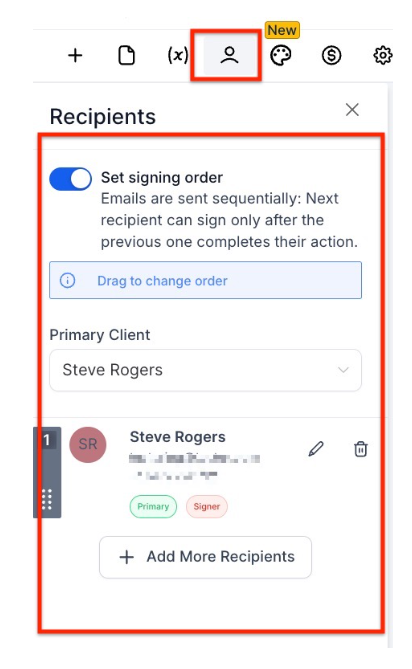
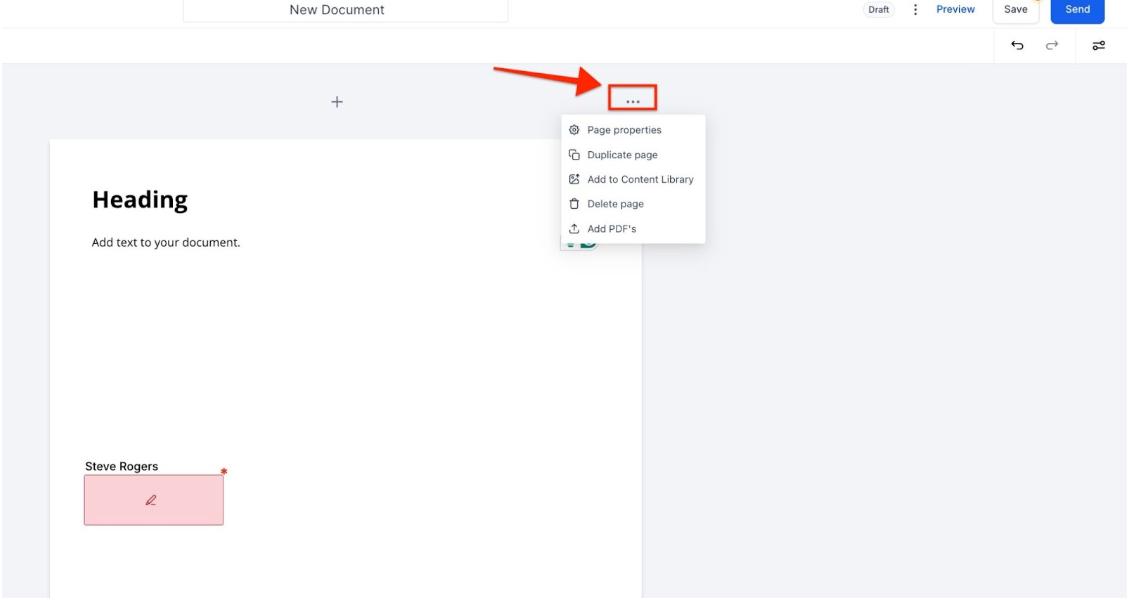
Step 6: Add a background
You can upload a background image for a page using Page Properties. This will allow your businesses to define a customized background for their documents/contracts and lay over any element on top of it
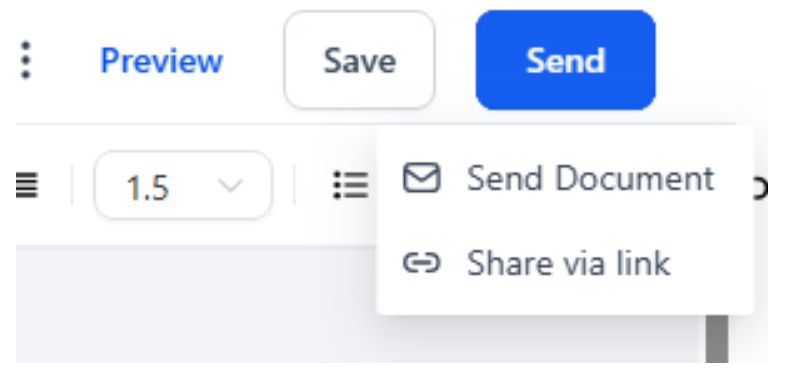
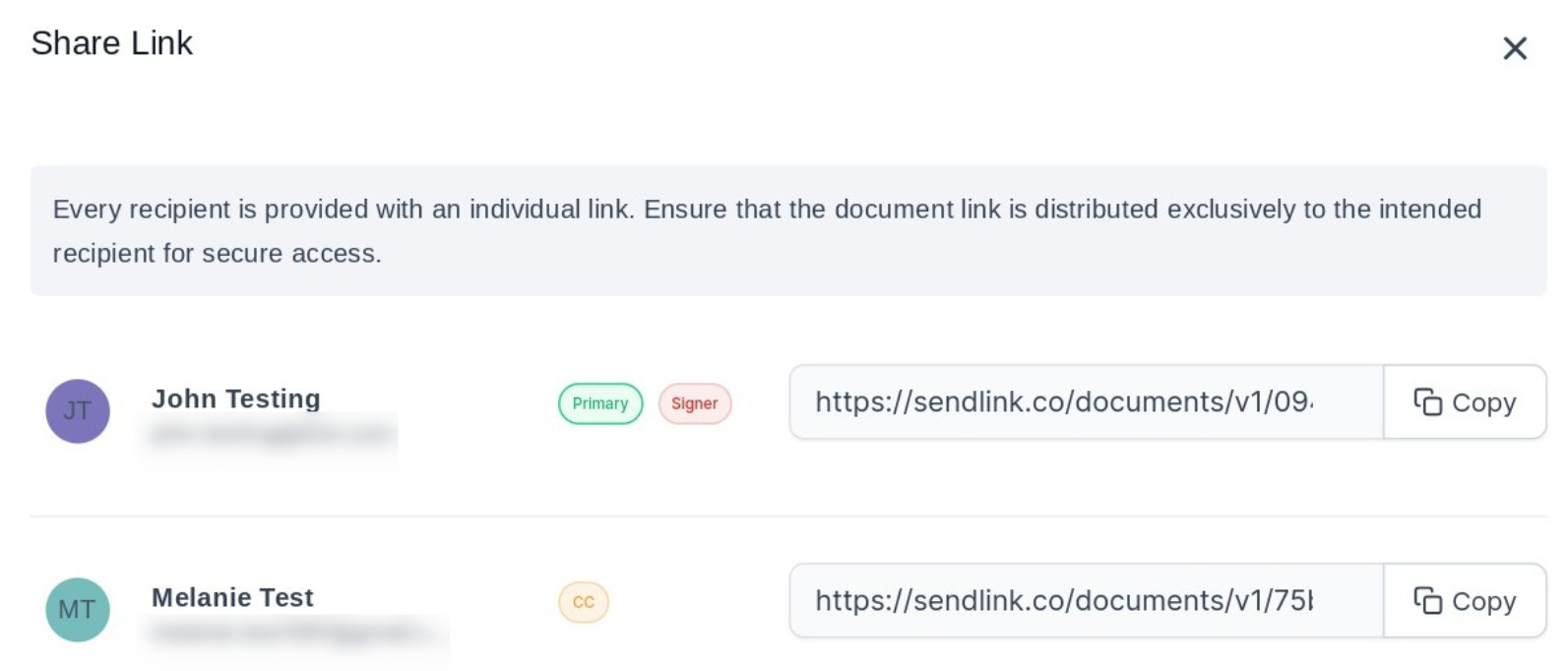
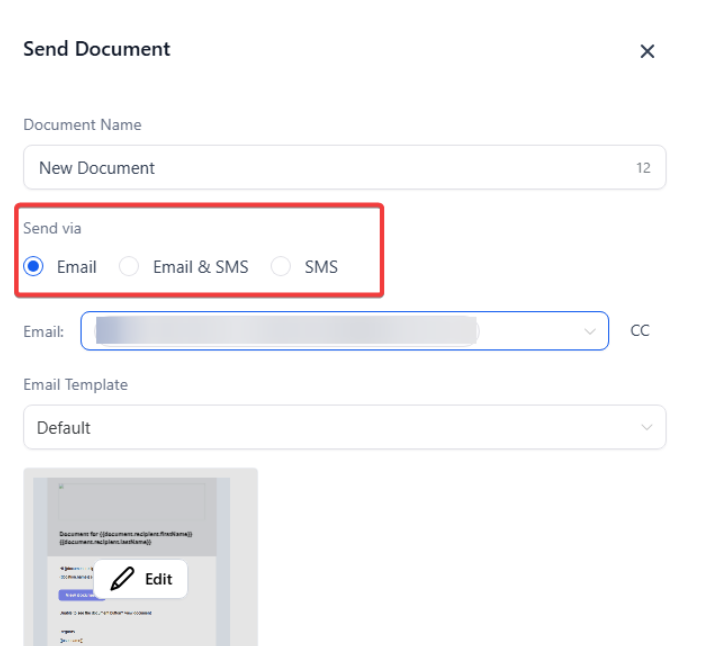
Step 7: Send
Documents/Contracts Status
Once created, your document will have a state depending on its status.
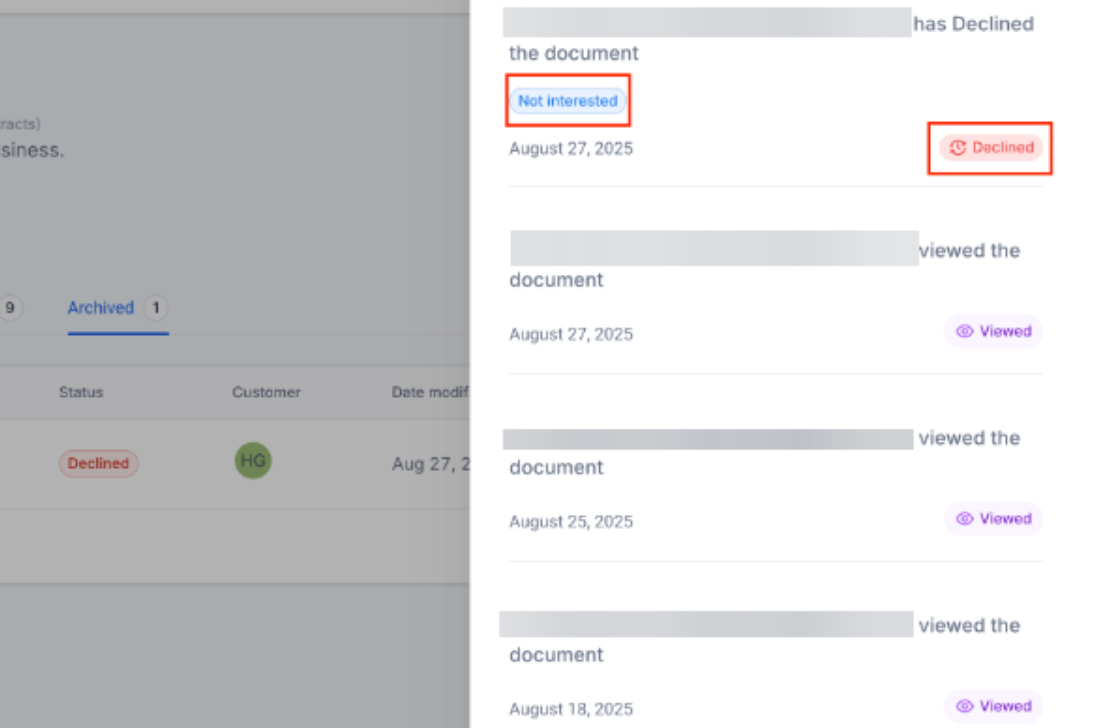
Tracking: Navigate to Documents & Contracts → Archived to view all declined documents. Click on three dots to View History on any entry to see detailed information
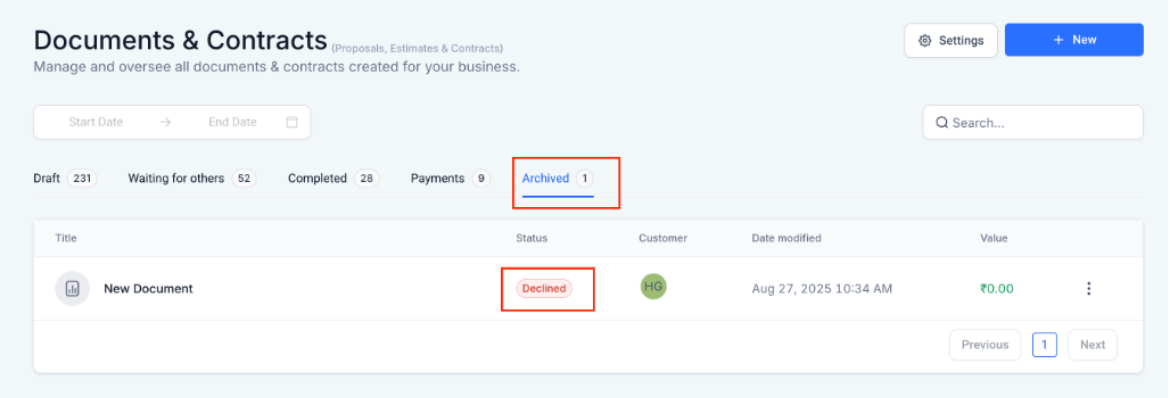
including the reason for decline, timestamp, and recipient details.
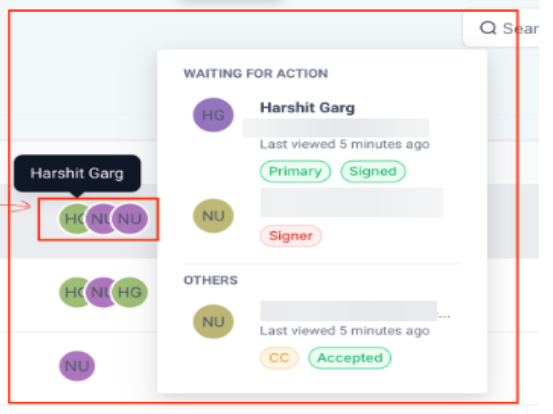
These actions are typical functionalities that allow users to manage and control their documents/contracts.
Note: The last action time will only be available for documents sent moving forward. Older documents will not have this information.
Public Documents for E-signing:
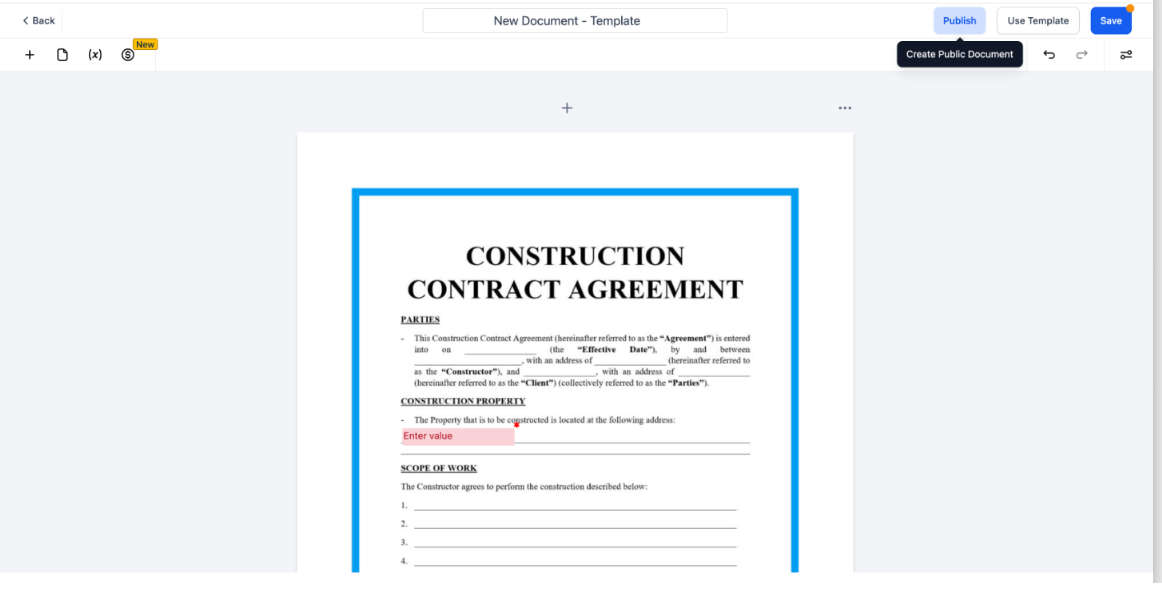
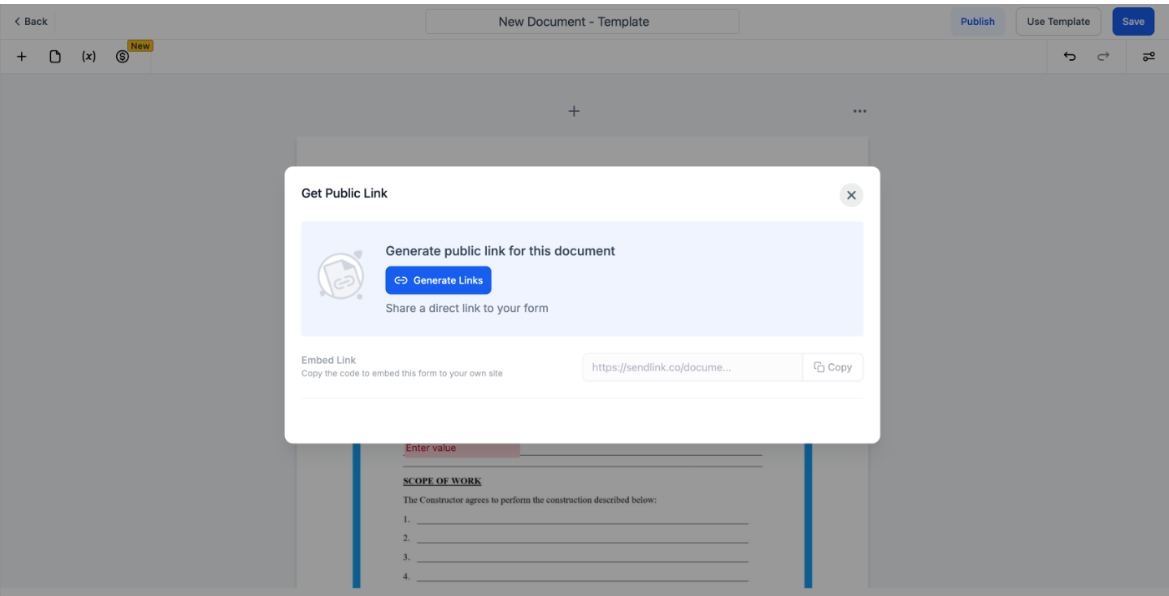
The Public Document feature allows LeadMagicX users to create shareable documents for e-signing without adding contacts. After publishing, a unique link is generated that recipients can use to sign in by entering their name and email. A signed copy is then automatically emailed to them. For more information, please see the article, “Public Document Links for E-Signing on Contracts and Documents. ”
Use the Documents and Contracts feature to create sales agreements that can be signed by clients digitally. Add custom fields for personalization and use Document Variables to standardize information across similar contracts.
Create legally binding contracts that require multiple signatures. Use the signature and initial fields to ensure that all parties agree to the terms and conditions. You can also add a checkbox field to confirm that recipients have read the terms.
For service-based businesses, use this feature to draft contracts outlining the terms of service, pricing, and other key details. Send the contract via email or link, and track its status until it is completed and signed.
Answer: On a completed document, you can view it, download it as a PDF, convert it to a template, or view the associated invoice. No further edits can be made to a completed document.
Answer: If a document is in the “Waiting for Others” status, you can move it back to “Draft” status to continue editing. Once a document is marked as “Completed,” no further edits can be made.
Answer: Document Variables are placeholders within a document that are replaced with actual values when the document is executed. They allow for dynamic content control and are crucial for templating and automation. You can search for existing variables or create new ones within the document builder.
Answer: Yes, an invoice can be created automatically after a potential lead accepts or signs the document/contract. This option is available once the document is marked as “Completed.”
Answer: The document’s status changes to Declined.
It automatically moves to the Archived section.
Declined documents can no longer be signed.
Answer: Draft, Waiting for Others, Completed, Payments (if billing applies), or Archived. Only Draft and Waiting statuses can be edited or signed.
Question: Can my clients sign documents or contracts using their mobile devices?
Answer: Yes, customers can accept and sign contracts directly on mobile browsers. The system supports signing on mobile, marking documents as finished, and allows the recipient to download a PDF of the signed document once completed.
Question: Does the system send a copy of the signed PDF to the client automatically? Answer: Yes. Once all parties have signed and the document status moves to “Completed,” the system automatically sends a confirmation email to all recipients with a link to download the final, executed PDF for their records.