¶ Opportunity Custom Values in Document and Contract Templates
Opportunity Custom Values in Document and Contract Templates
Within document management in LeadMagicX, using the opportunity custom values in templates enables the automatic population of document templates with relevant opportunity data directly from workflows. In this article, we’ll explore the key features, benefits, and a step-by-step guide on how to use opportunity custom values within document templates to streamline your business operations.
¶ Key Features and Benefits
- Dynamic Data Population : Opportunity custom values are automatically populated within document templates, reducing manual data entry and ensuring the accuracy of information.
- Integration with Workflows : The feature integrates seamlessly with workflows, allowing for documents and contracts to be automatically generated based on specific opportunity triggers, such as status or pipeline stage changes.
- Increased Efficiency : By automating the document generation process, businesses can handle contracts and agreements more efficiently, focusing resources on higher-value tasks instead of manual administrative work.
- Customization : Custom values can be tailored to fit the unique needs of any opportunity, providing a high degree of flexibility in document creation.
¶ How to Use Opportunity Custom Values in Document Templates
Follow these simple steps to leverage opportunity custom values within your document templates:
-
Create a New Template :
- Navigate to the Payments section and select Documents & Contracts Templates.

-
Click on New Template to begin creating your document.
-
Add Text Boxes or Tables :
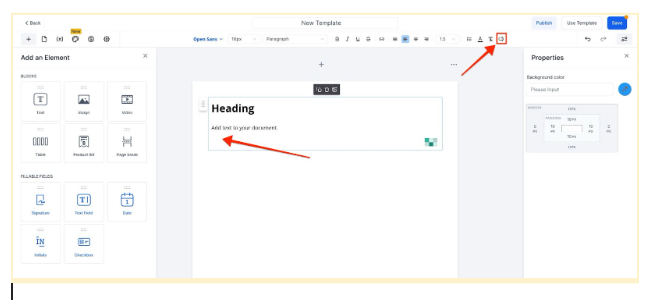
- In the template editor, drag and drop a text box or table into your document where you want to populate custom values.
-
Insert Custom Fields :
- Select the Custom Values icon located in the top-right corner of the template editor, or you can manually enter the field name in curly double braces, such as {{opportunity.xyz}}, where “xyz” represents the specific field you wish to insert.
Select Custom Fields from Opportunity :
From within the custom field menu, go to the Contact s, select Custom Fields , and then go to Opportunity Details.

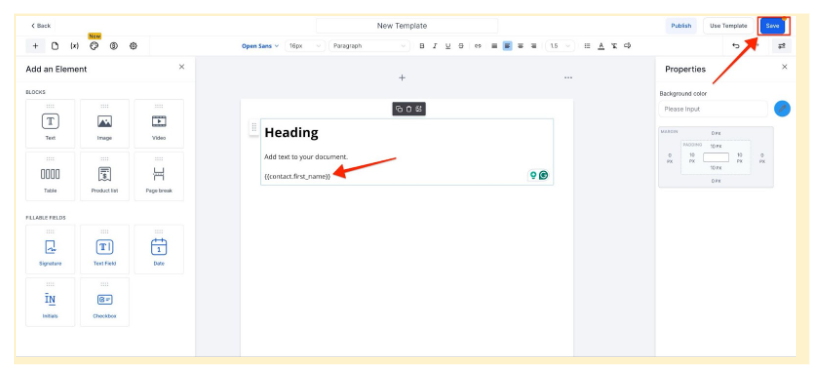
- Choose the relevant dynamic field that you want to use, such as {{opportunity.assigned_to}}.
-
Save the Template :
- Once you’ve inserted all the necessary custom values, save the template for future use.
-
Configure Workflows :
- Head to your workflows section and choose the appropriate opportunity triggers for your template. For instance, set up triggers that activate based on pipeline stage changes or opportunity status changes.
-
Automate Document Sending :
- Use the Send Document & Contracts action within the workflow to send the document template that contains the opportunity custom values, ensuring the document is populated with the latest data.

¶ Example: Automating Contract Generation
Here’s a real-world example of how this feature can be used to automate contract generation:
- Save a template with a placeholder such as {{opportunity.tshirt}}.
- Enter a value, such as “Large”, in one of the opportunities for the “tshirt” field.
- Move the opportunity to a new pipeline stage.
- As a result, the contract is automatically sent with the “Large” t-shirt size populated.
This automation ensures that all documents sent are up-to-date, accurate, and aligned with the latest opportunity data.
¶ Pro Tips
- Custom Field Organization : Ensure your custom fields are well-organized and named clearly. This helps streamline the process when selecting the appropriate values for your templates.
- Testing : Before rolling out your automated document system to the entire team, perform test runs to ensure that custom values are being populated correctly. This can help you catch any issues before they affect customers.
- Avoid Overcrowding Templates : Too many custom values can make a document template cumbersome and harder to maintain. Focus on the key fields that matter most for your business.
¶ FAQ
Question: What are opportunity custom values?****
Answer: Opportunity custom values are dynamic fields that hold specific information related to an opportunity, such as the assigned team member, status, or any other custom details tied to a particular opportunity.
Question: Can I add multiple custom values to a single document?**
**Answer: Yes, you can add as many custom values as necessary to a document template, ensuring all relevant information is included automatically.
Question: What triggers the automatic sending of documents?**
**Answer: Documents are sent automatically when specific workflow triggers are activated, such as when the pipeline stage changes or when the status of an opportunity is updated.
Question: Do I need any special permissions to use this feature?**
**Answer: The ability to create and use document templates with custom values generally requires access to the relevant template and workflow management sections of your system. Ensure you have the necessary permissions to access these features.
Question: Can I use opportunity custom values for contracts and invoices?**
**Answer: Yes, opportunity custom values can be used in a variety of document types, including contracts, invoices, and other business documents that require dynamic data population.
Question: Can I use opportunity custom values for generating invoices and proposals?
Answer: Yes, opportunity custom values can be used to automatically generate invoices and proposals by populating them with opportunity-specific data, such as payment details, products, services, assigned account manager, and project timelines.
Question: Can opportunity custom values be used for internal documents as well?
Answer: Yes. These values can populate both client-facing and internal documents, making them useful for contracts, summaries, approvals, and internal records.
Question: Can I use opportunity custom values in the document’s header or footer?**
Answer:** Yes. Opportunity custom values are global within the document editor. You can place them in the main body, headers, footers, or even within tables to ensure your branding and tracking information stay consistent and dynamic.
Question: How can I manually add a custom field if I don’t want to use the selection menu?
Answer: You can manually enter the field name by using curly double braces. For example, typing {{opportunity.xyz}} (where “xyz” is your specific field name) will allow the system to recognize and populate that data.