¶ Manually Charging Contacts
The Payments feature in contact records allows you to manage and process customer payments directly from the Contact page. This feature streamlines payment processing, enabling you to handle financial transactions efficiently without leaving the contact record.
¶ Was this Already Available?
Previously, transactions could only be processed through the default payment provider. This limitation was for users operating multiple payment providers simultaneously or migrating to a new one. Now, you can add their cards on file and charge customers using any saved cards, regardless of the payment provider.
¶ Step-by-Step Guide
¶ Step 1: Access the Contact Page
- Navigate to the customer’s contact page for which you wish to charge.
- Look for the money icon in the right-hand corner.
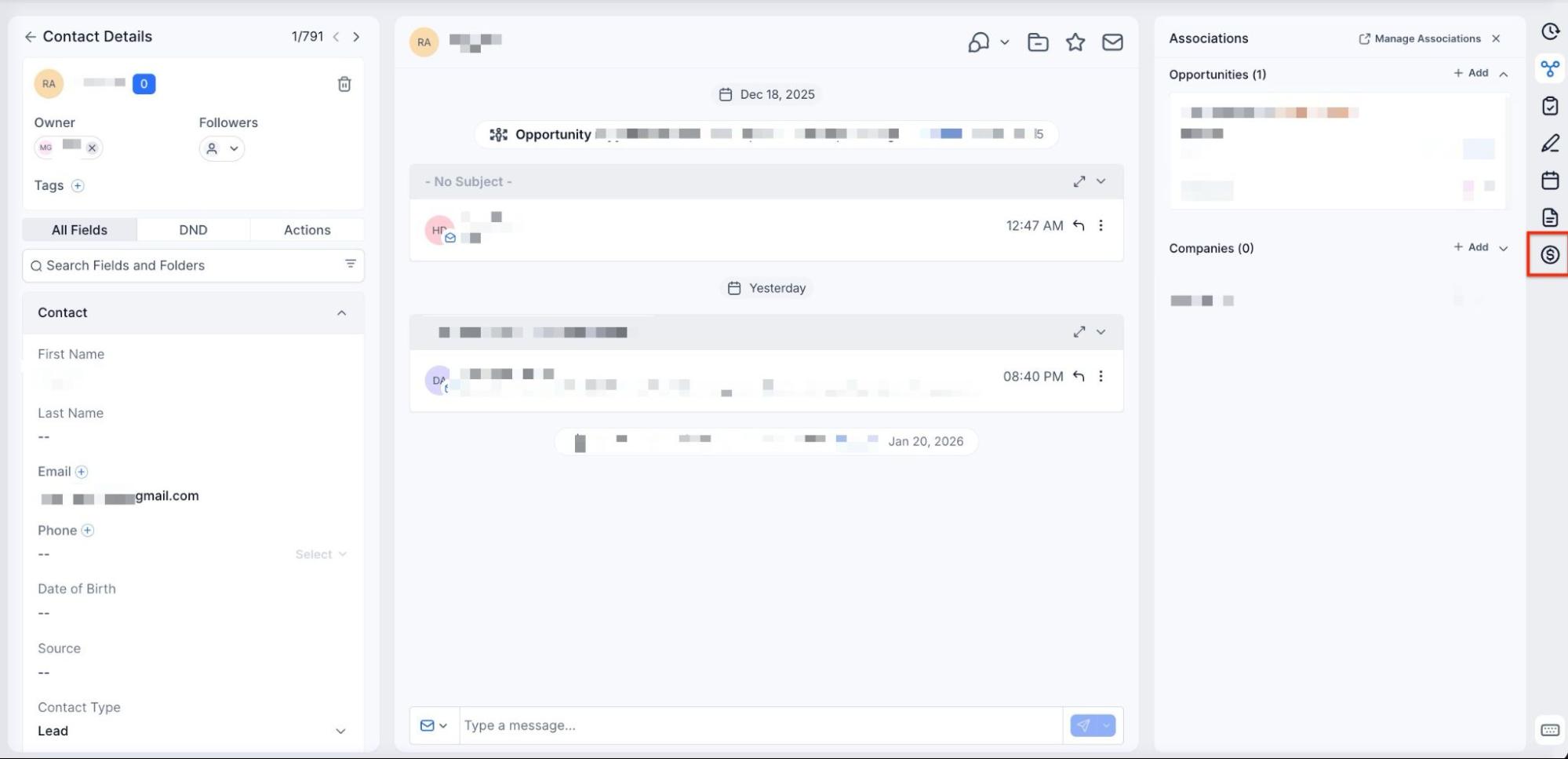
- Click on the money icon.
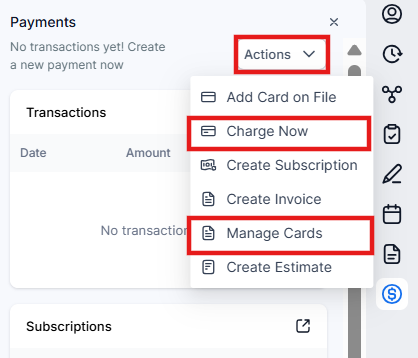
- You will be presented with two options
- “Add Card on File.”
- “Charge Now.”
¶ Add Card on File
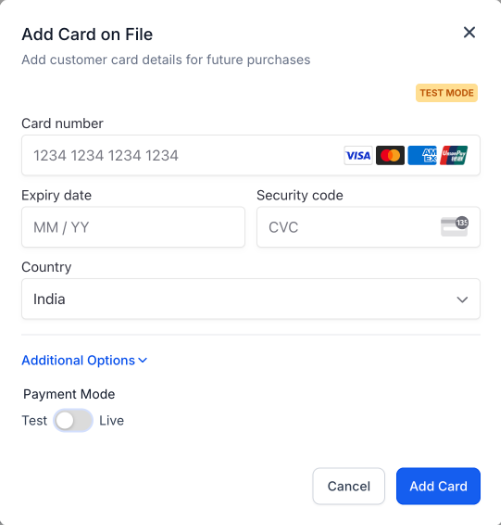
The “Add Card on File” feature lets you securely store a customer’s credit or debit card information directly within their contact profile.
- Add a Card: Navigate to the contact’s detail page, click on the payment options, and select ‘Add New Card.’
- Enter Details: Input the customer’s card information and save it for future transactions.
- Use for Future Payments: The stored card can be used to process payments or charges later, facilitating easier and quicker transactions.
¶ Charge now
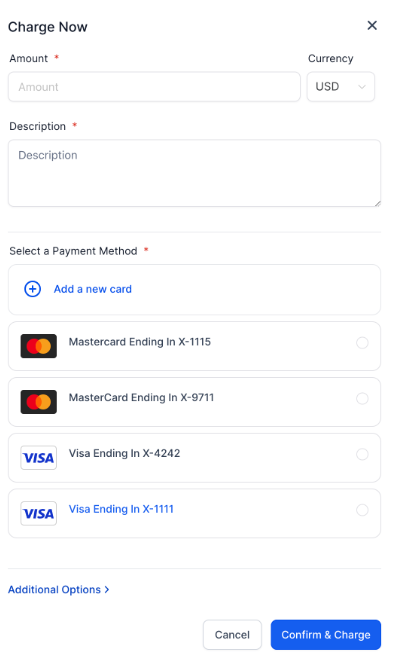
- Initiate the Charge: Click on the Charge Now icon.
- Select or Add a Card: You can select an existing card from the list or enter new card details to save it for future transactions.
- Complete the Transaction: Confirm the amount to be charged and click ‘Charge Now’ to process the payment.
¶ Pro Tips
- Regularly Update Card Information: Ensure customer card details are current to prevent failed transactions and improve payment processing reliability.
- Monitor Transactions: Keep a close eye on all transactions for accuracy and promptly address any issues that arise to maintain smooth operations.
- Utilize Multiple Providers Wisely: Strategically balance the use of multiple payment providers to optimize transaction fees and enhance reliability.
- Secure Storage: Always ensure card information is stored securely to protect customer data and comply with privacy regulations.
¶ FAQs
**Question:**How do I add a card on file for a contact?
Answer: Navigate to the customer’s contact page, click on the money icon, and select ‘Add Card on File.’ Enter the card details and save them for future transactions.
**Question:**Can I charge a customer using a card that is already saved on file?
Answer: Yes, you can select an existing card from the list of saved cards or enter new card details when initiating a charge.
**Question:**What should I do if a transaction fails?
Answer: Check if the card information is updated and valid. Monitor the transaction details to identify any issues and resolve them promptly.
**Question:**How can I manage transactions if I use multiple payment providers?
Answer: Use the available features to select cards from different providers and balance their use to optimize transaction fees and processing reliability.
Question: Is the customer’s card information stored securely?
Answer: Yes, all card details stored on file are securely managed to comply with privacy regulations and protect customer data.
Question: What are the two specific actions I can take after clicking the money icon?
Answer: You will be presented with two distinct options: “Add Card on File” to store data for later, or “Charge Now” to process a transaction immediately.