Manual & Smart Collections for Products
As a store owner, organizing your products efficiently can significantly improve customer experience and streamline your inventory management. With this in mind, we are excited to introduce Manual & Smart Collections for Stores, a feature that gives you powerful ways to group and categorize products. This article will guide you through how to use these collections effectively, highlighting key features, benefits, and offering helpful tips for maximizing their potential.
1. Two Types of Collections:
2. Ease of Use:
3. Increased Efficiency:
4. Validation & Error Prevention:
5. No Manual Overrides for Smart Collections:
To get started, navigate to the Collections section through the Products dropdown menu, then select Collections.
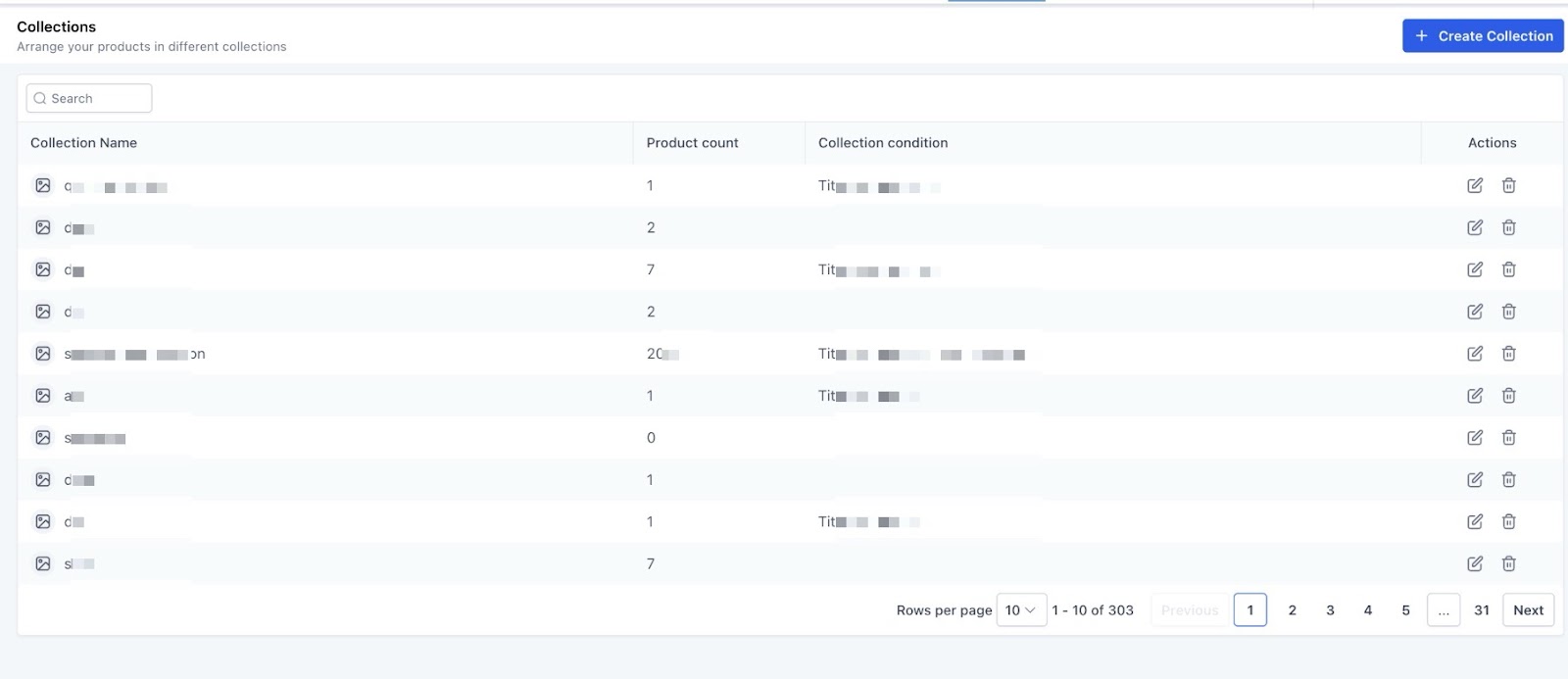
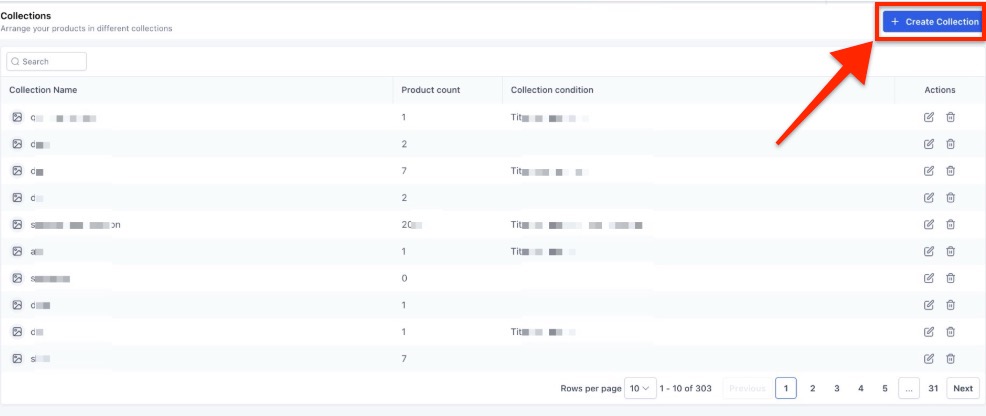
1- Click Create Collection.
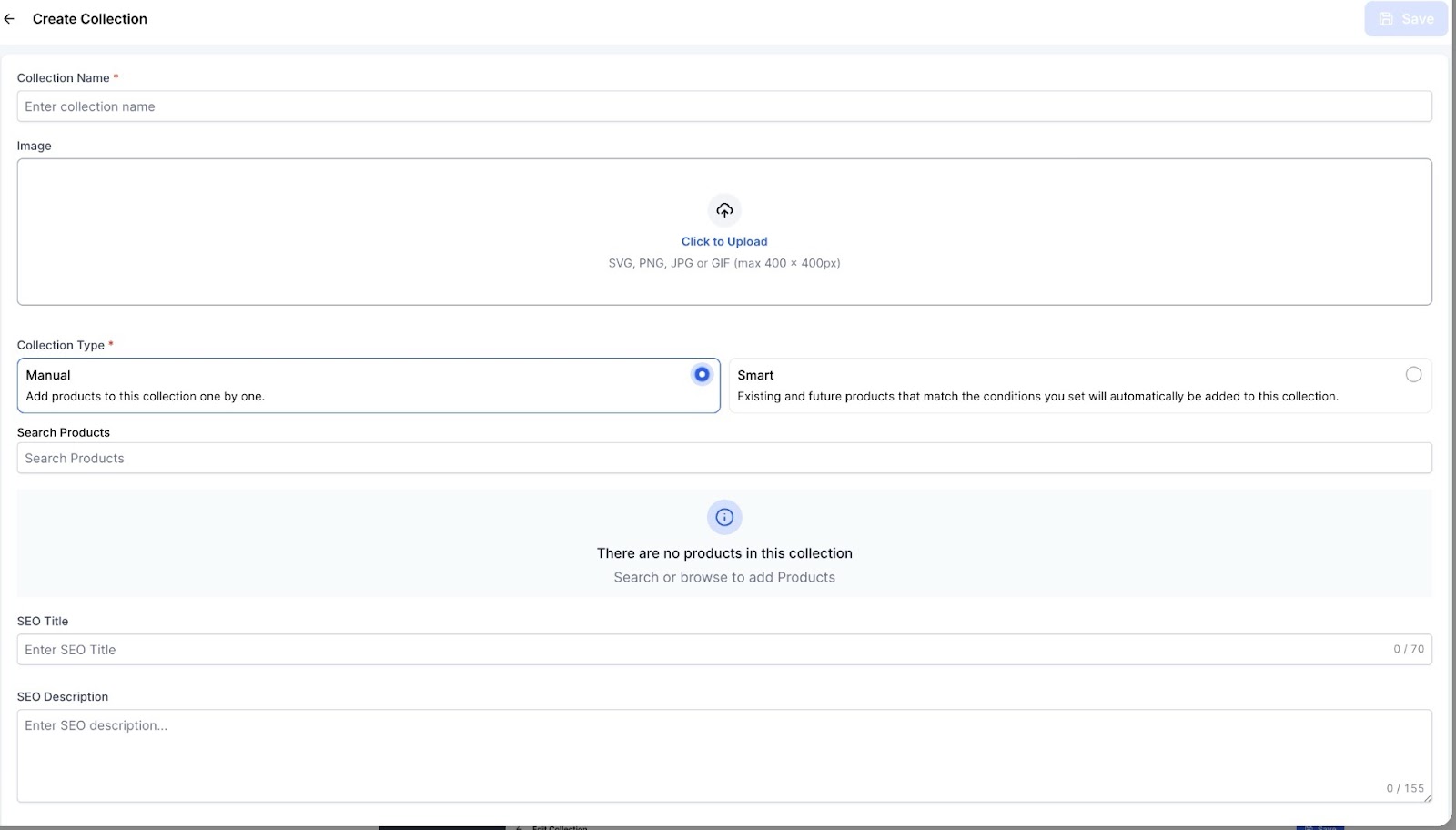
2- You will be prompted to enter the collection details, including:
3- Choose between a Manual or Smart collection:
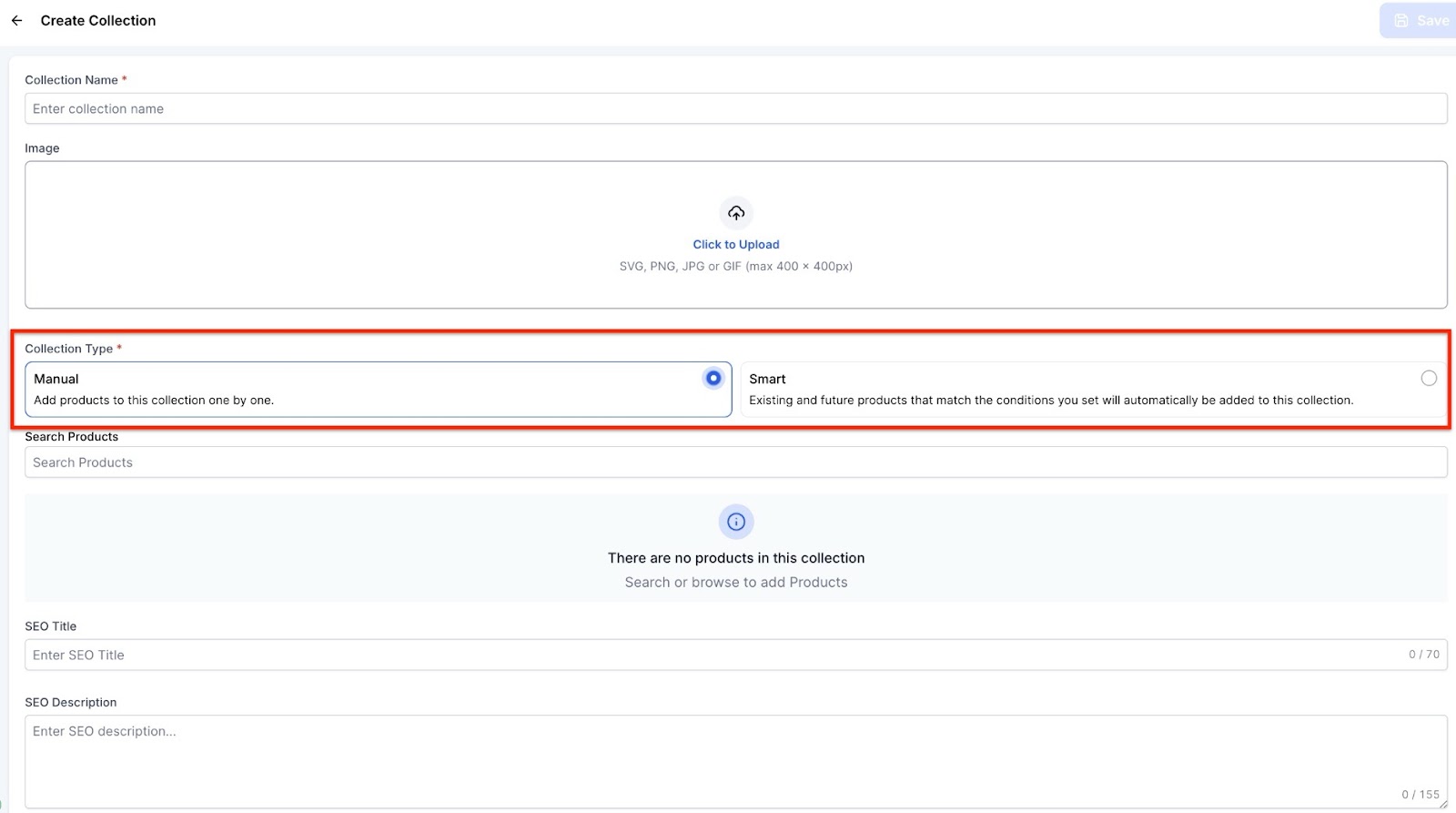
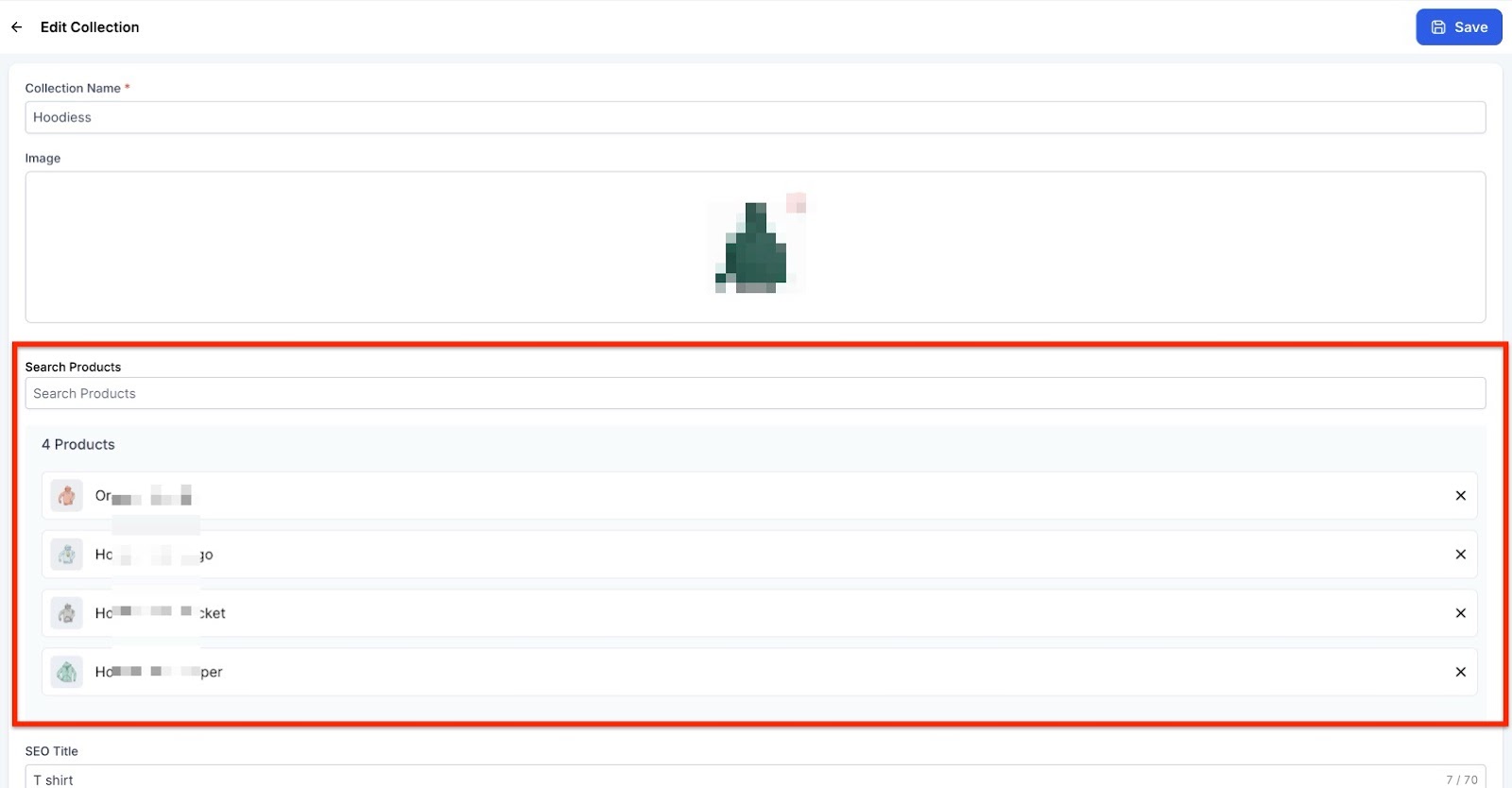
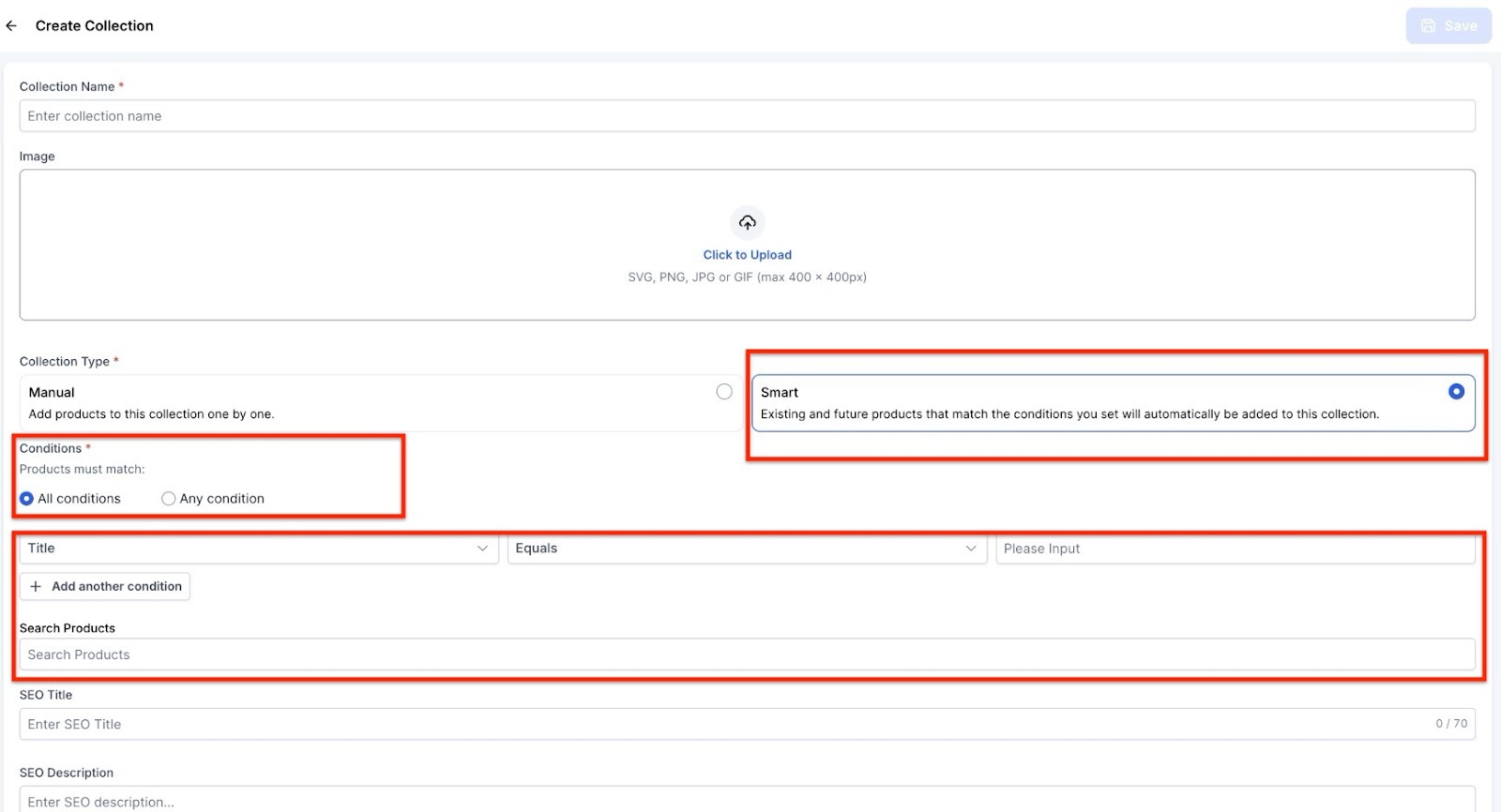
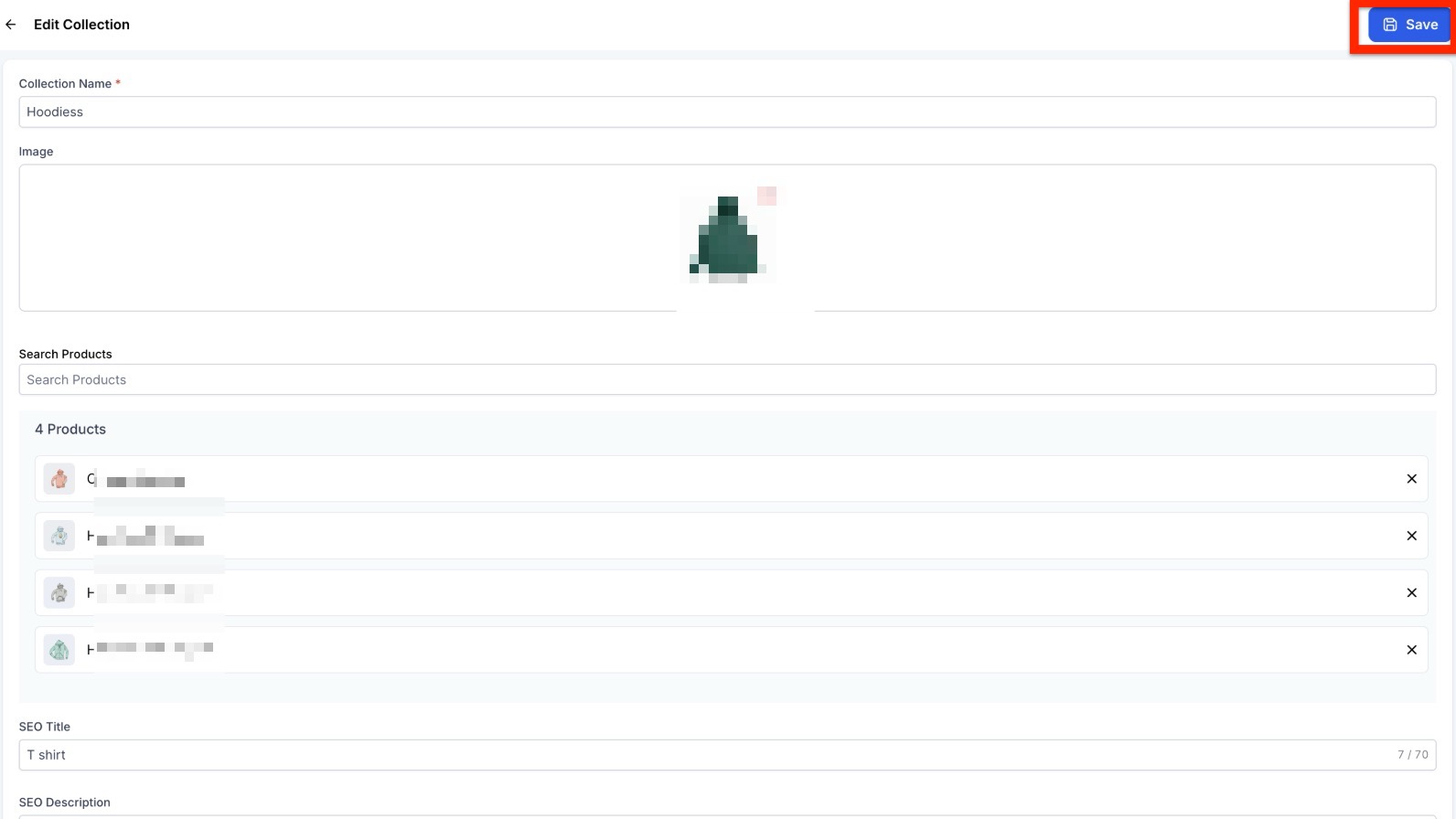
Once you’ve added the necessary products or defined the rules for a Smart Collection, click Save. For Smart Collections, the system will update the collection automatically whenever product data changes to match the rules you’ve set.
Question: Can I change a Manual Collection to a Smart Collection?**
**Answer: No, once a collection type is selected (Manual or Smart), it cannot be changed. You will need to create a new collection if you wish to switch the type.
Question: What happens if no products meet the criteria for a Smart Collection?**
**Answer: If no products meet the Smart Collection’s rules, the collection will remain empty, but it is still valid and can be saved.
Question: Can I manually add or remove products from a Smart Collection?**
**Answer: No, Smart Collections cannot be manually edited. Products will only be added or removed based on whether they meet the conditions defined in the collection’s rules.
Question: How can I edit a Manual Collection after it’s created?**
**Answer: You can edit a Manual Collection anytime by simply adding or removing products to/from the collection.
Question: Do Smart Collections update immediately when product data changes?**
**Answer: Smart Collections are processed in the background, so updates may not be reflected immediately, but they will update automatically as soon as the system processes the changes.
Question: When should I use Manual Collections versus Smart Collections?**
**Answer: Use Manual Collections for seasonal promotions, limited-time offers, or curated groupings. Use Smart Collections for large inventories or frequently updated products, as they automatically adjust based on rules like price, stock, or tags.
Question: What happens if my Smart Collection rules contradict each other?**
**Answer: If your Smart Collection contains contradictory rules (e.g., “Price > 100” and “Price < 50”), the system will display an error and prevent you from saving the collection. Always ensure your rules are logically consistent before saving.
Question: Will Smart Collections automatically remove a product if it goes out of stock? Answer: Yes, if you have set a rule based on Inventory/Stock Levels. If a product’s stock falls below your defined threshold, the system will automatically move it out of that Smart Collection until the stock is replenished.