¶ Invoices: How to Add Tips
Invoices: How to add Tips
In the service industry, tips play a crucial role in recognizing and rewarding exceptional performance. To enhance this aspect of your business, LeadMagicX offers the ability to accept tips directly through invoices. This article provides a detailed overview of this feature, highlighting its key benefits and offering step-by-step instructions on how to use it effectively.
¶ How to Use It
¶ Step-by-Step Guide
- Enable Tips in Settings :
- Navigate to Payments on the left > Invoices & Estimates at the top > From the dropdown select All Invoices
- Click on Settings.

- Go to Payment Settings (as shown in the screenshot below).
- Select the Payment Settings tab and toggle on the ‘Allow Tip Payments’ feature.
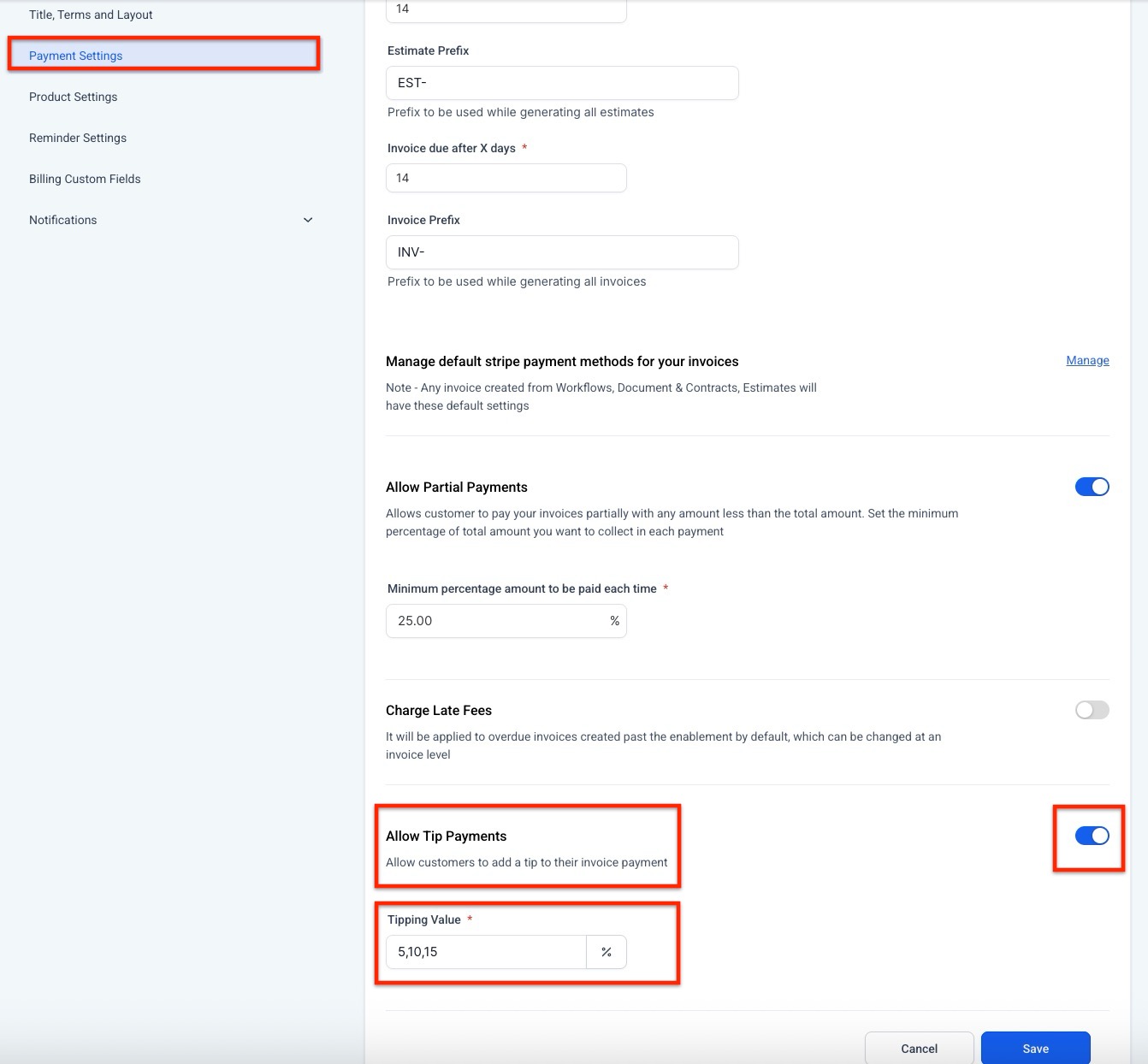
- Set the tipping value and save the settings.
2- Create a New Invoice :
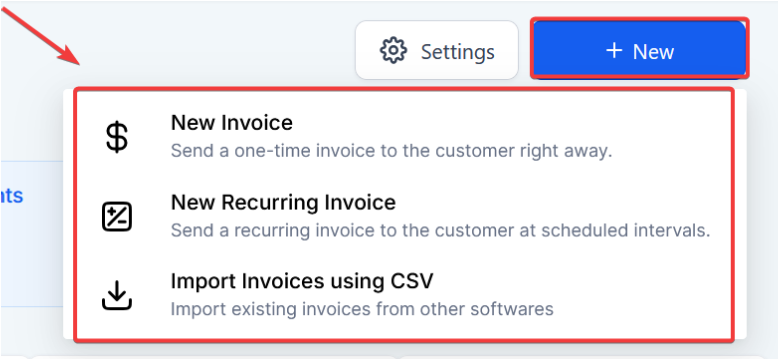
- Go to the Invoices tab.
- Go to the Invoices tab. Click on Create New Invoice or Create New Recurring Invoice.
3- Configure Tips for an Invoice :
- Click on the three dots at the top of the invoice page.
- Select Manage Tips.

- Choose the desired percentage options for tips or allow customers to enter a custom amount.

- Save the settings and start sending and accepting tips.
How to Download a PDF of an Invoice
You may want to download a PDF of an invoice for various reasons. Here’s how you can do it:
How to Access:
- Click on the three dots next to the desired invoice.
- Select Download , and the invoice will be saved to your device.

Use Cases:
- Record Keeping : Maintain a digital record of your financial transactions for accounting and future reference.
- Expense Reporting : Easily attach the PDF for reimbursement or tax filing.
- Client Communication : Quickly share an invoice with clients upon request.
- Audit Preparation : Simplify the audit process with organized PDFs.
- Dispute Resolution : Refer to the exact invoice details to resolve billing issues efficiently.
¶ Note
To ensure smooth operation and customer satisfaction, it is advisable to configure the tips settings appropriately before sending out invoices. This feature is versatile and can be adjusted according to your business needs.
¶ Key Features and Benefits
¶ Key Features
- Accept Tips on Invoices : Business users can configure and accept tips on any invoice issued from the system.
- Flexible Tip Amounts : End users can tip a percentage of the total amount or enter a custom tip amount.
- Comprehensive Coverage : This feature is available for all invoices, including one-time, recurring, workflow-generated, documents, and contracts.
- Configurable Settings : Tips can be configured globally or on a per-invoice basis.
- Refund Capability : Users have the option to refund the entire invoice amount, including tips.
¶ Benefits
- Enhanced Revenue : Enables service businesses to collect additional revenue through tips.
- Employee Motivation : Provides an incentive for top performers by allowing customers to reward them directly.
- Flexibility for Customers : Offers customers the convenience of tipping according to their preferences.
¶ Pro Tips
- Custom Tip Percentages : While standard percentages (like 10%, 15%, 20%) are common, offering a custom tip amount option can accommodate all customer preferences.
- Communication : Inform your customers about the tipping options available on the invoice to encourage tipping.
- Testing : Before rolling out this feature widely, test it with a few invoices to ensure everything is working as expected.
¶ ****
¶ FAQs
Question: Can I disable tips for specific invoices?**
**Answer: Yes, tips can be configured at the global level or per invoice, giving you the flexibility to disable them for certain invoices if needed.
Question: How are refunds handled?**
**Answer: You can refund the entire invoice amount, including any tips received. This can be managed through the invoice settings.
Question: Are there any limitations on the tip percentage?**
**Answer: The system allows you to configure standard tip percentages and also provides an option for customers to enter a custom tip amount.
Question: What types of invoices support this feature?**
**Answer: This feature is available for one-time invoices, recurring invoices, invoices generated from workflows, and those attached to documents and contracts.
Question: How do I access my invoices to download them?**
**Answer: Navigate to the Payments tab, click on Invoices, then click on the three dots next to the invoice you want to download and select “Download.”
Question: Can I download multiple invoices at once?**
**Answer: Currently, you need to download each invoice individually. Navigate to each invoice, click on the three dots, and select “Download.”
Question: Where will the downloaded invoice be saved on my device?**
**Answer: The invoice will be saved in your device’s default download location, typically the “Downloads” folder.
Question: How does the widget work after a visitor submits the form?**
**Answer: Visitors are redirected to WhatsApp with a pre-filled message to your selected number. You’ll receive a notification in the “Conversations” view to start the chat.