¶ Invoice Creation after Document/Contract is Signed
Invoice Creation after Document/Contract is Signed
In this article, you will learn how an invoice is created automatically after the lead has accepted or signed the documents/contracts.
¶ Key points:
- Automatic Invoice Creation: An invoice is automatically generated after the lead accepts or signs the document/contract.
- Invoice Details: The invoice will replicate the line items, taxes, and discounts applied to the product list element within the document/contract.
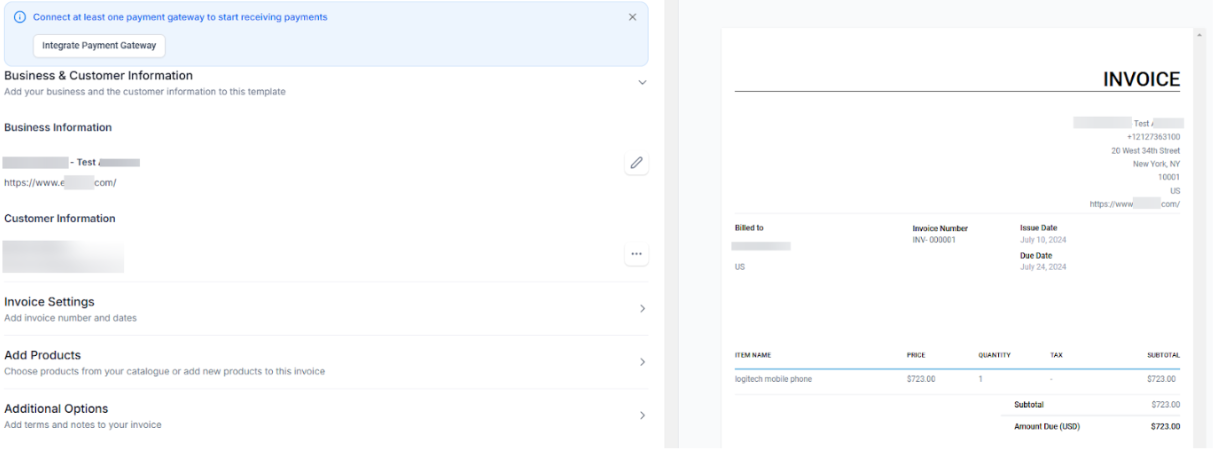
- Review and Edit: Businesses can directly review the invoice, make necessary edits, and send it to the client using the “View Invoice” action in the finalized list view.
- No Product Line Items: An invoice will not be created if there are no product line items associated with the document/contract.
- Multiple Product List Elements: If multiple product list elements exist inside the document, a cumulative invoice will be generated, covering all line items and associated discounts.
¶ How to access
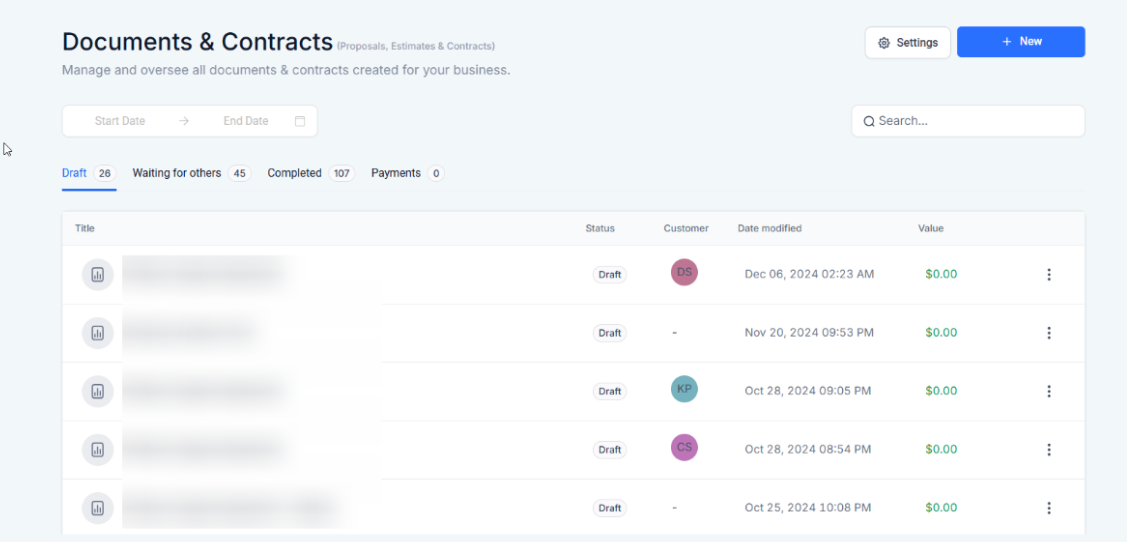
- Navigate to the payments section on the left and under Document and Contracts click on “All Documents and Contracts”
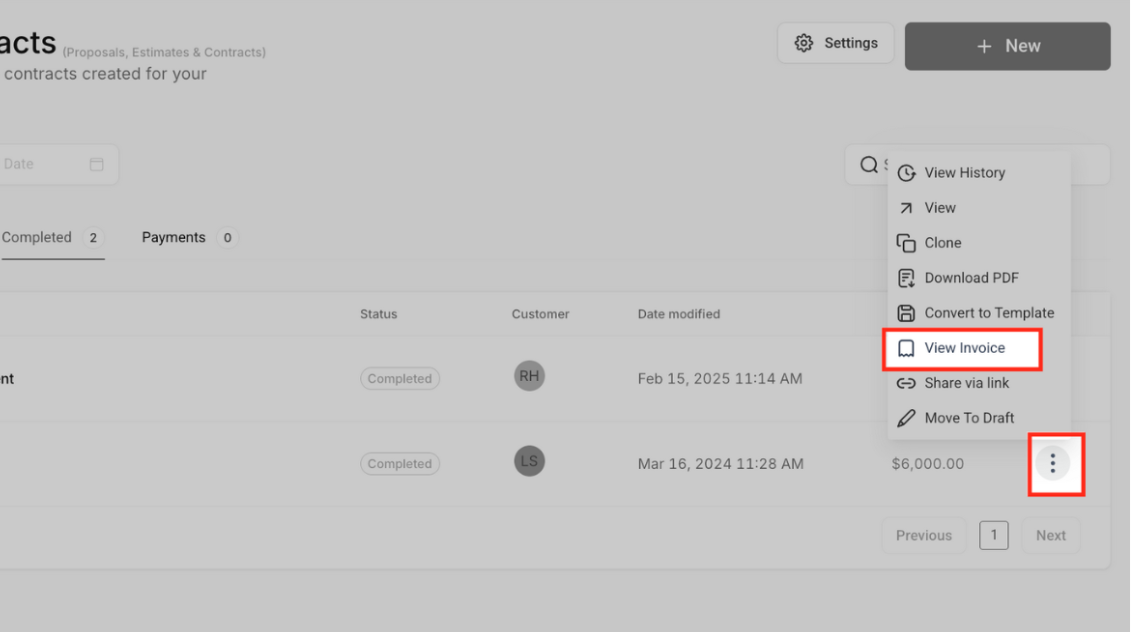
- Click on the 3 dots next to the document or contracts
- Click on View Invoice
- You will be able to directly review the invoice, make any edits if required, and send it to the client.
¶ Notes:
- In the case multiple product list elements exist inside the document, the invoice will include the cost of all the line items and discounts associated.
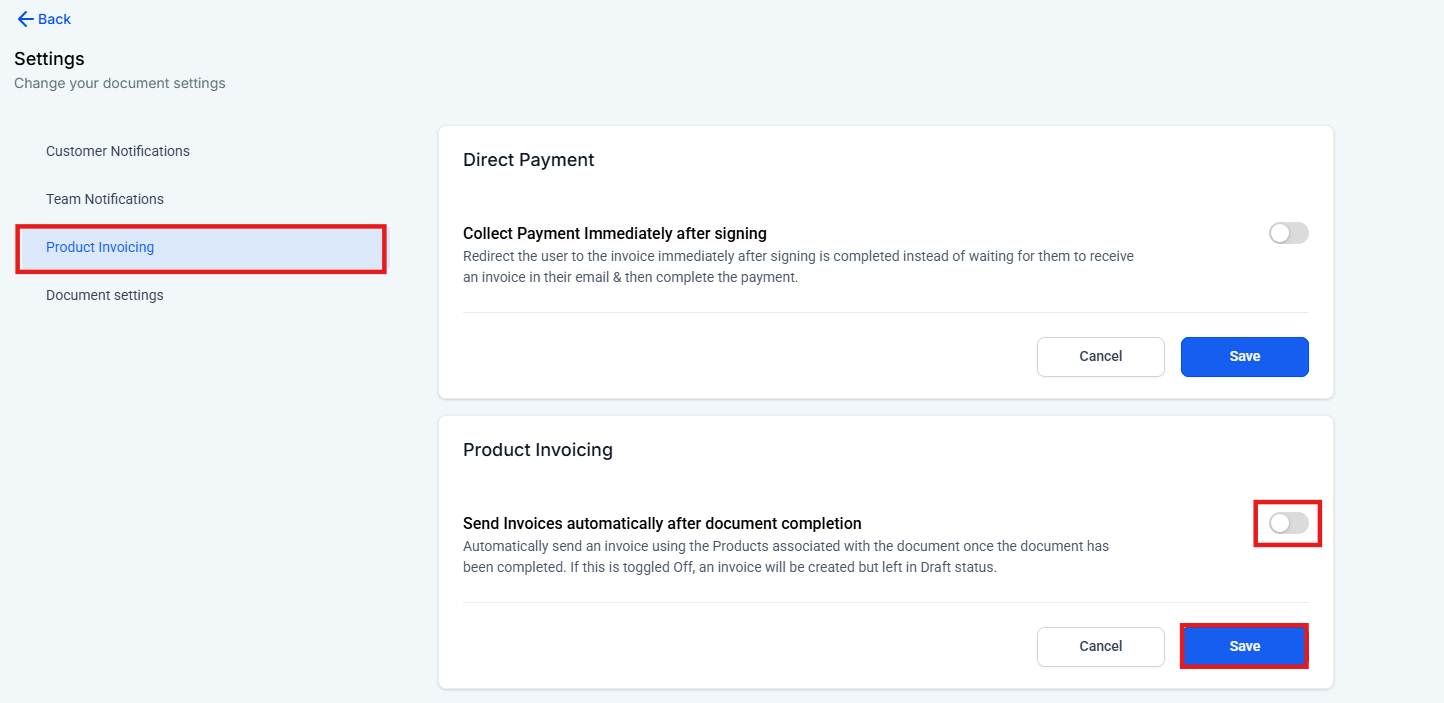
- If you want to automatically send the invoice after the customer has paid, without editing, you will need to turn off this option by going to Documents & Contracts and Settings. Then under Product Invoicing, turn on the option “Send Invoices automatically after document completion” and save.

¶ Direct Invoice Payments After Document Signing
**
**The feature allows users to sign documents and make direct payments immediately after signing, streamlining the contract and payment process into one seamless flow. This eliminates the need for separate invoicing, improving efficiency and user experience.
¶ How to Use:
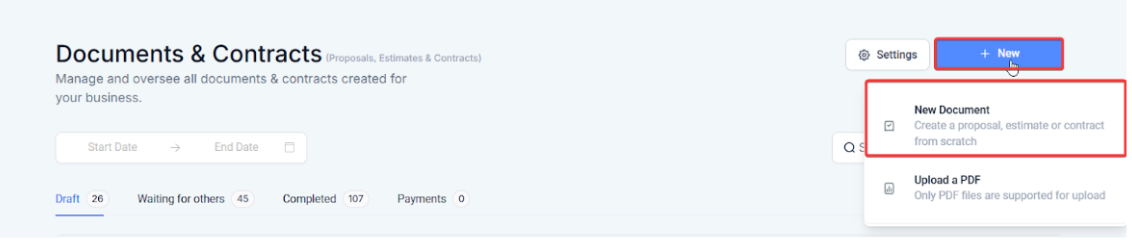
- Create or upload a document for signing.
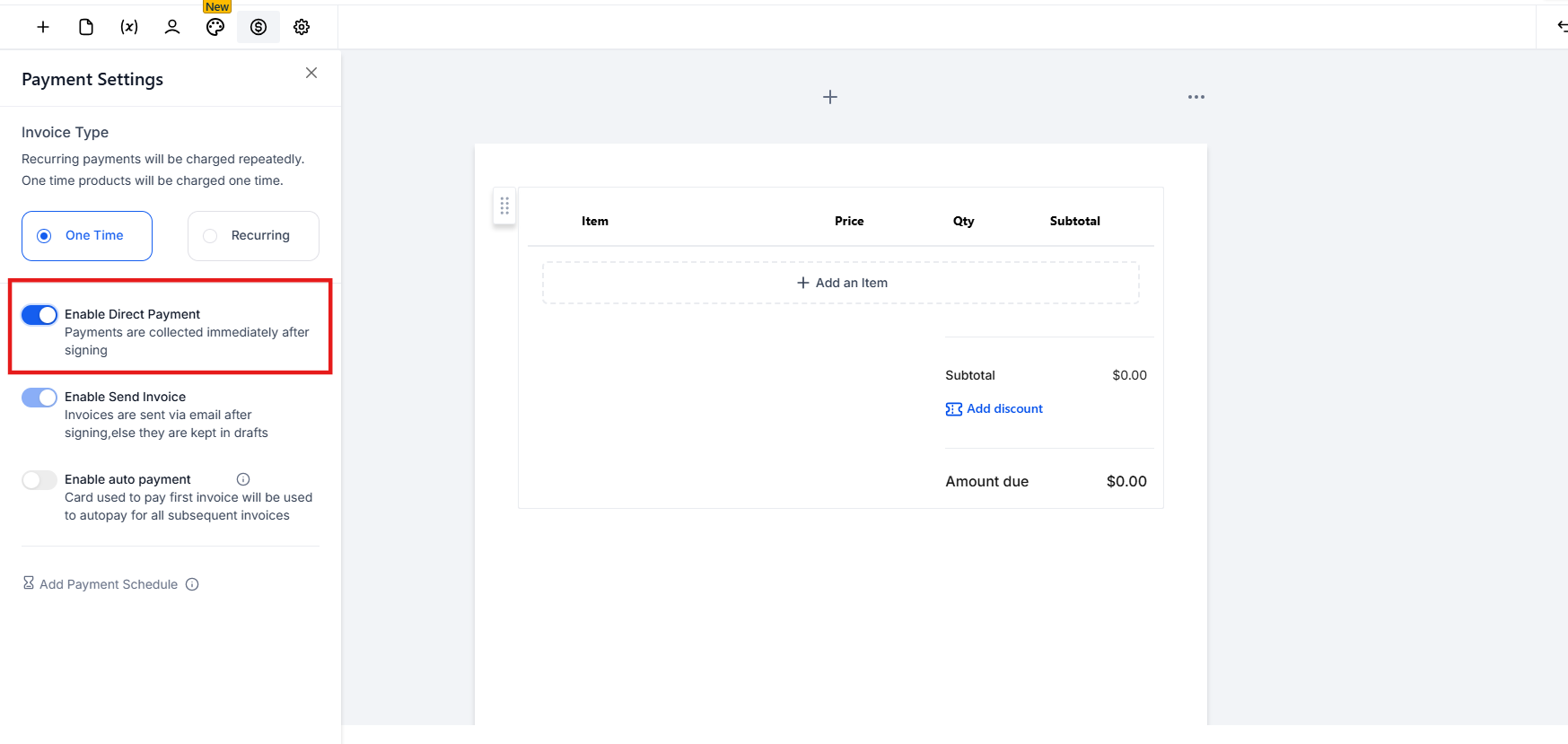
- Enable direct payments by toggling the option for one-time product lists.
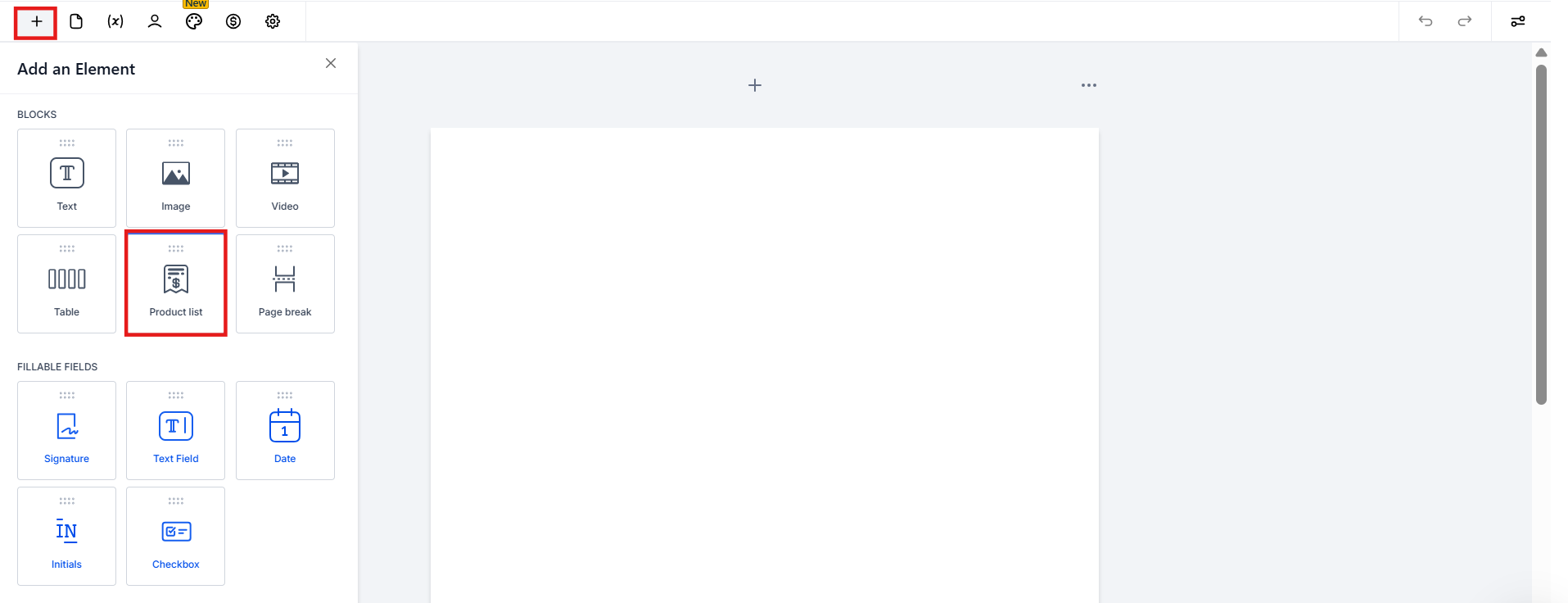
- When you add a product list to a document, a settings panel automatically opens for quick customization.
- Send the document for signing.
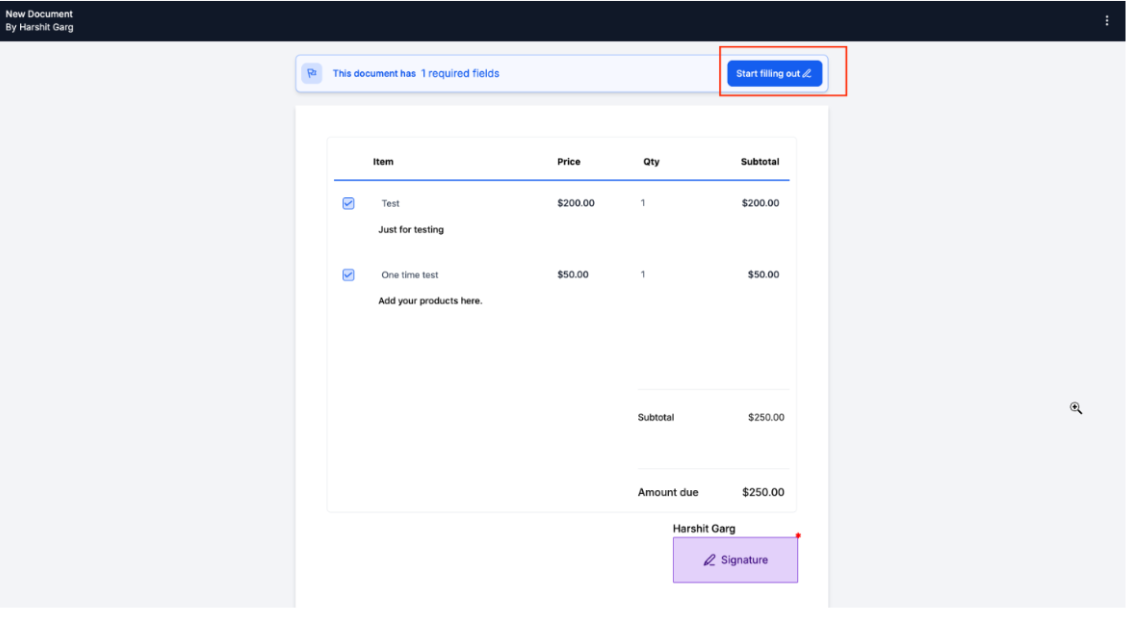
- The primary recipient will sign and be directed to the invoice for immediate payment.
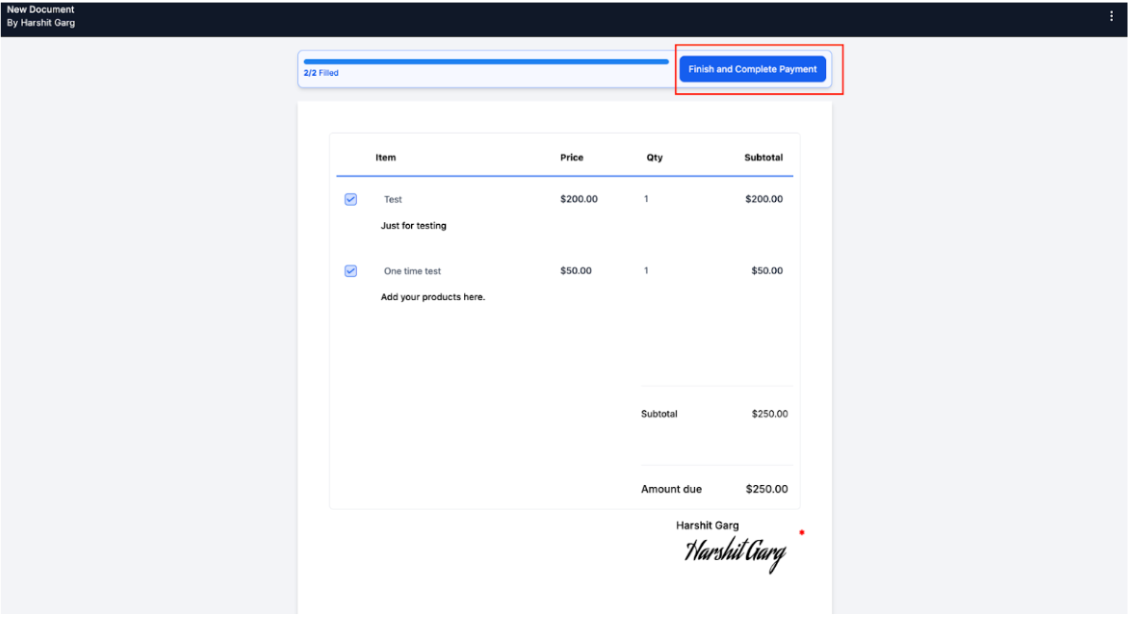
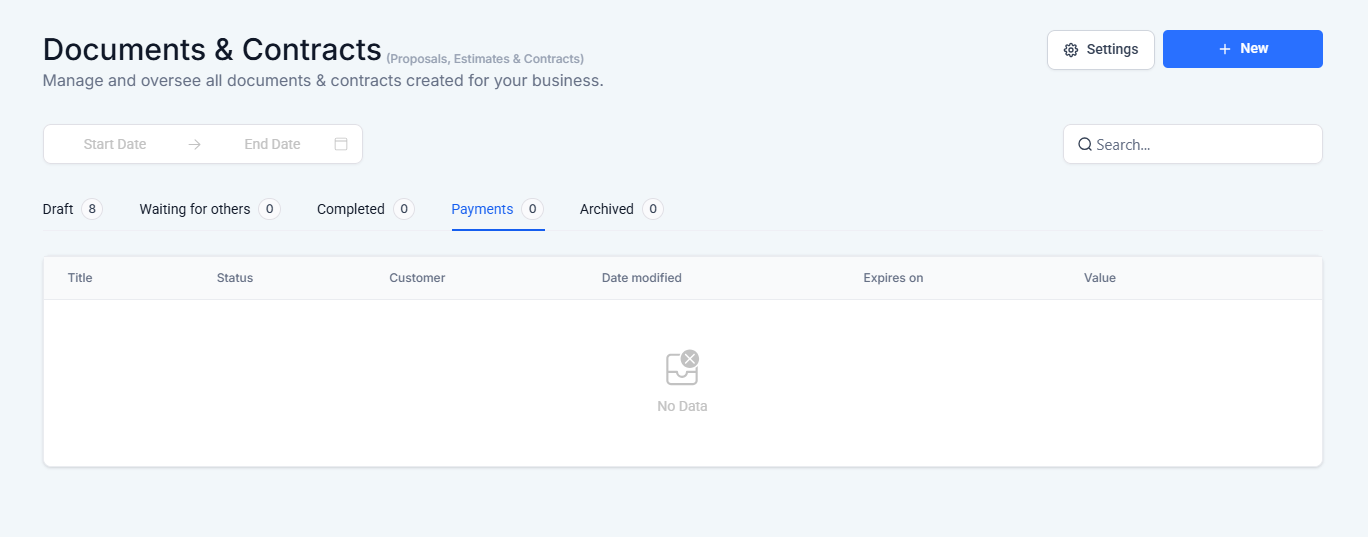
- Track the payment status in the document or invoice section.
¶ Support for Recurring Payments after Document Signing
Recurring payments can be collected directly after a document is signed, streamlining payment collection for agreements with recurring schedules. This feature ensures senders can automate invoicing based on predefined schedules, redirecting users to the invoice immediately if the signing date aligns with the schedule.
How to use:**
**For Templates:
- Create a new document and add a recurring product with frequency settings.
Previously, users could only set a fixed date for generating recurring invoices. Now, you have the option to generate the first invoice immediately upon signing the document, with all subsequent invoices being scheduled based on the signing date and chosen frequency.
Example: If a document is sent on January 21 and signed on January 25, with monthly recurring products, the next invoice will be sent on February 25.
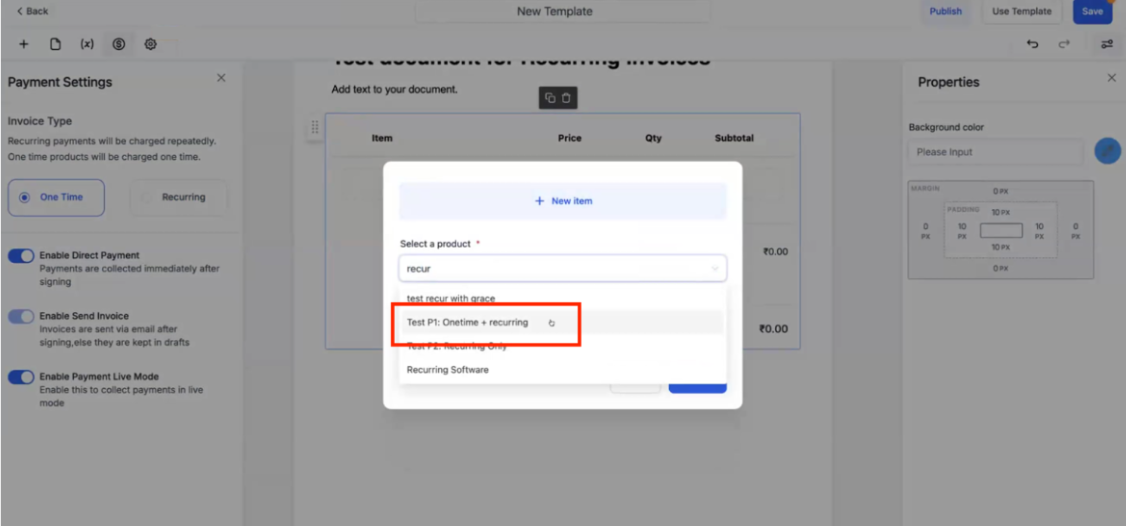
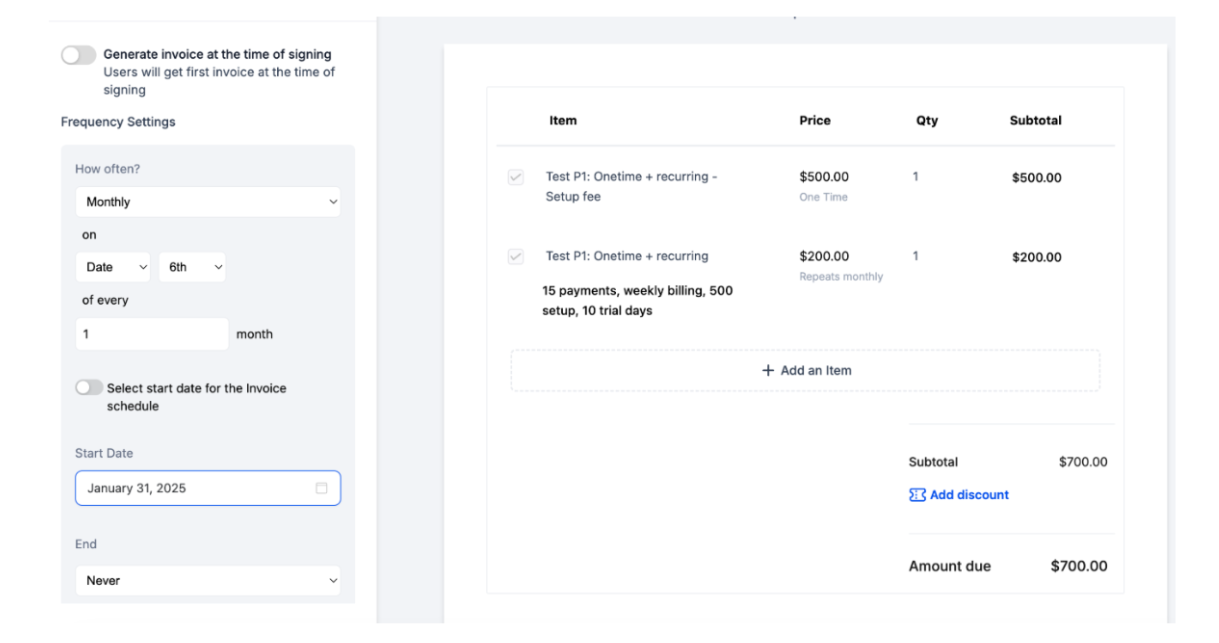
- Once added, the product list will show distinction: Which products will be treated as one-time and which will be added for recurring payments.
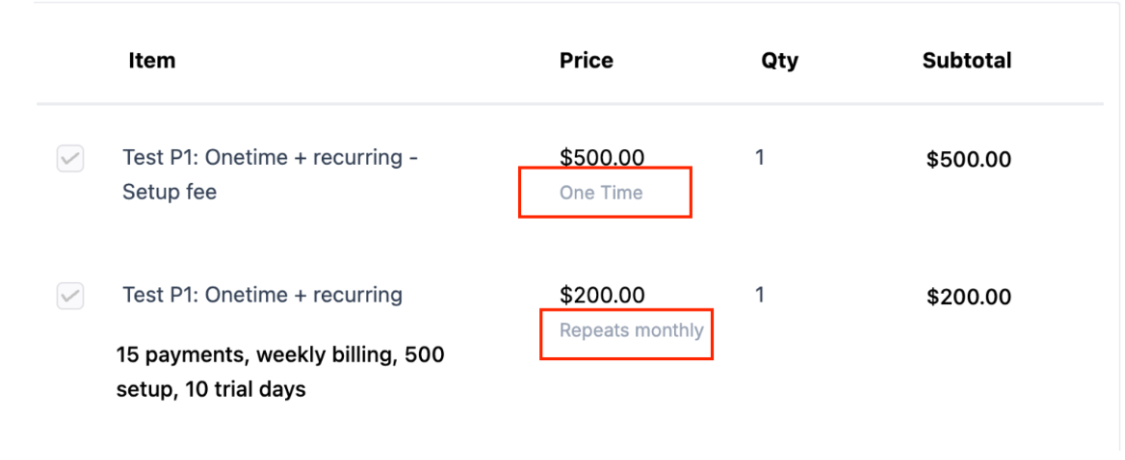
Note for documents and contracts - product list:
- Any product that is configured as one-time in products, will be treated as one-time always.
- Any recurring product that has a setup fee configured will show 2 line items, one for recurring which will repeat, and the other for setup fee which will be one-time.
Here’s a simpler explanation of how the document settings work:
- Generate Invoice at the Time of Signing
- If this option is turned on: The recurring invoice schedule starts immediately when the document is signed, and the first invoice is generated on the signing date. All future invoices will follow the set schedule (e.g., monthly, weekly).
- If this option is turned off: You can set a specific date for the invoice to be sent. The invoice will only be sent on that date, provided the document is signed before the scheduled date.
- Enable Direct Payment
- When this is enabled, the primary signer is immediately redirected to the invoice for payment after signing. An email with the invoice is also sent to their email address.
- Enable Send Invoice
- If this is turned on, the invoice is automatically emailed to the primary user after signing.
- If it’s turned off, a draft invoice is created and saved in the invoices section, so you can review and send it manually later.
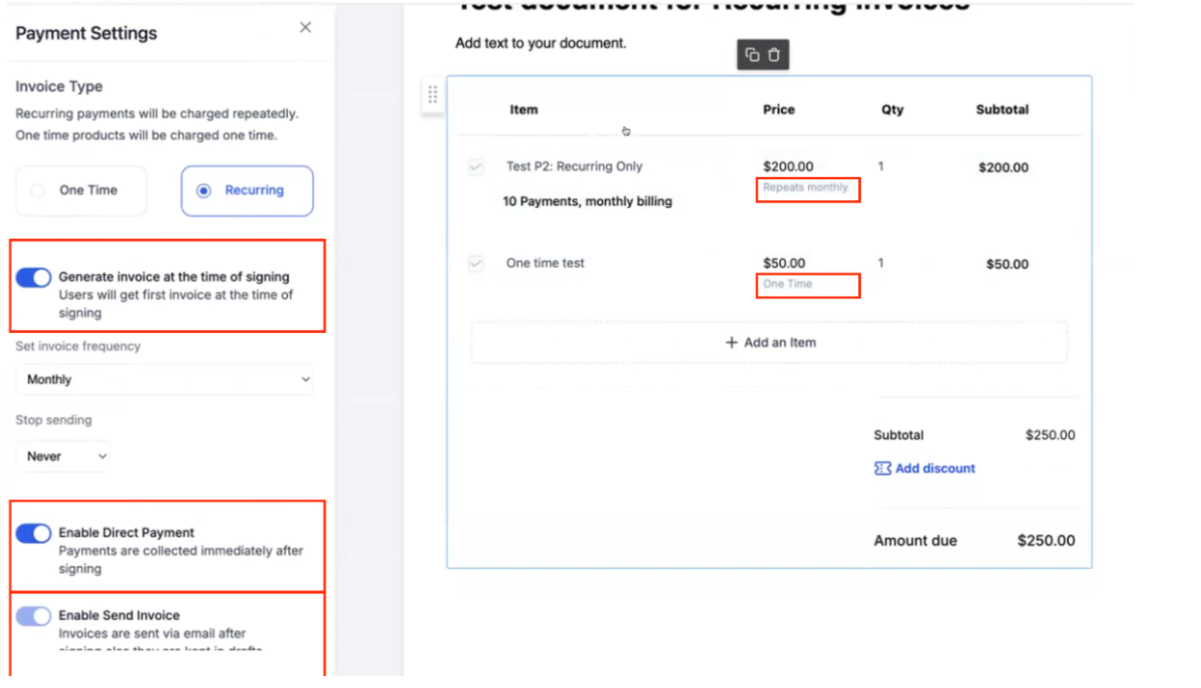
- Save the changes after you are done editing.
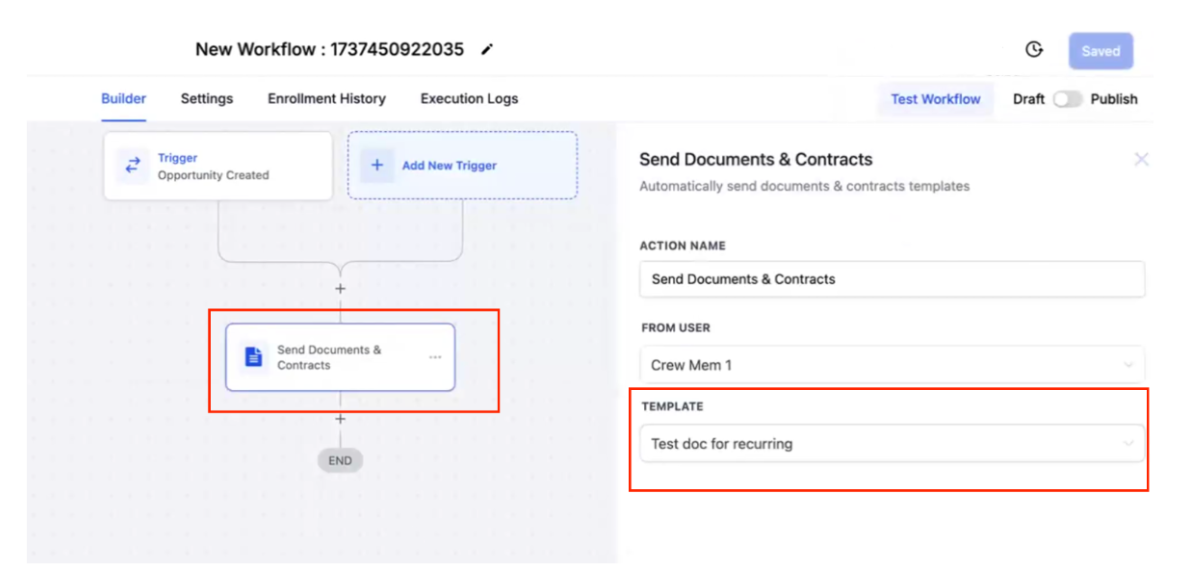
Sending the Invoice using Workflows
Set Up a Workflow: Go to the workflows section and configure a workflow using the saved template. This ensures the document and invoice are sent automatically when the workflow is triggered.
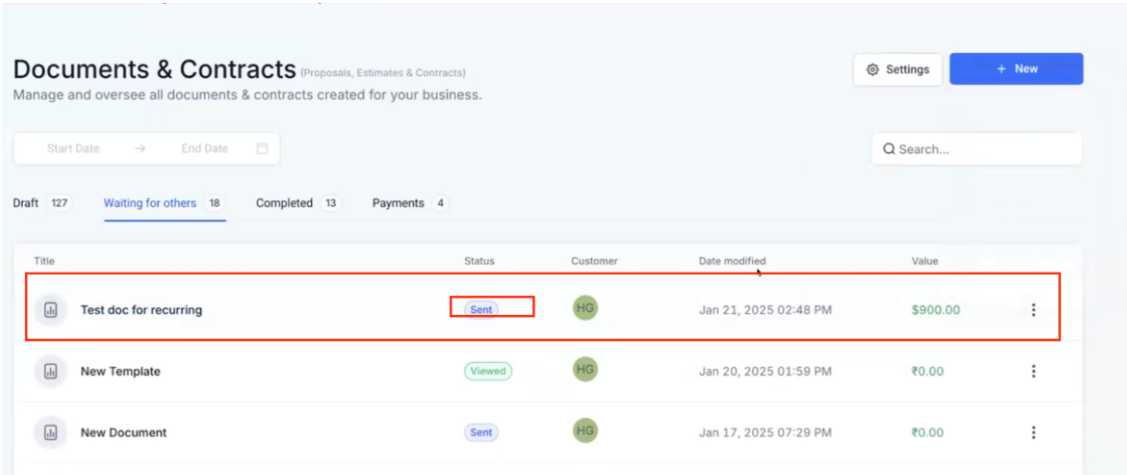
Document Sent to the Signer: When the workflow is triggered, the signer will receive the document with the attached invoice.
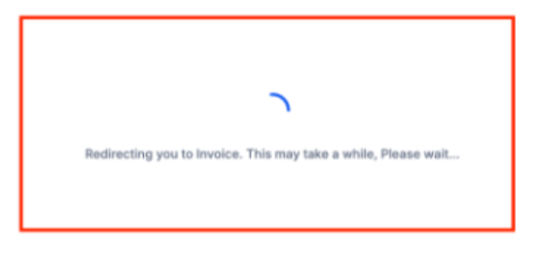
Redirect After Signing: Once the signer completes the signature, they will be redirected to the invoice. While this redirection may take a few moments, the invoice will also be sent to their email, so they can access and pay it later if they navigate away from the screen.
¶ 💡 Pro Tip #1: Automate Invoice Creation for Recurring Payments
When setting up recurring payments, ensure that “Generate Invoice at the Time of Signing” is enabled for immediate invoice generation. This saves time and improves the flow of payment collection by aligning the first invoice generation with the document signing date. Subscribed customers will receive invoices as soon as they sign, ensuring that billing cycles start promptly.
¶ 💡 Pro Tip #2: Streamline Direct Payment After Signing
Enable “Direct Payment” to allow the primary signer to be redirected immediately to the invoice for payment after signing the document. This feature minimizes delays in payment collection, reducing the chances of clients forgetting to pay or delaying the payment process.
¶ 💡 Pro Tip #3: Review and Edit Invoices Before Sending
Even though invoices are automatically created, make sure to always review the invoice before sending it. Use the “View Invoice” action in the finalized list to quickly access and edit any line items, taxes, or discounts to ensure the accuracy of the document.
¶ 💡 Pro Tip #4: Use the “Send Invoice Automatically” Setting for Efficiency
For greater efficiency, turn on “Send Invoices automatically after document completion” in the Product Invoicing settings. This removes the need for manual intervention and ensures that invoices are sent out as soon as the client signs the document, speeding up your entire workflow and enhancing the customer experience.
¶ FAQs
Question: What triggers the automatic creation of an invoice?**
**Answer: An invoice is automatically generated when a lead accepts or signs the document/contract.
Question: What information is included in the automatically generated invoice?**
**Answer: The invoice will replicate all line items, taxes, and discounts applied to the product list element within the document/contract.
Question: Can I review and edit the invoice before sending it to the client?**
**Answer: Yes, you can review the invoice, make any necessary edits, and then send it to the client using the “View Invoice” action in the Finalized List view.
Question: How does the recurring invoice generation at signing work?**
**Answer: When a recurring product is added to a document, the invoice is automatically created at the time of signing. The first invoice is generated immediately, and subsequent invoices follow the set schedule, such as monthly or weekly.
Question: Can I customize which products are treated as recurring or one-time?**
**Answer: Yes, the product list clearly distinguishes between one-time and recurring products. If a product is set as recurring, it will generate ongoing invoices based on the chosen frequency. Setup fees for recurring products are treated as one-time charges and appear as a separate line item.
Question: What options control how invoices are sent after signing?**
**Answer: You can:
- Enable Generate Invoice at Time of Signing to start the recurring schedule immediately.
- Enable Direct Payment to redirect signers to the invoice for immediate payment.
- Enable Send Invoice to email the invoice automatically after signing, or leave it off to save the invoice as a draft for later review.
Question: What happens if a document contains more than one product list element?
Answer: If multiple product list elements are included in the document, the system will generate a single cumulative invoice that includes all the line items and associated discounts from all elements.
Question: What happens if a client closes their browser immediately after signing the document?
Answer: While the “Direct Payment” feature attempts to redirect them to the invoice, the system also simultaneously sends the invoice to their email. They can access the link and complete the payment later from their inbox if the redirection is interrupted