¶ Import Transactions and Orders into LeadMagicX via CSV Files
Migrating customer data from different platforms to your main system can be a challenging task, particularly when it involves ensuring the continuity of important information like transactions and orders. This article will guide you through the process of importing historical orders and transactions into LeadMagicX using CSV files. With this feature, businesses can easily migrate older transaction and order data, making it visible in their accounts while contributing to their overall reporting.
Key Features and Benefits:
- Seamless Migration of Historical Data:**
**Importing past orders and transactions ensures that all relevant customer data is transferred and integrated into LeadMagicX, without any data loss. - Impact on Reporting and Dashboards:**
**Once imported, both transactions and orders will affect your business’s total revenue figures and contribute to relevant dashboards. This provides accurate historical reporting and ensures that your financial tracking remains intact. - Integration with Existing Contacts:**
**Customer details included in the CSV files will either create new contacts or update existing ones. This ensures your customer database remains up-to-date with relevant transaction and order data. - Two Separate Dates for Transactions:**
**LeadMagicX will maintain two distinct dates: one for when the transaction is added to the system and another for when the transaction was actually executed. This keeps the data accurate and ensures that historical transactions are properly recorded. - CSV File Validation and Preview:**
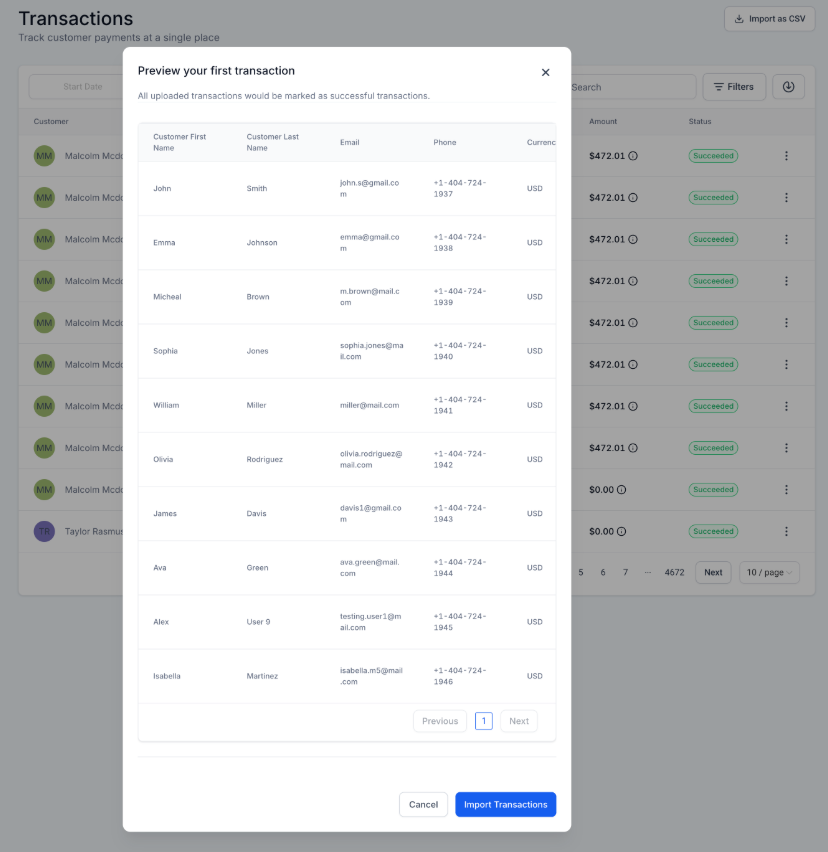
**Before finalizing the import, the system will validate the data and provide a preview. This gives you a chance to check the information for accuracy before committing it to the system. - Order-Linked Transaction Records:**
**When importing orders, each order will automatically be linked to a corresponding transaction record, ensuring that your data is fully connected and organized.
How to Use:
1. Prepare Your CSV Files:**
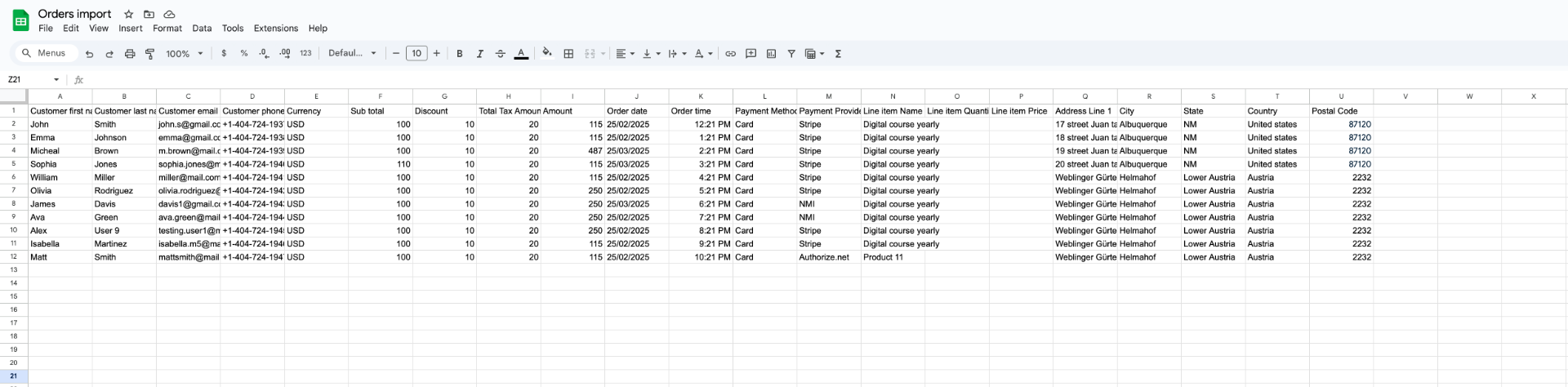
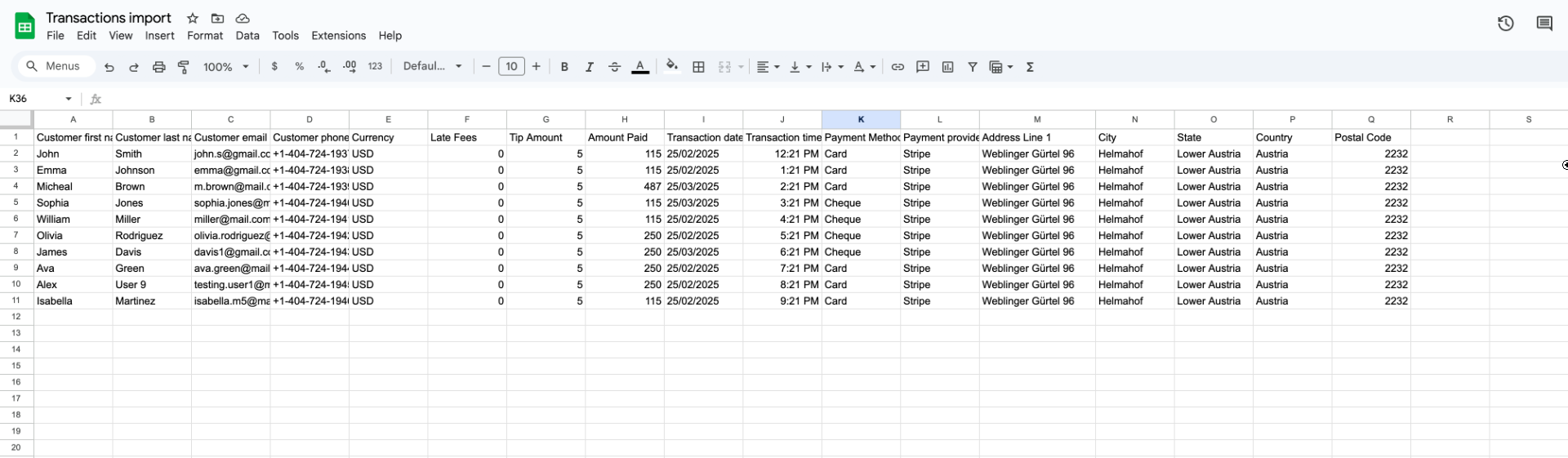
**Ensure your transactions and orders are properly formatted in CSV files. Each file should include relevant details such as customer information, transaction dates, amounts, and product details.
2. Navigate to Payments Section:**
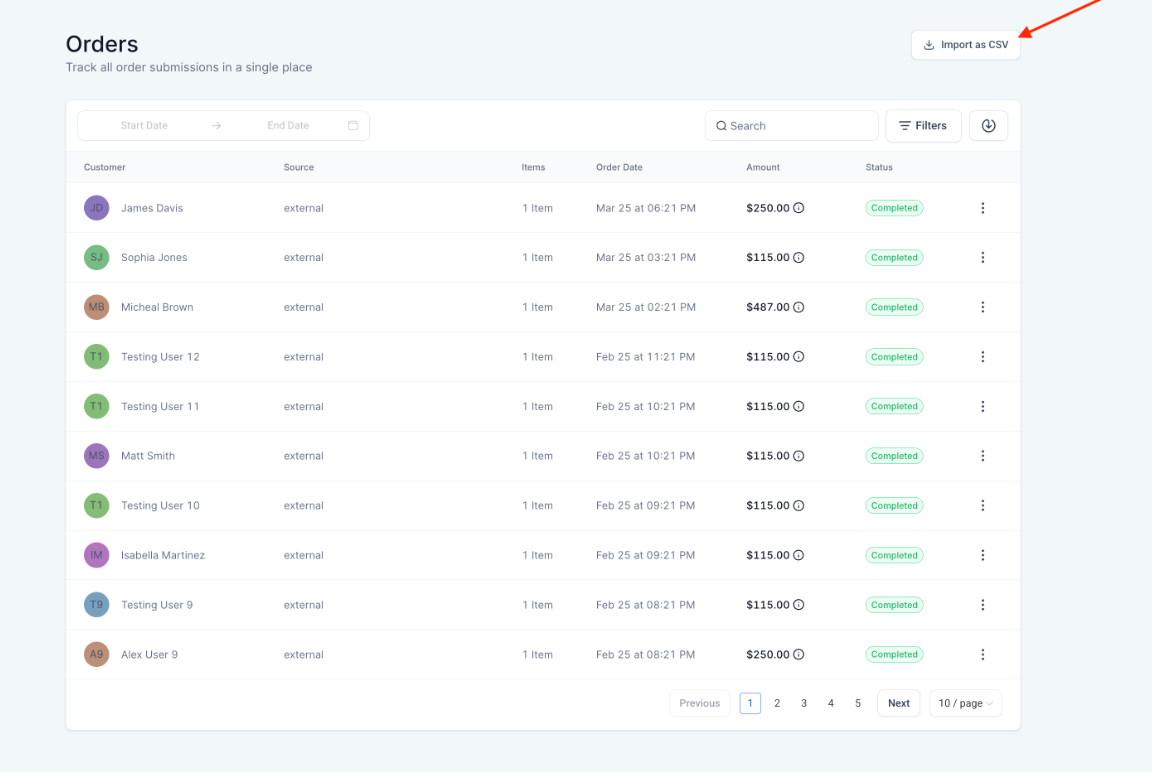
**Go to the “Payments” section and select either “Orders” or “Transactions,” depending on which data you are importing.
3. Upload CSV Files:**
**Use the Import feature to upload your prepared CSV files into the system. LeadMagicX will validate the data to ensure it is formatted correctly.
4. Preview and Confirm:**
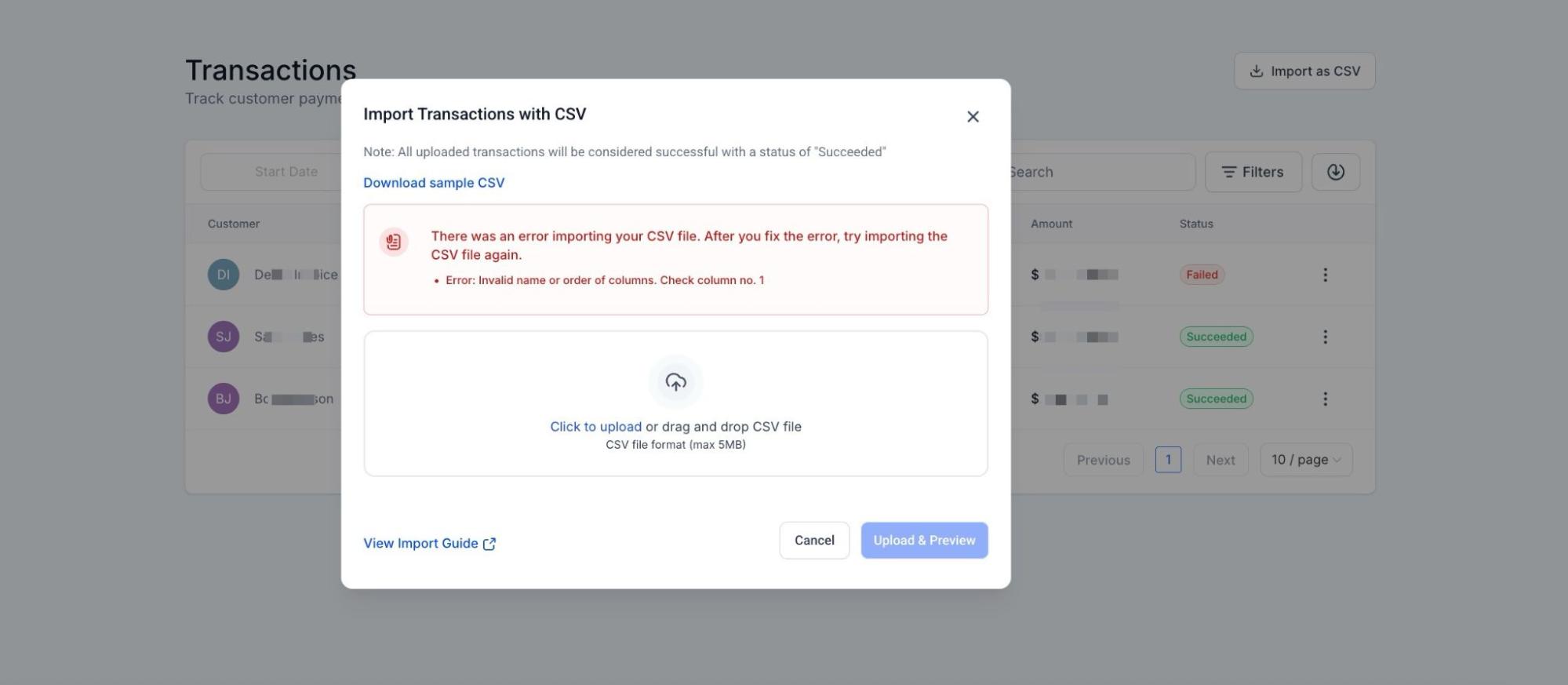
**Once the CSV file is uploaded, the system will display a preview of the data. Review the preview to ensure everything is correct. If any errors are found, correct them in the CSV file before re-uploading.
5. Finalize Import:**
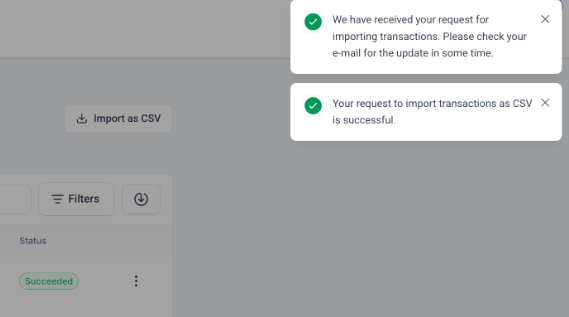
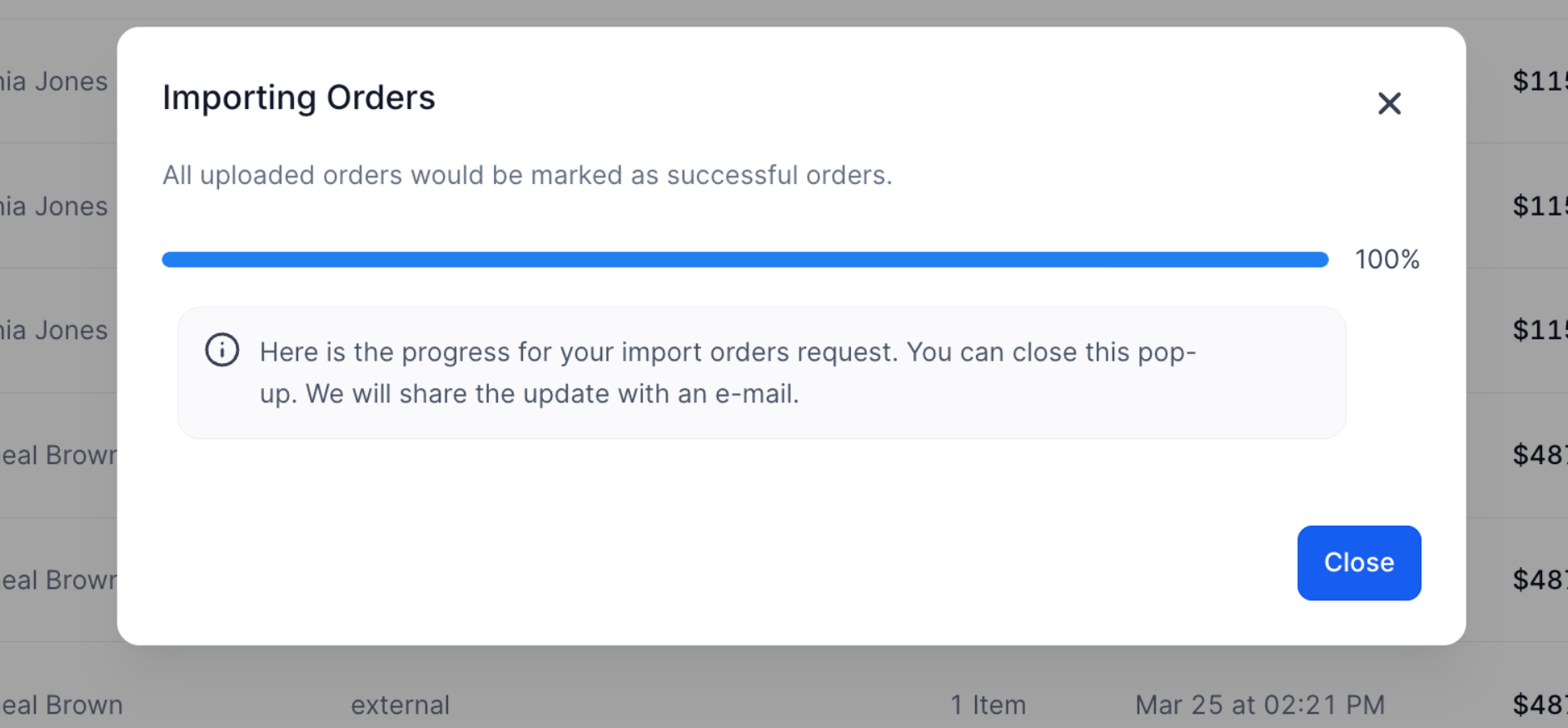
**After confirming the preview, proceed with the import. LeadMagicX will then add the transactions and orders to your account, updating both the contact records and revenue data.
¶ Image Guide for Orders Import:
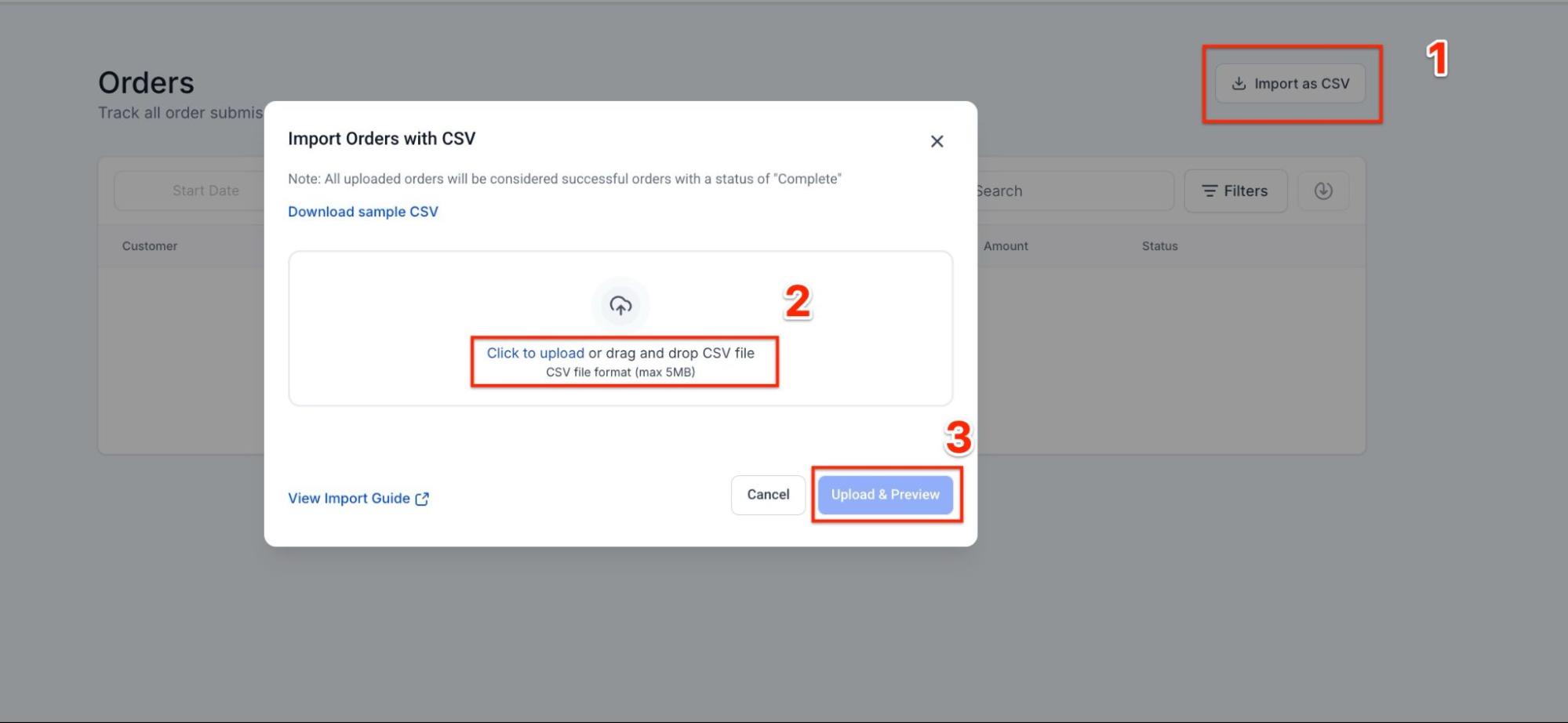
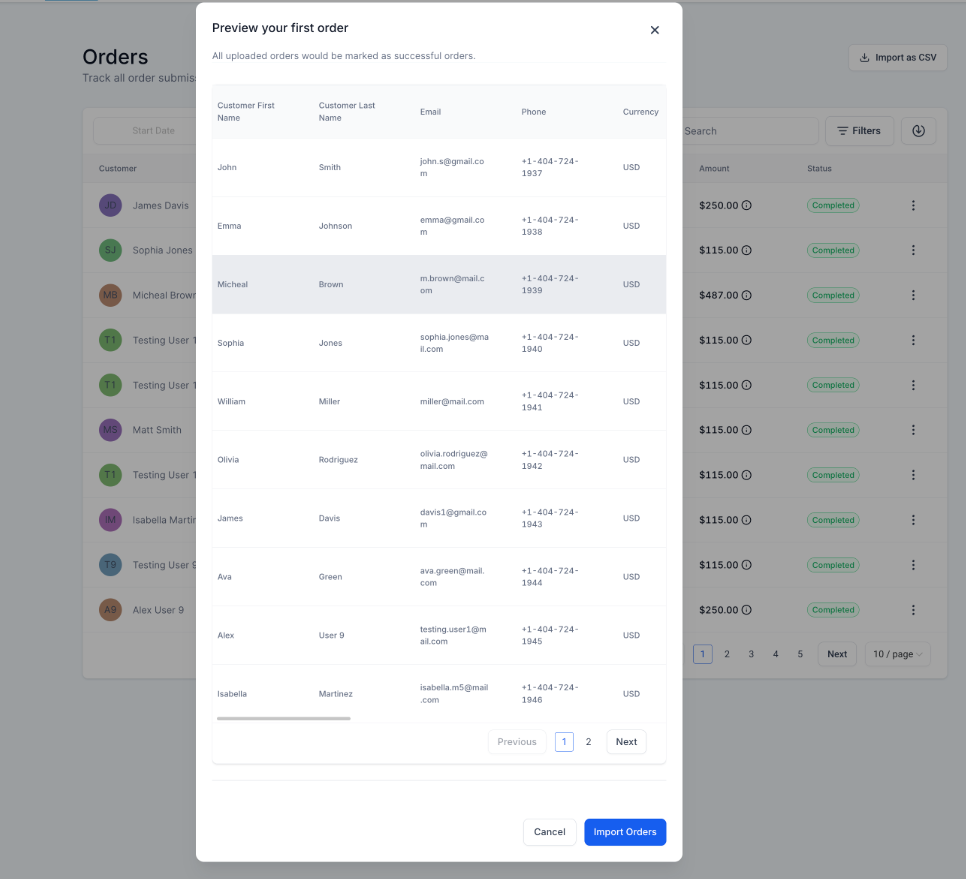
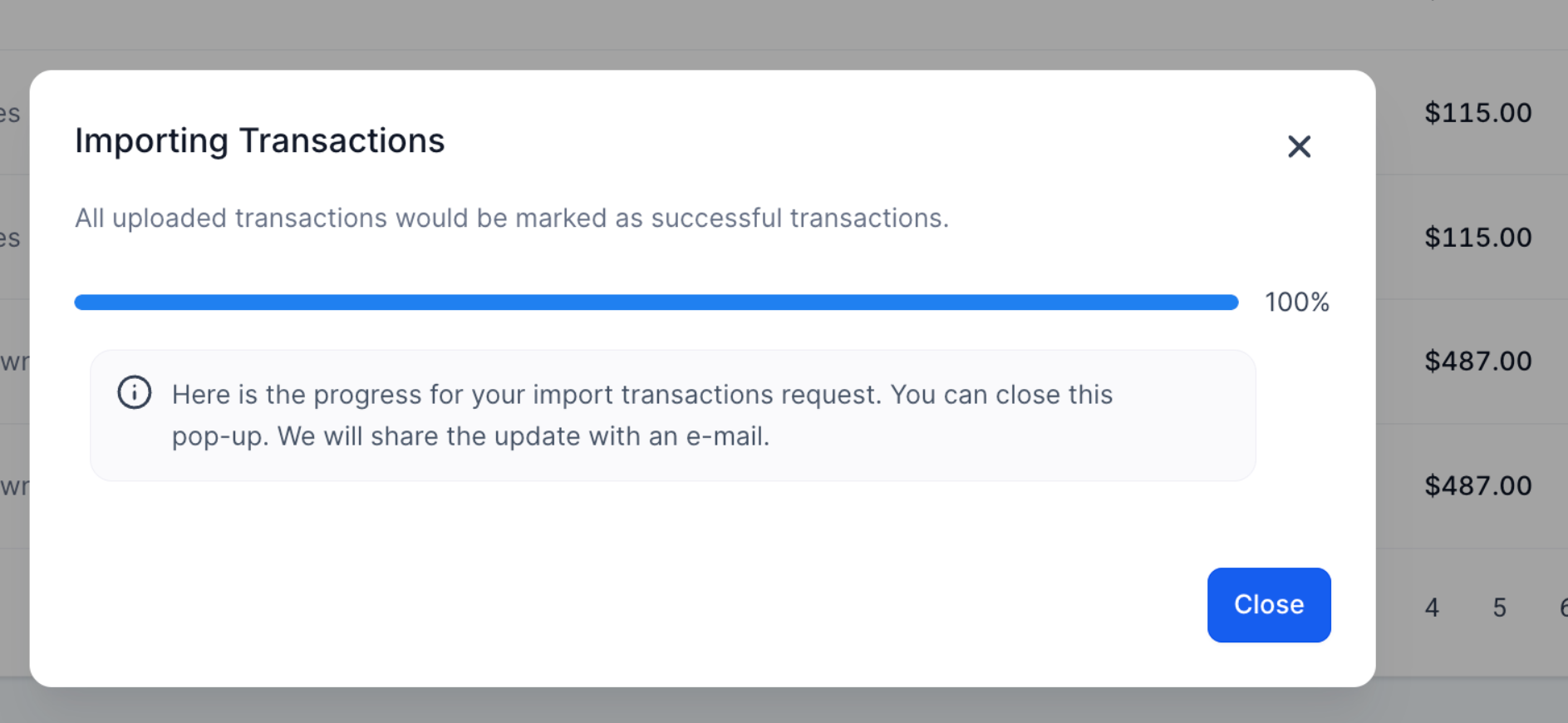
¶ Image Guide for Transactions Import:
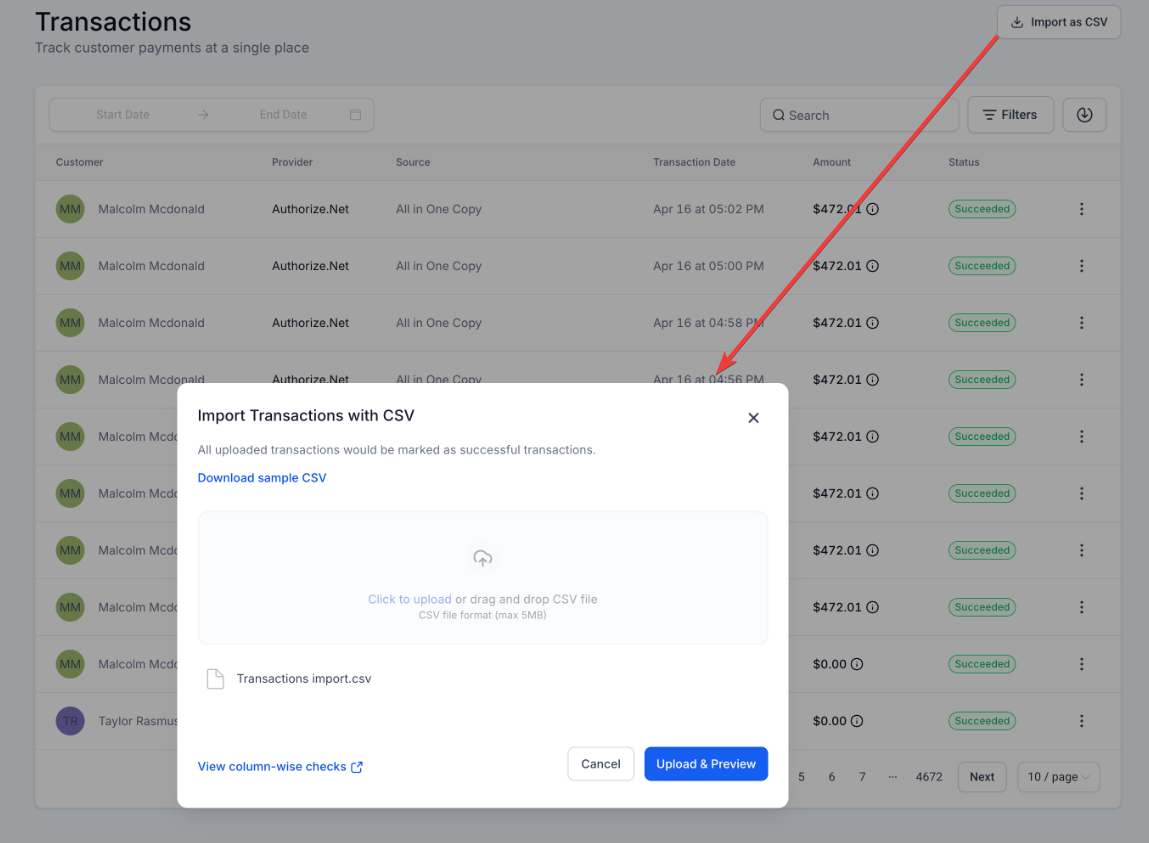
¶ How to Use CSV Exports for Accurate Financial Reporting
Follow these steps to efficiently navigate and utilize CSV exports for accurate financial data:
Tax Breakdown in CSV Exports:**
**
-
Review the CSV exports for two key tax-related columns:
- Total Tax Amount (Excluded in Prices) – taxes added on top of the product price.
- Total Tax Amount (Included in Prices) – taxes already included in the product price.
-
These columns help provide clarity on how taxes are applied to each transaction.
Product-Level Details:**
**
-
The CSV includes detailed product-level information:
- For each line item, check columns for name, price, quantity, product ID , and any related subtotal or discount calculations.
- When an order contains multiple products, the CSV displays each product’s details on separate rows, including its taxes.
Payment and Status Clarity:**
**
- Look for the Total Amount Paid and Total Amount Due columns to understand the payment status of each transaction.
- The Payment Method column indicates how the payment was made (e.g., Card, PayPal, ACH).
Handling 0 vs. Blank Values:**
**
- 0 (zero) will appear in the CSV when a field exists but has no value, and blank is used when a field is not applicable. This prevents errors in Excel functions such as SUM, COUNT, or Pivots.
Consistent Formatting for Reporting:**
**
- The CSV maintains consistent column ordering and stable formatting, ensuring smooth integration with accounting systems or Business Intelligence (BI) tools.
Pro Tips:
- Check CSV Formatting:**
**Be sure that the CSV files are correctly formatted according to the provided templates to avoid errors during the import process. Sample files are available for download to help guide your preparation. - Verify Contact Data:**
**Double-check that customer information is complete and accurate to ensure that transactions and orders are linked to the correct contacts in your system. - Use Data Previews to Spot Errors:**
**Always review the data preview thoroughly before finalizing the import. This step can help catch potential mistakes or misformatted entries that could cause issues down the line.
FAQs
Question: What happens if I upload a CSV with incorrect formatting?**
**Answer: The system will notify you of the error during the validation process. You will need to correct the formatting before uploading the file again.
Question: Can I import both transactions and orders in the same file?**
**Answer: No, transactions and orders need to be uploaded in separate CSV files to ensure they are processed correctly.
Question: Will the imported data update existing contacts in my system?**
**Answer: Yes, if the customer information is already in the system, the new transactions and orders will be linked to the existing contact.
Question: What should I do if the import process fails?**
**Answer: Check the CSV file for any errors or inconsistencies. Common issues include incorrect data formatting or missing fields. After addressing these, try the import again.
Question: Can I edit the imported data after it has been added to the system?**
**Answer: Yes, you can manually edit any imported transaction or order records in your system if necessary.
Question: What should I do if the import process fails?**
**Answer: Review the CSV for errors or inconsistencies, such as missing fields or incorrect formatting. Correct these issues and attempt the import again.
Question: How does the system handle the dates of imported historical transactions?
Answer: LeadMagicX maintains two distinct dates for each record: the date the transaction was originally executed (the historical date) and the date the transaction was actually added to the system. This ensures your historical reporting remains accurate while keeping a clear audit trail of when the data was imported.
Question: Does the system support multiple currencies in a single CSV import?
Answer: No. To ensure your revenue reporting and dashboards remain accurate, it is best to import transactions in the account’s default currency. If your CSV contains multiple currencies, the system may not apply the correct conversion rates automatically, which could skew your total revenue figures.
Question: How does the system display orders that contain multiple different products in a CSV export?**
**Answer: To ensure detailed reporting, the system displays each product’s details on a separate row. This includes specific information for each line item, such as the product name, price, quantity, and its associated taxes.