¶ Using Floating Text Fields in Document & Contracts
Using Floating Text Fields in Document & Contracts
Floating text fields are an essential feature for creating dynamic and fillable documents and contracts. They allow users to add customizable fields such as signatures, text fields, and dates, enhancing the flexibility and functionality of your documents. This guide will walk you through the process of using floating text elements in documents and contracts.
¶ How to Use Floating Text Fields
- Navigate to Documents and Contracts:
- Go to the left-hand menu and select “Payments,” then “Documents and Contracts.”
- Select or Upload Your Template:
- Choose “Templates” at the top of the page.
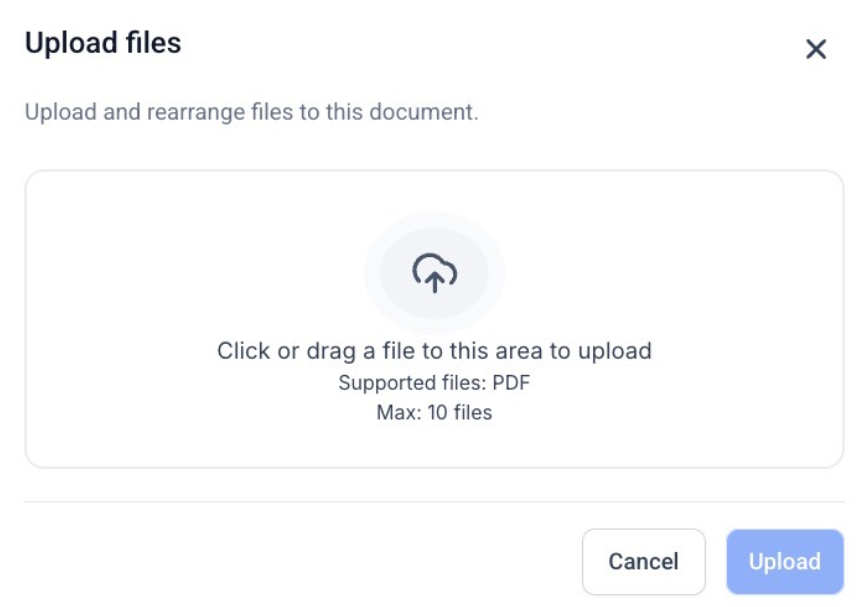
- Upload your PDF template or create a new document.

- For this example, we’ll use an uploaded PDF.
3. Adding Fillable Fields:
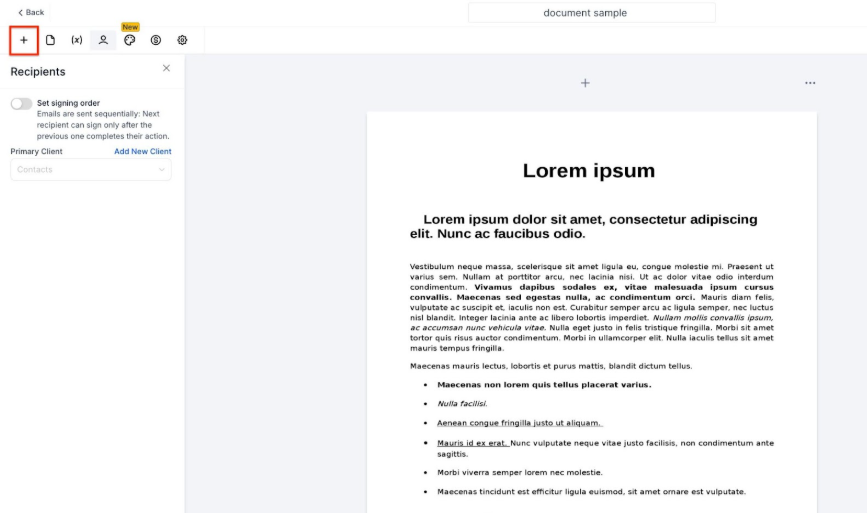
- Click on the plus button at the top left-hand side.
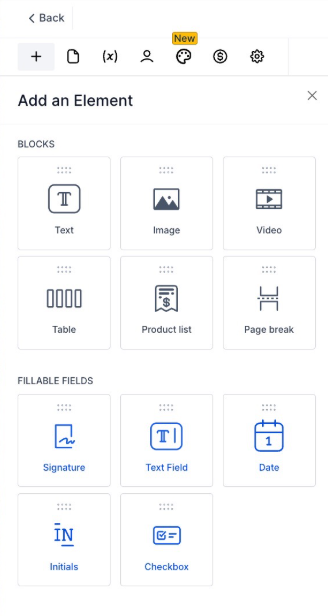
- You will see options for fillable fields: signature, text field, and date.
- Customizing Fillable Fields:
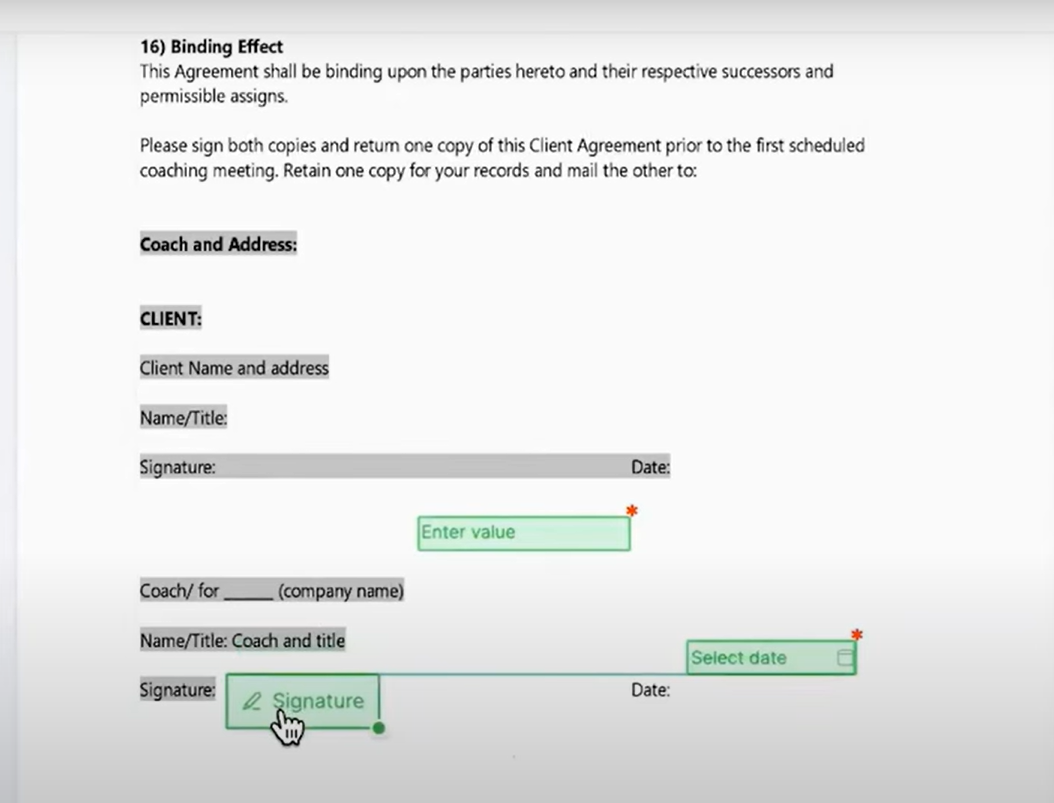
- Drag and drop the desired field to the appropriate location on the document.
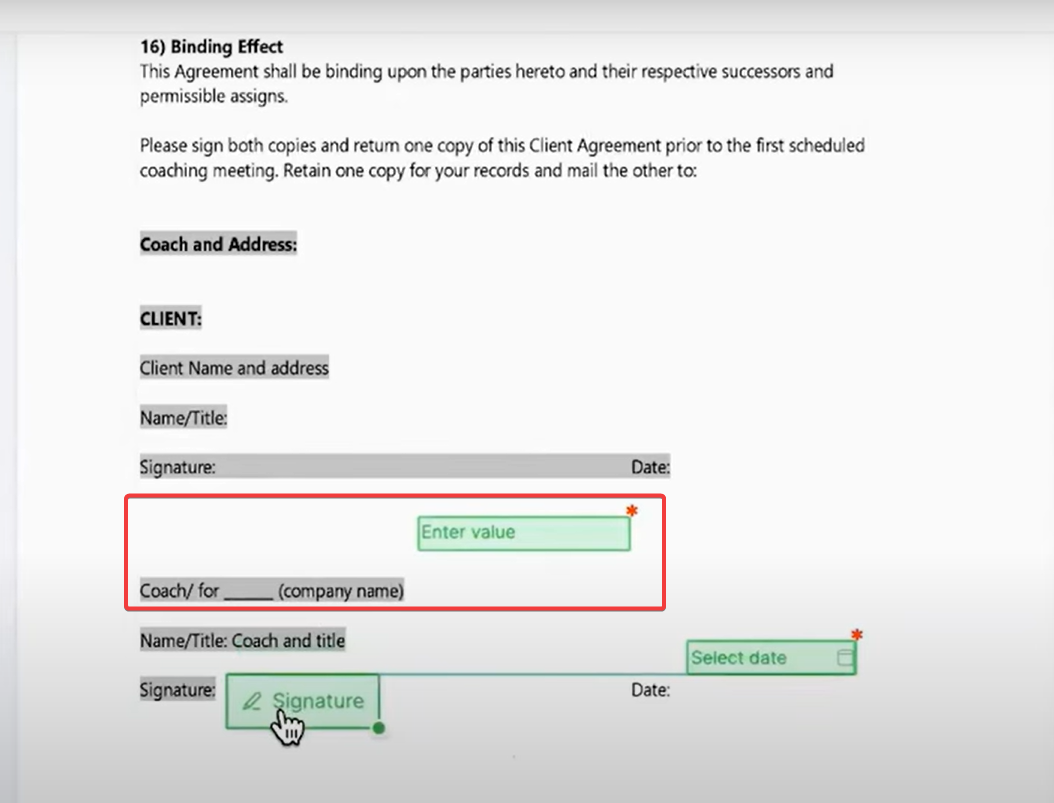
- For instance, drag and drop the date field where the date should be, and similarly for the text field and signature.
5. Adjusting and Moving Fields:
- Resize the fields as needed to fit the document layout.
- Move the fields by clicking and dragging or using the shift and arrow keys for precise adjustments.
- For faster movement, use shift + control and the arrow keys.
6. Adding Custom Values and Assigning Signatures:
- Hover over each field to see a menu where you can copy, delete, or add custom values.
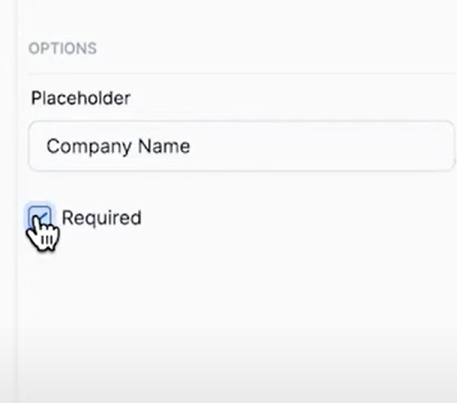
- For example, add a text field for “Company Name” and mark it as required.
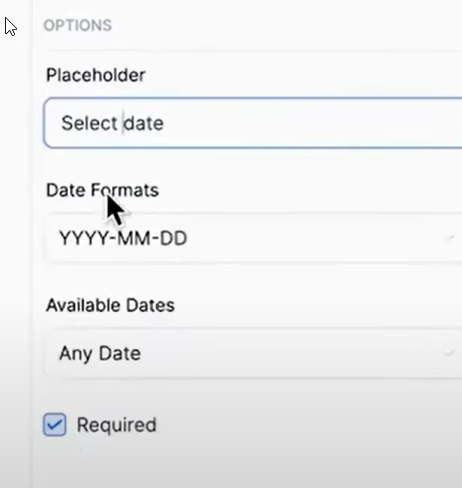
- Customize properties such as date format (e.g., year, month, day) and specify if it should accept any date, past dates, or future dates.
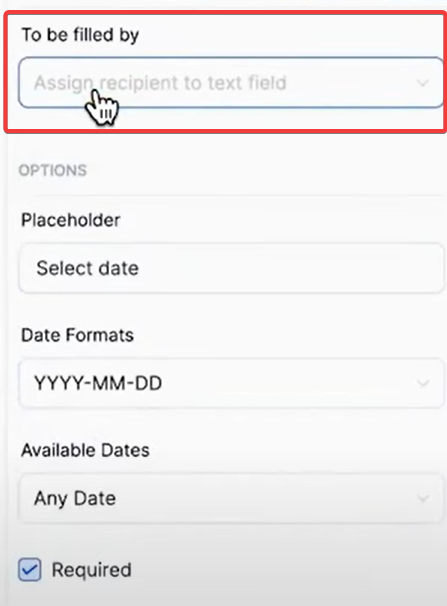
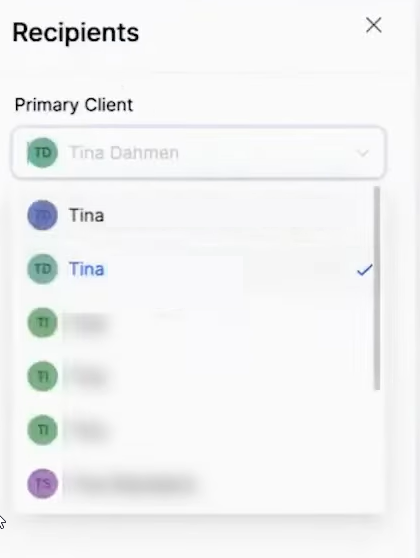
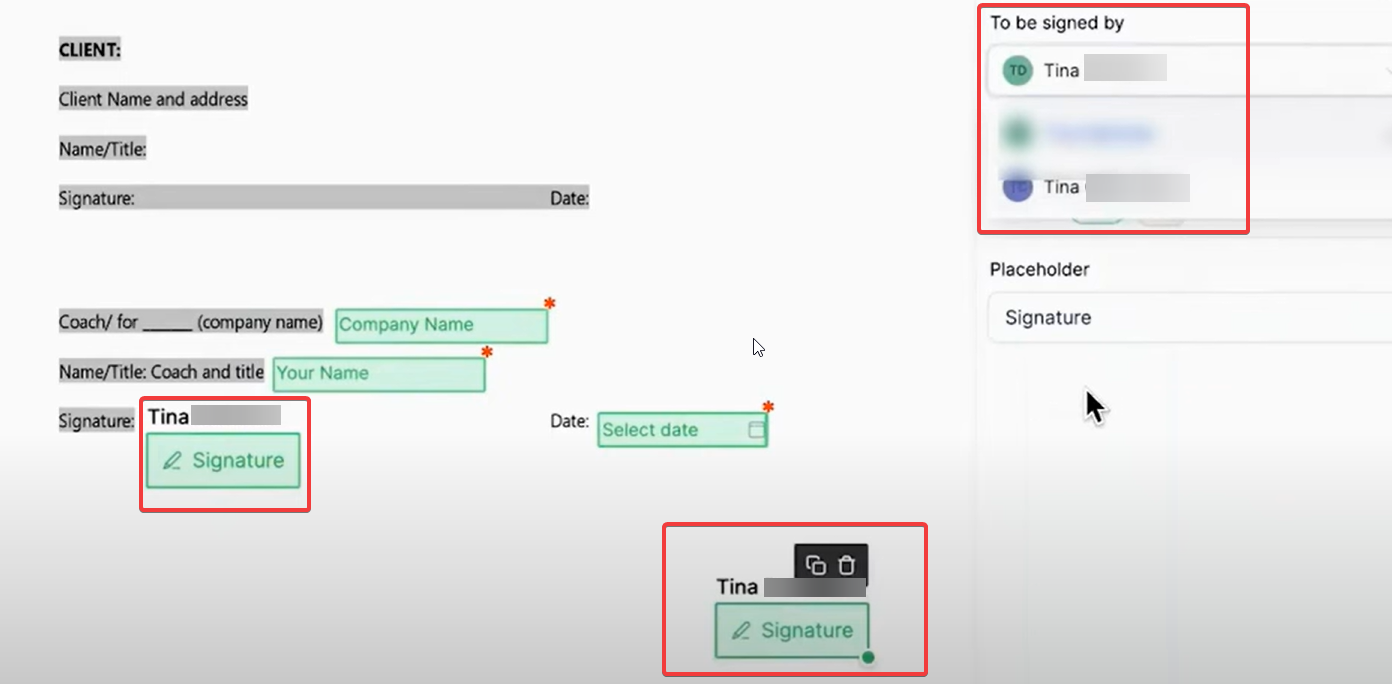
- Assign specific contacts to sign the contract.
7. Assigning Multiple Signatures:
Assign signatures to multiple people if needed.
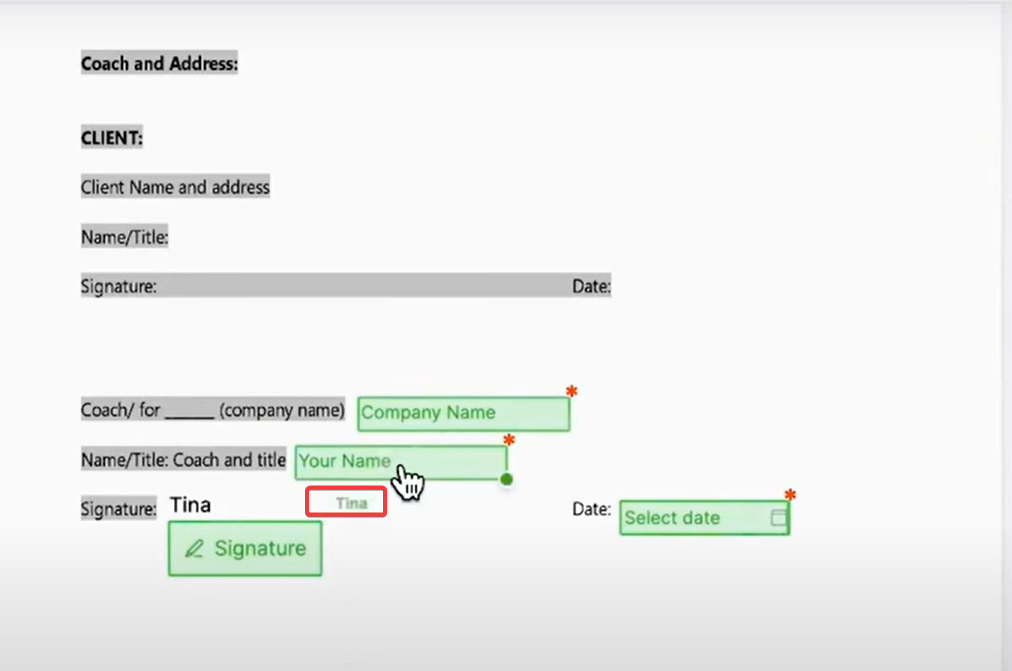
- Hover over the name tag to see the assigned contact’s name.
¶ Use Cases
- Business Contracts:
- Easily create and manage business contracts that require signatures from multiple stakeholders. Assign specific fields to each stakeholder, ensuring all necessary information is collected and validated.
- Lease Agreements:
- Customize lease agreements with fields for tenant and landlord signatures, date fields, and specific terms and conditions. This ensures all parties have access to a clear and consistent document.
- Employment Contracts:
- Draft employment contracts that include fields for employee details, job role, start date, and signature fields for both the employee and the employer.
- Service Agreements:
- Prepare service agreements that detail the scope of services, payment terms, and signature fields for service providers and clients. This helps in maintaining clarity and agreement on terms.
Client Onboarding Forms:FAQ:
Question: Can I add custom values or make fields required?
Answer: Yes, you can add custom values and set fields as required. Hover over each field to access the options menu, where you can add custom values, such as “Company Name,” and mark fields as required to ensure they are filled out.
Question: What customization options are available for date fields?
Answer: Date fields can be customized to display in various formats (e.g., year, month, day). You can also specify date restrictions, such as accepting only past dates, future dates, or any date.
Question: Is it possible to assign multiple signatures to a document?
Answer: Yes, you can assign multiple signatures to a document. Each signature field can be assigned to a different contact, ensuring that all necessary parties can sign the document.
Question: Can I use floating text fields for different types of documents?
Answer: Yes, floating text fields can be used for various types of documents, including business contracts, lease agreements, employment contracts, service agreements, and client onboarding forms.
Question: How do I ensure that the fields are correctly aligned and spaced on the document?**
**Answer: You can align and space fields accurately by using the drag-and-drop feature along with the shift and arrow keys for fine adjustments. For faster movement, use shift + control and the arrow keys.
Question: What should I do if I need to delete or copy a field?**
**Answer: Hover over the field to access the options menu, where you can choose to copy, delete, or add custom values to the field. This allows you to manage your fields efficiently within the document.
Question: Are floating text fields useful for client onboarding forms?
Answer: Yes, they are ideal for client onboarding. You can capture essential information such as client name, company name, contact details, and signatures for authorization, streamlining the onboarding process.
**Question:**How do I precisely adjust the position of a field if I don’t want to use the mouse?
Answer: You can use the shift and arrow keys for precise, fine adjustments. For even faster movement across the document, you can use the shortcut shift + control and the arrow keys.
Question: How can I tell which contact is assigned to a specific signature field?
Answer: Simply hover over the name tag attached to the signature field. This will display the name of the specific contact assigned to that field.
Question: Can I restrict a date field so that a signer can only select a date in the future?**
**Answer: Yes. When customizing a date field, you can access the properties menu to specify date restrictions. You can choose to accept any date, only past dates, or only future dates , in addition to selecting your preferred date format (e.g., year, month, day).