¶ Documents and Contracts: Product List Element
Documents and Contracts: Product List Element
In this article, we will explore various customization and configuration options available to optimize the Document and Contract feature. By understanding these options, you can fully leverage the capabilities of the platform to create tailored and professional documents that meet your specific needs.
¶ Document Builder
The Document Builder offers a flexible and intuitive interface for creating and customizing documents. Users can easily drag and drop various elements to construct their documents efficiently.
One of the key elements available is the "Product List " element, which allows you to add detailed descriptions to the products selected.
Key Features
- ** Document creators** can add Optional Items , giving signers the choice to include or exclude specific items from their order.
- Document Creators can toggle the quantity field to be editable , setting limits on the minimum and maximum quantity that can be selected, thereby ensuring control over order quantities.
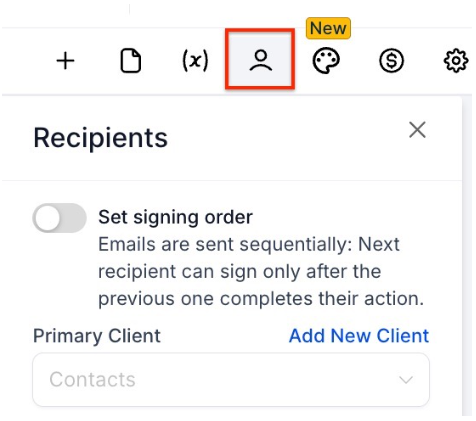
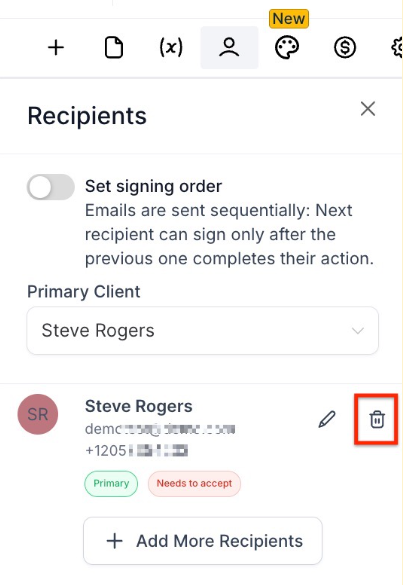
- The product list is automatically assigned to the primary recipient by default , streamlining the workflow. Users have the ability to add a recipient within the primary client box or even delete the primary recipient if they want.
- The Total Amount dynamically updates based on items that are in the selected stage only , ensuring accurate financial calculations throughout the process. These features empower document creators to customize orders effectively while maintaining clarity and control over the transaction details.
¶ How to Use These Features?
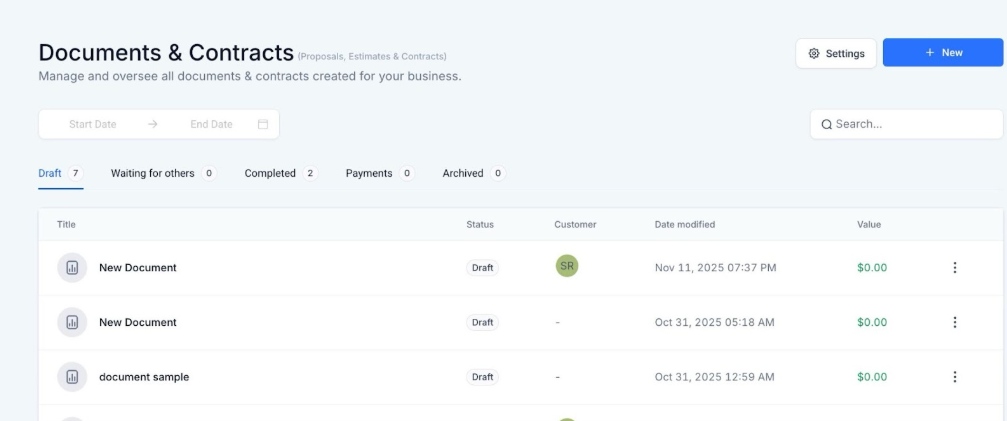
- Navigate to Payments on the left > Documents and Contracts at the top.
- Create a New Document or edit an existing one.
- Within the Builder, Add a Product List

- Add a new product and search to look for a desired product from your long list

- You can add product images directly into your document’s product list. Use the toggle to show or hide the product image. Upload images instantly when adding new products.


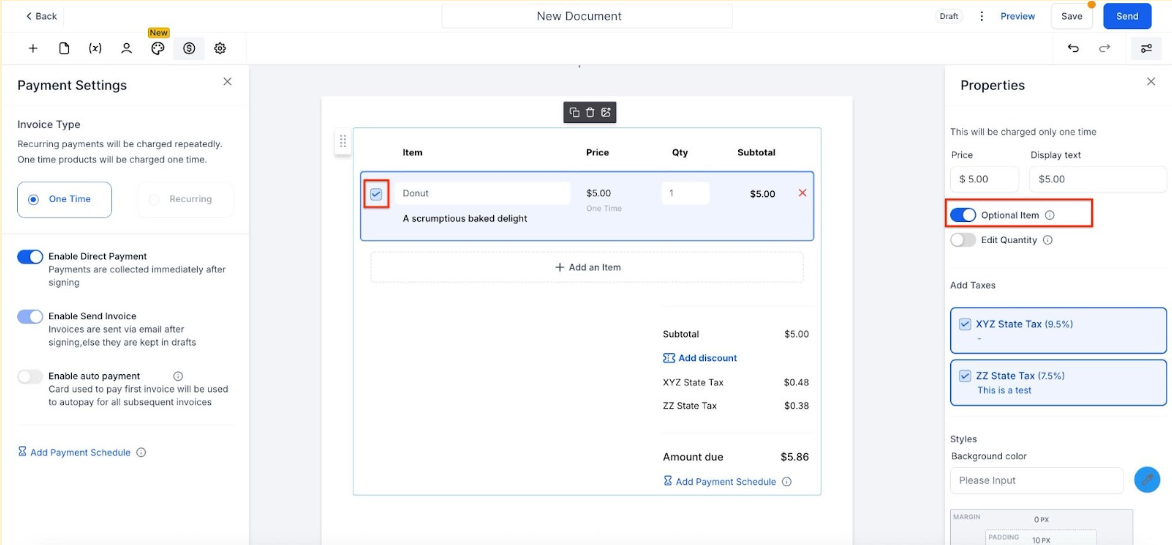
- Enable Quantity editing from the Edit Quantity Toggle

- Make a product selectable/unselectable from the Optional Item Toggle
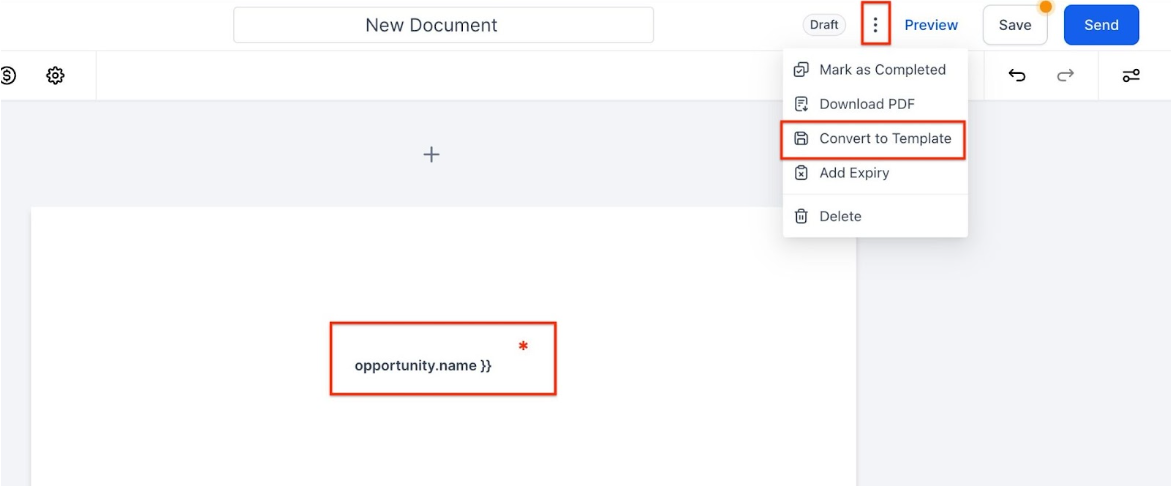
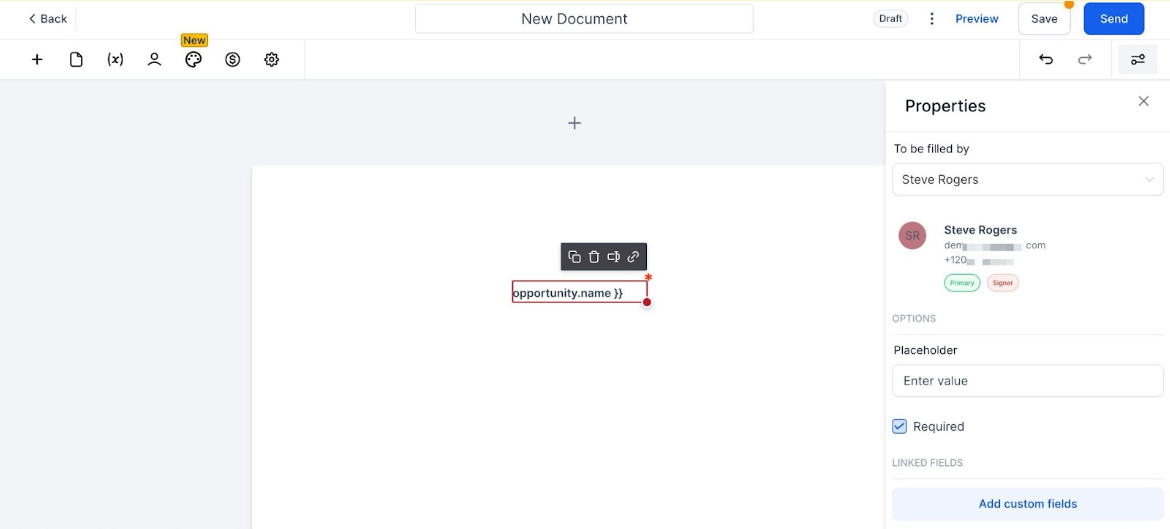
- To insert custom values in documents and contracts, simply enter your information into the designated fillable text fields and click ‘Convert to Template’ to save the fields with your values intact.
¶ Additional Features
**Cloning Documents **
Cloning allows users to easily create duplicate documents without the need to convert them into templates first. This simplifies the process, especially for those who frequently send similar documents with minor adjustments.
How to Use:
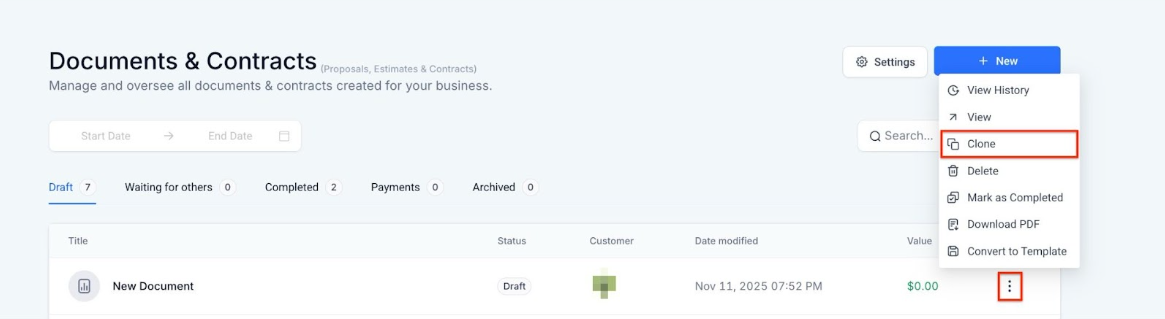
- Navigate to the Documents and Contracts section.
- Click on the sub-menu options.
- Select “Clone” to create a duplicate document.
- A new document will be generated with the name “Document Name Copy.”
Payment Scheduling:
With the Payment Scheduling feature in Documents and Contracts, users can add dynamic payment plans to their product lists. This allows for flexible payment setups based on signing dates or fixed dates, and enables auto payments for subsequent payments. Signers can able to view the payment details, ensuring a smooth transaction process post-signing.
- In the left drawer, click Add Payment Schedule or select it from the product list.

-
A modal will open where you can:
-
Set the first payment due : Choose either on the signing date or a custom date.
-
Configure subsequent payments: Choose fixed intervals or custom dates for the remaining payments. The invoice due date will reflect the last payment’s scheduled date.
-
Set amounts: Choose fixed or percentage-based amounts for payments.
-
View remaining balance: Check how much is left to be paid under the total amount.

- Save the payment schedule, and the signer will be able to view the payment details in the product list on the document.

- Enable auto payments to automatically deduct subsequent payments as scheduled.
Split Column
The split-column functionality allows users to easily organize content within documents and contracts by placing elements like text, images, or tables side by side.
- Simply drag and drop one element next to another in the document editor to create the split-column effect.

Custom Value Linkage
Sync text and date fields directly with custom values using custom value linkage. Users can link document fields to specific contact or document values, and once signed, these fields will automatically update in their respective records. This reduces the need for manual updates.
- In the document editor, simply link any text or date field to a custom value.


- Once the document is signed, these linked fields update automatically in either the contact or document record.
- To manage and analyze this data, users can also download a CSV of all completed fields from the dashboard.
¶ FAQs
Question: Can I add multiple optional items to the product list?**
**Answer: Yes, you can add multiple optional items to the product list. These items will be toggleable, allowing signers to choose which items to include in their order.
Question: Is there a limit to the number of products I can add to a document?**
**Answer: There is no set limit to the number of products you can add, but consider keeping the product list manageable for a cleaner and more professional document presentation.
Question: Can I link a text field to a specific contact’s name or email?**
**Answer: Yes, you can link text fields to custom contact values such as names, email addresses, or other data fields. This helps keep your documents up-to-date automatically when the document is signed.
Question: How do I ensure that the total amount reflects changes in product quantities?**
**Answer: The total amount is dynamically updated based on the items selected and the quantity chosen by the signer. Ensure that the quantity field is enabled and properly set for each product in the list to reflect the correct total.
Question: What happens if a signer changes the optional product quantities?**
**Answer: If a signer edits the quantity of an optional product, the total amount will automatically update to reflect these changes. However, if there are any quantity restrictions, those will still be enforced to prevent errors.
Question: Can signers see the full payment breakdown before signing?**
**Answer: Yes, signers can view the payment schedule, including due dates and amounts, in the product list before signing the document.
**
Question: Can I adjust the width of each column in a split layout?
**Answer: No, the split-column feature automatically balances content placement, but you can adjust spacing and alignment manually within the document editor.
**
Question: What happens if a linked custom value changes after the document is signed?
**Answer: Once signed, the values remain as they were at signing, ensuring data integrity. Any updates to linked values will apply only to future documents.
Question: Can I clone any document?**
**Answer: Yes, the cloning can be used for any existing document.
Question: Is there any limit to how many documents I can clone?**
**Answer: There are no limitations on cloning documents, but it’s advisable to manage your duplicates to avoid confusion.
Question: What happens to the original document when I clone it?**
**Answer: The original document remains unchanged, and a new duplicate is created with a “Copy” in the name.
Question: How do I insert custom values into documents?**
**Answer: Enter information into fillable text fields and click “Convert to Template” to save the values. These fields can then be linked to contact or document records.
Question: Can I set up automatic payments for multi-installment plans?
Answer: Yes. When configuring a Payment Schedule, you can enable the “auto payments” toggle. This allows the system to automatically deduct subsequent payments from the signer as they become due according to the schedule you defined.
Question: Who is the product list assigned to by default?
Answer: The product list is automatically assigned to the primary recipient. However, you have the flexibility to add a different recipient within the primary client box or delete the primary recipient if the document needs to be structured differently.
Question: Can I include product photos in my documents, and can I control whether they are visible to the signer?**
**Answer: Yes. You can add product images directly into your document’s product list. You have full control over this via a toggle that allows you to show or hide the product image for each item. You can also upload new images instantly while adding products to the list.