¶ Document & Contracts: Preview Email Templates, Add CC Recipients, and Link Email Templates to Contracts
Document & Contracts: Preview Email Templates, Add CC Recipients, and Link Email Templates to Contracts
Efficient communication is crucial when managing documents and contracts. This guide introduces how to preview email templates, add CC recipients, and configure custom email templates for specific documents, enhancing customization and collaboration for document-related emails.
¶ Key Features and Benefits
Email Template Preview:**
**Preview and edit your email templates before sending them to ensure they align with your message and branding. This feature allows you to make adjustments for a polished and professional look.
CC on Document Emails:**
**Include CC recipients while sending documents to keep everyone informed. This capability is available for global settings as well as individual document emails. Whether for templates, individual, or public documents, CC options make collaboration seamless.
Enhanced Customization:**
**Easily tailor your email communications to reflect your tone and branding.
Improved Collaboration:**
**Adding CC recipients ensures key stakeholders are always in the loop, reducing miscommunication and boosting teamwork.
Custom Email Templates for Document Types : Configure unique email templates, including sender details, subject lines, and content, for each document or contract template, ensuring context-specific communication while maintaining flexibility for workflows and individual overrides.
¶ How to Use the Features
¶ Preview & Edit Email Templates
- Access Template Settings:
- Navigate to Payments on the left → Documents & Contracts at the top → Settings → Preview to view email templates.
- Edit as necessary to match your brand’s tone and requirements.


2. On-the-Go Editing:
Open the specific document you wish to send. Click Send via Email and modify the email template directly before sending.
Link Email Templates to Document Templates
- Navigate to Payments → Documents & Contracts → Templates
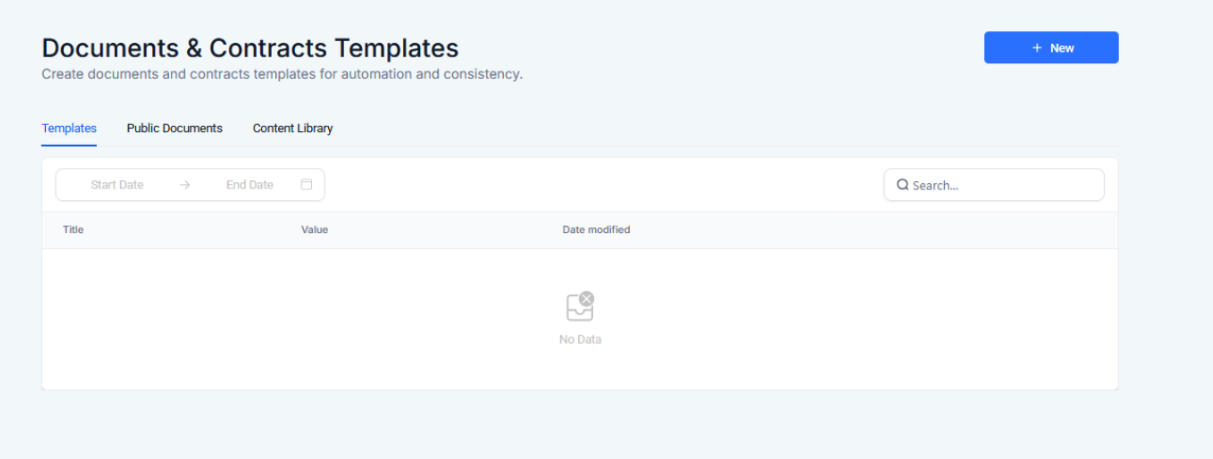
- Access settings under Documents & Contracts to customize email templates at the template level.
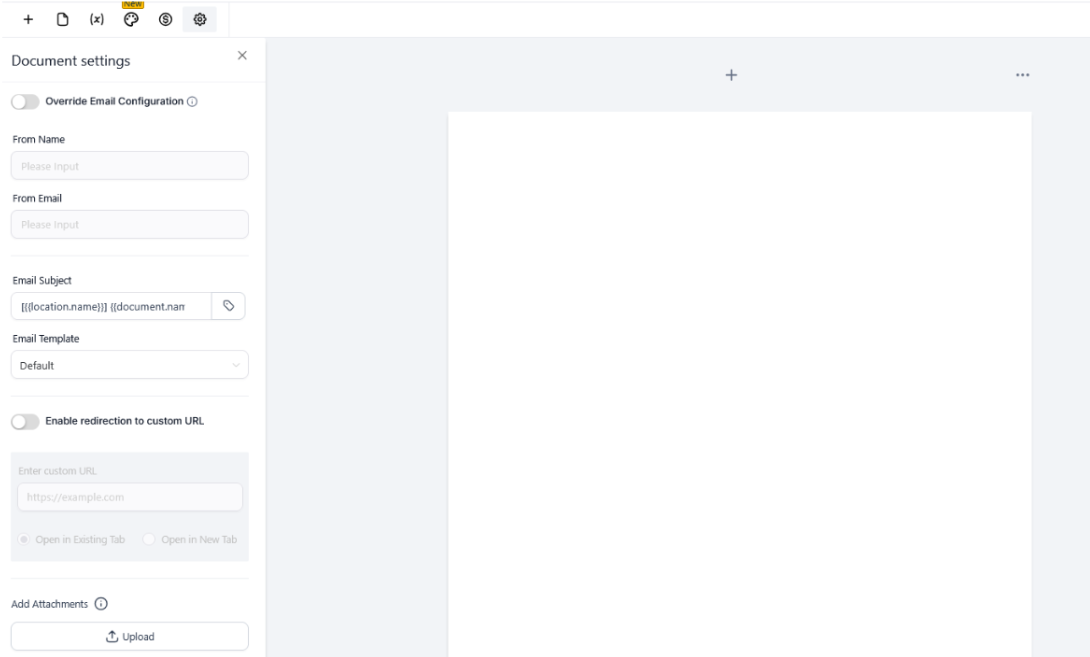
- Individual template changes override global settings, requiring manual updates for further edits.
You can:
- Configure unique email templates for each document or contract to ensure context-specific communication.
- Personalize email subjects, sender details, and templates for specific contract types.
¶ Add CC Users
- Global CC Settings:
- Navigate to Settings → Customer Notifications → CC Settings.
- Add the CC email addresses you wish to include for all documents.
Note: Global CC settings apply to:
- Templates
- Individual documents
- Public documents

2. Per-Document CC:
- Open the desired document.
- Click Send via Email.
- Add CC recipients in the designated field before completing the sending process.

¶ Pro Tips
- Test Before Sending: Always preview the email template to verify that customizations look professional and error-free.
- Strategize CC Use: Avoid overwhelming recipients by carefully selecting only the relevant stakeholders for CC.
- Centralize Updates: Use the global CC feature for commonly required recipients like managers or team leads, and add per-document CCs for specific scenarios.
- Save Time: Customize templates for frequently sent documents to minimize last-minute edits.
¶ FAQs
Question: Can I customize the email template for a single document without affecting others?**
**Answer: Yes, you can edit the email template on the fly when sending a specific document without impacting the global template settings.
Question: Is there a limit to the number of CC recipients I can add?**
**Answer: The number of CC recipients may vary based on your platform’s configuration. Check your system’s guidelines for any restrictions.
Question: Will CC recipients have access to the document?**
**Answer: Yes, CC recipients will receive the document link or file, depending on the settings chosen during the sending process.
Question: How do I update the global CC list?**
**Answer: Navigate to Customer Notifications → CC Settings in the system settings and modify the list as needed.
Question: Can I see a preview of the email before sending?**
**Answer: Absolutely, the email template preview feature ensures you can review and make adjustments before the email is sent.
Question: Can I use different email templates for each contract?**
**Answer: Yes, you can configure unique email templates for each contract template to ensure context-specific communication.
Question: Can the linking email templates to document templates feature be used with workflows?**
**Answer: Yes, workflows using specific templates will trigger the associated custom email settings.
Question: Are global settings still useful?**
**Answer: Global settings act as a default for documents without individual template customizations, ensuring consistent communication.
Question: How can I override global email templates for a specific document?
Answer: You can override global email templates for a specific document by accessing the document’s settings. Navigate to the “Documents & Contracts” section, select the document, and customize the email template directly before sending. These individual changes will apply only to that document, allowing you to maintain flexibility while ensuring the email content suits the context.
Question: Can I edit an email template while I am in the middle of sending a document?
Answer: Yes. When you click Send via Email for a specific document, you can modify the template directly on-the-go before it is sent to the recipient.
Question: Where can I find the master list to add CC recipients for every document I send?
Answer: You can set up your Global CC Settings by navigating to Settings > Customer Notifications > CC Settings. Any email added here will be included on all templates, individual documents, and public documents.