¶ How To Customize the Tax Settings in Your Payments Section
Managing taxes on invoices, order forms, and products is now more structured and efficient with enhanced tax display and automated tax calculation features. These tools provide a clear tax breakdown, customizable product-level tax settings, and automatic tax calculations based on customer location for US-based sellers. Businesses can apply taxes to products, configure tax settings, and view tax details in invoices and order summaries with greater accuracy and ease.
¶ Follow these simple steps to get started:
¶ Step 1: Accessing the Invoices
1- Navigate to the Payments Tab:
- Go to the Payments section and click on Invoices.
- You can create a new invoice or edit an existing one.

2- View the Tax Column:
- In the invoice editor, you will see a tax column that displays the cumulative total of taxes for each item.

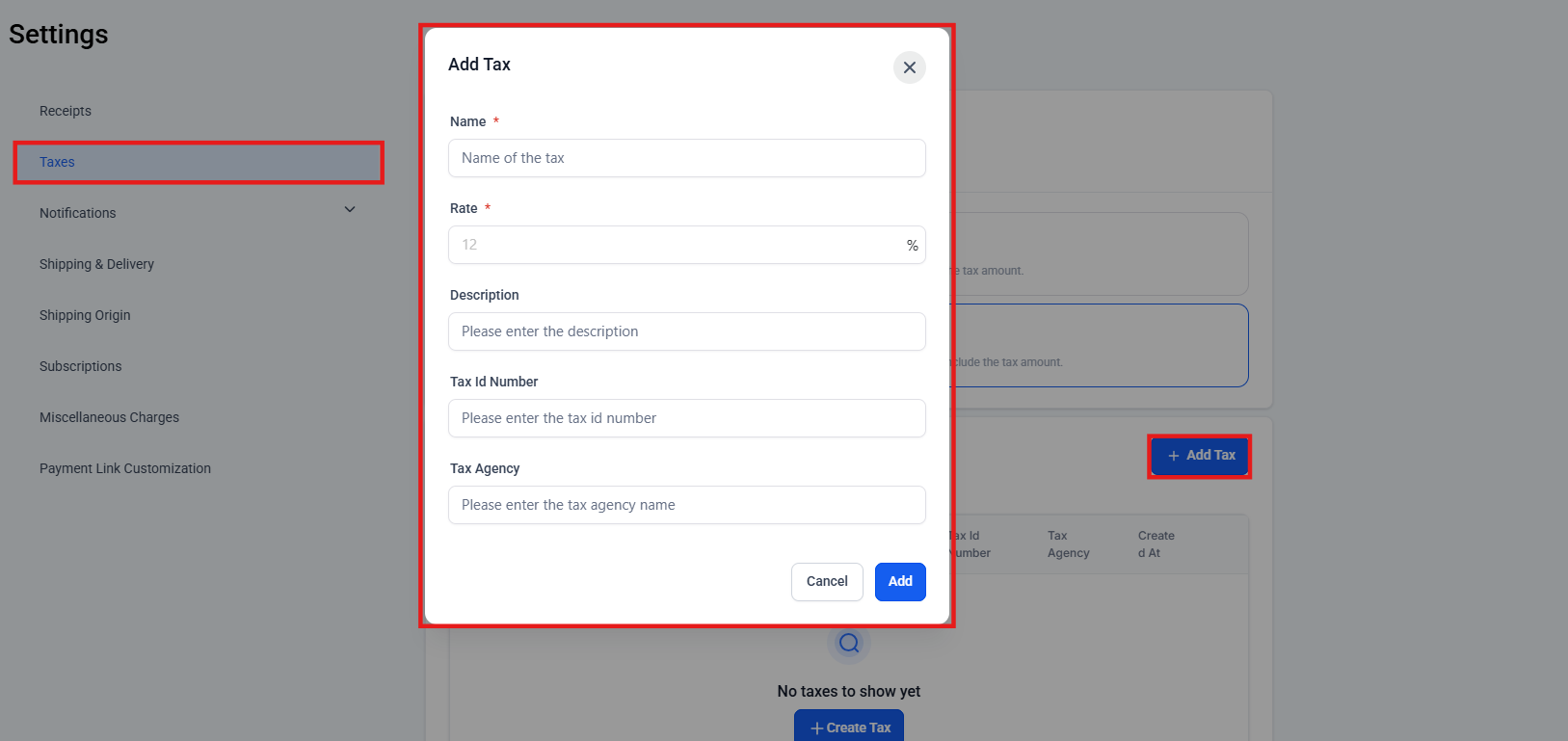
Additionally, you can also create taxes by navigating to the settings tab in payments.
¶ Step 2: Detailed Breakdown of Taxes
1- Order Summary:
- In the Order Summary section of the invoice, you will find a detailed breakdown of taxes.
- This breakdown shows how the tax calculations were made to arrive at the total tax value.

2- Tooltips for Tax Details:
- Hover over the tax values in the Order Summary to see tooltips.
- These tooltips provide detailed information on all the taxes applied to that particular invoice item.

¶ Step 3: Viewing Taxes on Mobile
- Mobile View:
- Tax details are displayed in a single line, reducing clutter and improving readability.
- The detailed breakdown of taxes in the Order Summary is also available in the mobile view.

¶ Step 3: Applying Taxes to Products:
Product-Level Tax Settings:
- In the product configuration section, select the option to ‘Charge Tax on This Product.’
- Choose the applicable tax rate(s) from the drop-down menu.
- Product-level configuration supports global auto taxes.

Global Tax Settings:
Businesses can also specify whether products are tax-inclusive or tax-exclusive during creation or editing. This can be set globally under Payments > Settings > Taxes

or on a per-product basis. If no selection is made at the global level, the default is tax-exclusive. Existing products will default to “As per Global settings,” but can be individually adjusted.

International Automatic Taxes (Including VAT)
Businesses can configure and apply automatic taxes for multiple countries, ensuring accurate tax calculations across global checkouts, including country-specific VAT IDs or local tax ID numbers.
Supported Checkout Types: Funnels, payment links, invoices, and ecommerce stores, and automatically applies taxes based on the customer’s address – for all payment providers.
Configure your nexus addresses by adding countries or states where you are required to collect taxes, and ensure your Tax ID is entered for country-specific calculations. A list of countries where automatic tax calculations would work is available in the list of Nexus Addresses.
For the US and Canada, respective states should be added wherever tax calculation is required. A business can also enter its Tax ID when adding a nexus address for a specific country. If there are additional tax benefits or applications based on the ID, it would be considered at the checkout while calculating the taxes.


View in order forms:

View in invoices:

View in funnels:

¶ Step 4: Viewing Taxes on Invoices and Order Forms:
- When adding products to an invoice or an order form, the system will automatically include the configured tax rates, displaying a more organized view of taxes, with a column showing the cumulative total of taxes, enhancing user experience.
¶ Step 5: Adjustments and Deletions:
-
Should tax rates change, update the tax settings to reflect new rates, which will automatically update all products. Deleting a tax rate will remove it from any associated products. Here’s an example of what that would look like in a funnel.
- Navigate to the ‘Funnels’ section and select the funnel where you want to add the taxed product.
- Go to the relevant step in the funnel, such as a product selection or payment page.
- Add the ‘Demo Product with VAT’ to the funnel.
- Fill out any required fields and proceed to the next step of the funnel to review the product details.

- Save your changes. As you review the order form or payment summary within the funnel, you should see the added taxes displayed next to the product price. The taxes will show both the percentage applied and the exact tax amount calculated based on the product’s price.
Additional Information:
- Taxes are applicable for both one-time and recurring products.
- A detailed breakdown of the taxes paid will be available on the order details and transaction details pages.
FAQs
Question: How is tax displayed on invoices and order forms?**
**Answer: Taxes are shown in a dedicated column displaying the cumulative total, with a detailed breakdown available in the Order Summary.
Question: Can I set different tax rates for individual products?**
**Answer: Yes, you can specify tax rates per product under Payments > Products, or set a default tax category in Payments > Settings > Taxes.
Question: What happens if I delete a tax rate?**
**Answer: Deleting a tax rate will automatically remove it from all associated products. You may need to update product tax settings manually if required.
Question: Can I adjust tax settings after an invoice is created?**
**Answer: Yes, but changes will only apply to future invoices. Previously issued invoices will retain the tax settings that were in place at the time of creation.
Question: How do I configure automatic taxes for multiple countries?**
**Answer: In the tax settings, you can select multiple countries and add the respective nexus addresses where taxes need to be calculated. For each country, you can also add the relevant VAT or local tax ID.
Question: What are nexus addresses, and why are they important?**
**Answer: Nexus addresses determine where your business has a tax obligation. You need to configure these addresses for each country or state where you are required to collect taxes.
Question: What happens if I need to delete a country or state from my nexus addresses?**
**Answer: Deleting a country or state must be done individually, but removing a country like Canada with added states will also delete the nexus address status for those states.
Question: Can I disable taxes for specific products or invoices?**
**Answer: Yes. You can turn off taxes at the product level by deselecting “Charge Tax on This Product.” For individual invoices or order forms, you can manually remove or adjust tax lines if needed.
Question: Can I configure product-level tax settings globally for all products?**
**Answer: Yes, you can configure global tax settings under Payments > Settings > Taxes, where you can set products as tax-inclusive or tax-exclusive. If no selection is made at the global level, the default is tax-exclusive. Existing products will default to “As per Global settings” but can be individually adjusted.
Question: Does the system automatically know the tax rate for a customer in another state?**
**Answer: Yes, if you have enabled Automatic Taxes and added that state as a Nexus Address. The system uses the customer’s address entered on the order form or invoice to calculate the exact local tax rate in real-time.