¶ Creating Shipping & Delivery Rates
Creating Shipping & Delivery Rates
E-commerce store owners have the flexibility to define manual delivery charges based on specific shipping zones. This feature enables store owners to create differential pricing for multiple shipping zones, ensuring efficient and cost-effective delivery management.
**How to Use
**
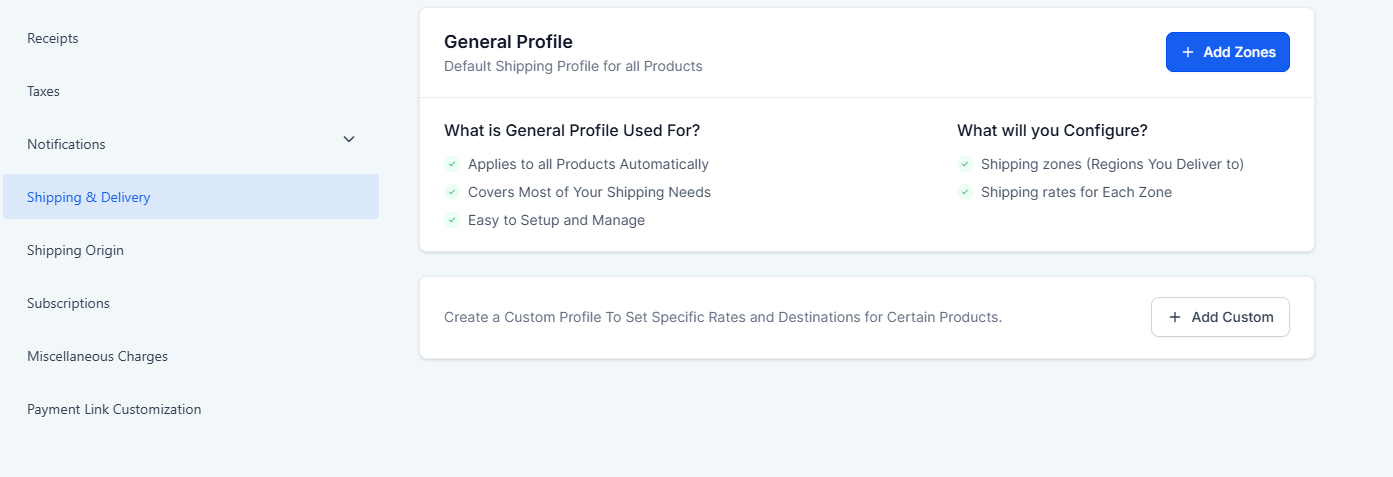
Navigating to Shipping & Delivery Settings
1- Access Account Settings:
- Go to Payments on the left > Settings at the top > Shipping & Delivery.
Creating a Shipping Zone
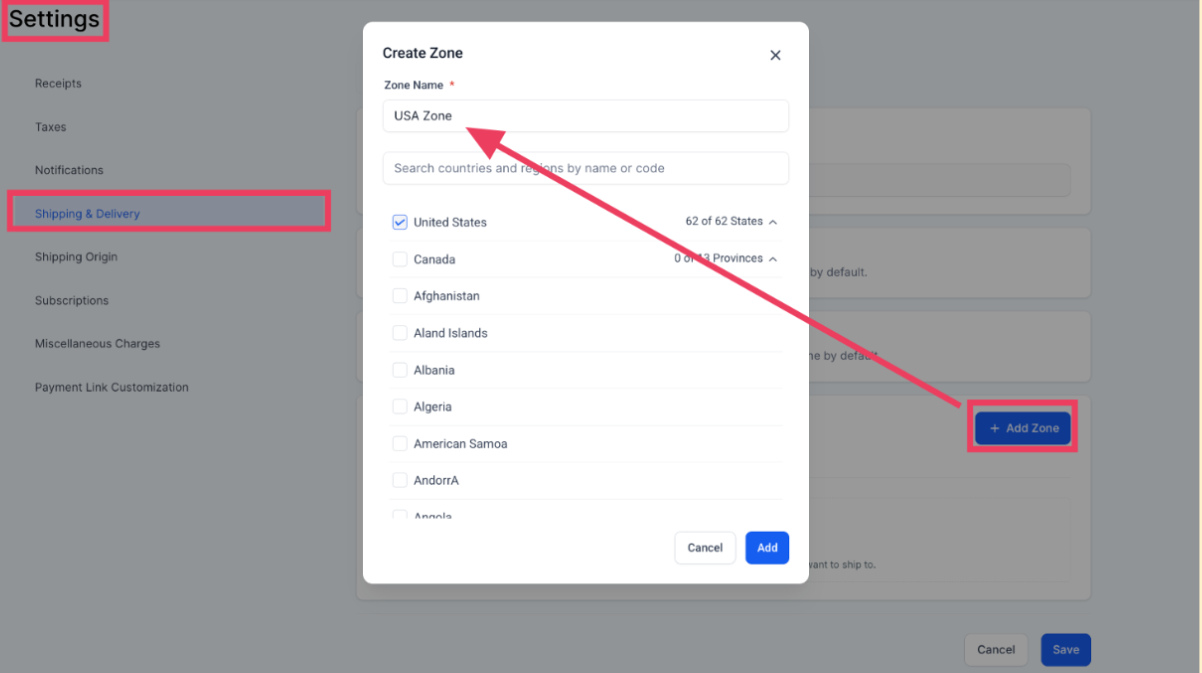
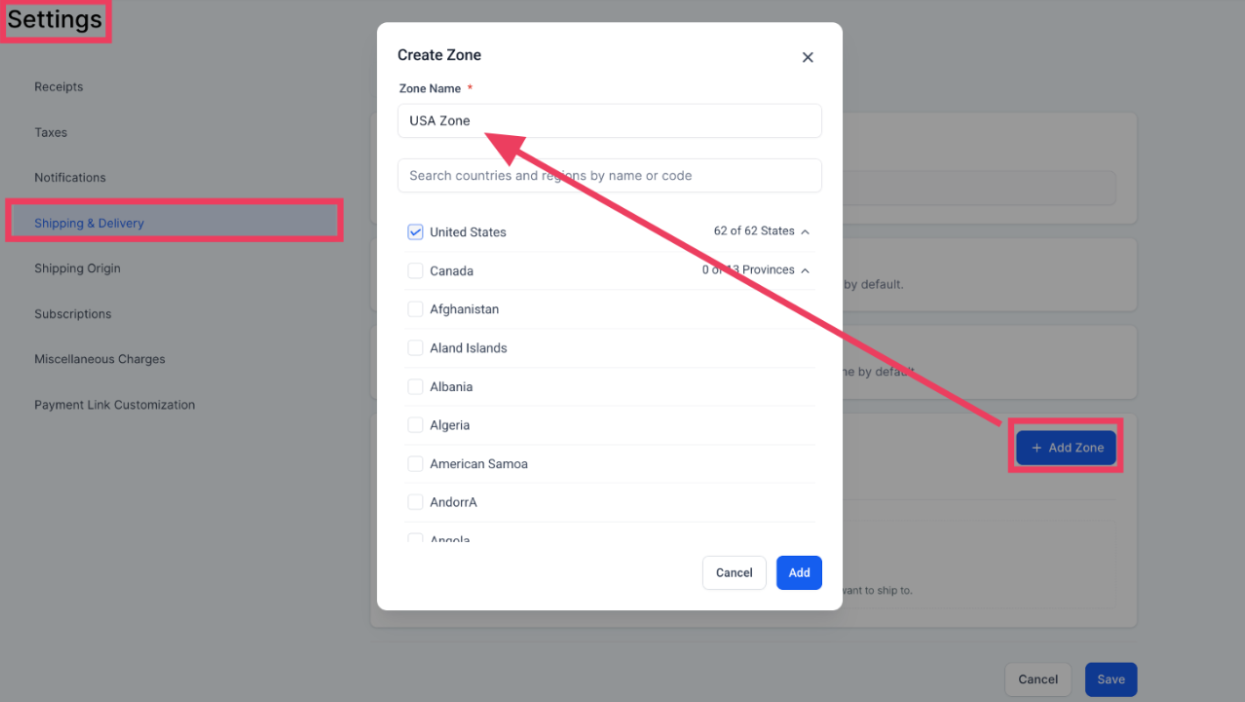
1- Add Zone:
- Click on “Add Zone”.
- Select the countries or specific states/provinces you want to include in this zone.
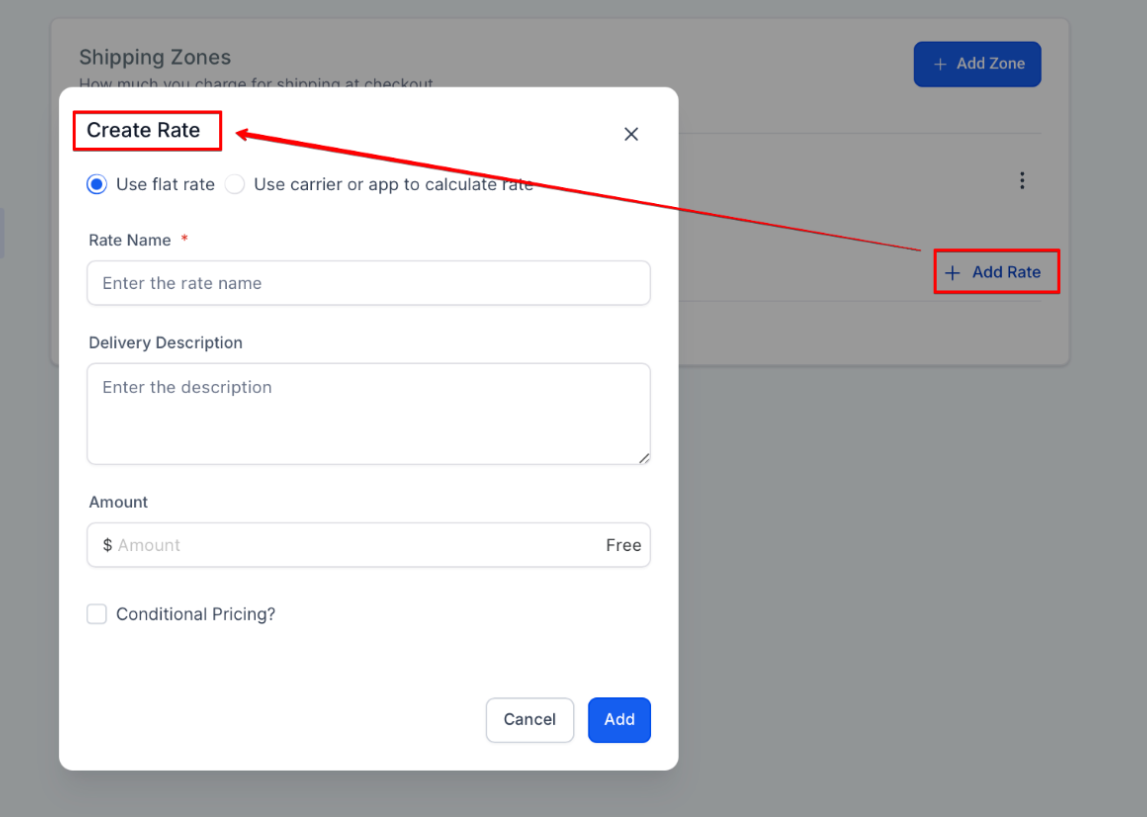
2- Define Rates:
- Click on “Add Rates” within the zone.
- Enter the delivery charges for the zone.
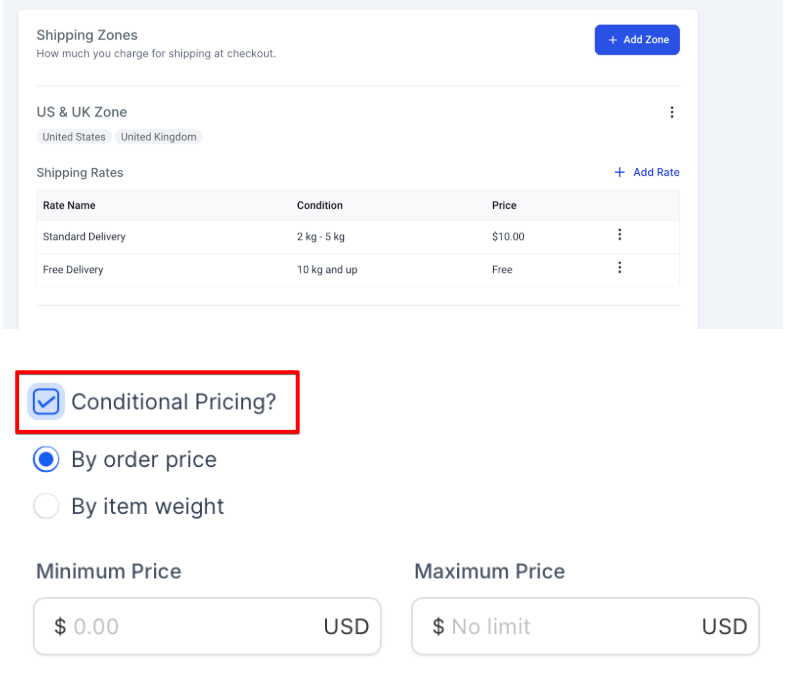
- You can create multiple pricing tiers within a zone based on the cart total. For example
- Set free shipping if the order amount is above $500
- Charge $10 if the order amount is below $500.
3- Shipping & Delivery Rates Based on Product Weights:
- Store owners can also set up differential shipping and delivery charges based on product weight, making it easier to implement various rates for different weight ranges.
- Navigate to Payments > Settings > Shipping & Delivery > Add Zones > Add Rate.
- Define specific zones and associate weight-based rates. For example, offer free shipping for orders between 0-10 kg or charge $10 for orders below 10 kg.
Managing Multiple Zones
1- Create Additional Zones:
- Repeat the process to create multiple shipping zones.
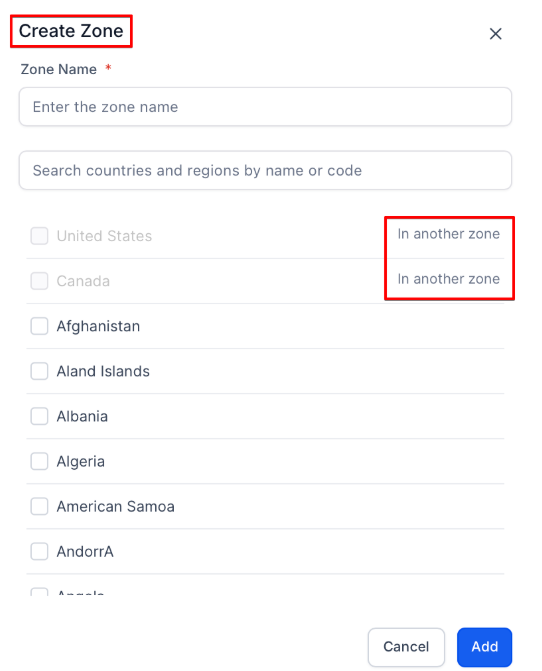
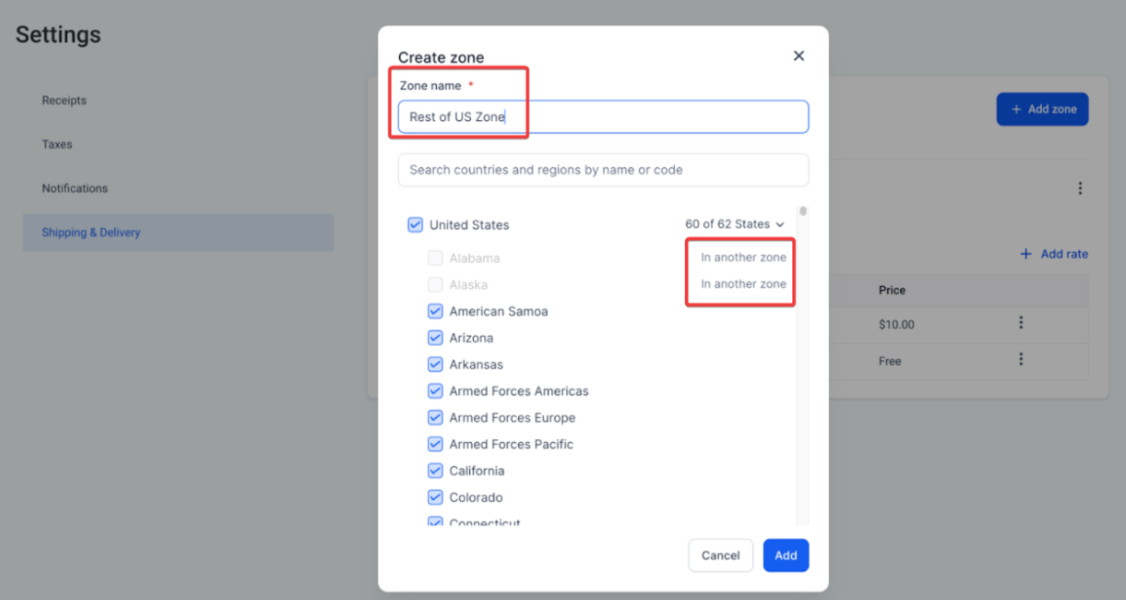
- Define different delivery charges for each zone as needed.
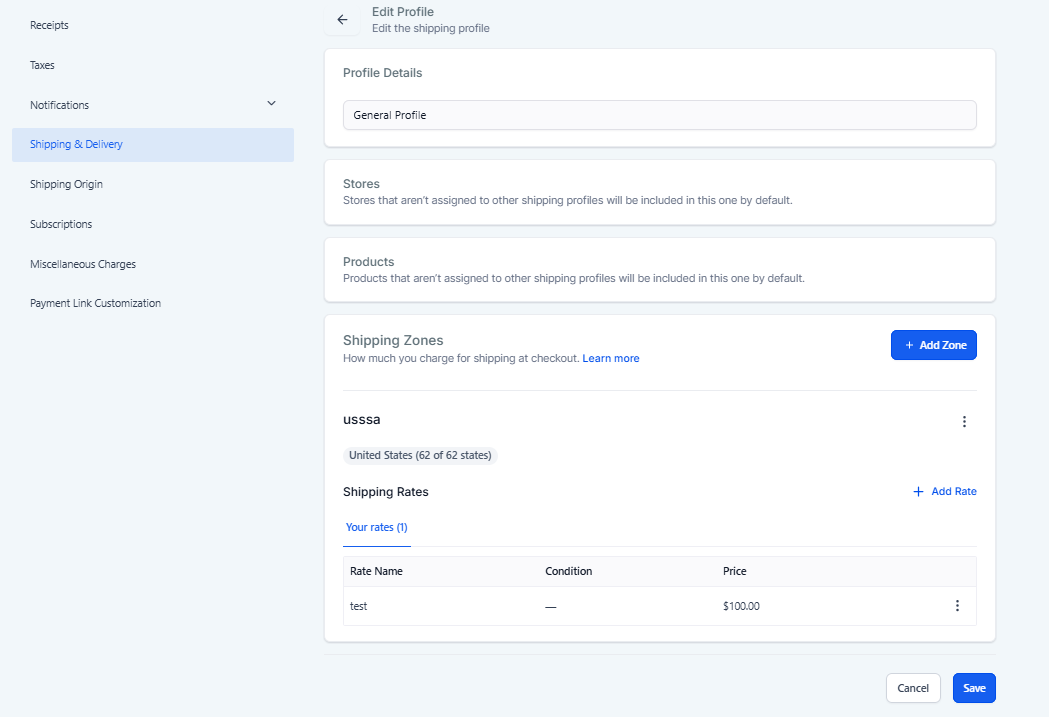
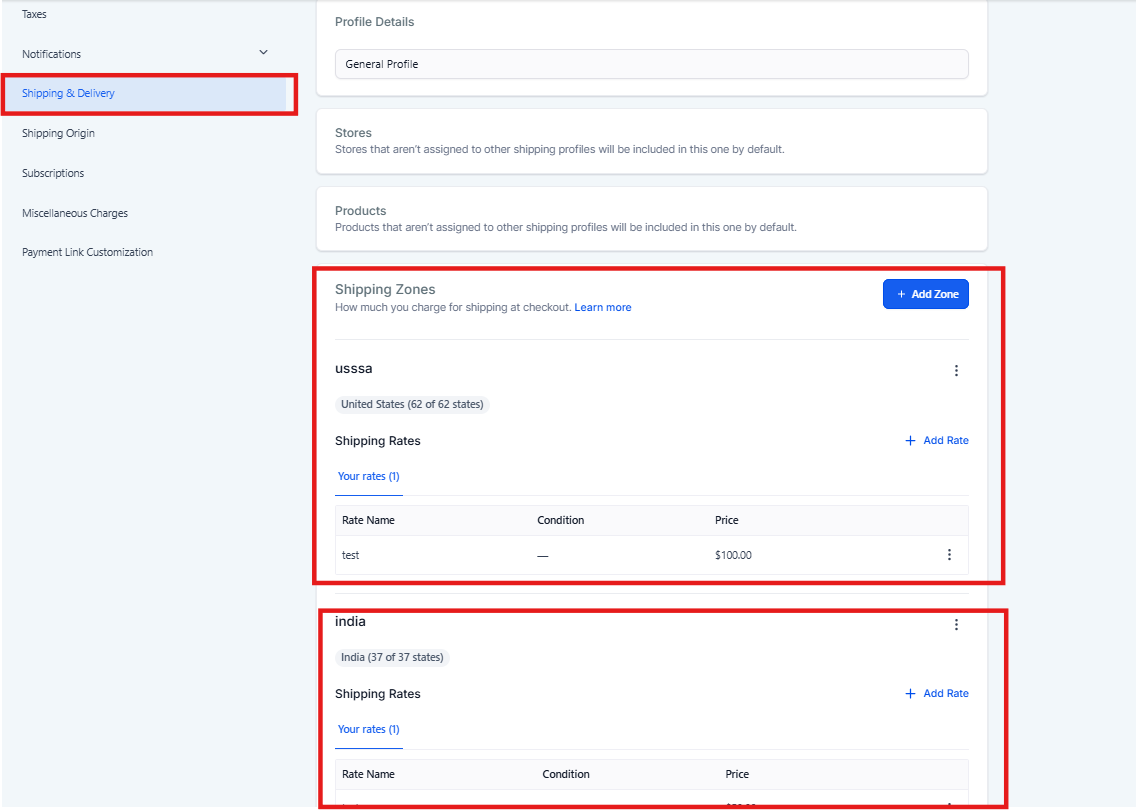
2- Review and Save:
- Review the zones and rates you have created.
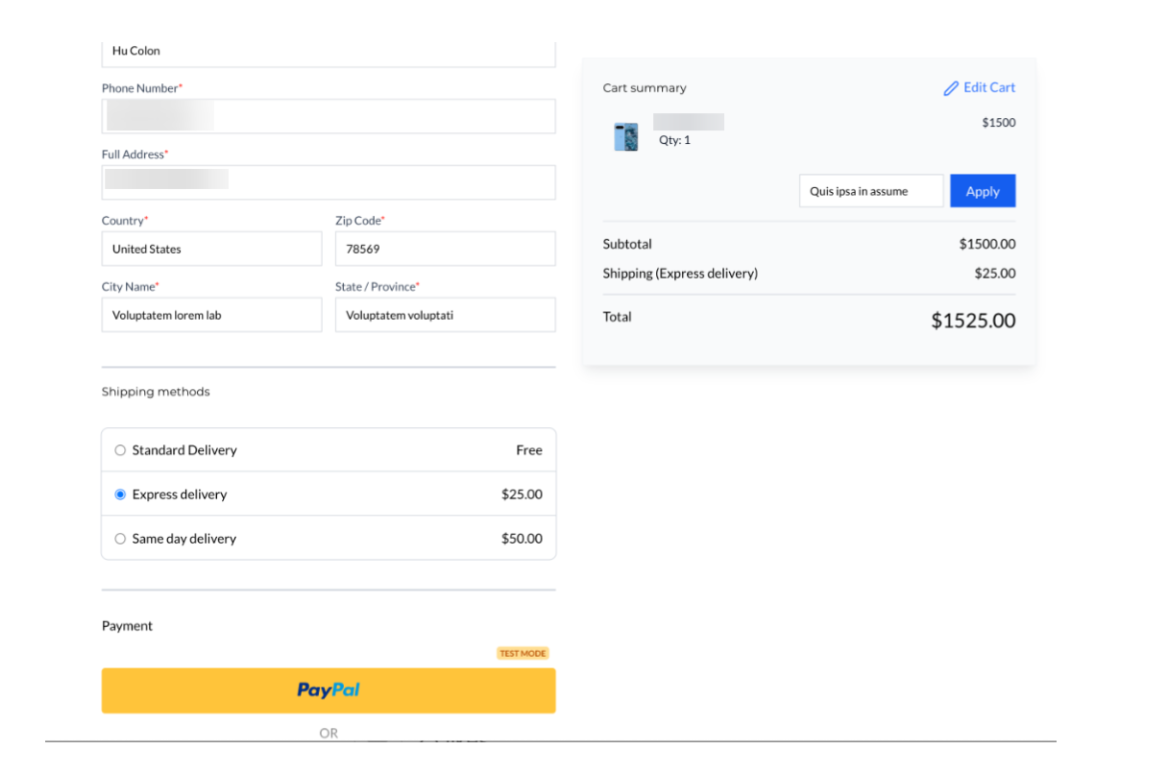
- Save your settings to apply the new delivery charges.
**
Key Features** - Shipping Zones: Create zones by selecting countries or specific states/provinces and define manual rates within each zone.
- Multiple Pricing: Define various pricing structures for each zone, including conditions based on cart total.
- Flexible Rates: Set delivery rates according to the total amount in the cart, such as offering free shipping for orders above a certain amount.
**
Example of Setting Rates**
**
Zone 1:** - Countries: USA, Canada
- Rates:
** - **Free shipping for orders above $500.
- $10 for orders below $500.
Zone 2:
- Countries: UK, Germany
- Rates:
** **- $5 for orders above $300.
- $15 for orders below $300.
Zone 3:
- ******Countries: States/Provinces: **California, Texas (USA)
- **Rates: **
- Free shipping for orders above $400.
- $8 for orders below $400.
Benefits
This feature helps store owners create tailored shipping rates for different regions, enhancing the customer experience and optimizing delivery costs. By setting specific rates based on cart totals and shipping zones, store owners can better manage their logistics and offer competitive pricing to their customers.
FAQs
**
**
Question: Can I create overlapping shipping zones for different pricing structures?****
Answer: No, shipping zones must be mutually exclusive. A specific location can only belong to one zone to avoid conflicts in pricing.
Question: How do I update shipping rates for an existing zone?****
Answer: To update rates, go to Payments > Settings > Shipping & Delivery, select the zone you want to edit, and modify the rates. Save the changes to apply the updates.
Question: Is it possible to apply weight-based and cart total-based rates simultaneously?****
Answer: Yes, you can define separate conditions for weight-based and cart total-based rates within the same shipping zone, ensuring flexibility for different scenarios.
Question: Can I exclude certain products from specific shipping zones?****
Answer: Currently, all products in your store are included in shipping zones. If you need to exclude products, you can manually adjust availability for those zones outside of this feature.
Question: How can I monitor which shipping zones are applied to customer orders?****
Answer: Once an order is placed, the shipping zone and corresponding rate applied will appear in the order details section, helping you track and manage shipping charges for each customer.
**Question: Is it possible to create multiple shipping zones for different regions?
Answer: **Yes. You can create as many zones as needed, each with its own set of countries, states, or provinces, and define separate delivery rates for each.
Question: Can I set different shipping rates for specific states or provinces instead of entire countries?**
Answer:** Yes. When creating a shipping zone, you have the flexibility to select either entire countries or drill down to specific states and provinces to define your delivery charges.
Question: Is it possible to offer free shipping based on a customer’s order total?**
Answer:** Yes. Within each shipping zone, you can create pricing tiers that trigger free shipping once a certain cart total is reached (e.g., offering free shipping for orders over $500).
Question: How does the system handle an order that meets both a weight-based and a price-based rule?
Answer: The system will evaluate the conditions you have set. If a zone has multiple rates, the checkout will typically display the most specific match or allow the customer to choose if multiple rates apply. To avoid confusion, try to keep your weight and price tiers distinct.