¶ Automatic Taxes for Payment Links
Automatic tax calculation is essential for business owners who sell products or services across different states in the US. With the increasing complexity of tax regulations, ensuring accurate tax calculations is crucial for compliance and customer satisfaction. This article will guide you through the process of setting up automatic taxes for payment links, highlighting the key features and benefits and providing easy-to-follow steps to implement this feature.
¶ How to Set Up Automatic Tax Calculation
¶ Step 1: Enabling Automatic Taxes
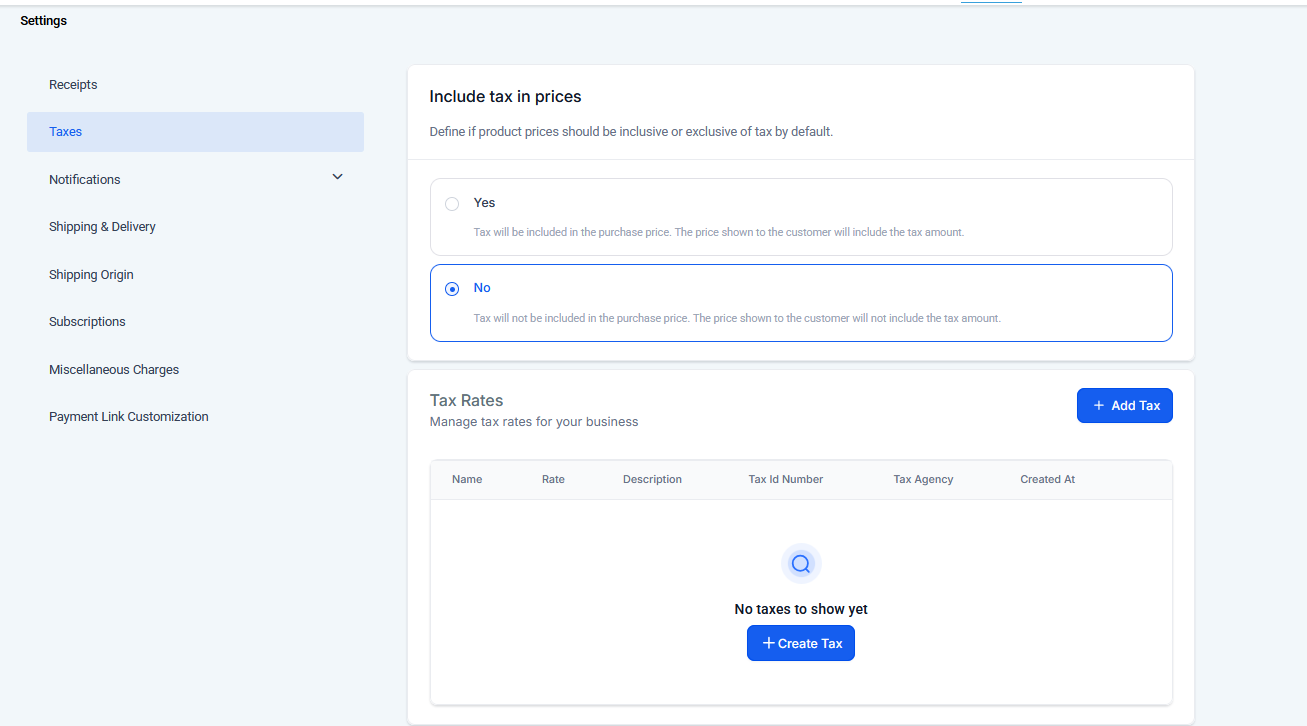
1. Navigate to Payments Settings:
- Start by clicking on the “Payments” option on the left-hand menu.
- At the top, select “Settings” and then choose “Taxes.”
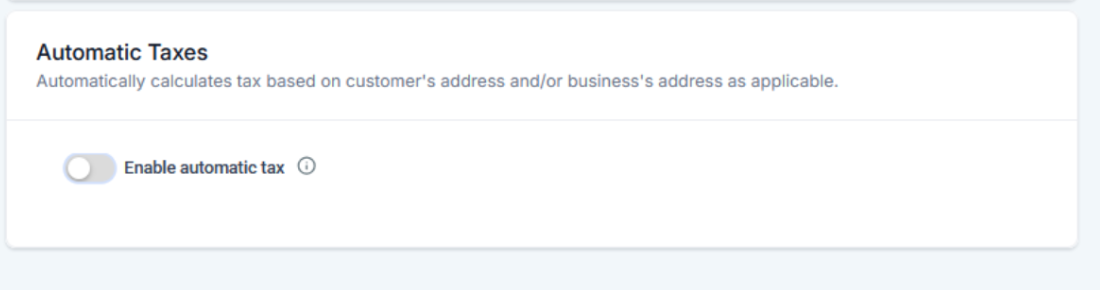
2. Toggle On Automatic Taxes:
- Businesses can automatically calculate andapply taxes across multiple countries , includingVAT and local tax IDs , ensuring accurate and compliant tax calculations for global transactions.
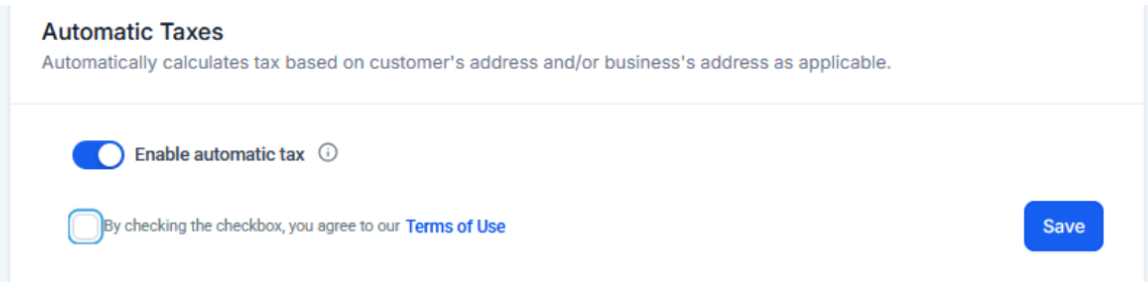
- Ensure that the automatic taxes option is toggled on.
- Select the global tax category that best fits your products or services.
3. Configure State-Specific Taxes:
- In the same section, choose the states where you will sell your products or services.
- Make sure to save your settings after selecting the appropriate states.
- Please note, adding nexus addresses for countries or states can be done in bulk, but deletions must be done individually.
¶ Step 2: Configuring Payment Links for Tax Calculation
1. Edit or Create a Payment Link:
- Go to the “Payment Links” section at the top.
- You can create a new payment link or edit an existing one by clicking the three dots and selecting “Edit Link.”

2. Ensure Customer Address Collection:
- In the payment link editor, confirm that the option to collect the customer’s address is checked. This is essential for accurate tax calculation based on the customer’s location.

3. Preview and Test the Link:
- Use the preview feature to see how the form will appear to customers.
- Fill in the details, such as state and postcode, to verify that taxes are correctly calculated.

4. Finalize and Save:
- Once everything is configured correctly, save your payment link. Your customers will now be charged the correct tax based on their address.

¶ Key Features and Benefits
1. Automatic Tax Calculation: The system automatically calculates taxes based on the customer’s address, considering state, city, and special taxes. This ensures accurate tax charges without manual intervention.
2. Seamless Integration: Once set up, the automatic tax feature integrates smoothly with your payment links, making it easy to generate quotes and finalize sales quickly, even when selling over the phone.
3. Flexibility: The feature allows you to configure global tax categories and specific states, giving you control over where and how taxes are applied.
4. Compliance: By automatically calculating taxes, the feature helps you stay compliant with tax regulations, reducing the risk of errors and penalties.
5. Time Efficiency: Automatic tax calculation speeds up the payment process, allowing you to focus on other business operations while the system handles tax computations.
¶ Pro Tips
- Always Collect Customer Information: Always collect the customer’s state and postcode. Without this information, the system cannot calculate the correct taxes.
- Test Before Finalizing: It’s a good practice to test your payment links before sending them to customers. This helps in catching any configuration errors that might prevent correct tax calculations.
- Keep Tax Categories Updated: Regularly review and update your global tax categories to reflect any changes in tax laws or your product offerings.
¶ FAQ’s
Question: Why is my payment link not calculating taxes?**
**Answer: Ensure that the customer’s address is collected during the payment process. The system relies on the state and postcode to calculate taxes.
Question: Can I apply automatic taxes for customers outside the US?**
**Answer: No, the automatic tax calculation feature is currently only available for customers within the US. For international customers, taxes need to be added manually.
Question: What happens if I don’t enable automatic taxes?**
**Answer: If automatic taxes are not enabled, you must manually calculate and add taxes to each transaction, which can be time-consuming and prone to errors.
Question: How do I handle multiple states with different tax rates?**
**Answer: The system allows you to configure state-specific taxes, automatically applying the correct tax rate based on the customer’s address.
Question: Is there a way to override the automatic tax calculation for specific transactions?**
**Answer: You can manually adjust the tax settings within the payment link editor if needed. However, it’s advisable to let the system handle calculations to ensure accuracy.
Question: Can I update tax categories or rates later?**
**Answer: Yes, it’s good practice to regularly review and update global tax categories and state-specific rates to reflect changes in tax laws or your product offerings.
Question: Is it possible to delete multiple nexus addresses at once?**
**Answer: No. While nexus addresses for countries or states can be added in bulk, any deletions must be performed individually.
Question: How can I verify that my tax settings are working before I send a link to a client?
Answer: You can use the Preview feature. Fill out the payment form yourself using a sample US address and postcode; the system should dynamically update the total with the correct tax amount as you type.
Question: What is a “Global Tax Category” and why do I need to select one?
Answer: This setting helps the system understand the nature of your products or services (e.g., software vs. physical goods), as different categories may be taxed at different rates depending on state legislation.