¶ How to Add Automated Invoice Reminders
How to add Automated Invoice Reminders
In today’s fast-paced business environment, maintaining a healthy cash flow is crucial for growth and sustainability. One effective way to ensure timely payments from clients is by setting up automated invoice reminders. This guide will walk you through the process of adding and managing these reminders, highlighting the key features and benefits, and providing easy-to-follow steps.
¶ How to Use Automated Invoice Reminders
¶ Step 1: Navigating to Reminder Settings
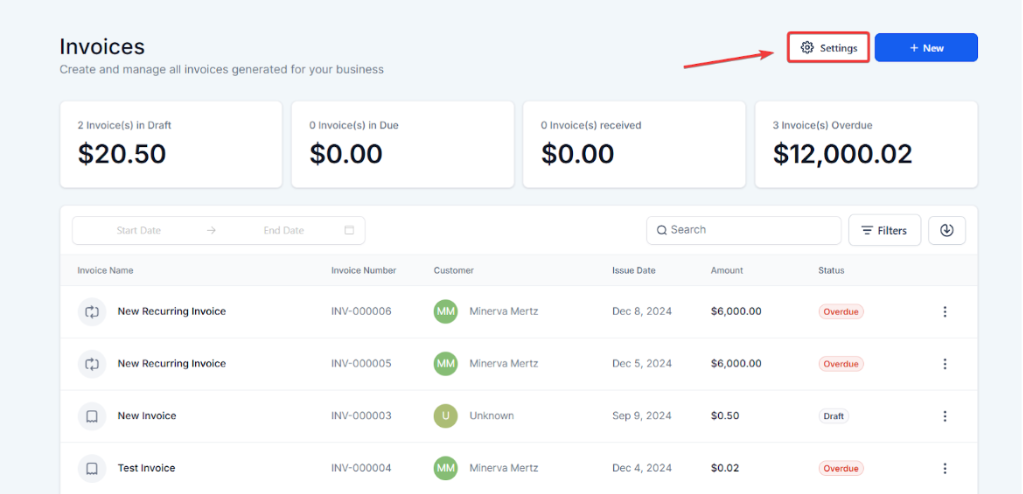
1. Open Payments: Go to the payments tab on the left
2. Select Invoices: Navigate to Invoices & Estimates > All Invoices > Settings
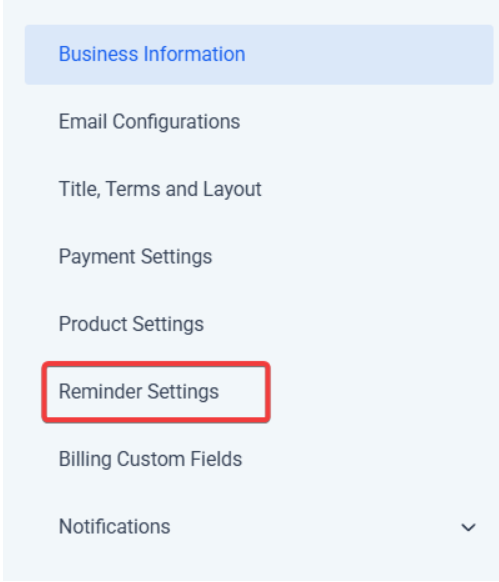
3. Reminder Settings: Select reminder settings.
¶ Step 2: Configuring Your First Reminder
- Turn On Reminders: Use the toggle to enable invoice reminders.
Note: Invoice reminders apply to all one-time and recurring invoices where auto payment is disabled and no payment schedule exists.
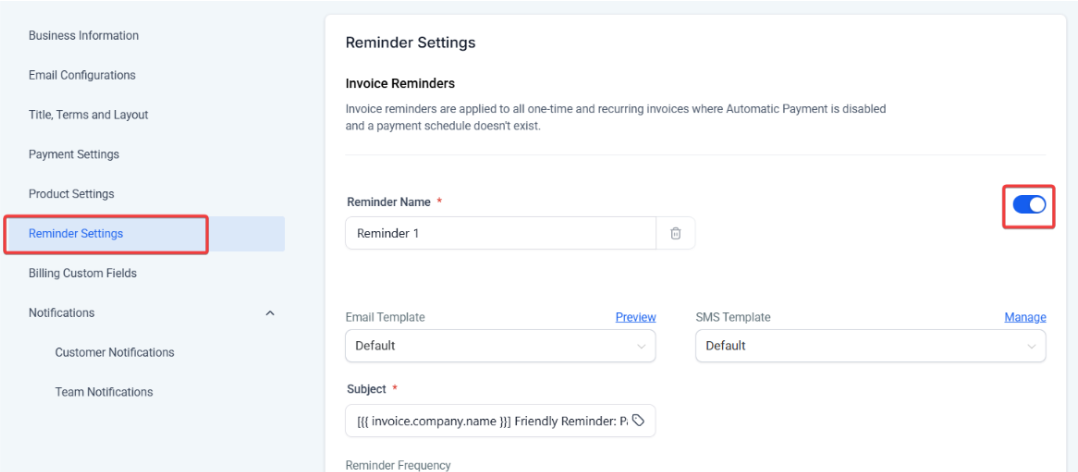
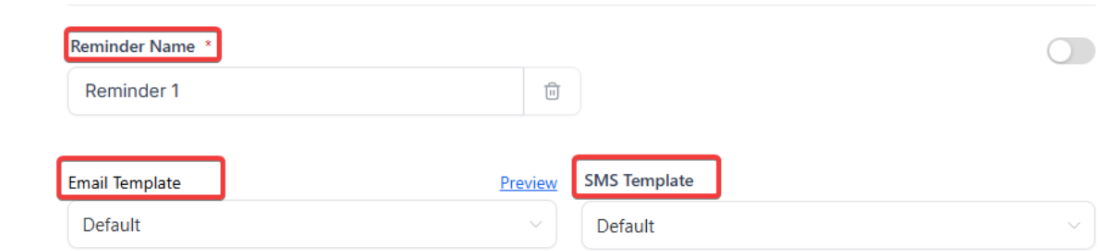
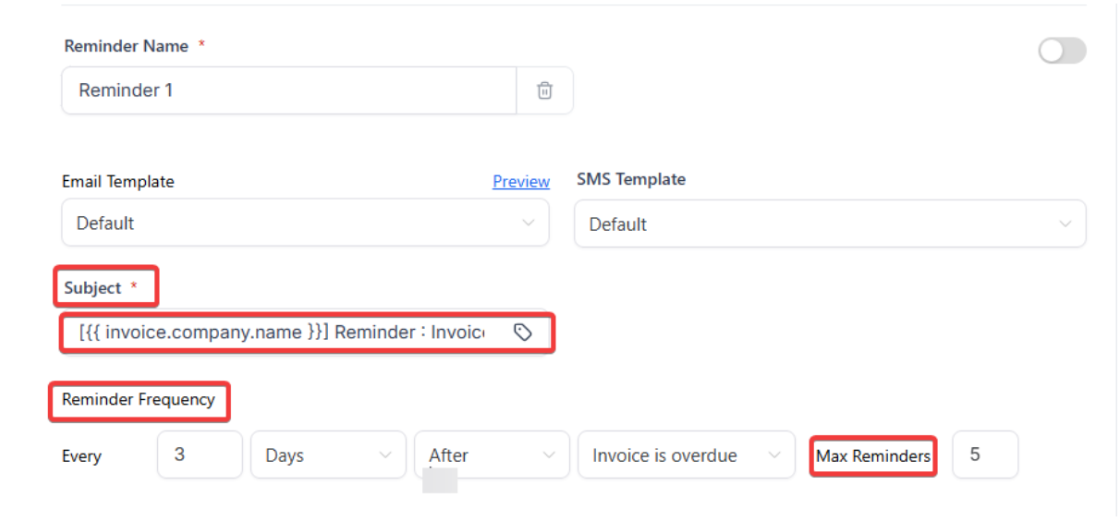
2. Edit Reminder Name: In the first field, enter a name for your reminder, such as “Payment Reminder 1.”
3. Select Templates: Choose an email or SMS template from the dropdown menu. If you haven’t created any, use the default templates.
4. Edit Subject Line: Customize the subject line of your reminder emails.
5. Set Custom Values: Add any custom values for personalization, such as your company name or the client’s invoice due date.
6. Set Reminder Frequency: Define how often the reminders should be sent, e.g., every 3 days after the invoice is overdue.
7. Maximum Reminders: Set the maximum number of reminders to be sent, such as five.
¶ Step 3: Adding and Customizing Additional Reminders
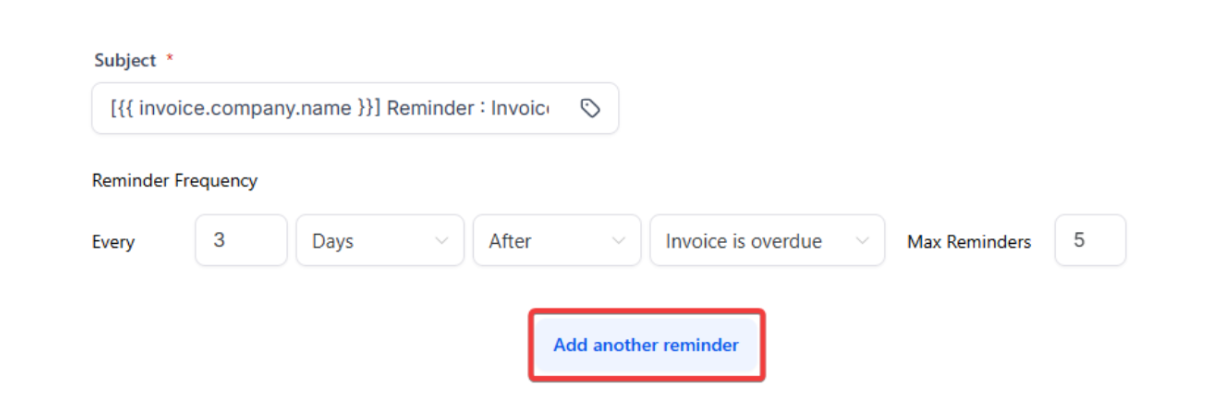
- Add More Reminders: Click on the “Add Another Reminder” button to create additional reminders.
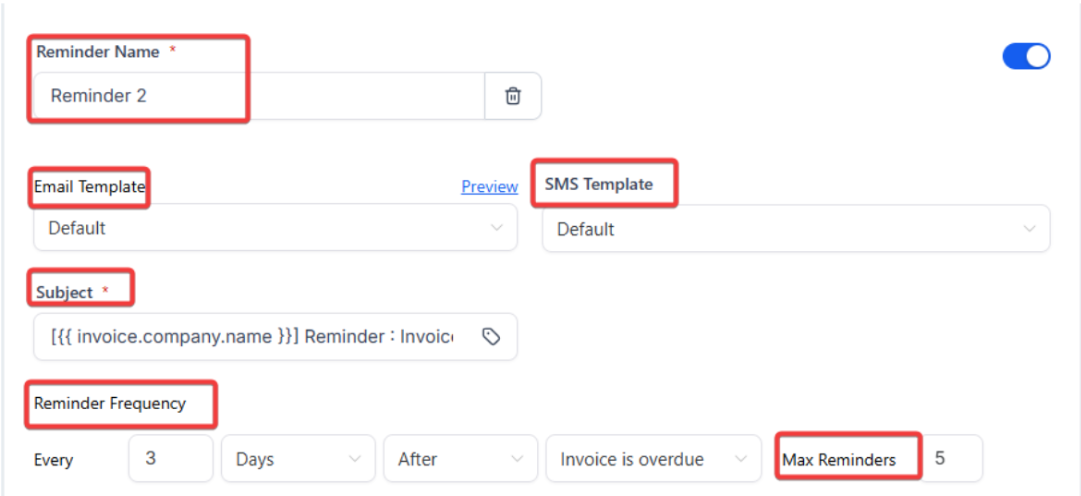
2. Configure Reminder Two: Repeat the steps above for each additional reminder, adjusting names, templates, subject lines, and frequencies as needed.
3. Preview Templates: Use the preview option to see how your email or SMS templates will look before finalizing them.
4. Save Changes: Ensure all your configurations are saved.
¶ Step 4: Finalizing and Managing Reminders
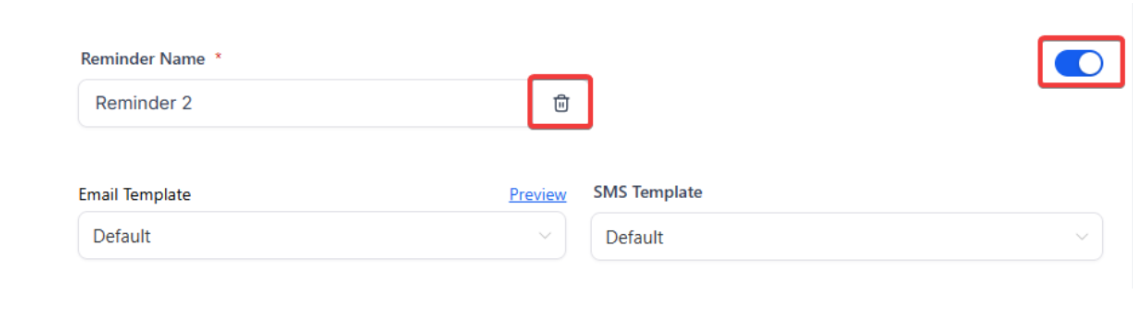
1. Toggle Reminders On/Off: If you change your mind about a reminder, you can easily turn it off using the toggle switch.
2. Delete Reminders: Remove any unnecessary reminders by clicking the bin icon next to them.
3. Apply Changes: Note that any changes will apply to all new invoices created after the adjustments.
¶ Key Features and Benefits
¶ Improved Cash Flow
Automated invoice reminders help ensure that payments are received on time, which is essential for maintaining a positive cash flow.
¶ Enhanced Operational Efficiency
By automating the reminder process, you can save valuable time and resources that would otherwise be spent on manual follow-ups.
¶ Positive Client Relationships
Consistent, polite reminders help maintain a professional relationship with clients, reducing the likelihood of payment delays and misunderstandings.
¶ Customization
You can tailor reminders to fit your brand’s voice and message, ensuring clear communication with your clients.
¶ Pro Tips
- Personalize Messages: Use custom values to personalize your reminders. This can include the client’s name, invoice amount, and due date.
- Test Before Automating: Send test reminders to yourself or a colleague to ensure everything looks and functions as expected.
- Consistent Follow-Up: Set a reasonable frequency for reminders to avoid overwhelming your clients but still keep the payment top of mind.
- Monitor and Adjust: Regularly review the effectiveness of your reminders and make adjustments as necessary to improve response rates.
¶ Use Cases
¶ Small Businesses
Small businesses can benefit significantly from automated reminders by reducing the time spent on chasing payments and focusing more on growth and client satisfaction.
¶ Freelancers
Freelancers who manage multiple clients and projects can ensure timely payments and maintain a steady cash flow with minimal administrative effort.
¶ Large Enterprises
For large enterprises with extensive client lists, automated reminders streamline the payment follow-up process, ensuring no invoice is overlooked.
¶ FAQs
Question: Can I disable reminders for specific clients or invoices?**
**Answer: Yes, you can disable reminders for specific clients or invoices by adjusting the settings for those particular entries.
Question: How do I create custom email or SMS templates?**
**Answer: Custom templates can usually be created in the marketing or templates section of your invoice management system. Ensure they are saved and available in the dropdown menu during reminder setup.
Question: What happens if a client pays after receiving a reminder?**
**Answer: Once a payment is recorded, the system typically stops sending further reminders for that invoice.
Question: Can I test reminders before enabling them for clients?**
**Answer: Yes. It’s recommended to send test messages using preview or test options to ensure content and formatting are correct.
Question: Can I change the frequency of follow-ups for different stages of debt?
Answer: Yes. You can click “Add Another Reminder” to create a sequence. For instance, you could set “Reminder 1” to send 3 days after the due date and “Reminder 2” to send 7 days after the due date with a different message template.
Question: What is the best way to verify that my reminder looks professional before it goes out?
Answer: You should use the preview option within the settings to see how your email or SMS templates will appear to the client before finalizing your changes.