Auto payments in recurring invoice templates are a streamlined solution for billing
With the auto payment feature in our recurring templates, you can ensure timely payments without the hassle of waiting for your customers to take action.
This innovative feature allows you to automatically deduct the invoice amount from your customer’s credit card on the due date.
Auto Payments in Recurring Invoice Templates
Streamlined Billing Process
Automatic Deduction
Enhanced Convenience
Note: This article will assume that you have already set up Recurring Invoices. For a detailed overview of how to set up Recurring Invoices, see our article “Creating Recurring Invoices ”.
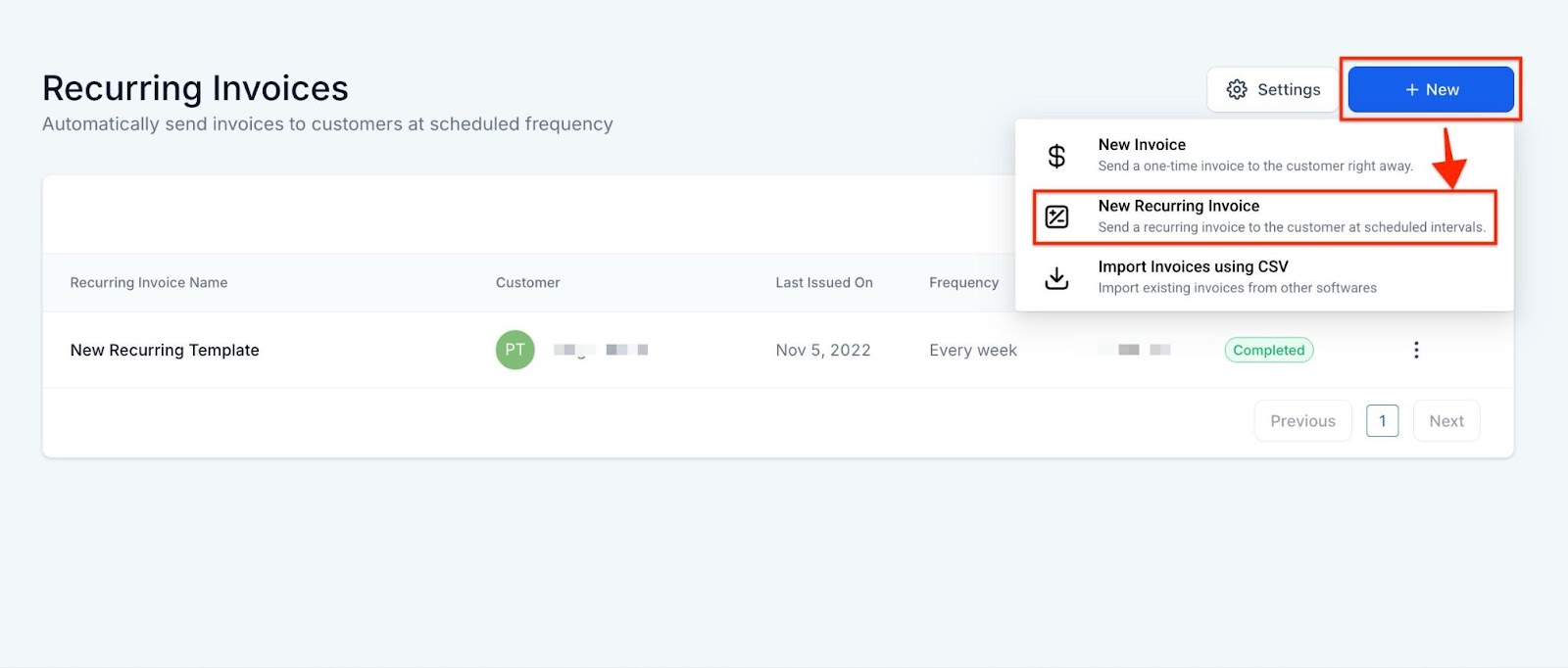
In the Recurring Invoice Builder, Input all the details and then hit the schedule button.
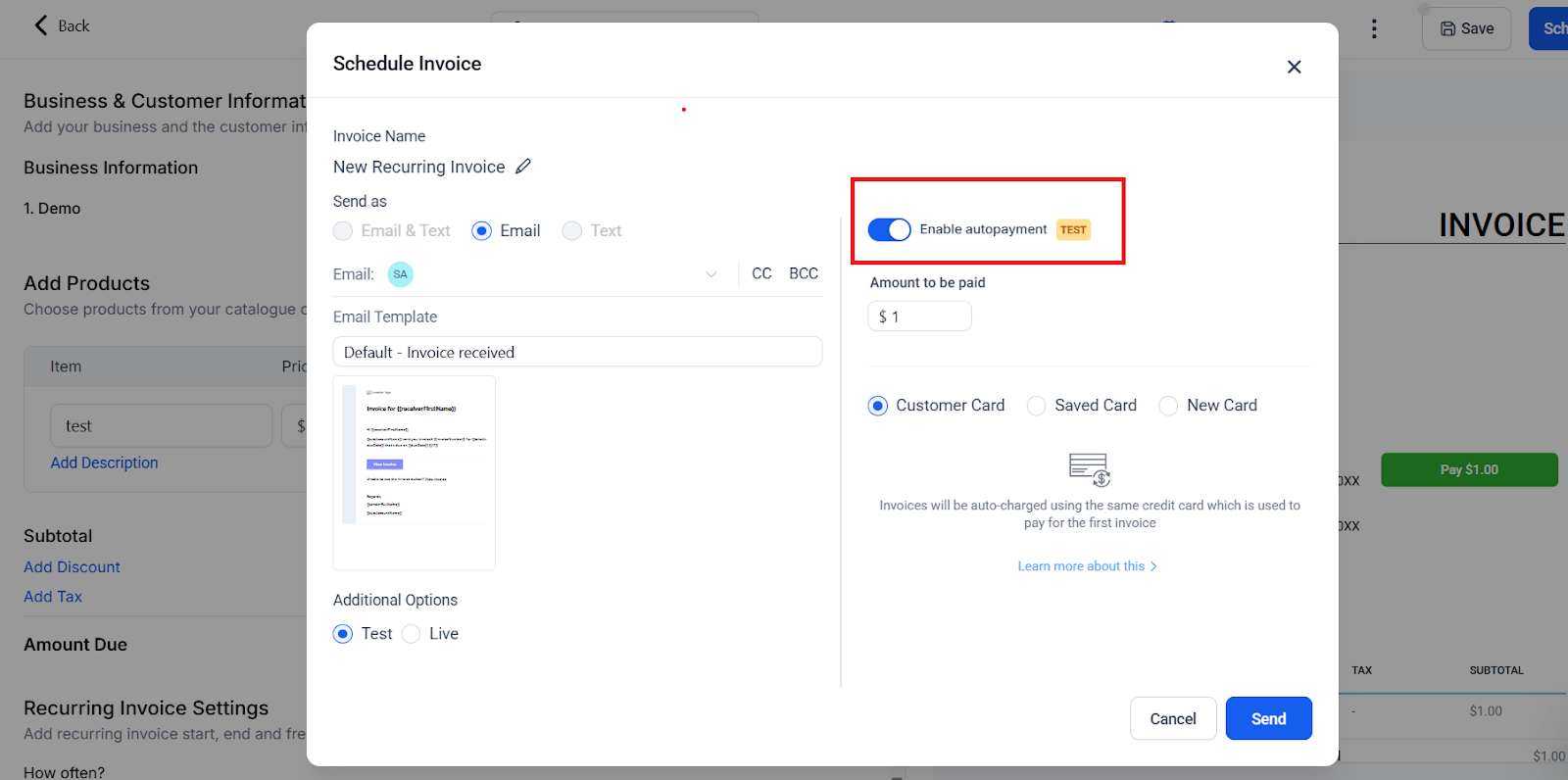
The Auto Payment setup window will appear. Here you can set up auto payments for your customer.
In the Auto Payment window, you will see several options
Here’s a breakdown of the common failure messages you might encounter:
Insufficient Funds: This message indicates that the client’s account doesn’t have enough funds to process the payment. In such cases, the client should ensure there are sufficient funds in their account.
Authentication Required: When you see this message, it means that payment requires authentication. We recommend asking the client to log in and complete the necessary authentication steps to proceed with the payment.
No Default Payment Method: If you come across this message, it means there’s no default payment method set for the client. In this situation, kindly ask the client to log in and choose a default payment method to ensure seamless payments.
Card Declined by Bank: This message indicates that the bank has declined the card used for payment. Please notify the client to consider re-attempting the payment or changing the card details on the platform for a successful transaction.
Other Card Issues: If the card was declined for unspecified reasons, it’s advisable to guide the client to log in, re-attempt the payment, or update their card details to resolve any potential issues.
Understanding these failure messages will help you take appropriate actions to address auto-payment issues promptly and ensure a smoother billing experience for both you and your clients.
Question: How do I set up auto payments for recurring invoices?**
**Answer: To set up auto payments, navigate to the Payments tab, select ‘Recurring Invoices,’ and manage the auto payment settings in the Recurring Invoice Builder. Ensure the “Enable auto payment” toggle is turned on and select your preferred payment card option.
Question: What happens if there’s an auto-payment failure?**
**Answer: If an auto-payment fails, you and the customer will be notified. The payment will be retried twice at 24-hour intervals. If the payment still fails, the customer must manually pay the invoice.
Question: Can I change the payment card used for auto payments?**
**Answer: Yes, you can update the payment card by selecting a new card or using a saved card when setting up or updating the auto payment.
Question: How will I be notified about auto payment successes or failures?**
**Answer: You will receive notifications via email when an auto payment is successful or fails, and the customer will also be notified, including any necessary actions to resolve payment issues.
Question: Can I manually edit the “Amount to be paid” within the Auto Payment setup window?
Answer: No, the “Amount to be paid” parameter is automatically pulled from the price listed in your invoice and is not editable within the Auto Payment setup window.
Question: Does the customer get a heads-up before their card is automatically charged?
Answer: Yes. The system automatically notifies the end customer “x” days in advance of the deduction. The specific lead time is defined by the recurring frequency settings you chose during the invoice setup.
Question: What happens to the auto payment if I make a manual update to a specific invoice before the due date?**
**Answer: If you update an invoice before the auto-charge is deducted, the payment will not be processed automatically for that instance. You will be notified via email, and you must manually share the updated invoice with the customer to ensure you receive payment.