Abandoned cart reminders are a powerful tool for e-commerce businesses to recover potentially lost sales. By sending timely reminders to shoppers who leave items in their carts without completing the purchase, businesses can re-engage customers and boost conversion rates. This article explains how to take full advantage of abandoned cart reminders, focusing on delivery control, template customization, and more.
Key Features and Benefits
How to Use It
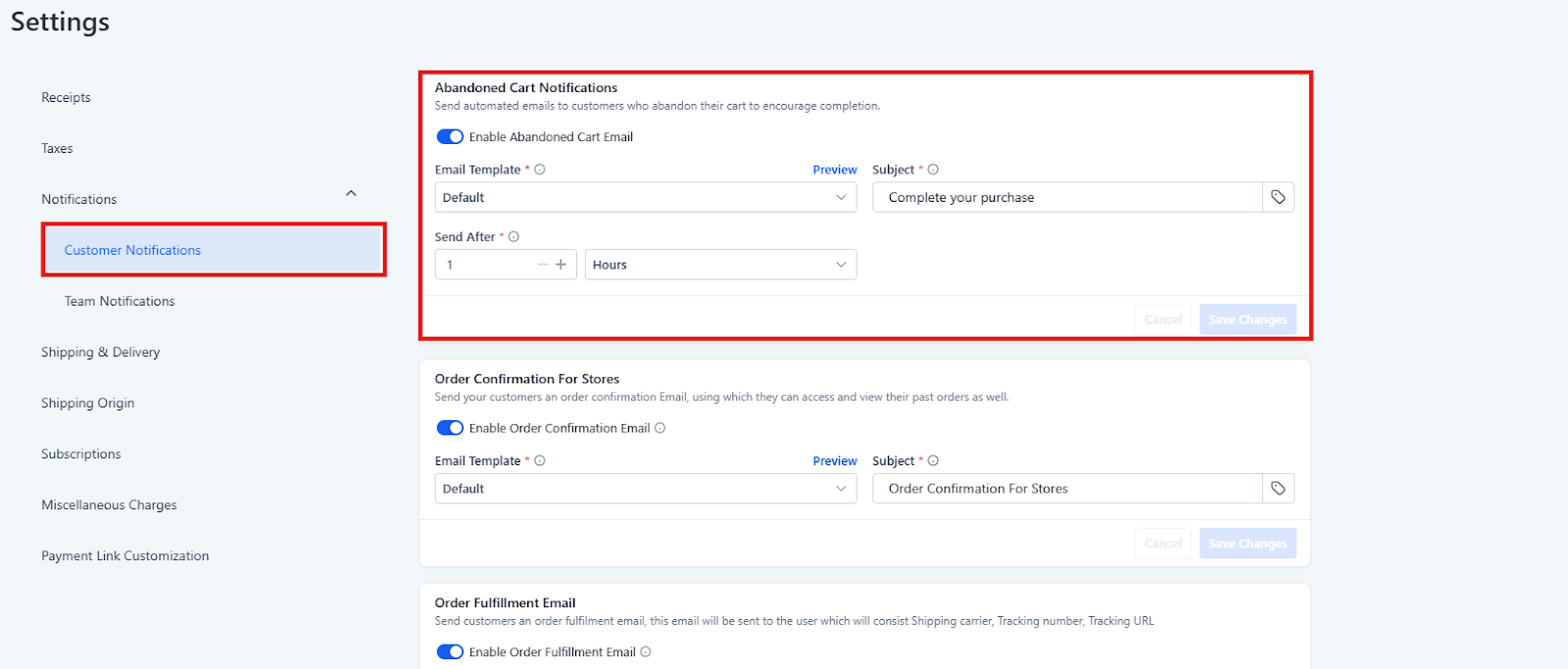
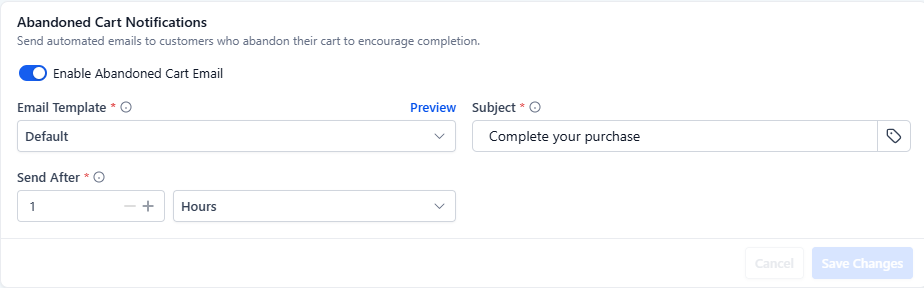
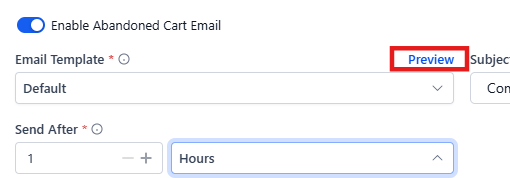
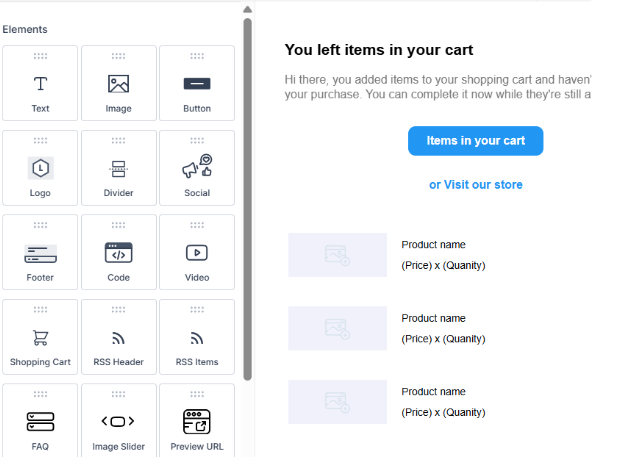
When a customer abandons their cart, a unique checkout link is automatically generated. If the abandoned cart email is enabled under Payments > Settings > Notifications, customers will receive the link via email. They can open the link from any device to complete their purchase, with real-time updates on inventory and pricing.
Pro Tips
FAQs
Question: How do I turn on or off abandoned cart emails?**
**Answer: You can easily toggle abandoned cart emails on or off in the Settings section under Notifications > Abandoned Cart.
Question: Can I customize the subject line of the reminder email?**
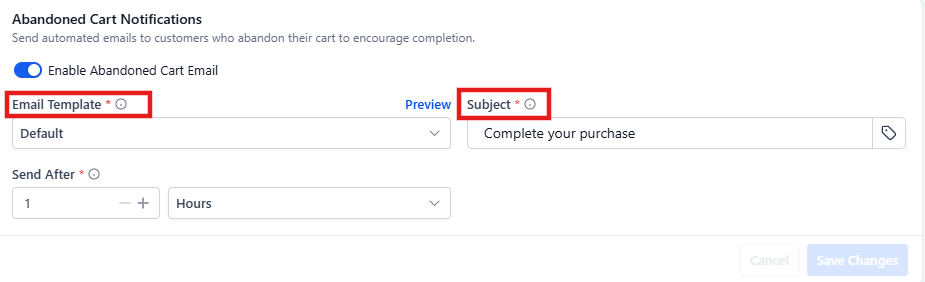
**Answer: Yes, you can add a custom subject line directly in the reminder setup. This also supports custom variables to personalize the subject.
Question: What is the best time to send abandoned cart emails?**
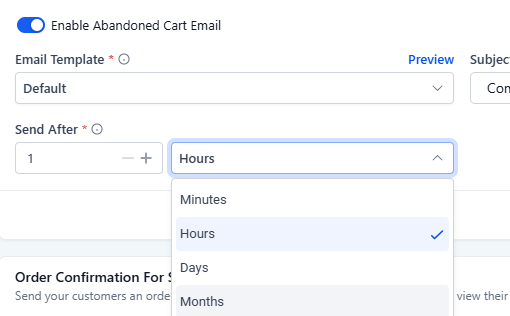
**Answer: You have full flexibility to choose when to send the email. You can set it to send after minutes, hours, days, or months, depending on when you think your customers will be most likely to complete their purchase.
Question: Can I use my existing email templates for the abandoned cart reminder?**
**Answer: Yes, you can select from your existing templates or create a new one. The preview button allows you to check how the email will appear before sending.
Question: How do I ensure my abandoned cart emails are effective?**
**Answer: Consider personalizing the email with the customer’s name and abandoned products. Include high-quality images and test different timings to determine the best approach for your audience.
Question: Will the abandoned cart email link work on any device?**
**Answer: Yes, customers can click the checkout link from any device, and it will take them directly to their cart to complete the purchase.
Question: Is there a way to see what the email looks like before it goes live to customers?
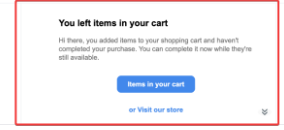
Answer: Yes, there is a Preview button within the settings that allows you to see exactly how the reminder will appear to a recipient, and a “Pro Tip” suggests sending a test reminder to yourself to check functionality.
Question: Can I send more than one reminder for the same cart?
Answer: The standard notification setting handles the first crucial reminder. To send a series (e.g., 1 hour later, 24 hours later, and 48 hours later), you can use the Workflow Builder. Using a workflow allows you to build a more aggressive recovery sequence with different incentives in each email.