¶ Opportunities Overview: A 101 Guide
In this article, you will learn more about how the opportunity tab works, and what you can do. Here is where you can see all your opportunities (which are your leads), and see in which stage of your pipeline they are right now. You can also see their information by clicking on their opportunity card.
¶ Part 1: Filtering Opportunities
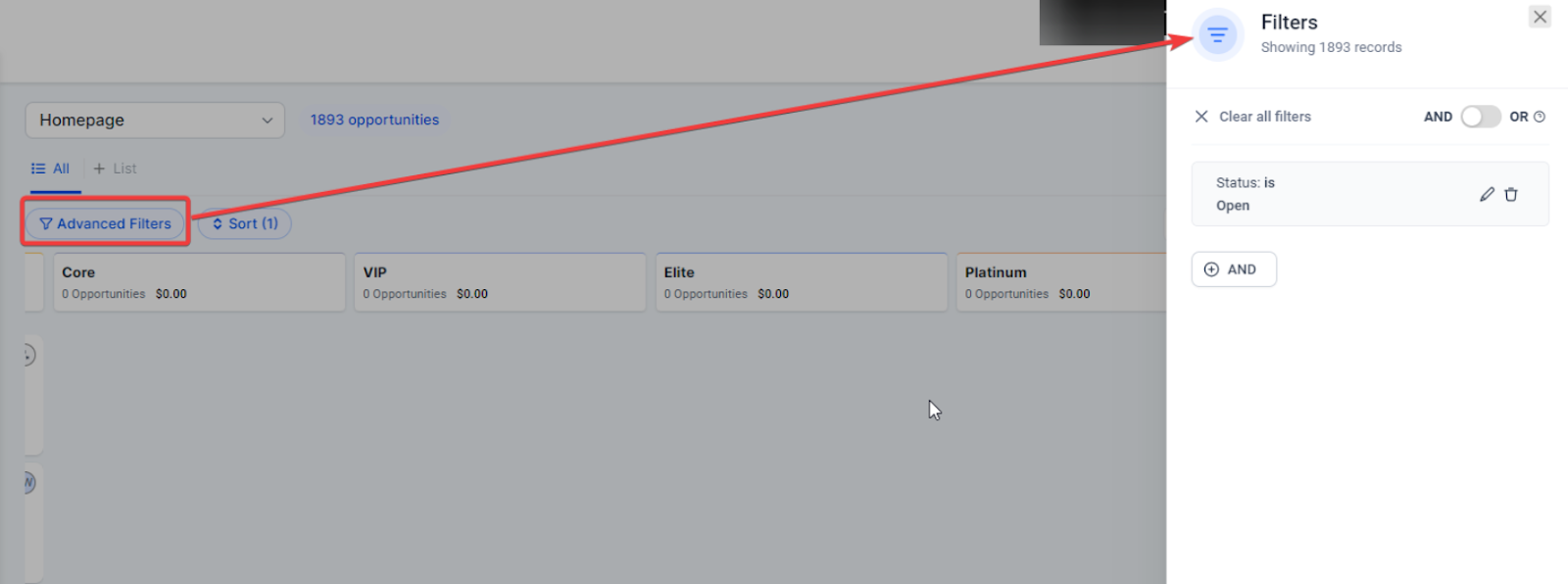
- You can filter your opportunities by: Owner, Status, Campaign Type, Last Stage Change, Created on, Updated on, Lead Value, Opportunity Won On, and Opportunity Lost On
- You can search for opportunities
- You can select a pipeline
- You can Sort by Date Added in an ascending/descending option
- You can select multiple filters by pipeline, owner, and campaign and toggle “AND” or “OR” relationships with them
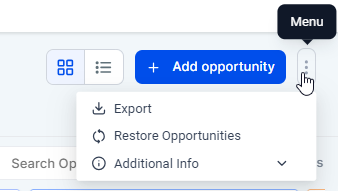
- With the menu dots, you can export and include additional information: Task, Note, Company Name, Calendar Event, Hide Tags, Hide Assigned To
¶ Part 2: How to Add an Opportunity
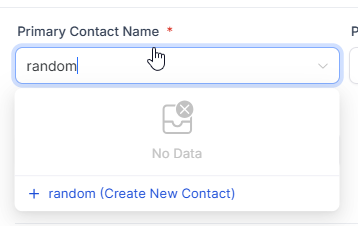
- Click on the “+ Add opportunity” blue button next to the filters to create your new opportunity.

**Please Note: **You can create a contact when you create an opportunity
¶ Settings for Decoupling Contact and Opportunity Owners
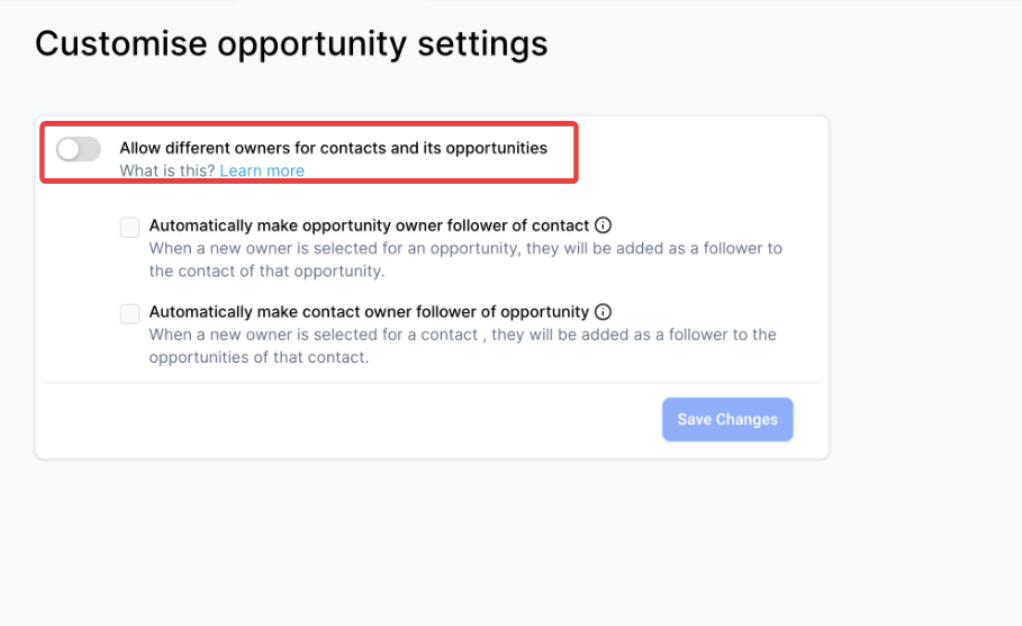
With this feature, you can have separate owners for contacts and opportunities in your system.
¶ How to Enable the Feature:
- Navigate to Settings > Opportunities & Pipeline.
- Locate the “Allow different owners for contacts and its opportunities” option.
- Toggle the setting to “On.”
¶ Functionality:
Default Opportunity Owner: When creating a new opportunity, the default owner will be the same as the contact owner. However, you can update this as needed to reflect the appropriate ownership.
¶ Subsetting:
- Allow updating the contact follower based on the opportunity owner change: Enable this setting to automatically update the contact follower when the opportunity owner is changed.
- Allow updating the opportunity follower based on the contact owner change: Enable this setting to automatically update the opportunity follower when the contact owner is changed.
These settings also apply when opportunities and contacts are created or updated via automation and bulk actions.
¶ Important Notes:
- Once the setting is enabled, existing automation that updates owners might not update the opportunity owner, so review and adjust all relevant automation accordingly.
¶ Part 3: Exporting Opportunity Information and Additional Info
- Click on the menu dots and then the Export option to download the opportunity information. This will automatically download a CSV file taking into consideration the filters that you selected and additional info that you want to include.
- This feature will remember what you have previously selected. You can also filter by task, calendar event, note, and company name, you can hide the tags, or hide to which owner they belong.
¶ Part 4: Inside an Opportunity Card**
**This information will contain:
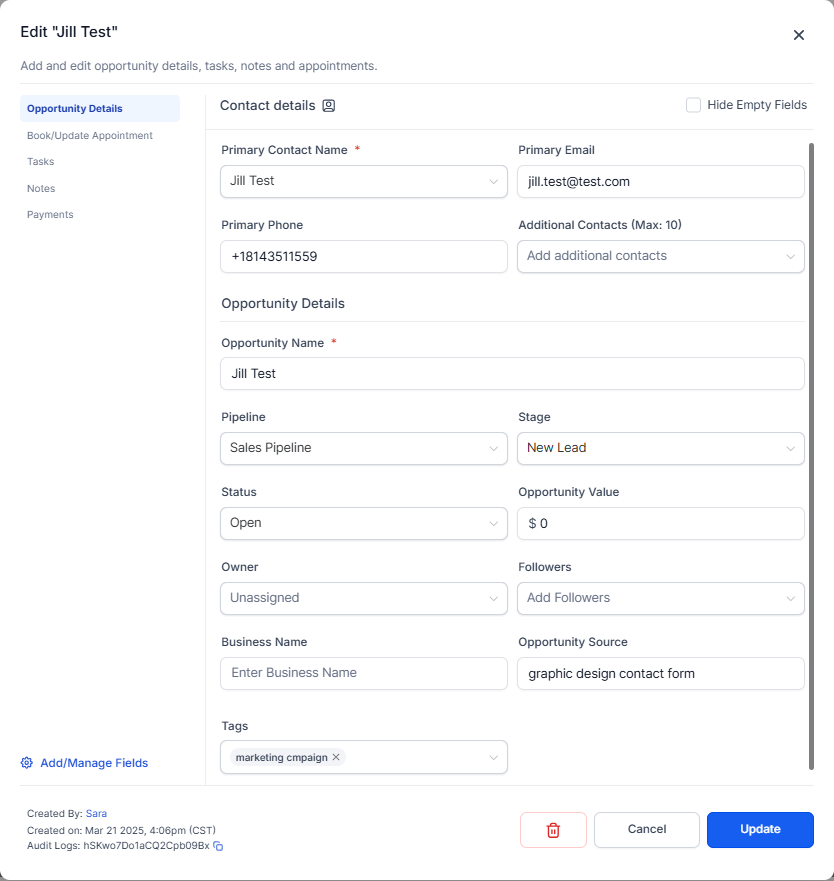
- Their contact information: Name, email, phone, tags, and company name.
- The opportunity information: Pipeline, the stage, their status, the lead value, the owner of this opportunity, and the source.
- You can also see information on when the opportunity was created, and from where it was created.
- Checkbox for hiding empty fields
- Book/Update Appointments
- Tasks
- Notes
- Add/Manage Opportunity custom fields
- Additional Contacts
Additional Contacts:
The Additional Contacts feature in the Opportunity Details tab allows you to associate multiple contacts with a single opportunity. This means that aside from the primary contact, you can add other relevant individuals who are involved in the opportunity. These additional contacts will also be displayed on their respective contact pages, making it easier to track all opportunities where they play a role.
Create/Add Custom Fields
One of the powerful capabilities of our opportunities management system is the ability to create and add custom fields for opportunities. This feature empowers you to capture and organize additional information that is tailored to your unique business needs.
In the opportunity card, simply select “Add/Manage Fields” to access the custom fields area. Please view our article on this topic for more information.
Notes Management
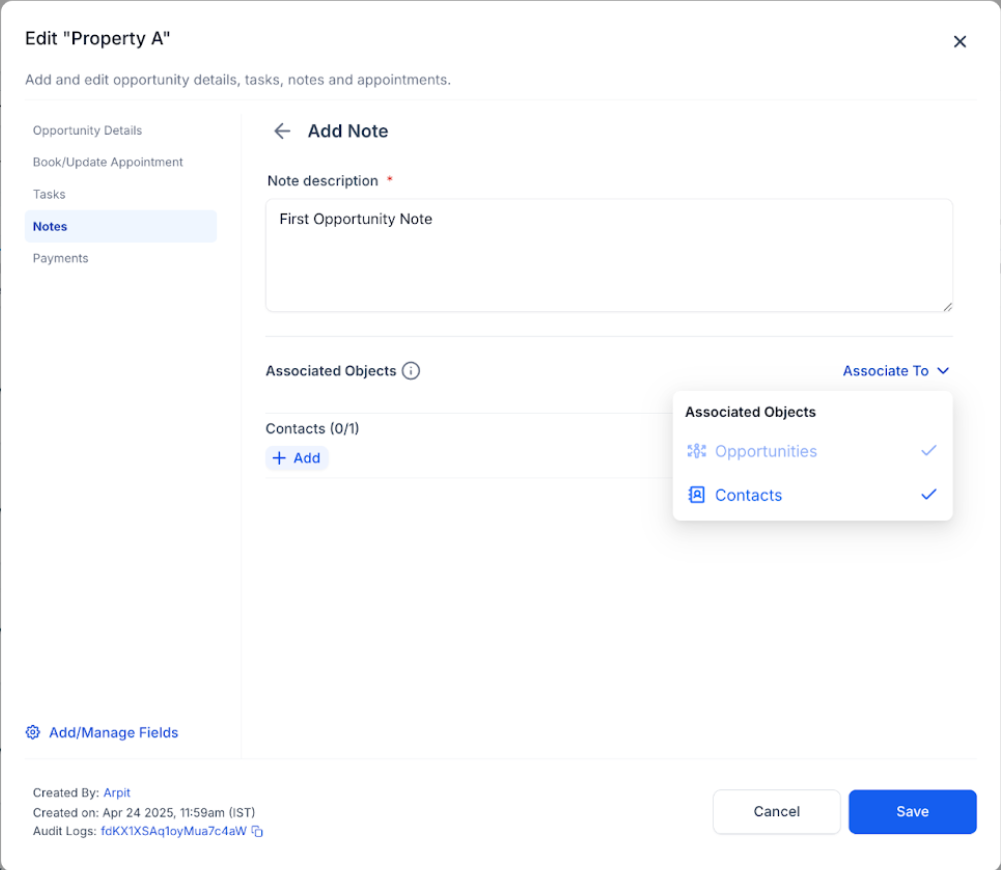
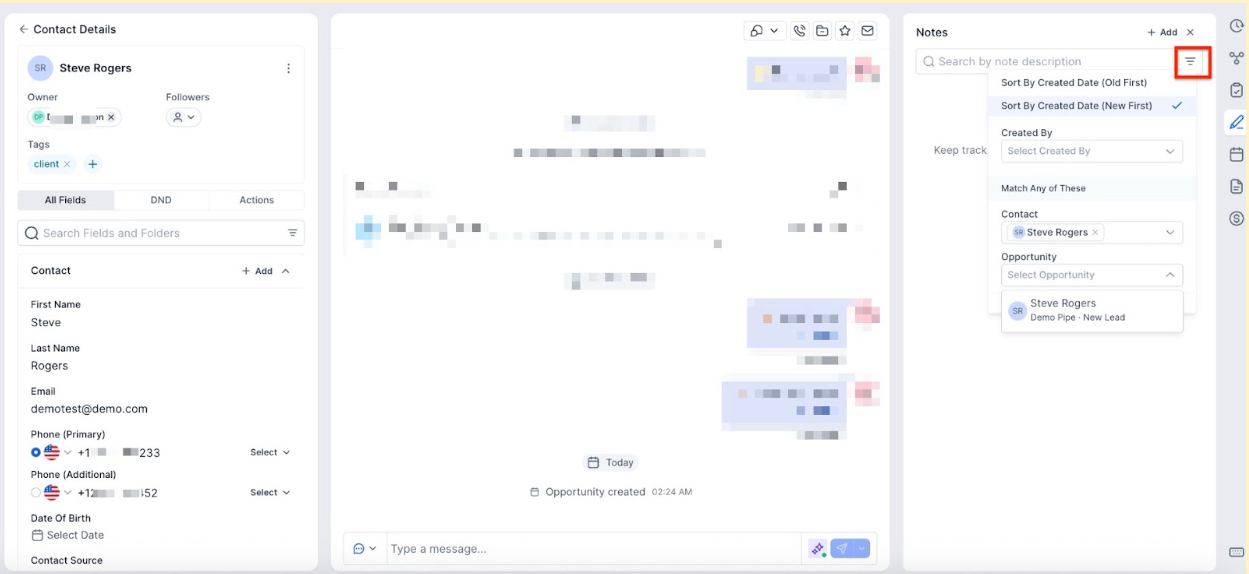
Take control of your notes with expanded capabilities across Opportunities & Contacts. You can add and manage notes specifically linked to Opportunities or Contacts, providing greater clarity and organization for your data.
- Click Add Note , enter your text, and choose which entities (Opportunities, Contacts, or both) to associate the note with.
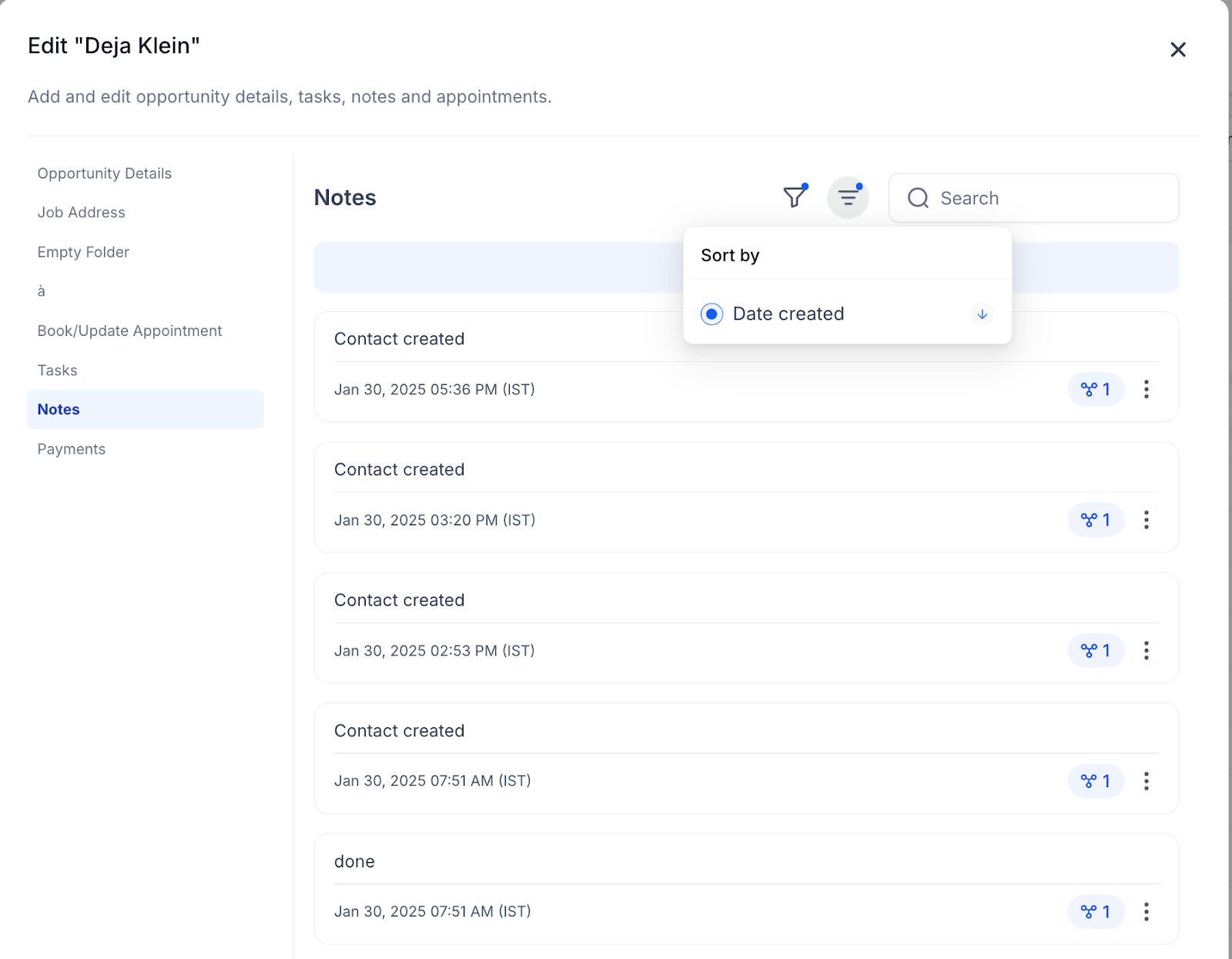
- Filters & Sorting: Quickly find notes with filters and sorting by Date Created.
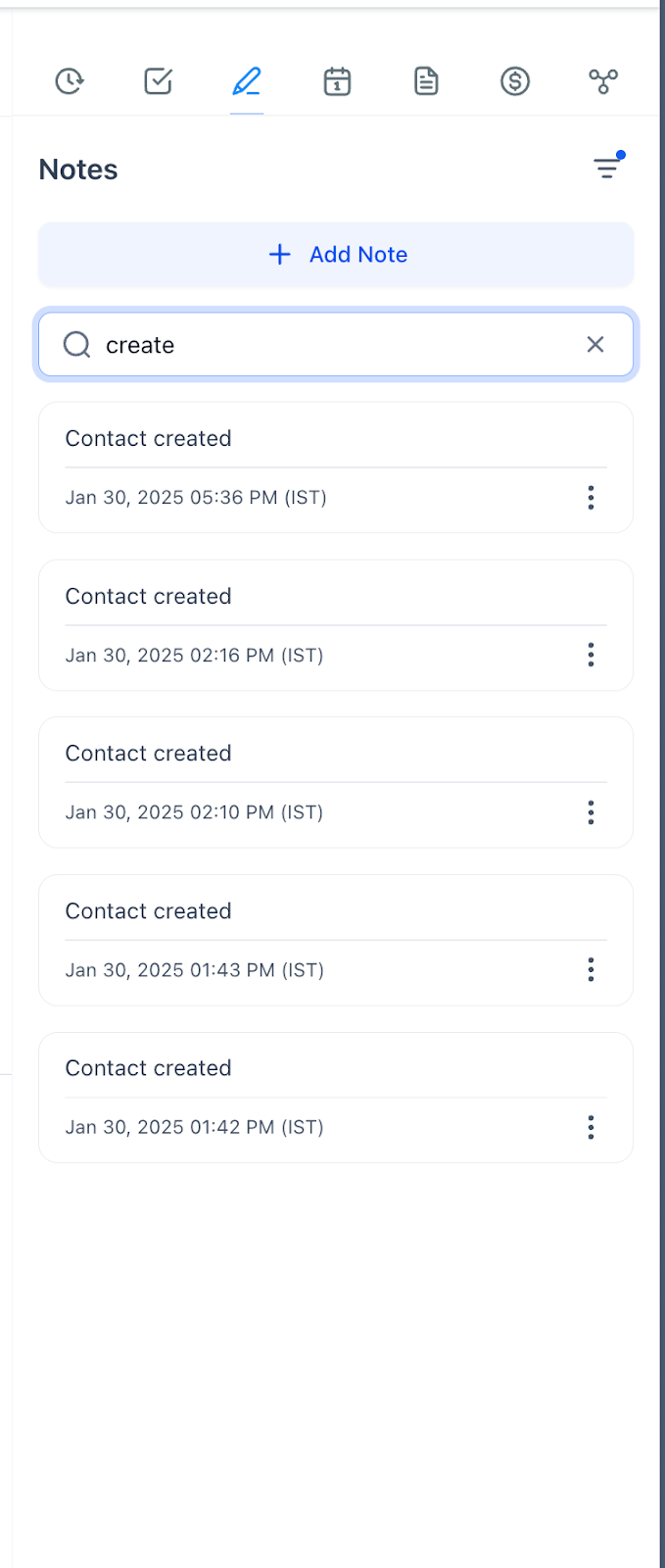
- Search Notes: Instantly locate specific notes using the search function.
- Additional Contact Notes: View notes linked to related contacts within an opportunity.
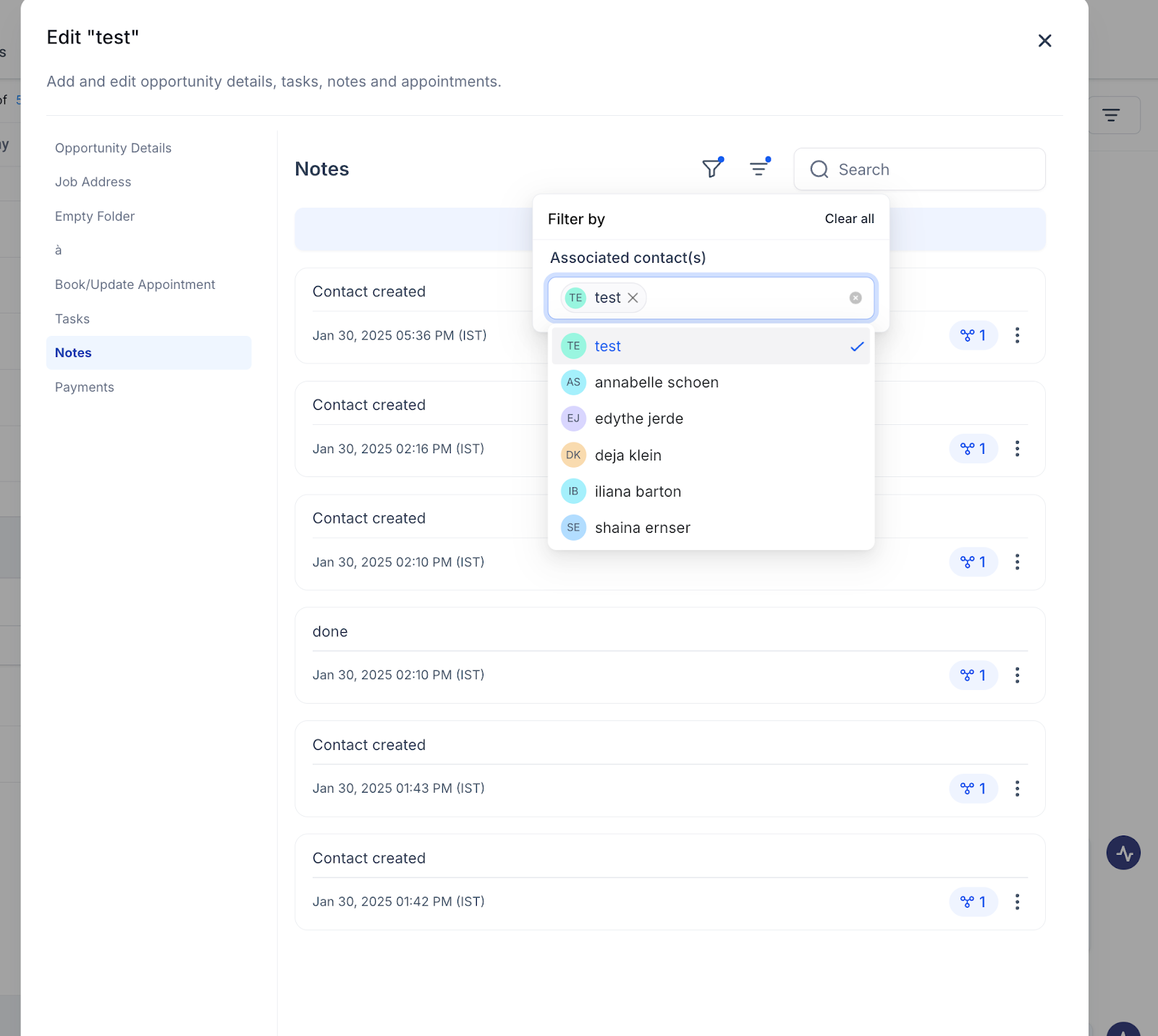
- Cleaner & More Organized View: Manage notes seamlessly across Contacts and Opportunities.
Part 5: List Opportunities
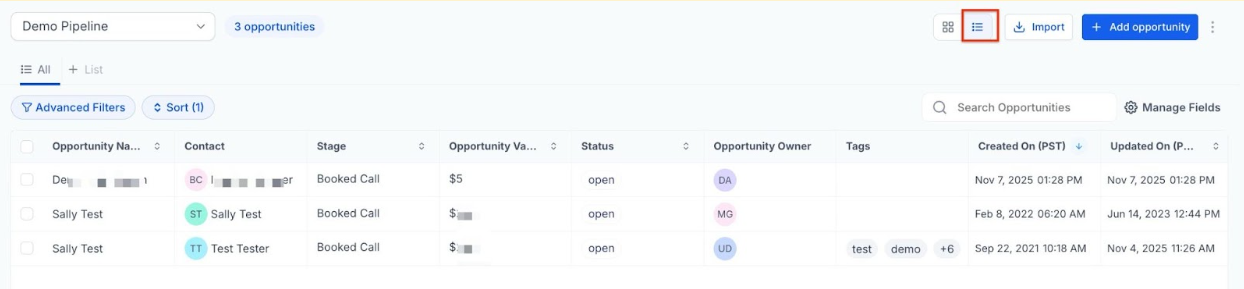
The List View feature for opportunities is designed to transform how you manage your opportunities. This feature provides a tabular view, offering enhanced visibility and customization options for a more efficient workflow.
1. Access the List View:
- Go to your opportunities screen.
- Click on the list view icon located in the top right corner.
2. Customize Your List View:
- Sort opportunities by various fields such as name, value, or date created.
- Choose which fields to display and easily rearrange column positions.
- Resize columns to fit your preferences.
3. Utilize Full Feature Parity:
-
Use advanced filters and search functions, just like in the board view.
-
Export the customized list view for reporting or further analysis.
-
Enhanced Visibility: View more opportunities in a single view for better tracking and management.
-
Customization: Tailor the columns and data display to suit your specific needs, enhancing your workflow efficiency.
-
Exportability: Easily export the list view for detailed reporting and analysis.
¶ **Import Opportunities into Pipelines **
You can import opportunities directly into your pipelines. If you’ve been managing your sales pipeline outside of LeadMagicX, it’s time to transition smoothly and upload your contacts with just a single click.
¶ Navigating to the Import Button
- Accessing Import Function: Navigate to the opportunities section and click on the import button.
- Sample Template: Before importing, download a sample template to understand the required CSV structure.

¶ Preparing Your CSV File
The sample sheet should include:
- Opportunity ID
- Opportunity Name
- Contact ID
- Phone
- Pipeline ID
- Stage ID
- Lead Value
- Source
- Assigned to Team Member (if any)
- Followers
- Notes
- Tags
- Status
- Lost Reason
Once your data is prepared, download your file as a CSV.
¶ Uploading Your CSV File
- Upload File: Click the import button and select the opportunity option. Drag and drop your CSV file into the upload area.
¶ Choosing Import Options
You can choose from:
- Create Opportunities: For moving from another system with no existing CRM data.
- Create and Update Opportunities: To add new and update existing opportunities.
- Update Opportunities: For updating existing opportunities only.
Select “Create Opportunities” for a brand new account and click next.
¶ Mapping Your Data
- Automatic Mapping: Some fields will automatically map with a green tick.
- Manual Mapping: Manually map unmapped fields such as “Source” and “Status.”
- Unmapped Columns: Choose not to import unmapped columns if necessary.
¶ Review and Start Bulk Import
- Review Data: Thoroughly check your data. Add tags for better tracking.
- Start Import: Click “Start Bulk Import.” Monitor the process under bulk actions to check the status and handle any errors.
¶ Handling Errors and Validation
If errors occur, the system will provide error messages and solutions. For example, invalid emails will need verification and updating in your CSV file. Export error details if needed for tracking purposes.
Please see the article “How to import Opportunities using a single CSV file” for more details.
¶ FAQs
Question: How can I filter opportunities in the Opportunities tab?**
**Answer: You can filter opportunities by various criteria, including Owner, Status, Campaign Type, Last Stage Change, Created On, Updated On, Lead Value, Opportunity Won On, and Opportunity Lost On. Additionally, you can select a pipeline, search for opportunities, and sort by Date Added in ascending or descending order. You can also combine multiple filters with “AND” or “OR” relationships for more refined searches.
Question: How do I add a new opportunity?**
**Answer: To add a new opportunity, click on the “+ Add opportunity” button located next to the filters in the Opportunities tab. You can also create a new contact when creating an opportunity. Ensure that you have the necessary settings enabled, such as decoupling contact and opportunity owners if needed.
Question: What is the purpose of decoupling contact and opportunity owners, and how do I enable it?**
**Answer: Decoupling contact and opportunity owners allows you to have separate owners for contacts and opportunities, providing greater flexibility in managing responsibilities. To enable this feature, navigate to Settings > Opportunities & Pipeline, and toggle the “Allow different owners for contacts and its opportunities” option to “On.” This setting allows you to manage ownership changes separately for contacts and opportunities.
Question: How can I export opportunity information?**
**Answer: To export opportunity information, click on the menu dots and select the Export option. This will download a CSV file containing the filtered opportunities and any additional information you choose to include, such as tasks, calendar events, notes, and more. The export feature remembers your previous selections, making it easier to include the same details in future exports.
Question: What can I do within an Opportunity Card?**
**Answer: Within an Opportunity Card, you can view and manage contact information, such as name, email, phone, tags, and company name. You can also see details about the opportunity, including pipeline stage, status, lead value, owner, and source. Additional features include the ability to book or update appointments, add tasks and notes, manage opportunity custom fields, and add multiple contacts related to the opportunity. You can also use the checkbox to hide empty fields for a cleaner view.
Question: What should I do if there are errors during opportunity import?**
**Answer: The system will display error messages, such as invalid emails. You should correct these issues in your CSV file and re-import. Error details can be exported for tracking purposes.
Question: How do I hide the fields I’m not using on the Opportunity Card?
Answer: Use the “Hide Empty Fields” checkbox inside the card. This removes any visual clutter from fields that don’t have data yet, allowing your team to focus only on the information that has been filled out.
Question: Can I connect more than one person to a single sales opportunity?
Answer: Yes. Using the Additional Contacts feature within the Opportunity Card, you can associate multiple individuals with a single lead. These opportunities will then also appear on the individual contact pages for every person linked.