¶ How to Manage Opportunities
How to Manage Opportunities
This guide covers how to manage opportunities by updating statuses, adding custom lost reasons, customizing opportunity cards, and handling payments. It helps you organize your pipeline, improve sales strategies, and streamline workflows, ensuring efficient lead management.
¶ Part 1: Update Opportunity Status**
**You can update the opportunity status if it won’t work to either lost or abandoned.
- Click on the Opportunity you want to update
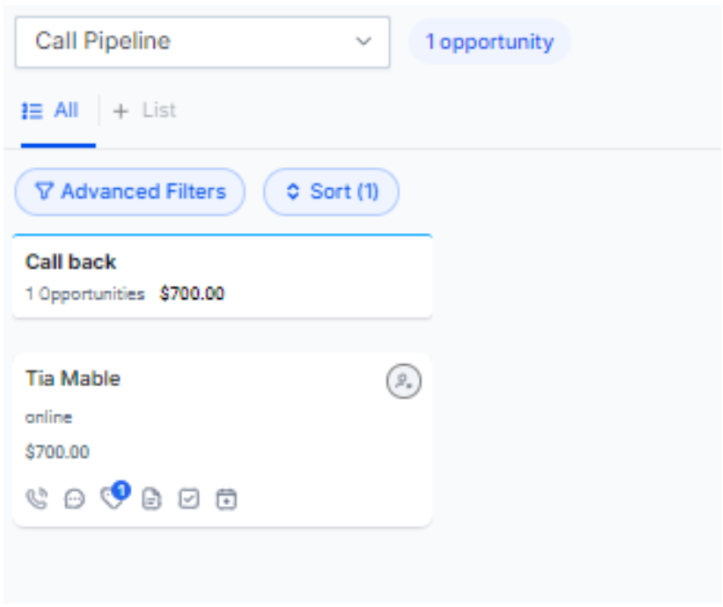
- A pop-up will open up for this opportunity.
- In the pop-up, click on the status drop-down menu.
- Select the appropriate status:
- Lost: Choose this status if the lead has informed you that they no longer wish to be contacted.
- Abandoned: Select this status if your lead has not responded or taken any action after a certain period.
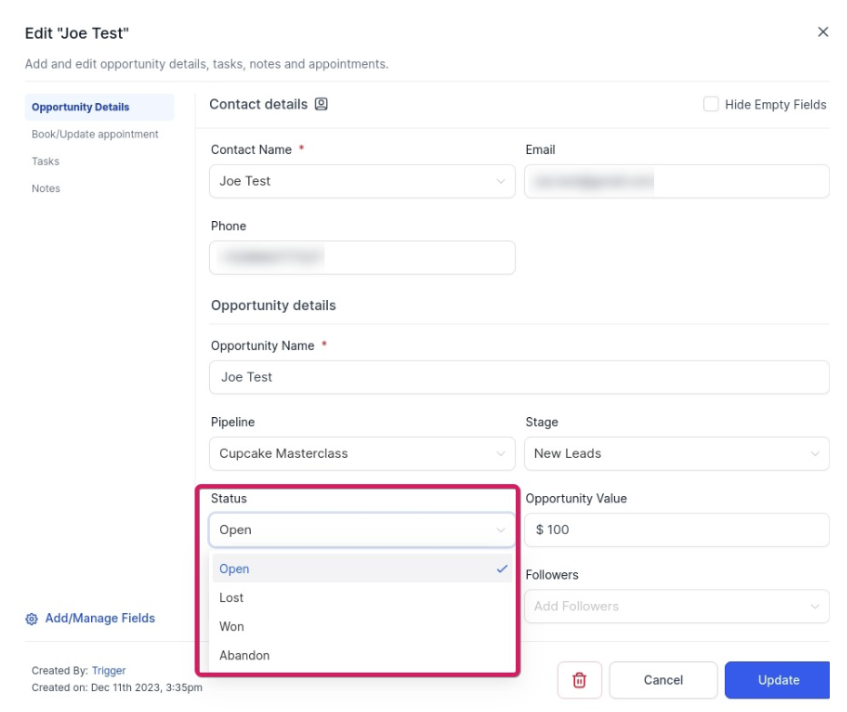
- Click on the Update button. This action confirms the change in opportunity status.
Note : Updating the status allows you to categorize the opportunity based on the lead’s response or lack thereof.
¶ Part 2: Delete an Opportunity**
**You can do this to remove it from the list entirely.
- Click on the opportunity you want to delete.
- This action opens the opportunity details.
- Look for the Delete button in the bottom left corner of the opportunity details.
- Click on this button to remove the opportunity entirely from your account.
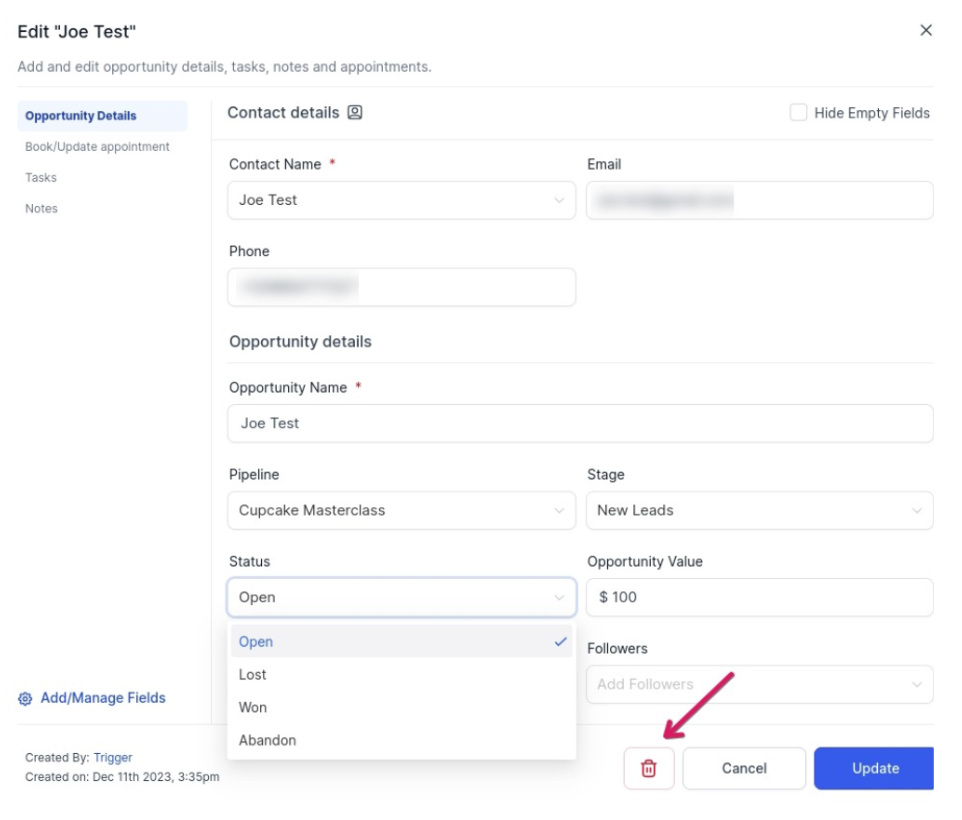
Note: Deleting the opportunity removes it from the list, ensuring it doesn’t clutter your active leads.
¶ Bulk Actions in Opportunities - Bulk Delete and Restore
You can delete or bring back many opportunities at once. This makes it much faster to clean up your pipeline, and it’s safe because you can always undo your changes.
- Open the Opportunities tab.
- Check the boxes next to the opportunities you want to select.
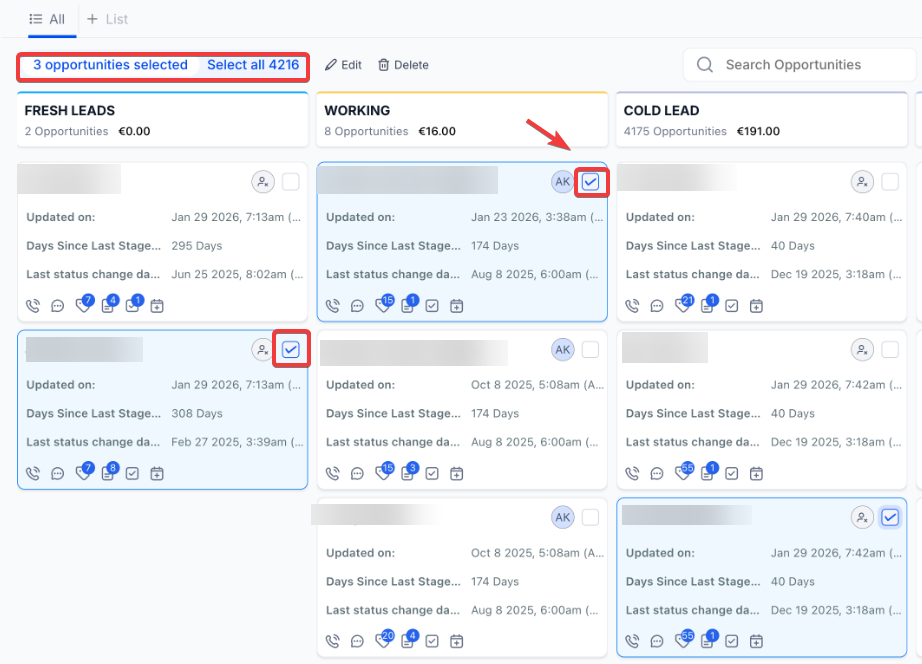
3. Click Delete.
4. Type the word DELETE in the box to confirm.
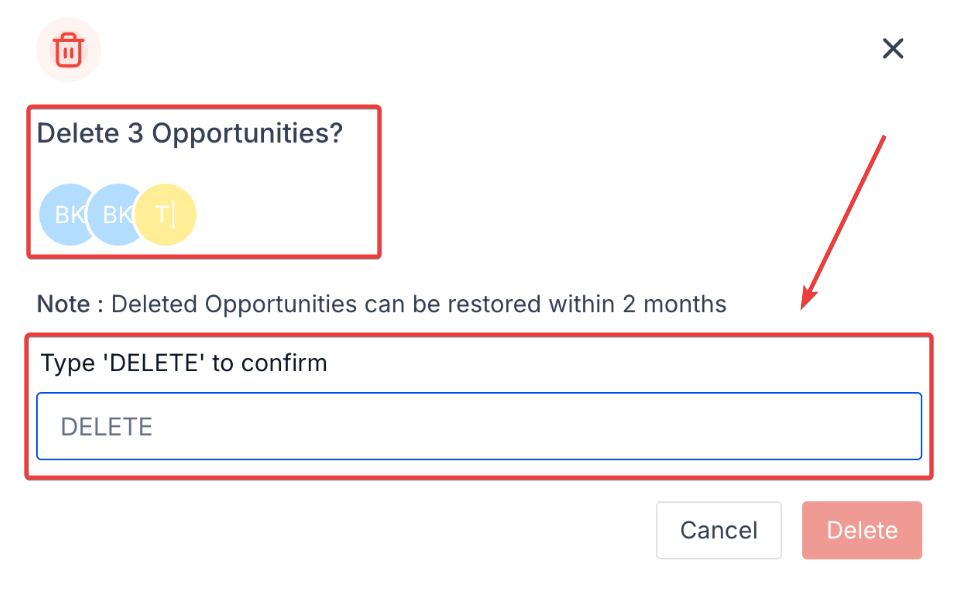
5. Large deletions run in the background, so you can keep working on other things while the system finishes up.
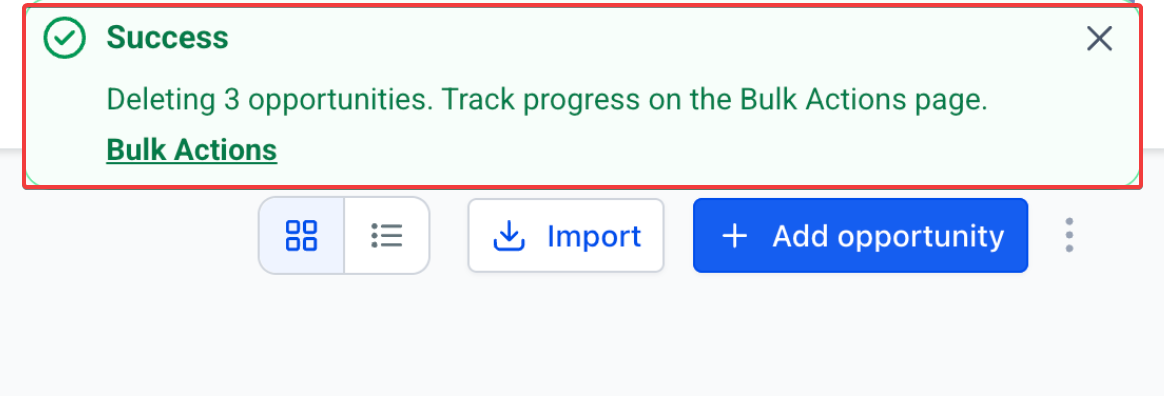
¶ Restore Deleted Opportunities
- Navigate to the Bulk Actions page.
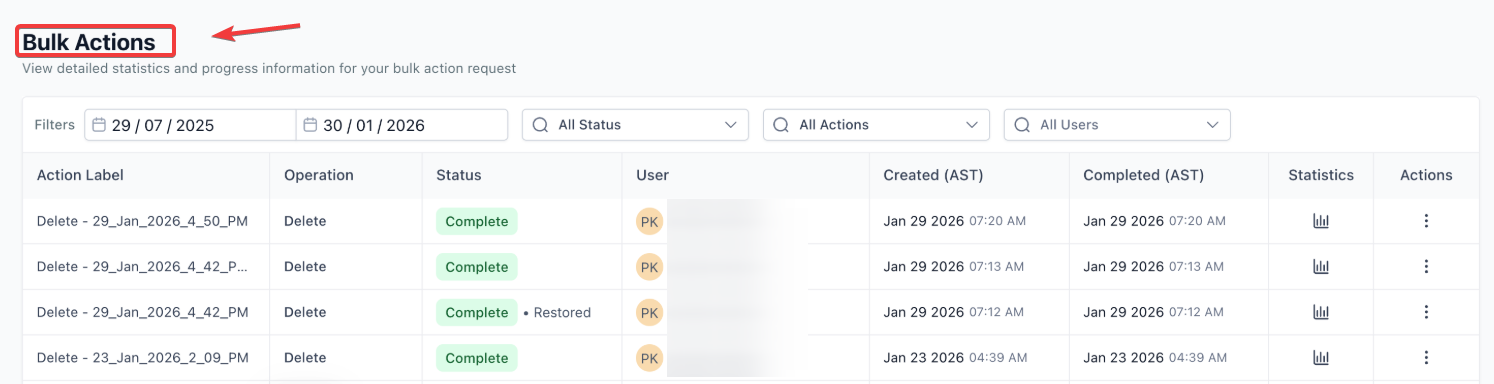
2. Find the deletion you want to undo and click the three dots on the right.
3. Click Restore to bring your opportunities back.
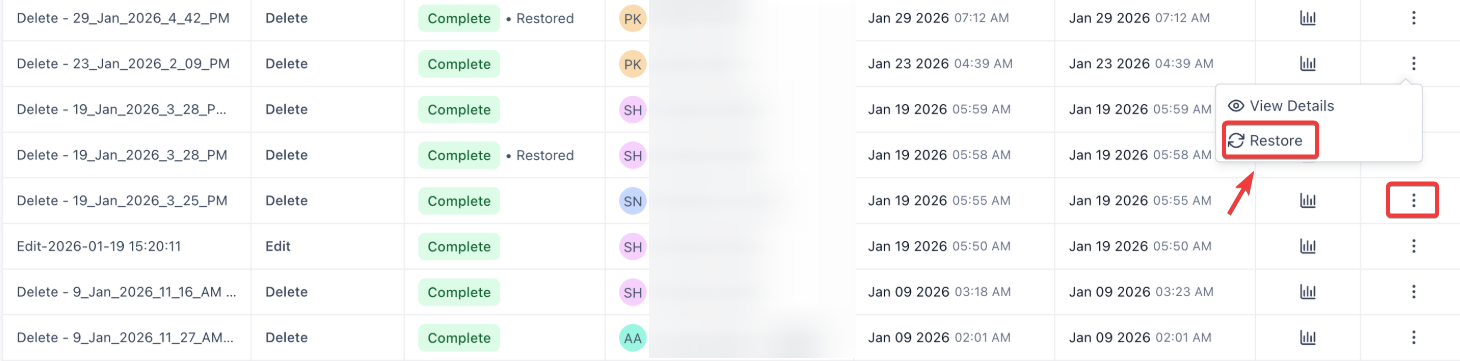
Note: If you have already deleted a contact, you cannot bring back the opportunities linked to them.
¶ Part 3: Managing and Sorting Your Opportunities
¶ Bulk Actions in Opportunities - Cards View
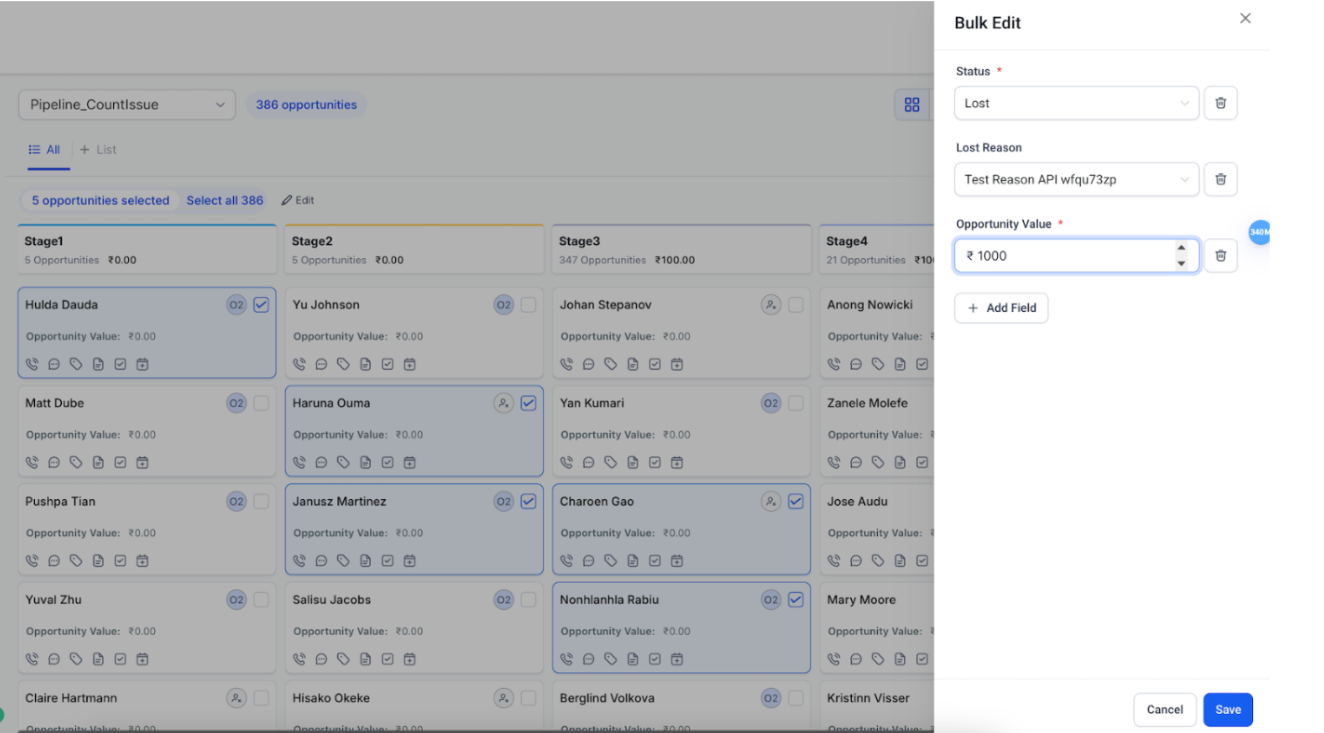
Manage multiple opportunities directly within the Kanban/Card view, without having to switch to List view. When there are more than 20 opportunities, you can use the “Select All on Page” button to quickly select every visible card.
¶ Adding Custom Lost Reasons
This provides valuable insight into why opportunities are lost, enabling you to refine your sales strategy effectively.
1. Drag and Drop the Opportunity to the Lost Status
- When you drag an opportunity to the “Lost” section, a pop-up window appears.
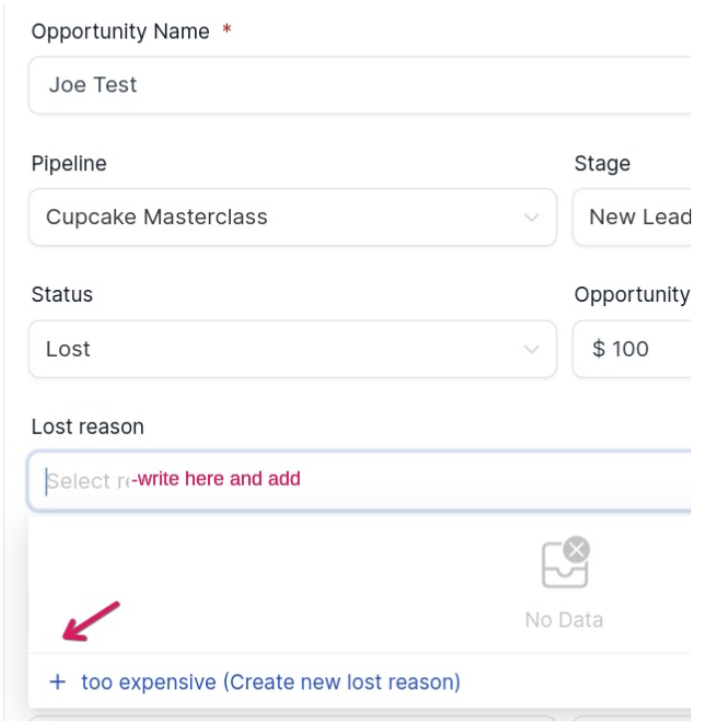
2. Add custom Lost Reasons
- In the pop-up, there is an option to input a custom reason for the lost opportunity.
- Type in the reason directly. If the reason is not in the existing list, you can create a new one.
- Click on the “Create New Reason” button to confirm the addition.
3. View Lost Opportunities with Reasons
- Utilize the filter option to view all lost opportunities.
- The associated reason code is displayed for each lost opportunity, providing a quick overview.
Note: Adding custom lost reasons allows you to capture specific details about why opportunities are lost, enabling a more targeted approach to addressing sales challenges.
¶ Displaying Engagement Scores in Opportunity cards and tables
1. Customize Opportunity cards and tables to display Engagement Scores to help prioritize Opportunities based on customer interactions.
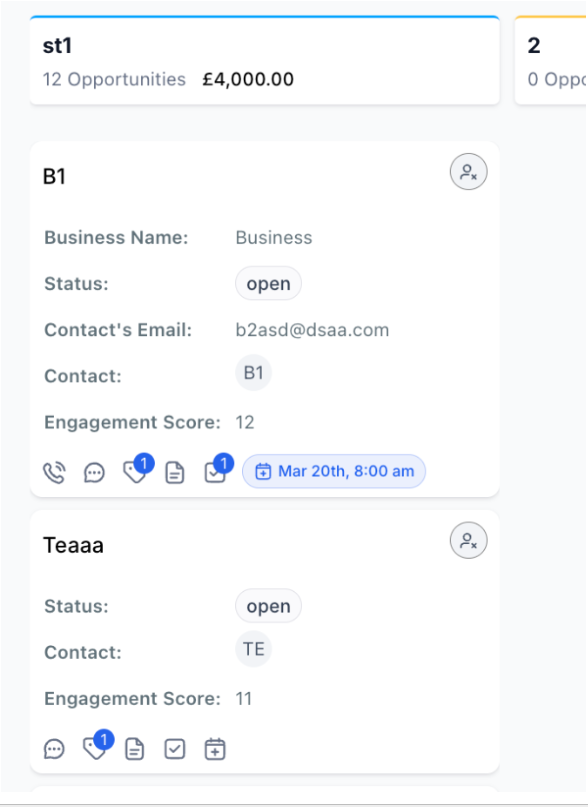
2. The Contact Engagement Score is included in all Opportunity data exports, offering more insightful and comprehensive reports.

¶ Opportunity Routing
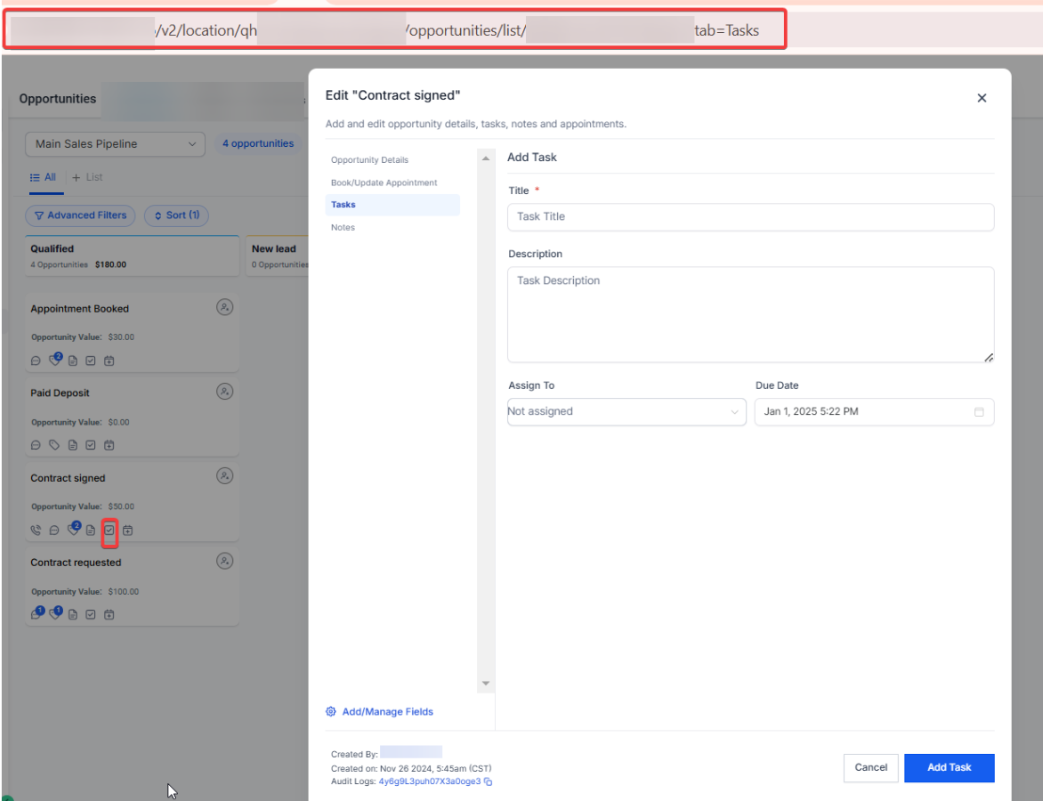
1. Share direct links to specific opportunities with dynamic routing, streamlining team collaboration and improving workflow efficiency.
2. Open the desired opportunity in the application.
3. Copy the URL from your browser.
4. Share the link with team members or stakeholders for direct access.
¶ Customizing the Opportunity Card
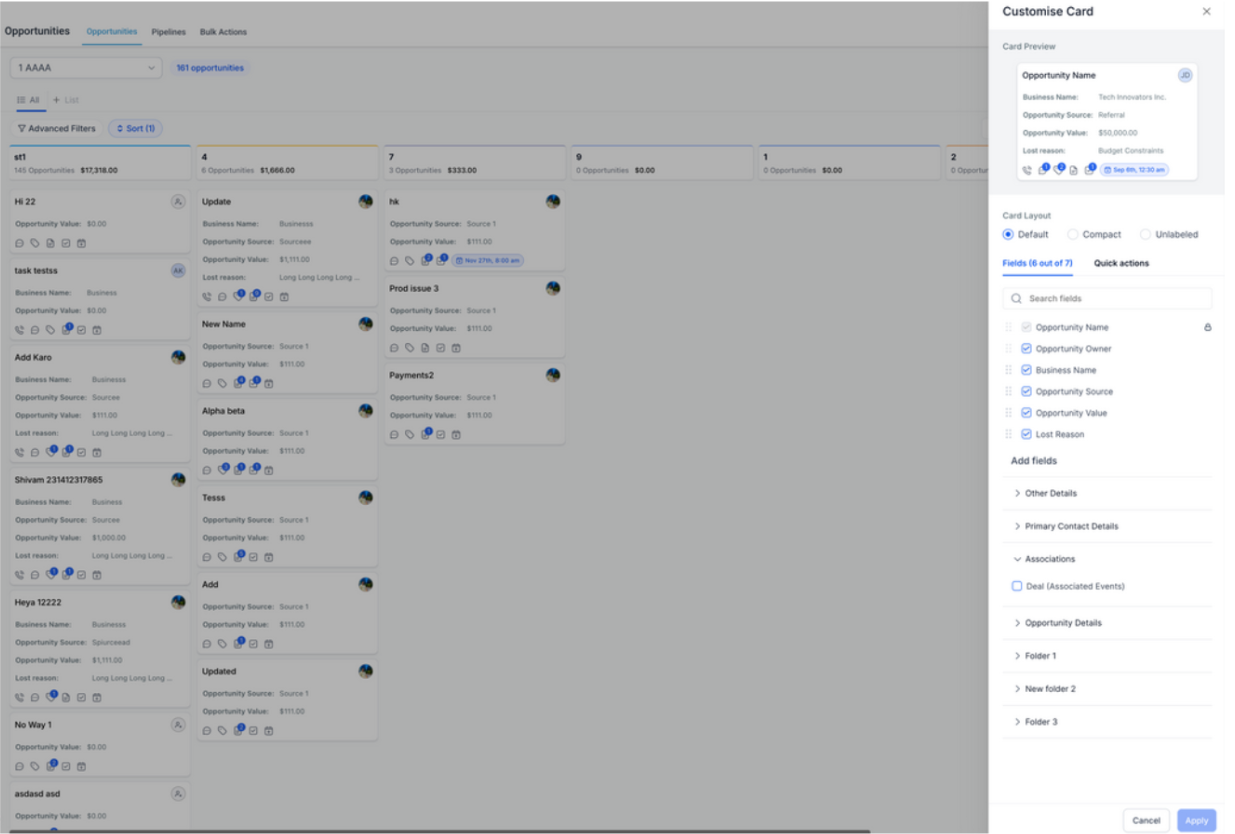
1. Personalize the fields displayed on your opportunity cards within the pipeline view.
2. Select “Manage Fields,” customize the fields and layout, and save your changes.
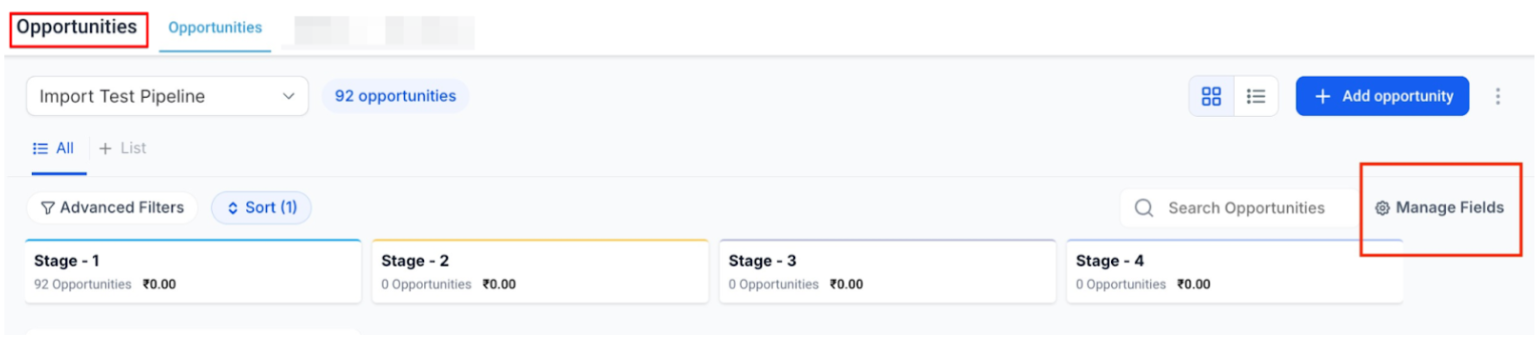
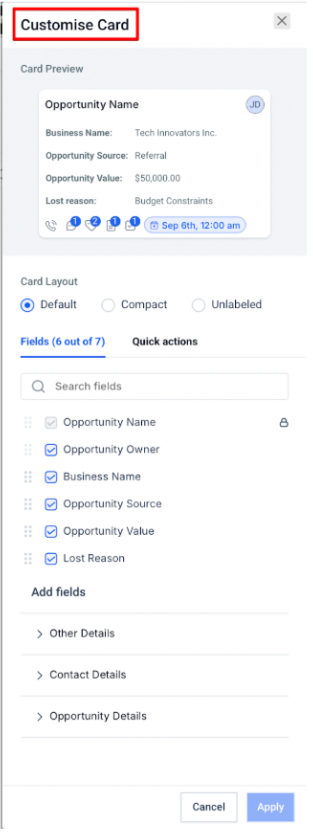
3. You can apply these customizations to individual or all pipelines.
Note: Customizations are applied at the pipeline level by default
Custom Object <> Opportunity Associations
This enables flexible linking between Custom Objects and Opportunities, allowing you to define one-to-one, one-to-many, many-to-one, or many-to-many relationships with clear, customizable labels.To use it, open an Opportunity record, go to the Associations panel
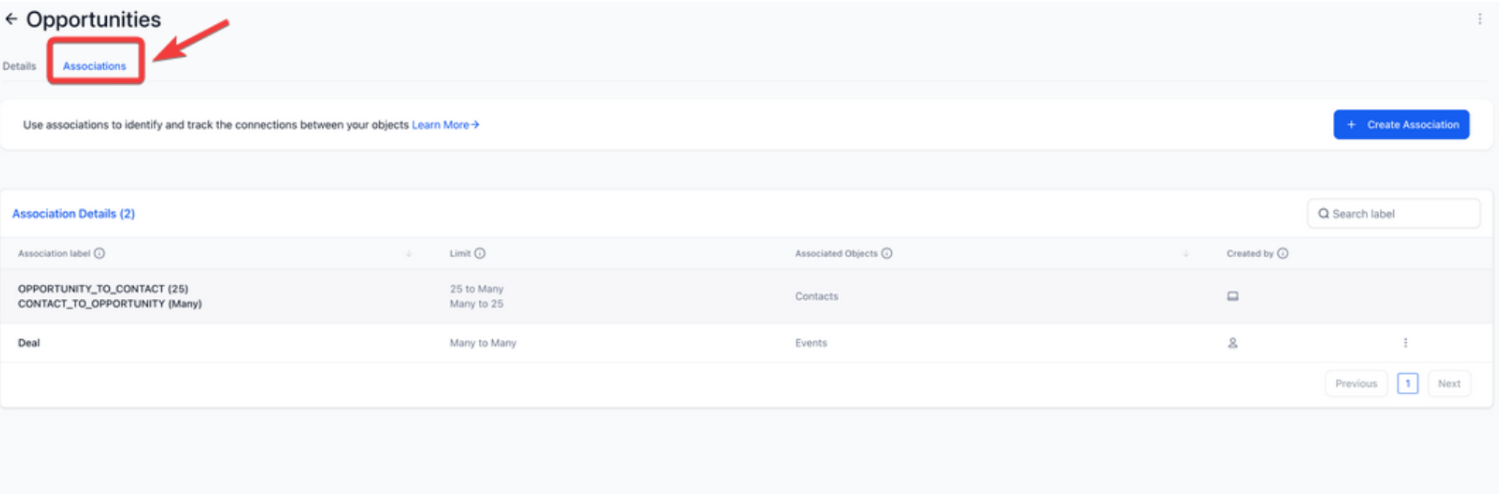
Create associations by selecting Custom Objects and adding labels.
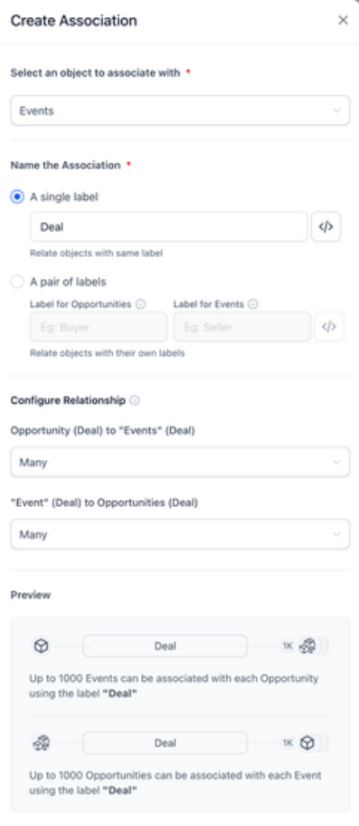
Associations can be managed from both Opportunity and Custom Object panels and customized for display in Kanban and list views.
¶ Part 4: Manage Payments within Opportunities
- The Payments tab within Opportunities allows users to manage estimates, invoices, and transactions directly from an Opportunity.
- Open the specific Opportunity and go to the Payments Tab.
- Click on Actions -> Create Estimate/Invoice.
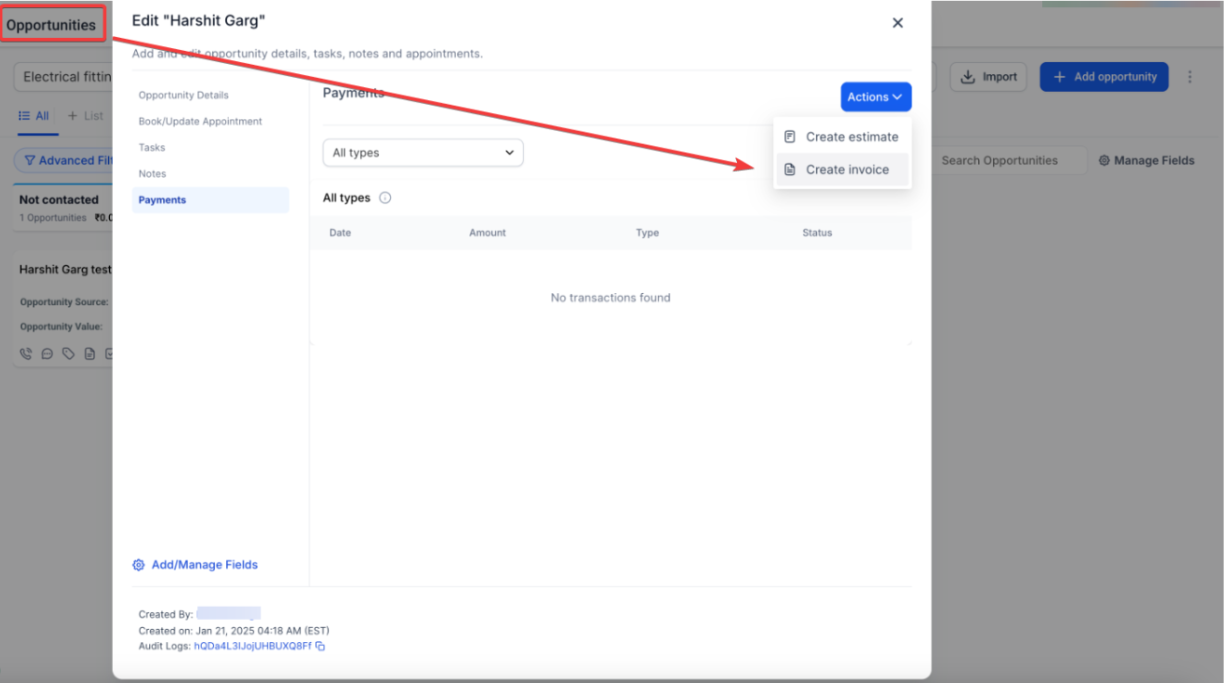
- You will be redirected to a new page where contact details are pre-filled.
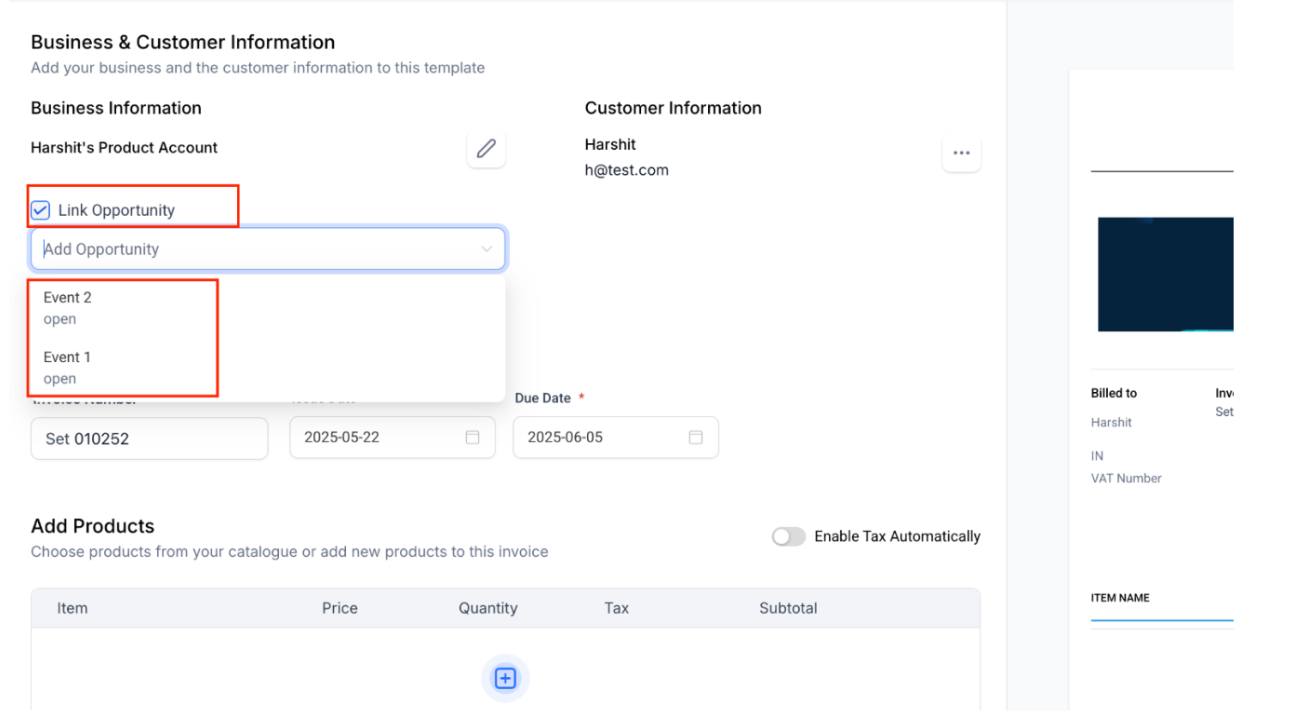
- Every invoice you create from an Opportunity’s Payments tab (or via workflow) is instantly and automatically linked back to that Opportunity, so you always know which deal it belongs to.
- Similarly, you can link estimates to opportunities, allowing you to easily track and manage your estimates directly within the Payments tab. When you create an estimate from an opportunity or workflow, it is automatically linked to that opportunity, ensuring better visibility and organization. This also applies when creating estimates directly from the Payments tab or via workflow automation.
- Via Opportunities: Open an Opportunity, go to Payments, and select Create Estimate from the Actions Menu. The opportunity will automatically be linked to the estimate.
- Via Estimates: In the Payments Tab, switch to Estimates, click Create Estimate, select the contact, and link it to the corresponding opportunity.
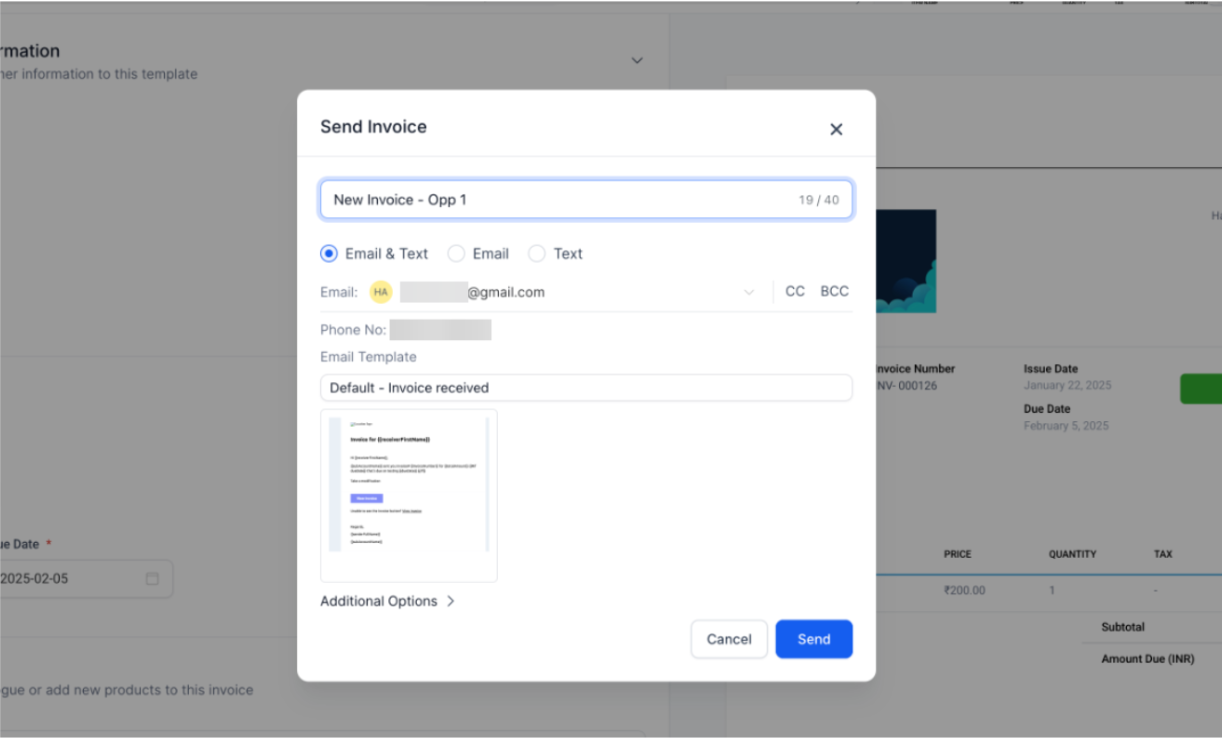
- Once the document is ready, click Send.
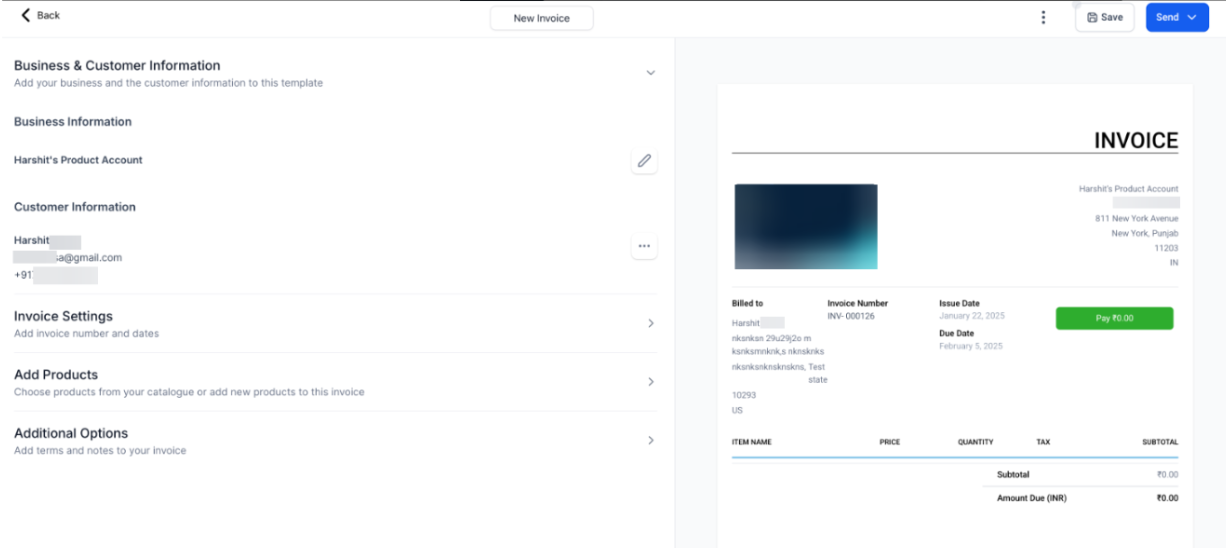
- After sending, you’ll be redirected back to the same Opportunity.
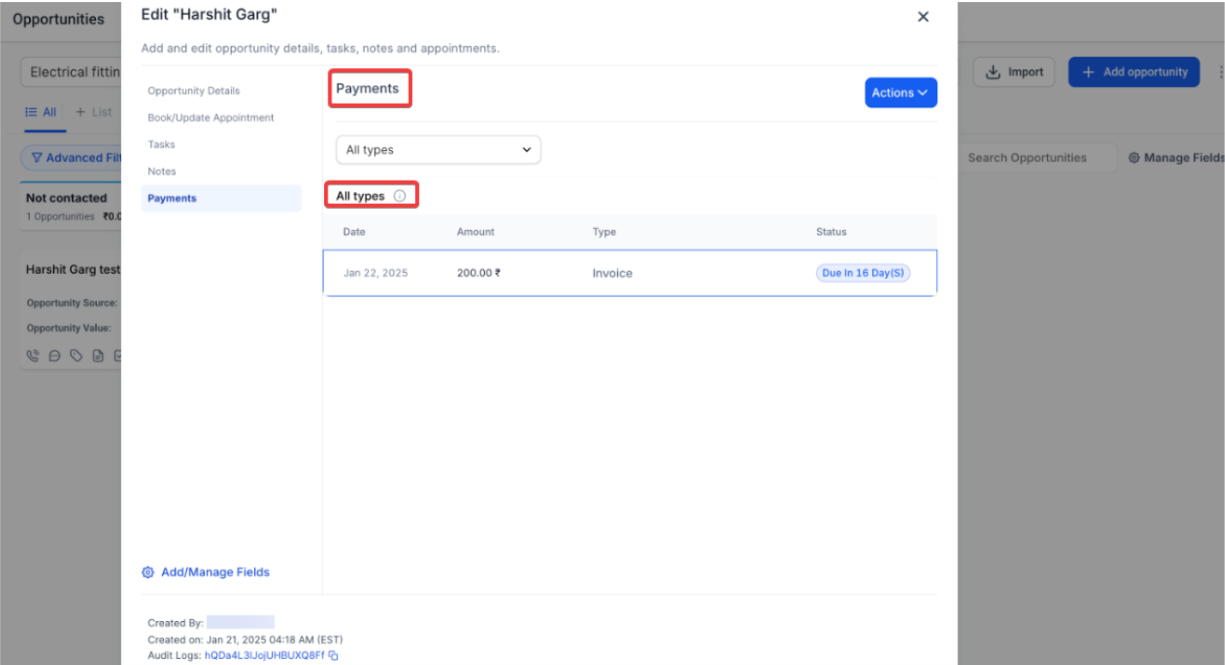
- Use the Payments tab to view all related transactions or filter by invoices for quick access.
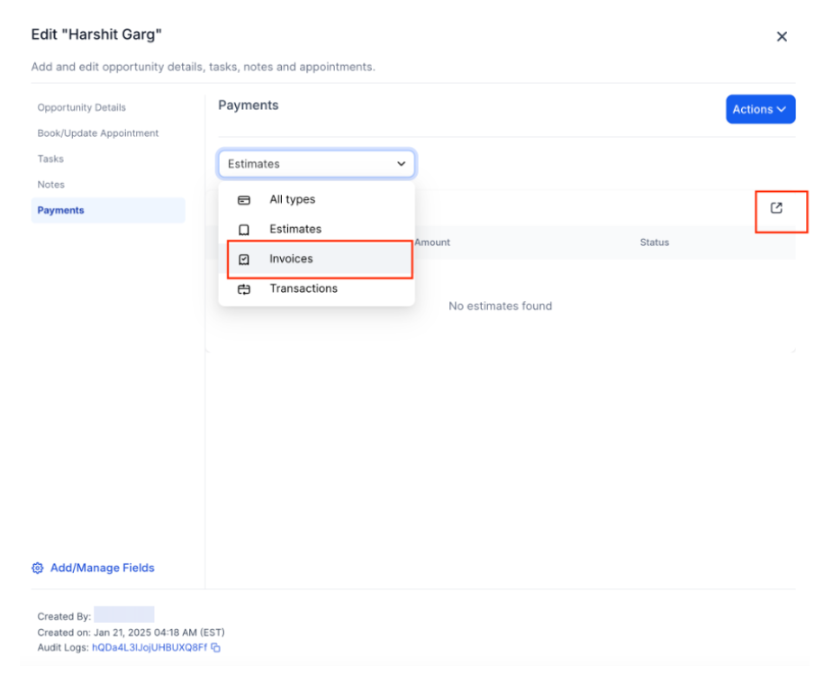
- Additionally, you can filter the type to be an invoice and then get access to the redirection button to see all invoices.
¶ Use Cases
- Sales Performance Review :
- Scenario : Review opportunities marked as “Lost” to analyze common reasons for lost deals.
- Benefit : Refine sales strategies and address recurring issues to improve conversion rates.
- Lead Management :
- Scenario : Update or delete opportunities that are no longer viable.
- Benefit : Keep your lead list focused on high-potential prospects and maintain an organized pipeline.
- Customized Sales Approach :
- Scenario : Add specific reasons for lost opportunities to understand the unique challenges faced.
- Benefit : Tailor follow-up strategies and improve sales tactics based on detailed feedback.
¶ ****
¶ FAQs
Question: Can I recover a deleted opportunity?**
**Answer: No, once an opportunity is deleted, it is permanently removed. Ensure you no longer need the opportunity before deleting it.
**Question:How do I know when to mark an opportunity as “Lost” or “Abandoned”?
**Answer: Mark an opportunity as “Lost” if the lead explicitly states they no longer wish to be contacted or if engagement has ceased. Use “Abandoned” if there has been no response or action after a significant period.
Question: Can I recover a deleted opportunity?**
**Answer: No, once an opportunity is deleted, it is permanently removed from your account. Ensure that you no longer need the opportunity before deleting it.
Question: How can I see the reasons for lost opportunities?**
**Answer: Use the filter option to view lost opportunities and their associated reasons. This will help you understand the context behind each lost opportunity.
Question: Can I add multiple reasons for a single lost opportunity?**
**Answer: Currently, only one reason can be assigned per lost opportunity. If you need to capture multiple reasons, consider adding detailed notes or using custom fields.
**Question:**Can I manage multiple opportunities at once?
Answer: Yes. Use bulk actions in the Kanban/Card view to update statuses or assign reasons for multiple opportunities at the same time.
Question: Will deleting an opportunity also delete the contact’s email and phone number?
Answer: No. Deleting an opportunity only removes the “Deal” from your sales board. The contact’s profile, history, and contact information will remain safe in your Contacts list.
Question: If I accidentally delete a large group of opportunities using bulk actions, is there a way to get them back?
Answer: Yes. You can navigate to the “Bulk Actions” page, find the specific deletion task, and click “Restore.” However, please note that if you have already deleted the contact associated with those opportunities, they cannot be restored.