¶ Offer Validity/Access in Courses
Offer Validity/Access in Courses
The offer validity/access option in courses allows for more effective marketing campaigns and streamlined management of course access. This enables you to implement urgency in your marketing strategies, which can significantly boost your revenue by encouraging timely actions from your audience. Here’s a detailed look at leveraging this new feature to maximize your business potential.
¶ Key Features of the Validity Feature
¶ Setting Up Offer Access
With the validity feature, you can easily manage and control access to your offers and courses. Here’s how you can set it up:
1. Navigate to Offers : Go to the ‘Memberships’ tab, hover over ‘Courses’, and select ‘Offers’ from the drop-down menu.
2. Edit Your Offer : Choose the specific offer you want to edit. For instance, you might select the ‘Mini Co Magic’ course.
3. Configure Offer Access : Find the ‘Offer Access’ box. Here, you can set the accessibility for members who purchase the offer.
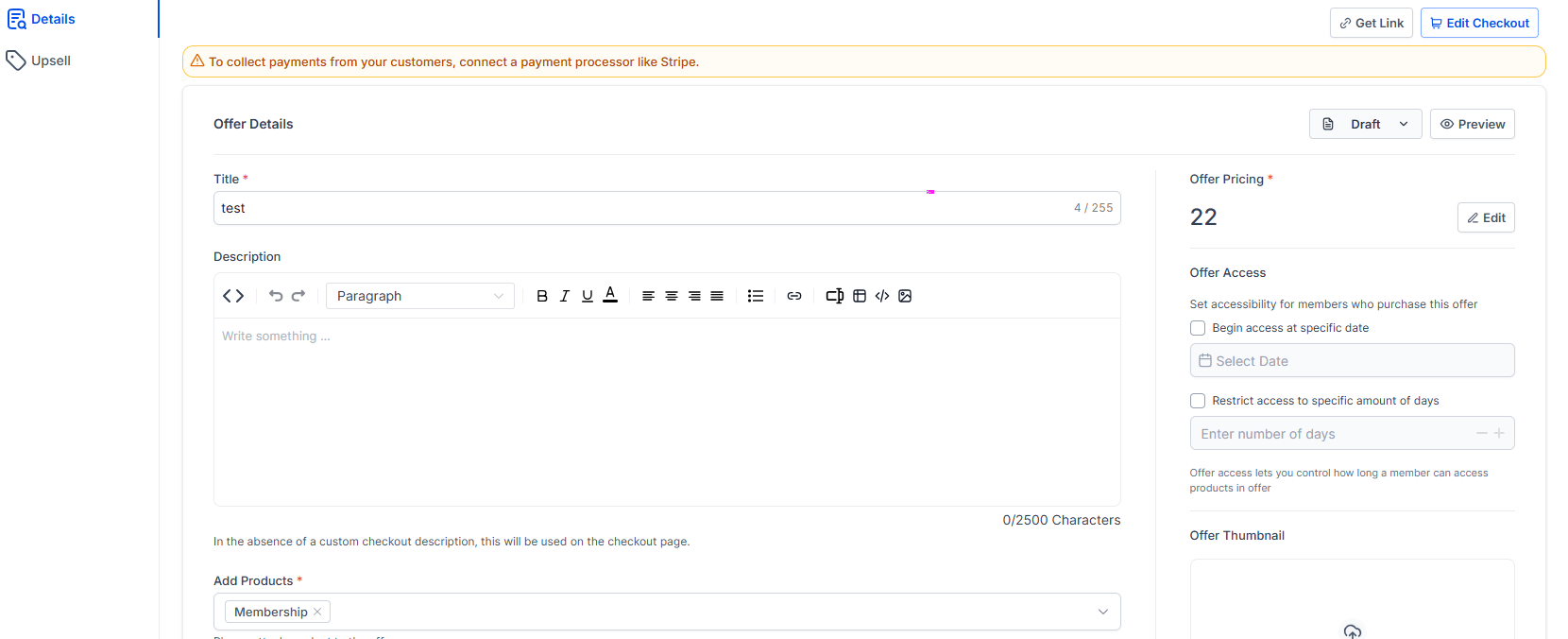
4. Configure offer validity based on time: You can also create offers with limited-time validity. Explore three distinct pathways designed to empower learners:
- Offers with Access Start Date Only:
- Gain exclusive access to offers starting from a specific date, or take advantage of early access opportunities.
- Offers with Access Number of Days Only:
- Benefit from short-term deals available for a specified number of days, providing limited-time accessibility.
- Offers with Both Access Start Date and Number of Days:
- Set both the start date and the number of days you want the offer to be valid.
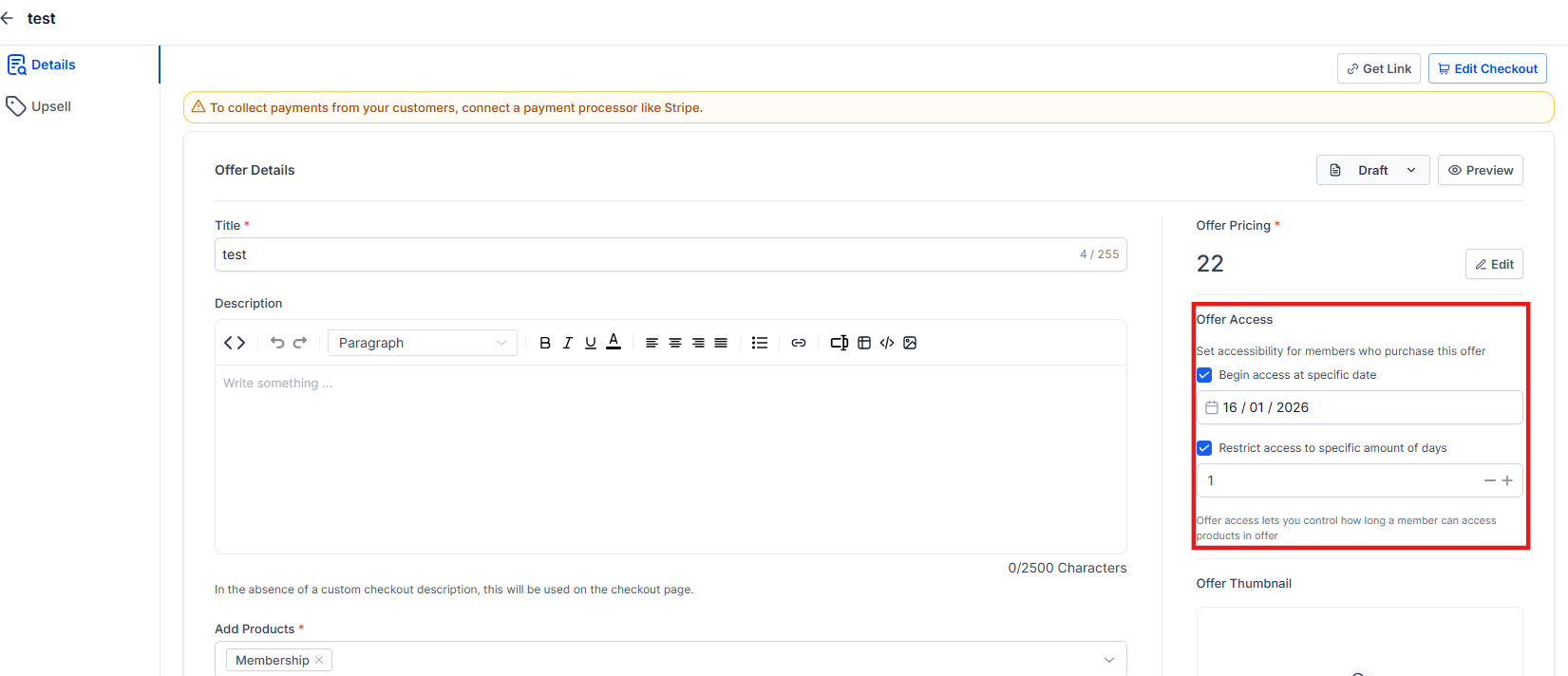
This is particularly useful for coaches who provide access to video materials, courses, and live Zoom sessions. For example, if you have a three-month coaching contract, you can set the system to automatically withdraw access after the contract period ends. Simply enter the start date and specify the duration (e.g., 90 days for three months).
¶ Use Cases for Coaches
This feature ensures access to materials and sessions is automatically managed for coaching programs. You can:
- Set a specific start date for the coaching relationship.
- Restrict access based on the contract duration (e.g., 30, 60, 90 days).
- Automate the withdrawal of access after the specified period, ensuring you don’t have to manually track and manage access expiration.
¶ Use Cases for Launches
This feature is also highly effective for running launches. For instance, if you’re conducting a four-day challenge and want to offer access to replays for a limited time, you can:
- Set a validity period for the replays (e.g., seven days).
- Encourage participants to consume the content within the given timeframe, increasing engagement and completion rates.
- Create urgency by notifying participants that access will expire, prompting them to act quickly.
¶ Custom Values for Personalization
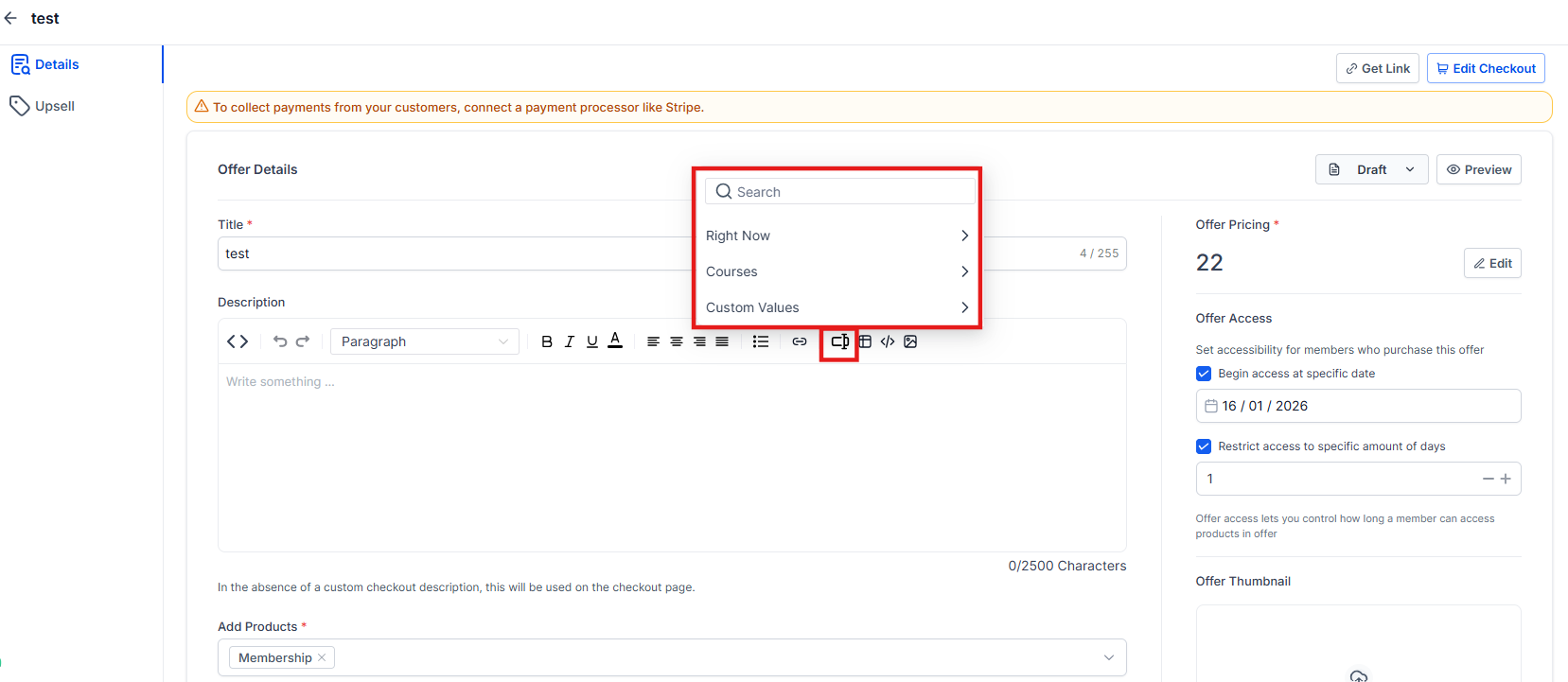
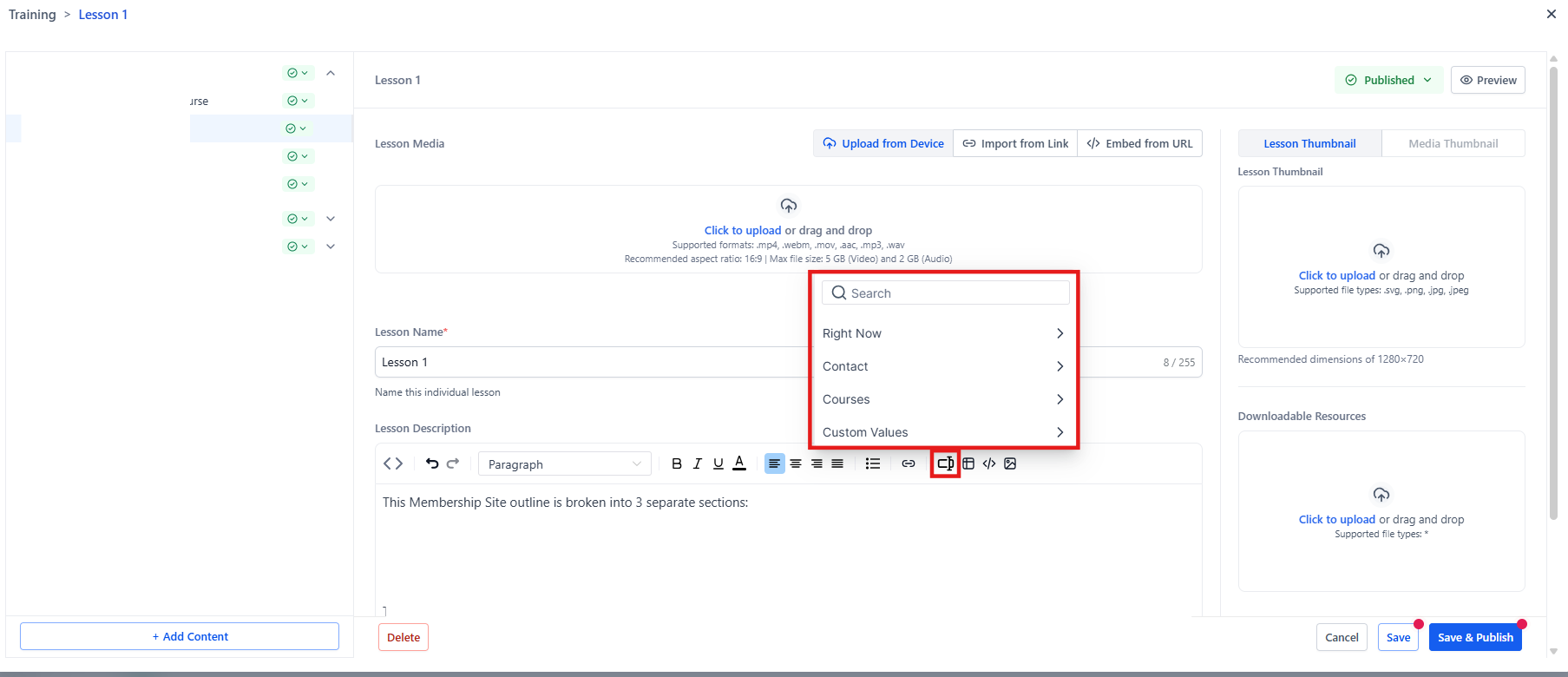
To elevate the student experience, the new validity feature now supports Custom Values that enable deeper personalization of offers, courses, and lessons. These values can be applied across various areas such as post descriptions, offer details, quizzes, and more. There are four types of custom values available for use:
- Contact-specific : Personalize offers and lessons based on individual user information.
- Time-based : Adjust offers or access according to specific timeframes (e.g., countdown timers).
- Course-specific : Customize content based on the course title or category.
- Location-specific : Tailor offers based on the user’s location for targeted promotions.

¶ Managing Access for Existing Members
The system seamlessly integrates the new offer validity period with existing access for members with subscriptions or purchase additional offers. This ensures uninterrupted access based on the most recent purchase, providing a smooth experience for your learners. If a member upgrades or changes to another offer for the same course, the new offer’s validity period takes priority, ensuring members benefit from the most advantageous access terms.
The new validity feature is a powerful tool for enhancing your marketing campaigns and managing course access. By implementing this feature, you can:
- Add urgency to your promotions, encouraging timely actions and increasing sales.
- Automate access management for coaching programs and course launches, saving time and reducing manual effort.
- Provide a seamless experience for your members, ensuring they always have access to the most current and relevant offers.
Utilize this feature in your upcoming promotions, challenges, and launches to see a noticeable boost in your revenue. Start integrating urgency into your marketing strategies today and watch your business grow!
¶ Revoke Individual Course Access
Admins can revoke access to individual courses within an offer without affecting the entire offer. This ensures better flexibility for managing learning permissions while maintaining the integrity of other courses.
How to Use:
- To revoke access, go to the admin panel,
- Select the course within the offer and choose the option to revoke access for users.


The user will lose access to that specific course while retaining access to others in the same offer.
FAQS
Question: How do I set up offer access using the new validity feature?**
****Answer: **
- Navigate to the ‘Memberships’ section.
- Hover over ‘Courses’ and select ‘Offers’ from the drop-down menu.
- Choose the specific offer you want to edit (e.g., ‘Mini Co Magic’ course).
- Configure access by using the ‘Offer Access’ box to set the accessibility parameters for members who purchase the offer.
Question: How does the validity feature benefit coaching programs?**
**Answer: The feature helps manage access automatically for coaching programs by:
- Setting a specific start date for coaching relationships.
- Restricting access based on the contract duration (e.g., 30, 60, 90 days).
- Automatically withdrawing access after the specified period ends, reducing manual tracking efforts.
Question: Can this feature be used for course launches?**
**Answer: Yes, it is effective for launches. For example:
- Set a validity period for replays (e.g., seven days) for a four-day challenge.
- Encourage participants to view content within the given timeframe.
- Create urgency with notifications that access will expire, boosting engagement and prompt actions.
Question: How does the validity feature integrate with existing member access?
Answer: The system integrates seamlessly with existing access for members with subscriptions or additional offers. If a member upgrades or switches offers, the new offer’s validity period takes precedence, ensuring uninterrupted access based on the latest purchase.
Question: What are the benefits of using this feature for marketing campaigns?**
****Answer: **
- Adds urgency to promotions, prompting timely actions and boosting sales.
- Automates access management, saving time and reducing manual effort.
- Provides a smooth experience for members with seamless access to the most current offers.
Question: How can I start using this feature to enhance my business? Begin by integrating the validity feature into your upcoming promotions, challenges, and launches. This will help create urgency, streamline access management, and potentially increase your revenue.
Question: How can I apply Custom Values to my offers and courses?**
**Answer: Custom Values can be applied across various areas, including post descriptions, offer details, quizzes, and other course-related content. This allows you to tailor your content to each user dynamically.
Question: How does using Custom Values impact conversions and engagement?**
**Answer: By offering personalized content that directly resonates with each learner’s preferences, Custom Values improve engagement, making the learning experience more relevant. This, in turn, can lead to higher conversions as students feel more connected to the material and your offers.
Question: Can I revoke access to a single course without affecting the entire offer?
Answer: Yes, admins can revoke access to individual courses within an offer without impacting the rest of the courses in the same offer.
Question: What happens if I don’t set a time validity for an offer?
Answer: If no time validity is set for an offer, it will remain available indefinitely or until manually changed. Adding time validity helps create urgency and can be used strategically to encourage users to engage with the offer within a specific timeframe.
Question: Can I still manually manage user access if needed?
Answer: Yes. While access can be automated, admins still have full control to manually revoke or extend access if exceptions are needed.
Question: What happens when the validity period expires?
Answer: When the period ends, access is removed automatically. Users lose the ability to view course content, lessons, and materials unless access is manually extended or they purchase a new offer.
Question: How does this feature support marketing strategies?
Answer: By creating urgency and time-bound offers, it encourages members to act promptly, boosting conversions and engagement.
Question: Can I “Pause” a student’s access duration?
Answer: There isn’t a native “Pause” button, but you can simulate this by manually extending their access expiration date by the number of days they were away.