How to Create a Certificate For Your Membership Course
Membership certificates are a great way to acknowledge user accomplishments for courses. You can also create a certificate for all your users who complete the course.
The editor we’ve introduced empowers users to customize templates with ease:
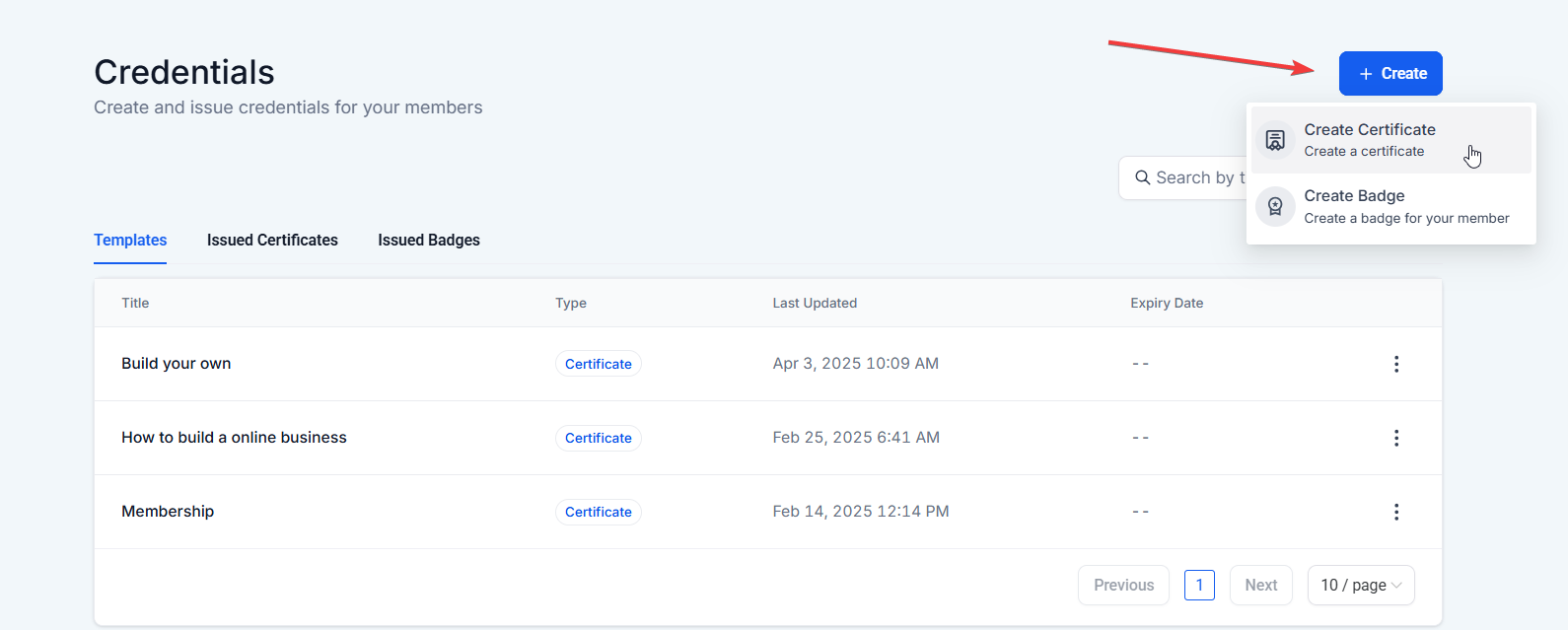 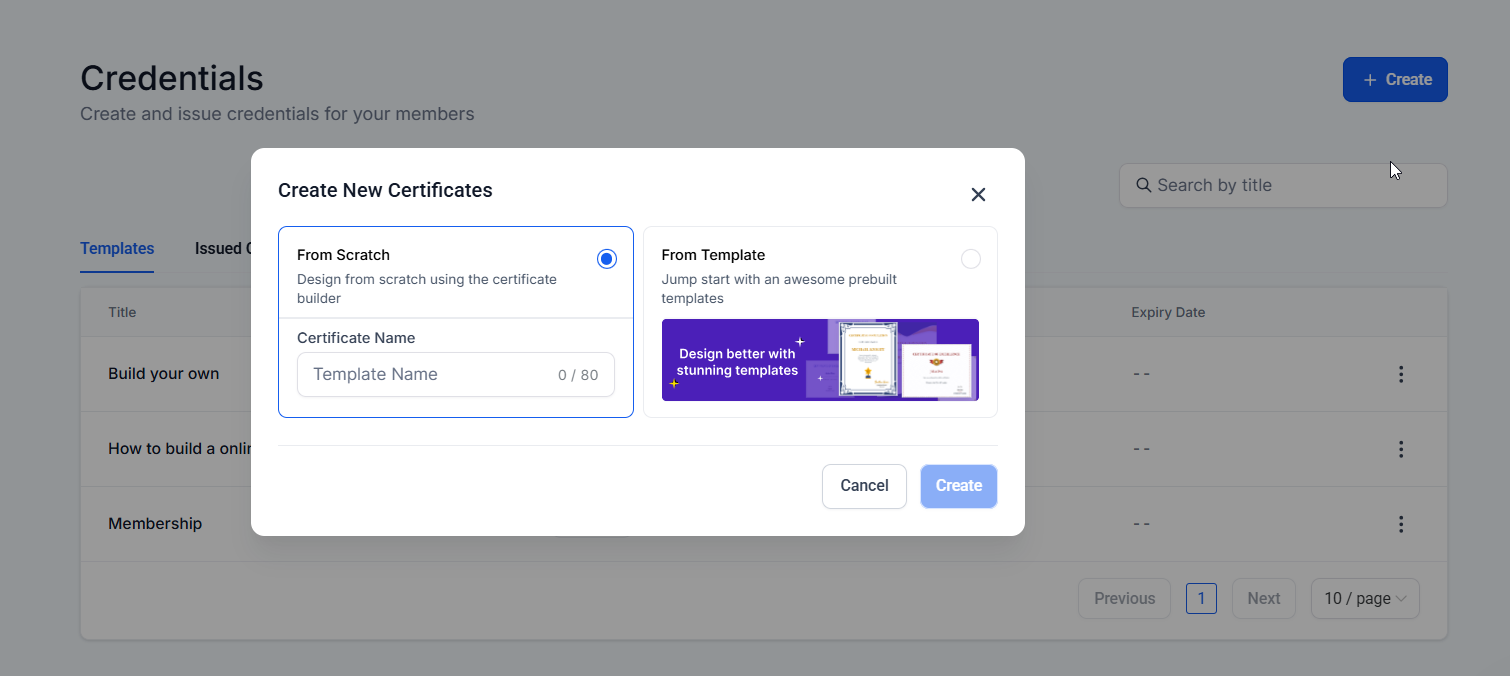
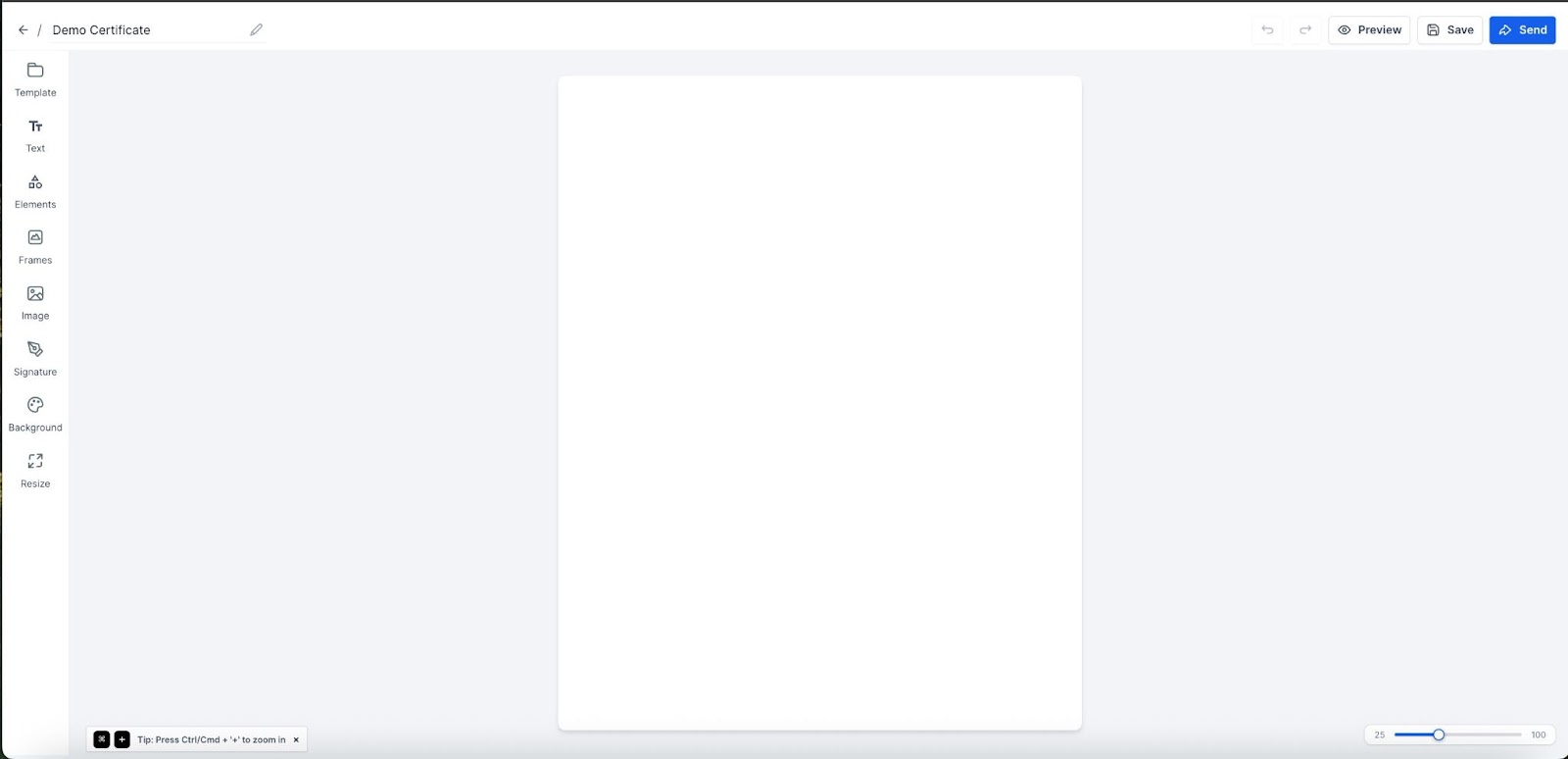
Template:
Layout:
Background:
Header
Text
Image
Frames
Signatures
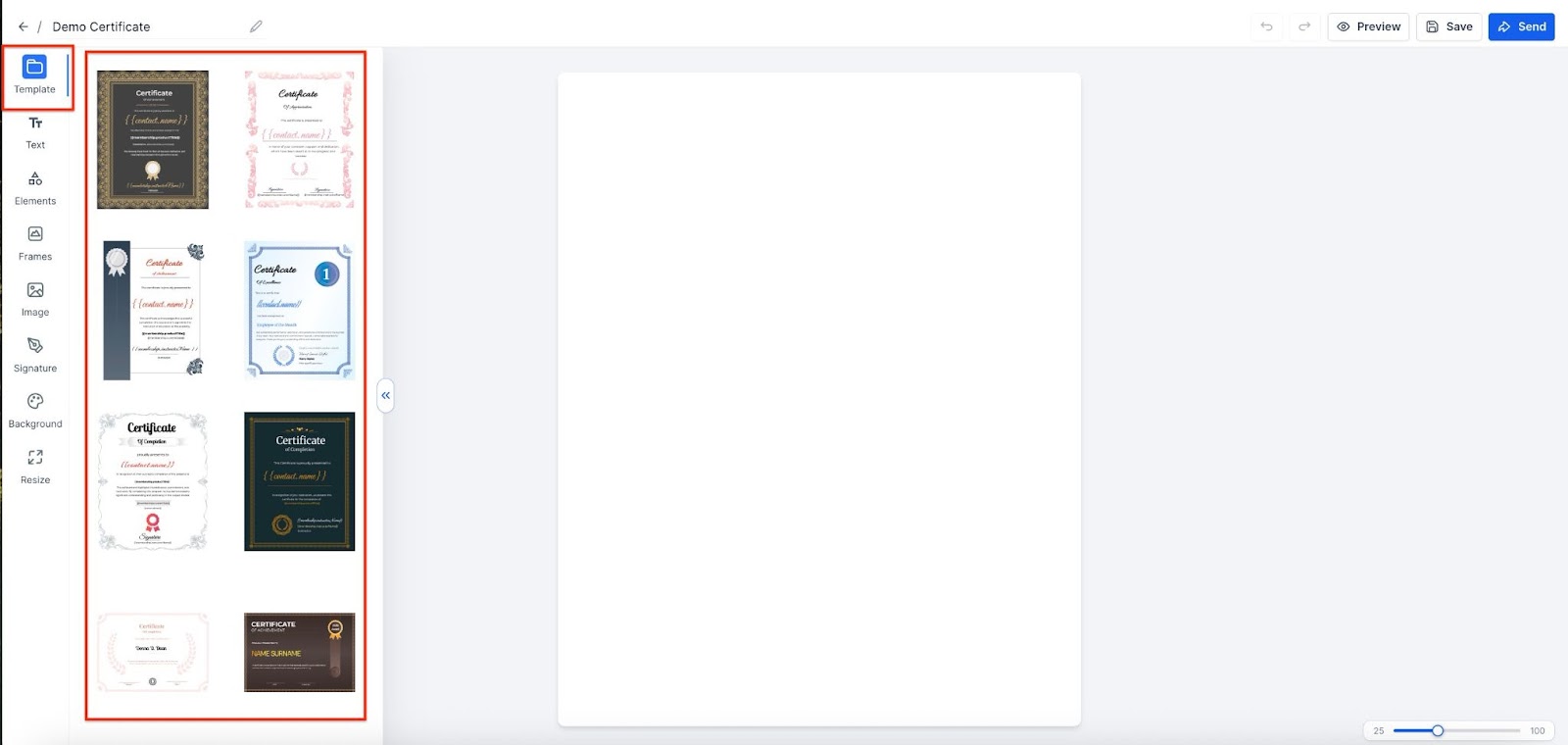
You also have the option to use our premade template certificates.
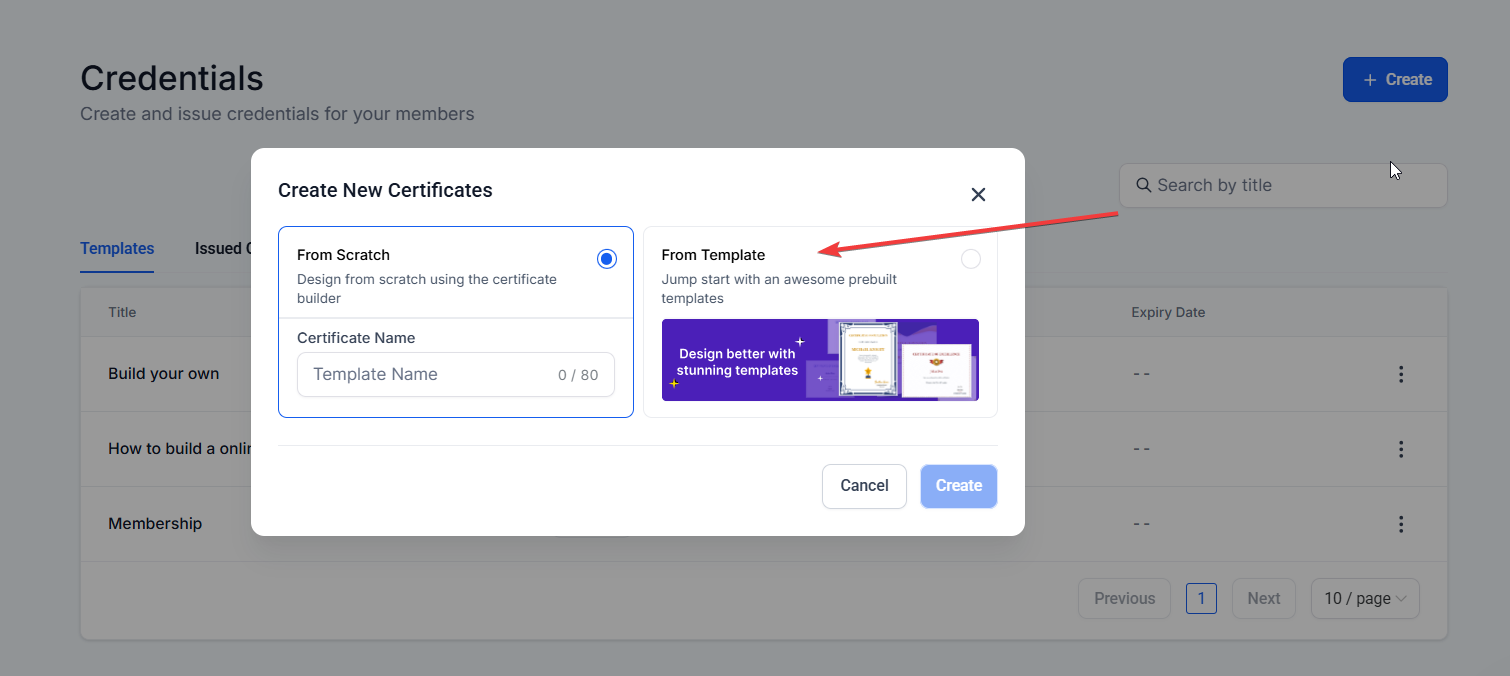 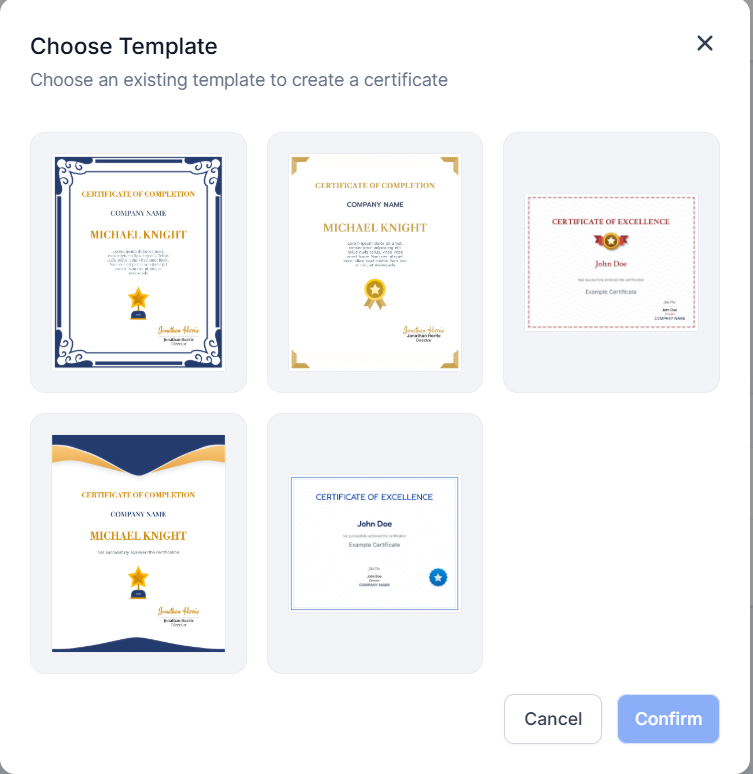
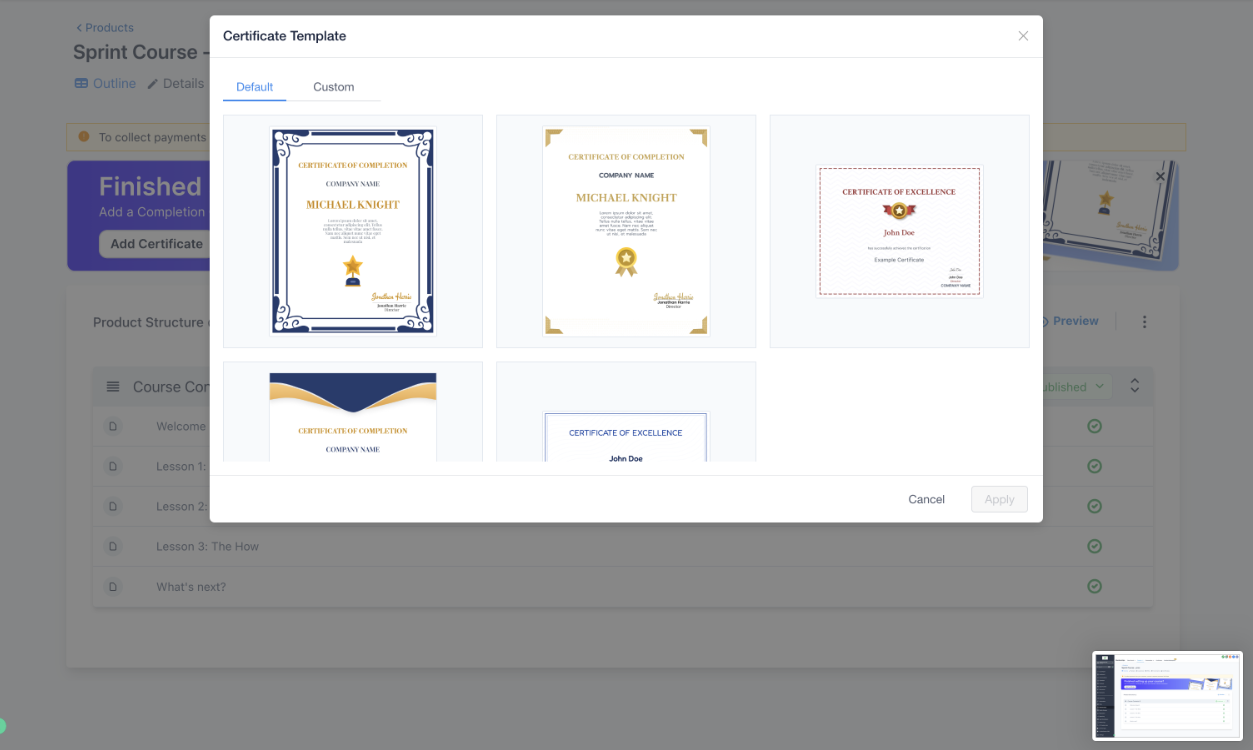 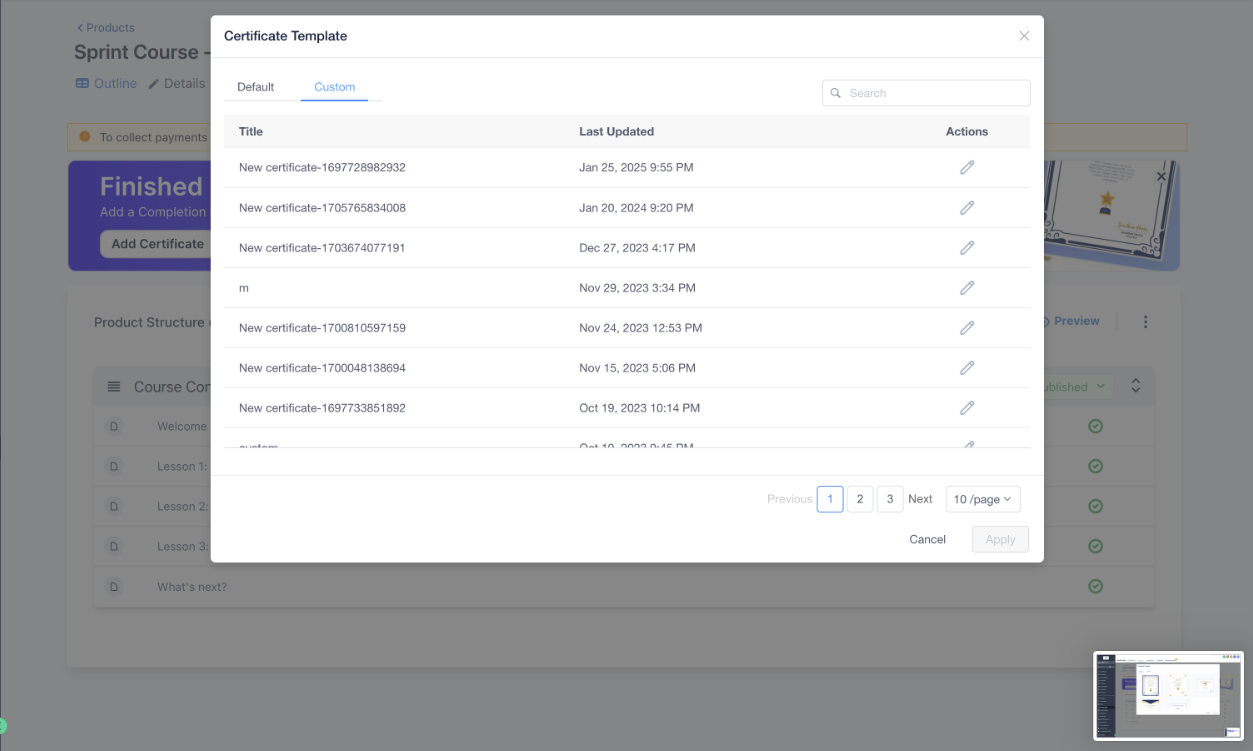
Note:You can also select a template within the certificate builder when you create a new certificate _
_
Default Certificates:
Whenever you create a new course, a default course completion certificate is automatically included, making the setup process smoother and ensuring that every course has the option to award a credential.
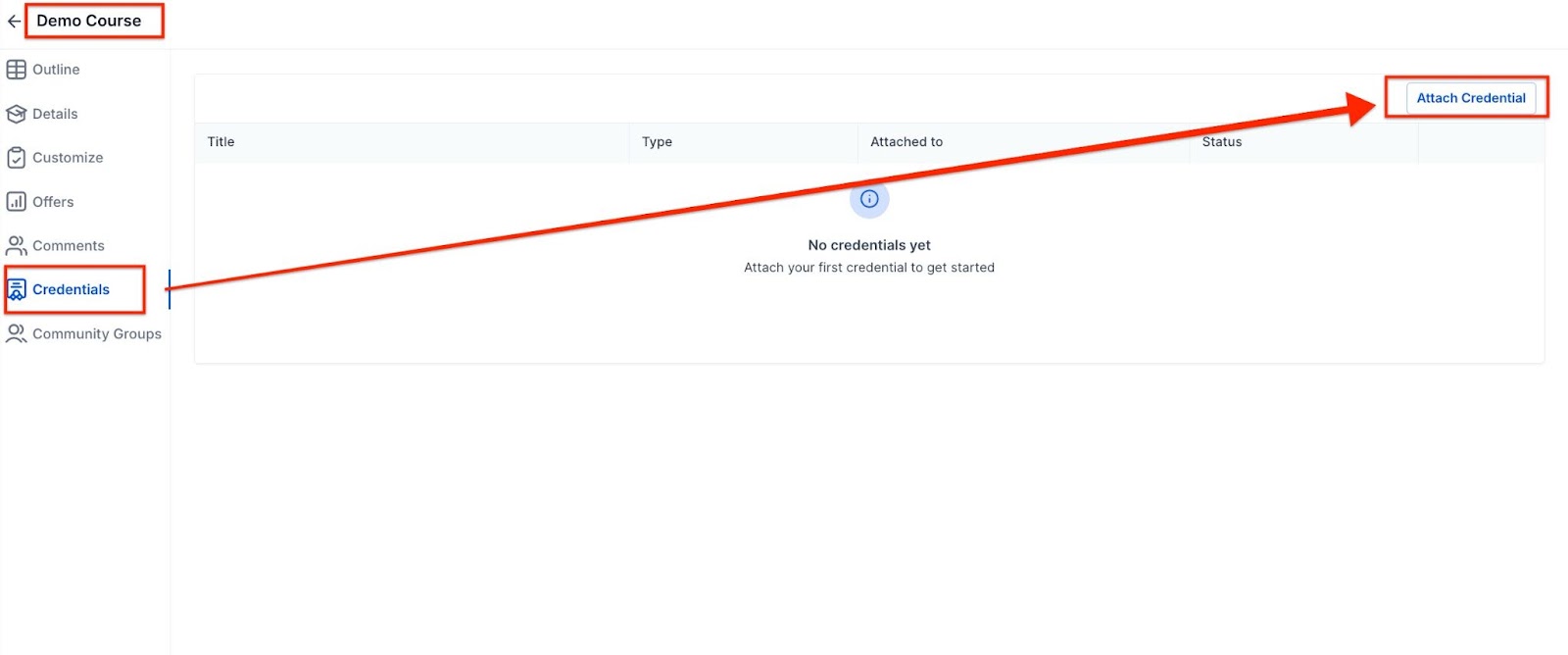
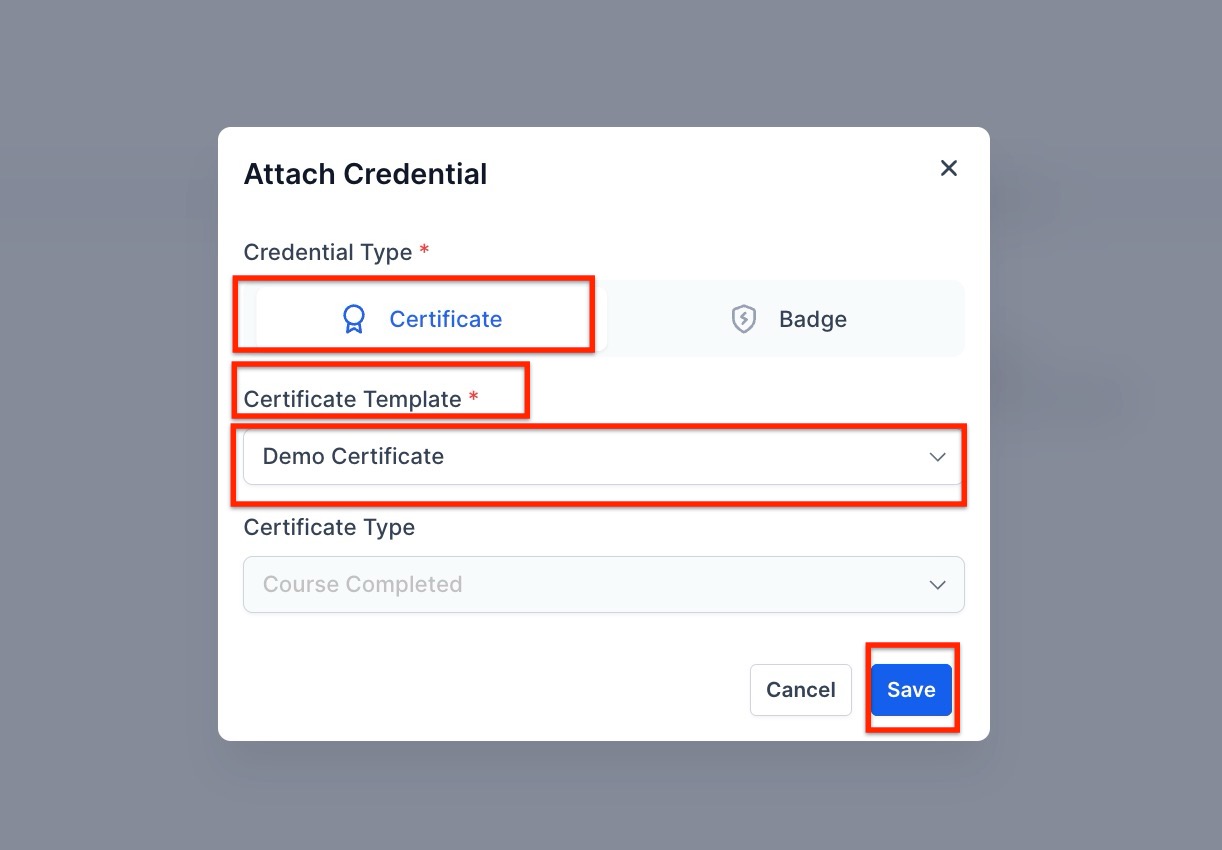
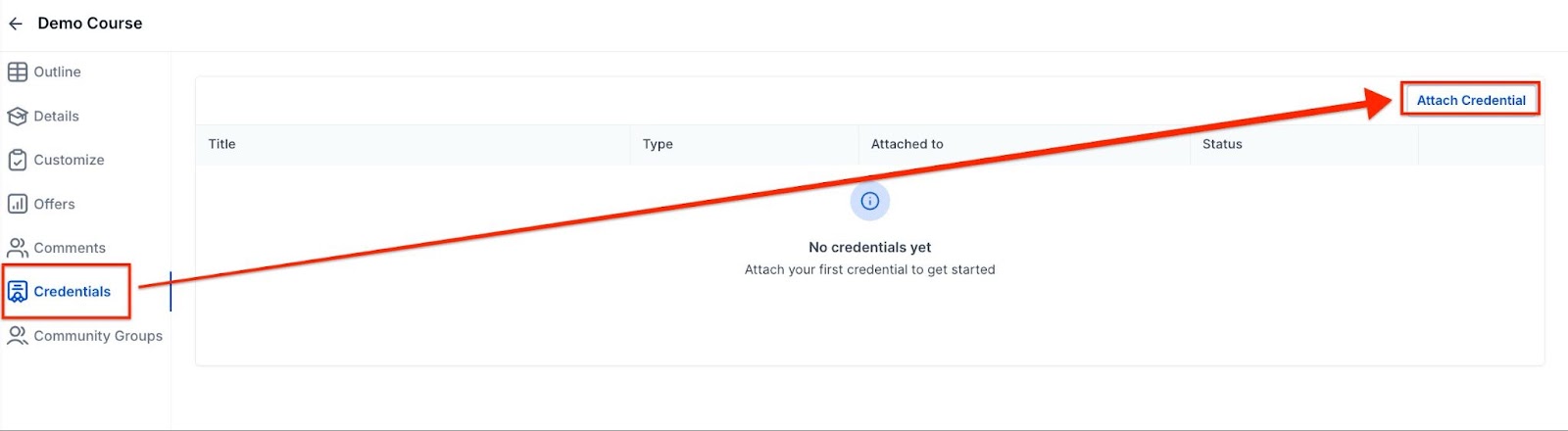
For existing courses, you’ll have the option prompting you to easily add a completion certificate if needed. If you don’t want the default certificate, you can choose to delete it or save it as a draft. You will see the option to add a Certificate to a course in the Credentials section when you open the course in Memberships > Courses > Products.
Attach Certificates to Categories:
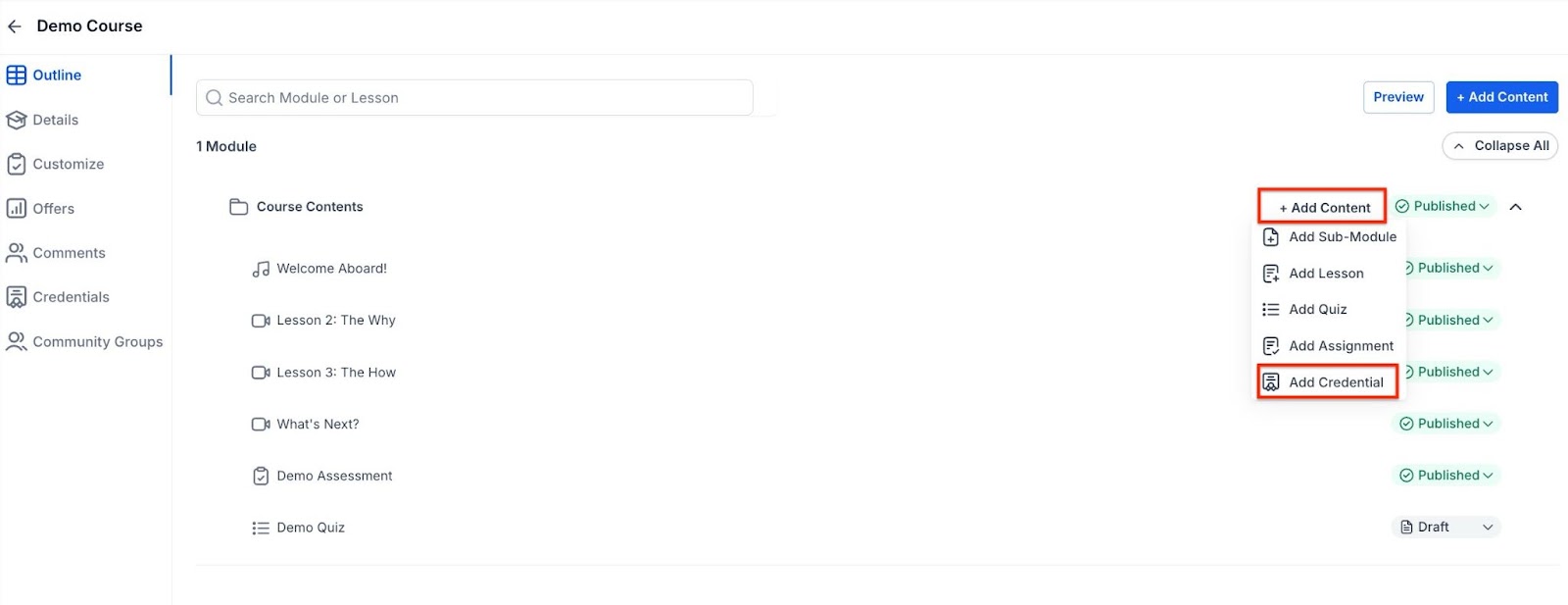
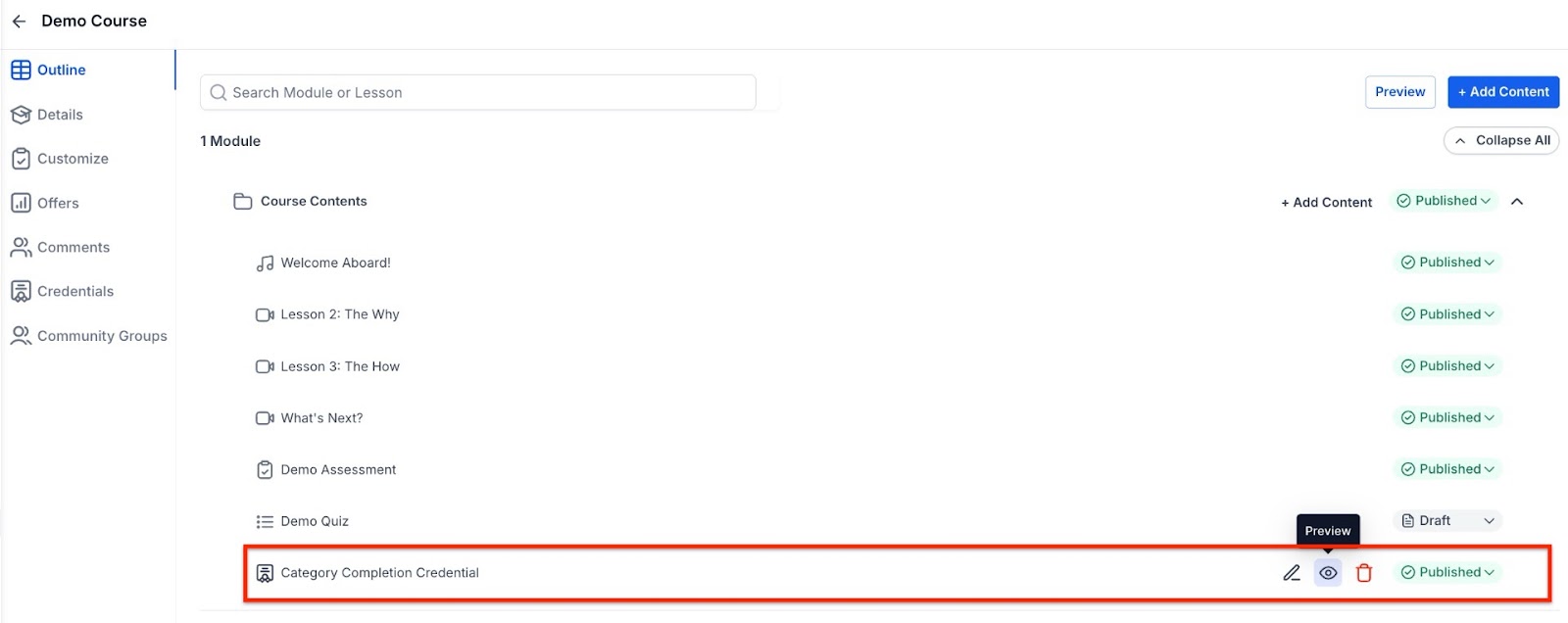
You can link a certificate to an entire category, recognizing progress within a course. You can do that by clicking on the ‘Add Content’ and then ‘Add Category’ button.
Manually attach a certificate
Go to Courses and select the Product you want to share the certificate > Click on Credentials
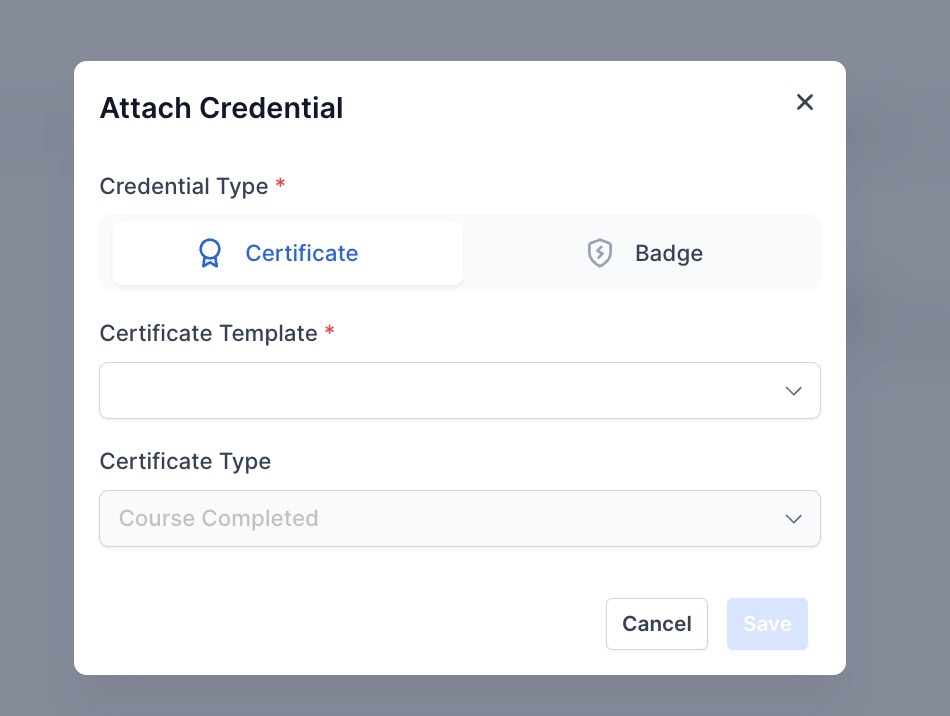
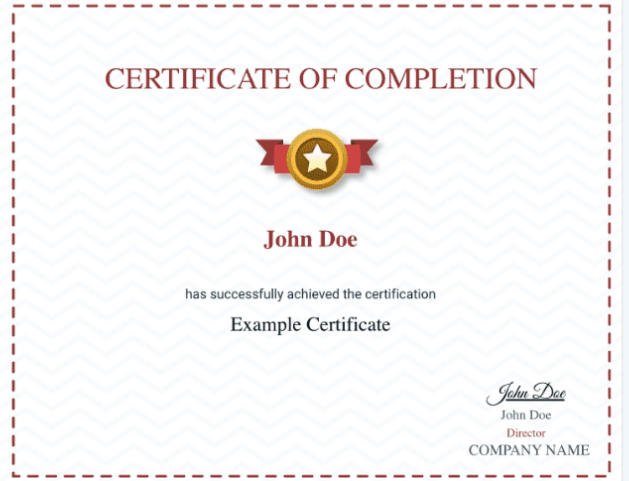
Note: Only one certificate can be attached for course completion at one point in time. To add a new template, edit and choose a new template, or delete the attached template and add a new one
Note: The Certificate will be downloaded in the exact format as it was generated
1. Setting Expiry: Admins can set expiry dates when creating or issuing certificates in the certificate builder.
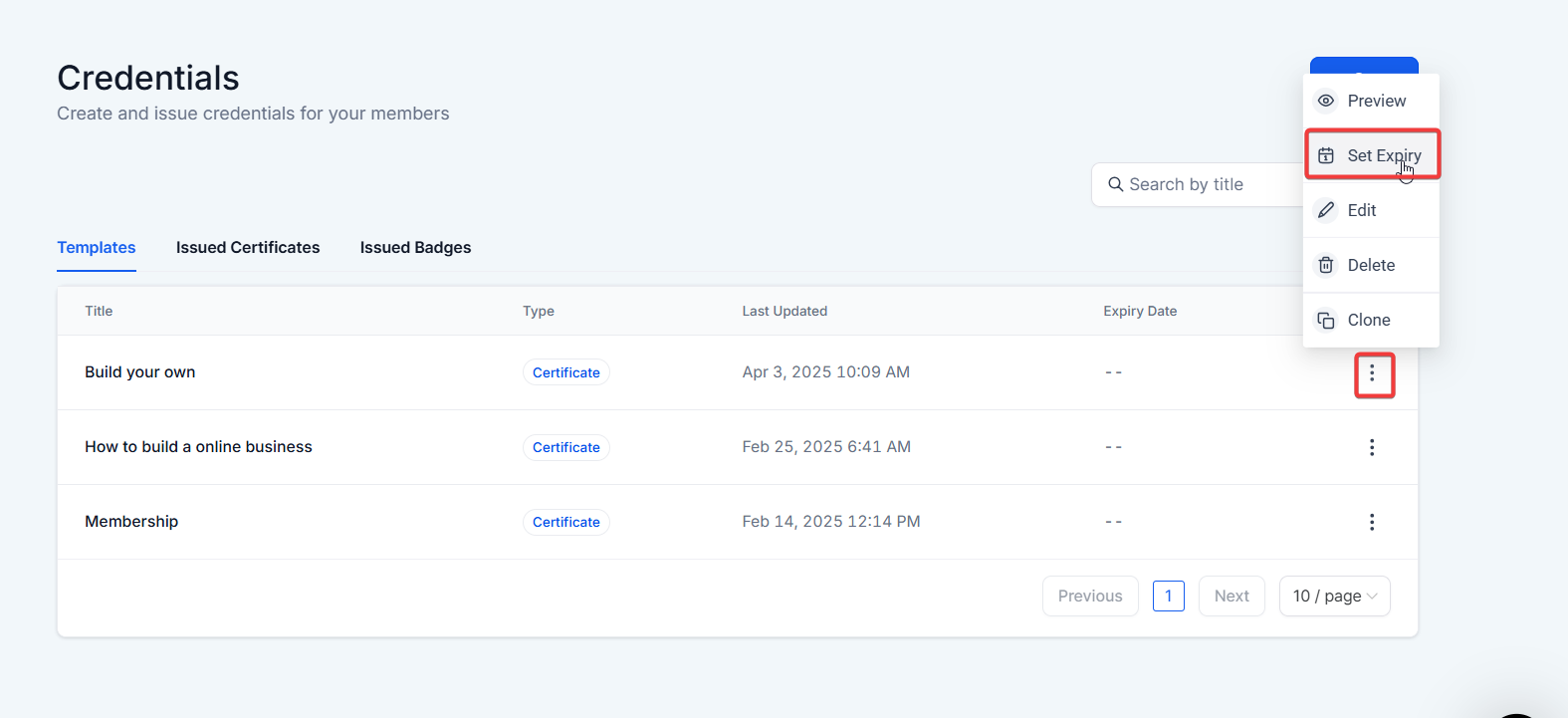
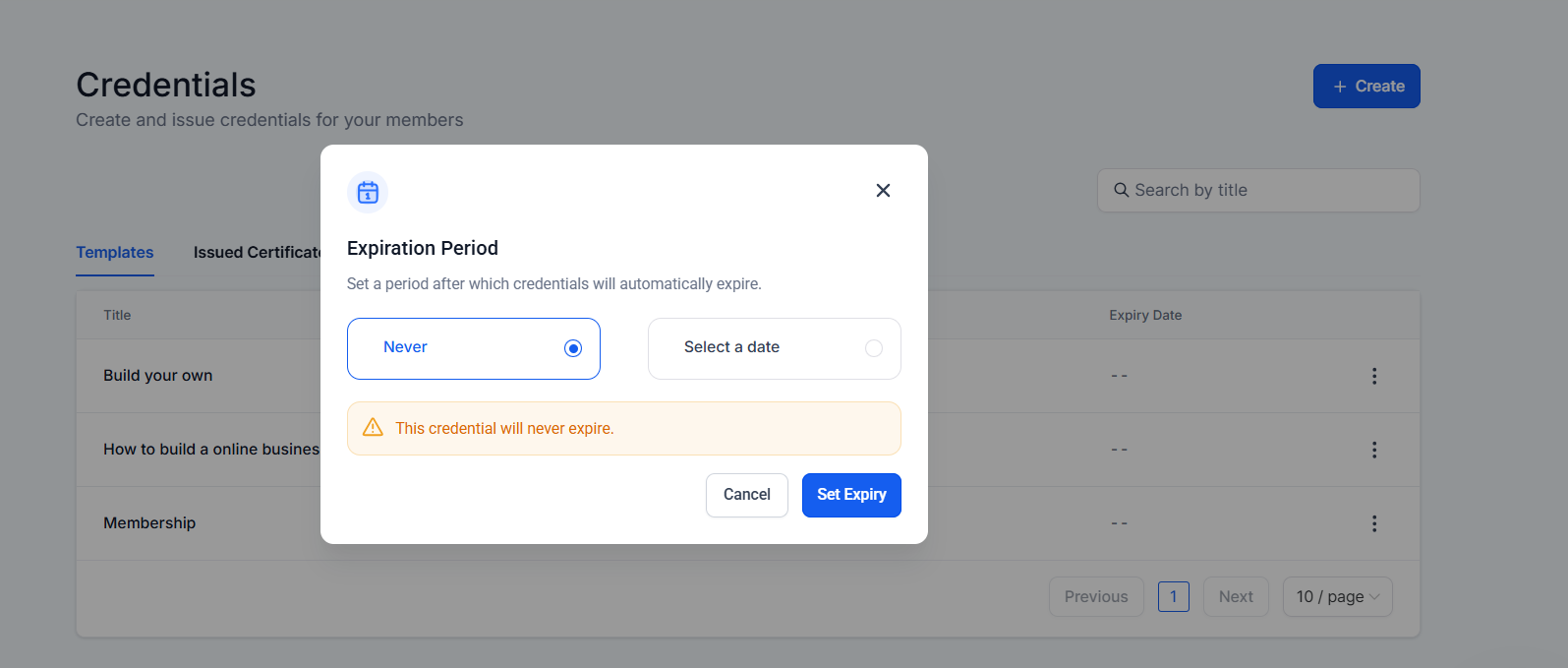
2. Receiving Reminders: Users will receive reminder emails 2 and 7 days before their certificates expire by default.
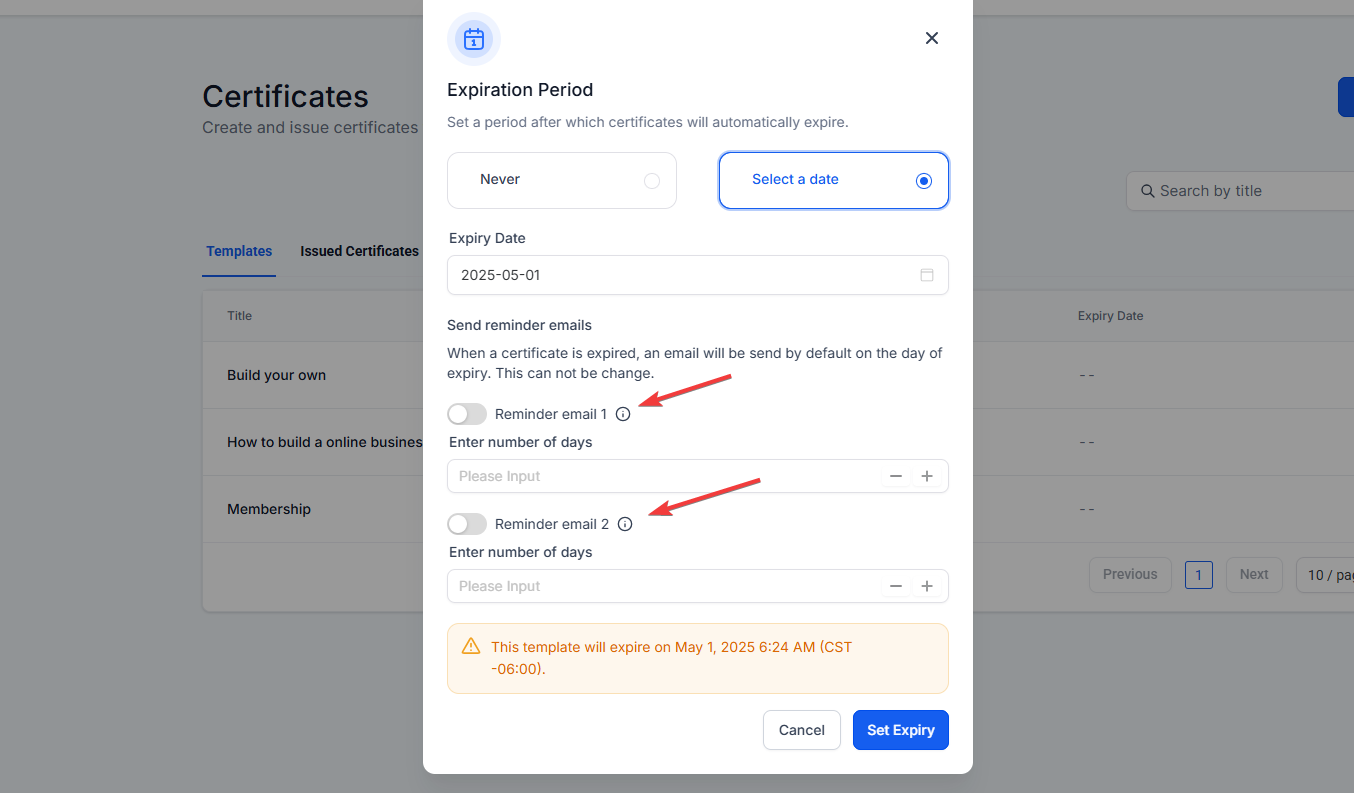
Note: Issued certificates will take precedence over template-level expiry settings.
3. You can also make changes to individual certificates under the Issued Certificates tab for custom-level modifications.
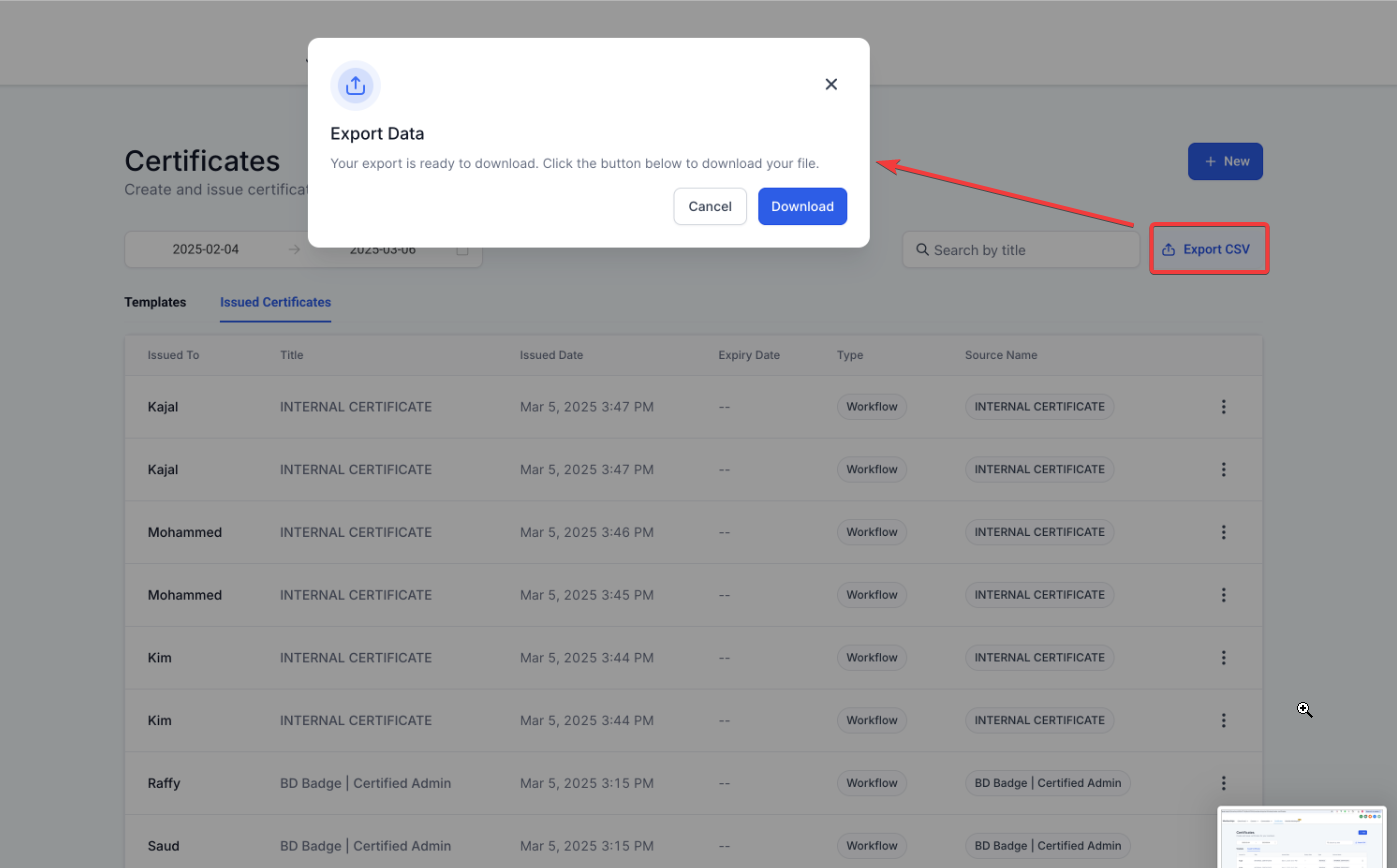
Export issued certificates data as a CSV file. Navigate to the Issued Certificates section, select the date range, click on “Export CSV,” and then download the CSV file containing all relevant certificate details. For exports with more than 500 certificates, you will receive an email with a download link.
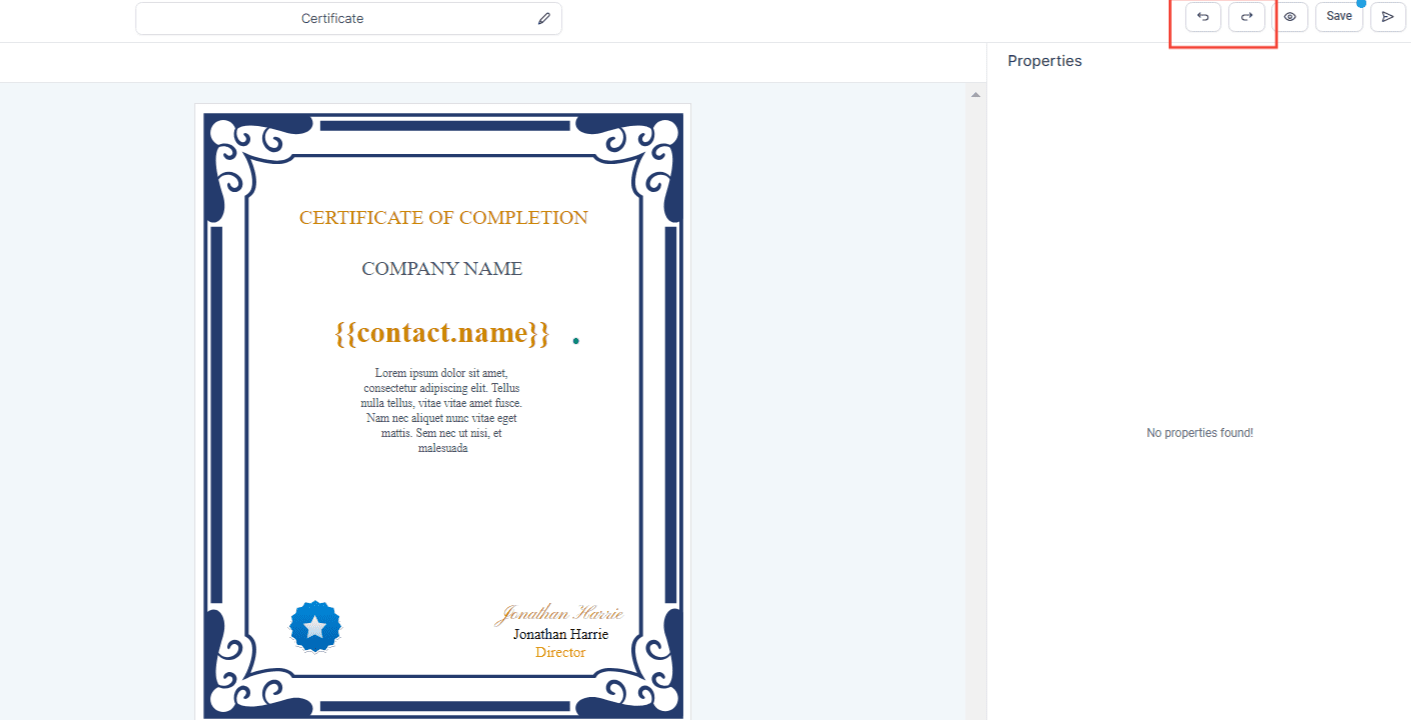
Using Custom Fields in Certificates:
You can use custom fields in the certificate to populate various values. For example, if you want to include the name of the client to whom you’re issuing the certificate or the name of the membership, you can use custom fields to add this information.
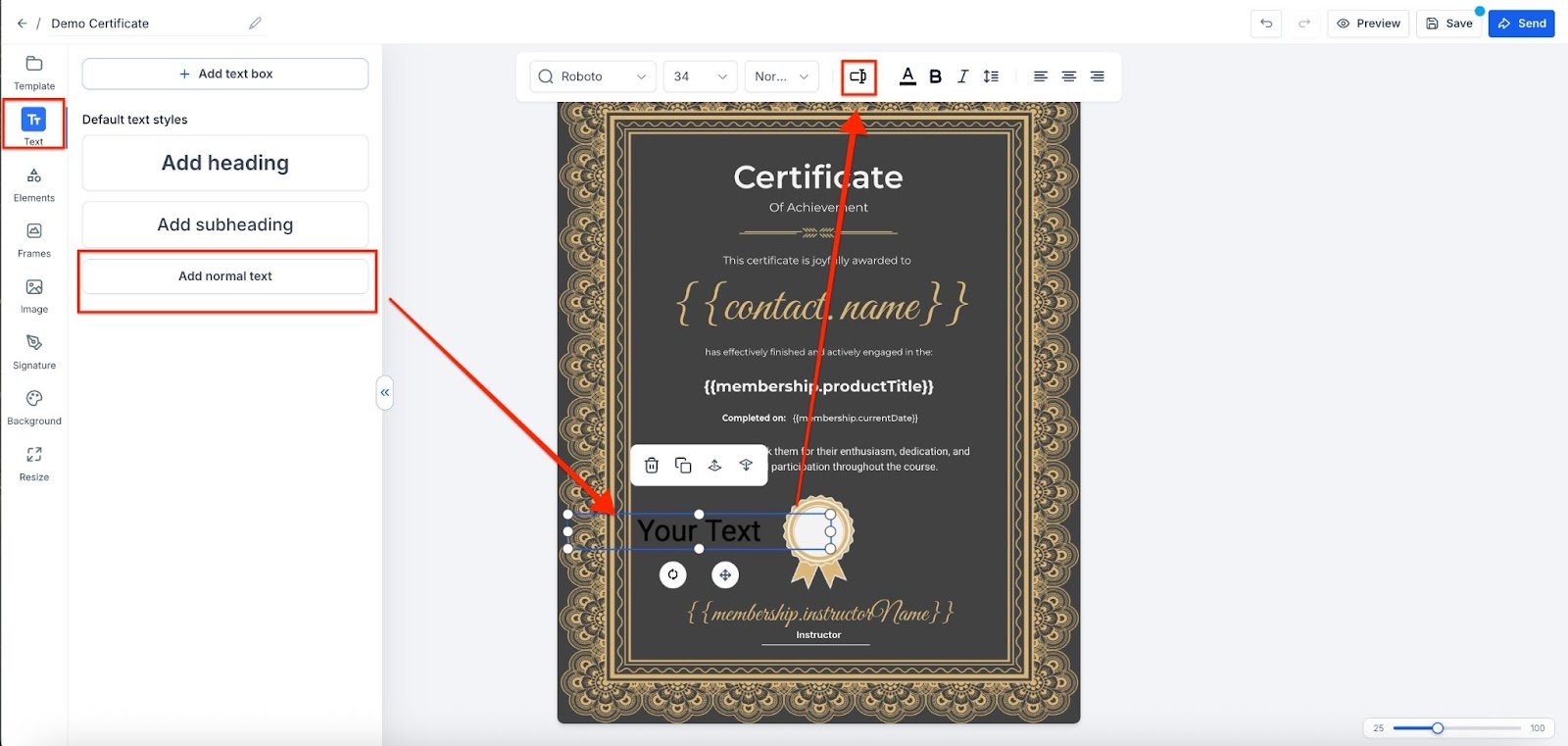
To add a custom field:
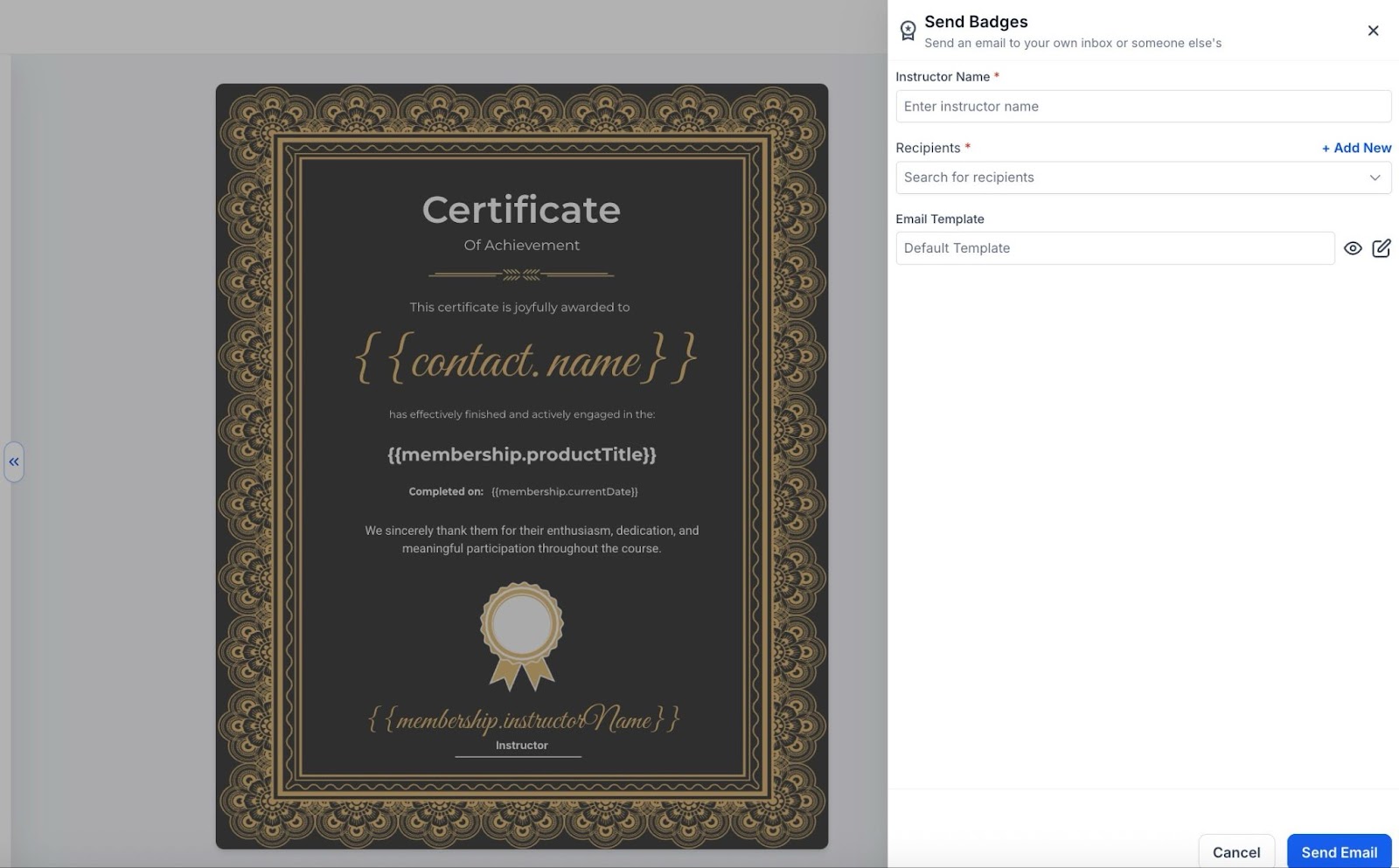
How to send manual/offline certificates
Pagination & Filters
Choose Email Templates for Manual Certificates
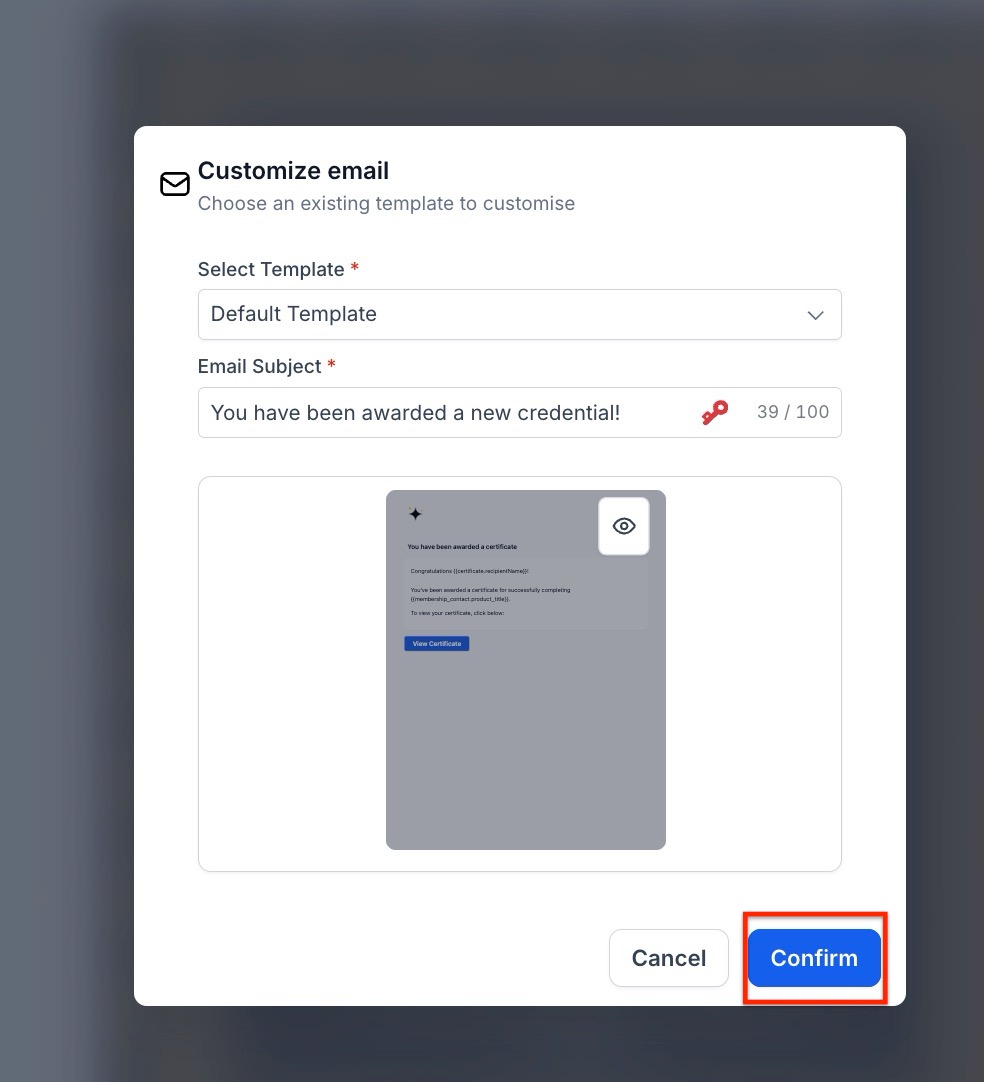
You can select custom email templates when sending manual certificates, offering more control over personalization. You can also customize the subject line. If no template is chosen, the default template will be used.
How to Use:
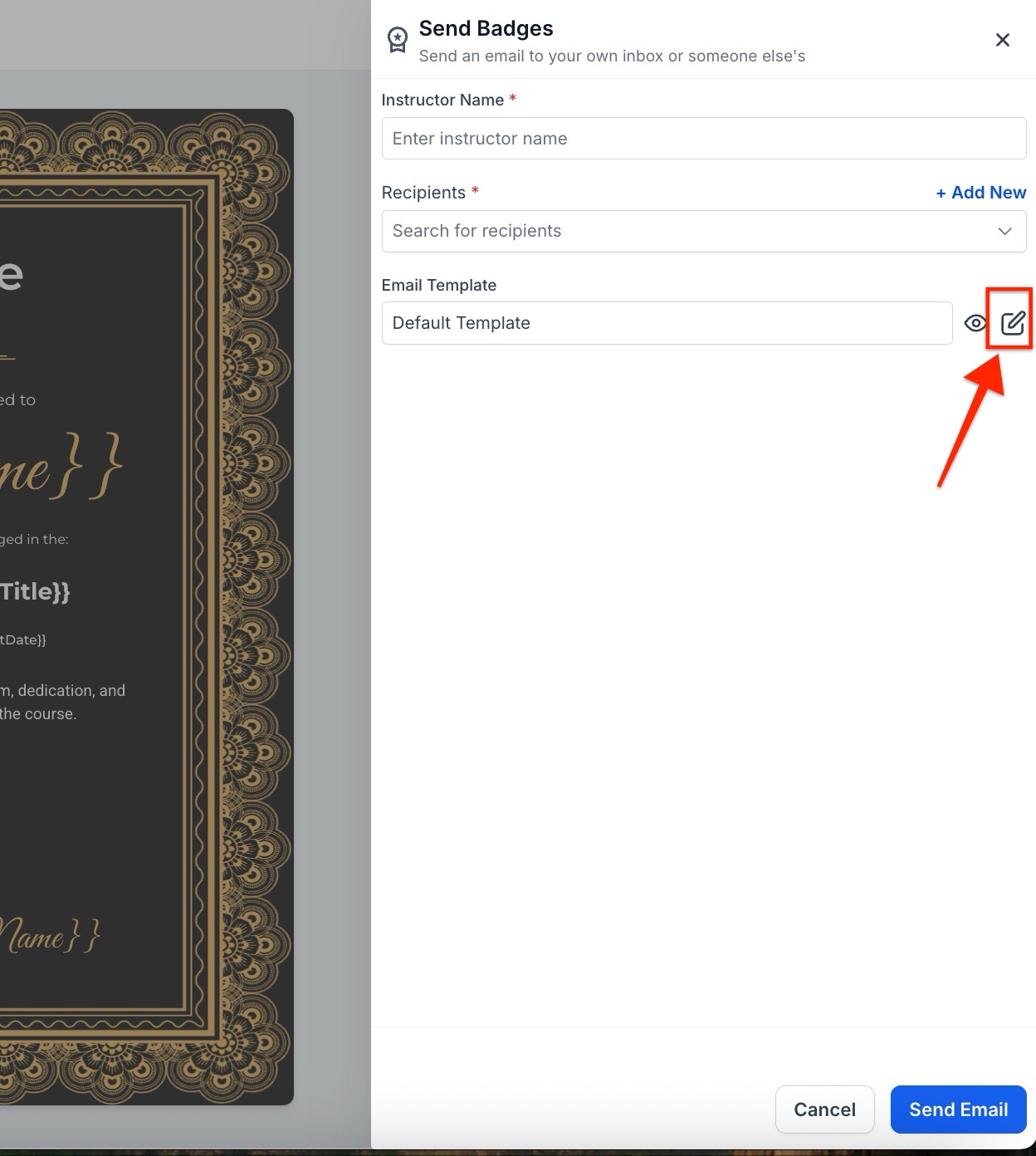 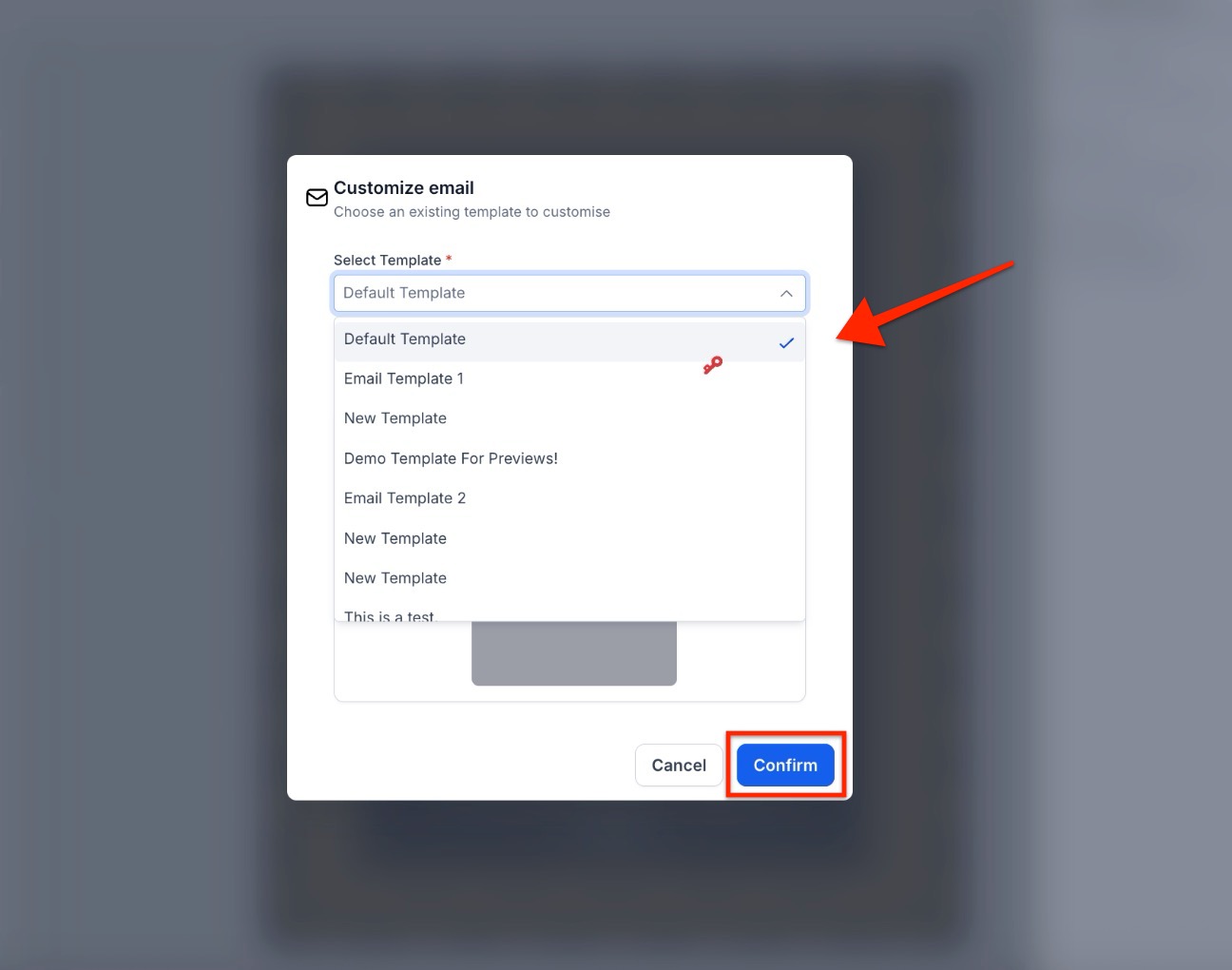
Customize the subject line if needed.
Permissions:
To grant a specific user access to the certificates, the certificate permission must be enabled in their user profile under the permissions section.
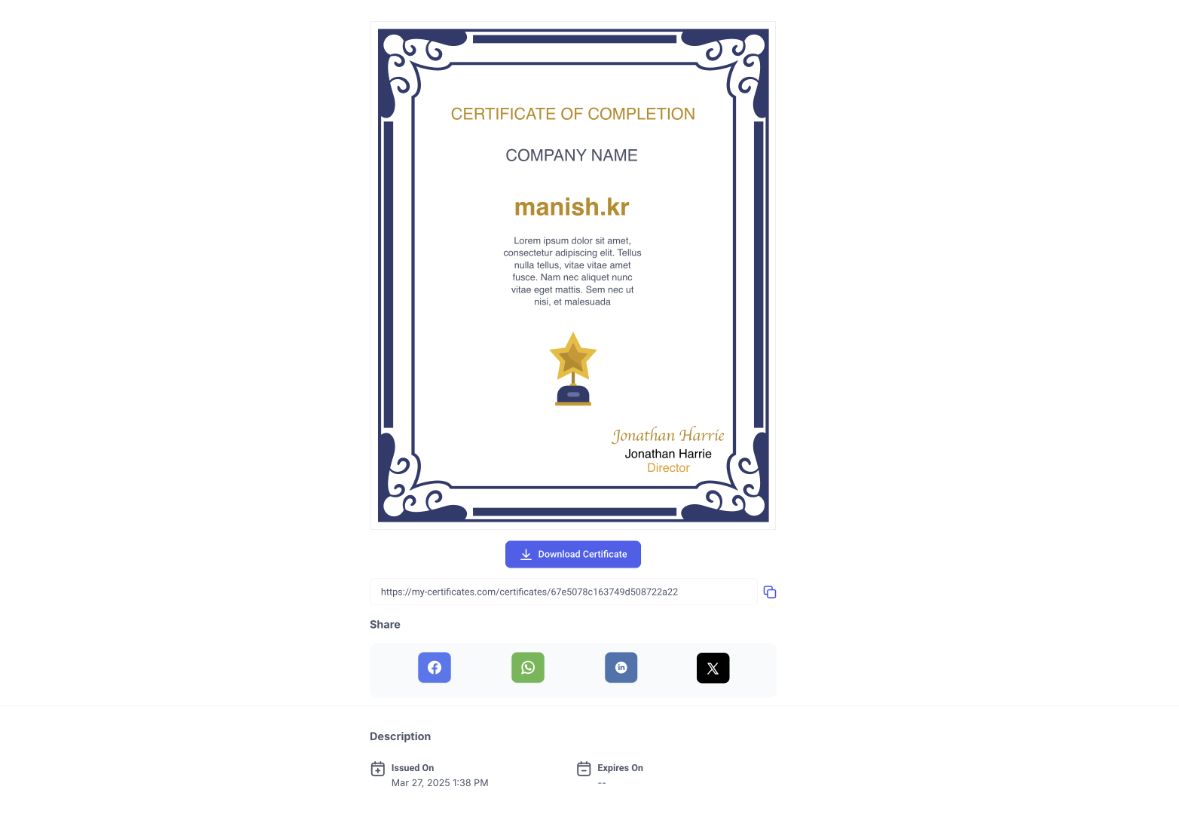
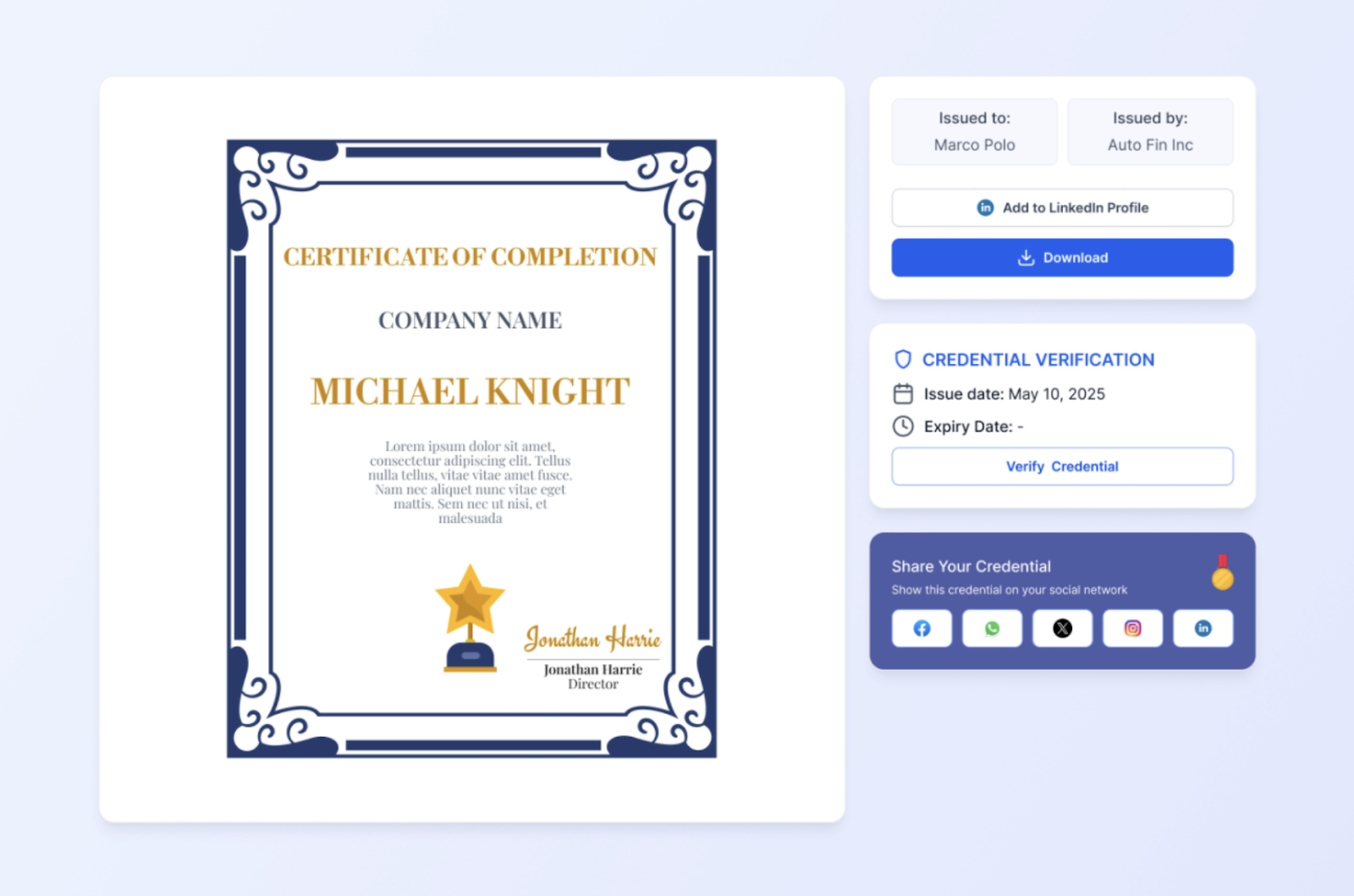
Preview Page offers a polished, professional-grade layout to display certificates and badges, enhancing credibility and trust. Users can easily download, share, or validate credentials, as well as integrate with LinkedIn for seamless career advancement.
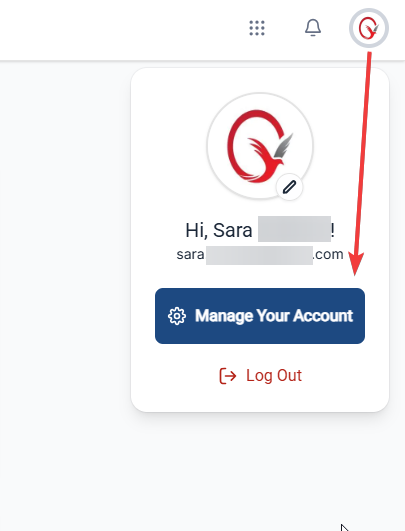
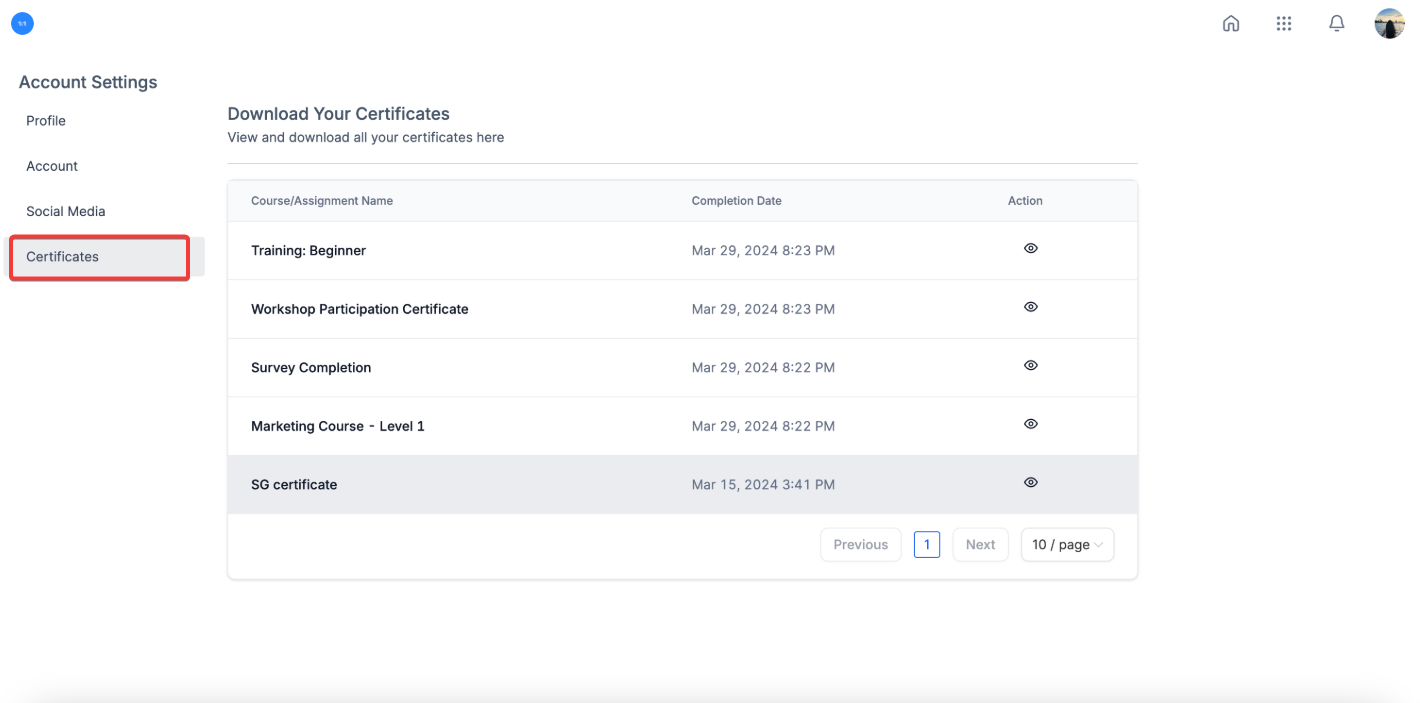
Download certificates from the Client Portal:
Clients can also download their certificates in the client portal. To access the client portal, clients should:
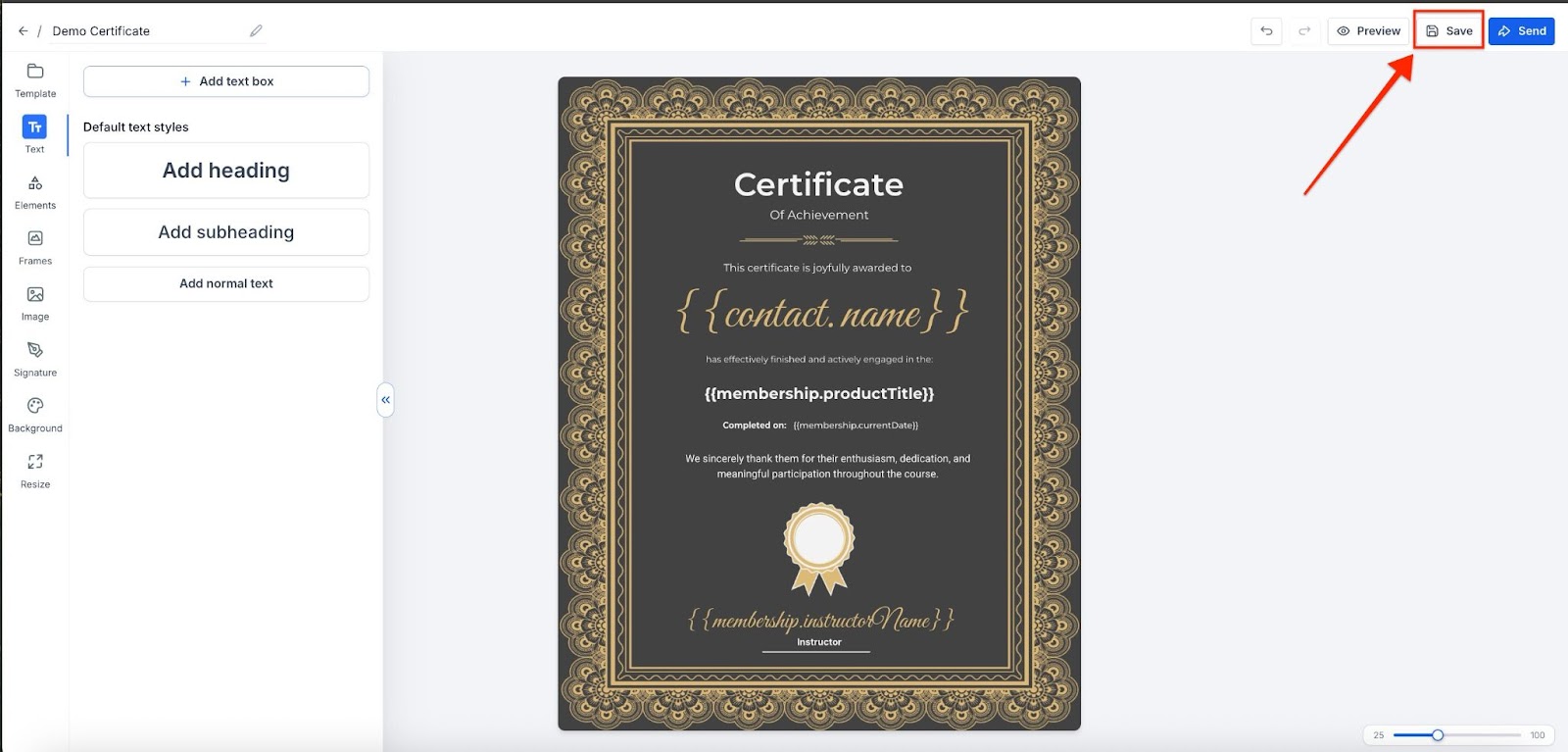
Once you have finished editing the certificate, you can send yourself a test email to see how it looks. To do this, click on the send offline certificate icon in the top right. The recipient email must be a contact in your account otherwise the system isn’t able to pull the details and there will be a blank spot.
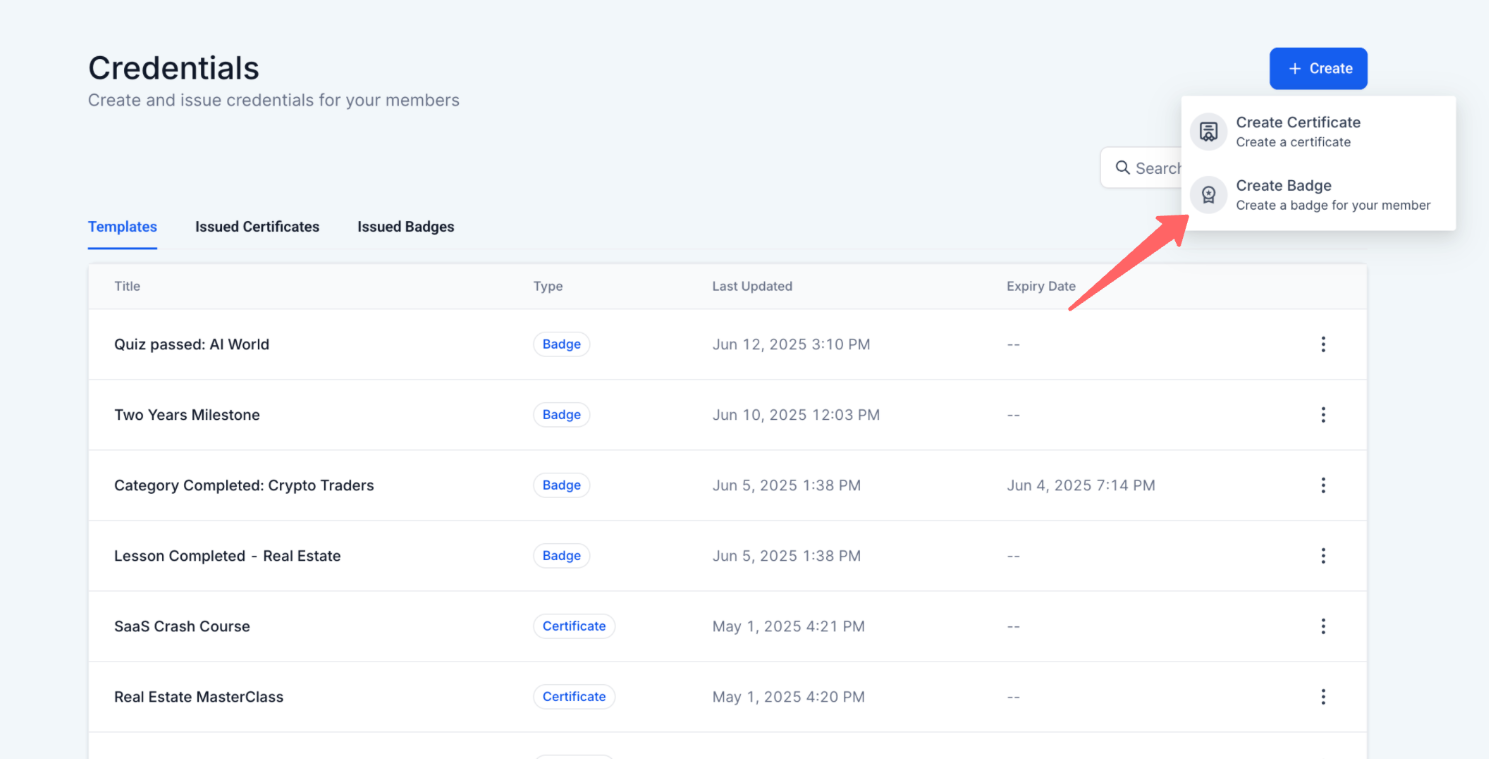
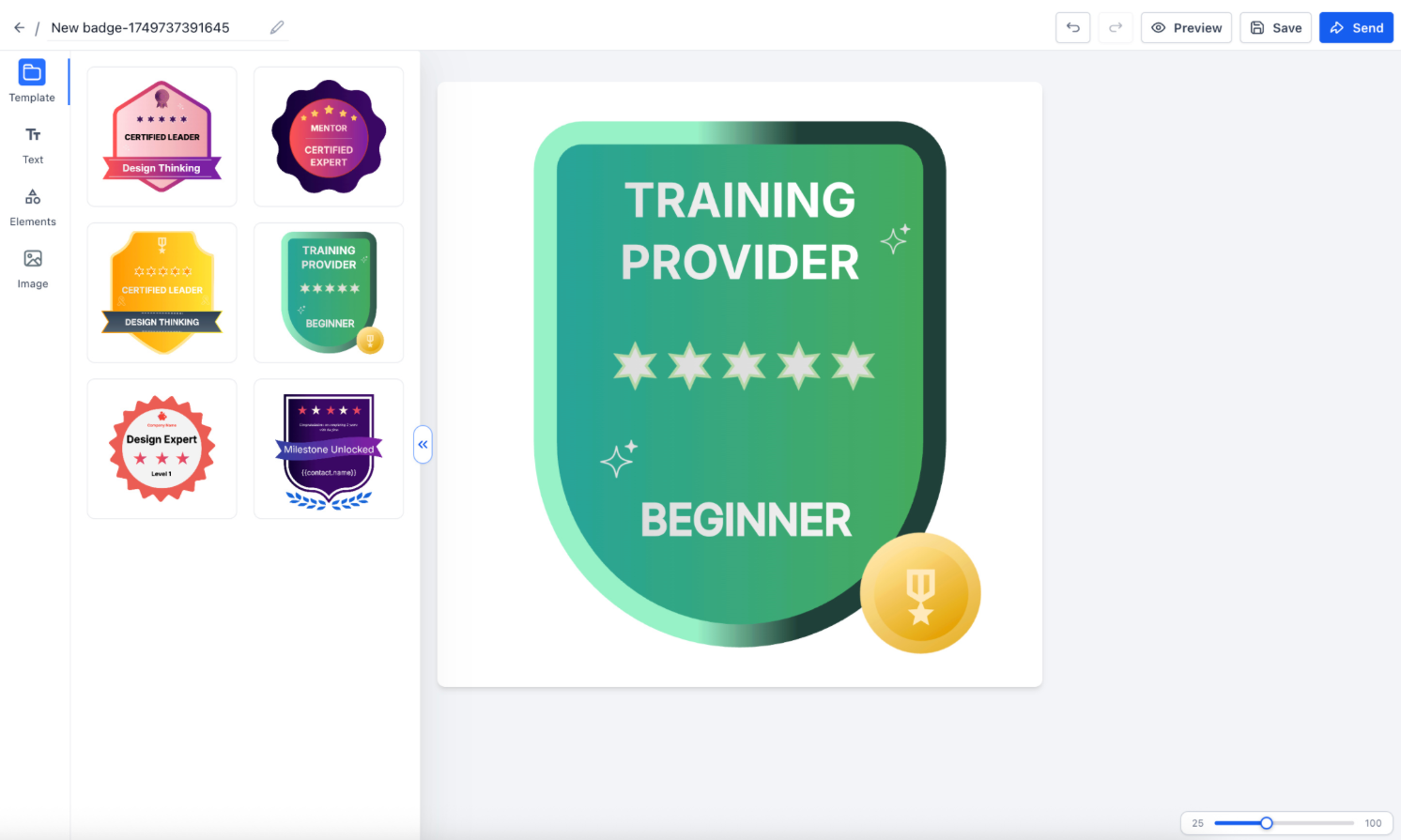
Badges in Certificate Builder provide a dynamic and visually appealing way to recognize achievements within your community. They can be used to celebrate milestones such as skill mastery or lesson completions. You can create custom badges from scratch or use templates, adjusting details like backgrounds, icons, and text. Access the builder, design your badge, and either download it as a PNG or share it directly on social media.
Frequently Asked Questions (FAQ)
Question: Can I use custom fields in certificates to personalize them?**
**Answer: Yes, you can use custom fields in certificates to personalize details such as the recipient’s name or membership information. Simply drag a text box to the certificate, click on it, and select the custom field you want to add from the “Custom Field” option at the top.
Question: How do I send certificates manually to contacts who are not part of a course?
Answer: You can send offline certificates manually by going to Memberships > Credentials, selecting a template or creating one from scratch, and then clicking the “Send” button. Add the instructor’s name, the recipient’s email, and click “Send” to deliver the certificate.
Question: What happens if a certificate has an expiry date?
Answer: Admins can set expiry dates when creating or issuing certificates. Users will receive reminder emails 2 and 7 days before their certificates expire. If a certificate has been issued, its expiry date will take precedence over any template-level settings.
Question: How can clients download their certificates from the client portal?
Answer: Clients can download their certificates by logging into their account, navigating to the “Client Portal” under Settings, and selecting the “Certificate” section. From there, they can choose the certificate they want to download.
Question: Can I search and filter certificates by date or other criteria?
Answer: Yes, you can use the added date and search filters in the Certificates module to refine your search. This feature allows you to search for templates and issued certificates based on a specific date range or other criteria.
Question: Can I export issued certificates?
Answer: Yes, you can export certificate data as a CSV file, including contact name, email, phone, certificate ID, issue date, expiry date, and certificate URL. For exports with over 500 certificates, a download link will be emailed.
Question: What happens if I want to update the design of a certificate that has already been issued?**
**Answer: You can edit the template, but Issued Certificates generally take precedence and remain in the format they were generated. To provide a new design to past students, you would need to send a manual “Offline” certificate using the updated template.