¶ Using a Video Element in the Funnel Builder
Using a Video Element in the Funnel Builder
Adding media to your funnels is a great way to attract customers to stay and explore your page. Read on to learn how to seamlessly incorporate videos within your funnels to create memorable buyer experiences.
¶ Part 1: Settings
¶ Step 1: General Video Settings
- Navigate to sites>Funnels>Select a funnel you’ve created or create a new one.
- Within the Funnel Builder, once you’ve added a video element, you’ll see “Video Settings” on the right side of the screen. There are 2 tabs — General and Advanced. Toggle between the sections of settings to customize the video as you wish.
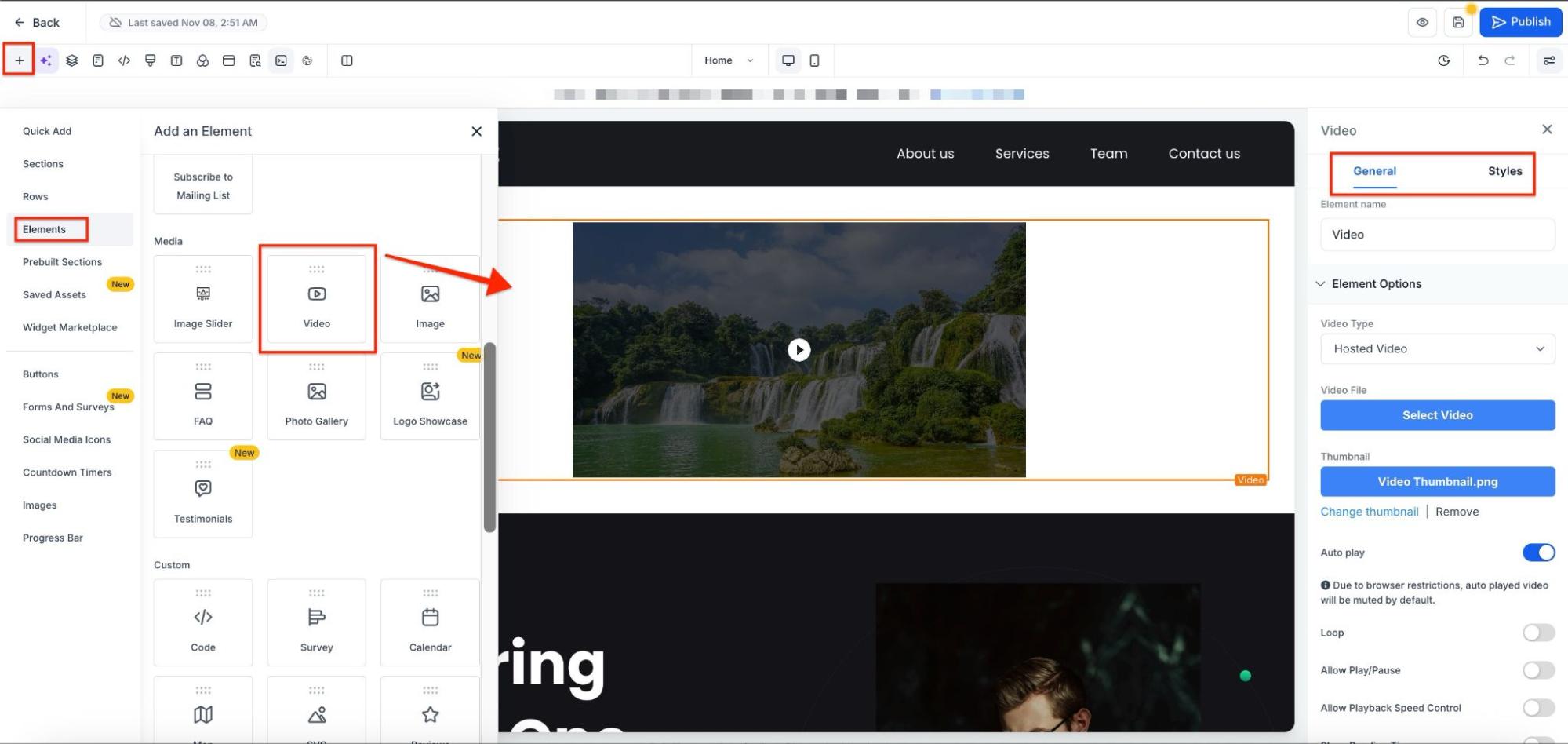
- Similar to an Image Element, the Video Element has settings to add or reduce padding and margins. Adding padding to the Video Element can change the dimensions of the Video in the funnel itself.
- To have a properly functioning video in the Video Element, you must choose the correct Video Type (Vimeo, Youtube, Wisitia) and then enter the correct video URL. When these fields are filled out correctly, the video will populate immediately in the Video Element. Custom Embed, HTML 5, and Hosted Video are additional available options.
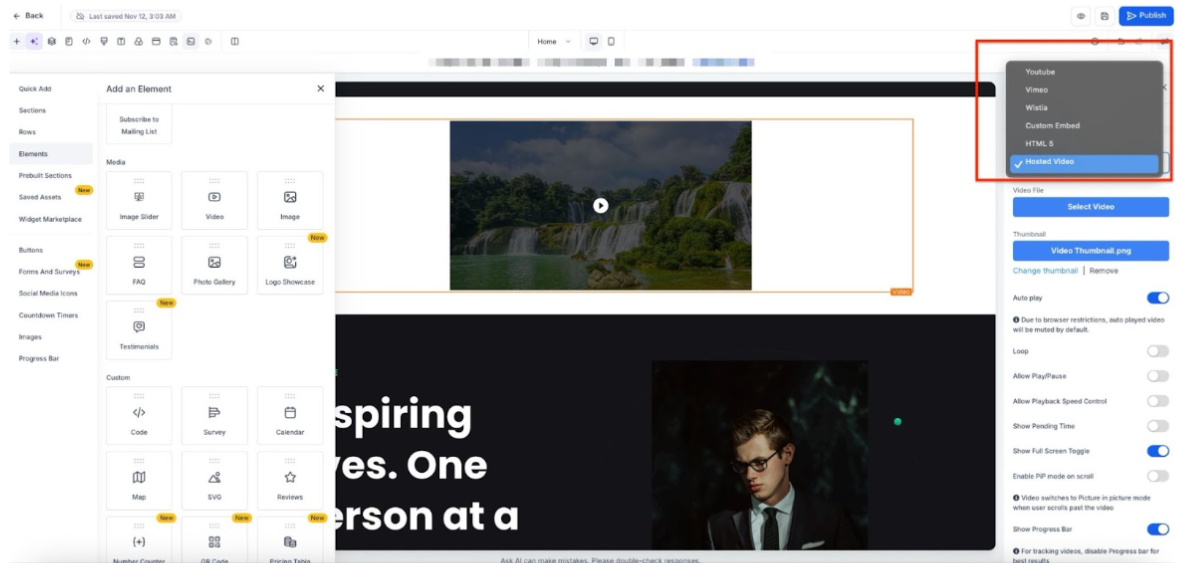
- Deciding the settings you would like to use for the Video Element is important. There are options within the settings for Autoplay and Controls depending on Video Type. Depending on the funnel, you’ll want to try different Video Element functions.

NOTE: You can play the following video qualities, based on the uploaded format: 480P, 720P, 1080P, and Auto.
NOTE: When using a Hosted Video, you have options to enable/disable user controls, like allowing Play/Pause, allowing Playback Speed Control (0.5x, 0.75x, 1x, 2x), and showing Pending Time, Full Screen Toggle, and Progress Bar. You can also disable seeking.

- If you would like a fixed size for the Video Element, the Width setting can be adjusted to three different sizes (this does not apply to Hosted Videos or Custom Embeds)
Video Enhancements in Page Builder
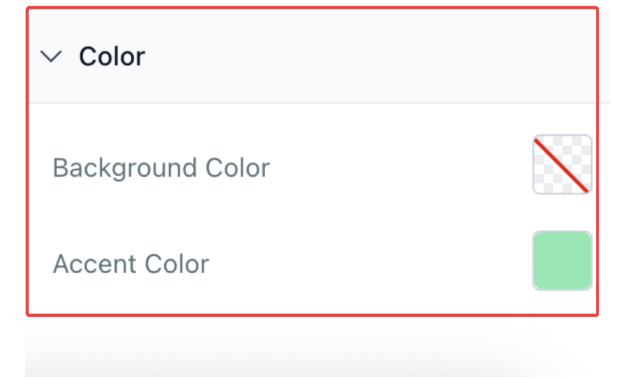
Video customization options in the page builder offer greater control over playback behavior and visual styling, allowing you to create a more engaging and brand-aligned experience.
How to Use: Add a video element to your page, then customize settings such as loop, mute, playback speed
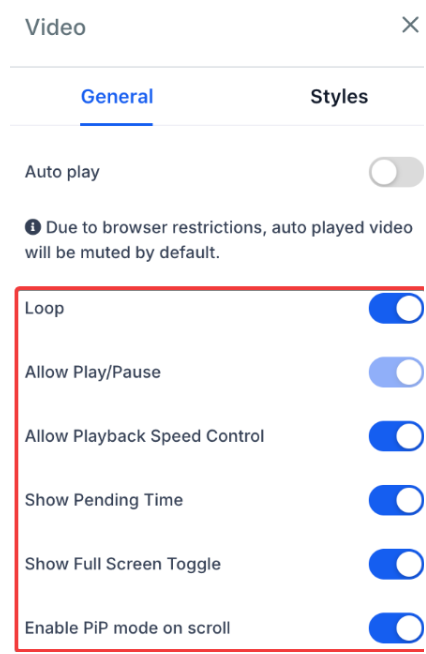
and player color using the settings panel.
¶ Step 2: Advanced Video Settings
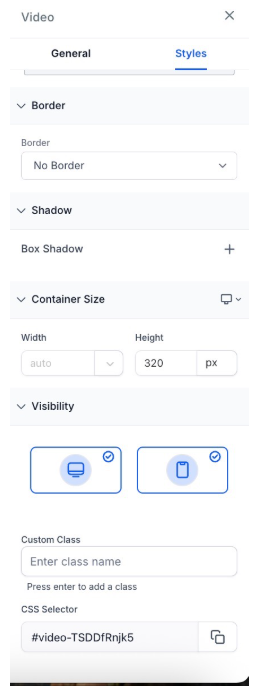
- In the Advanced section, you can customize the border.
- You can also customize the mobile and desktop displays.
- The CSS selector is also in this section.
¶ **Part 2: (If using Hosted Video) Track your video’s success **
¶ Step 1: Video Settings under the General tab
- Disable ‘Show Progress Bar’

- Enable ‘Redirect Unregistered Visitors’ to allow cookie usage, which is how LeadMagicX tracks a lead’s video progress.
NOTE: Don’t forget to specify where you’d like Unregistered Visitors to go — like to your contact info page.

¶ **Step 2: Create a Workflow **
- Set the Workflow Trigger as Video Tracking.
NOTE: Video Tracking only works on leads who already exist as contacts in LeadMagicX.
- Add the filter ‘Video’ and select ‘is any of’ as the operator.
- Attach the right video (the selection is based on what’s available in your Media Library).
- Add the filter ‘Video duration (%)’ and select the operator that matches the viewership you want to track (Equals to, Greater than, Less than, etc.)
- Type in the percentage
- Save Trigger

¶ Step 3: Add the Desired Actions
The Video Tracking trigger is useful as a metric tool to track your content’s success, but it also serves as a handy nurture tool. You can send a nurture email to people who only watched a certain percentage of the video to encourage action. Add any additional actions based on the trigger to meet your goals.
¶ FAQs
Question: How do I add a video to my funnel using the Funnel Builder?**
**Answer: To add a video, drag the Video Element into your funnel within the Funnel Builder. On the right side, you will see “Video Settings” with two tabs — General and Styles. Use these tabs to customize your video settings, including padding, margins, and video type (e.g., Vimeo, YouTube, Wistia).
Question: What video types are supported in the Video Element, and how do I add them?**
**Answer: The Video Element supports multiple video types, including Vimeo, YouTube, Wistia, Custom Embed, HTML5, and Hosted Videos. To add a video, select the correct video type and enter the video URL. The video will populate immediately if the fields are filled out correctly.
Question: What customization options are available in the General Video Settings?**
**Answer: In the General Video Settings, you can adjust padding and margins, set the video type, and decide on video functionalities such as Autoplay and Controls. You can also adjust the video width to three different sizes, although this does not apply to Hosted Videos or Custom Embeds.
Question: What are the available video qualities that can be played in the Video Element?**
**Answer: The Video Element supports the following video qualities based on the uploaded format: 480P, 720P, 1080P, and Auto.
Question: What are the styles settings available for videos in the Funnel Builder?**
**Answer: In the Styles Video Settings, you can customize the video’s border, adjust the display settings for mobile and desktop, and use the CSS selector for additional styling options.
Question: How can I track the success of my Hosted Video in the funnel?**
**Answer: To track your Hosted Video’s success:
- Go to Video Settings under the General tab and disable ‘Show Progress Bar’.
- Enable ‘Redirect Unregistered Visitors’ to track a lead’s video progress using cookies.
- Set up a Workflow with the Video Tracking trigger to track how much of the video your leads have watched.
Question: What actions can I take based on Video Tracking?**
**Answer: The Video Tracking trigger can be used to monitor content success and nurture leads. You can set actions such as sending nurture emails to viewers who watched a certain percentage of the video, encouraging them to take further action based on their engagement level.
Question: How do I create a Workflow to track video engagement?**
**Answer: To create a Workflow for tracking video engagement:
- Set the Workflow Trigger as Video Tracking.
- Add filters such as ‘Video’ and select ‘is any of’ as the operator, then choose the relevant video from your Media Library.
- Add a filter for ‘Video duration (%)’ and choose the appropriate operator (Equals to, Greater than, Less than, etc.). Enter the desired percentage and save the trigger.
Question: Can I disable certain controls for Hosted Videos in the Video Element?**
**Answer: Yes, for Hosted Videos, you can enable or disable user controls such as Play/Pause, Playback Speed Control, Showing Pending Time, Full Screen Toggle, Progress Bar, and Seeking options within the General Video Settings.
Question: What should I do if I want to redirect unregistered visitors who view my video?**
**Answer: In the General Video Settings, enable ‘Redirect Unregistered Visitors’ and specify the URL where you want them redirected, such as your contact info page. This allows you to track their video progress and guide them to relevant pages on your site.
Question: How do I adjust the size of the Video Element in my funnel?
Answer: In the General Video Settings, you can adjust the width of the Video Element to three different sizes. However, this setting does not apply to Hosted Videos or Custom Embeds.
Question: Can I change the color of the video player to match my brand?
Answer: Yes. For hosted videos, the Video Enhancements panel allows you to customize the player’s primary color, ensuring the play button and progress bar align perfectly with your funnel’s color scheme.
Question: What is the maximum file size for a “Hosted Video”?**
**Answer: While you can upload large files to the Media Library, for the best funnel performance and loading speeds, it is recommended to keep video files under 500MB. For extremely large files, using a dedicated host like YouTube or Vimeo is best.