¶ How To Upload and Utilize A Favicon
Adding a favicon to your funnel or website is a simple yet effective way to enhance your brand’s online presence. Favicons are the small icons that appear in the tabs of web browsers, helping users quickly identify and navigate to your site. This article will guide you through the process of adding a favicon, highlighting its key features and benefits, along with step-by-step instructions to make the process easy and accessible.
¶ Key Features and Benefits
- Brand Recognition : Favicons help users identify your website among multiple open tabs, reinforcing brand recognition and making your site stand out.
- Enhanced User Experience : A recognizable favicon improves the user experience by making your site easier to locate in a crowded browser environment.
- Professional Appearance : Including a favicon adds a touch of professionalism to your site, showing attention to detail and commitment to your brand identity.
- Cross-Platform Compatibility : Favicons are supported across various devices and browsers, ensuring a consistent visual representation of your brand.
¶ How to Add a Favicon to Your Funnel or Website
1. Access Your Funnel or Website Settings**
**Begin by navigating to the settings of the funnel or website to which you wish to add a favicon. Look for the section labeled “Settings” within your site builder.
2. Locate the Favicon URL Field**
**Inside the settings, you should find an option to add a favicon URL. This is where you will input the link to your favicon image.
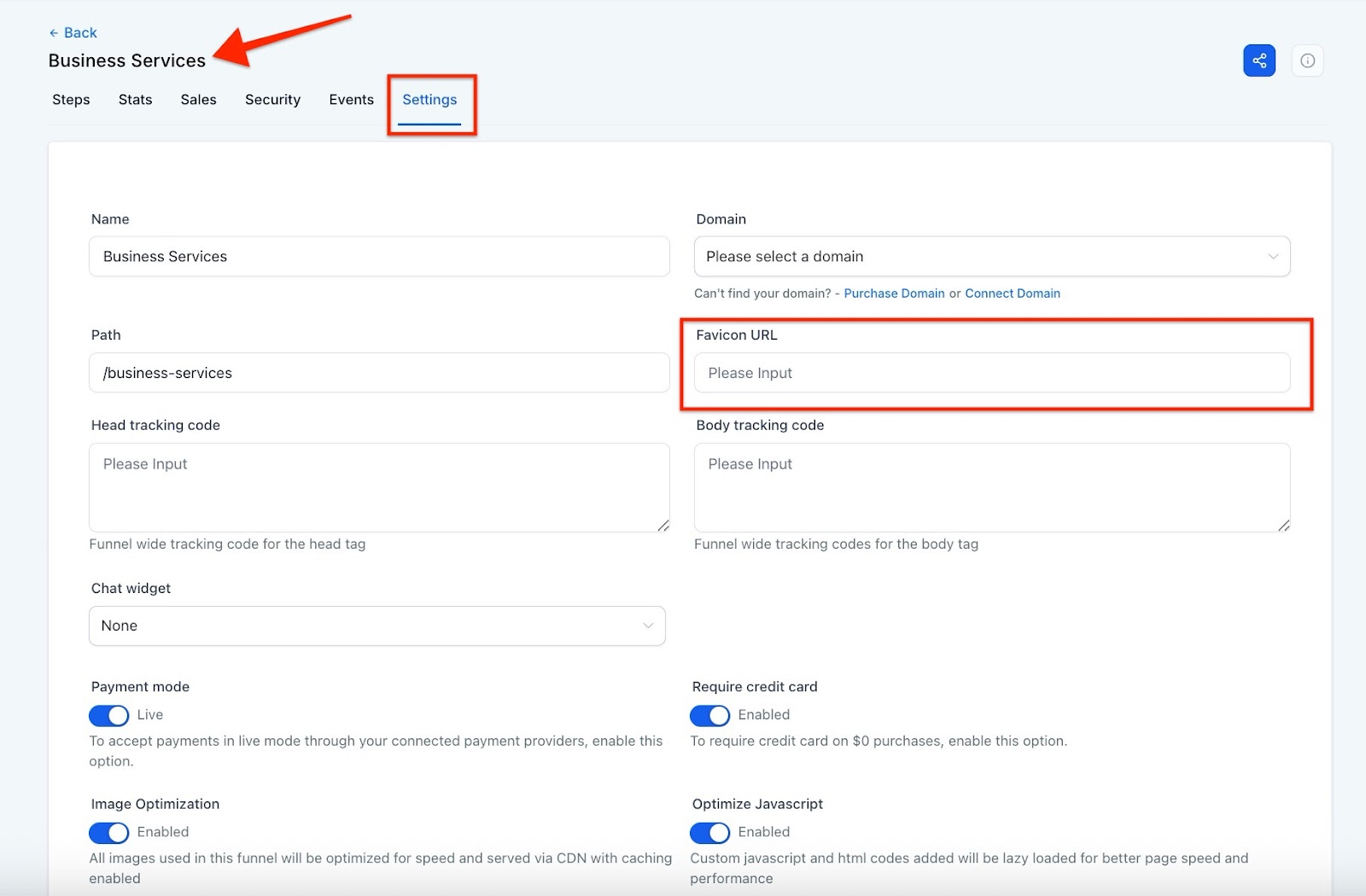
3. Upload Your Favicon Image
- Go to your media tab where images for your funnel or website are stored.
- Upload the favicon image file, which should ideally be a small, square icon (typically 16x16, 32x32, or 48x48 pixels) in formats like PNG or JPEG. A transparent background is recommended for a cleaner look.
- If you don’t have a favicon yet, you can create or download one from a reputable source. Ensure it matches your brand’s aesthetic.
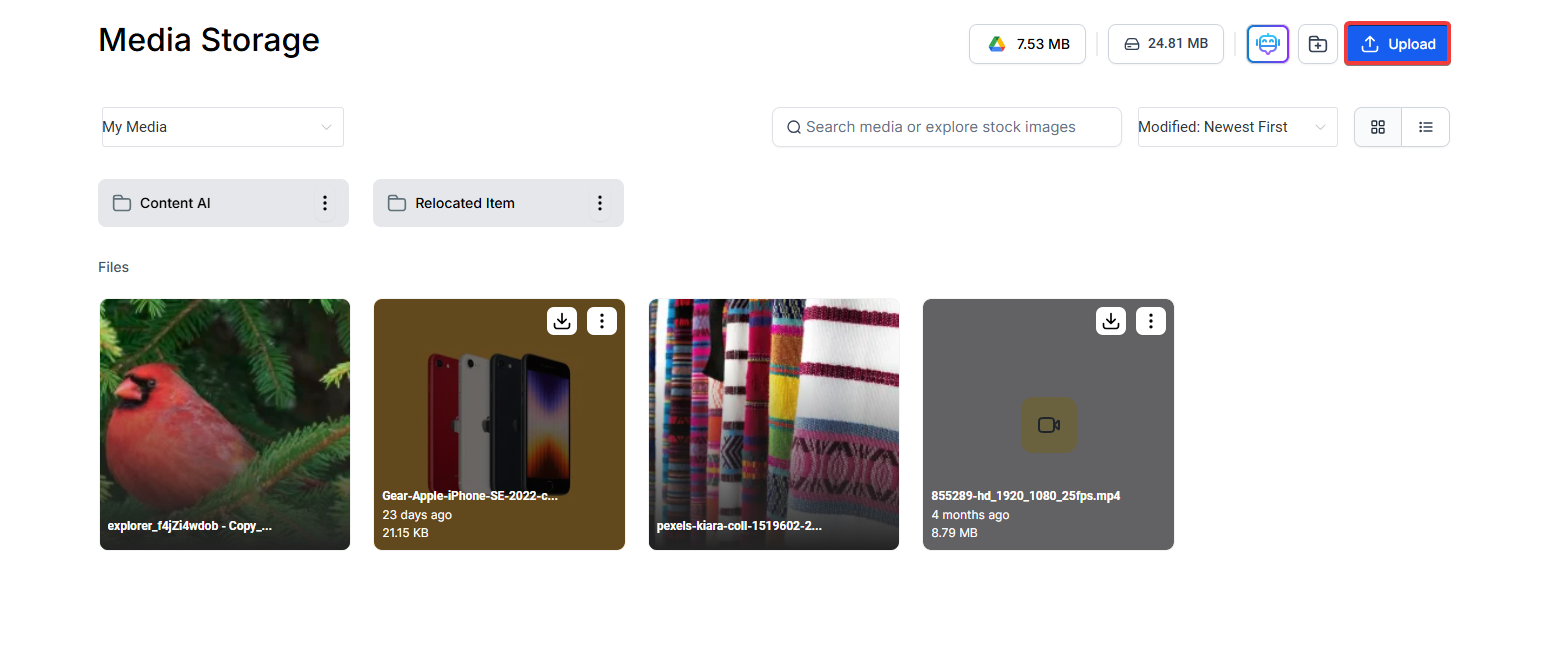
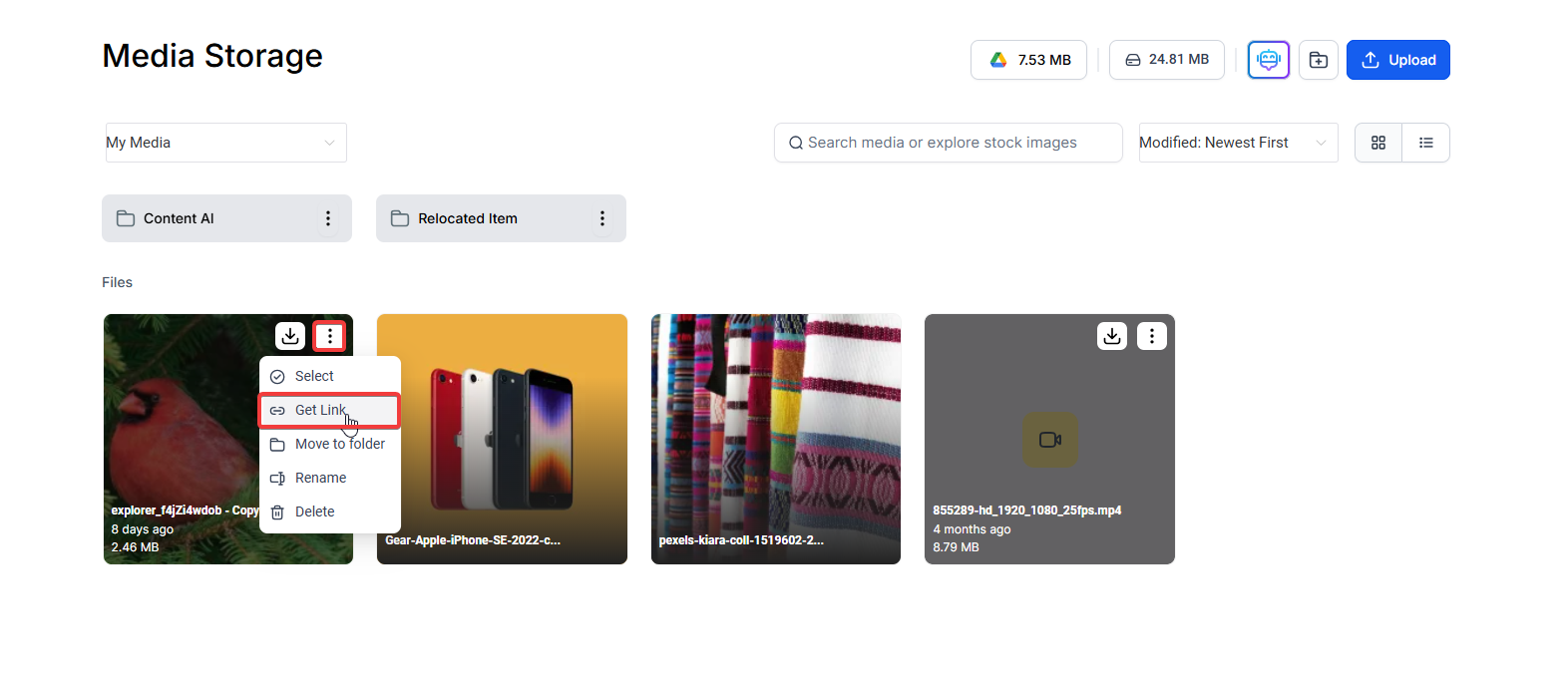
4. Copy the Favicon URL
- After uploading your image, select it from your media folder.
- Copy the image URL to your clipboard by clicking the “Get link” button in your media tab.
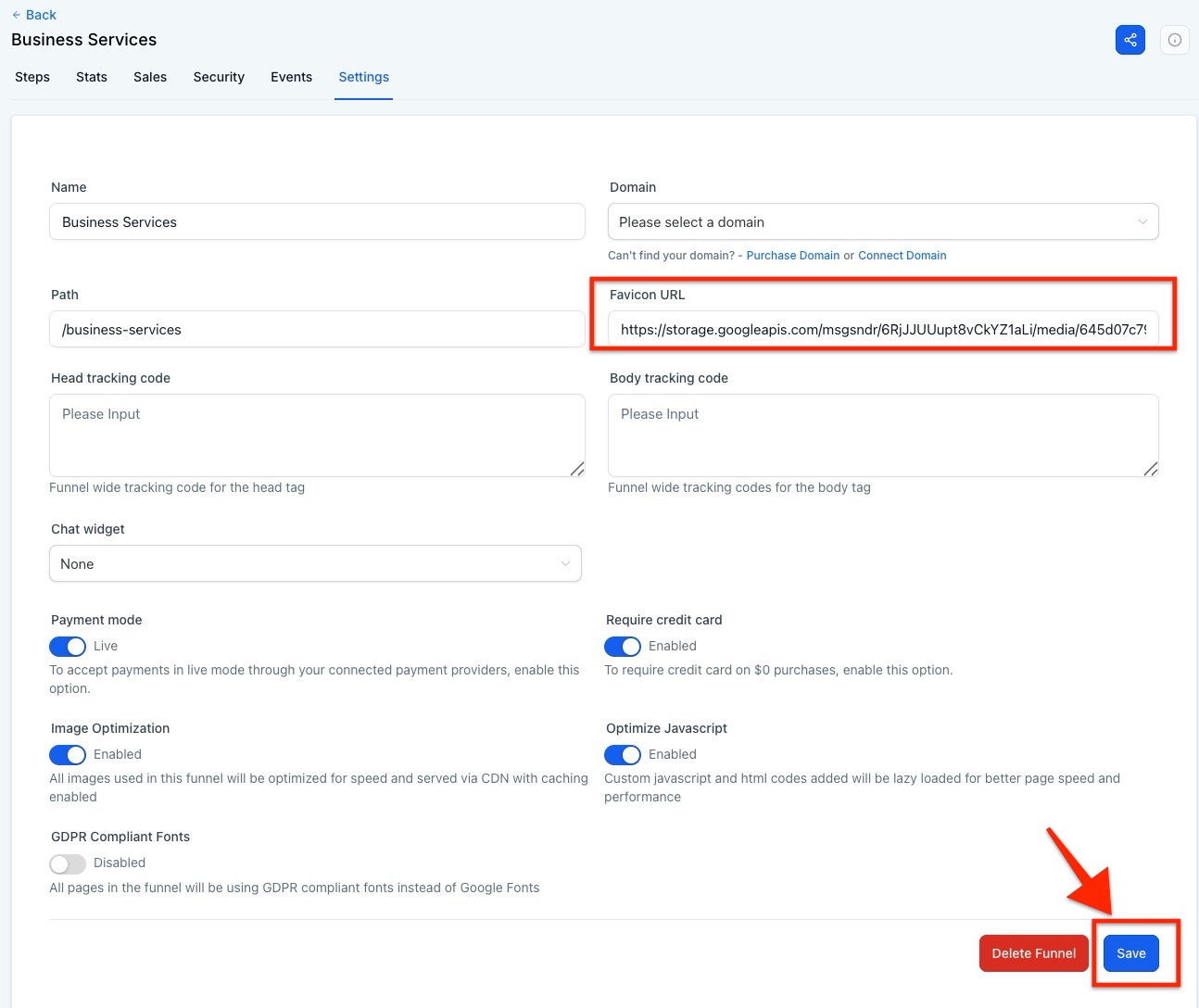
5. Paste the URL into the Favicon Field
- Return to the settings of your funnel or website and paste the copied URL into the favicon URL field.
- Save your changes to apply the favicon to your funnel or website.
6. Verify the Favicon Display
- Check your site in a browser to ensure the favicon appears correctly in the tab. It may take a few moments or a refresh for the change to take effect.

¶ Pro Tips
- Use High-Quality Images: For the best results, use a high-quality image with a resolution suitable for favicon use, such as 32x32 pixels. Avoid images with too much detail, as they may not render well at smaller sizes.
- Keep It Simple and Recognizable: Choose a favicon that is simple and easily recognizable. This could be your logo or a significant symbol associated with your brand.
- Consider Transparency: Favicons with transparent backgrounds often look better, especially if the icon itself isn’t a perfect square.
- Test Across Devices: After adding your favicon, check how it appears across different browsers and devices to ensure it displays correctly everywhere.
¶ FAQs
Question: What is a favicon, and why do I need one?**
**Answer: A favicon is a small icon displayed in the browser tab next to your page title. It helps users easily identify your site among multiple open tabs, enhancing user experience and brand recognition.
Question: What size and format should my favicon be?**
**Answer: Favicons are typically square images, commonly in sizes like 16x16, 32x32, or 48x48 pixels. Preferred formats include PNG, JPEG, or ICO, with PNG being widely supported and easy to use.
Question: How can I create a favicon if I don’t have one?**
**Answer: You can create a favicon using online tools or graphic design software. Ensure it aligns with your brand’s colors and design. Some online favicon generators allow you to convert images into favicon formats quickly.
Question: Why isn’t my favicon showing up?**
**Answer: If your favicon isn’t displaying, try clearing your browser cache or refreshing the page. Ensure the URL you pasted is correct and points directly to the image file. Also, verify that the favicon is in a supported format.
Question: Can I use any image as a favicon?**
**Answer: While technically you can use any small, square image, it’s best to use a simple, easily recognizable image that represents your brand. Avoid images with too much detail or text, as they may not render well at smaller sizes.
Question: Can I update my favicon later?
Answer: Yes. Simply upload a new image to your media library, copy the URL, and replace the old URL in the Favicon field. Save changes and refresh your browser to see the update.
Question: Do I need a different favicon for every page in my funnel?**
Answer:** No. When you add the Favicon URL to the Main Settings of a Funnel or Website, it automatically applies to every single step and sub-page within that project. This ensures a consistent brand experience as the user moves through your sales flow.
Question: If I turn off “Allow Duplicate Contact,” what happens to my current duplicates?
Answer: Disabling this setting prevents new duplicates from being created. It does not automatically merge or delete existing duplicates already in your system. To clean your current list, we recommend exporting your contacts, removing duplicates in a spreadsheet, and re-importing with deduplication active.