¶ Universal Sections within the Funnel and Website Builder
Universal Sections within the Funnel and Website Builder
The Universal Sections feature allows you to save and sync design elements such as headers, footers, banners, and CTAs across your entire account, ensuring a consistent and efficient design experience. Once you update a Universal Section, the changes are automatically reflected in all instances across websites, funnels, blogs, and e-commerce stores.
¶ Key Features and Benefits:
- Consistency Across Assets: Maintain uniformity in design across all assets, saving time and reducing errors.
- Clear Section Management: Easily distinguish between Universal, Global, and Section Template types with visual labels.
- Efficient Updates: Make changes once, and they sync everywhere within your account, ensuring a seamless experience.
¶ How to Use:
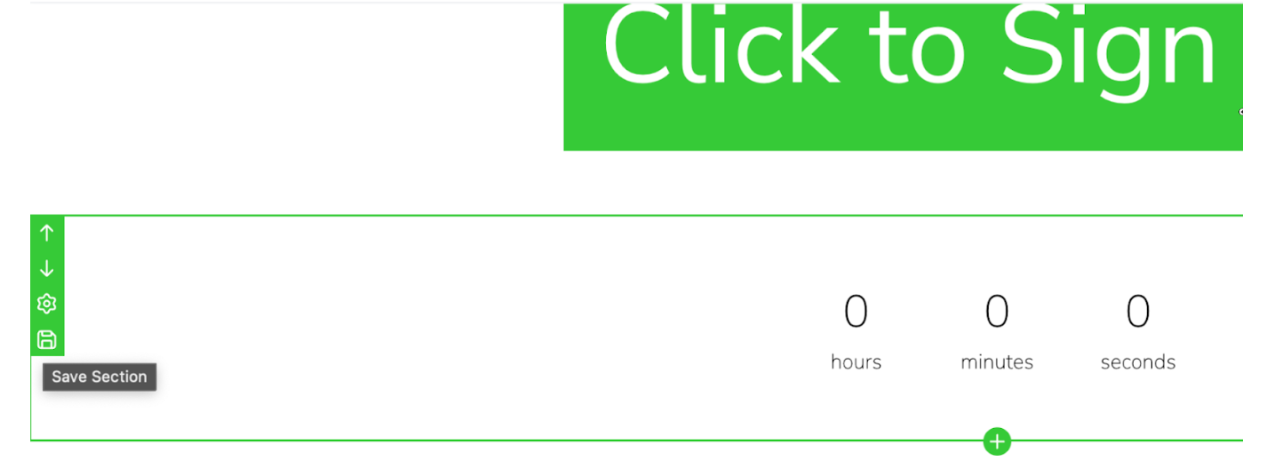
1. Save a Section:**
**In the builder, select any section (header, footer, CTA, etc.), hover over it, and click “Save Section.”
2. Choose the Section Type:**
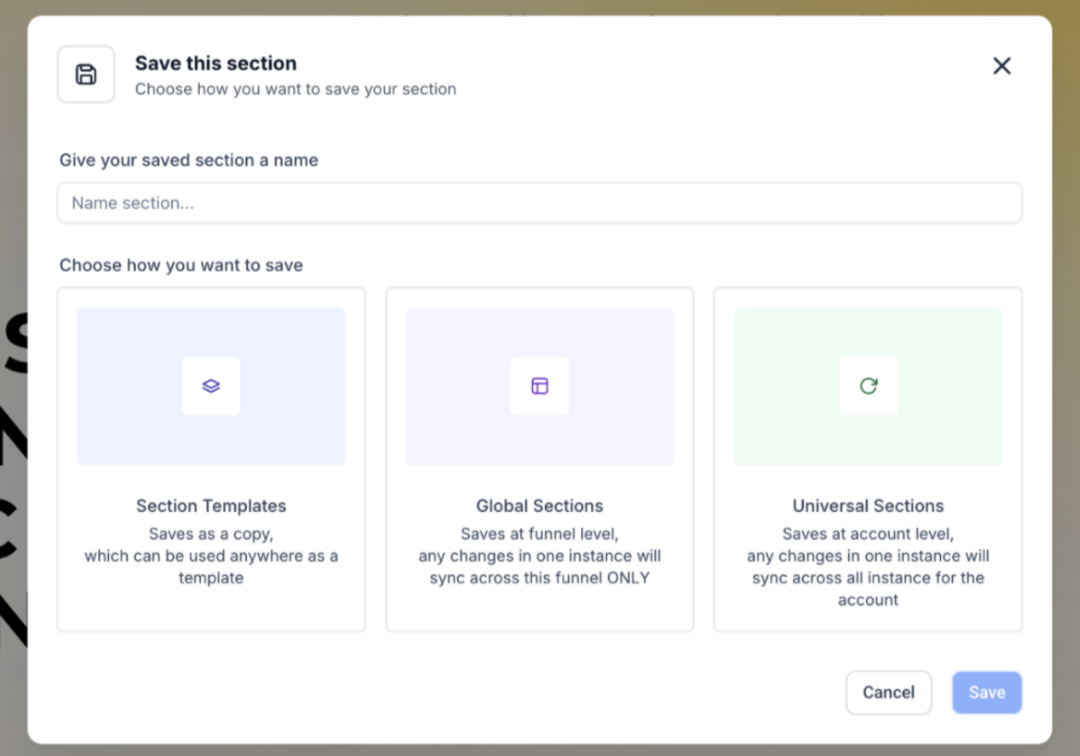
**In the “Save this Section” pop-up, select from:
- Universal Section: Updates sync globally across your account.
- Global Section: Updates apply only within the current funnel/website.
- Section Template: A reusable, static layout that does not sync changes.
3. Use a Saved Section:**
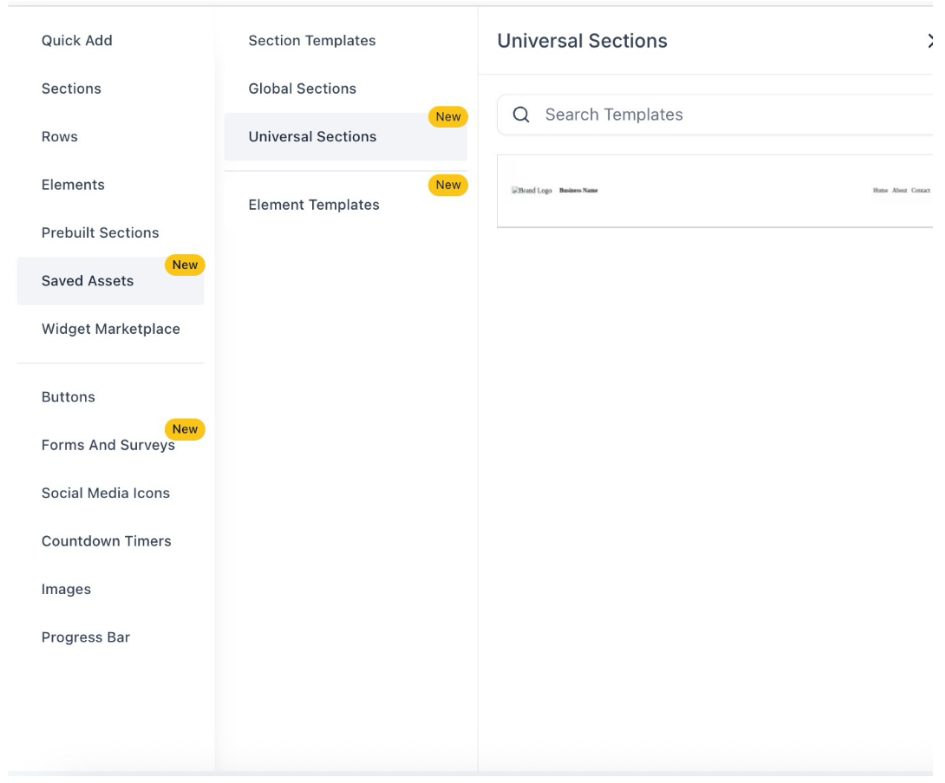
**Open the Saved Assets from the left sidebar, and drag and drop the desired section.
4. Update Universal Sections:**
**Changes to Universal or Global Sections are instantly reflected across all instances in your account.
Note
- Once saved, you can’t change the type or re-save the same section again. Create a clone and then save the clone into a different category.
- If a universal/global section is already there in a page, you can’t reuse it by dragging and dropping from the left sidebar. You will have to clone the existing section if you want to add a clone/variant to the builder.
FAQ’s
Question: Can I change the type of a saved section?**
**Answer: No, once a section is saved as a Universal or Global Section, it cannot be changed. However, you can clone the section and save the clone under a different category.
Question: How do I update a Universal Section?**
**Answer: Simply make changes to the section, and the updates will automatically propagate across all instances in your account.
Question: Can I use a Universal Section multiple times?**
**Answer: Yes, Universal Sections sync across all pages where they are used, ensuring consistent design.
Question: What’s the difference between Universal and Global Sections?**
**Answer: Universal Sections propagate changes globally across your account, while Global Sections only apply within the current funnel or website.
Question: Can I reuse an existing section as a Universal Section?**
**Answer: You cannot drag and drop an existing Universal or Global Section into a new page. You must clone the section first to modify it for reuse.
Question: Can I clone a Universal or Global Section for reuse?**
**Answer: Yes, if you want to reuse an existing Universal or Global Section, you will need to clone the section first. Once cloned, you can modify the clone and save it under a different category for reuse.
Question: Are Universal Sections limited to design elements only?**
**Answer: Universal Sections can include any content supported by the builder, such as text, images, buttons, forms, and CTAs, as long as they are saved as a section
Question: Is there a limit to how many Universal Sections I can save?
Answer: There is no technical limit, but for the best performance and organization, it is recommended to only use them for “Repeaters” like Headers, Footers, and standard CTA blocks.
Question: Why can’t I drag a Universal Section onto a page where it already exists?
Answer: If a Universal or Global section is already present on a page, the system prevents you from dragging and dropping the same asset again from the sidebar. To add a second instance or a variant, you must clone the existing section already on the builder canvas.