¶ Setting up WordPress: A Comprehensive 101 Guide
Setting up WordPress: A Comprehensive 101 Guide
WordPress is an open-source website creation platform that integrates with LeadMagicX. If you run WordPress websites, you can manage them all in one spot from the LeadMagicX dashboard. With the search and replace feature, LeadMagicX will check for all URLs with HTTP and HTTPS and update them in the new domain.
If you are using plugins to extend the functionality of your site or utilizing themes to control its appearance, you can manage those here. Another helpful feature is the backup and restore feature, which allows you to return sites if they break. Follow along for setting up a WordPress site and the features available within the menu:
¶ Step One: Setting up a new WordPress Site
- Navigate to Sites > WordPress
- To set up your WordPress site, you need to have purchased the WordPress hosting feature under the Sites tab. Once you have done this, you can get started by clicking the “+ Create Site” button.

- Select whether you want to build a site from scratch, use a template, or clone an existing site.
Note: Cloning permissions are role-based, ensuring only authorized users can access this feature.

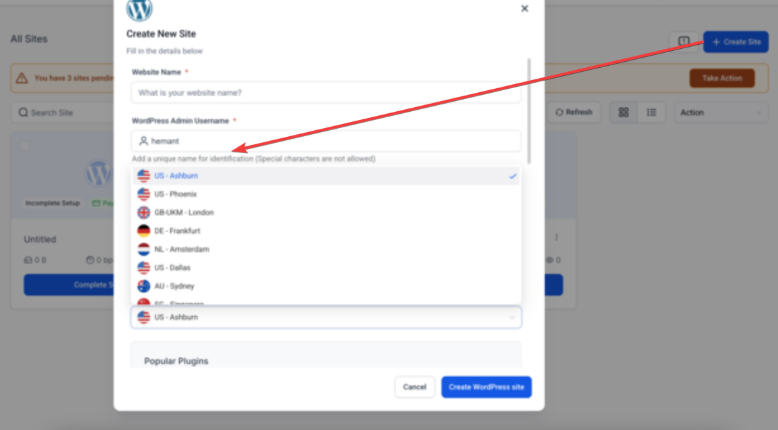
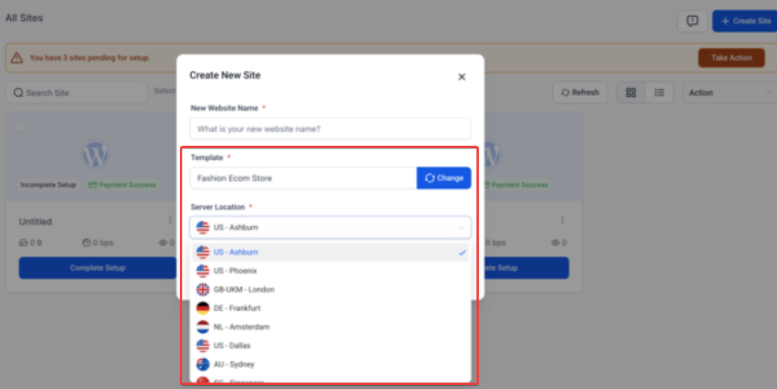
- Selecting Server Locations During Site Setup
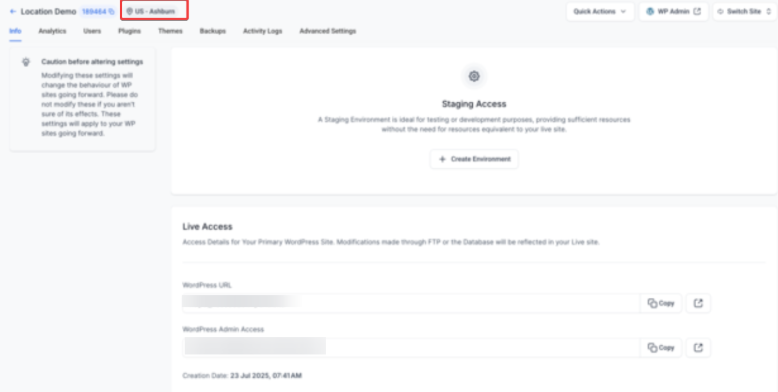
Users can choose their preferred data center during site provisioning at LeadMagicX, applicable to all setup methods: From Blank, Existing Site, or Template. Supported locations include the US, UK, Germany, Netherlands, Australia, Singapore, and more. The selected server location is permanently stored and cannot be changed after creation. This option optimizes site performance by reducing latency and ensuring faster content delivery. To select a server location, go to Sites → WordPress Dashboard, start the setup, and choose the server location from the dropdown during site creation.
- Fill in the Site and User details.
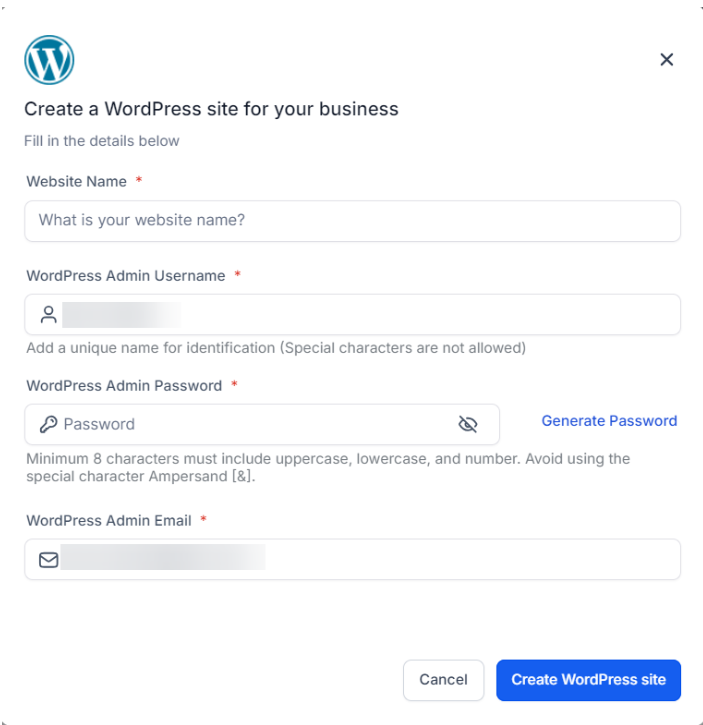
- Wait for 10-15 minutes until the installation is complete.
Please note:
The Quick Actions include a Search and Replace Tool for WordPress. This allows you to efficiently modify content directly within the WordPress dashboard for tasks such as updating domains, converting URLs, and replacing text. It works across both live and staging environments , with a preview option to ensure accuracy before applying changes.
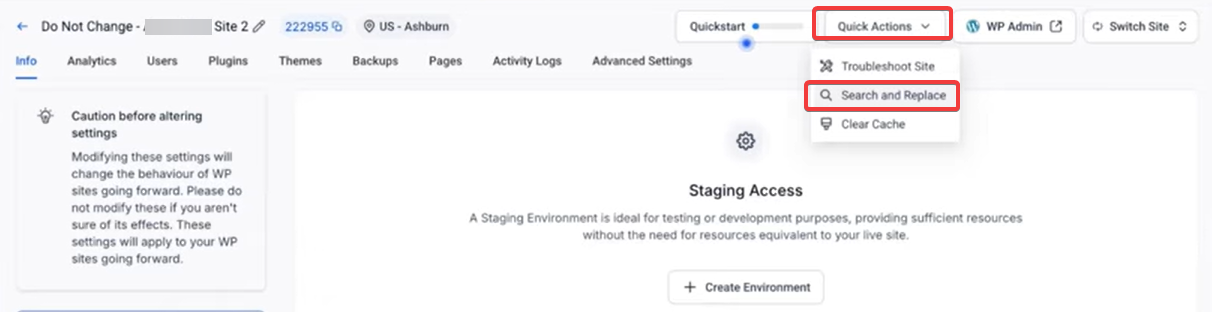
Manage Multiple WordPress Site Installs Under the Same Account: Users can add and view all their sites within the WordPress Tab.
To add a new site, enter the required details and complete the payment.
To switch between sites, use the site info screen to toggle easily.


Bulk Management for WordPress Sites
From the main wordpress page, you can manage bulk updates for WordPress plugins, themes, PHP versions, and cache settings across multiple sites. This helps save time by eliminating the need to update each site individually. To use it, select the sites you want to update, and choose your desired actions, such as updating plugins, switching PHP versions, or clearing cache.

¶ Step Two: After the installation is complete, you will have access to the following:
¶ Section 1: The WordPress Dashboard
After installation, you gain access to the WordPress Dashboard. This is your central hub for site management. You can access your site, handle administrative tasks, and monitor its performance here. It includes the following features:
¶ 1. Staging Environment:
Staging environments are crucial tools for WordPress users aiming to refine their website development process, reduce risks, and uphold a polished online image. A staging environment mirrors your live website, placed on a separate server or directory, vital for various tasks pivotal to web development and upkeep.
- Click on "Create Environment " under the staging access section.

- After selection, the staging setup begins, which typically completes in 2-5 minutes, based on your WordPress site’s size.
- Post creation, make necessary adjustments, and run tests before committing changes to the live website.
- After finalizing changes, click on the "Publish " button. A confirmation prompt appears. On validation, your website will update within the next few minutes.
- If needed, you can delete your staging setup and restart by clicking the "Delete " button.

¶ 2. Live Access:
Access Details for Your Primary WordPress Site. Modifications made through FTP or the Database will be reflected in your Live site.

¶ 3. Manage Your Domains
Here you can manage your Additional Domains and Primary Domain.

- When setting up the root primary domain, users can choose the “www” version of their domain as the primary domain, providing more control and flexibility in domain management.

- SSO - One Click WP Admin Access: Users can access their WordPress Admin panel with a single click, directly from the dashboard, eliminating the need to enter login credentials.

¶ 4. Import Your Existing Website
Import an Existing WordPress Site using the All-in-One WP Migration plugin

¶ Section 2: User Management:
Manage all users for your site directly from the Dashboard.
- First Name and Last Name fields are optional when creating or editing a user profile, offering more flexibility.
- Users can include spaces in the First Name and Last Name fields, allowing for more personalized user details.


- To improve security and content management, a new admin user must be assigned before an existing admin user can be deleted. This ensures a smooth transition and maintains content control.

¶ Section 3: Plugins and Themes
Update, disable, or change the status of plugins and themes.
- For more information, please see article “WordPress Plugin and Theme Management ”
- Auto Update Plugins: Control automatic updates for each plugin directly from the Auto Update Settings panel.

Update Themes: Set up automatic updates for installed themes within their specific settings.

¶ Section 4: Backup & Restore
LeadMagicX provides a robust automatic backup feature to enhance data security and operational continuity.
Backup and Restore:
- Backing Up:
Backups run daily at 05:00 AM CST ; you can access them whenever needed.
- Restoring:
Should you encounter any issues or need to revert unexpected changes on your site, simply utilize the ‘Backup’ feature. This allows you to easilyrestore your website to any state from the previous 30 days , based on the saved backups.

- Manual Backups: Manual backups for WordPress provide users with greater control over their website’s data, ensuring security and stability. Users can create and name their own backup versions for added protection. This feature helps safeguard important updates and site changes, reducing the risk of data loss.
Note: Manual backups do not extend the storage duration beyond automatic backups and should be used strategically for critical updates.

¶ Section 5: Advanced Settings:
Fine-tune your site’s performance with advanced settings. You have control over cache management, enabling you to optimize your site’s speed and responsiveness. You can manage FTP Access and Communication Settings here.
¶ 1. FTP Access:
You can manage FTP Access and Communication Settings here.
- By default, the visibility of passwords for Site, User, and FTP accounts is hidden to enhance security. FTP accounts support strong passwords, providing better protection for account access.

2.Server Control: Secure SSH Access for WordPress Hosting
**
**This provides users with secure SSH access to their WordPress server, enabling efficient command-line management.
How to Use:
- Go to the Dashboard → Advanced Settings → Server Settings → Access SSH.
- Toggle SSH Access ON.
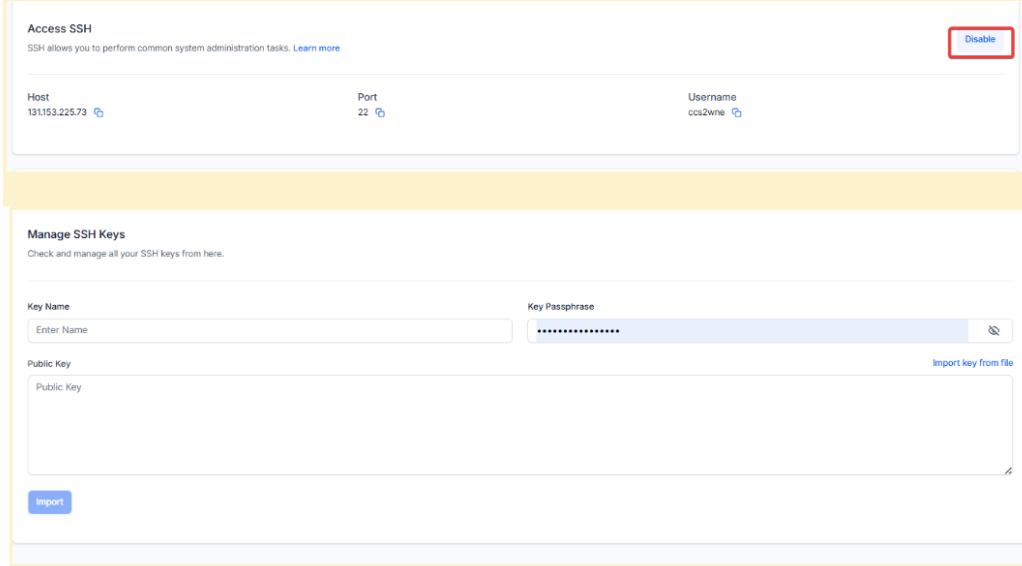
- Upload your SSH Public Key.

- Use the provided connection details to log in via your preferred SSH client…
¶ 3. Cache Management
Cache Management can be accessed from Advanced Settings. This ensures that your site performs at its best.

¶ 4. WordPress Debugging:
Turn WordPress Debugging on or off to view PHP error messages, warnings, notices, and other developer-related notifications for your website.

¶ 5. Server Settings:
Manage your WordPress database efficiently through phpMyAdmin , allowing you to view, edit, and optimize database settings.
- Database Access via PHP MyAdmin: Select “Database Access” to Access Database Management and click the “phpMyAdmin” button to manage your WordPress database via the PHP MyAdmin interface.
** Note: **Enable the checkbox to ensure that you make database changes credibly


- PHP version: This allows users to adjust their site’s PHP version through the hosting control panel. This feature supports better security, performance, and compatibility with newer plugins and themes by enabling the selection of a supported PHP version.


¶ 6. WordPress Management:
Core Update Preferences – Manage automatic updates for WordPress Core in the Advanced Settings, with the following options:
- Off – Disable automatic updates.
- Latest Version – Always update to the latest WordPress release.
- Minor Version Only – Limit updates to only minor versions.

Enable/Disable SEO indexing for websites
Enabling SEO indexing for websites prevents search engines from indexing your pages. By turning on this feature, a robots.txt file is added to your website, instructing search engines and bots not to crawl or index your pages.
This gives you greater control over your site’s visibility, ensuring certain pages or websites are kept private and not shown in search engine results.

Note: Only admins can modify this setting.
¶ 7. Delete Site:
This allows you to delete a WordPress site, including all files, databases, and domains.

¶ FAQs
Question: I’m unable to add the same domain to my other account/location:**
**Answer: The same domain/subdomain can’t be used in 2 locations
Question: Why can’t I update my primary domain?**
**Answer: The primary domain can be updated if you have added an additional domain.
Question: I’ve added the A / CNAME record, but the domain is still not being added
Answer: This can happen for a few reasons.
- There is a typo in your domain name.
In this scenario, fixing the typo will resolve your issue - Your DNS changes haven’t been propagated yet.
In this case, you must wait longer and try again after a few hours or the next day to see if it works. - Your DNS configuration is not set up correctly.
Please contact your Domain Provider and discuss the errors with their support team. - Maybe you have conflicting (multiple) records for the same subdomain [for example, if blog.mydomain.com has a CNAME record pointing to wp3.msgsndr.com but it also has an A record pointing to some other provider]
In such cases, removing the other duplicate record will fix your issue.
Question: I can’t connect my root domain (ex., mydomain.com)**
Answer:** Please make sure there are no additional AAA, TXT, records, etc if you plan to use that slug/root domain for WordPress
Question: How many WordPress sites can I have per account**?****
Answer:** Only one site per account at the moment.
Question: How can I import an existing WordPress site into LeadMagicX?****
Answer: To import an existing WordPress site, use the All-in-One WP Migration plugin. Install the plugin on your current WordPress site, export the data, and import it into your new WordPress setup on LeadMagicX.
Question: What should I do if my WordPress site breaks?****
Answer: If your WordPress site breaks, you can use the Backup & Restore feature in the WordPress Dashboard on LeadMagicX. Daily backups are performed at 05:00 AM CST and stored for the past thirty days, allowing you to restore your site to its previous state if needed.
Question: What is the purpose of SSH access?****
Answer: SSH access allows secure, command-line management of your server, ideal for advanced users and developers needing more control over site operations.
Question: Do I need a password to log in?****
Answer: No, SSH authentication uses public key authentication rather than passwords for enhanced security.
Question: Can I use SSH for all types of tasks?****
Answer: Yes, SSH access allows you to manage plugins, clear caches, import large files, and more directly on the
Question: Can I switch the server location after setting up my WordPress site?****
Answer: No, once a server location is selected during the WordPress site setup, it cannot be changed. The selected server location is permanent and optimized for faster content delivery and reduced latency.
Question:How do I delete a WordPress site?
Answer: Use the Delete Site option in advanced settings. This will remove all files, databases, and domains associated with the site.
Question: Can I update multiple WordPress sites at once?
Answer: Yes. From the main WordPress page, you can perform bulk actions across multiple installs. This includes updating plugins , themes , and PHP versions , as well as clearing cache settings for all selected sites simultaneously to save time.
Question: How can I prevent search engines from indexing my website?
Answer: You can enable SEO Indexing in the Advanced Settings. This adds a robots.txt file to your site that instructs search engines and bots not to crawl or index your pages, giving you full control over your site’s privacy.