¶ Number Counter Element in Funnels & Websites
Number Counter Element in Funnels & Websites
The Number Counter element allows you to turn raw statistics into eye-catching, animated highlights that capture attention and reinforce your brand’s successes. Whether showcasing revenue milestones, client satisfaction metrics, or social-proof statistics, this widget adds a dynamic element to your pages. By presenting your achievements in a visually engaging way, it helps to create more compelling content that grabs visitors’ attention and enhances user experience.
¶ Key Features and Benefits:
- Multiple Counters, One Element : Easily add as many counters as needed—whether it’s a single statistic or a full grid of achievements.
- Smart Number Formatting : Automatically abbreviates large numbers (e.g., 2,500,000 becomes 2.5 M) for clean, easy-to-read metrics.
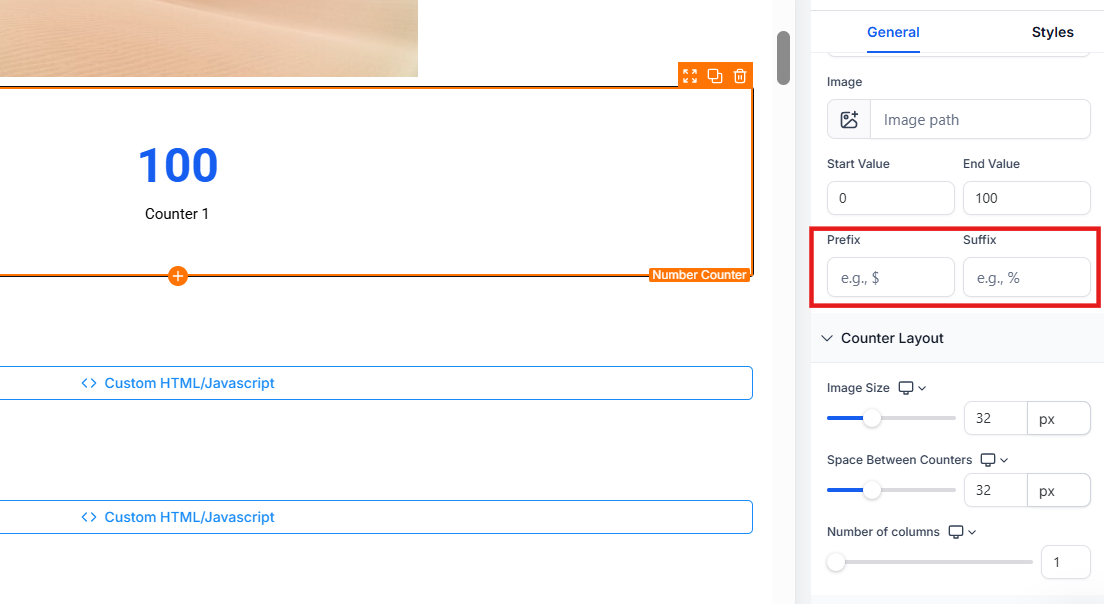
- Prefix & Suffix Controls: Add currency symbols, percentages, or custom text before or after your numbers for added clarity and context.
- Counter-Specific Images : Attach images like icons or logos to counters for immediate visual context and recognition.
- Layout Customization : Control how many counters appear per row, adjust spacing, and ensure perfect alignment with pixel-perfect gap control.
- Viewport-Aware Animation : The animation only triggers when the counter comes into view, ensuring smooth performance without wasting motion.
- Complete Styling Suite : Customize colors, borders, box shadows, and backgrounds to match your brand’s aesthetic.
¶ How to Use It:
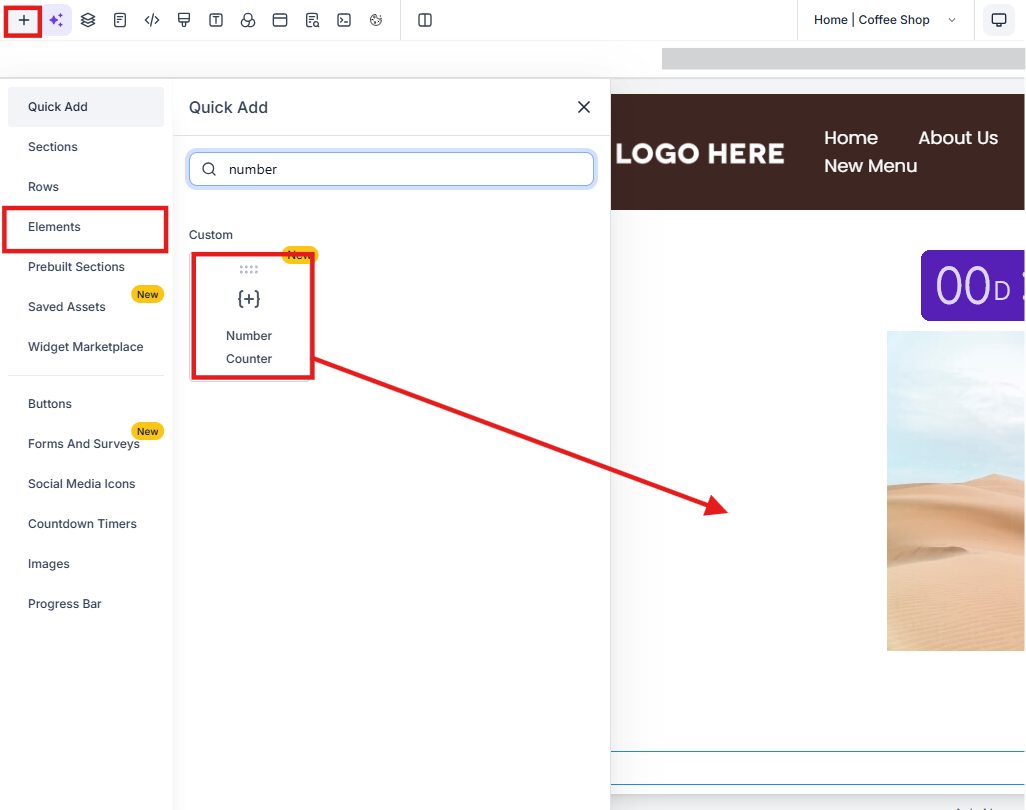
1. Add the Element : Navigate to Sites on the left > Funnels/Websites at the top and open the builder. Drag the Number Counter element onto your page from the element menu (+ icon).
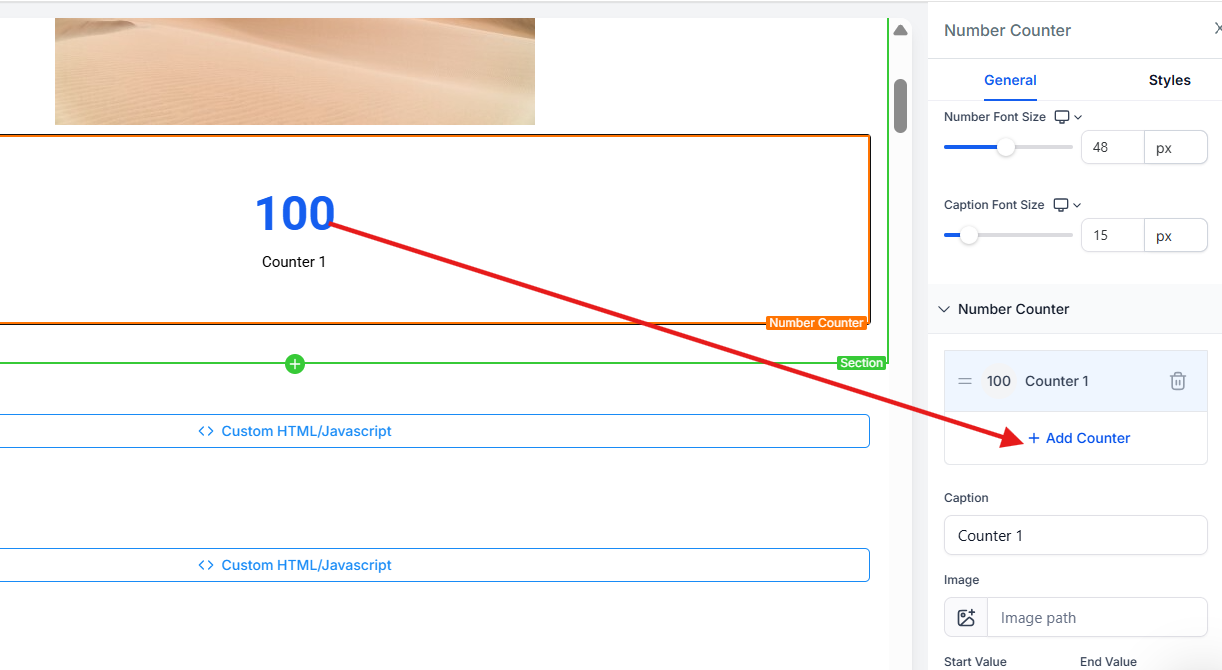
2. Add Counters : Click “Add Counter” for each statistic you want to display. You will find it in the ‘General’ view.
3. Set Values : Enter the starting and ending numbers, then add any desired prefix or suffix. You will find it in the ‘General’ view.
4. Attach Images : Optionally add an image (like an icon or logo) to each counter and adjust the size using the image size slider.
5. Customize Layout : Set the number of counters per row (1–5) and adjust the spacing between counters.
6. Style Your Counter : Use the color pickers for number, caption, counter background, and container background. Apply border and box-shadow options as needed.
7. Tune Animation : Adjust the duration of the animation and verify the viewport trigger to ensure smooth performance in the preview.

¶ Pro Tips:
- Focus on Key Metrics : Use the counter to highlight your most important numbers, such as revenue milestones or key achievements, ensuring they grab attention.
- Optimize for Visual Appeal : Choose images that complement your statistics and reinforce your message for better impact.
- Keep It Simple : Avoid overwhelming your users with too many counters. Select the most significant statistics to create a clear and focused message.
¶ FAQs
Question: How many counters can I add to the widget?****
Answer: You can add as many counters as needed for your story, whether it’s a single stat or a grid of achievements.
Question: Can I customize the size of the counter images?****
Answer: Yes, you can adjust the size of the images using the image size slider to ensure they fit perfectly within the layout.
Question: What kind of numbers can I display in the counters?****
Answer: You can display any numeric values, and the widget will automatically format large numbers into easy-to-read abbreviations (K, M, B, etc.).
Question: Can I control the animation speed of the counters?****
Answer: Yes, you can set the duration of the animation from 1 second to 15 seconds for each counter.
Question: Will the counter animation play when the page loads?****
Answer: No, the animation starts only when the counter scrolls into the user’s view, ensuring smooth performance and enhancing user experience.
Question: Can I make the counters start from different numbers instead of zero?****
Answer: Yes, you can set unique starting values for each counter, allowing for more flexible animations that match your data story.
Question: Can I display my numbers in a grid layout?**
Answer:** Yes. You can configure the element to show between 1 and 5 counters per row. This is ideal for creating a “Milestones” section where you can showcase three or four key statistics side-by-side to build immediate credibility with your visitors.