Logo Showcase Element in Funnels & Websites
We’re excited to present the Logo Showcase Element , a feature for funnel and website builders that allows you to showcase logos in a sleek and professional way. Whether you want to display your clients, partners, or certifications, this feature allows for seamless customization and enhances your site’s credibility by putting your best logos front and center.
**
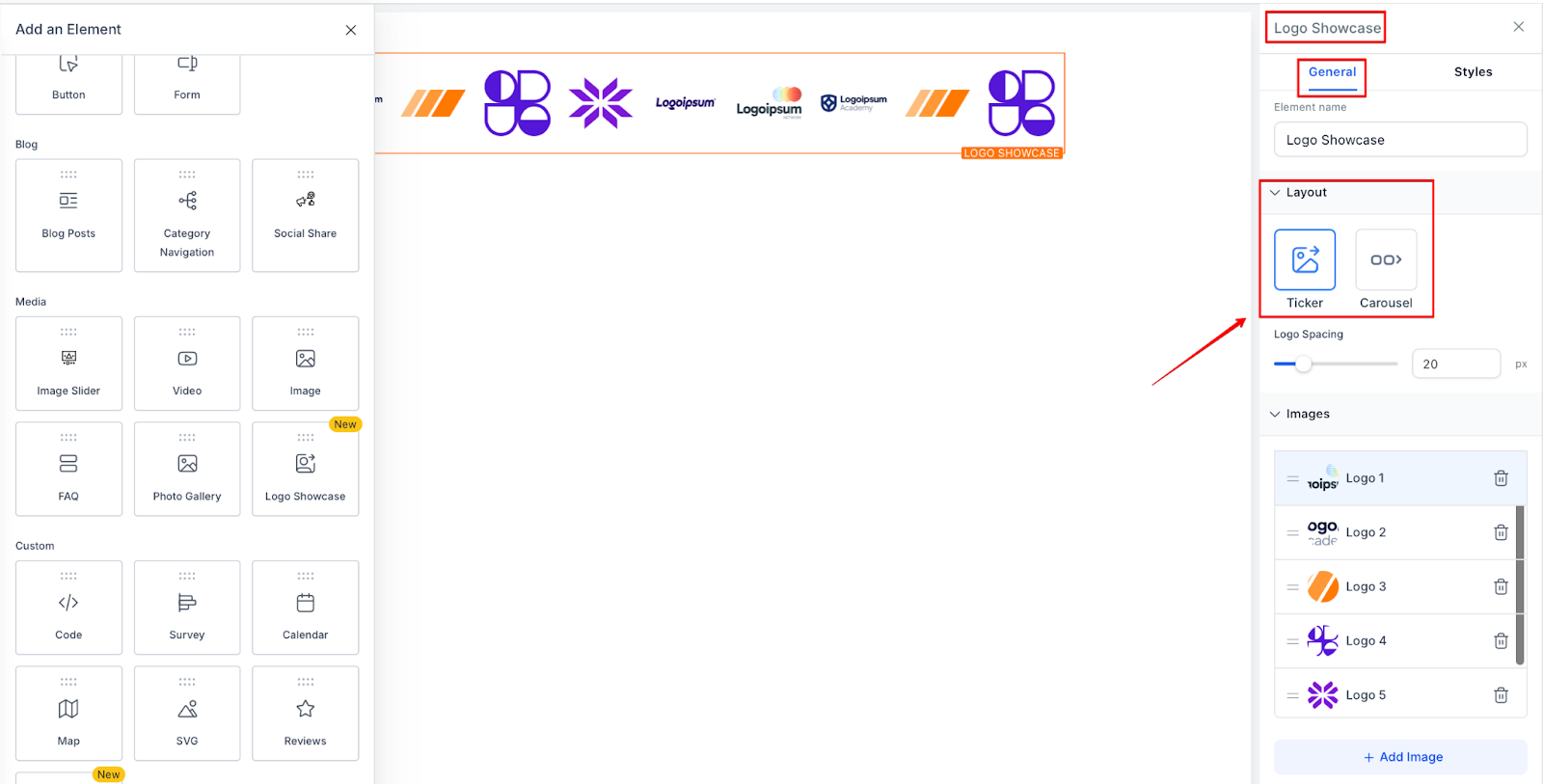
* Ticker Mode : Continuous horizontal scrolling of logos, ideal for high-volume displays.
* Carousel Mode : Slide-by-slide navigation, with up to 8 logos per slide and interactive controls.
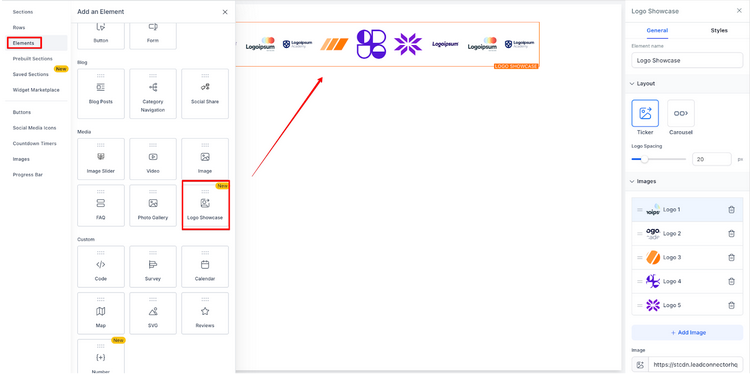
1. Add the Logo Showcase element :
2. Select a Mode :
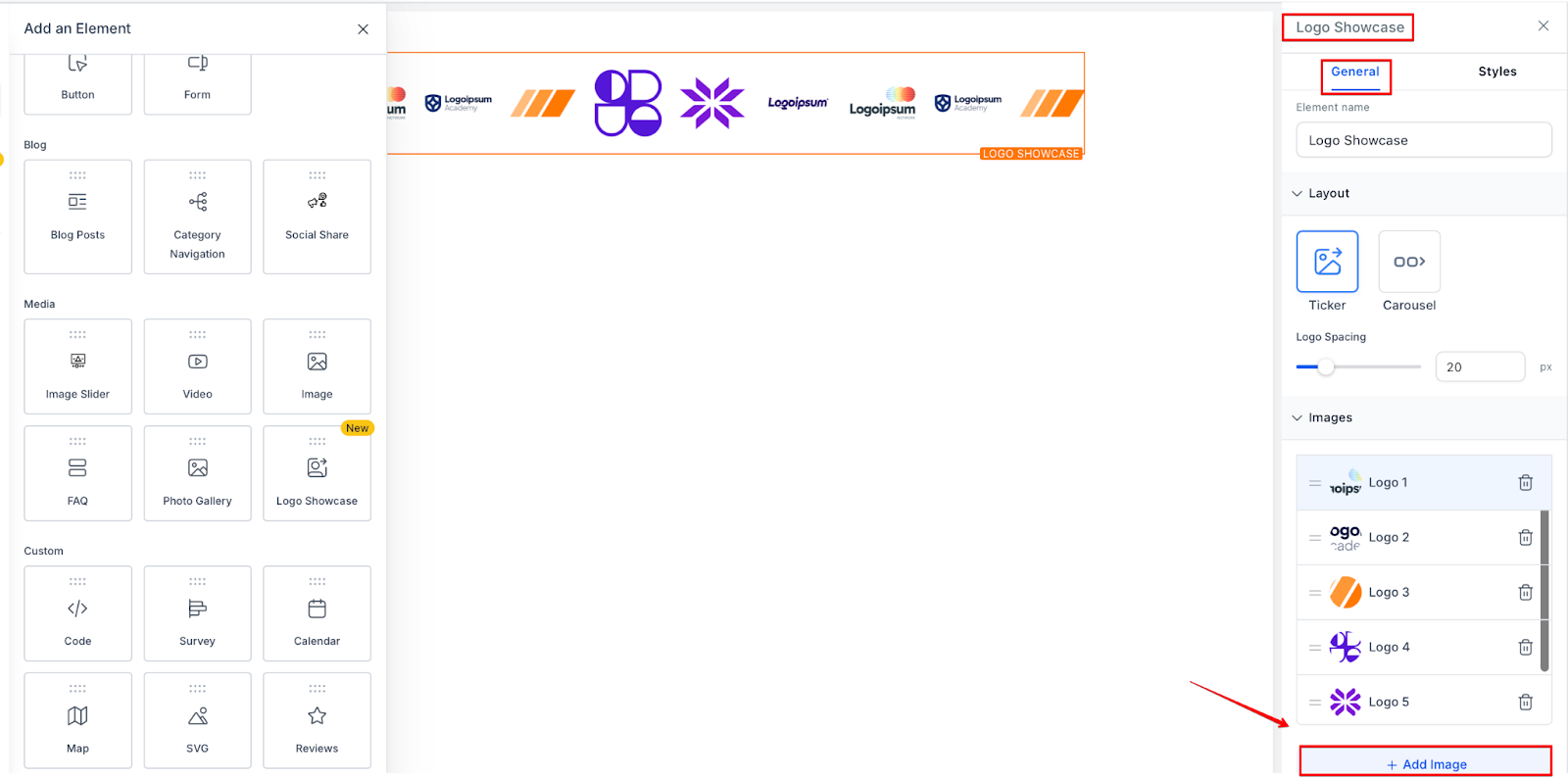
3. Upload your logos :
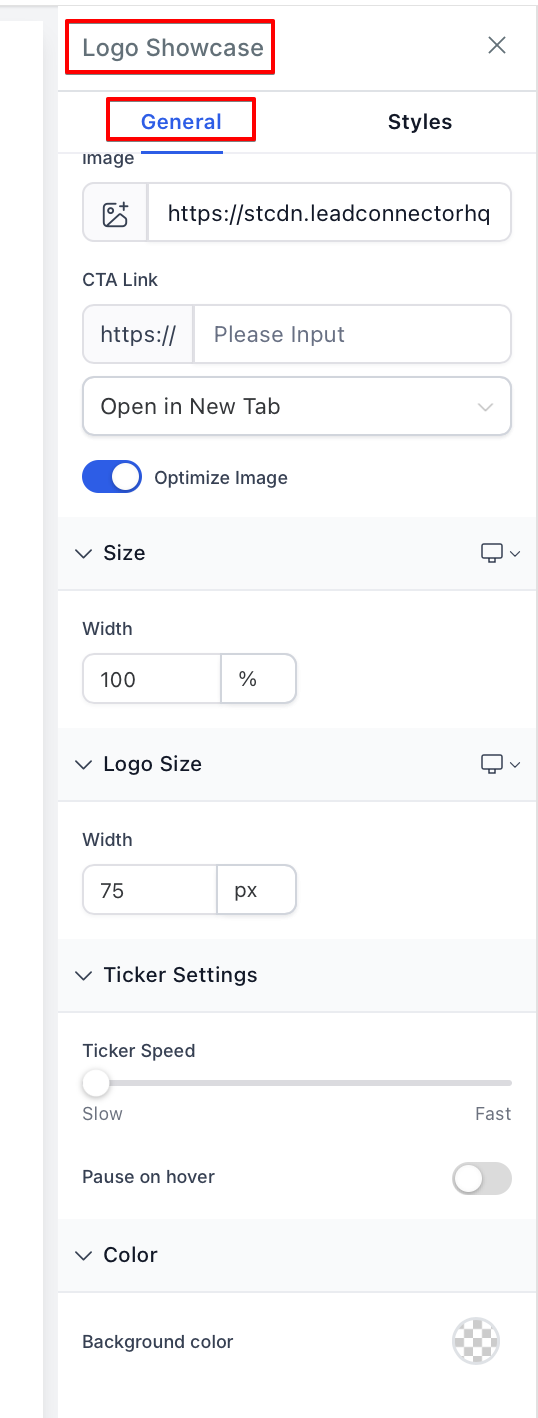
4. Customize Settings :
5. Preview and Adjust :
Question: Can I use this element for any logos?**
**Answer: Yes, you can showcase client logos, partner brands, certifications, or any image you want to highlight.
Question: How many logos can I show in Carousel Mode?**
**Answer: You can display up to 8 logos per slide, but you can create additional slides if needed.
Question: Can I rearrange the logos after saving?**
**Answer: Yes, you can drag and drop logos to reorder them easily.
Question: Are both modes mobile-friendly?**
**Answer: Yes, both Ticker and Carousel modes are optimized for mobile devices, supporting touch gestures.
Question: Can I add custom alt text to each logo?**
**Answer: Yes, adding custom alt text to each logo is a great way to improve SEO and accessibility.
Question: Can I preview both modes before publishing?**
**Answer: Yes. You can preview Ticker and Carousel modes directly in the builder and switch between them anytime without losing your settings or uploaded logos.
Question: What should I consider for logo size and quality?**
**Answer: Use high-quality logos that are properly sized for both Ticker and Carousel modes to ensure a clean, professional display.
Question: What should I do if I can’t find the Logo Showcase element in my builder?
Answer: The Logo Showcase Element is exclusively available in the new sidebar experience. If you are using the old sidebar, you will need to head to Labs to switch to the new one to access this feature.
Question: What is the best image format for the Logo Showcase?
Answer: For a professional and “clean” look, we recommend using PNG or SVG files with transparent backgrounds. This ensures that if you change your section’s background color, the logos won’t have awkward white boxes around them.
Question: What is the benefit of modifying a logo directly in the Media Library?
Answer: When you modify a logo in the Media Library, it updates automatically across every instance where it is used in your Logo Showcase elements, saving you the time of manual updates.