¶ How to Implement and Customize Cookie Consent Banner for Your Website or Funnel
How to Implement and Customize Cookie Consent Banner for Your Website or Funnel
Ensuring compliance with data protection regulations is crucial for any business. One of the most requested features by users is the cookie consent banner, which helps obtain user consent before collecting personal information. This guide will walk you through implementing and customizing a cookie consent banner for your website or funnel.
¶ Benefits:
- Compliance: Ensures your website or funnel is aligned with GDPR, CCPA, and other privacy regulations.
- User Control: Empowers users to manage their cookie preferences.
- Customization: Fully configurable to match your brand’s colors, fonts, and messaging.
- Transparency: Offers clear descriptions of cookie categories and links to your privacy policy.
- Marketing Integration: Easily categorize and manage tracking cookies, including analytics and advertising cookies.
¶ How-to Steps:
1. Accessing the Cookie Consent Banner:
- Navigate to the funnel or website builder interface in the Sites section.
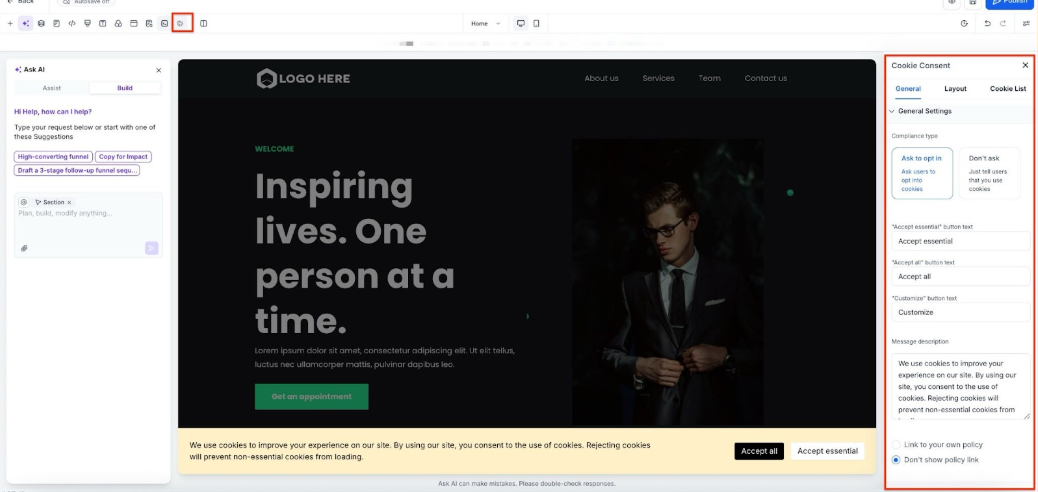
- Click on the cookie icon within the action header bar.

2. Enabling the Cookie Consent Banner:
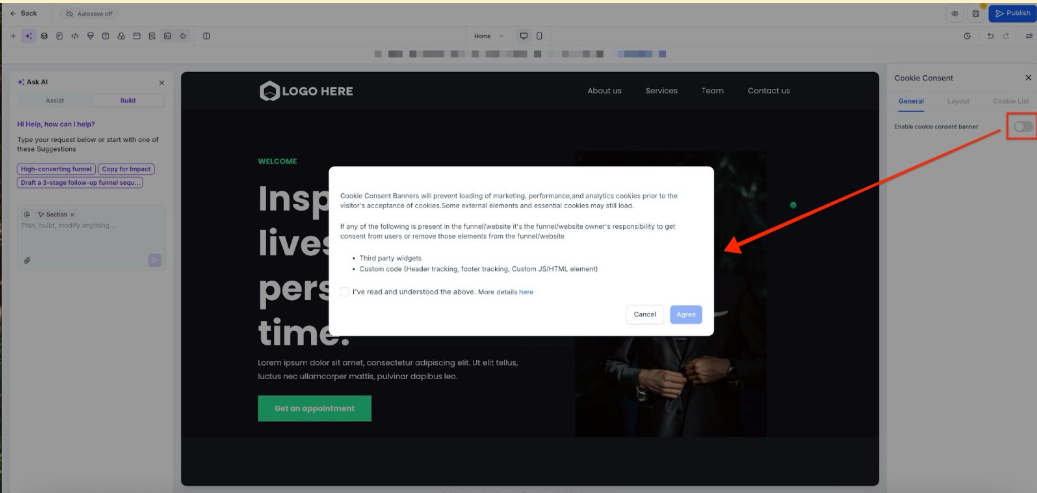
- Toggle the switch from the cookie consent sidebar on the right.
- Accept the terms and conditions and click on “Agree.”
3. Configure Button Actions:
- Accept Essential: Accepts only the essential cookies needed for website functionality.
- Accept All: Accepts all cookies, including tracking and analytics.
- Reject: Accepts only essential cookies.
- Cancel: Closes the popup and reopens the main banner.
- Save Preferences: Saves the user’s selected cookie settings.
4. Customization Options:
General Settings:
- Enable or disable the cookie list.
- Choose the compliance type (Opt-In or Don’t Ask).
- Add a message description and link to your privacy policy.
- Customize the banner’s appearance (colors, fonts, text size).
- Edit the text on all buttons in both the banner and the cookie preferences pop-up.
Important Note on Translations: Customizing the default button or popup text will disable built-in internationalization (i18n) translations. You’ll need to manually add translations for each language you wish to support. Ensure all language variants are updated for a consistent user experience.l
Advanced Settings:
- Set consent expiration (number of days before consent expires).

- Region Settings:
The following region options are available:
1. Worldwide: Display the banner to all visitors regardless of location.
2. EU & UK: Display the banner only to users in European Union member states and the United Kingdom.
3. Select Countries: Manually choose specific countries where the banner should appear.

- Choose layout styles for the banner display.

5. Managing the Cookie List:
- Enable or disable different types of cookies.
- Visitors can select which cookies to allow based on predefined categories.

¶ Predefined Cookie Categories:
- Essential: Required for basic website functionality.
- Functional: Supports features like social media sharing and feedback collection.
- Analytics: Tracks visitor behavior, including page views and bounce rates.
- Performance: Helps optimize site speed and user experience.
- Advertising: Used for targeted ads and marketing.
- Uncategorized: Any cookies not assigned to the above categories.
¶ Adding Cookies to Categories:
- Cookie Key: Name of the cookie (regex patterns supported for multiple cookies).
- Duration: How long the cookie lasts (e.g., 1 day, 30 days, 1 year).
- Domain: The domain setting the cookie.
- Description: Purpose of the cookie.

¶ Using Regex Patterns:
- You can use regex patterns to match multiple cookies, such as:
- ga- for all Google Analytics cookies (e.g., ga-1234, ga-3241).*
- _fbp. for all Facebook Pixel cookies.*
- _ga. for all Google Analytics cookies.*
¶ Scanning Your Website for Cookies:
- Temporarily disable the Cookie Consent Banner.
- Use a free tool like CookieServe to scan your website.
- Review detected cookies and assign them to the correct categories.
Important: Make sure to disable the banner before scanning, as it may block non-essential cookies, preventing a complete scan.
6. Saving and Publishing:
- Finalize your changes by saving or publishing the updated settings.

Testing for User Experience : While customization is important for legal compliance, it’s also crucial to maintain a seamless user experience. Make sure the cookie consent banner does not hinder the user’s ability to navigate your website. Test the banner across various devices to ensure it is both functional and visually consistent with your branding.
¶ Pro Tips:
- Detailed Customization: Make use of the advanced settings to specify essential cookies and add third-party tools that need to be whitelisted.
- Consistent Branding: Ensure the cookie consent banner aligns with your website’s overall branding for a cohesive look.
- Policy Links: Include links to your privacy policy and cookie policy within the banner for easy access by users.
FAQs:
Question: Can I customize the appearance of the Cookie Consent Banner?**
**Answer: Yes, you can fully customize the banner’s colors, fonts, text size, and layout to match your brand.
Question: How can I manage the cookie preferences of my users?**
**Answer: You can set up cookie categories (e.g., essential, analytics, advertising) and allow users to select which cookies they wish to accept.
Question: What happens if a user clears their cookies?**
**Answer: If a user clears their cookies, the Cookie Consent Banner will reappear, prompting them to re-select their preferences.
Question: Can the Cookie Consent Banner be used for multiple websites?**
**Answer: Yes, you can configure and enable the Cookie Consent Banner for each page or funnel separately.
Question: Is the Cookie Consent Banner GDPR-compliant?**
**Answer: Yes, the banner ensures compliance with GDPR by allowing users to manage their cookie preferences and providing clear links to your privacy policy.
Question: Can I disable the cookie list while still showing the banner?**
**Answer: Yes. You can hide the cookie list and still display the consent banner with accept or reject options.
Question: Will the banner still automatically translate into different languages if I change the button text?
Answer: No. If you customize the default button or popup text, the built-in internationalization (i18n) translations are disabled. You will need to manually add translations for each language you wish to support to ensure a consistent experience.
Question: How long does the user’s consent last before they have to see the banner again?
Answer: You can control this in the Advanced Settings by setting the Consent Expiration. This allows you to define exactly how many days pass before the user is prompted to refresh their preferences.
Question: How can I ensure the banner only appears for visitors in specific regions, like the EU or UK?**
**Answer: You can manage this in the Region Settings. You have three options: display the banner Worldwide , restrict it to the EU & UK only, or Select Countries to manually choose specific locations where the banner should be visible.