¶ How To Add Hyperlinks to Websites And Funnels
If you want to link from one page to another (not using the Navigation Menu), hyperlinks are one of the best ways to do this. Follow these steps to create a hyperlink.
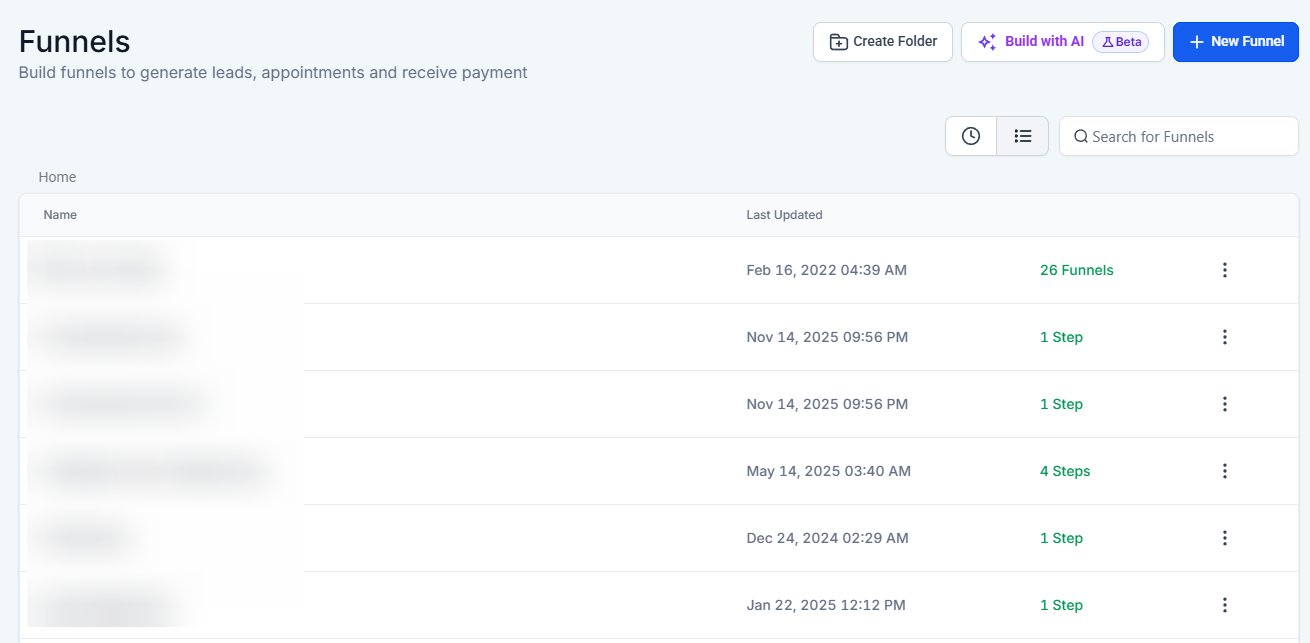
¶ Step 1: Navigate to Sites and choose a Funnel or Website.
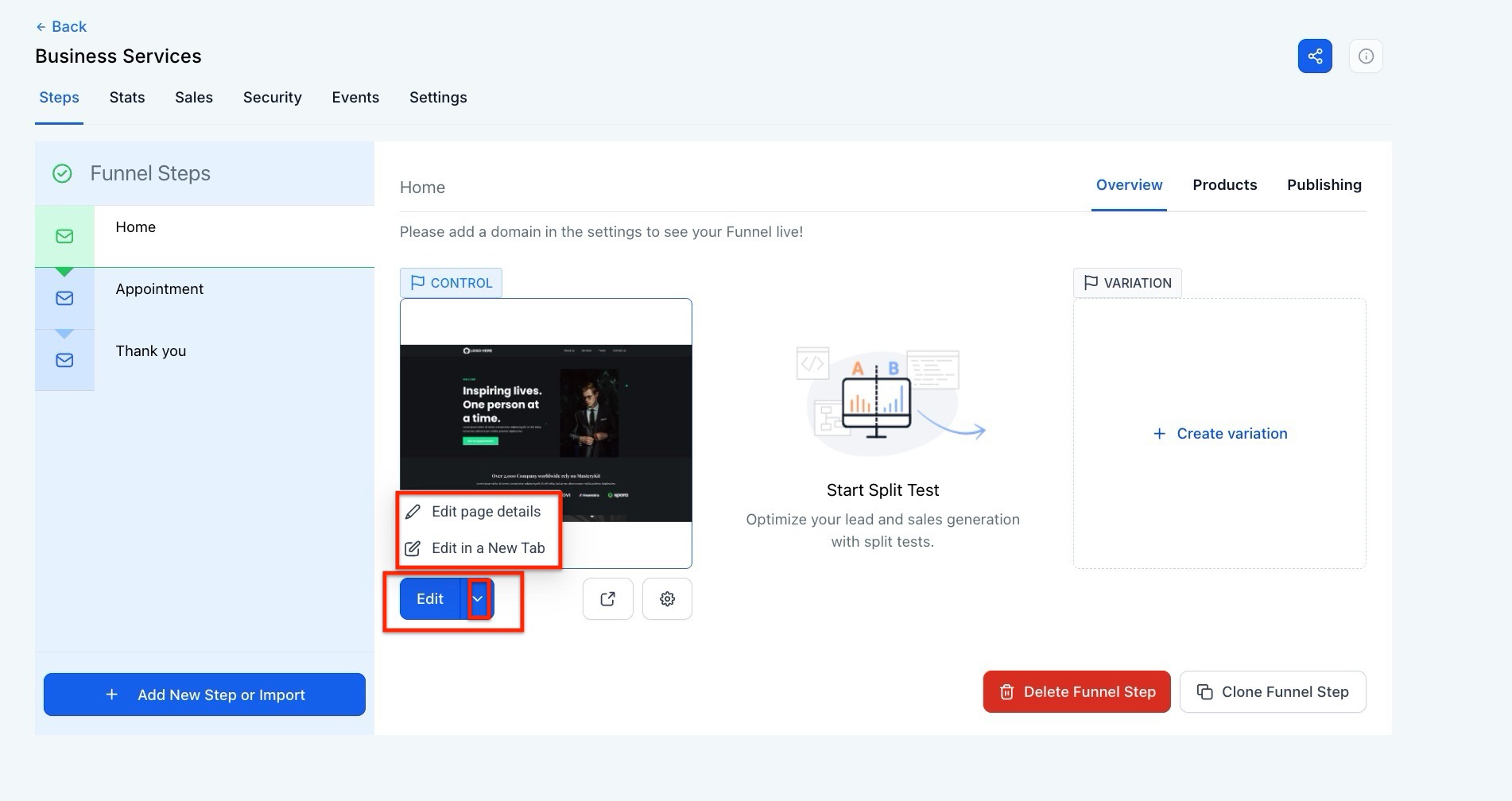
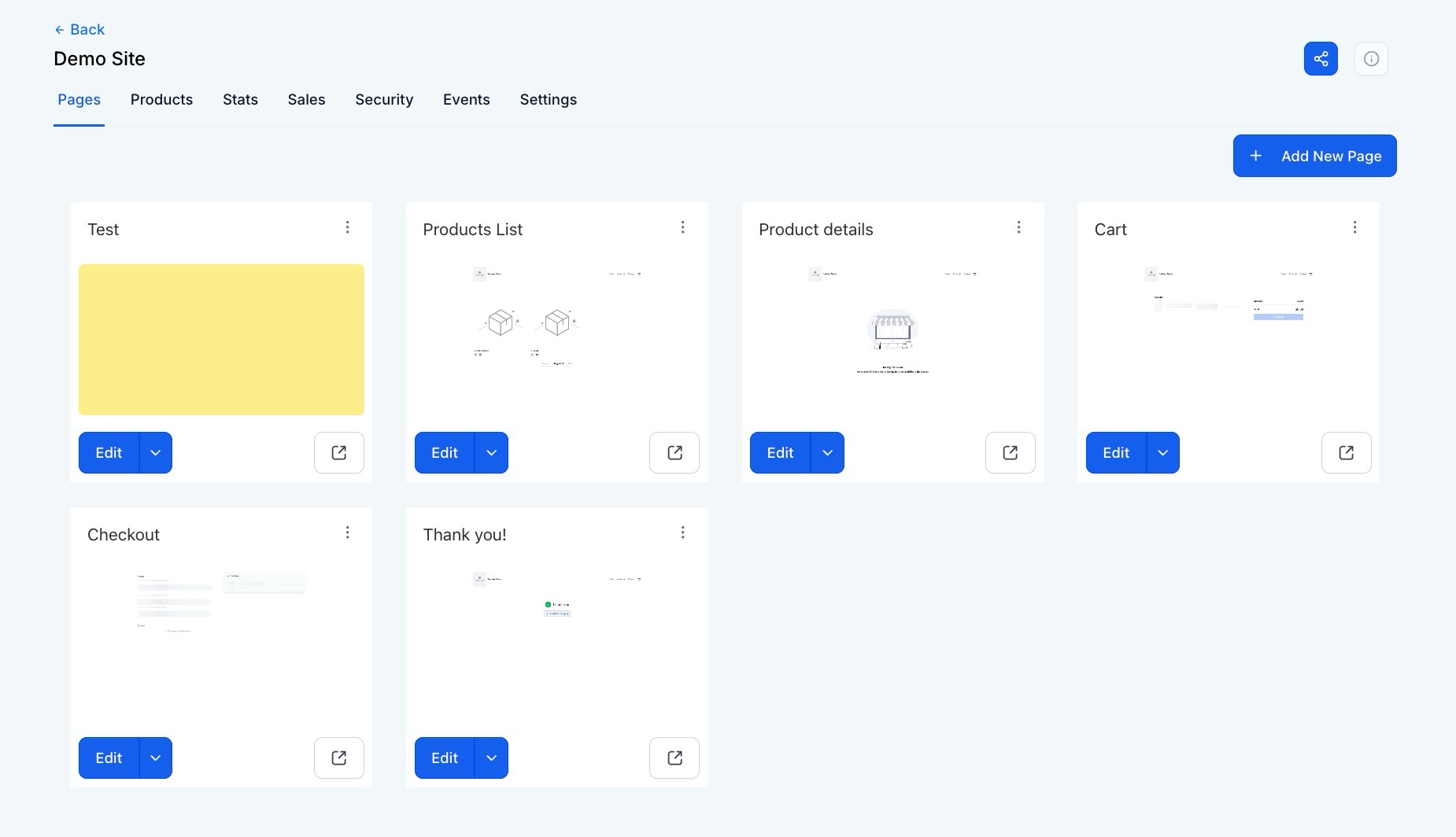
¶ Step 2: Click the edit icon for the page you wish to edit.
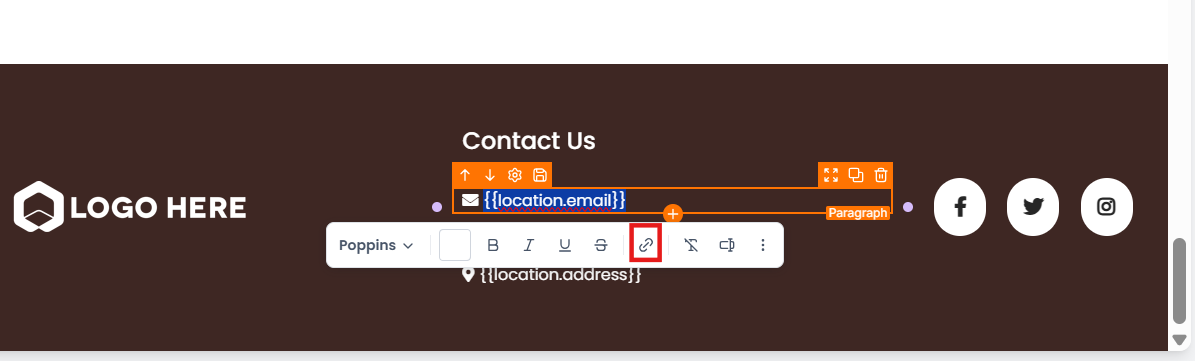
Step 3: In the builder, click to highlight the text you wish to create a hyperlink for. A small menu will appear at the top of the screen. Click the hyperlink logo, and a pop-up window will appear.
Step 4: Enter the URL and Configure the Options
- Enter the URL : In the popup window, input the URL you want the hyperlink to direct to.
- Choose Link Behavior : Select whether you want the link to open in the current window or a new window.
- Optional: Add “nofollow” Attribute :
- Check the ‘Include nofollow in hyperlink’ option if you want to add the “nofollow” attribute to your hyperlink.
- What is “nofollow”? : The “nofollow” attribute tells search engines not to consider the link for page ranking. This means that the link won’t influence search engine rankings and helps prevent your site from appearing in search engine results if linked from less reputable sites.
- Default Settings : The option to include the “nofollow” attribute is enabled by default in funnels and disabled by default in websites. You can adjust this setting according to your SEO needs

¶ ****
Step 5: Save the changes.
Step 6: Click Save in the top right of the builder, and the hyperlink along with any other edits you’ve made will be saved.
Step 7 : You can hover over the hyperlink to view the link that viewers will be redirected to.
¶ FAQ’s
Question: What is the purpose of the “nofollow” attribute?****
Answer: The “nofollow” attribute tells search engines not to follow the link or use it for ranking purposes. This helps prevent your site from being negatively affected by linking to less reputable sites.
Question: Can I change the hyperlink after saving?****
Answer: Yes, you can edit the hyperlink by following the same steps and updating the URL or settings as needed.
Question: How can I test if the hyperlink works?****
Answer: After saving, preview the page and click on the hyperlink to ensure it redirects to the correct URL.
Question: What if the hyperlink doesn’t appear correctly?****
Answer: Ensure that you have saved the changes correctly and that there are no errors in the URL. Double-check the text highlight and the link configuration.
Question: Will the hyperlink affect my SEO?****
Answer: It can, depending on whether the link is internal or external, and whether the “nofollow” attribute is applied. Properly configured links can benefit your SEO strategy.
Question: How do the default “nofollow” settings differ between Funnels and Websites?**
**Answer: By default, the “nofollow” attribute is enabled for funnels but disabled for websites. However, you can manually toggle this setting on or off in either builder depending on your specific SEO needs.