¶ How to Add and Customize an Order Form in a Funnel or Website
How to Add and Customize an Order Form in a Funnel or Website
In this article, you will learn how to add and customize an order form within a funnel or a website
¶ **What you will need: **
- An order form (it can be a one-step or a two-step order form. This is up to you and your needs)
- A funnel with a funnel step or a website with a website page
- Your payment gateway is integrated and your products are created
¶ Step 1: Editing your funnel or website page
- Navigate to Sites > Funnels or Websites > Click on the one you want to add your order form to
- Select “Edit Page” or “Edit in a New Tab” on the page you want to edit

¶ Step 2: Adding the form
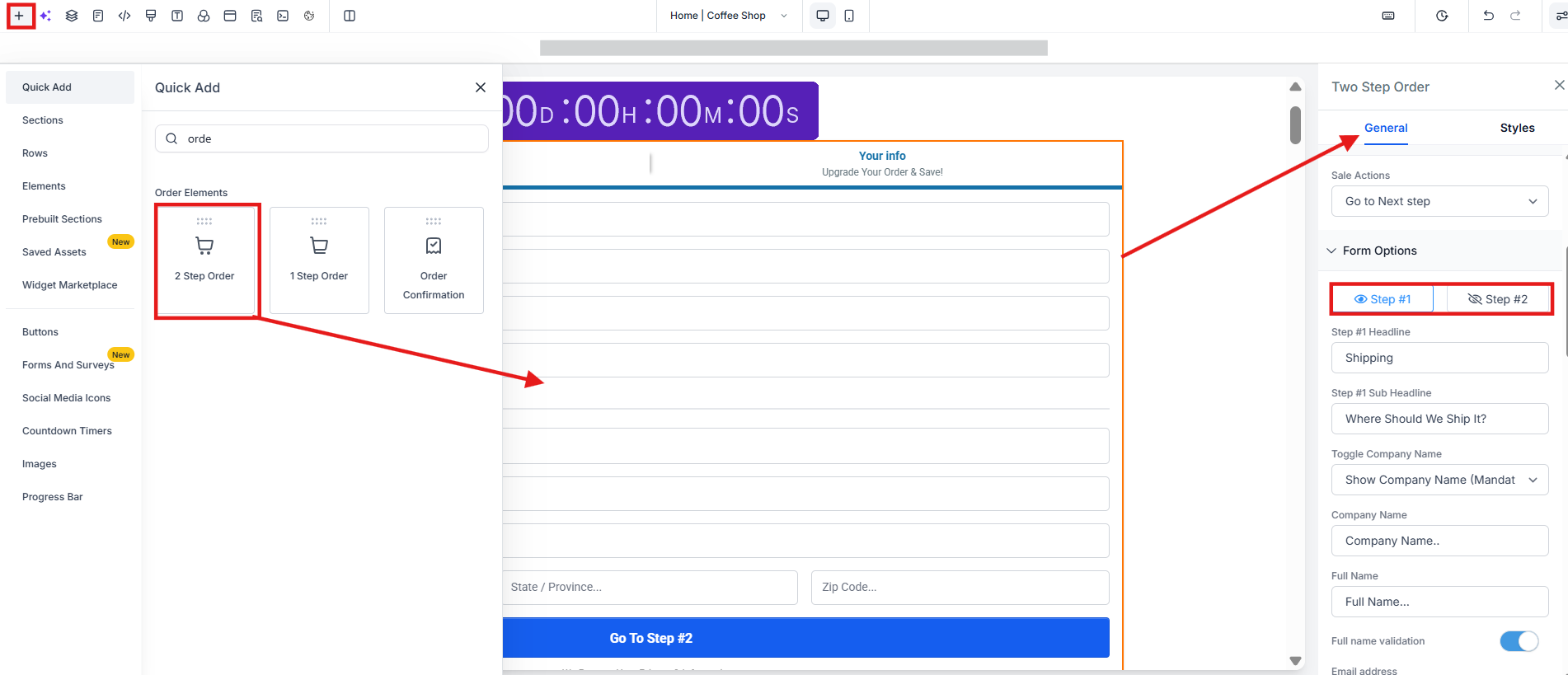
- Select Add Section > Add Row > The number of columns you need
- Select Add Element and on the right side menu, scroll to the Order Elements
- Select either the one-step or two-step order form.
¶ Step 3: Customize your Form
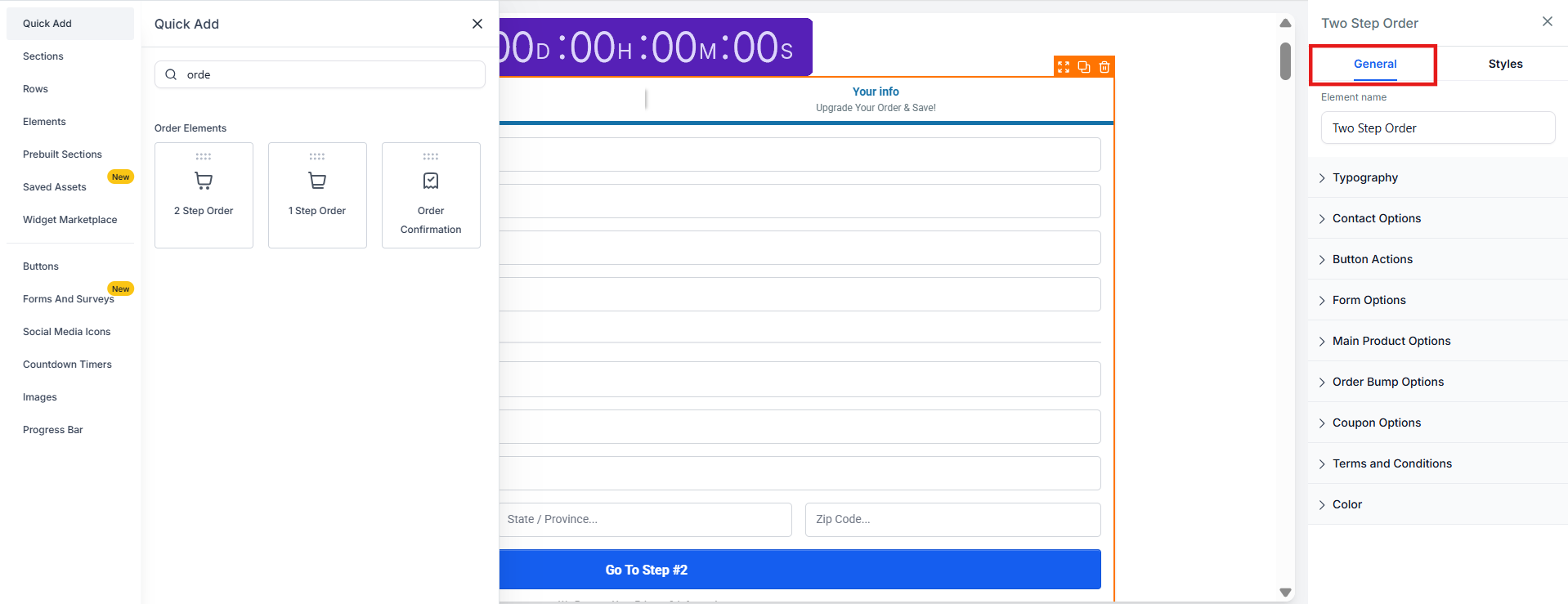
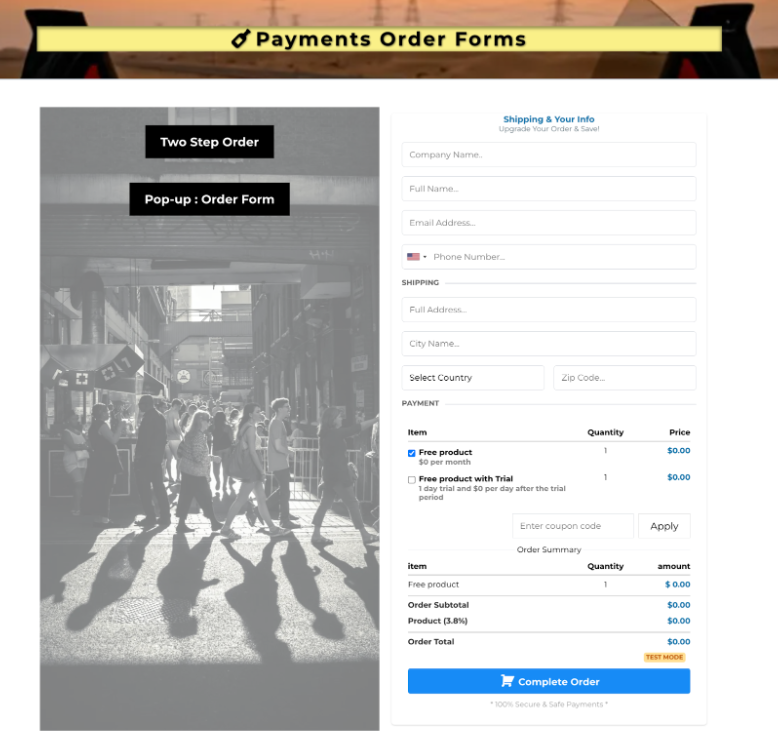
When you click on the order form element, a menu will pop-up on the left side. This section is where you can customize your form. These are the details that you can edit:
- **General Settings: **
- Title
- Typography Type
- Contact Options
- Button Actions
- Forms Options
- Main Product Options
- Order Bump Options
- Coupon Options
- Terms and Conditions
- Colour
-
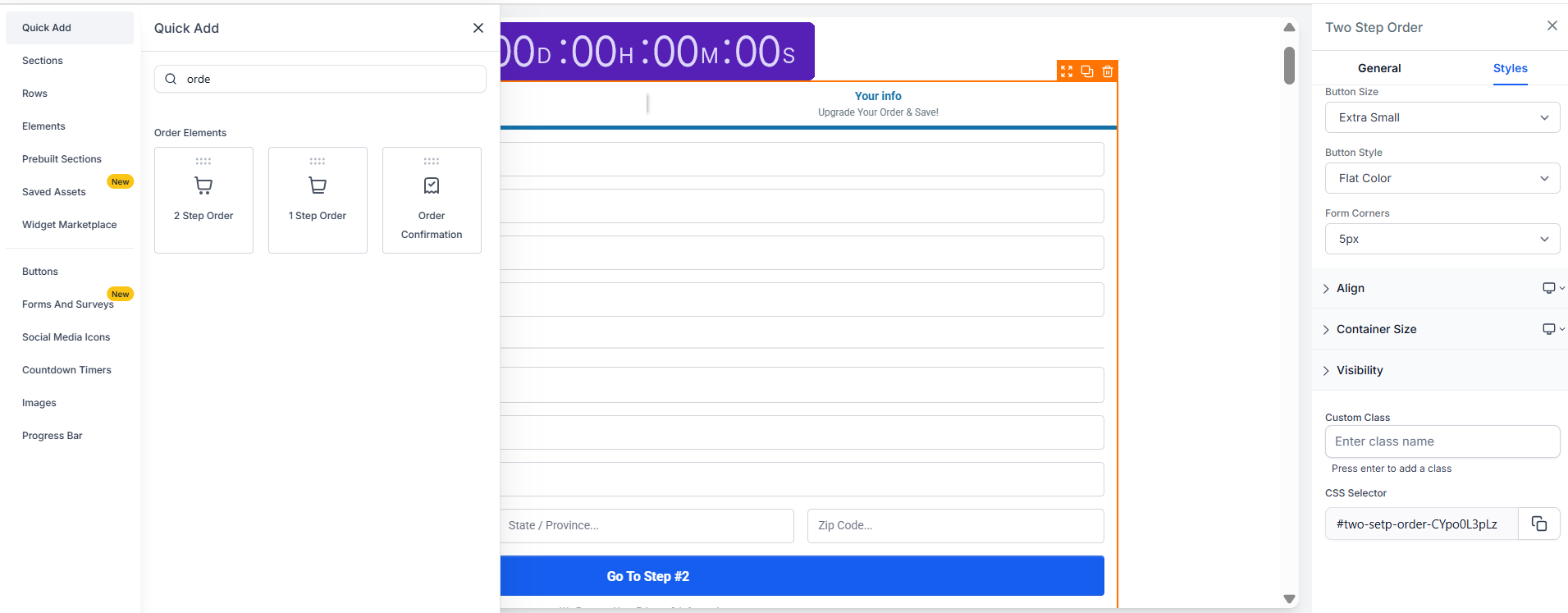
Styles Settings
- Button Size and Style
- Form Corners
- Text Alignment
- Container Size
- Visibility (Desktop or Mobile or both)
- Custom Class
- CSS Selector
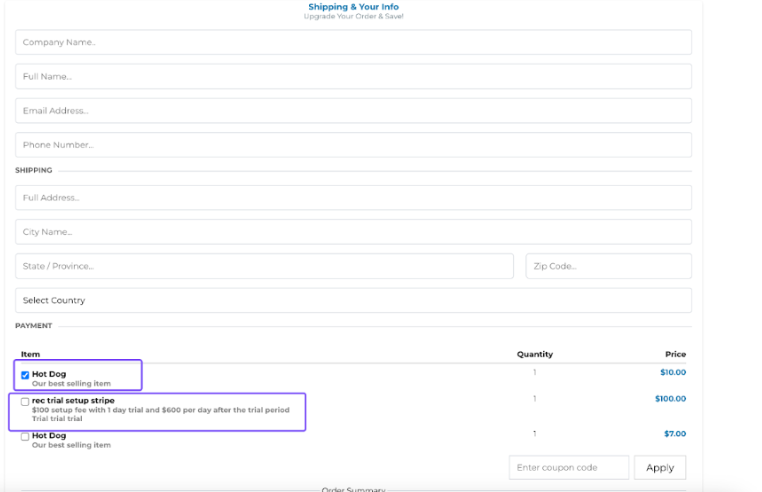
- Product description view when toggled on: This allows the user to show their customized description in order forms.
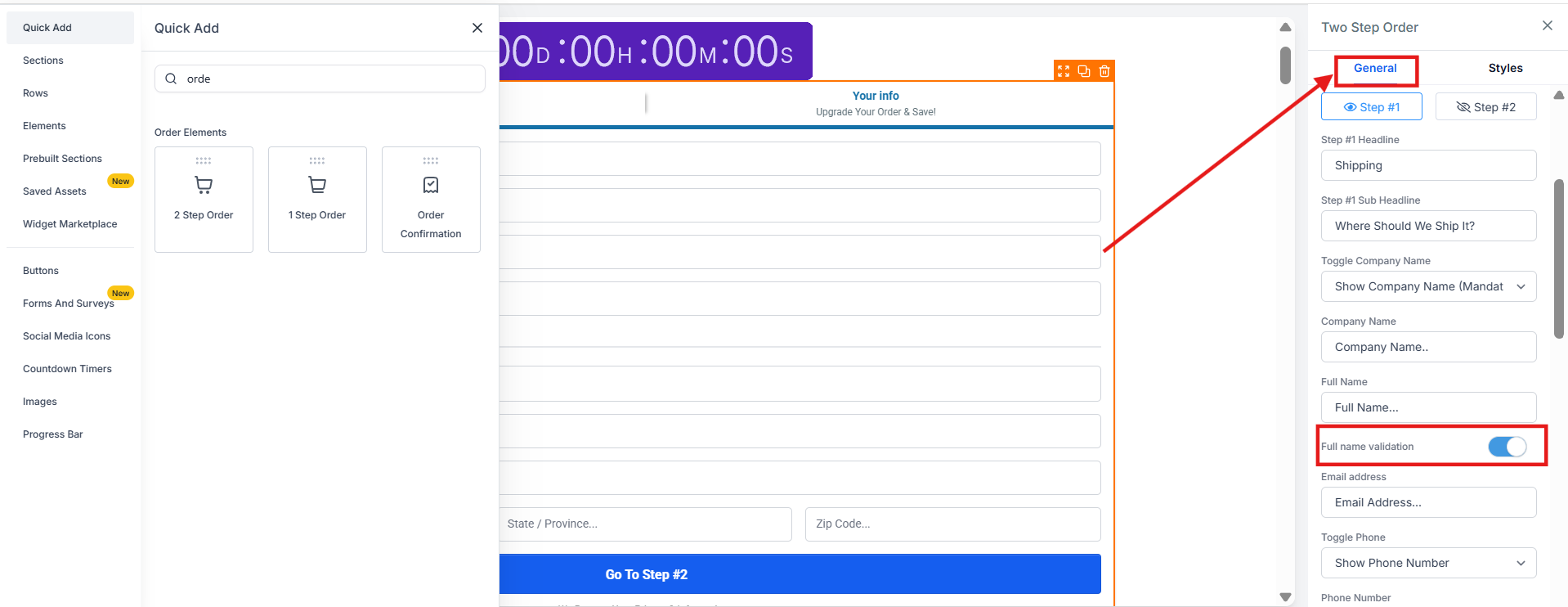
- Full Name validation toggle: Enables forms to validate names entered.
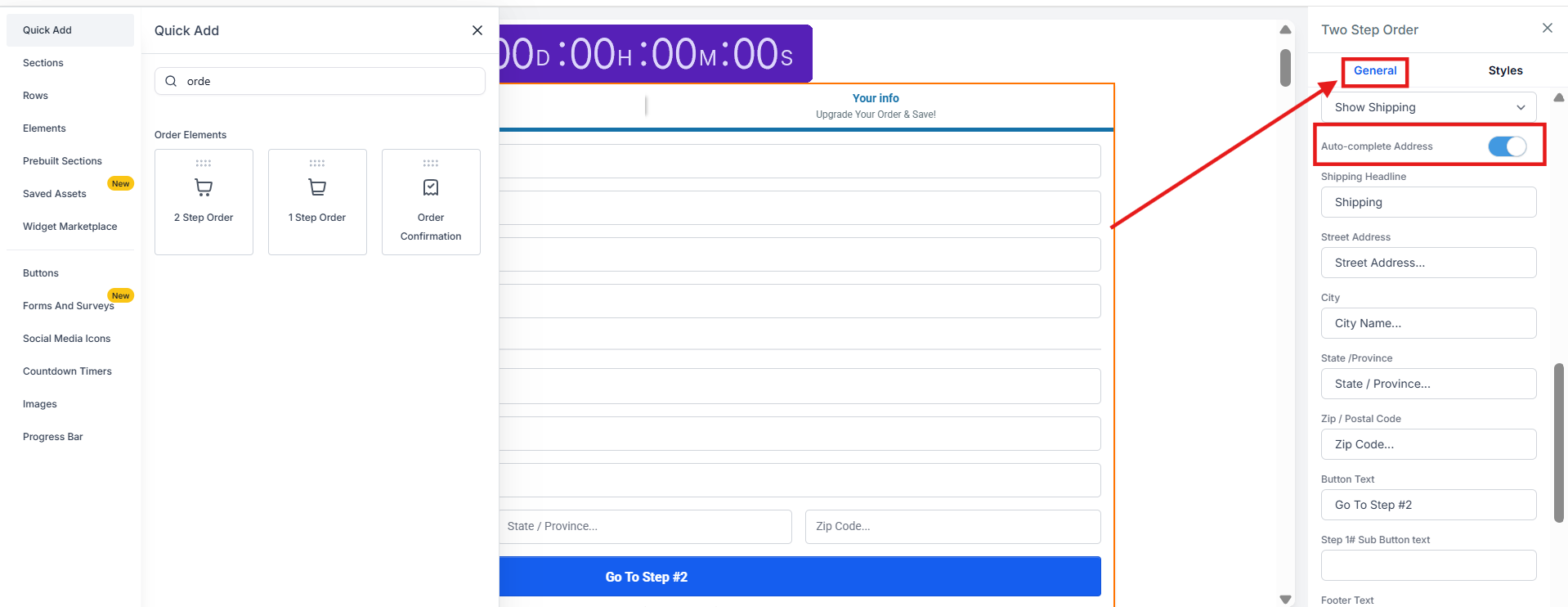
- Auto Complete Address: Speeds up checkout with instant Google-powered address suggestions.
Please Note: Other than the settings provided to customize the order form, it is not possible to add or remove fields. These order forms are in line with payment processors and cannot be edited other than with the built-in settings.
Step 4: Save your changes and you are all set.
Setting up Order Confirmation Message**
Step 1: Adding your Order Form Element**
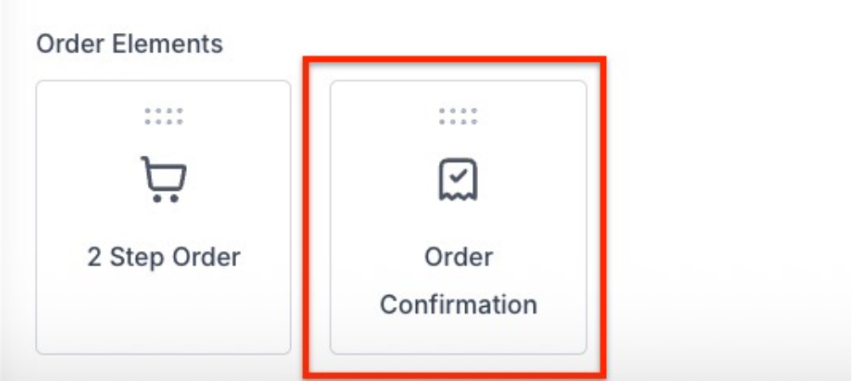
- Go to your page editor and add the element “Order Confirmation”
**Step 2: Customizing the Order Form Elemen
**
- Click on the element, and on the right side, you will see the menu show up
- Click on the General settings, and you will be able to edit the text of the fields, hide the Order Title, Total, and the Shipping Details
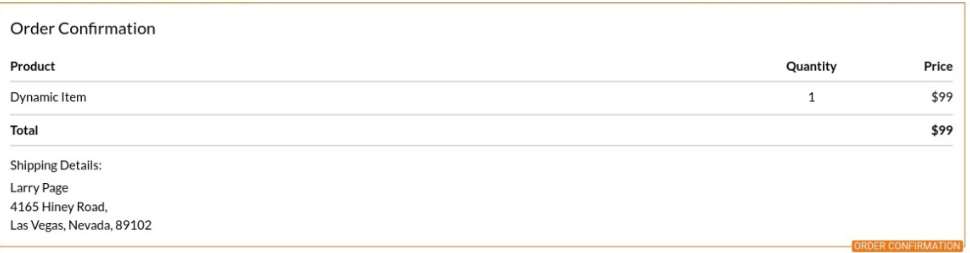
Note: By default, in the editor, you will see that the product’s name is Dynamic Item and that the price is $99. This is only visible while you are on the editor; however, after buying the product in the order form and being taken to this page with the order confirmation element, you will see the name of your product and the correct price of your product.
Payment Options In Order Forms
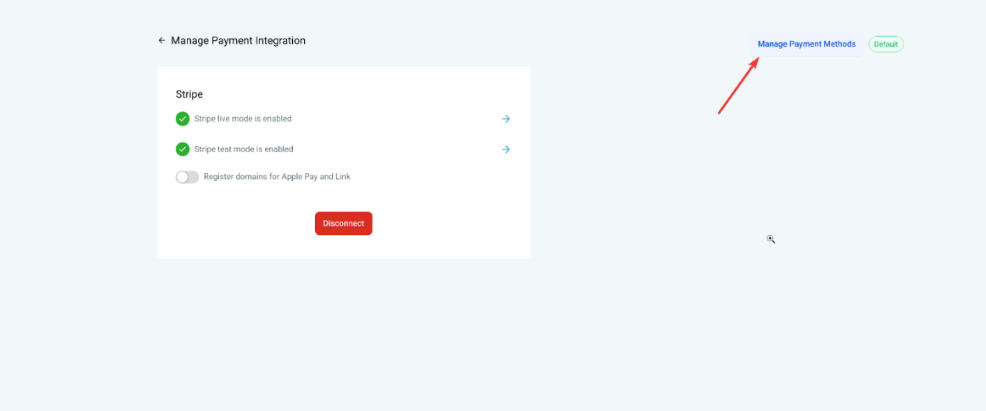
Managing Stripe Payment Methods within LeadMagicX
Businesses can set up Stripe payment methods directly within LeadMagicX, eliminating the need to configure them on Stripe’s dashboard. These payment methods can be enabled or disabled for various product areas, separately in both Live and Test modes. For existing customers, the default payment methods for product areas or checkouts will remain as they were configured in Stripe. **
Important:** Going forward, editing these payment methods on Stripe will no longer be possible.
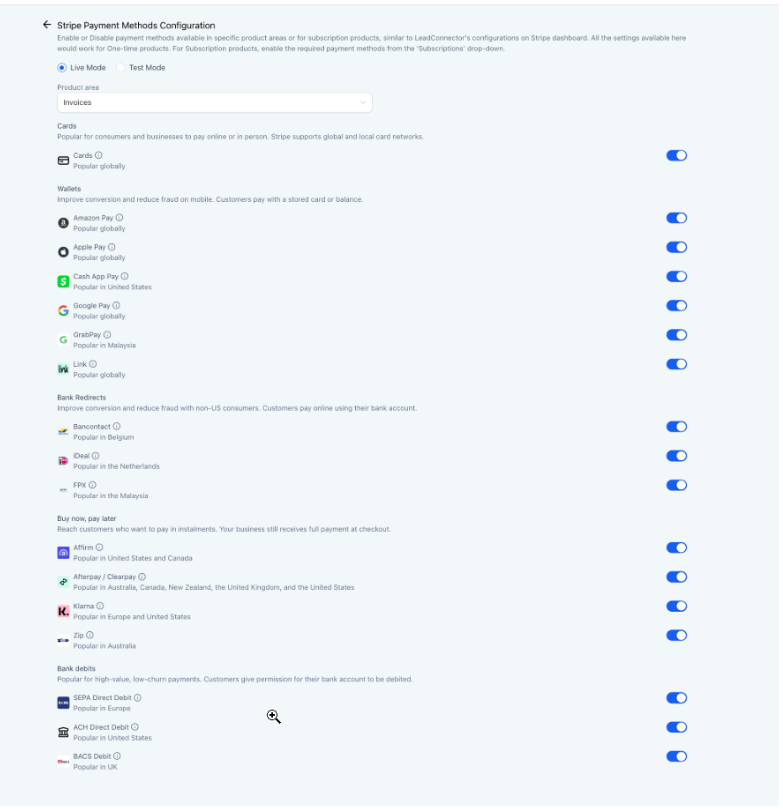
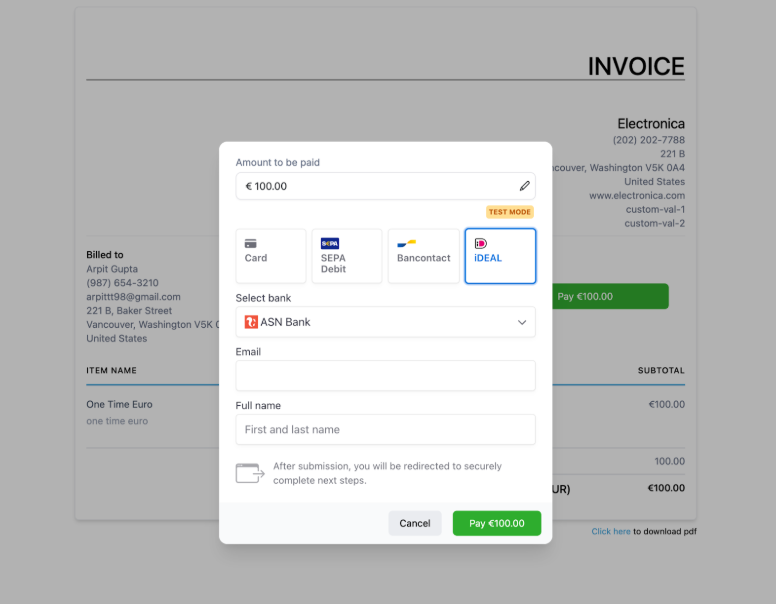
Businesses using Stripe can also offer payment options that are preferred in certain regions:
IDeal - popular in the Netherlands
Bancontact - Common payment method in Belgium
Sepa Direct Debit - Common payment method in the European Union
PayPal Pay Later is a payment option for order forms and online stores.
- Applicable For: Both 1-step and 2-step order forms, as well as upsell purchases.
- Availability: Only for one-time purchases, not for recurring products.
- Display: The Pay Later button will appear below the PayPal button during checkout.
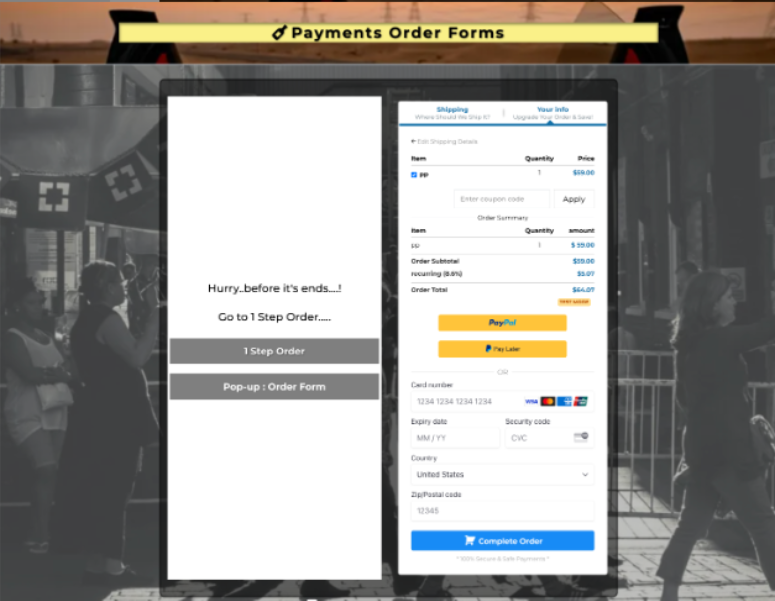
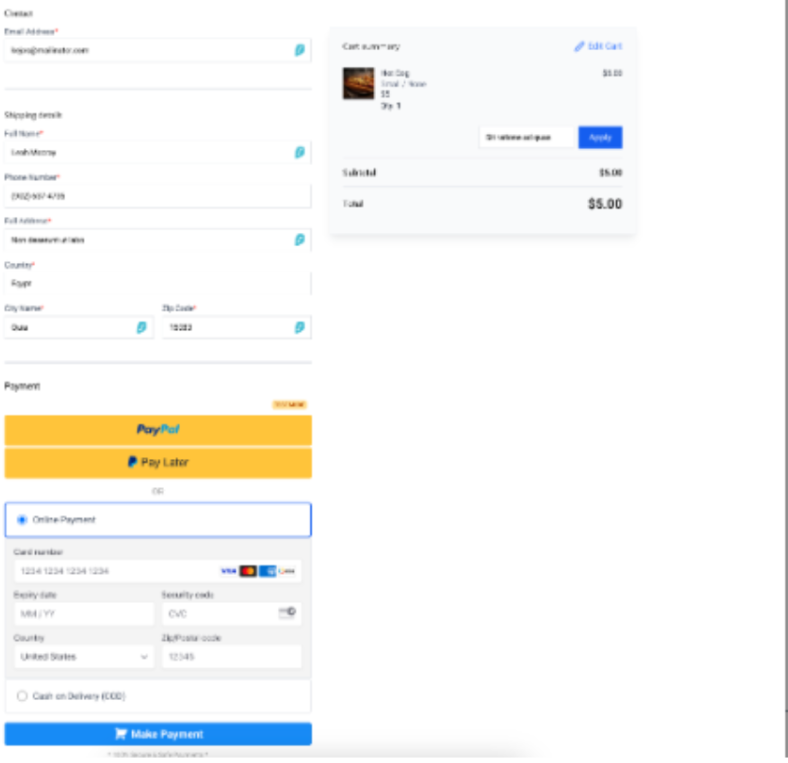
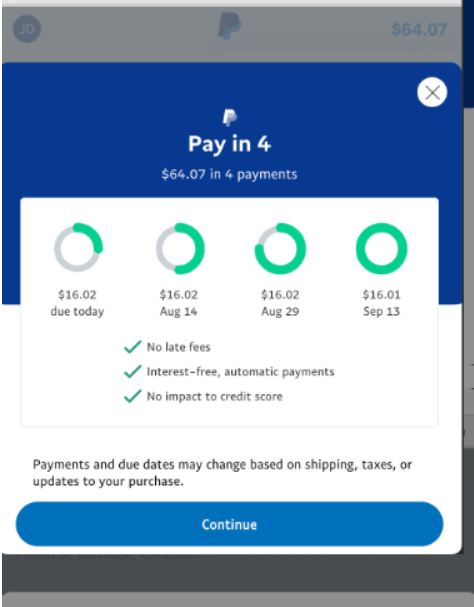
Offering Pay Later options can help increase conversions.
Please Note:_Be sure to check out our articles for each specific gateway vendor for more details on vendors. There are currently options for BNPL (Buy Now, Pay Later). You can integrate several payment processor options in Payments > Integrations. _
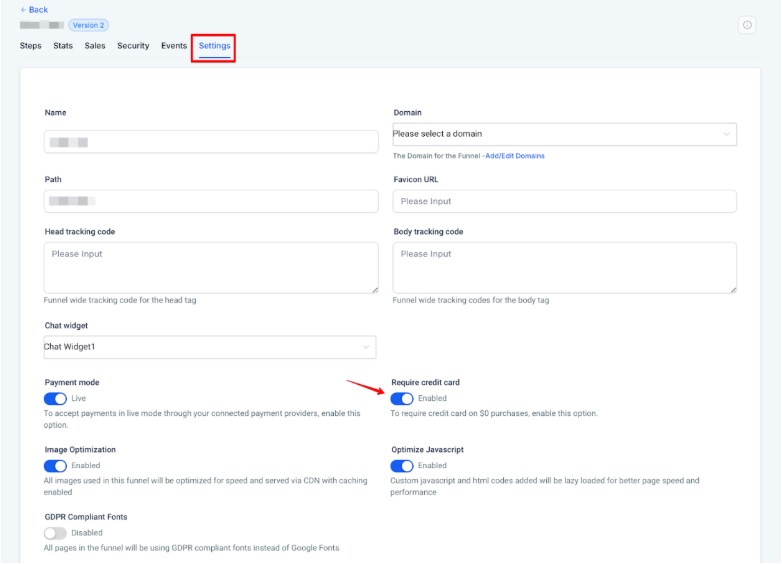
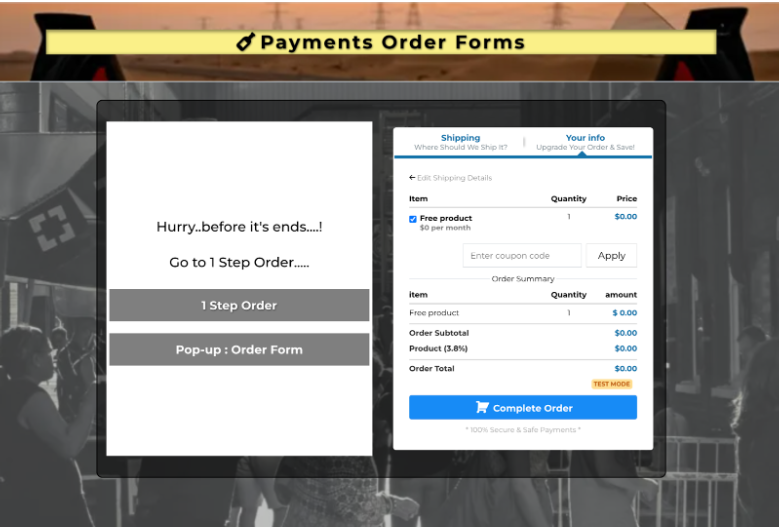
$0 Checkouts:
Businesses can let customers check out free products without needing to provide credit card information.
- Works for one-step and two-step order forms, as well as online stores.
- It can be turned on or off in the Funnel Builder settings and applies to upsell products.
Note: Free checkout is only available for one-time products priced at $0 or for recurring products where both the initial and future payments are set at $0.
FAQ
Question: Can I use multiple payment gateways for my order form?**
**Answer: Yes, you can integrate different payment methods like Stripe, PayPal, and even manual payment options. These can be set up under Payment Integrations.
Question: Can customers check out free products without a credit card in Order Forms?**
**Answer: Yes, this feature works for one-time and recurring products priced at $0. It can be toggled in Funnel Builder settings.
Question: What customization options are available for the order form?**
**Answer: You can customize the form’s title and button styles, and enable/disable options like order bumps, coupon codes, or sticky contacts.
Question: Can I add or remove fields in the order form?**
**Answer: No, the order form fields are in line with payment processors and can only be customized using built-in settings.
Question: Can I manage payment methods directly inside the platform?**
**Answer: Yes, payment methods can be enabled or disabled directly within LeadMagicX for both live and test modes, without needing to manage them externally.
Question: Can I use an “Order Bump” on both Funnels and Websites?
Answer: Yes. An Order Bump is a great way to offer a small “add-on” product (like an ebook or a workbook) directly on the checkout page. You can customize the look and feel of the bump box within the element settings.