¶ How to Customize the Chat Widget
Customizing your chat widget is crucial for maintaining brand consistency and improving user interaction. A well-designed chat widget not only looks more professional but also ensures that it complements your website’s overall aesthetic. With new customization options, you can adjust the design, position, and functionality of your chat widgets, making them more effective and visually appealing.
¶ 1. Creating a New Chat Widget
To get started, follow these steps:
- Access Your Chat Widget Settings: Navigate to the Sites tab and then the Chat Widget section in your dashboard.
- Create a New Widget: Click on Create New Chat Widget.
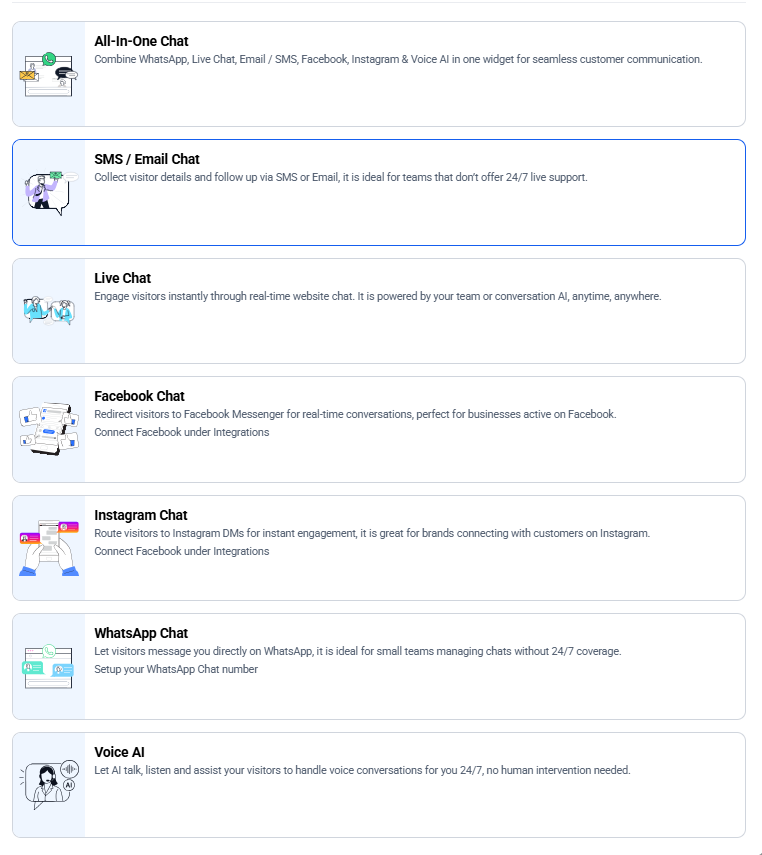
- Choose Your Communication Channels: Decide whether the widget will support All-in-One chat, SMS, email, live chat, or WhatsApp. For this guide, we’ll select SMS and email.
¶ 2. Customizing Widget Styles
You have various options to tailor the appearance of your chat widget:
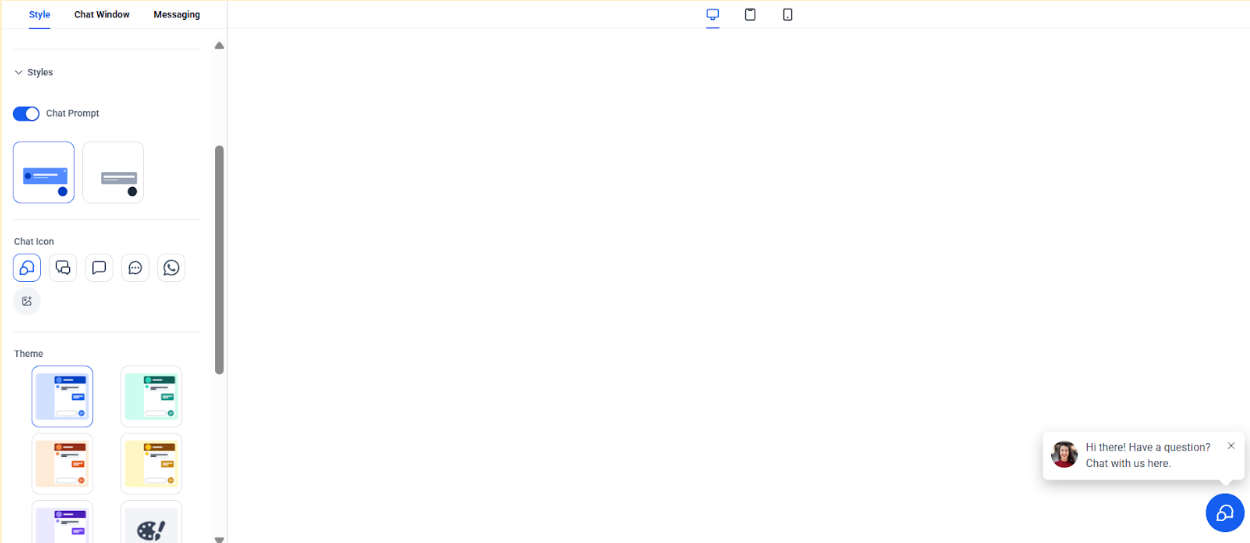
- Chat Prompt: Toggle the chat prompt on or off to control whether users see a question prompt that initiates the conversation.
- Widget Style Options: Customize the chat window, messaging style, and more. For instance, you can keep or remove the image from the chat bubble to enhance user connection.
¶ 3. Adjusting Widget Position
Change the placement of your chat widget to improve visibility and user interaction:
- Position Options: Move the chat widget to different screen areas such as the bottom left, top left, bottom right, or top right. For instance, placing it in the middle of a sales page can increase visibility.

¶ 4. Changing Chat Icons and Images
Personalize the chat icon to align with your brand:
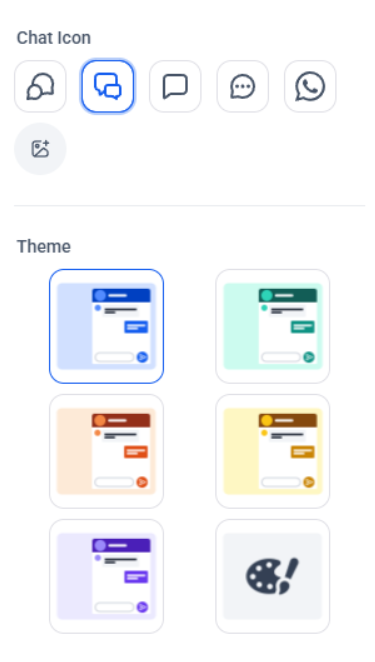
- Predefined Icons: Choose from existing icons that resemble popular styles, like Facebook Messenger.
- Custom Icons: You can upload your image to the chat bubble or remove it for a cleaner look.

¶ 5. Selecting Themes and Colors
Adjust the colors and themes to match your brand’s color scheme:
- Theme Colors: Modify the chat bubble color, background color, and various other elements like button and avatar colors.
- Custom Colors: Use color pickers to select precise shades for different chat elements.
¶ 6. Messaging Customization
¶ a. Customizing Acknowledgement Messages
- Acknowledgement Message: Configure an automated response that acknowledges receipt of a message. This can reassure users that their message has been received and will be addressed. For example: “Thank you for reaching out! One of our representatives will get back to you shortly.”
¶ b. Setting Up Greetings
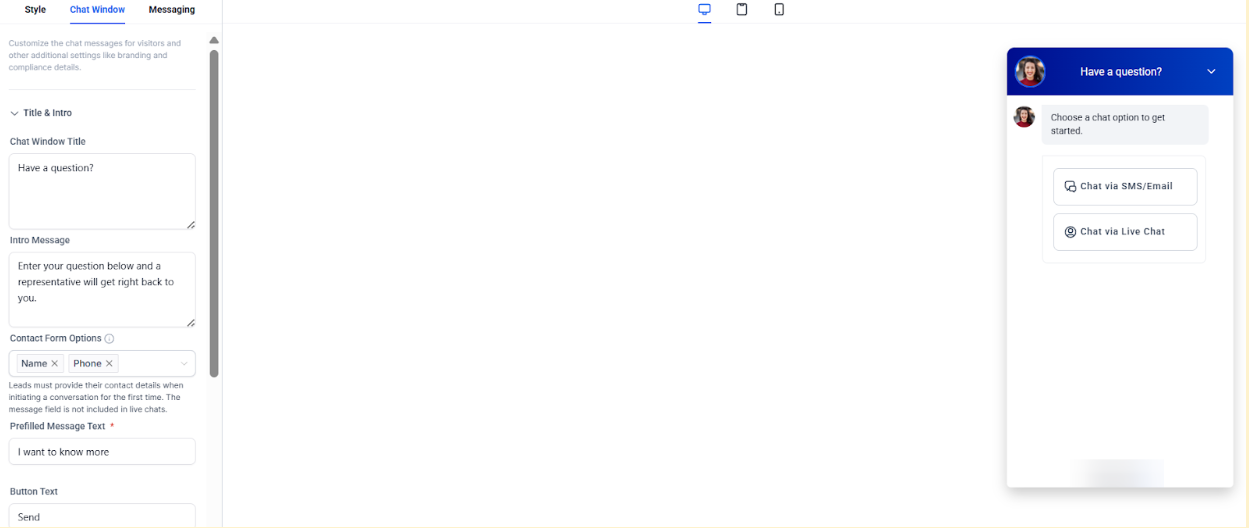
- Custom Greetings: Personalize greetings to enhance user experience. This can include addressing returning customers by their name and providing a warm welcome.
¶ c. Language Settings
- Language Selection: Choose the language in which the chat widget will communicate with users. This ensures that non-English speaking users can also interact with the chat service in their preferred language.
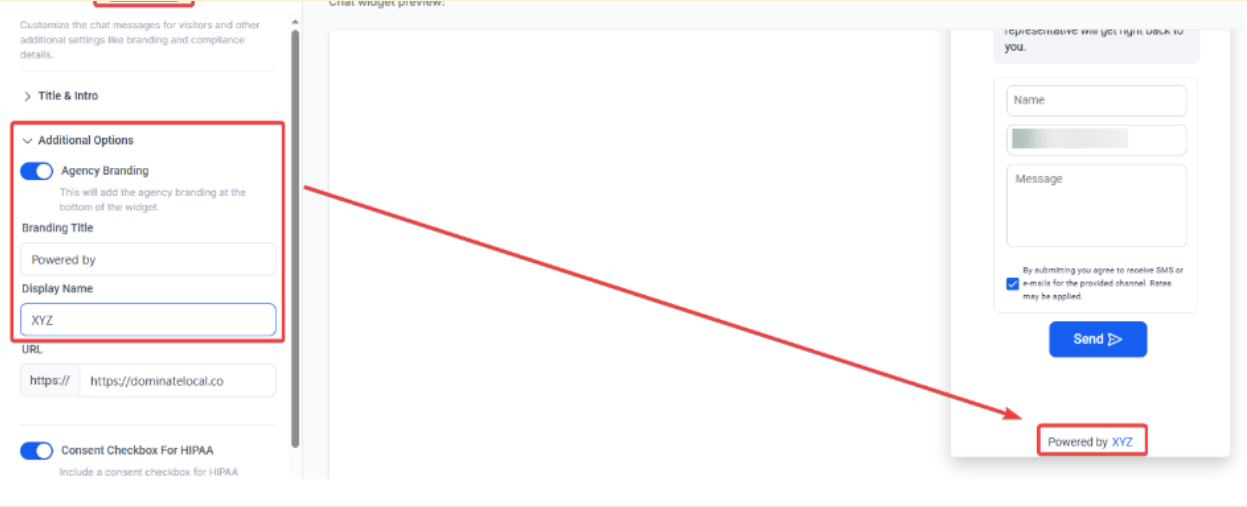
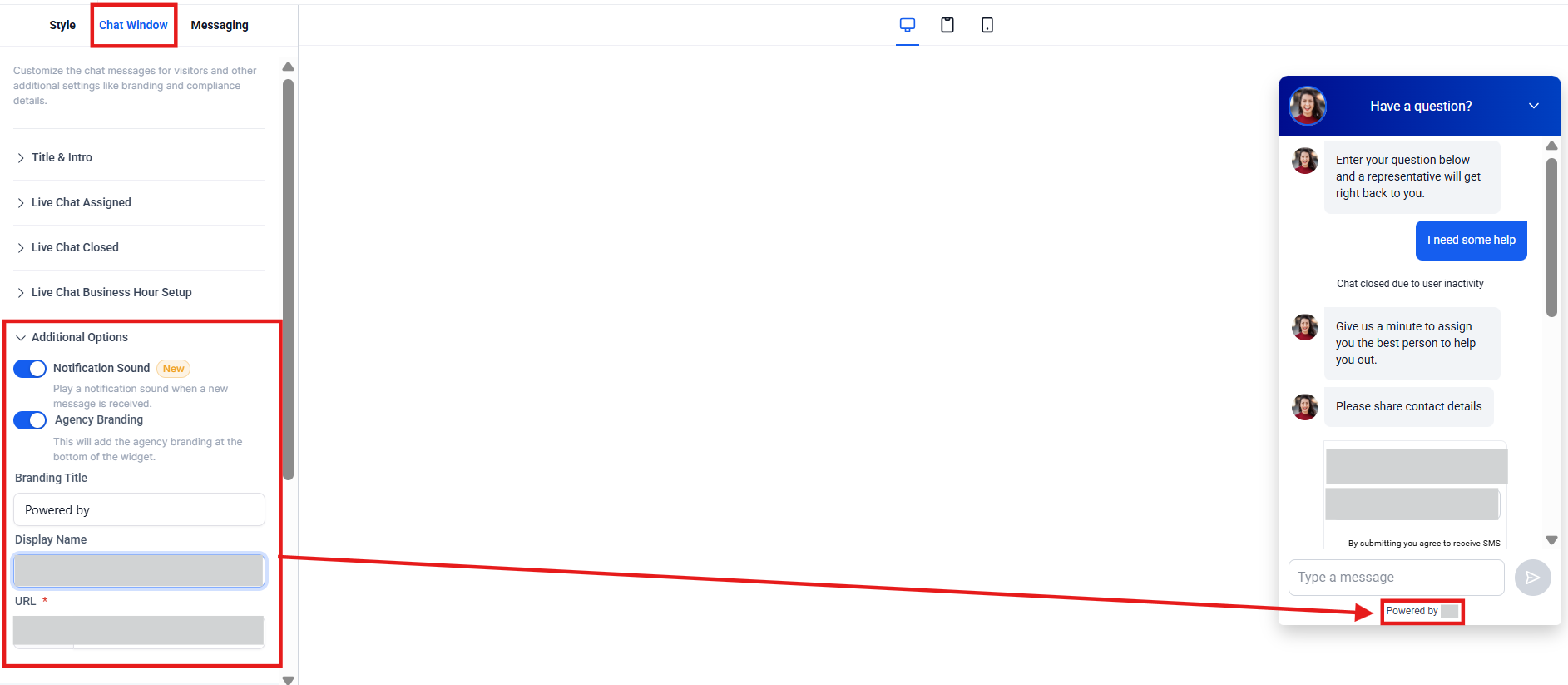
¶ 7. Customizing “Powered By” Text on Chat Widgets
You can fully customize the “Powered By” text displayed on your chat widget, replacing it with any wording that suits your brand or messaging. This feature provides greater flexibility in tailoring the chat widget to match your company’s branding better while offering a more personalized user experience.
Benefit: This feature enhances brand consistency by controlling the text displayed on your chat widget.
How to Use It:
- Navigate to your chat widget settings.
- Locate the “Powered By” text field.
- Enter your preferred custom text to replace the default wording.
¶ 8. Avatar Image Optimization for Chat Widgets
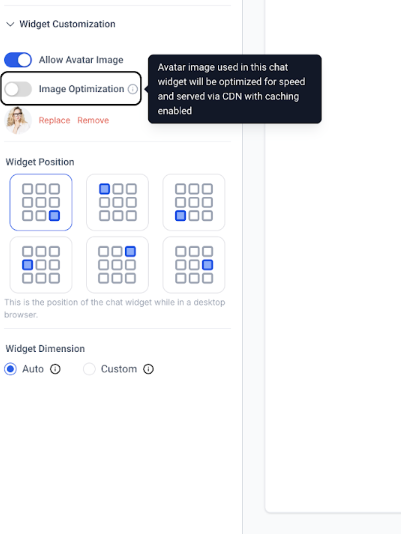
By default, all chat widgets have image optimization turned on. This means avatar images are automatically adjusted to load faster and perform better. The images are delivered through a Content Delivery Network (CDN) with caching, which helps speed up load times and improves the user experience.
High-Resolution Option
If you prefer, you can turn off image optimization to use high-resolution avatars instead. This may give you better image quality, but it could also make the loading process slower.
🤗 How to access
- Open your chat widget and click on its name.
- Go to the**“Widget”** tab and scroll down to find the “Widget Customization” section.
- Use the**“Image Optimization”** switch to turn the feature on or off, depending on what you need.
- Save your changes and preview the widget to make sure everything looks good.
¶ Chat Widget Features:
- Contact Form Submission Details : The chat widget displays all contact details submitted through email, SMS, WhatsApp, or live chat within the conversations tab for easier tracking and management.
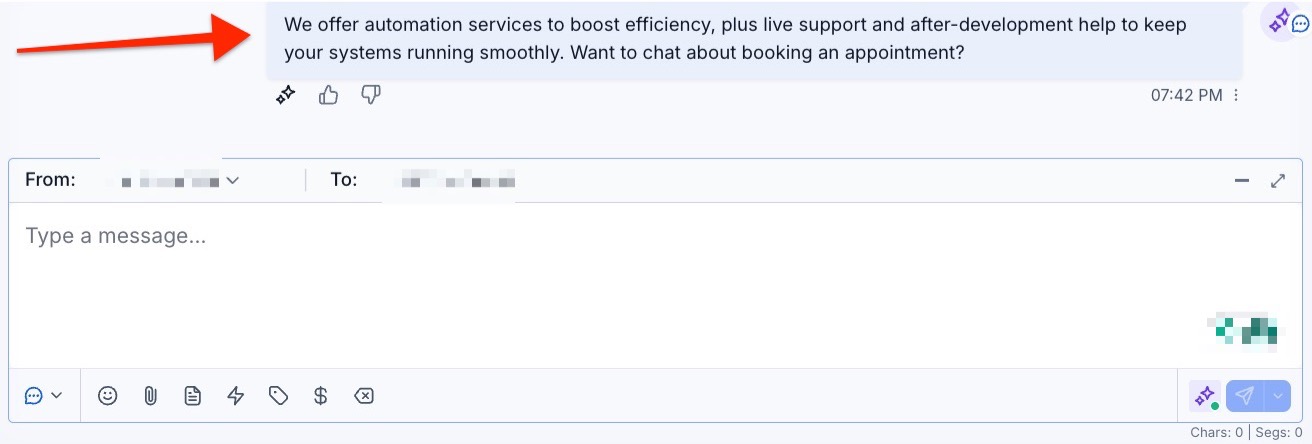

- Support for Custom Fields : Custom fields are supported in the contact form, enabling users to capture more detailed and relevant information within a single interface.
- Handling of Empty Message Fields : If the message field is left blank, the system will show the available contact details without adding any default text, providing a clearer and more straightforward experience.
¶ FAQ’s
Question: How can I customize the appearance of my chat widget?**
**Answer: You can adjust the chat widget’s styles by:
- Toggling the chat prompt on or off to control whether users see a conversation starter.
- Customizing the chat window style, including the messaging appearance and whether to show or hide the image within the chat bubble.
Question: Where should I position the chat widget for maximum visibility?**
**Answer: You can place the chat widget in different areas of your screen (e.g., bottom left, top right, etc.) to enhance visibility. For example, positioning it in the middle of a sales page can boost engagement.
Question: Can I change the chat widget’s icons and images?**
**Answer: Yes, you can:
- Choose from predefined icons or styles (like a Facebook Messenger look-alike).
- Upload a custom image for the chat bubble, or remove it for a cleaner appearance.
Question: How do I match the chat widget’s colors to my brand?**
**Answer: You can customize the chat widget’s colors using the theme and color options. This includes setting the bubble, background, button, and avatar colors to align with your brand’s palette.
Question: How can I personalize messages within the chat widget?**
**Answer: You can:
- Set up automated acknowledgement messages to reassure users their message has been received.
- Customize greetings to address returning customers by name.
- Choose the language for the chat widget, allowing non-English speaking users to interact in their preferred language.
Question: How do I change the “Powered By” text in the chat widget?**
**Answer: To customize the “Powered By” text:
- Go to the chat widget settings.
- Locate the “Powered By” text field.
- Enter your preferred custom text to replace the default wording.
Question: What is image optimization for chat widget avatars, and should I use it?**
**Answer: Image optimization automatically adjusts avatar images to load faster and perform better using a CDN. You can toggle this feature off if you prefer high-resolution avatars, though this may slow down loading times.
Question: How do I access and modify the image optimization settings?**
**Answer: To manage image optimization:
- Open your chat widget settings and click on its name.
- Go to the Widget tab and scroll to the “Widget Customization” section.
- Use the “Image Optimization” switch to enable or disable the feature.
Question: Can I preview the changes to my chat widget before finalizing them?**
**Answer: Yes, after making any customizations, you can save your changes and preview the widget to ensure everything looks as expected before it goes live.
Question: Can I preview my chat widget changes before they go live?**
**Answer: Yes, after customizing your widget, you can save your changes and preview it to ensure everything looks and functions as expected before publishing.