Custom Fonts in the Site Builder
Follow these steps to learn how to customize the font in your funnel or website, using a few different methods.
You can use four elements within funnels for text with different styles.
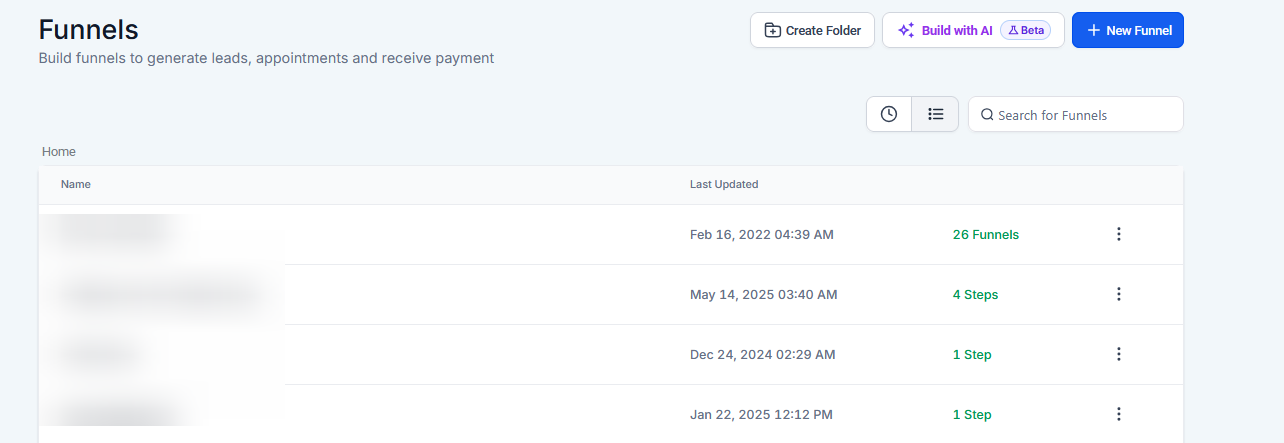 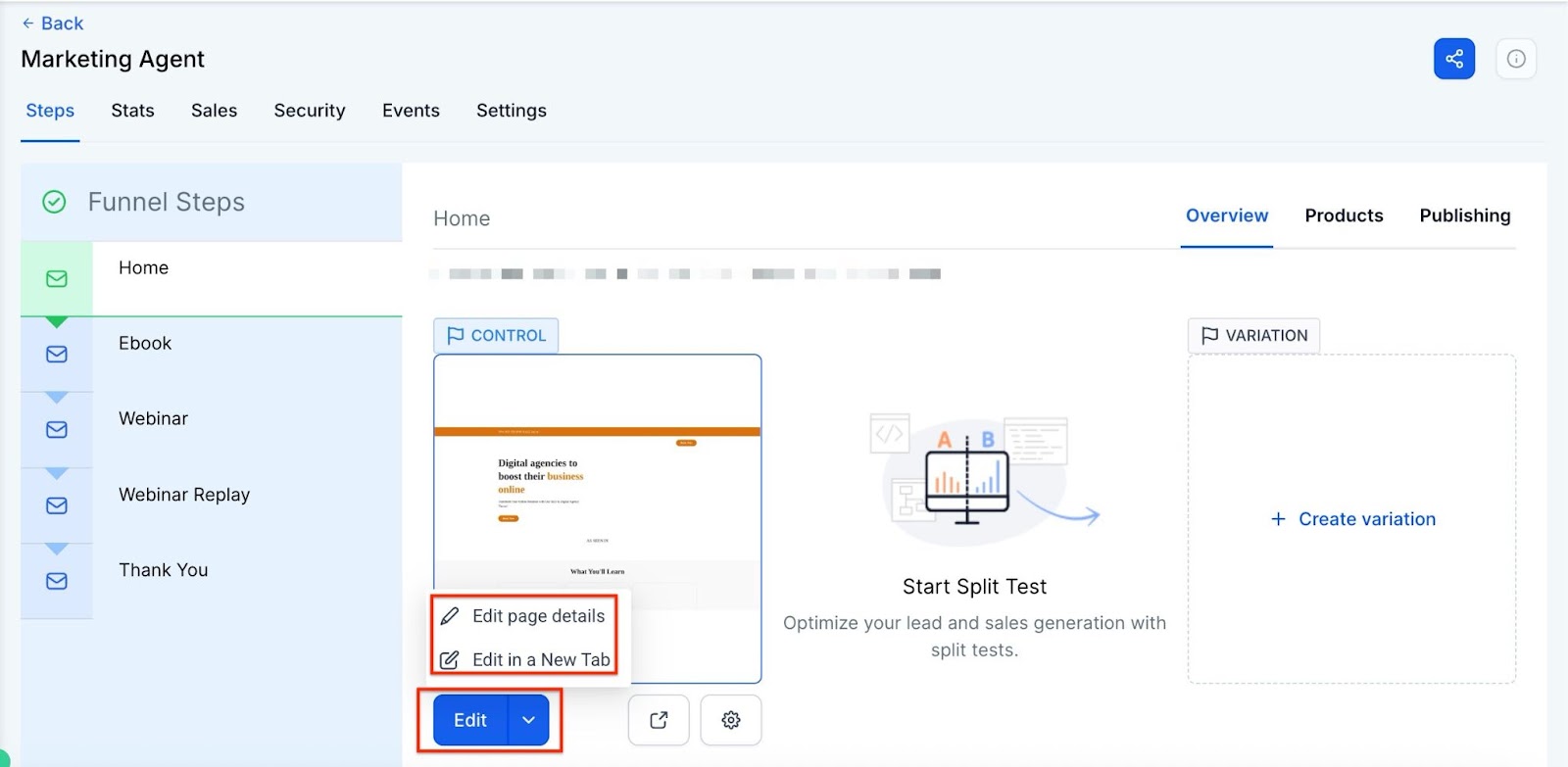
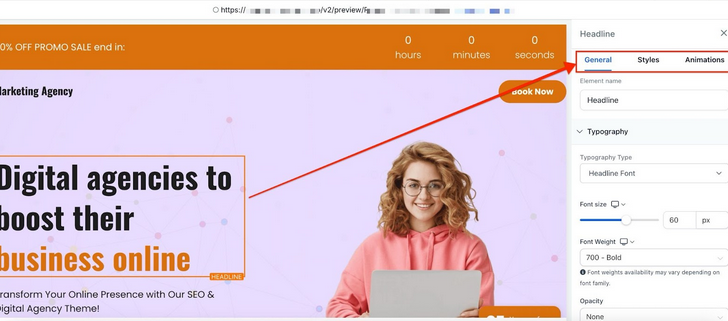
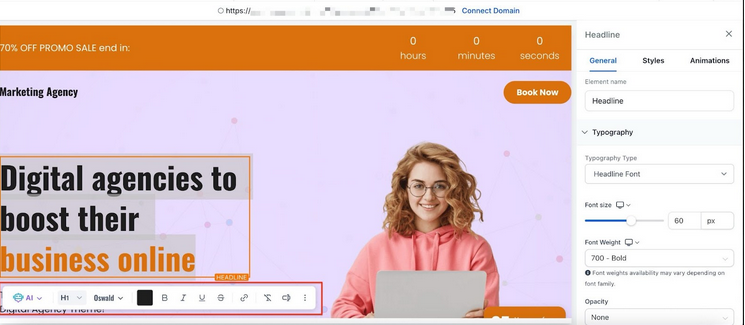

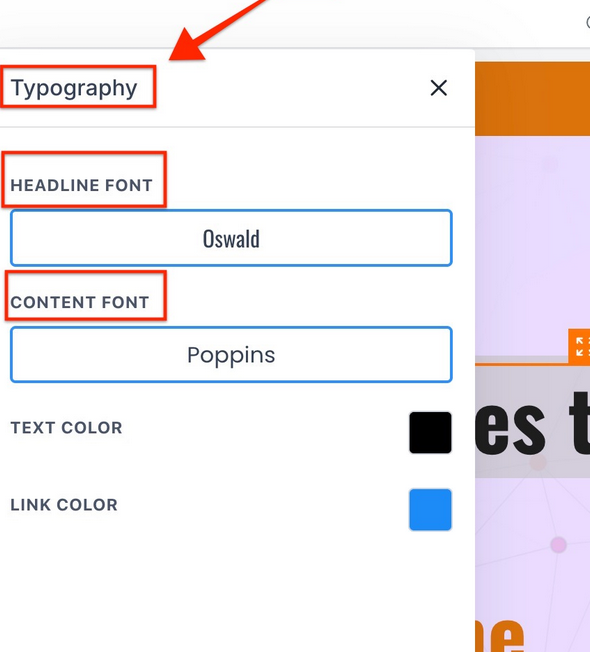
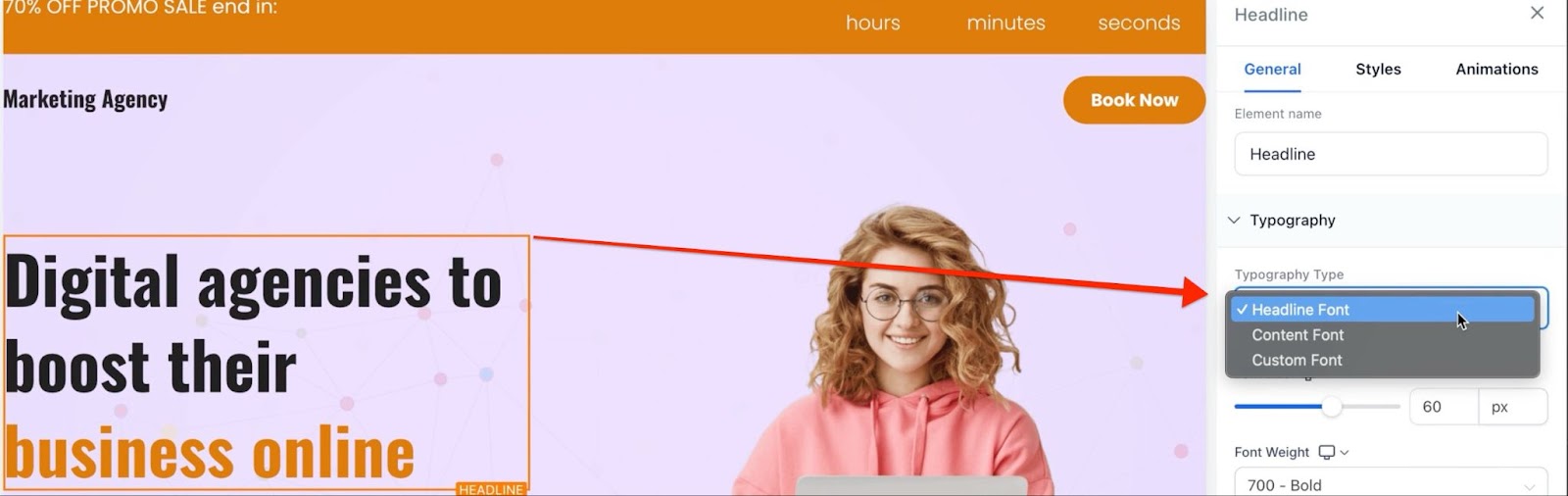
Choose a font family.
Choose a Google Font.
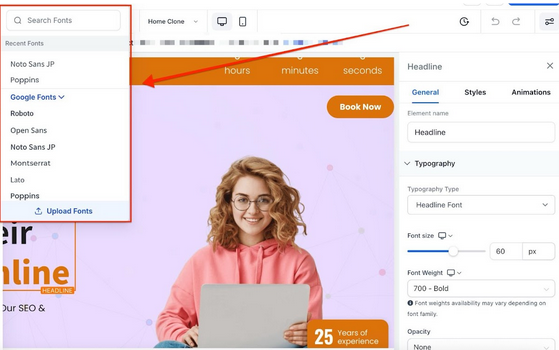
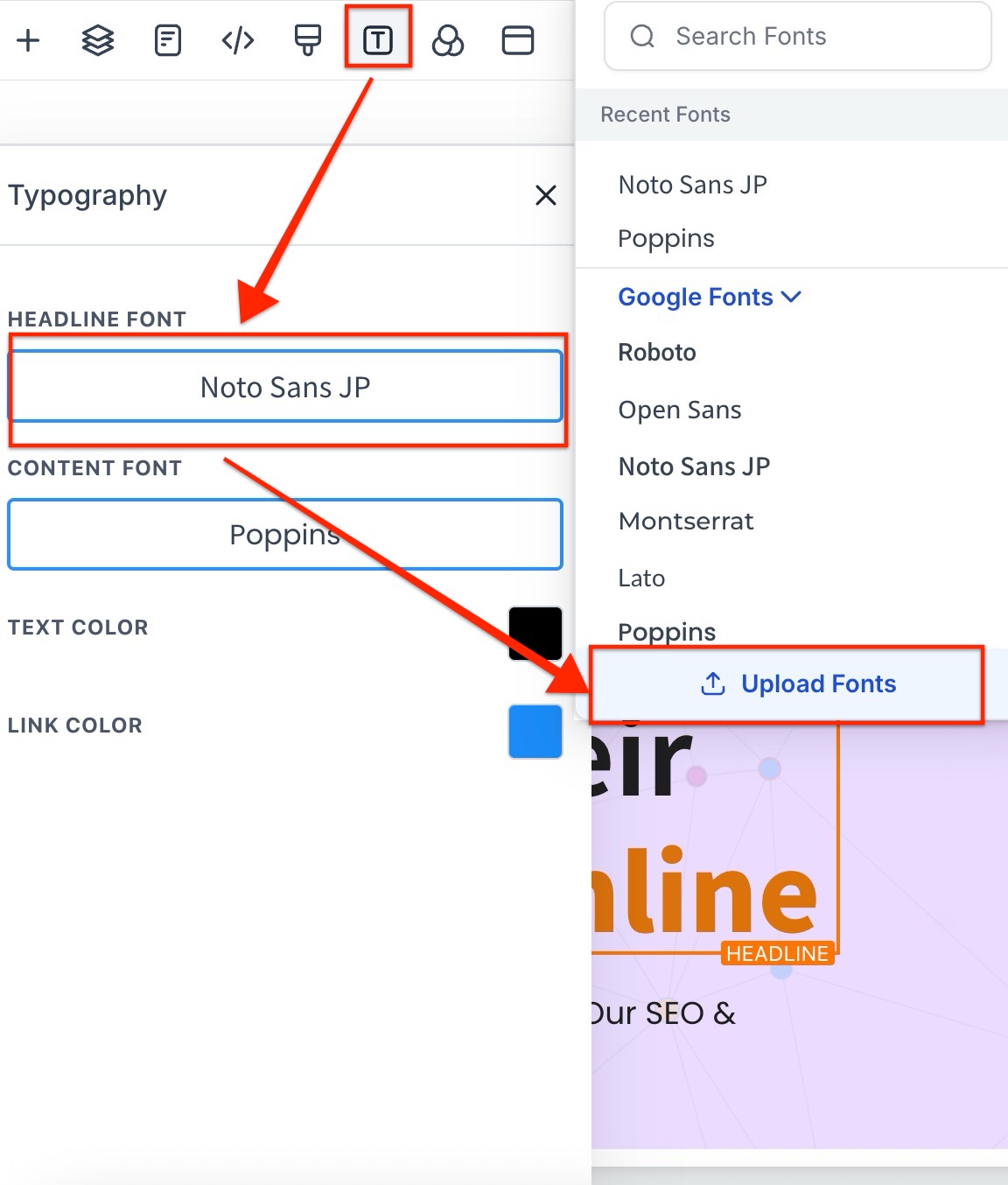
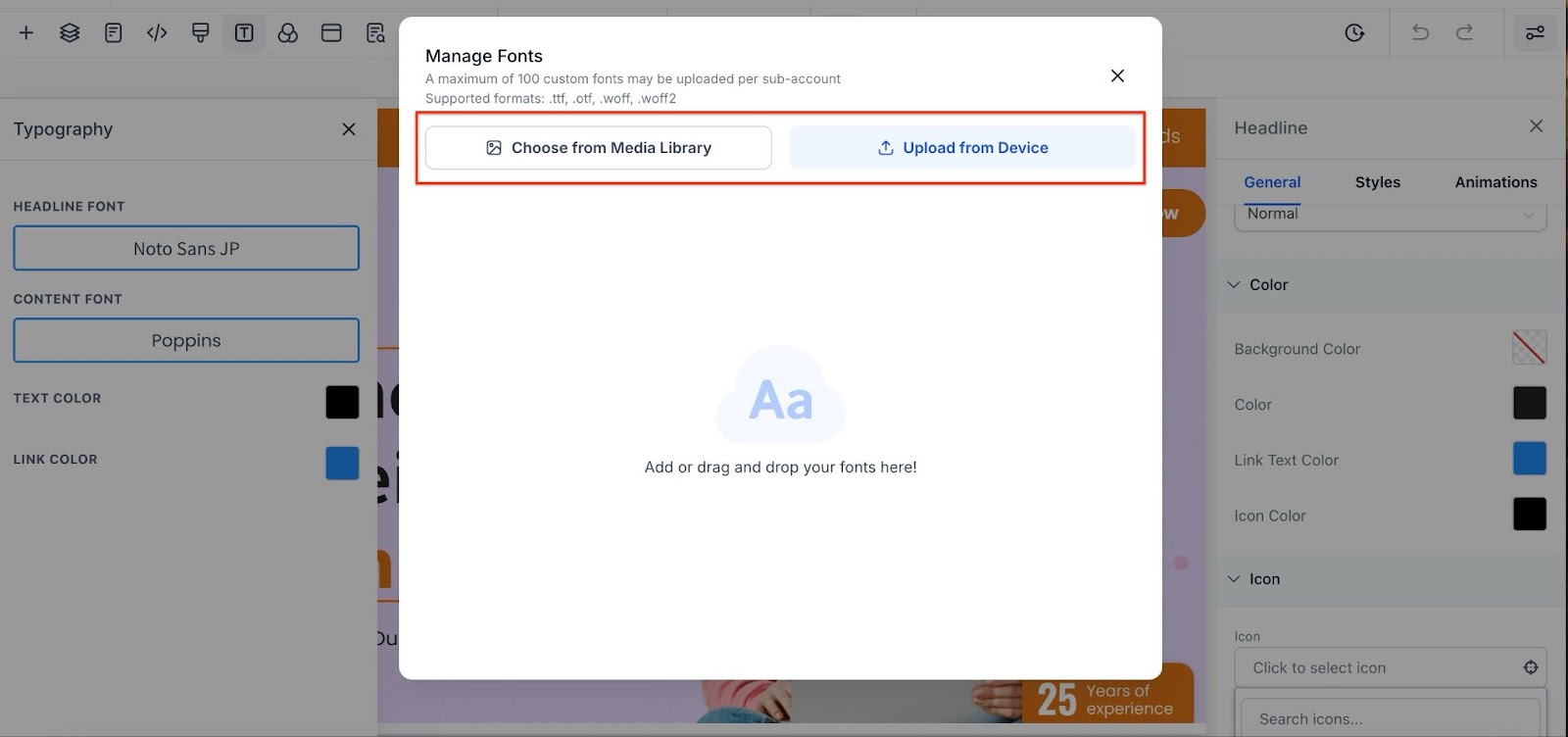
You can upload and manage custom fonts directly within the builder, ensuring complete brand consistency across funnels and websites. You can upload font files in popular formats like .ttf, .otf, .woff, and .woff2, and apply them without needing CSS workarounds. This creative freedom gives you control over your brand’s typography for a more professional look.
How to Use :
Click on the text element (e.g., heading or paragraph) you want to modify.
Go to the “Typography” section on the right panel.
Open the font dropdown and select “Custom Font.”
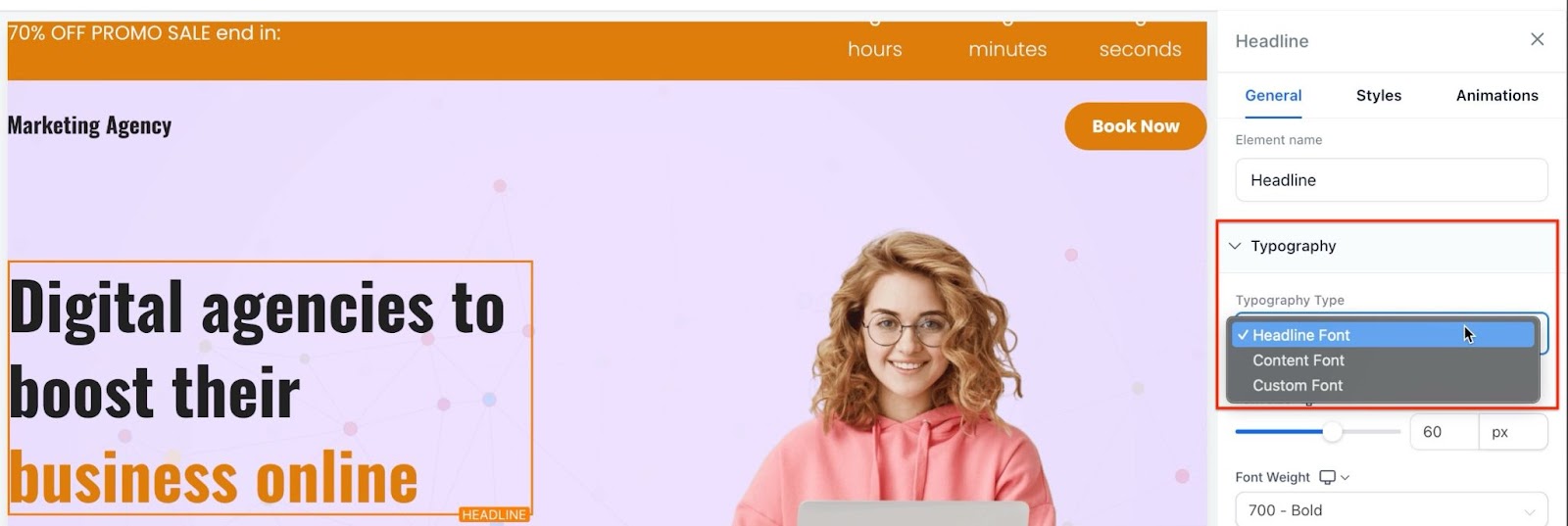
Upload your font file, and it will be available in the dropdown for selection.
Adjust size, weight, or other settings as needed.
Note****: Each font style (bold, italic) is treated as a separate option for easy use.
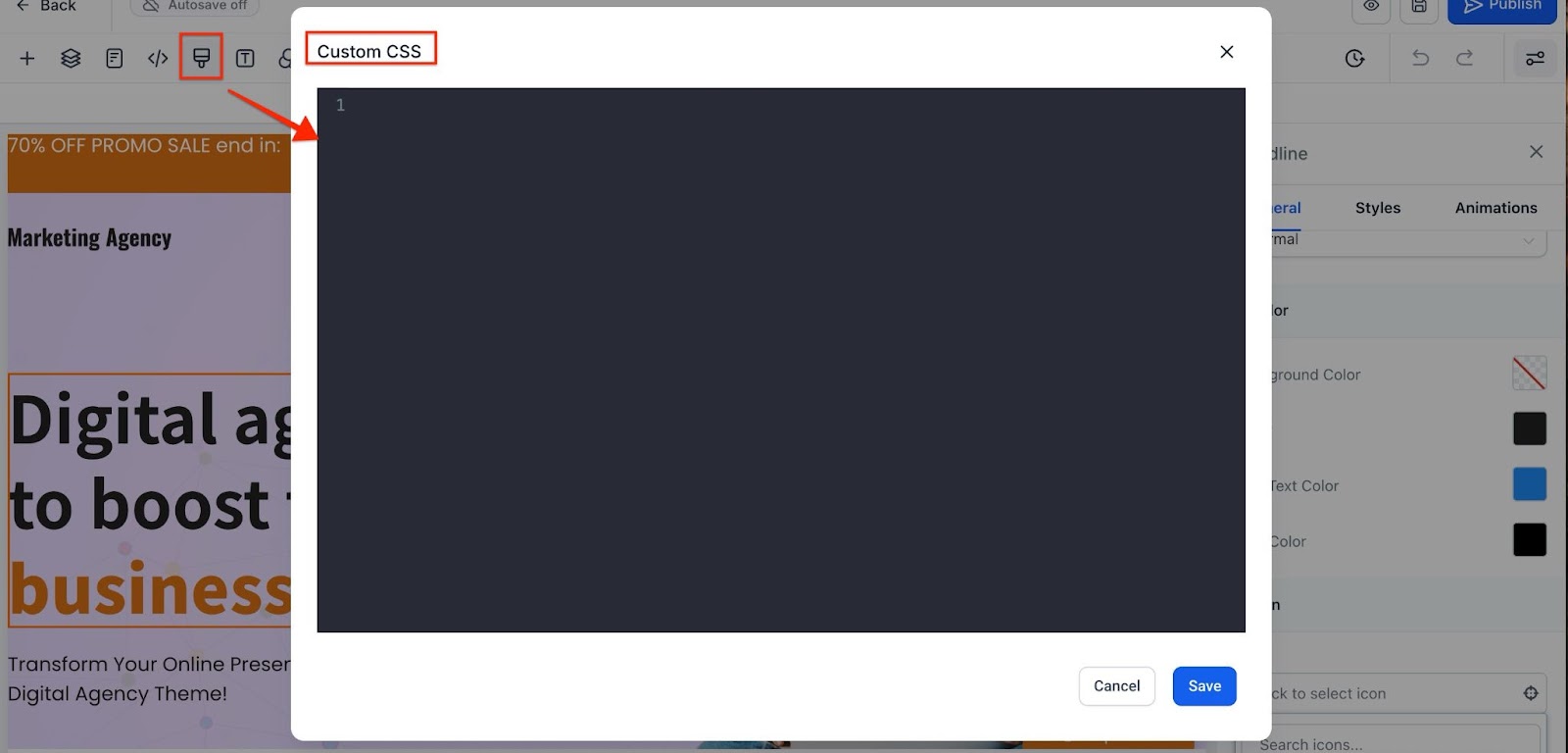
If you have the expertise, using custom CSS allows you to completely customize the funnel/website beyond standard options. CSS, or Cascading Style Sheets, is the technology used by most websites to create visually engaging web pages, including aspects such as the layout, colors, and fonts.
Please Note:You may need to reach out to a developer for assistance if you don’t have the expertise.
 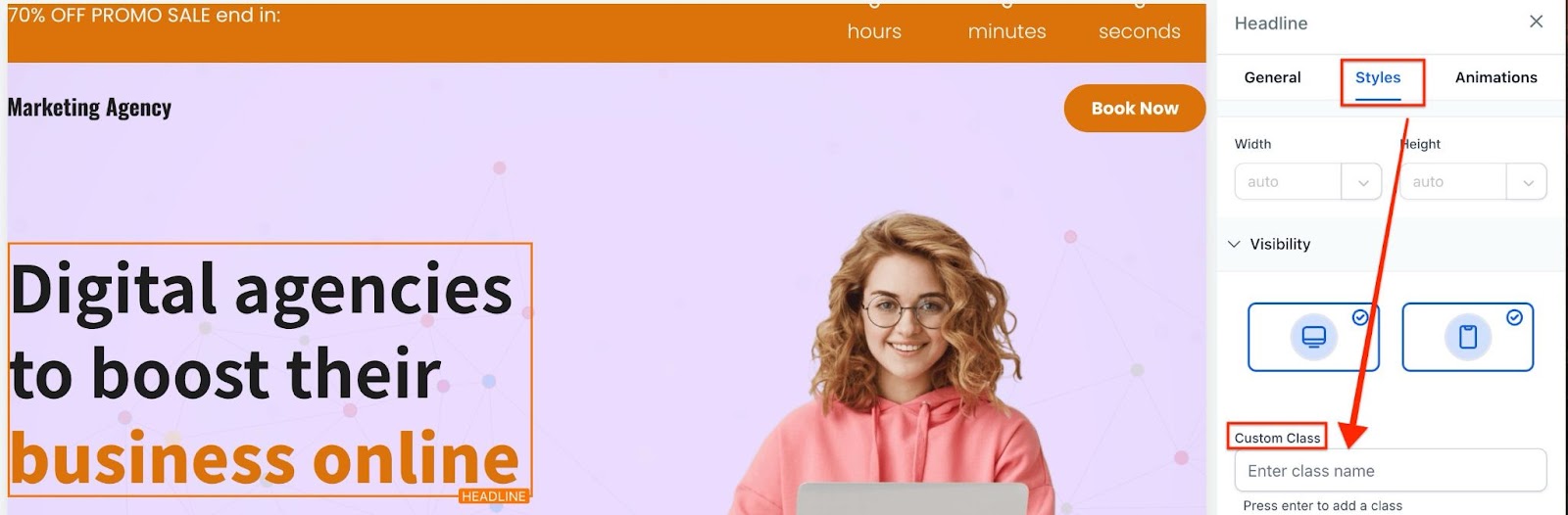
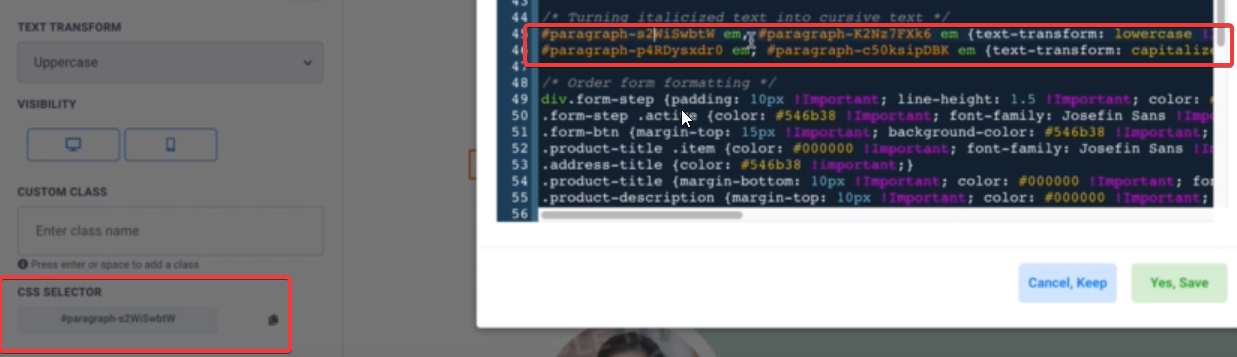
You can uniquely modify a specific element by using the CSS selector instead
You can use the CSS @import rule or the HTML tag.
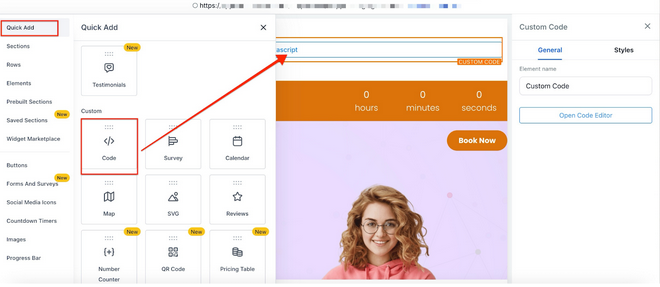
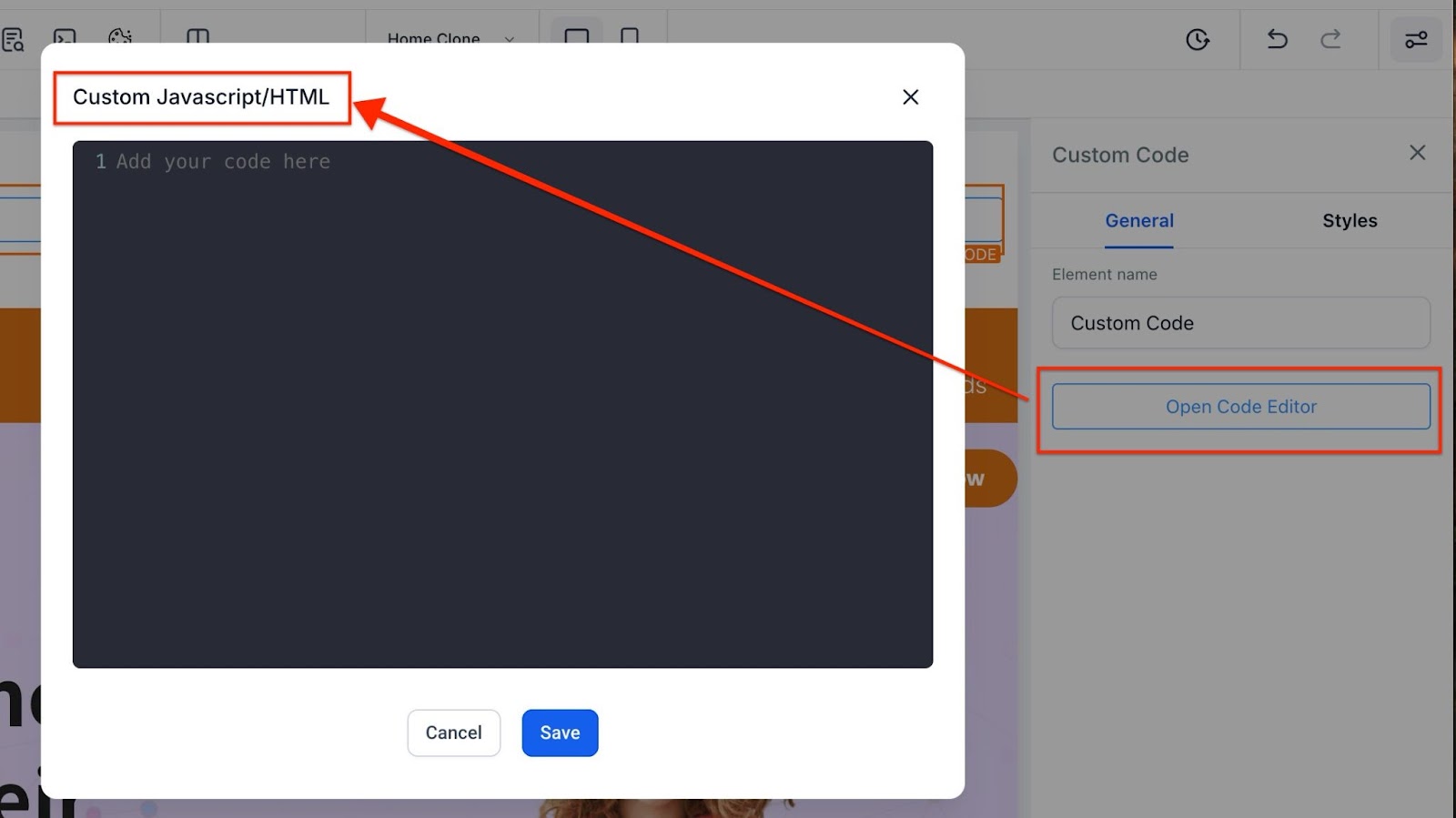
To make use of HTML in the Site Builder use the “Code element”
Question: What font options are available in the builder by default?****
Answer: By default, you can select different fonts for headlines and content throughout your funnel or website. The builder provides access to a variety of Google Fonts and font families.
**Question: Can I use custom fonts in my funnel or website without using custom CSS?
Answer: **Yes, you can use custom fonts in your funnel or website. You can directly upload fonts from your device or Media Storage in formats such as .ttf, .otf, .woff, and .woff2.
Question: What is CSS, and why would I use it to customize fonts?****
Answer: CSS (Cascading Style Sheets) is a language used to control the visual appearance of web pages, including layout, colors, and fonts. By using CSS, you can fully customize the fonts and styles on your site beyond the standard options provided by the builder.
Question: How do I add custom CSS to my funnel or website?****
Answer:
To add custom CSS:
Question: What is the CSS selector method, and how do I use it?****
Answer: The CSS selector method allows you to target and modify specific elements on your site. By using the appropriate CSS selectors, you can apply custom styles to individual elements. This is useful for making unique adjustments to particular parts of your page.
Question: Can I import fonts using CSS or HTML in the builder?****
Answer: Yes, you can import fonts using the CSS @import rule or the HTML tag. To do this in the Site Builder, use the “Code element” to add the necessary HTML or CSS code.
Question: Do I need a developer to help with custom fonts?****
Answer: If you are not familiar with CSS or HTML, it may be helpful to reach out to a developer for assistance with adding custom fonts or making advanced customizations to your funnel or website.
Question: Does uploading custom fonts require “Media Storage” access?
Answer: Yes, you can upload fonts directly from your device or from your account’s Media Storage , ensuring your brand assets are centralized and easy to reuse across different pages.
Question: Can I upload a “Font Family” as a single file?
Answer: No. Each “weight” (e.g., Light, Regular, Bold) and “style” (e.g., Italic) is typically a separate file. For the best look, you should upload the specific files for the styles you plan to use most (e.g., Regular and Bold) and select them for those specific text elements.