¶ How to Change a Logo in the Funnel or Website Builder
How to Change a Logo in the Funnel or Website Builder
Adding a logo to your page is very useful for your business. It is fast and easy to change in your funnel or website builder.
There are two builder items where logos may be present:
-
Within the navigation menu element
-
As an image.
Follow these steps to change or update a logo image.
¶ Changing the Logo in the Navigation Menu Element
- Navigate to Sites on the left > Funnels/Websites at the top and select the funnel/website to which you wish to make the changes.
- Click on the navigation menu element
- Scroll down to the Brand Logo and select the logo from the media library, or upload if you don’t have it, then select it
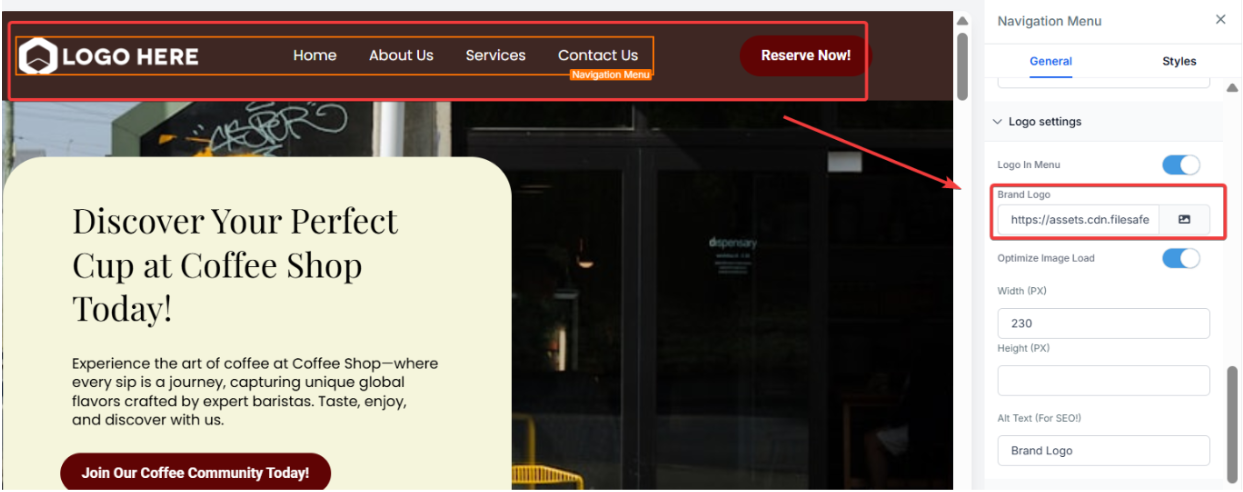
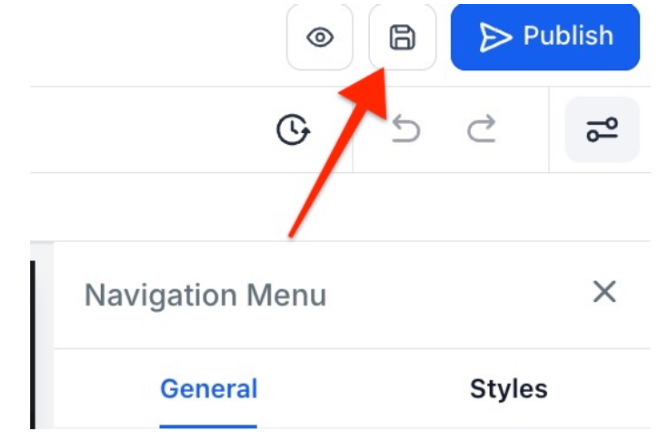
- Save and Publish to see your changes live
¶ **Changing the logo from an Image Element **
- Click on the image element, and then, on the right side menu, under image options, select your image from the media library
- Save and Publish the new changes
FAQs
Question: Can I use a custom logo for my funnel or website?**
**Answer: Yes, you can upload your custom logo to the media library and select it for the navigation menu or image element to use it across your funnel or website.
Question: Where can I find the logo after uploading it?**
**Answer: Once uploaded, your logo will be available in the media library. You can select it from there when updating the navigation menu or image element.
Question: Do I need to publish the changes after updating the logo?**
**Answer: Yes, after updating your logo, make sure to save and publish the changes to see the updated logo live on your funnel or website.
Question: What are the two different ways I can add a logo to my page?
Answer: You can add a logo either as part of a Navigation Menu element (usually at the top of the page) or as a standalone Image element anywhere on your site.
Question: Can I change the size of the logo** after**I’ve added it to the Navigation Menu?
Answer: Yes. In the Navigation Menu settings on the right-hand side, look for Logo Width or Logo Height. Adjusting these numbers will scale your logo. Pro-Tip: Only adjust the Width or the Height, not both, to ensure your logo doesn’t look “stretched” or distorted.