¶ 101 Guide: How to Create a Custom Website
Custom Websites can be created by anyone even without in-depth coding or programming knowledge. LeadMagicX is user-friendly and allows you to create web pages using a drag-and-drop website builder. Not only will your website look great, but the customization tools allow you to make it easy to navigate and user-friendly on the front end, while LeadMagicX also allows you to set up automation and specifics on the backend to help you manage your business.
¶ Step 1: Create a Website
- Navigate to Sites > Websites.
- Choose +New Website to get started

- In the popup window, you’ll need to choose a Website Name. This will help you track multiple websites in LeadMagicX.You can also choose from pre-built website templates.

- After naming the Website, click “Create Website”.
NOTE: You can ‘Clone’ and ‘Edit’ your website
- Click +Add New Page to create a page with a name and a path name.

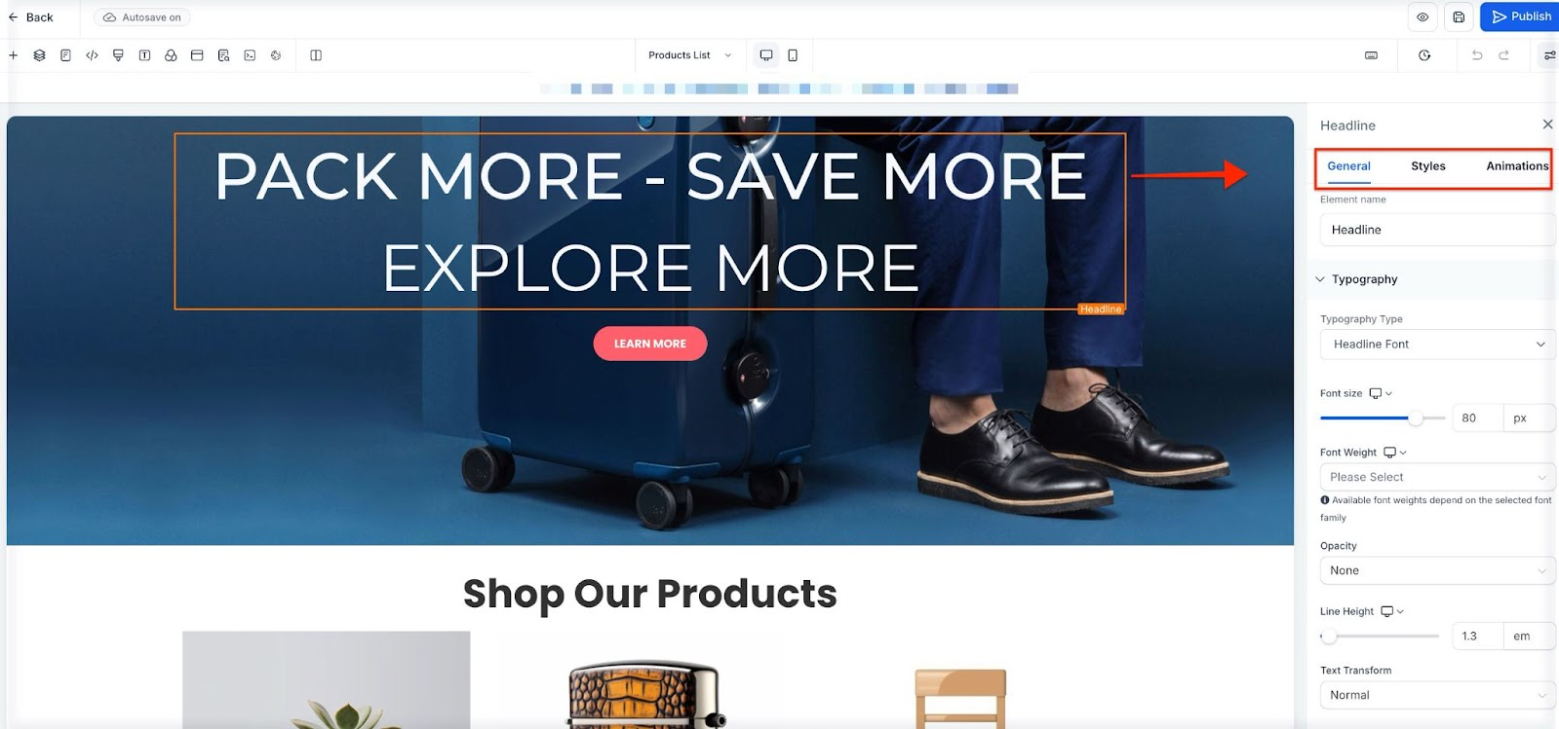
- In the drag-and-drop Website Builder, there will be a menu at the left that allows you to drag sections, rows, columns, and elements onto the page. Then you can highlight elements (like the headline shown below) and use the new menu on the right to customize the font, spacing, alignment, hyperlinks, and more for that particular element.) Remember you have the ‘General’, ‘Animations’, and ‘Advanced’ tabs for all elements.
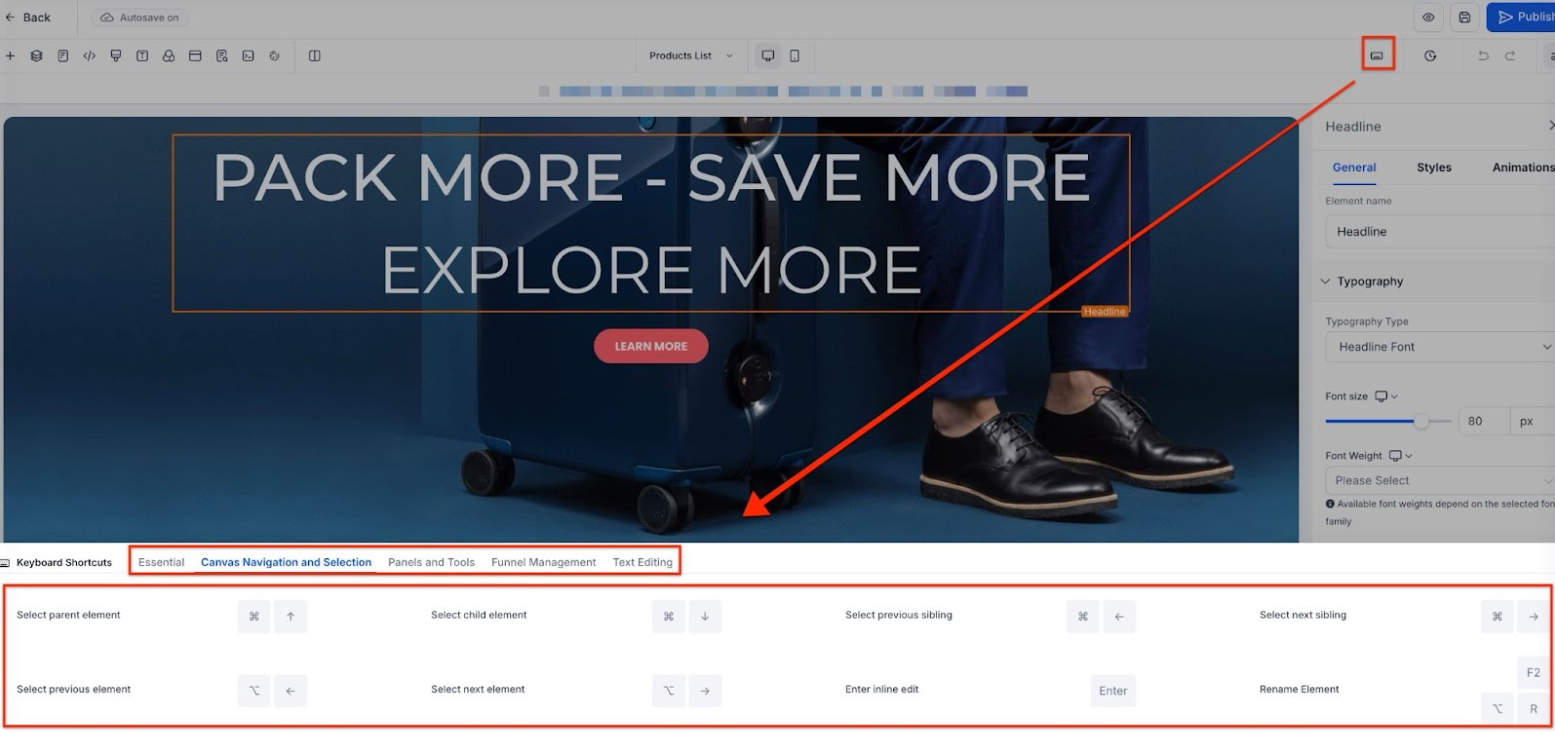
To speed up your creation process, LeadMagicX supports comprehensive keyboard shortcuts within the Page Builder.
- Simply press Shift + / or click the keyboard button at the top right at any time while inside the builder to view a full directory of available shortcuts.
- You can use your keyboard to navigate between elements, parent containers, and sections. Shortcuts also allow you to quickly toggle panels for Layers, Settings, Quick Add, and Custom Code.
- Common tasks such as saving, undoing, redoing, publishing, and previewing can be performed without a mouse.
- Familiar text shortcuts for bolding, italics, and adding hyperlinks are fully supported.
- Be sure to save any changes before leaving the builder.
- You can also use the “Preview” button in the top right corner to preview the page in your web browser.
- Back in the “Pages” tab for the site, you can view an overview of all your pages for the particular website.
- At any time, you can use the menu in the top left to navigate to your Pages, Stats, and Settings.

- Under Settings, both the Domain and Path are important to ensure you have properly set up so people can navigate to and access your site. (This is how you make the website work with your domain, so that www.mydemoaccount.com/this-is-… would direct viewers to the specific page.)

- Check out our Domains tutorials for full guidance on how to best set up your domains.
¶ Step 2: Managing Your Website(s)
- Navigate to “Sites” > Websites.
- This at-a-glance view provides an overview of all your websites. (Here is where you can click +New Website to get started with creating a new site too.) You can also use the search bar to search through your websites.
- In the settings dots for each website, you have several options such as the ability to clone, edit, reorganize, or delete the site.

¶ Here are a few examples of some features you can incorporate into your website:
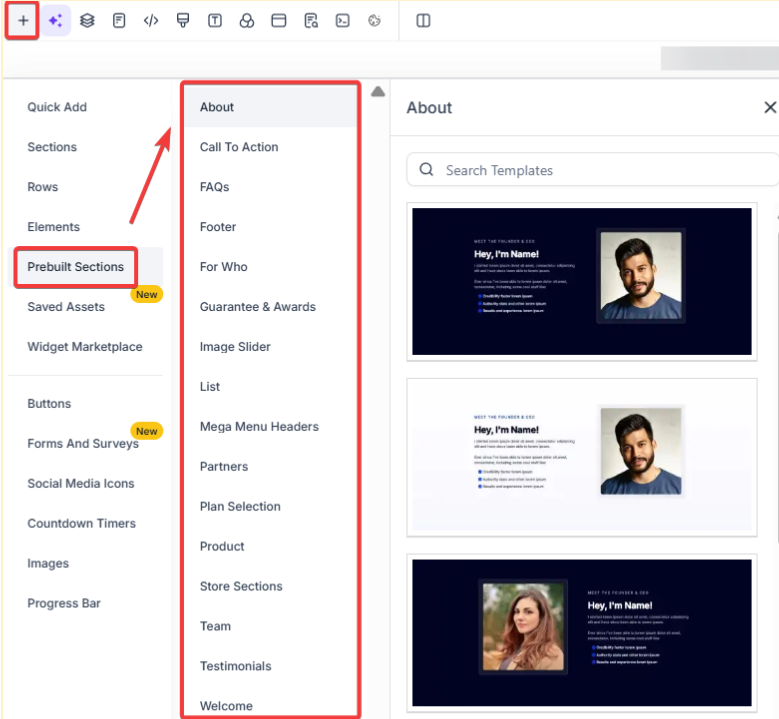
1-Pre-built section templates: These streamline the creation of websites, making the design process faster and more efficient. This feature provides a range of categories such as welcome, about, team, testimonials, and more, allowing users to add ready-made sections to their projects easily. To use, navigate to the website builder, click ‘Add,’ and select from the pre-built sections.
- Simply drag the desired section into your layout to instantly enhance your design.

- Benefit: This feature significantly reduces design time, enabling quicker project completions.
- Usage Requirements: Ensure the builder feature is enabled in your account settings. Adding your pre-built sections may require specific permissions or settings adjustments.
2-Within the elements section, add a Blog Post element to any website page , enabling seamless integration of blog content with various sorting options. This allows for dynamic content display by filtering recent posts, posts by category, or posts by author, making it easier to engage visitors. To use this feature, simply add the Blog Post element, and select the desired blog and filters.
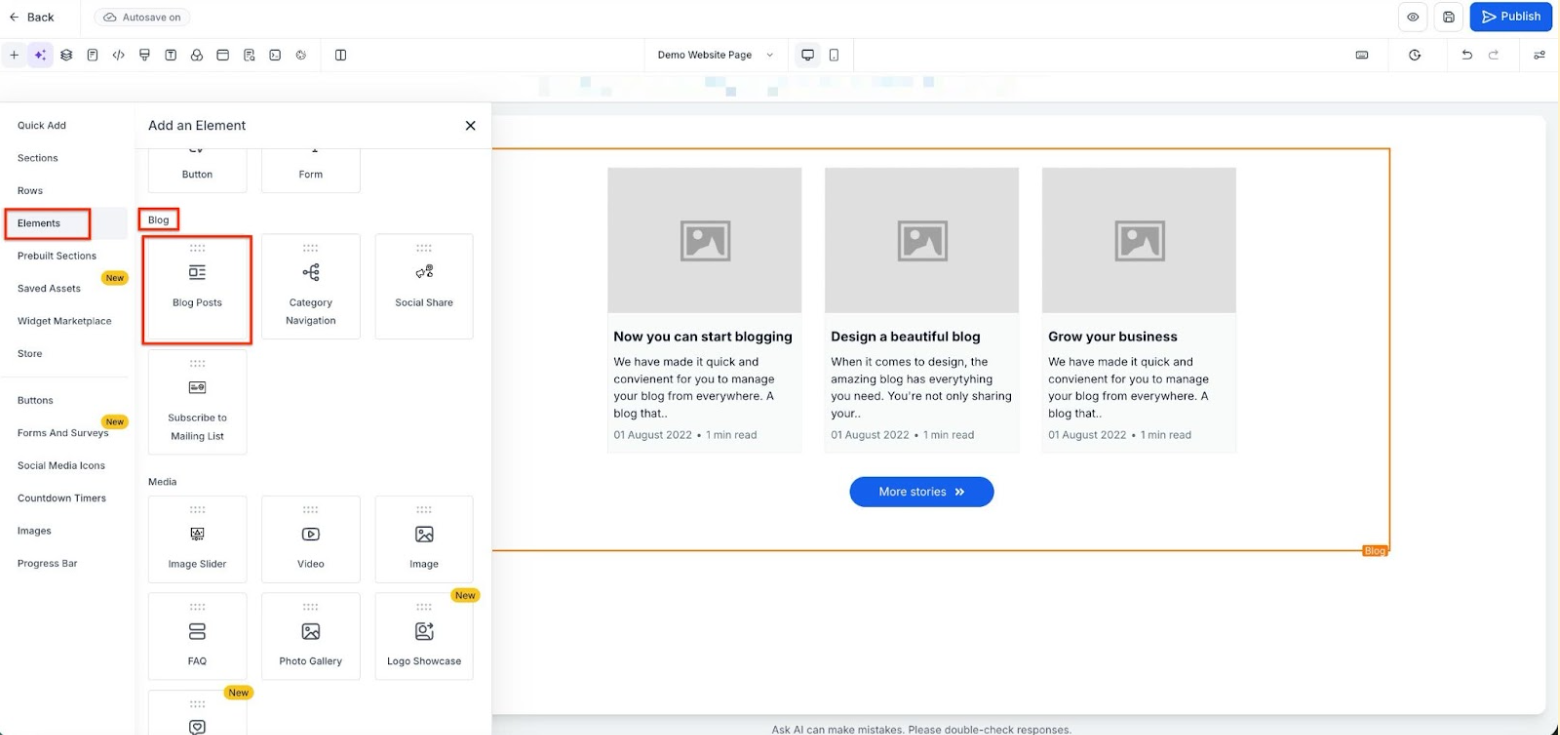
With the blog post element, select the blog name
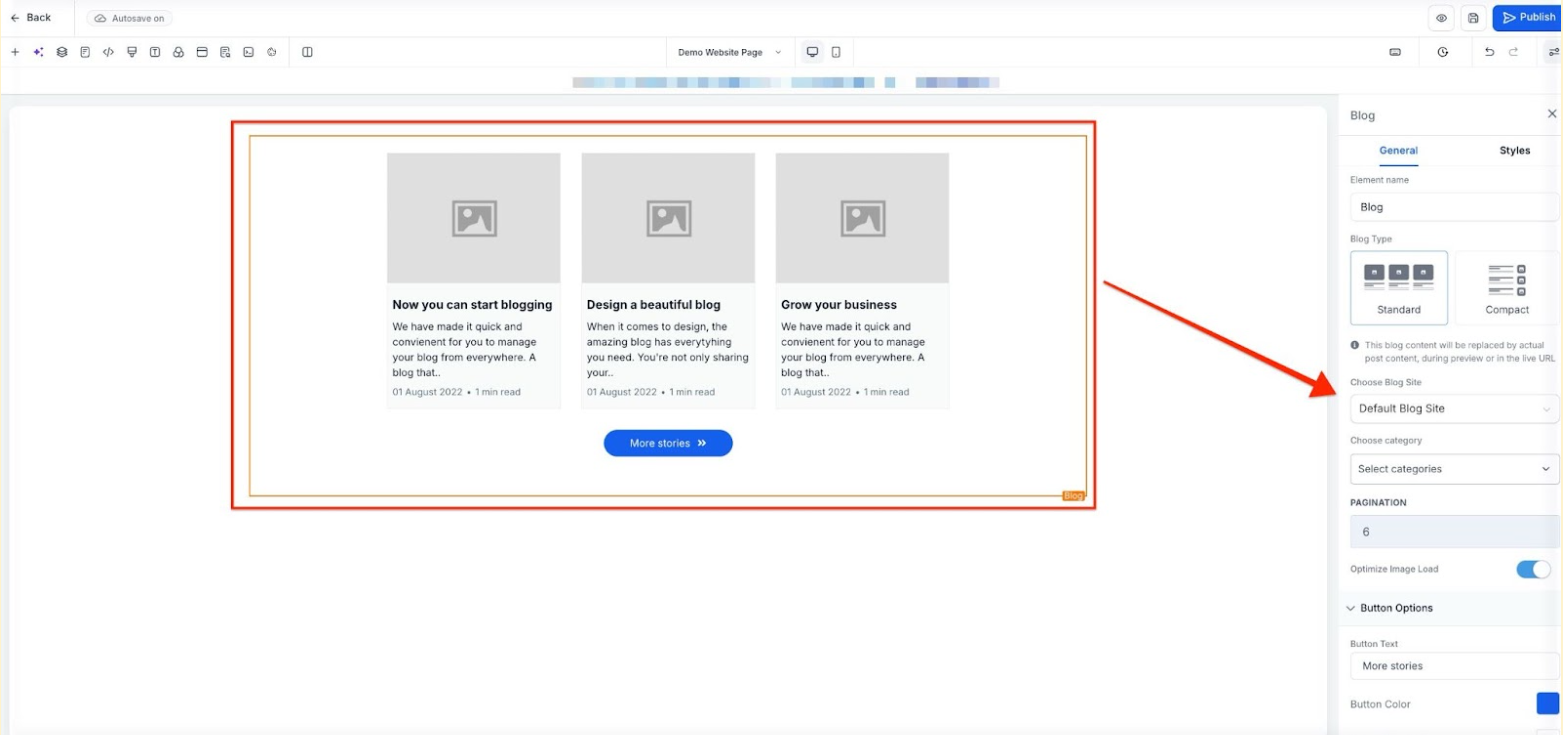
Filter by the blog post - Recent Post, Recent Post by Category, and Recent Post by Author and select the category/author.
Note - Filtering will apply on an updated date (the date when a blog post is published)


- Be sure to save any changes before leaving the builder.
¶ ****
¶ FAQs
Question: How do I create a new website in LeadMagicX?**
**Answer: To create a new website, navigate to Sites > Websites, then click on +New Website. Enter a name for your website in the popup window and select from available pre-built website templates if desired. Click “Create Website” to get started, and you can then add pages and customize them using the drag-and-drop builder.
Question: What customization options are available in the Website Builder?**
**Answer: In the drag-and-drop Website Builder, you can add sections, rows, columns, and elements to your pages. Customize each element using the ‘General’, ‘Animations’, and ‘Styles’ tabs on the right menu. You can adjust font, spacing, alignment, hyperlinks, and other design aspects to suit your needs.
Question: Does the builder support keyboard shortcuts?
Answer: Yes! LeadMagicX supports a variety of keyboard shortcuts to help you build pages faster. You can press Shift + / inside the builder to see the full list. These shortcuts allow you to save, preview, navigate between containers, and open various settings panels without using your mouse.
Question: How can I use pre-built section templates to enhance my website design?**
**Answer: Pre-built section templates allow you to quickly add ready-made sections like welcome, about, team, and testimonials to your website. To use them, open the website builder, click ‘Add,’ and select from the pre-built sections. Simply drag your desired section into your layout to instantly enhance your design and reduce design time.
Question: Can I integrate blog content into my website pages?****
Answer: Yes, you can add a Blog Post element to any website page from the elements section. This feature allows you to display blog posts with various sorting options such as recent posts, posts by category, or posts by author. Select the blog and desired filters to dynamically showcase content and engage your visitors.
Question: What are the management options available for my websites in LeadMagicX?****
Answer: From the Sites > Websites section, you can manage all your websites. Options include cloning, editing, reorganizing, uploading to website templates, and deleting your sites. Use the search bar to easily find specific websites, and the settings dots next to each site for quick access to these options.
Question: How do I properly set up my website’s domain and path?****
Answer: In the Settings tab, ensure your Domain and Path are correctly configured so people can navigate to and access your site. This setup aligns your site with your chosen domain, like www.mydemoaccount.com/this-is-… for specific pages. Check out the Domains tutorials for detailed guidance on setting up your domains.
Question: How do I manage multiple websites within LeadMagicX?****
Answer: You can easily manage multiple websites within LeadMagicX by navigating to “Sites” > Websites. Here, you’ll get an overview of all your websites, where you can use the search bar to find specific sites. The settings dots for each website offer various options, such as cloning, editing, reorganizing, or deleting the site. This allows for efficient management of multiple websites under one account.
Question: How can I see how many people are visiting my site?****
Answer: Navigate to Sites > Websites and click on your site. Use the Stats tab at the top to see page views, opt-ins, and conversion rates for each page in your website.
Question: Can I save a custom section I built to use on other pages?
Answer: Yes. If you’ve designed a beautiful footer or a specific “Features” block, you can click the Save icon on that section (the green bar). This adds it to your “Global Sections” or “Saved Sections” library, allowing you to drag it into any other page or website in your account instantly.