¶ How to Set Up Conditional Logic in Surveys
How to Set Up Conditional Logic in Surveys
Conditional logic in surveys allows you to customize the flow of questions based on users’ responses. This feature helps create dynamic surveys where certain questions appear only when relevant, improving the user experience and collecting more targeted data. Below is a step-by-step guide on how to implement conditional logic in your surveys.
¶ How to Use Conditional Logic in Your Survey
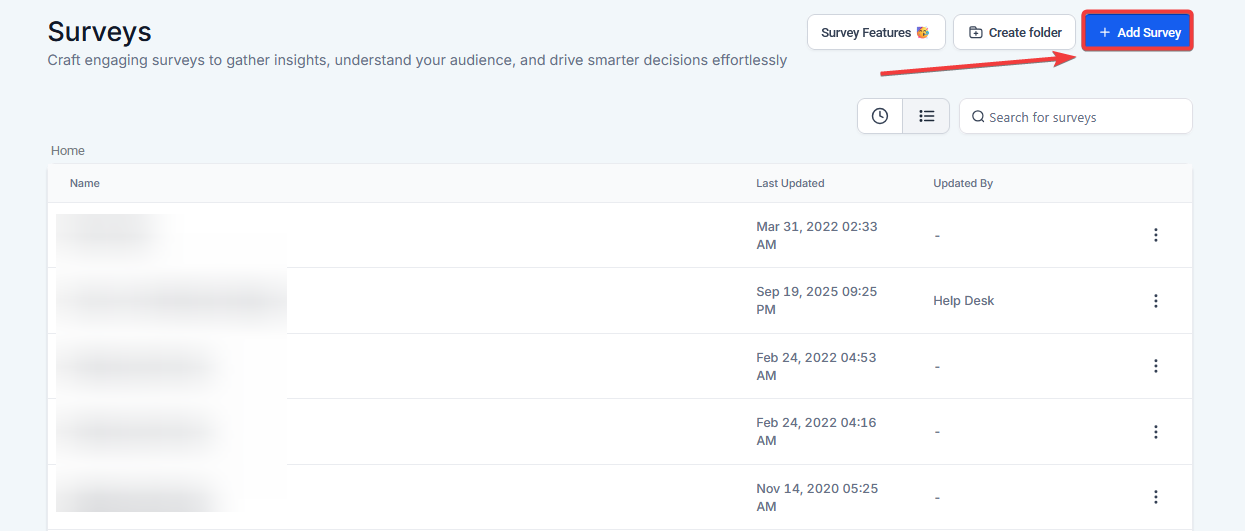
¶ 1. Create or Edit Your Survey
- Navigate to the Survey Builder and create a new survey or edit an existing one.
¶ 2. Add Basic Fields
- Add basic fields such as First Name , Last Name , Phone , and Email.

- Arrange these fields as needed to match your survey’s structure.
¶ 3. Add a Custom Field (Radio Button)
- To add a custom field, click on Add Field , and select Radio Button from the list of options.

- Enter the options for this field (e.g., Option 1, Option 2).

- Save the custom field under Additional Info.
¶ 4. Set Conditional Logic for the Custom Field
- Select the custom field you just created.


- Scroll down to find the Conditional Logic section.
¶ 5. Set Logic for Going to Specific Slides
-
In the Select Options section, you can set logic for the survey flow.
-
Go to a specific slide : You can direct respondents to a certain question based on their answer.
-
Disqualify : You can choose to disqualify respondents based on their response. You have two options here:
- Disqualify Immediately : Respondents are disqualified immediately after selecting an option.
- Disqualify After Submit : Respondents are disqualified after they submit the survey.
-

¶ 6. Save and Test Your Survey
- After setting up the conditional logic, save your changes.
- Test the survey to make sure the logic works as intended and the right questions appear based on responses.
¶ Key Benefits of Using Conditional Logic
- Dynamic Flow : Create a personalized survey experience for each respondent.
- Efficient Data Collection : Gather more accurate data by only asking relevant questions.
- Increased Engagement : Respondents are more likely to engage when the survey feels relevant to them.
¶ Frequently Asked Questions (FAQs)
Question: Can I set up multiple conditions for one question?**
**Answer: Yes, you can set up multiple conditional logic rules for a single question to control how the survey progresses based on different answers.
Question: Can I disqualify users at any point during the survey?**
**Answer: Yes, you can set disqualification rules at any point in the survey using the options “Disqualify Immediately” or “Disqualify After Submit.”
Question: What happens if a user is disqualified?**
**Answer: When disqualified, the user will either be redirected to a different page or shown a message, depending on your configuration.
Question: How can I customize the message shown when a user is disqualified?**
**Answer: You can customize the message directly in the conditional logic settings under the “Message” field.
Question: How do I test the logic before going live?**
**Answer: Once your survey is set up, test it by previewing the survey and answering the questions as a user would to ensure the conditional logic is functioning correctly.
Question: Can I combine conditional logic with scoring or branching rules?
Answer: Yes. You can use conditional logic alongside scoring or branching to create highly customized and dynamic survey experiences.
Question: What are the two different ways I can disqualify a respondent?
Answer: You can choose to disqualify respondents in two ways: Disqualify Immediately , where they are removed right after selecting an option, or Disqualify After Submit , where they complete the survey before being disqualified.
Question: Can I use Conditional Logic with multi-select checkboxes or dropdowns?
Answer: Yes. While Radio Buttons are the most common for branching, you can also apply logic to Dropdown menus. However, logic is most effective with “single-choice” fields to ensure the respondent follows a clear, non-conflicting path through the slides.
Question: Where can I find and manage the custom fields I create for my survey logic?**
**Answer: Once you have created and saved a custom field (such as a Radio Button), it can be found and managed under the “Additional Info” section within the Survey Builder.