Attribution provides a detailed analysis of the channels or sources from which contacts originate. This information helps identify growth opportunities and the most effective channels. For example, when running Facebook and Google Ads, attribution helps determine which platform is more effective at generating leads. This insight allows for better strategic decisions and optimization of marketing efforts.
Form attribution can be found under form submissions, giving you detailed insight into the lead source for your different forms. To analyze the data on your form submissions, we’ll show you how to access your form submission information.
Go to Sites on the left > Forms at the top. Here you’ll see 3 different options within the dropdown: Builder, Analyze, and Submissions.
.jpg)
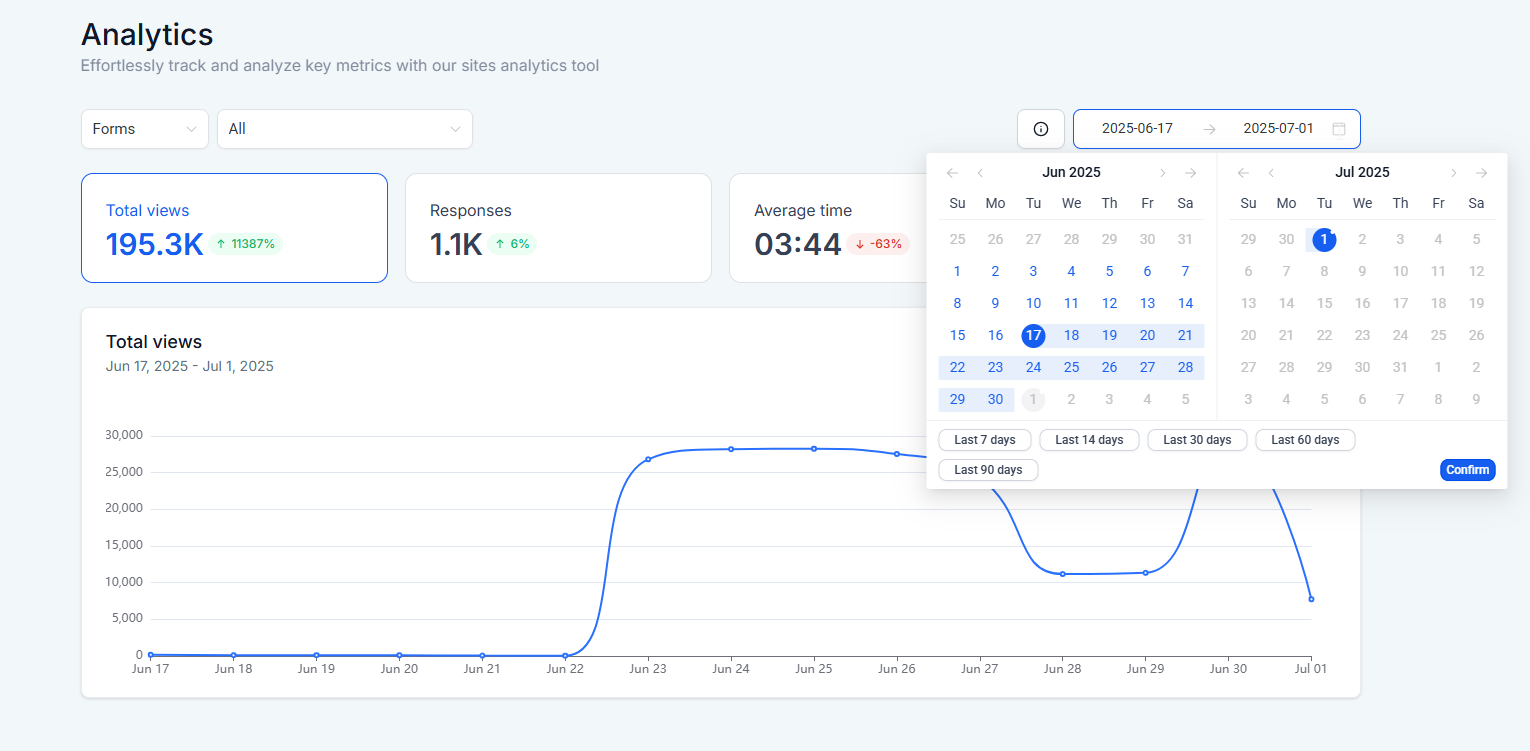 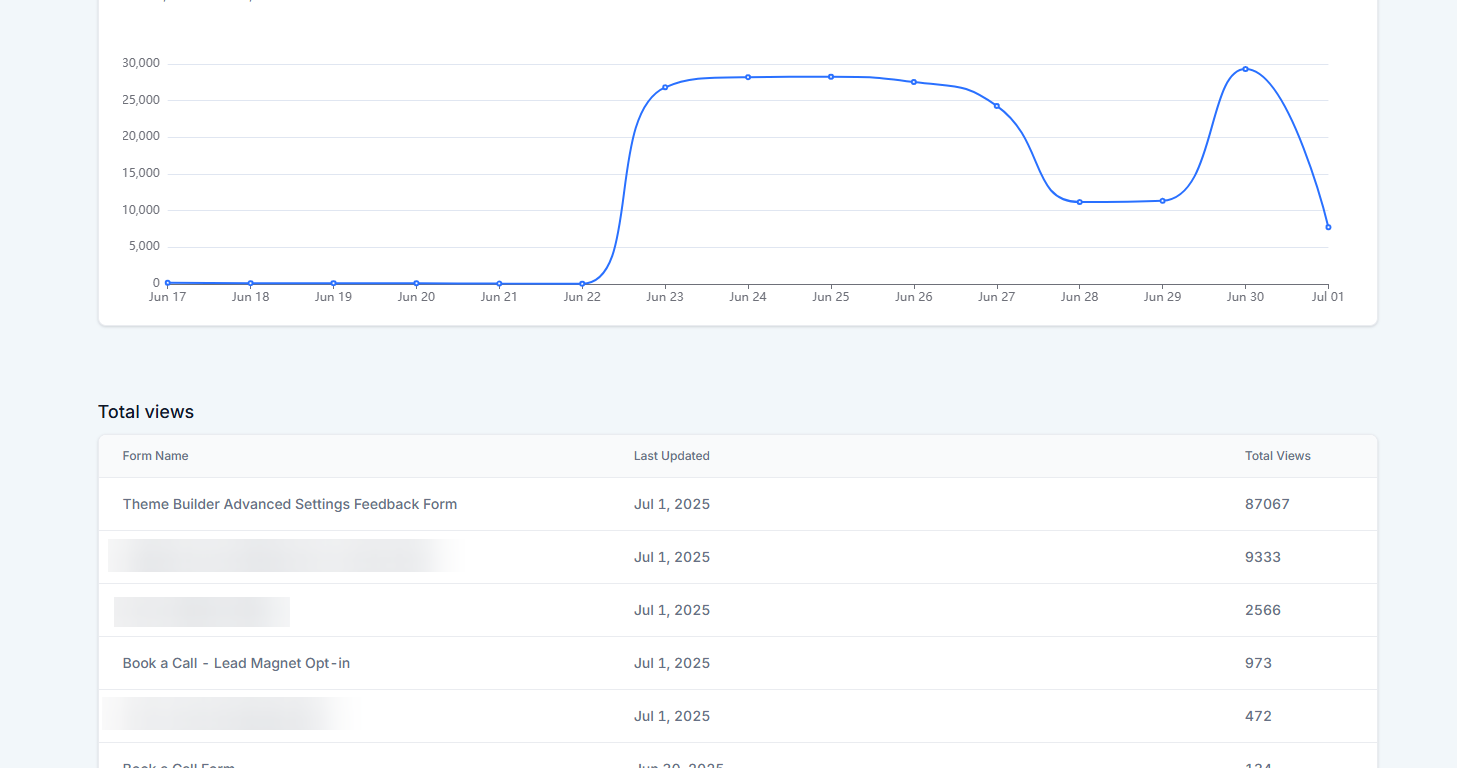
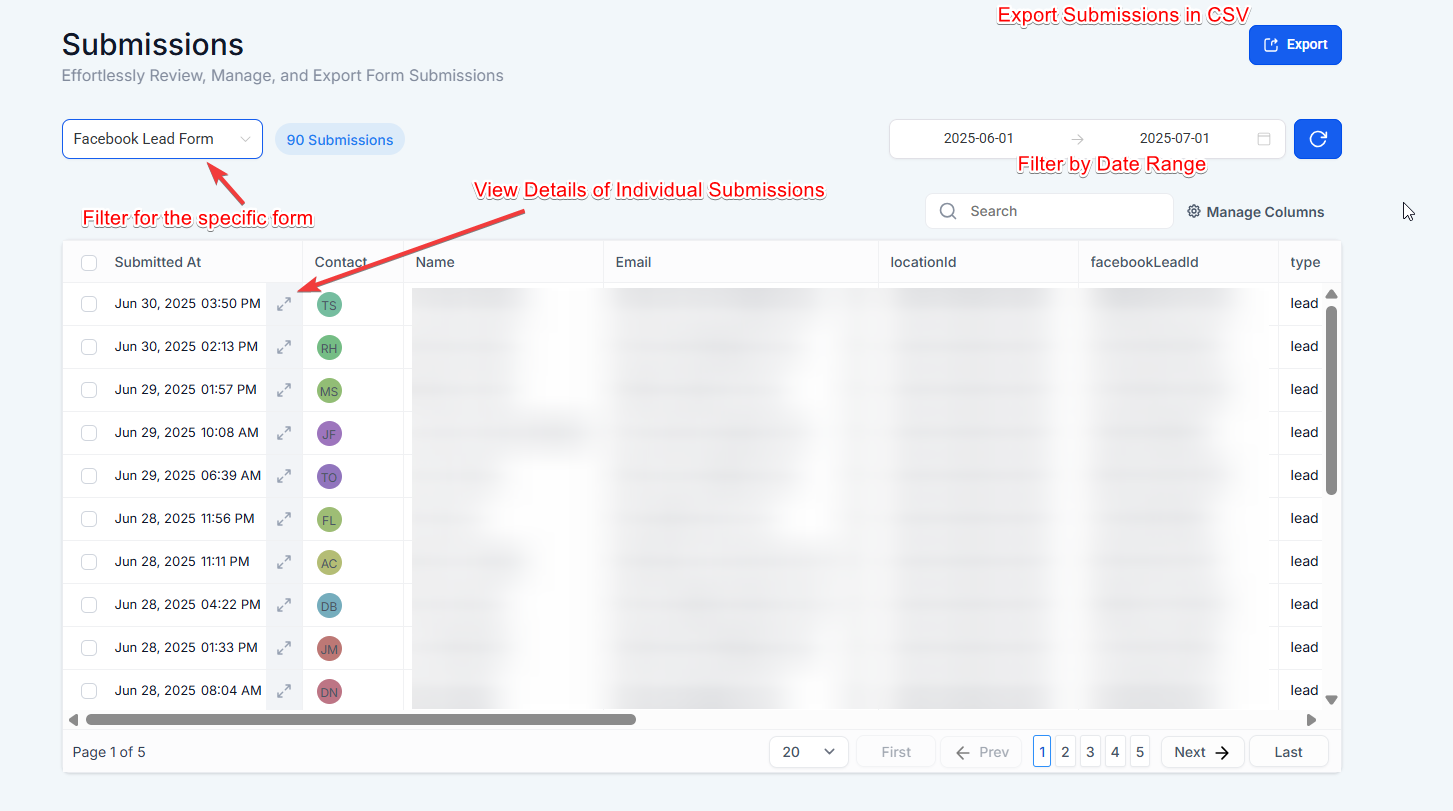
The form submissions tab will show you all the submissions by your leads. This is where you can analyze their attribution data as well. Each lead/contact has a first and latest attribution attached to it.
When attributing a contact to a specific source, it’s common to consider both first and latest attribution. These are recorded for every contact.
First Attribution: This marks the initial interaction a contact has with your system, recording the attribution data for that session. For example, when someone fills out a “Contact Us” form.
Latest Attribution: This is the most recent interaction, capturing the latest session’s attribution data. For example, if someone purchases via a two-step order form after filling out a “Contact Us” form. The latest attribution will change with each new interaction, while the first attribution remains constant.
Now that we understand what the first and latest attribution is, we need to know where this data is stored.
Each form submission has attribution added to it. On each submission, you’ll be able to see the attribution details including various data like source, referrer, URL, UTM parameter data, etc.
Whether it is the first or latest attribution data, you can locate this information in the bottom right of all contact records.
.jpg) .jpg)
Attribution sources identify where a contact originated. Here are the common sources and how they are determined:
For detailed attribution tracking, ensure these actions occur on forms, surveys, calendars, chat widgets, and order forms within LeadMagicX.
Question: Where can I view the attribution data for a contact?**
**Answer: Attribution data is located in the bottom right column under the Activity tab in the contact details. Navigate to Contacts > Select a Contact Record to view both first and latest attribution details.
Question: What is the difference between first and latest attribution?**
**Answer: First attribution marks the contact’s initial interaction with your system (e.g., filling out a “Contact Us” form), while latest attribution captures their most recent interaction (e.g., completing a purchase). First attribution remains constant, whereas latest attribution updates with each new interaction.
Question: How are attribution sources determined?**
**Answer: Attribution sources are identified using a combination of UTM parameters (e.g., utm_source, utm_medium), referring domains, cookies, and tracking URLs. These elements categorize traffic into sources like paid search, social media, direct traffic, and more.
Question: What actions record attribution data?**
**Answer: Attribution is recorded during key actions such as form/survey submissions, calendar bookings, chat widget interactions (after submitting contact information), and order form submissions.
Question: Can I analyze attribution data for form submissions?**
**Answer: Yes, attribution data for form submissions can be viewed under Sites > Forms > Submissions. Here, you can filter by form, search submissions, and analyze details like source, referrer, URL, and UTM parameters.
Question: Can I export attribution data to a CSV?**
**Answer: Yes. When you export your contacts from the Contacts tab, you can include the attribution columns. This allows you to perform deep-dive analysis in tools like Excel or Google Sheets to calculate your Cost Per Lead (CPL) per channel.
Question: What does the source category “LeadMagicX UI” represent in my attribution data?**
**Answer: This source indicates that the lead was manually created by a user within the platform interface itself, rather than being generated through an automated channel like a website form, a paid ad, or a third-party integration.