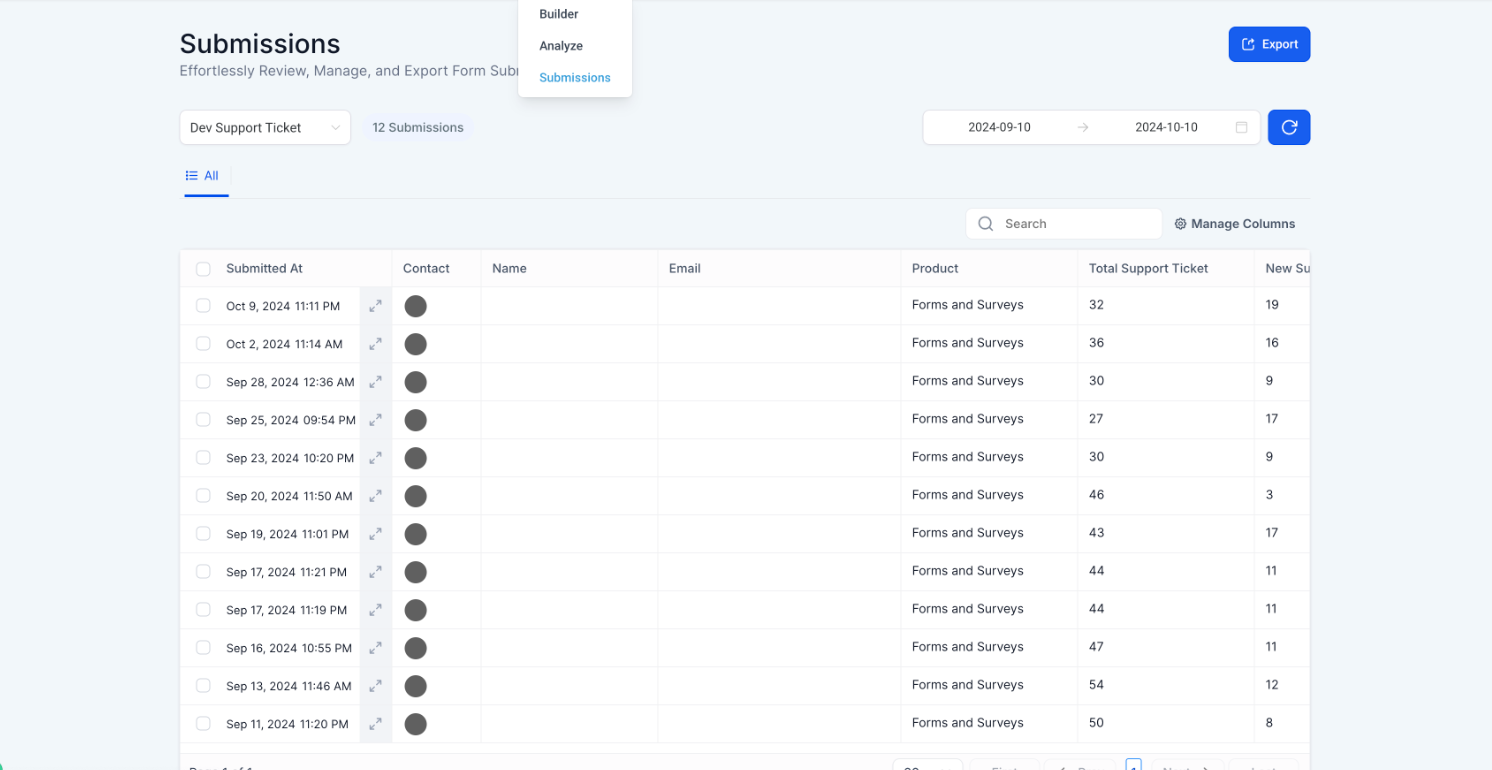
The submissions interface makes it much easier to manage leads and data from forms, surveys, and quizzes. It’s designed to help you see and organize everything clearly, so you can analyze your submissions, act on them quickly, and keep your workflow smooth. Whether you’re collecting leads, feedback, or qualifying information, it’s all about making the process more straightforward and efficient for you.


 .jpg)
Step 7: Send Submissions via Email Notification:
.jpg)
1. Lead Qualification:
Compare multiple submissions from forms to identify high-quality leads based on revenue, location, or other custom fields.
2. Feedback Analysis:**
**Review survey submissions to gauge customer satisfaction or collect feedback for product improvement.
3. Reputation Management:**
**Use quiz submissions to analyze customer sentiment and implement necessary changes to enhance reputation.
Note on Secure, bot-free Submissions:
Google reCAPTCHA Enterprise v3 runs a background analysis to automatically detect bots without interrupting legitimate users; only suspicious activity will trigger additional verification.
Question: How do I access the submissions for a specific form or survey?**
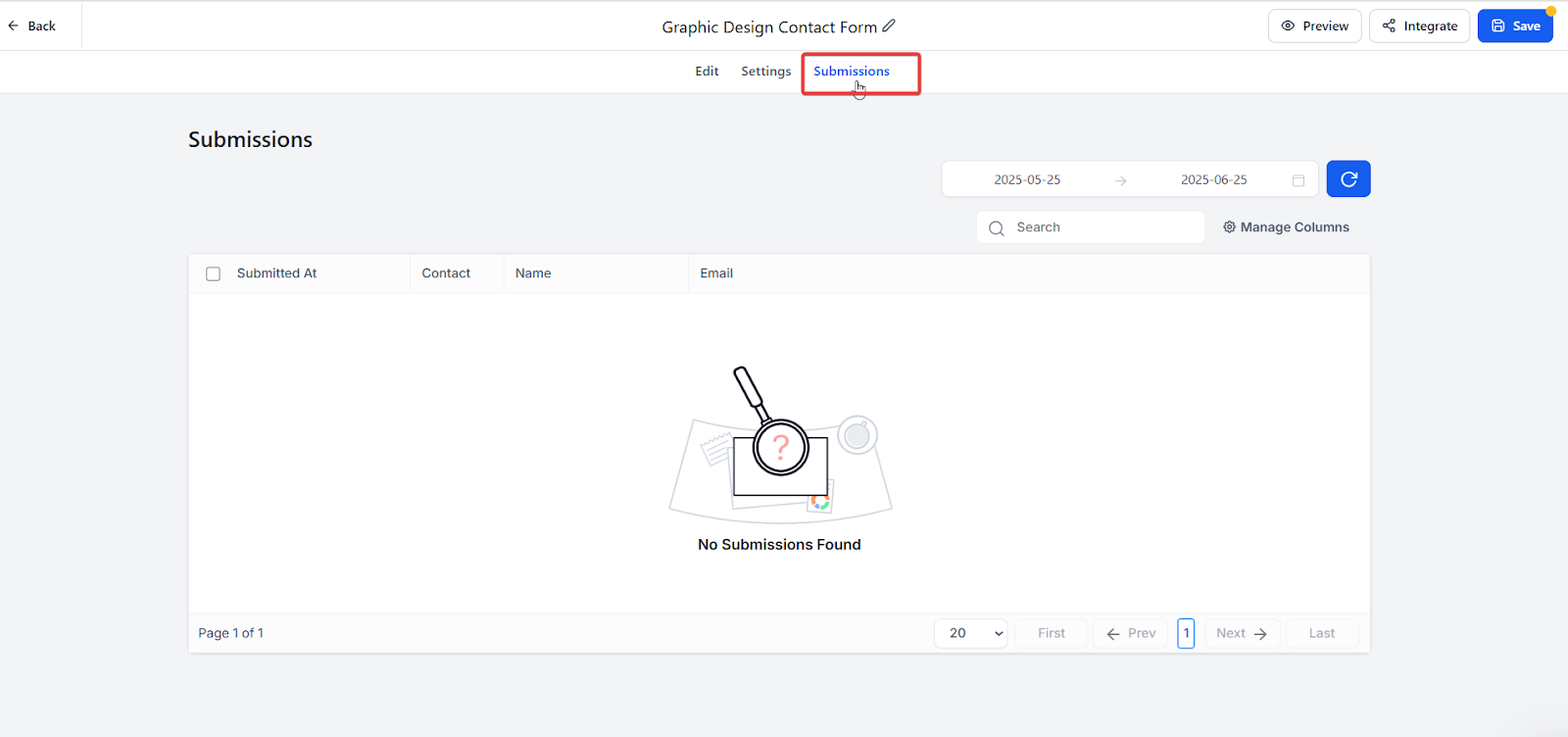
**Answer: Go to the Forms , Surveys , or Quizzes section and click on Submissions. Use the dropdown menu to select the specific form, survey, or quiz you want to view.
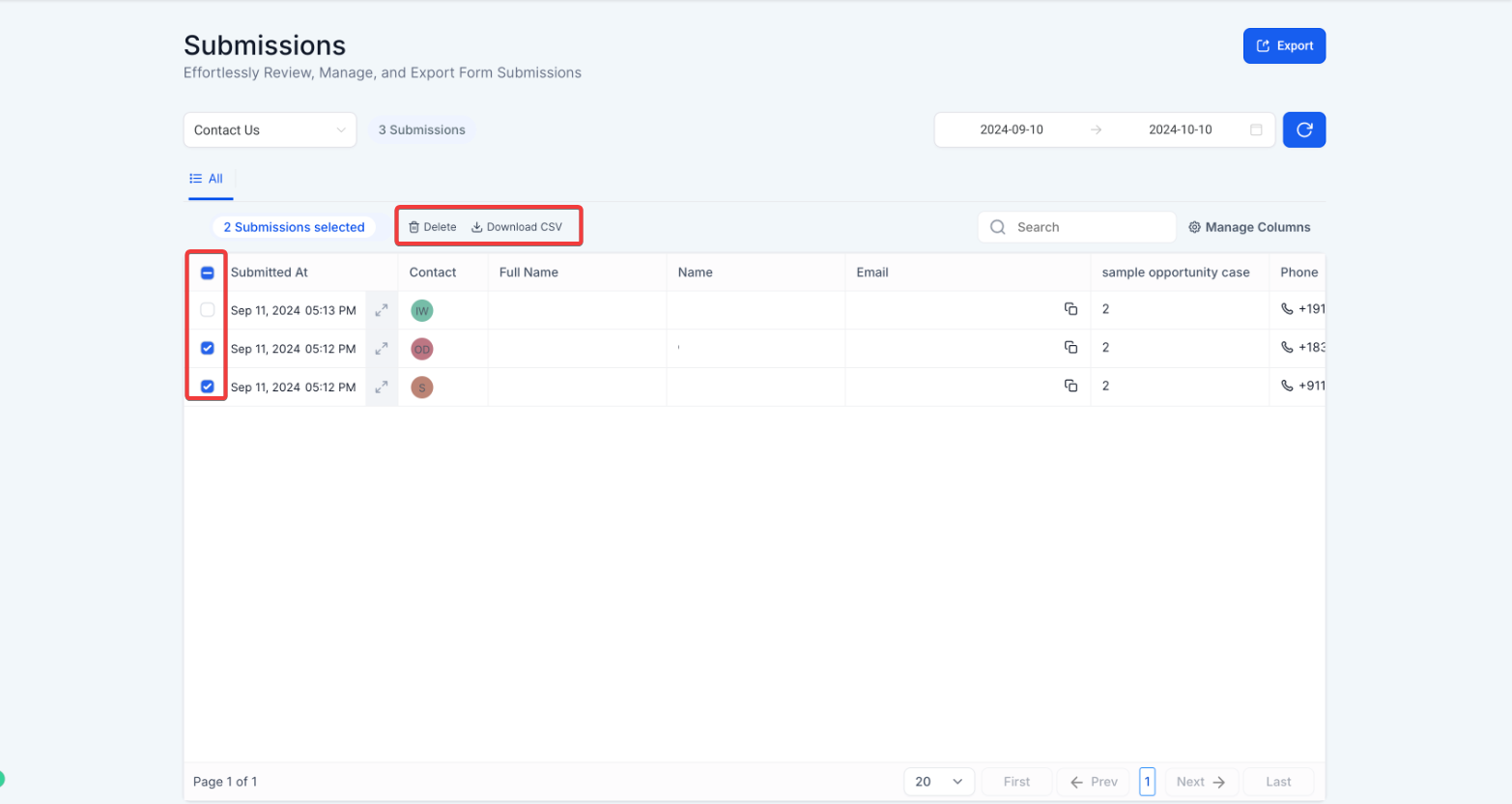
Question: Can I export submissions in bulk?**
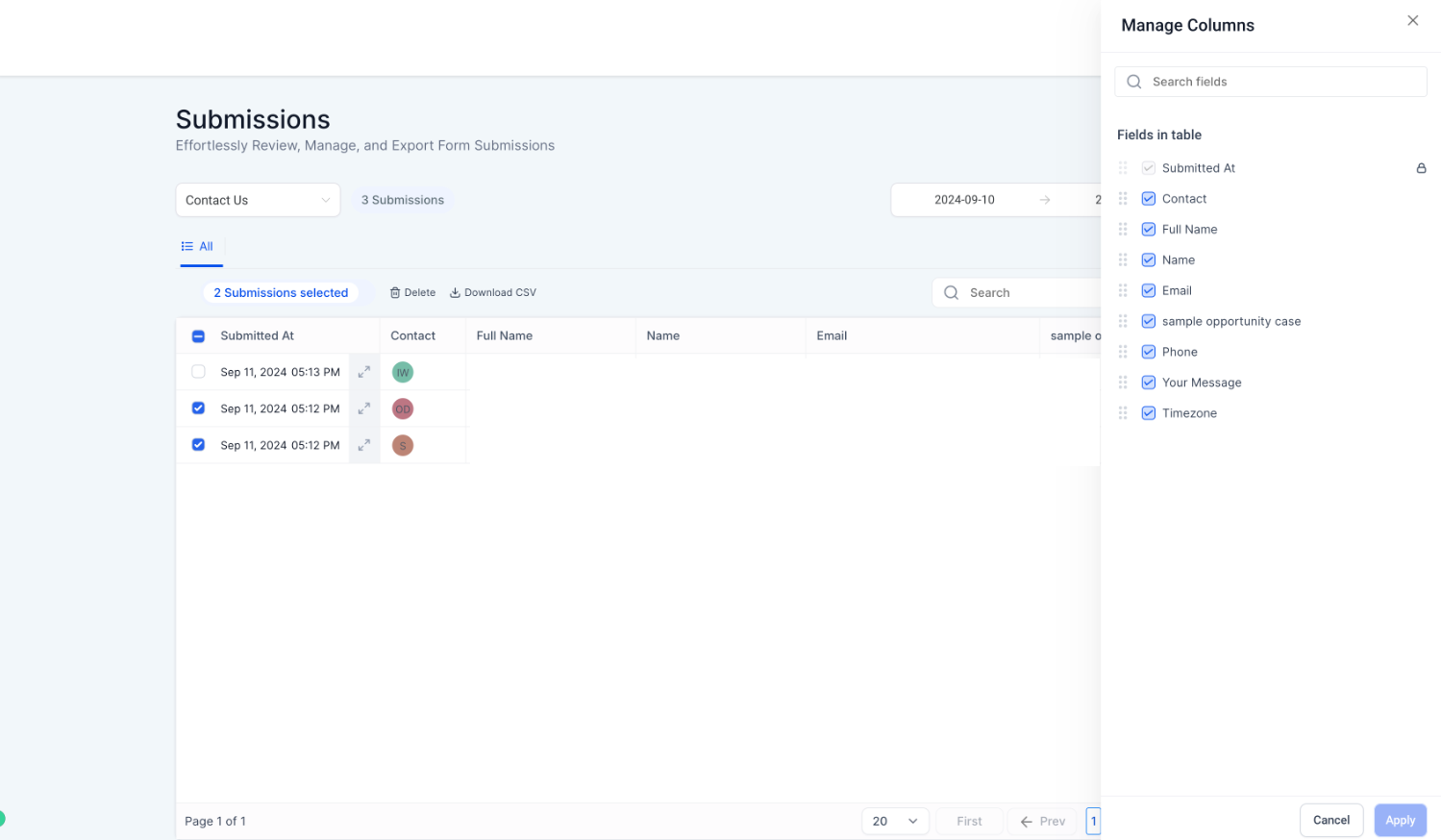
**Answer: Yes, you can select one or multiple submissions and export them as a CSV. The file will be sent to your email for download.
Question: How do I customize the data displayed on the submissions page?**
**Answer: Click the Manage Columns icon, choose the fields you want to display, and click Apply to update the view.
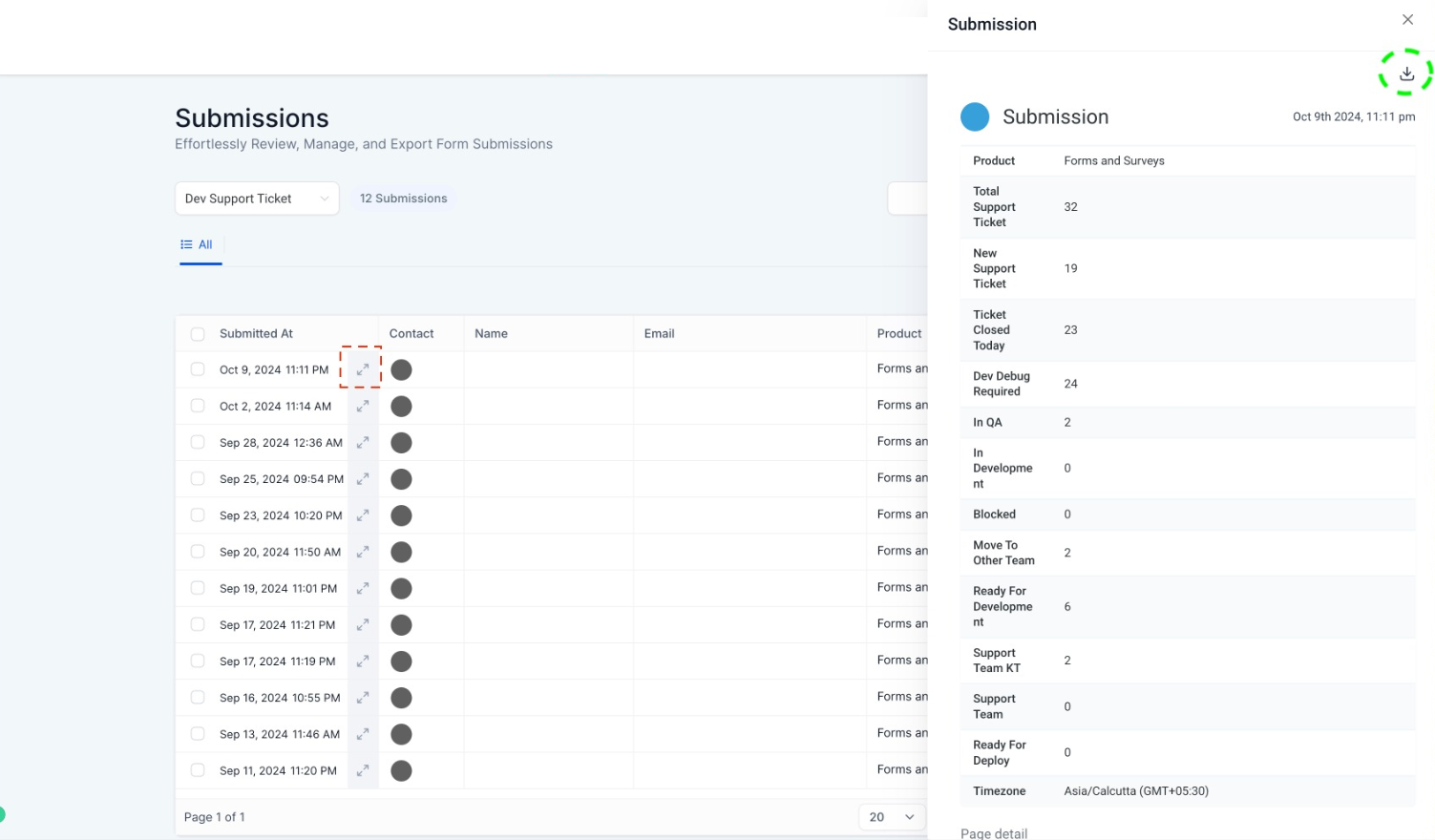
Question: Can I download an individual submission as a PDF?**
**Answer: Yes, click on the timestamp of a submission to expand its details, and use the Download PDF option at the top-right corner.
Question: What types of data can I filter by?**
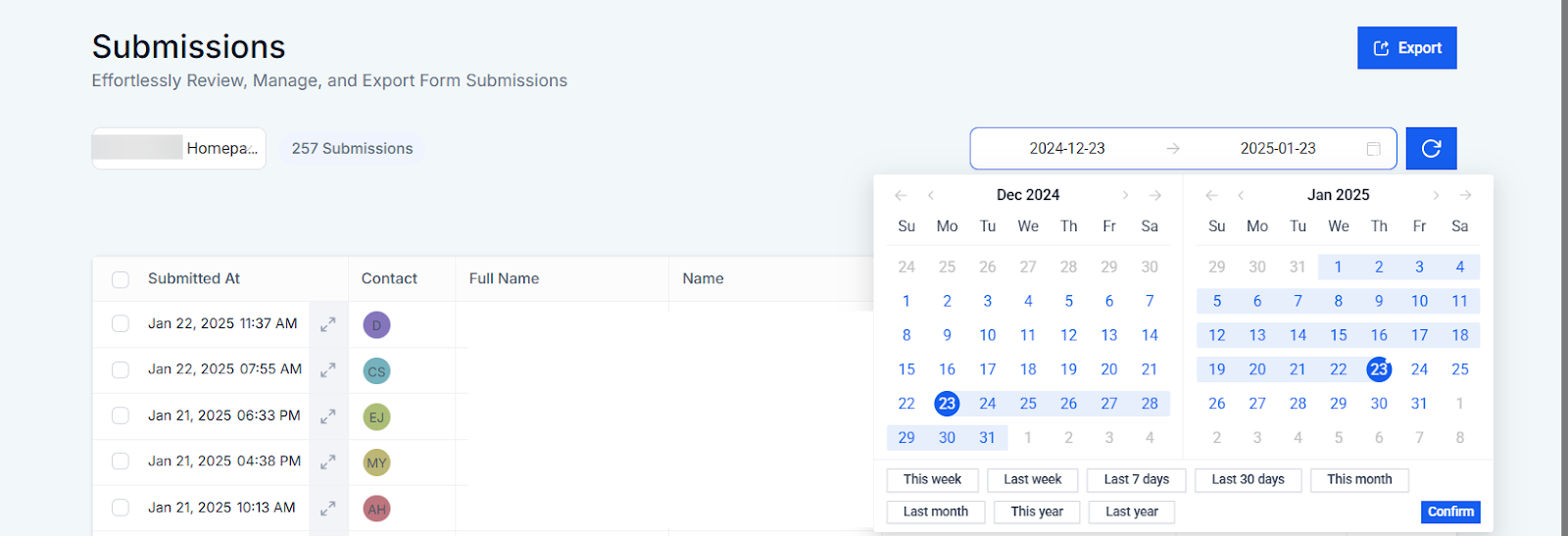
**Answer: You can filter submissions by date range or search for specific leads using their name, email, phone number, or contact ID.
Question: Will users experience any disruption from reCAPTCHA v3 when filling out forms?**
**Answer: No, the system works in the background, and only suspicious activity will trigger additional verification, ensuring a smooth experience for most users.
Question: Can I use the Submissions Interface for analyzing data or leads?**
**Answer: Absolutely. You can use it to:
Question: How can I filter submissions by date range or specific fields?**
**Answer: To filter submissions by a specific date range, use the Date Picker located at the top-right corner of the Submissions page. Additionally, you can search for submissions by specific criteria such as name, email, phone number, or contact ID using the Search Bar.
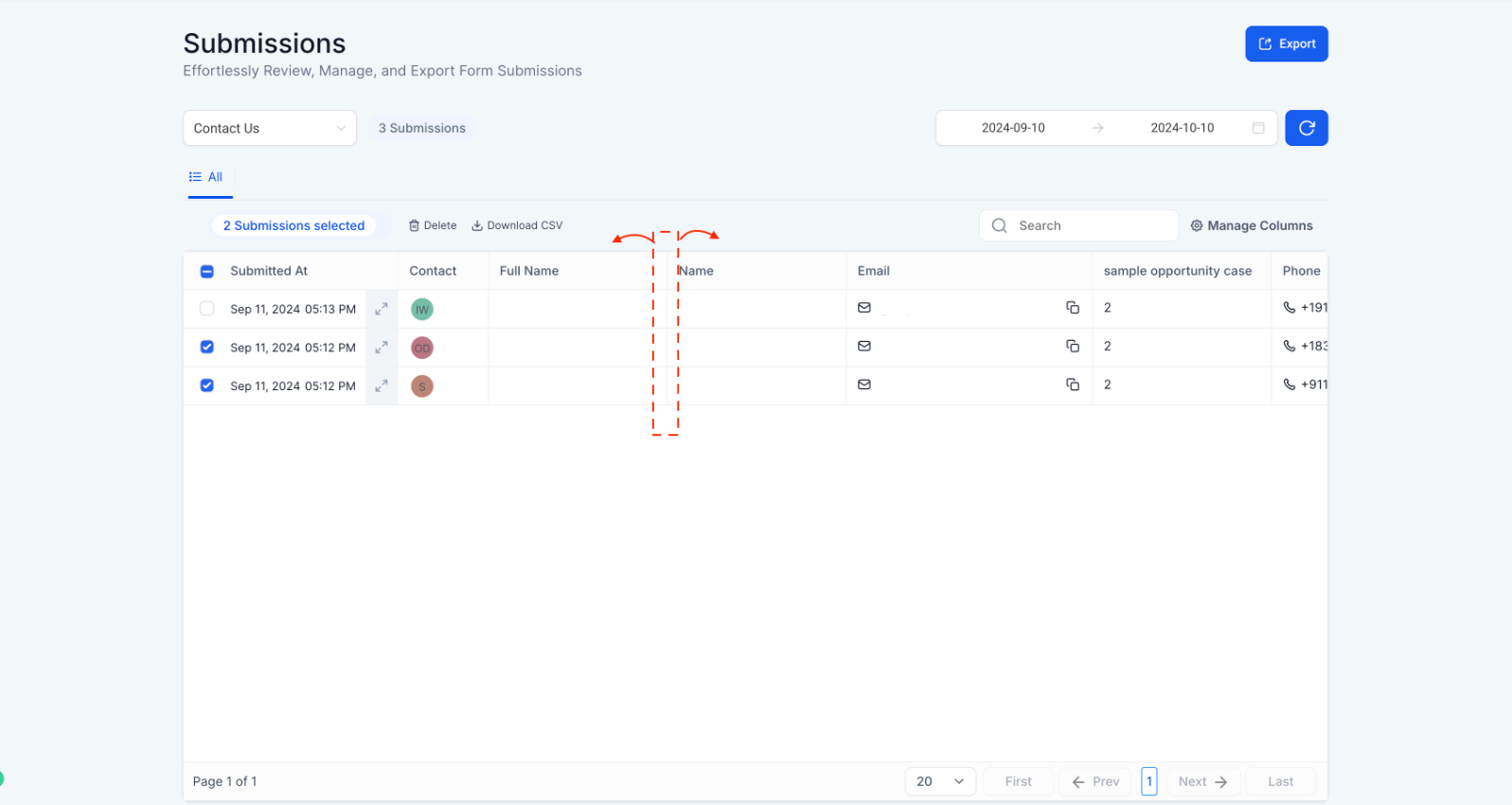
Question: Can I adjust the width of the columns in the table view?
Answer: Yes, you can manually resize column widths in the submissions table by clicking and dragging the edges of the columns to fit your preference.
Question: How do I set up automatic email notifications for new submissions?**
**Answer: Open the editor for your specific Form, Survey, or Quiz and click the bell icon. From there, toggle on the ‘Email Notification’ option to receive alerts whenever a new entry is submitted.